
iTechGuides is reader-supported. When you buy through links on our site, we may earn an affiliate commission. As an Amazon Associate I earn from qualifying purchases. Learn more
How to install Google Play Store on Kindle Fire depends on the tablet’s generation and Fire OS version. Google Play is not officially included on Amazon Fire tablets, but many relatively recent Fire OS 7 and Fire OS 8 models can use an unofficial, no-root sideload of four Google components. Very old Kindle Fire models may not support current Google apps.
Amazon now calls most of these devices Fire tablets; “Kindle Fire” is the older name. Installing Google Play does not convert Fire OS into standard Android, does not guarantee Play Protect certification, and does not make every Google Play app work.
Key takeaways
- Google Play Store is not officially supported on Amazon Fire tablets because Fire OS uses Amazon’s app ecosystem and services instead of Google Mobile Services.
- Fire OS 7 and Fire OS 8 tablets are generally the most sensible candidates for the common four-file sideload method, while Fire OS 4 and earlier tablets are usually poor candidates for current Google components.
- The standard installation sequence is Google Account Manager, Google Services Framework, Google Play services, and Google Play Store.
- Package compatibility depends on the tablet’s Android API level, CPU architecture, package format, and Fire OS generation; the newest APK is not automatically the correct APK.
- Installing Google Play does not make a Fire tablet Google-certified, and apps that depend on certification, Google Play services, DRM, billing, location, or notifications may still fail.
Is it possible to install Google Play Store on a Kindle Fire?
Yes, Google Play Store can be installed on many Amazon Fire tablets, but the installation is an unofficial sideload rather than an Amazon- or Google-supported feature. The usual method installs four related Android packages without rooting or unlocking the tablet.
Amazon’s official documentation explains that Fire OS does not use Google Play services in the same way as standard Android and that developers must use Amazon alternatives for unsupported Google APIs. Read Amazon’s explanation of porting an existing Android app to Fire OS before assuming that a Play Store installation provides full Android compatibility.
Popular on Amazon

- Like-New Amazon Fire HD 10 tablet is refurbished, tested, and certified to look and work like new and comes with the same limited warranty as a new device. Like-New Amazon devices may be packaged in generic Amazon-branded boxes.
- Do what you love, uninterrupted — 25% faster performance than the previous generation and 3 GB RAM are ideal for seamless streaming, reading, and gaming.
- High-def entertainment — A 10.1" 1080p Full HD display brings brilliant color to all your shows and games. Binge watch longer with 13-hour battery of video playback, 32 or 64 GB of storage, and up to 1 TB expandable storage with micro-SD card (sold separately).
- Thin, light, durable — Tap into entertainment from anywhere with a lightweight, durable design and strengthened glass made from aluminosilicate glass. As measured in a tumble test, Fire HD 10 is 2.7 times as durable as the Samsung Galaxy Tab A8 (2022).
- Stay up to speed — Use the 5 MP front-facing camera to Zoom with family and friends, or create content for social apps like Instagram and TikTok.
The method is most practical on relatively recent Fire tablets. A 2022–2024 tablet running Fire OS 8 is a substantially better prospect than a 2012 Kindle Fire running an old Android base. Compatibility is never guaranteed because Amazon and Google do not provide an official Play Store package matrix for every Fire tablet and Fire OS build.
Which Kindle Fire or Fire tablet do you have?
Identify the exact model before downloading anything. On the tablet, open Settings → Device Options → Device Model. On some versions, the same information appears under Settings → Device Options → About Fire Tablet.
Amazon’s device documentation also explains that Fire tablet generations are named by release year, not by screen size or by the number in a name such as “Fire HD 10.” Use Amazon’s Fire Tablet Device Specifications and its Fire tablet identification information to verify the model.
| Fire tablet examples | Generation and year | Android base/API | Fire OS | Practical outlook |
|---|---|---|---|---|
| Fire HD 8 (2024) | 12th generation | Android 11 / API 30 | Fire OS 8 | Generally a sensible candidate, subject to package matching |
| Fire HD 10 (2023) | 13th generation | Android 11 / API 30 | Fire OS 8 | Generally a sensible candidate, subject to package matching |
| Fire Max 11 (2023) | 13th generation | Android 11 / API 30 | Fire OS 8 | Generally a sensible candidate, subject to package matching |
| Fire HD 8 (2022) | 12th generation | Android 11 / API 30 | Fire OS 8 | Generally a sensible candidate, subject to package matching |
| Fire 7 (2022) | 12th generation | Android 11 / API 30 | Fire OS 8 | Generally a sensible candidate, subject to package matching |
| Fire HD 10 (2019 or 2021) | 9th or 11th generation | Android 9 / API 28 | Fire OS 7 | Often workable with compatible packages |
| Fire HD 8 (2018 or 2020) | 8th or 10th generation | Android 9 / API 28 | Fire OS 7 | Often workable with compatible packages |
| Fire HD 10 (2017) | 7th generation | Android 5.1 / API 22 | Fire OS 5 | May require old components and have limited app compatibility |
| Fire HD 8 (2016 or 2017) | 6th or 7th generation | Android 5.1 / API 22 | Fire OS 5 | Limited prospect for current Google apps |
| Kindle Fire HDX models | 3rd–4th generation | Android 4.4.2–5.1 | Fire OS 4–5 | Generally a poor prospect for a modern Play Store setup |
| Kindle Fire models from 2012 or earlier | 1st–2nd generation | Android 4.0.3 | Fire OS 3 | Not recommended for current Google components |
The Android/API and Fire OS information in the table comes from Amazon’s model documentation, including its Fire tablet model specifications. Fire OS 7 and Fire OS 8 are the most reasonable targets for this guide. Fire OS 5 may work only with older Google components, and Fire OS 4 or earlier is usually too old for a dependable modern installation.
What are you actually installing?
The process adds Google software to Fire OS; it does not replace Fire OS with ordinary Android. Four components are normally installed because the Play Store depends on background Google services and account components.
| Component | Purpose | Why it matters |
|---|---|---|
| Google Account Manager | Handles Google account authentication and sign-in | A mismatched version can cause sign-in loops or repeated “Checking info” messages |
| Google Services Framework | Provides supporting Google and Android framework functions | Works as part of the dependency chain rather than as a standalone store app |
| Google Play services | Provides APIs used by many Android applications | Apps using Google location, notifications, authentication, billing, or other APIs may depend on it |
| Google Play Store | Provides Google’s app-store interface and downloads | Should be installed last, after the supporting components |
The distinction matters: the Play Store is the visible shopping application, while Google Play services is background software that many downloaded apps use. A Fire tablet can have the Play Store icon and still lack a compatible environment for a particular app.
What are the risks and limitations?
Sideloading Google Play is an unsupported configuration. Amazon and Google do not provide normal support for this installation, and Google’s support community warns that unofficial APK sources can distribute malicious or modified files. The safety of the procedure depends heavily on verifying where every package came from and whether the package matches the tablet.
The Tool Desk
Outbyte PC Repair FREERepair Windows errors before they cause bigger problemsFix Now →Outbyte Driver Updater FREEScan for outdated or missing drivers - takes under a minuteDriver Scan →- Certification: A Fire tablet does not become a Google-certified Android device merely because the Play Store is installed. Some apps may remain unavailable because the device is not Play Protect certified.
- App behavior: Apps that require Google Play services, Google Play Integrity, Google Maps or location APIs, Firebase notifications, Google Play billing, DRM, or device attestation may malfunction or refuse to run.
- Updates: An Amazon Fire OS update may change permissions or compatibility and may break an otherwise working installation. Do not assume every update will break it, but keep that possibility in mind.
- Profiles: Installing the packages for the adult profile does not automatically make Play Store apps available inside Amazon Kids or a child profile.
- Management restrictions: School-managed or enterprise-managed tablets may block unknown-app installation or prevent package changes through administrator policy.
- Security and privacy: Do not install modded, cracked, beta, or repackaged APKs, and do not give a remote-support service your Google credentials.
Google’s discussion about Play Protect certification on Fire tablets illustrates why “the Play Store installed successfully” and “every Google app is supported” are different outcomes.
What should you do before installing Google Play?
- Confirm the model and Fire OS version. Record the model from Device Options and check the software information in the tablet’s settings. Do not choose packages based only on “Fire HD 8” or “Fire HD 10.”
- Install available Amazon system updates first. A later package choice depends on the Fire OS and Android base actually running on the tablet.
- Charge the tablet. Aim for at least 50% battery so the tablet does not shut down during downloads or installation.
- Use reliable Wi-Fi. A captive portal, VPN, filtering service, or unstable network can interfere with Google sign-in and first-run setup.
- Back up important files and photos. The ordinary method should not require a factory reset, but recovery can involve removing applications or, as a final resort, resetting the device.
- Check internal storage. If package installation fails, temporarily remove the microSD card and retry using internal storage.
- Do not root or unlock the tablet for this method. Rooting, debloating, Fire Toolbox, and paid “one-click jailbreak” utilities are not required for the standard four-package sideload.
How do you enable installation from unknown sources?
Enable the permission for the application that will open the downloaded files, usually Silk Browser or the Files app. Fire OS labels and locations vary by generation.
- On some tablets, open Settings → Security & Privacy → Apps From Unknown Sources.
- On older versions, open Settings → Security → Apps from Unknown Sources.
- On newer versions, open the relevant Install Unknown Apps screen and allow the browser or file manager that will launch the APK.
A permission granted to Silk Browser does not necessarily grant the same permission to Files. If the tablet displays a warning when you open an APK, use that prompt to open the permission page for the specific app. Amazon’s Fire user documentation describes the relevant Android package-installation behavior in its Fire tablet user guide.
After installation, return to the same settings page and disable the permission for the browser or file manager unless you still need it. Disabling the permission does not remove the installed Google components.
Free tools Windows power users keep installed
One-click scans. No signup required.
How do you choose the four Google packages?
Download one compatible package for each of the four components, but do not use a universal “latest APK” list. The correct files depend on the tablet’s Android API level, Fire OS generation, architecture, and package format.
The research available for this guide does not establish a current, officially sanctioned version matrix for every Fire model. Package versions also change over time, so this guide deliberately does not hard-code a four-file version set. Use a maintained compatibility guide or reputable APK archive that clearly identifies each package’s version, Android requirement, architecture, and publication information.
Before opening a downloaded file, check all of the following:
- Android requirement/API level: A package intended for Android 11/API 30 is not automatically suitable for a tablet based on Android 9/API 28 or Android 5.1/API 22.
- CPU architecture: Select the architecture supported by the Fire tablet, typically an ARM-based variant, rather than guessing from the tablet’s screen size or product name.
- Package format: Confirm whether the download is a normal APK or a split package such as APKS or XAPK. A split package cannot always be opened as if it were one ordinary APK.
- Package identity: Confirm that the package is the expected Google component and not a similarly named installer, modified build, or repackaged utility.
- Source provenance: Prefer the original developer or vendor where available. If an archive is necessary, use one that shows package metadata and publication details.
- Version matching: Keep Account Manager, Services Framework, Play services, and Play Store versions compatible with one another and with Fire OS.
Do not download a file merely because it is marked “latest.” A newer Google component can be incompatible with an older Fire OS build, and repeatedly replacing one package without matching the other three can make troubleshooting harder.
Recommended Free Tools
Also popular on Amazon

- Fire HD 8 offers an 8" HD display for seamless streaming and gaming, coupled with a 5MP rear facing camera for photos—with a thin, light, durable design.
- Fast and responsive with long battery life - With up to 4 GB RAM (2X more than 2022 release), 64GB of storage, and up to 1 TB of expandable storage (sold separately). Hexa-core processor for fast, responsive performance. Up to 13 hours of reading, browsing the web, watching videos, gaming, and listening to music at home and on-the-go.
- Save time, get creative - Enjoy three smart tools to help you send polished emails, quickly summarize webpages, and create unique wallpapers.
- Stream or download your favorite shows, movies, and games (like Minecraft, Roblox, and more). Enjoy your favorite content from Facebook, Hulu, Instagram, TikTok, and more through Amazon’s Appstore (Google Play not supported. Subscription for some apps required).
- Stay connected with family and friends - ask Alexa to make video calls to friends and family or download apps like Zoom.
How do you install Google Play Store on a Kindle Fire?
After downloading compatible files, install the four components in dependency order. Install each file fully before opening the next one, and do not launch Play Store until all four packages are installed.
- Google Account Manager
- Google Services Framework
- Google Play services
- Google Play Store
Open each APK from the browser’s download list or the Files app, approve the installation, and wait for the installer to finish. If Fire OS reports that the file cannot be installed, stop rather than installing a random alternative; the error usually indicates a package mismatch, conflict, damaged download, insufficient storage, or an unsupported tablet.
When all four installations finish, restart the tablet. The sequence above is a commonly used third-party sideload procedure, not an official Amazon-supported installation procedure.
How do you sign in and test the Play Store?
After restarting, open Google Play Store and sign in with a Google account. The first launch may show a blank or slowly loading screen, repeated sign-in prompts, a “Checking info” message, or a connection error while the components initialize.
- Wait several minutes after the first launch before assuming the installation failed.
- Check that the tablet has a working internet connection and that automatic date and time are enabled.
- Complete the Google sign-in process if the store requests it again.
- Allow the Play Store and Play services to update only if the tablet remains stable and the update is compatible.
- Install one small, nonessential free app as a test before installing an important, paid, work, banking, school, or DRM-dependent app.
If an app does not appear in search or shows as unavailable, that may be a compatibility or certification limitation rather than a failed Play Store installation.
How do you fix common Google Play installation problems?
Why does Google Play Store open and immediately close?
Google Play Store commonly closes when Google Play services has the wrong Android/API target, the four packages are mismatched, an incompatible split package was used, an older conflicting package remains, or a Fire OS update changed compatibility.
- Restart the tablet once.
- Open Settings → Apps & Notifications or Settings → Apps & Games, depending on Fire OS generation.
- Find Google Play Store and Google Play services, then clear the cache first.
- If clearing the cache does not help, clear app data for the affected application.
- If available, use the option to uninstall Play Store updates, then restart and test again.
- Do not casually remove Google Account Manager or Google Services Framework. Removing either can require reinstalling the full dependency chain.
- If the failure began immediately after sideloading, remove the Google components and retry only with a verified, matching package set.
Factory-resetting is a last resort. Back up files first, and do not reset merely because the Play Store is slow during its first launch.
What does “App not installed” or “Parse error” mean?
“App not installed” and “Parse error” usually indicate that the package does not match the tablet, the file is incomplete, or the installer received a package format it cannot handle as a single APK.
Quick wins for a faster PC:
Fix the driver behind crashes, sound loss and screen glitchesFind Drivers →Clear out junk files and repair common Windows errorsFree Scan →Scan for outdated or missing drivers - takes under a minuteDriver Scan →- Recheck the tablet’s Android/API level and exact generation.
- Confirm the CPU architecture.
- Check whether the download is APK, APKS, or XAPK rather than assuming all files install the same way.
- Remove the failed package before trying a properly matched version.
- Use internal storage and temporarily remove a microSD card if storage errors continue.
- Do not install a package intended for a newer Android release.
Why does Google sign-in fail or loop?
Google sign-in can fail because Account Manager and Services Framework do not match, the tablet’s date and time are wrong, the network blocks Google services, or the Fire OS version is too old for the selected components.
- Enable automatic date and time.
- Try signing in through a normal browser first.
- Try a different Wi-Fi network.
- Temporarily remove a VPN, DNS filter, or captive-portal connection.
- Reinstall the four components in order instead of adding individual random APKs.
If the tablet is based on an obsolete Android version, current Google services may simply no longer support the device. Repeatedly trying newer files will not solve that underlying limitation.
Why does Google Play say the tablet is not certified?
“Device is not certified” is a fundamental limitation of the Fire tablet environment, not necessarily an installation error. Sideloading the Play Store does not turn a Fire tablet into a Google-certified Android tablet.
Some applications may remain unavailable, and Google may not provide normal support for the configuration. Google’s discussion of Google Play delivery on Amazon Fire tablets reflects that Fire devices are outside the ordinary supported Google Play device path.
Crashes, No Sound, or Screen Glitches?
Random freezes, missing sound and display glitches usually trace back to one bad driver. Find and replace yours safely.Free scan · under a minutePC Slower Than It Used to Be?
A free scan shows the junk files, broken settings and background clutter dragging Windows down - then fixes them in one click.Free scan · Windows 10 & 11Why do apps install but fail to work?
An app can install successfully and still fail because the app requires Google APIs or device features that the Fire tablet does not fully provide. Common dependencies include Google Play services, Maps and location APIs, Firebase notifications, Play Integrity or certification checks, Google Play billing, DRM, and device-attestation services.
Amazon’s developer guidance says developers porting apps to Fire OS must replace unsupported Google Play services and APIs with Amazon-supported alternatives. That is why Gmail, Chrome, Google Maps, YouTube, games, banking apps, and streaming apps can have different results even on the same tablet.
What if an Amazon update breaks Google Play?
An Amazon system update may alter Fire OS permissions, background behavior, or package compatibility and may cause a previously working Google Play installation to stop working. Do not assume that updates always break the installation, and do not permanently disable system updates because doing so creates security and compatibility risks.
Also popular on Amazon
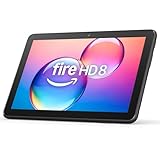
- Like-New Amazon Fire HD 8 tablet is refurbished, tested, and certified to look and work like new and comes with the same limited warranty as a new device. Like-New Amazon devices may be packaged in generic Amazon-branded boxes.
- Fire HD 8 offers an 8" HD display for seamless streaming and gaming, coupled with a 5MP rear facing camera for photos—with a thin, light, durable design.
- Responsive with all day battery life - Includes 3GB RAM (50% more than 2022 release), 32GB of storage, and up to 1 TB of expandable storage (sold separately). Up to 13 hours of reading, browsing the web, watching videos, gaming, and listening to music at home and on-the-go.
- Save time, get creative - Enjoy three smart tools to help you send polished emails, quickly summarize webpages, and create unique wallpapers.
- Stream or download your favorite shows, movies, and games (like Minecraft, Roblox, and more). Enjoy your favorite content from Facebook, Hulu, Instagram, TikTok, and more through Amazon’s Appstore (Google Play not supported. Subscription for some apps required).
Record the working Fire OS version and package versions. After an update, use only a verified compatibility procedure, and reinstall the complete matching set if necessary. If dependable app access matters more than experimentation, use the Amazon Appstore or a certified Android tablet instead.
How do you remove Google Play from a Fire tablet?
Remove the Google components through the tablet’s application settings rather than deleting files blindly. Open Settings → Apps & Notifications or Settings → Apps & Games, locate the Google packages, and use the available uninstall or uninstall-updates options.
- Start with Google Play Store and Google Play services.
- Remove Google Services Framework and Google Account Manager only if they are listed as removable applications and you intend to undo the entire installation.
- Restart the tablet.
- Disable the browser or Files permission under Install Unknown Apps or Apps From Unknown Sources.
Menu names differ by Fire OS version, and some packages may not offer the same removal controls. Do not remove system packages that are not clearly part of the sideload. If the tablet becomes unstable and ordinary removal does not restore it, back up personal data and use a factory reset only as a final recovery option.
What alternatives work without installing Google Play?
The safest option is to use the Amazon Appstore, which is the officially supported application store for Fire OS. Search there first for the service or game you need.
| Alternative | Best for | Trade-off |
|---|---|---|
| Amazon Appstore | Supported Fire OS installations and ordinary app updates | The catalog is not identical to Google Play |
| Silk Browser web versions | Gmail, Google Drive, Google Maps, YouTube, and other services with usable web interfaces | A website may lack native notifications, offline features, or full app functionality |
| Amazon services or replacements | Readers who want the most stable Fire OS experience | An Amazon alternative may not offer the same account, feature set, or app compatibility |
| Certified Android tablet | Google Play, Google payments, Play Protect, and broad Android app compatibility | Requires buying a different device |
| iPad | Apps that support iPadOS and readers who prefer Apple’s managed ecosystem | iPadOS does not provide Google Play Store |
Amazon lists service alternatives and Fire OS considerations in its Fire Tablet FAQ. A standard Android tablet is the most direct replacement when Google Play is the primary requirement. For mainstream Android tablet options, consult the manufacturer’s current tablet range at Samsung’s official tablet site; no particular model or current price is established by the research for this article.
Do these 3 things before closing this tab:
1Fix the driver behind crashes, sound loss and screen glitches2Repair Windows errors before they cause bigger problems3Scan for outdated or missing drivers - takes under a minuteShould you install Google Play or buy an Android tablet?
Install Google Play when the Fire tablet is a relatively recent Fire OS 7 or Fire OS 8 model, the desired app is unavailable from Amazon, and you accept unsupported software and possible breakage. Sideloading is especially reasonable for experimenting with ordinary apps that do not rely heavily on certification, DRM, billing, or advanced Google APIs.
Choose a certified Android tablet instead when the Fire tablet is from 2012–2014, when banking, work, school, streaming, or child-profile reliability is essential, when the device is managed by an organization, or when you cannot verify APK provenance. A certified Android tablet is also the better choice if you expect every Google Play app to work without troubleshooting.
The honest answer is that Google Play can extend the usefulness of a compatible Fire tablet, but it is not a complete substitute for Google-supported Android. Check the model first, match the four packages carefully, keep expectations realistic, and stop troubleshooting when the tablet’s age or app requirements make the workaround a poor fit.
Frequently Asked Questions
Does installing Google Play Store require rooting a Kindle Fire?
The common four-package sideload method usually does not require root on supported Fire tablets. The method remains unofficial, and compatibility depends on the Fire OS generation, Android API level, architecture, and Google package versions.
What’s actually slowing this PC down?
Pick the symptom - the matching free tool is one click away.
Can every Google Play app run after installation?
No. Apps that depend on Play Protect certification, Google Play Integrity, Google Play services, location, notifications, billing, DRM, or device attestation may be unavailable or malfunction even when the Play Store itself works.
Why is the latest Google Play APK not always the right one?
The latest APK may require a newer Android/API level or a different architecture than the Fire tablet provides. Account Manager, Services Framework, Play services, and Play Store must be selected as a compatible set.
Can I install Google Play apps in an Amazon Kids child profile?
Installing Google Play for the adult profile does not automatically make Play Store apps available inside Amazon Kids or a child profile. Profile-level app availability and parental controls are separate issues.
What is the safest alternative to Google Play on an old Fire tablet?
Use the Amazon Appstore or web versions of the required services. If reliable Google Play access is essential, a Google-certified Android tablet is generally a better option than repeatedly repairing an unsupported installation.
Recommended Free Tools
The Bottom Line
Bottom line: Google Play Store can be sideloaded on many newer Fire tablets, especially Fire OS 7 and Fire OS 8 models, but the process is unofficial and never guarantees full Google compatibility. Identify the tablet first, install only a correctly matched four-component package set, and choose a certified Android tablet when reliability matters more than experimentation.

