
The Tool Desk
Outbyte Driver Updater FREEFix the driver behind crashes, sound loss and screen glitchesFind Drivers →Outbyte PC Repair FREEClear out junk files and repair common Windows errorsFree Scan →iTechGuides is reader-supported. When you buy through links on our site, we may earn an affiliate commission. As an Amazon Associate I earn from qualifying purchases. Learn more
The wording of the text tells you which setting to change. Spoken dialogue, speaker labels, music cues, or sound-effect descriptions are subtitles or closed captions: open Netflix’s Audio & Subtitles menu during playback and choose Off or None. Values such as Mbps, resolution, FPS, codec, bitrate, buffer, timing, CDN, or server details are a device information overlay, controlled by your TV or streaming device’s Info, Display, Text, or Status control. Input name, channel information, volume, picture mode, and other TV settings likewise come from the TV or source device. The checks below identify the owner before you change anything.
| Symptom | Likely cause | First fix |
|---|---|---|
| Dialogue, speaker labels, music, or sound-effect descriptions | Netflix subtitles or closed captions | Playback controls → Audio & Subtitles → Off or None |
| Mbps, resolution, FPS, codec, bitrate, buffer, timing, CDN, or server details | TV or playback-device information overlay | Press Info, Display, Text, or Status on the relevant remote |
| Input name, channel, volume, picture mode, or TV-setting message | Television’s on-screen display | Use the TV remote’s matching display/status control |
| Text appears only during one title | Title-specific subtitle preference or subtitle availability | Open Audio & Subtitles for that title and select Off |
| Text appears on only one HDMI input or one TV/streaming device | Source or display device overlay | Switch to that input/device and use its remote or manual |
What does the text in Netflix’s top-left corner mean?
There are two fundamentally different overlays. Netflix controls captions; your television, console, set-top box, or streaming stick controls technical and status information. The same Netflix account can therefore show clean video on one device while another device displays text.
Read several words before pressing buttons:
- Dialogue or speaker labels (for example, a character’s name), plus “[music]”, “[applause]”, or other sound descriptions, indicate subtitles or closed captions. Subtitles generally transcribe dialogue; closed captions can also describe sounds. Netflix explains this distinction in its subtitle and closed-caption guidance.
- Technical values—Mbps, resolution, FPS, codec, bitrate, buffer, timing, CDN, or server details—indicate a playback statistics or developer-information overlay.
- Input name, channel information, volume, picture mode, or TV settings indicate the television or source device’s own on-screen display, not a Netflix caption.
Also note the scope. If the text appears across Netflix and other video apps, suspect the TV or source device first. If it appears on every device using the same Netflix account, a profile or title preference is more likely. If it appears only during one title, check that title’s subtitle track and language availability.
Quick wins for a faster PC:
Fix the driver behind crashes, sound loss and screen glitchesFind Drivers →Repair Windows errors before they cause bigger problemsFix Now →Scan for outdated or missing drivers - takes under a minuteDriver Scan →How do I turn off spoken dialogue and sound-effect text?
Use Netflix’s in-player menu; you do not need to change your TV’s picture or accessibility settings for a normal subtitle track.
Popular on Amazon

- 【Compatible Devices】Universal replacement remote control is compatible with TV brands for Samsung, LG, Vizio, Sony, Hisense, Onn, Sharp, RCA, Element, Westinghouse, Sanyo, Emerson, Philips, JVC, Sceptre, Sansui, Panasonic, Magnavox, Skyworth TV and More Brand Smart TVs. Compatible with of devices, including DVD/Blu-ray players, Media Streaming Players and more!
- 【NOT Compatible Devices】Universal remote is Not compatible with Roku Streaming Sticks, Roku Sound Bar, TLC Sound Bar, Hisense Sound Bar, Anker Sound Bar, Klipsch Sound Bar, All Fire TV, All TV Sticks, All TV Cube, Apple TV, Google Chromecast TV(This product can only be connected and paired via infrared) If you are unsure if our remote control is compatible with your device, please contact us.
- 【Simple Setup】Step 1: Find the device type you need in the code list. Then find and circle all the codes for the brand. Step 2: Press and hold down the (SETUP) button for 3 seconds until the red light on the remote turns on. Step 3: Press and release the (TV/STR/AUD) button on the remote, the red light will blink once and remain on. Step 4: Enter the first 4-digit code from code list. Step 5: Point the remote at the TV, and test the buttons on the remote to see if the TV responds as you would expect. If the buttons don't control the TV, repeat steps 2-4 and enter different code to test. Note:If all the code in the program fails, please check the instructions on page 7 "Automatic Code Search.
- 【Package Included】Package includes 1* Remote Control, 1* User Manual, and 1* Code list. The universal remote control is to use 2 * AAA alkaline batteries(Batteries are not included). Note: Please do not mix old and new batteries or mix different batteries together.
- 【After-Sales Service】We attach great importance to the customer's experience of using remote controls. If you have any questions about your order or product, please contact us and we will get back to you within 24 hours on working days.
- Start the affected film or episode and let the picture play.
- Reveal the playback controls. Click or tap the screen on a computer or phone; on many TVs and players press an up or down arrow on the remote; on Apple TV swipe up or press the up arrow.
- Open Audio & Subtitles.
- Under subtitles or captions, select Off, None, or the equivalent label shown on your device. Leave the dialogue audio language unchanged unless you also want to change spoken audio.
- Close the menu and verify that dialogue, speaker labels, music, and sound-effect descriptions have disappeared.
Menu wording and the gesture for revealing controls vary by device, so the option may be shown as “Subtitles: Off” rather than “None.” The playback-control procedure is documented by Netflix in its audio and subtitle instructions.
How do I remove Mbps, resolution, FPS, codec, or other technical information?
Netflix cannot turn off a TV- or player-generated statistics panel. While the title is playing, press the remote button labeled Info, Display, Text, Status, or a similar term. Pressing the same button again often hides the panel, but there is no universal shortcut across televisions, consoles, streaming sticks, browsers, and set-top boxes.
Also popular on Amazon

- 【All In One Remote】 Universal remote control for most TV: It works with most major TV: Samsung, Vizio, LG, Hisense, TCL, Philips, Sony Smart TV and Roku TV, allowing you to conveniently control different TVs with just one remote.
- 【Please note】 This universal remote is NOT compatible with the following devices: Roku Streaming Sticks Any TV Sticks (all brands) All TV Cubes Roku, TCL, Hisense, Anker, or Klipsch Sound Bars All Fi TV Devices This remote connects and pairs via infrared only. If you're unsure whether this remote works with your device, please contact us before purchasing.
- 【One-Click Streaming Access】 Get instant access to your favorite streaming apps like NFLX, Video, Dis+, and Hulu with dedicated hot keys—no more scrolling through menus.
- 【Quick & Easy Setup】 Start using your new remote right away. Designed for most major TVs, setup is a breeze: simply add two AAA batteries (not included), then press and hold the two setup buttons. The included manual will walk you through the rest—no fuss.
- 【Worry-Free 90-Day Warranty】 Your satisfaction is our priority. To ensure a great experience, we stand behind our products with a 90-day return warranty. If you have any questions, please contact us directly. We guarantee a response within 12 hours.
- Identify where the overlay originates. Test another app on the same TV. If the same Mbps, resolution, FPS, codec, bitrate, buffer, timing, CDN, or server fields appear there, the TV or source device owns it.
- Press the relevant Info/Display/Text/Status control while video is actually playing, not while the TV is on its home screen.
- If the panel remains, open the TV or player’s settings and look for information display, diagnostics, banner, or status options. Names and locations differ by exact model.
- Use the model’s manufacturer manual or support page when the button is unclear. Do not assume that a button that opens channel information on broadcast TV will control a streaming player connected by HDMI.
If the text shows an input name, channel information, volume, picture mode, or another TV setting, use the television remote rather than the Netflix app controls. A message that appears on only one HDMI input points to that input’s source device; one that appears on only one TV or streaming device points to that unit.
What’s actually slowing this PC down?
Pick the symptom - the matching free tool is one click away.
What should I test when captions are off but the text remains?
Use a scope test before resetting anything. It prevents you from changing a Netflix profile when the television is responsible.
Also popular on Amazon

- 【Package lncluded】 Pack of 2 remote. Two-pack remote control can solve your home backup remote control needs. Infrared remote no pairing or programming needed. Just Insert 2 Pcs*AAA batteries to get it work(Batteries and manual are not included)
- 【Applicable Type】This infrared replacement remote works with all Samsung Smart TV, LED, LCD, HDTV, 3D, Series TV,Compatible with All Samsung Series TVs. We offer you an authentic details same as we advertised.
- 【Key Features】The universal infrared TV remote features 3 shortcut buttons. It is perfect to replace your old or damaged Samsung TV Remote with the Loutoc remote.
- 【Quick Response】This is the updated infrared remote control for Samsung TVs. An outstanding response between TV and remotes, it will respond quickly in 0.5 seconds, available directly use within 10 meters (32 feet).
- 【After-sale Service】We provide 30 days warranty with no condition return or exchange. If you have any query, please contact us and we will get back to you as soon as possible within 24 hours.
- Try another title in Netflix. If the text is present only during one title, reopen Audio & Subtitles for that title. Some titles have different subtitle tracks or regional availability.
- Try another app. Text across Netflix and other video apps is strong evidence of a TV or playback-device overlay. Use that device’s Info/Display/Text/Status control.
- Try another HDMI input. If the text is limited to one HDMI input, inspect the connected console, set-top box, or streaming stick and its remote.
- Try another device or TV. If every device using the same Netflix account shows captions, check the profile and title behavior. If only one TV or streaming device shows technical fields, troubleshoot that hardware.
- Exit the title completely. Stop playback and return to the Netflix browse screen, then start the title again. This separates a title-specific overlay from a device banner that is stuck on screen.
Why do subtitles keep coming back after I select Off?
Several documented exceptions can override the normal preference. Netflix says a title produced in another region may not allow subtitles to be turned off. Subtitle preferences also behave differently for many Kids titles watched from an adult profile, and older device software can retain a previous setting.
- Xbox One: check the console’s closed-caption setting as well as Netflix’s Audio & Subtitles menu; the device-level setting can override the app.
- 2011 or 2012 Samsung Smart TVs: Netflix documents a specific workaround for subtitles that persist on these older models. Follow the model-specific instructions rather than applying a random reset.
- Kids viewing: Netflix says preferences are not saved for most Kids titles watched from an adult profile, so you may need to choose Off each time.
- Regional title limits: if Off is unavailable, the subtitle track may be mandatory for that title in your region.
Netflix lists these cases, along with device and profile guidance, in its subtitle troubleshooting help. They explain why a setting can appear correct yet return on the next episode.
Also popular on Amazon
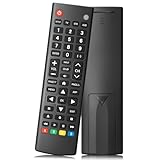
- Compatible TV Brands: Replacement Universal Smart TV Remote Control for TV brands including Samsung, LG, Hisense, TCL, Vizio, Sony, Onn, Toshiba, Philips, Element, Westinghouse, Sharp, Emerson, Sanyo, and RCA
- Compatible Other Devices: Universal Remote Control compatible with DVD, Blu ray Player, Soundbar, Streaming Media Player, Set Top Boxes, DVR, VCR, and Audio Devices including brands such as Sony, LG, Panasonic, Samsung, Bose, and Vizio
- Setup Methods: Find your TV code in the CODE LIST, press and hold down the SETUP button until the remote's red light turns on, press and release the chosen device button on the remote (TV/STR/AUD Button), enter the first 4-digit code for your device, point the remote at the device and test the buttons. If the buttons do not work as expected, repeat steps for the next code of the device until each button is working properly (Automatic pairing method on pages 8-9 of the manual)
- Package Includes: 1 Universal TV Remote Control, 1 User Manual, 1 Code List (batteries not included)
- Design Features: 26 feet long-distance remote control with 0.2 seconds fast response time, 50,000 times presses for durability, and requires 2 AAA batteries (batteries not included in package)
What is the safest recovery order for a stuck overlay?
After identifying the overlay, work from the least disruptive fix to the most disruptive. Keep your profile and downloads intact until the later steps.
- Close the title and reopen it. Exit the title completely, wait at the browse screen, and play it again.
- Restart the TV or streaming device. Power it off using its normal control, wait briefly, then start it again. This clears a temporary on-screen banner without deleting settings.
- Update the device and Netflix. Install available TV, console, streaming-player, phone, tablet, or browser updates, and update the Netflix app where your platform provides that option.
- Sign out and back in. Use Netflix’s sign-out command on the affected device, restart the app, and sign in again. This refreshes account and profile state but requires your credentials.
- Reset or reinstall only as a later step. A factory reset can erase network, picture, accessibility, and app settings; reinstalling Netflix removes local app data. Use these only after the caption menu, device control, restart, updates, and sign-out steps fail, and follow the exact device instructions.
Do not use a PC repair utility or promise that a reset will remove a TV-generated banner. If the overlay returns immediately after a reset, the exact TV or source-device manual is the appropriate next reference.
Independent reader supportYour contribution helps us test, update, and keep practical guides available for everyone.What if I do not have the original remote?
First check the device’s physical buttons and on-screen menus, or an official remote app supplied for that model. You need access to the control that owns the overlay; a Netflix-only phone control may not be able to dismiss a TV banner.
A compatible replacement can help when the original remote is missing or damaged, but button names and compatibility vary by model. A universal TV remote with an Info button suits someone who has confirmed the TV model and needs that specific Info function; verify compatibility before buying. It is optional, not the normal first fix.
How was this troubleshooting path chosen?
The decision points follow the control that can actually remove the text: wording distinguishes captions from technical or status overlays; appearance across Netflix, other video apps, HDMI inputs, titles, TVs, and streaming devices identifies scope; then the least disruptive device and account fixes come before reset or reinstall. Device-specific button sequences are intentionally not generalized because manufacturers use different labels and behavior.
Do these 3 things before closing this tab:
1Scan for outdated or missing drivers - takes under a minute2Repair Windows errors before they cause bigger problems3Fix the driver behind crashes, sound loss and screen glitchesAlso popular on Amazon

- PACKAGE INCLUDED: Pack of 2 remote. Two-pack remote control can solve your home backup remote control needs. Infrared remote no pairing or programming needed. Just Insert 2 Pcs*AAA batteries to get it work (Batteries and manual are not included)
- EXACT COMPATIBILITY: Acoyer universal remote control only for Roku Series TVs, Compatible with TCL Roku TVs, Hisense Roku TVs, Onn Roku TVs, Sharp Roku TVs, Element Roku TVs, Westinghouse Roku TVs, Philips Roku TVs, Insignia Roku TVs, JVC Roku TVs, RCA Roku TVs, Hitachi Roku TVs and Sanyo Roku TVs Series.
- NOT APPLICABLE: TV Remote is NOT Compatible with Roku Stick/Streaming Stick/ Box(1/2/3/4(HD/LT/XS/XD))/ Ultra/ Express/ Premiere/ Player. NOT Compatible with TCL TV, Hisense TV, Onn TV, Sharp TV, Element TV, Westinghouse TV, Philips TV, Insignia TV, JVC TV, RCA TV, Hitachi TV and Sanyo TVs.
- SHORTCUT BUTTONS: Get to favorite apps quickly with shortcut buttons and it have 4 shortcuts buttons. Precisely control far from 10 meters/30 feet and it supports over total 160,000 clicks for all buttons via approved tests.
- AFTER SALE SERVICE: Acoyer remote controls with an unlimited return and refund service in 1-year warranty. If you have any questions or concerns regarding your order, please feel to reach out to us.
Frequently Asked Questions
Can I disable Netflix subtitles for every profile at once?
Netflix subtitle behavior is tied to the viewing profile, title, device, and sometimes region. Set the preference on each profile that needs it, and expect to choose Off again for many Kids titles watched from an adult profile.
Why does the overlay vanish when I change HDMI inputs?
That pattern indicates the source on the original HDMI input is generating the message. Select the original input, play video from that source, and use its remote’s Info, Display, Text, or Status control; changing Netflix settings will not affect it.
Will clearing Netflix app data remove the text?
It can refresh app state, but it will not remove a TV-generated input, volume, picture-mode, or diagnostic banner. Treat clearing data or reinstalling as a later step, after identifying the overlay and restarting or updating the responsible device.
Why is the Off subtitle option missing for one movie?
Netflix notes that some titles produced in another region may not allow subtitles to be turned off. The available tracks can therefore differ by title and region even when your profile preference is unchanged.

