
Windows Errors? Fix Them Before They Spread
Repair common Windows errors and clear accumulated junk for a smoother, more stable PC - no reinstall needed.Free scan · no reinstallOutdated Drivers Are Slowing You Down
One free scan finds every outdated or missing driver and matches the right update for your exact hardware.Free scan · exact hardware matchiTechGuides is reader-supported. When you buy through links on our site, we may earn an affiliate commission. As an Amazon Associate I earn from qualifying purchases. Learn more
Google shows the “I’m not a robot” message when searches from your network resemble automated activity. That does not necessarily mean your computer is infected or that your Google account is blocked. The trigger may be a VPN, shared Wi-Fi address, IPv6 tunnel, search-scraping software, browser extension, malware on another device, or unusually repeated searches from the same public IP address.
Complete the CAPTCHA first. If it keeps returning, work through the checks below in order, starting with the browser and network tests that provide the most useful clues.
Start with the quickest fix
- Complete the reCAPTCHA challenge on the Google Search page.
- After verification succeeds, reload the page or submit your search again.
- If the challenge does not load, loops, or immediately reappears, continue with the troubleshooting steps below.
Google says the warning normally disappears after successful verification. Its detection applies mainly to traffic from the computer network, not only to the device displaying the message. Consequently, other people using the same Wi-Fi or VPN may experience the same CAPTCHA.
Quick wins for a faster PC:
Scan for outdated or missing drivers - takes under a minuteDriver Scan →Repair Windows errors before they cause bigger problemsFix Now →1. Check JavaScript and browser support
A missing checkbox, blank challenge, or broken CAPTCHA can result from disabled JavaScript, blocked site content, or an outdated browser. Google’s current reCAPTCHA support covers the two most recent major versions of Chrome, Firefox, Safari, and Chromium-based Edge on desktop, plus Chrome, Safari, and the Android native browser on mobile.
Popular on Amazon

- Auto-Light Balance: RightLight boosts brightness by up to 50%, reducing shadows so you look your best—compared to previous-generation Logitech webcams (1)
- Easy Plug-And-Play: The Brio 101 Logitech camera works with most video calling platforms, including Microsoft Teams, Zoom and Google Meet—no hassle; the computer camera with microphone for desktop just works
- Built-In Mic: The webcam with microphone lets others hear you clearly during video calls
- Privacy with a Slide: The integrated pc webcam cover makes it easy to get total, reliable privacy when you're not on a video call
- Full Clarity: Full HD 1080p webcam Video Clarity with microphone to look clearer in video calls
Enable JavaScript in Chrome
- Open Chrome and select More ⋮ > Settings.
- Open Privacy and security > Site settings.
- Select JavaScript.
- Set sites to allow JavaScript.
You can check Google’s site-specific setting as well. Open Google Search, select the icon to the left of the address bar, choose Site settings, and review the JavaScript permission. Reset or allow it if necessary, then reload the page.
2. Temporarily allow cookies and site data
Google and embedded reCAPTCHA content may need to store or read site data during verification. Strict cookie or tracking settings can therefore make the challenge fail even when the network itself is fine.
Chrome
To temporarily allow third-party cookies for the current Google page:
- Open Google Search.
- Select Third-party cookies blocked in the address bar, if that message appears.
- Turn on Third-party cookies.
- Close the dialog and reload the page.
For a general setting, open More ⋮ > Settings > Privacy and security > Third-party cookies, then choose Allow third-party cookies.
Incognito warning: Chrome blocks third-party cookies by default in Incognito mode. Incognito is therefore not a guaranteed CAPTCHA fix and can cause a challenge that depends on third-party content to loop.
Also popular on Amazon
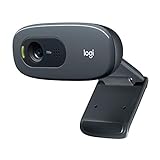
- Compatible with Nintendo Switch 2’s new GameChat mode
- Crisp HD 720p/30 fps video calls with diagonal 55° field of view and auto light correction. Compatible with popular platforms including Skype and Zoom.
- The built-in noise-reducing mic makes sure your voice comes across clearly up to 1.5 meters away, even if you’re in busy surroundings.
- C270’s RightLight 2 feature adjusts to lighting conditions, producing brighter, contrasted images to help you look good in all your conference calls.
- The adjustable universal clip lets you attach the camera securely to your screen or laptop, or fold the clip and set the webcam on a shelf. You’re always ready for your next video call.
Edge
- Select Settings and more … > Settings.
- Open Privacy, search, and services.
- Select Cookies.
- Temporarily relax cookie or tracking restrictions and test Google again.
Edge’s Strict tracking prevention can block cross-site cookies and embedded site data that some page components need.
Firefox
To remove Google’s stored site data, open Google Search, select the padlock or site-information icon to the left of the address bar, and choose Clear Cookies and Site Data.
Recommended Free Tools
For a broader reset, go to ☰ > Settings > Privacy & Security > Cookies and Site Data > Clear Data…. Select Cookies and Site Data and Temporary cached files and pages, then select Clear.
3. Disable extensions as a diagnostic test
Privacy, ad-blocking, script-blocking, proxy, automation, fingerprinting, and user-agent extensions can interfere with the CAPTCHA page or create repeated background requests. Disabling them is a troubleshooting test; it does not prove that an extension caused Google’s network warning.
Chrome
- Select More ⋮ > Extensions > Manage extensions.
- Turn off extensions, especially privacy, ad-blocking, proxy, automation, and user-agent tools.
- Reload Google Search and test again.
Edge
Select the Extensions puzzle-piece icon, choose Manage Extensions, and turn off extensions with their toggles.
Also popular on Amazon

- 【Full HD 1080P Webcam】Powered by a 1080p FHD two-MP CMOS, the NexiGo N60 Webcam produces exceptionally sharp and clear videos at resolutions up to 1920 x 1080 with 30fps. The 3.6mm glass lens provides a crisp image at fixed distances and is optimized between 19.6 inches to 13 feet, making it ideal for almost any indoor use.
- 【Wide Compatibility】Works with USB 2.0/3.0, no additional drivers required. Ready to use in approximately one minute or less on any compatible device. Compatible with Mac OS X 10.7 and higher / Windows 7, 8, 10 & 11 / Android 4.0 or higher / Linux 2.6.24 / Chrome OS 29.0.1547 / Ubuntu Version 10.04 or above. Not compatible with XBOX/PS4/PS5.
- 【Built-in Noise-Cancelling Microphone】The built-in noise-canceling microphone reduces ambient noise to enhance the sound quality of your video. Great for Zoom / Facetime / Video Calling / OBS / Twitch / Facebook / YouTube / Conferencing / Gaming / Streaming / Recording / Online School.
- 【USB Webcam with Privacy Protection Cover】The privacy cover blocks the lens when the webcam is not in use. It's perfect to help provide security and peace of mind to anyone, from individuals to large companies. 【Note:】Please contact our support for firmware update if you have noticed any audio delays.
- 【Wide Compatibility】Works with USB 2.0/3.0, no additional drivers required. Ready to use in approximately one minute or less on any compatible device. Compatible with Mac OS X 10.7 and higher / Windows 7, 10 & 11, Pro / Android 4.0 or higher / Linux 2.6.24 / Chrome OS 29.0.1547 / Ubuntu Version 10.04 or above. Not compatible with XBOX/PS4/PS5.
Firefox
Open ☰ > Add-ons and themes > Extensions, then turn off an extension using its blue toggle. For a broader test, choose ☰ > Help > Troubleshoot Mode… > Restart. This temporarily disables extensions, uses the default theme, and turns off hardware acceleration.
4. Disconnect your VPN or proxy
Google specifically lists VPNs and IPv6 tunnel services as possible sources of automated-looking traffic. A VPN exit address may be shared by many users, including users or services sending repeated automated searches.
- Disconnect the VPN.
- Close and reopen the browser.
- Search Google again.
- If the CAPTCHA disappears, contact the VPN provider or use another VPN server or network.
If Google works as soon as the VPN is disconnected, changing your Google password is unlikely to address the cause. The useful clue is the network change.
5. Test another network
Connect the same device to a phone hotspot, a different Wi-Fi connection, or another wired network. Then open Google Search and repeat the test.
| Result | What it suggests |
|---|---|
| Works on a hotspot but not home Wi-Fi | The home network, public IP reputation, VPN, proxy, or another device on that network may be involved. |
| The CAPTCHA appears on every device using the same Wi-Fi | The shared network, ISP, VPN, proxy, or another network user is the more likely category. |
| It works in one browser but not another | Browser settings, cookies, extensions, or browser version are likely factors. |
If the issue follows the original network, ask the network administrator or internet provider to investigate. Google does not prescribe restarting the router or guarantee that changing the IP address will solve the problem.
Also popular on Amazon

- 1080P Webcam with Cover for Video Calls - EMEET computer webcam provides design and Optimization for professional video streaming. Realistic 1920 x 1080p video, 5-layer anti-glare lens, providing smooth video. C960 computer camera delivers 1920x1080 video with fixed focus (11.8–118.1 inches), so as to provide a clearer image. C960 USB webcam has a cover and can be removed automatically to meet your needs for privacy. For optimal image performance, use the webcam in a well-lit environment.
- Built-in 2 Omnidirectional Mics - EMEET webcam with microphone for desktop features 2 built-in omnidirectional microphones, picking up your voice to create clear audio for communication. When installing the webcam, select EMEET C960 as the default microphone input device in your computer and video applications and select C960 as the default device in Zoom/Teams and ensure microphone permissions are enabled for proper use. Please note that C960 does not include built-in speakers.
- Automatic Light Adjustment - Automatic exposure adjustment is applied in EMEET HD webcam 1080p so that the streaming webcam can deliver stable image performance. EMEET C960 camera for computer also features color adjustment and exposure optimization to help you look your best. For optimal video quality, it is recommended to use the webcam in normal or well-lit environments and select suitable video settings in your application. Proper lighting helps achieve a clearer and more balanced image.
- Plug-and-Play & Upgraded USB Connectivity - New C960 webcam features both USB Type-A & A-to-C adapter connections for wider compatibility. For stable performance, connect the webcam directly to the computer's main USB port and ensure the device is recognized correctly. If a hub or docking station is used, please ensure it provides sufficient power and stable data transmission, as limited ports may affect performance. 90° wide-angle lens captures more participants without frequent adjustments.
- High Compatibility & Multi Application - C960 webcam for laptop is compatible with Windows 10/11, macOS 10.14+, and Android TV 7.0+. Not supported: Windows Hello, TVs, tablets, or game consoles. It works with Zoom, Teams, Facetime, Google Meet, YouTube and more. Please select C960 webcam as the default camera and microphone device in your application and ensure camera/microphone permissions are enabled, especially on macOS. (Tips: Incompatible with Windows Hello)
6. Check devices and automated software on the network
Google lists robots, search scrapers, rank-checking tools, automated services, and malware among the possible causes. Malware on another computer or phone using the same network can also affect your searches.
On a home or office network, check for:
- SEO rank-checking or search-scraping software
- Browser automation tools
- Programs configured to repeatedly query Google
- Recently installed suspicious applications
- Unwanted browser extensions
- Malware on computers, phones, or other connected devices
Stop or remove the software generating automated traffic and run appropriate security scans. On a business, school, or public network, the administrator may need to identify the source. Normal searching should resume after the automated traffic stops, although Google may continue presenting challenges temporarily.
7. Clear only Google’s stored site data
Do this before clearing every browser cookie. Clearing all cookies signs you out of many websites and removes saved preferences, while deleting Google’s site data is a more focused test.
Chrome
- Select More ⋮ > Settings.
- Open Privacy and security > Third-party cookies.
- Select See all site data and permissions.
- Search for
google.com. - Select Delete beside the matching entry and confirm with Delete.
Return to Google Search and complete the CAPTCHA again. Clearing site data can repair a damaged browser state, but it will not remove malware, stop an automated program, or change a VPN or shared network’s reputation.
The Tool Desk
Outbyte PC Repair FREERepair Windows errors before they cause bigger problemsFix Now →Outbyte Driver Updater FREEFix the driver behind crashes, sound loss and screen glitchesFind Drivers →What the symptom tells you
| Symptom | Likely category |
|---|---|
| The checkbox is missing or the page is blank | Outdated browser, disabled JavaScript, blocked cookies, or privacy filtering |
| Verification succeeds but the same page returns | The network is still being flagged, or the browser cannot preserve verification state |
| The CAPTCHA vanishes when the VPN is disconnected | VPN exit address, IPv6 tunnel, or activity from another VPN user |
| Every device on the network sees it | Shared IP, ISP, VPN, proxy, or automated traffic from another device |
| Google’s reCAPTCHA test works but the original site does not | The originating website may have a reCAPTCHA configuration problem |
Common misconceptions
- “The CAPTCHA proves my computer has a virus.” No. Malware is one possibility among several, including VPNs, shared networks, automated software, and ISP or administrator-level traffic.
- “It is tied to my Google account.” Not necessarily. Google’s explanation focuses on network traffic, including shared networks and VPNs.
- “Incognito always fixes it.” No. Chrome blocks third-party cookies by default in Incognito, which can make some CAPTCHA interfaces fail.
- “Clearing the cache permanently removes the block.” It may fix a browser-state problem, but it cannot stop automated traffic or repair a network reputation issue.
FAQ
Why does Google keep asking me to prove I am not a robot?
Google has detected search traffic from your network that resembles automation. A VPN, shared Wi-Fi address, proxy, IPv6 tunnel, search tool, browser extension, or another device on the network may be responsible.
Also popular on Amazon

- HD lighting adjustment and autofocus: The Logitech webcam automatically fine-tunes lighting for bright, sharp images even in low light. A reliable addition to office supplies, it’s a great webcam for streaming and an ideal webcam for laptop use
- Full HD 1080p video calling and recording at 30 fps. You'll make a strong impression with this webcam for PC that features crisp, clearly detailed, and vibrantly colored video
- Advanced capture software: Easily create and share video content with this Logitech camera that is suitable for use as a desktop computer camera or webcam for monitor
- Full HD Webcam: The Logitech C920 Web Camera is a 1080p webcam
- This Logitech camera for computer comes with a 3-month XSplit VCam license and no privacy shutter. XSplit VCam lets you remove, replace and blur your background without a green screen
Can a VPN cause the “I’m not a robot” CAPTCHA?
Yes. Google identifies VPNs and IPv6 tunnel services as possible causes. Disconnect the VPN, restart the browser, and test Google again. If the warning disappears, contact the VPN provider or use another network.
Will clearing cookies fix Google’s CAPTCHA?
It can fix a browser state or verification-cookie problem, but it will not stop automated traffic or change the reputation of a shared IP address. Clear Google’s site data first rather than all browser cookies.
Does the CAPTCHA mean my computer is infected?
No. Malware is only one possible cause. The warning can also result from shared networks, VPNs, proxies, automated search software, browser settings, or activity from another device on the same connection.
The Bottom Line
Complete the CAPTCHA, then test the browser and network separately. Enable JavaScript, temporarily relax cookie and extension restrictions, disconnect the VPN, and compare your normal connection with a phone hotspot. If every device on one network is affected, investigate automated traffic or malware on that network and contact its administrator or ISP.


Hey! Would you mind if I share your blog with my
zynga group? There’s a lot of people that I think would
really appreciate your content. Please let me know.
Cheers