
Quick wins for a faster PC:
Clear out junk files and repair common Windows errorsFree Scan →Scan for outdated or missing drivers - takes under a minuteDriver Scan →Repair Windows errors before they cause bigger problemsFix Now →iTechGuides is reader-supported. When you buy through links on our site, we may earn an affiliate commission. As an Amazon Associate I earn from qualifying purchases. Learn more
If Call of Duty is missing from the Xbox app or Microsoft Store, it has not necessarily been removed. The usual causes are a different Microsoft account, region or family restrictions, an incompatible Windows device, stale Store data, pending updates, or a damaged Xbox/Gaming Services installation. Work through the checks in this order: verify account and eligibility, restart after Windows updates, run wsreset.exe, update Microsoft Store and Xbox, repair or reset the apps, refresh Gaming Services if Xbox content will not load, and reinstall only at the end.
Microsoft’s guidance does not establish a current Call of Duty-specific outage or a definitive catalog change. Confirm the current Store listing, entitlement, platform and region before treating a missing result as delisting.
| # | Preview | Product | Price | |
|---|---|---|---|---|
| 1 |
|
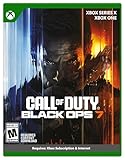
Call of Duty: Black Ops 7 | Cross-Gen Bundle | XBOX Series X and XBOX One | $34.99 | Buy on Amazon |
| 2 |

|
Call of Duty: Modern Warfare 4 | Standard Edition | XBOX Series X | $69.99 | Buy on Amazon |
| 3 |

|
Call of Duty: Black Ops Cold War (Xbox X) | $26.99 | Buy on Amazon |
Identify what “not appearing” means
The symptom determines whether you are dealing with catalog visibility, account authorization or a local Windows component. Check the Store and Xbox app separately, then use the pattern below to choose the right branch.
| What you see | What it usually points to | Best next move |
|---|---|---|
| Searching the Microsoft Store returns no Call of Duty result | Region availability, family settings, device compatibility, account authorization, Store cache or a catalog change | Complete the account, region and compatibility checks, then restart, run wsreset.exe and update the apps |
| The page appears but says unavailable or cannot be installed | Entitlement, account, device compatibility, pending Windows restart or a Store installation fault | Confirm the purchasing or Game Pass account, install updates and restart, then repair the Store and Xbox apps |
| Call of Duty is missing only from the Xbox app library | The Xbox app is signed into a different account, or Gaming Services is not loading the library | Match the Xbox and Store accounts, update both apps and repair Xbox; refresh Gaming Services if the library remains stuck |
| Every Microsoft Store app is missing or downloads fail | Store registration, administrator policy, firewall or proxy interference, or a broader Windows Update problem | Use the advanced Store checks after the normal reset and repair sequence |
| The listing is visible, but installation fails with an error | Damaged app state, Gaming Services failure, blocked package endpoints or an incomplete update | Record the exact error, repair or reset the affected apps, and only then reinstall |
Microsoft notes that an app can be hidden when it is unavailable in your country or region, restricted by family settings, incompatible with the device or not authorized for the PC. A Windows update can also require a restart before Store installation works.
#1 Best Overall
- XBOX CROSS-GEN BUNDLE – Includes Call of Duty: Black Ops 7 for Xbox Series X, and Xbox One devices with a disc drive.
- CALL OF DUTY: BLACK OPS 7 – Treyarch and Raven Software are bringing players the most mind-bending Black Ops ever.
- CAMPAIGN MODE – Squad up or go solo in an innovative Co-Op Campaign that redefines the Black Ops experience. Take on high-stakes challenges across a wide spectrum of environments, from the neon-lit rooftops of Japan to the Mediterranean coast, and even into the deepest corners of the human psyche.
- MULTIPLAYER MODE – Multiplayer explodes out of the gate with 16 electrifying 6v6 maps and two 20v20 maps at launch. From futuristic Tokyo vistas to the frozen, unforgiving wilds of Alaska, every environment is brimming with danger and opportunity. Master a cutting-edge arsenal and outmaneuver your enemies with an evolved Omnimovement system.
- ROUND-BASED ZOMBIES MODE – The nightmare begins where reality ends. Trapped in the heart of the Dark Aether, the crew is thrust into a vast, ever-shifting hellscape. This isn’t just survival. It’s a descent into madness.
Confirm the account, entitlement and platform first
Use the Microsoft account that owns access
Sign in to the Microsoft account that owns the Call of Duty purchase or the Game Pass entitlement you intend to use. Open the Xbox app account menu and the Microsoft Store profile menu and check the email address in each. If they differ, sign out of the incorrect account and sign in with the owning account before troubleshooting the Store itself. A Store page can be hidden or marked unavailable when the current account is not authorized for that PC.
Do not assume that being signed in to Windows proves that both apps use the same identity. Xbox and Store can retain separate sessions. Check both profiles after every reset, because resetting an app can sign you out and make a previously correct setup look broken.
Check country, region and family controls
Store catalogs are regional. Microsoft states that not all apps are available worldwide, so a result that appears for another account or location may not appear for yours. Review the country or region configured for Windows and for the Microsoft account, and check whether a family organizer has limited games or age-rated content. Do not change regions simply to bypass a restriction: first establish which region and family policy the account is supposed to use.
Windows Errors? Fix Them Before They Spread
Repair common Windows errors and clear accumulated junk for a smoother, more stable PC - no reinstall needed.Free scan · no reinstallCrashes, No Sound, or Screen Glitches?
Random freezes, missing sound and display glitches usually trace back to one bad driver. Find and replace yours safely.Free scan · under a minuteA region mismatch can produce a completely empty search rather than a clear error. Record the intended region before contacting support, and avoid repeatedly switching it while testing; changing variables makes it harder to tell whether a later result came from a catalog change or a local cache refresh.
Verify the Windows device and edition
Make sure the PC meets the compatibility requirements shown for the current Store listing and that you are using a supported Windows 10 or Windows 11 installation. Compatibility can include the Windows version, architecture, hardware features and available storage. If the listing is hidden rather than merely failing during installation, incompatibility is one of the documented explanations.
Compare the requirements on the listing with the computer on which you are searching. If Call of Duty appears on another compatible PC under the same account but not on this one, that difference is useful evidence of a device-compatibility or Windows-state issue rather than proof of a global removal.
Check the current listing instead of assuming removal
Microsoft’s guidance does not confirm a current Call of Duty-specific delisting, outage or entitlement defect. Search the Microsoft Store while signed in to the correct account and verify that the page corresponds to your intended PC platform. If the page is absent only for one region or account, that evidence is more consistent with availability or authorization than with a global removal.
Free tools Windows power users keep installed
One-click scans. No signup required.
Fix the problem in the recommended order
1. Install Windows updates and restart
- Open Settings > Windows Update.
- Select Check for updates and install every available update.
- Restart Windows, even if the update screen does not prominently request it.
- After the restart, search for Call of Duty again in Microsoft Store and check the Xbox app library.
Microsoft specifically warns that a recent update may need a restart before Store installation works. This is a low-risk check, so perform it before clearing data or reinstalling anything. If Windows reports that a restart is pending, do not judge the Store result until that restart has completed.
2. Reset the Microsoft Store cache with wsreset.exe
- Press Windows key + R to open the Run dialog.
- Type
wsreset.exeand select OK. - Wait while the blank command window runs. It should close automatically after roughly ten seconds, and Microsoft Store should open.
- Search for Call of Duty again and test whether the page or install button now appears.
This reset targets stale Store cache data. It does not change your Microsoft account, region or purchase entitlement. If the same search is still empty, continue with updates and app repair rather than repeatedly running the command. Running it several times does not compensate for a wrong account or a regional restriction.
3. Update Microsoft Store, Xbox and Gaming Services
- Open Microsoft Store.
- Select Library > Get updates.
- Install available updates for Microsoft Store, Xbox and Gaming Services.
- When updates finish, close and reopen the Xbox app, then search for Call of Duty again.
Keep the PC connected to the internet during this step. Microsoft’s Windows 10/11 troubleshooting flow places Store updates before repair, reset and reinstall because an old Store or Xbox client can fail to display or install current content. If an update is listed but will not complete, note its error before moving on; that points to a wider Store or network issue.
4. Repair Xbox and Microsoft Store
Repair is the next escalation because it replaces damaged app components without immediately deleting app data.
Recommended Free Tools
Rank #2
- BONUS 2X OFFER — Purchase Call of Duty: Modern Warfare 4 at Amazon and receive 5 hours of Double XP.**
- PRE-ORDER BONUS — Pre-order and unlock the Hunter Killer Operator Skin and the Gilded Pearl Camo Pack.*
- GLOBE‑SPANNING CAMPAIGN — Fight across the Korean Peninsula, New York, Paris, and Mumbai in a high‑stakes narrative where global conflict escalates and survival depends on tactical precision.
- MULTIPLAYER BUILT ON CONTROL — Engage in grounded, precise combat where fluid movement, player choice, and refined mechanics give you greater control in every firefight.
- TACTICAL DMZ OPERATIONS — Deploy behind enemy lines as an off‑the‑books asset, making high‑risk decisions on objectives and extraction in a dynamic mode where every run counts.
- Open Settings > Apps > Installed apps.
- Find Xbox, open its three-dot menu and choose Advanced options.
- Select Repair, wait for Windows to finish, then reopen Xbox and test the listing.
- If the Store itself still behaves incorrectly, repeat the same path for Microsoft Store and select Repair.
Do not skip directly to reinstall if Repair changes the behavior; a visible listing after repair indicates that the local app state, rather than the catalog, was the immediate problem. Test the two apps separately so you know whether Xbox, Store or both required repair.
5. Reset the affected app if Repair does not help
- Return to Settings > Apps > Installed apps > Xbox > Advanced options.
- Select Reset and confirm the warning.
- If Microsoft Store is still the failing component, use the same Advanced options > Reset path for Microsoft Store.
- Open the app, sign in again if prompted, and search for Call of Duty.
Reset clears the app’s stored data, so expect to authenticate again and lose local app preferences. It does not establish or change ownership of the game. Test after each app reset so you know which component changed the result. If resetting Xbox restores its library but the Store remains empty, continue with the Store-specific checks rather than resetting both apps again.
6. Refresh Gaming Services when Xbox content will not load
Gaming Services is the Windows component that supports Xbox app content and game installation. Refresh it when the Xbox library stays empty, Xbox reports that Gaming Services is missing, or the app remains stuck after Store and Xbox repair.
Microsoft staff guidance uses an elevated PowerShell removal followed by reopening the Gaming Services listing in Microsoft Store. Because those commands remove and recreate a system package, use the commands from the current Microsoft guidance rather than copying an unverified command from a forum. Record any displayed error code and the exact command step that failed. After Gaming Services is reinstalled, restart Windows, open Xbox and check the listing again.
The Tool Desk
Outbyte PC Repair FREEClear out junk files and repair common Windows errorsFree Scan →Outbyte Driver Updater FREEFix the driver behind crashes, sound loss and screen glitchesFind Drivers →Do not use this advanced step merely because Call of Duty is absent from one regional search. It is intended for an Xbox library or Gaming Services failure. If Xbox content loads normally and only this title is unavailable, return to account, region, entitlement and compatibility checks.
7. Reinstall only after the earlier checks
Reinstalling is a later step, not the first response to a missing search result. If the Call of Duty page is visible but the installation remains damaged after updates, cache reset, repair, reset and Gaming Services refresh:
- Open Microsoft Store and select Library.
- Choose the Call of Duty entry, or the Xbox app entry if the client itself is damaged.
- Select Install or Reinstall and allow the package to finish.
- Launch Xbox again and sign in with the account that owns access.
If no page or library entry exists at all, reinstalling a local app cannot create catalog availability. Resolve the account, region, compatibility or Store-wide issue first. Reinstalling also consumes download time and can leave the original authorization problem unchanged.
8. Check Store registration, policy and network endpoints when all downloads fail
When unrelated Microsoft Store apps also fail to appear or download, treat the issue as a Store or Windows configuration problem rather than a Call of Duty problem. Microsoft Learn documents three checks:
Do these 3 things before closing this tab:
1Repair Windows errors before they cause bigger problems2Fix the driver behind crashes, sound loss and screen glitches3Clear out junk files and repair common Windows errors- Store registration: verify that Microsoft Store is registered for the current user. A registration problem can prevent package discovery or installation.
- Administrator policy: check whether an organization or local administrator has disabled Microsoft Store. Work or school-managed PCs may enforce this intentionally.
- Firewall and proxy access: confirm that firewall or proxy rules allow Microsoft Store and Windows Update endpoints. A browser connection alone does not prove that these package services are reachable.
Microsoft also documents the Windows Package Manager as an alternative package route. In an appropriately configured terminal, the syntax is winget search <App name> to find a package and winget install <App name> to install one. The exact package returned depends on the name, account and device; do not assume that a search result grants Call of Duty entitlement or bypasses regional restrictions. On a managed PC, policy may also block this route, so coordinate with the administrator instead of attempting to circumvent controls.
A quick decision path
Use scope and visibility to avoid unnecessary changes. If only Call of Duty is missing, begin with account, entitlement, region, family settings and device compatibility. If the page is visible but unavailable, verify the owning account and complete Windows updates and a restart. If the page returns after wsreset.exe, continue with Store, Xbox and Gaming Services updates. If Xbox alone has an empty library, repair Xbox and then refresh Gaming Services. If every Store app is affected, prioritize registration, policy and firewall or proxy checks. This four-axis comparison—visibility, scope, account/platform and component state—separates a catalog or entitlement issue from a local Windows failure.
Common pitfalls to avoid
- Changing regions as a first resort: a region change can obscure the account’s normal catalog and does not create entitlement.
- Running cache reset repeatedly:
wsreset.exeaddresses stale Store data, not family restrictions, incompatible hardware or a missing purchase. - Resetting both apps without testing: reset clears stored data and may require new sign-in, so test after each component.
- Copying random PowerShell commands: Gaming Services removal changes system packages; use current Microsoft instructions and record errors.
- Reinstalling before diagnosing scope: a reinstall cannot make a region-restricted or unauthorized listing appear.
- Assuming a browser works, so Store endpoints work: firewall and proxy rules can allow ordinary web traffic while blocking package services.
Use the result of each check to choose the next branch
| Result after a step | What that result tells you | Continue with |
|---|---|---|
| The listing appears after signing into the owning account | The previous account did not have the expected authorization or entitlement | Use the owning account in both Xbox and Microsoft Store |
| The listing appears after changing nothing except a Windows restart | A pending update was blocking Store registration or installation | Finish all remaining Windows and Store updates before installing |
The listing returns immediately after wsreset.exe |
Cached Store state was stale | Install the current Store, Xbox and Gaming Services updates |
| Repair or Reset restores the listing | The local Xbox or Store app state was damaged | Sign in again and test installation; avoid unnecessary system changes |
| Gaming Services refresh restores the Xbox library | The Xbox content service, rather than the catalog, was failing | Restart Windows and verify that installation completes normally |
| No Store app can be downloaded | The scope is broader than Call of Duty | Investigate registration, administrator policy and firewall/proxy endpoints |
| The page remains absent after every local check | Availability, region, entitlement, compatibility or a catalog decision remains possible | Capture diagnostic details and contact Microsoft support |
Information to collect before contacting support
If the listing remains absent after the account, region, compatibility, restart, cache, update, repair/reset and Gaming Services checks, avoid repeating the same resets. Prepare a concise record for support:
Rank #3
- As Elite operatives, you will Follow the trail of a shadowy Figure named perseus who is on a mission to destabilize the global balance of power and change the course of history.
- Descend into the dark center of this global conspiracy alongside iconic characters woods, Mason and hudson and a new cast of operatives attempting to stop a plot decades in the making.
- Beyond the campaign, players will bring a cold war arsenal of weapons and equipment into the next generation of multiplayer and Zombies experiences.
- Includes Xbox x, and Xbox One version of game on disc. Xbox x standard editions playable on Xbox One. Not playable on disc less Xbox series S.
- Some features may require an internet connection and an online subscription
- The Windows version and whether it is Windows 10 or Windows 11.
- The Microsoft account used in Xbox and in Microsoft Store, without sharing your password.
- The country or region configured for the account and PC.
- Xbox and Gaming Services version numbers shown on the installed-app pages.
- The exact wording of any error, including an error code.
- Whether the problem affects only Call of Duty or every Store app.
- The first step at which the behavior changed, if any.
- Whether the Store page is absent from search, visible but unavailable, or visible with a failed installation.
That distinction helps separate catalog authorization from a Windows package failure. Microsoft directs users with unresolved Store problems to contact support after these checks.
Why a missing result is not proof of delisting
Microsoft’s Store guidance explicitly says that an app may be unavailable in a country or region and that not all apps are available worldwide. The same guidance identifies family restrictions, device incompatibility, account authorization and a required post-update restart as other reasons an app can be hidden or fail to install. Therefore, the absence of Call of Duty from one search is insufficient evidence of removal. Verify the signed-in account, region, platform and current Store page, then use the local repair sequence above before drawing a catalog conclusion.
Frequently Asked Questions
Why can’t I find Call of Duty in the Xbox app?
Check that Xbox and Microsoft Store use the Microsoft account with the purchase or Game Pass entitlement. Then verify region, family settings and device compatibility, install Windows and Store updates, restart, and repair Xbox. If the library is still empty or Gaming Services is reported missing, refresh Gaming Services using current Microsoft guidance.
Why is Call of Duty missing from the Microsoft Store search?
A missing result can reflect regional availability, family restrictions, incompatible hardware or Windows, account authorization, stale Store data or a catalog decision. Run wsreset.exe, update the Store and Xbox, and compare the result while signed in to the owning account before assuming removal.
What does wsreset.exe do?
It resets Microsoft Store cache data. Press Windows key + R, enter wsreset.exe, select OK and wait for the blank command window to close and Store to reopen. It does not change your account, region or entitlement.
Should I reinstall Call of Duty first?
No. Microsoft places reinstall after Windows and Store updates, cache reset, app Repair or Reset, and any needed Gaming Services refresh. Reinstalling cannot make a region-restricted or unauthorized listing appear.
How do I fix an Xbox library that stays empty?
Match the Xbox and Store accounts, update both apps, repair or reset Xbox, and refresh Gaming Services if Xbox remains stuck or says the service is missing. Restart Windows after Gaming Services is reinstalled, then test the library again.
What if every Microsoft Store app is unavailable?
Treat it as a Store-wide Windows issue. Check Store registration for the current user, administrator policies that may disable Store, and firewall or proxy access to Microsoft Store and Windows Update endpoints. Microsoft also documents winget search <App name> and winget install <App name> as package-management commands.
Will changing my Windows region make Call of Duty appear?
Do not change regions simply to bypass a restriction. Confirm the account’s intended country or region and family policy first. A region change does not create entitlement and can make the catalog harder to diagnose.
What’s actually slowing this PC down?
Pick the symptom - the matching free tool is one click away.
What should I tell Microsoft Support?
Provide your Windows 10 or 11 version, the accounts used in Xbox and Store, country or region, Xbox and Gaming Services versions, exact error text or code, whether other Store apps are affected, and whether the page is missing, unavailable or failing during installation.
The Bottom Line
Start with the owning account, region, family settings and device compatibility. Then install Windows updates and restart, run wsreset.exe, update Microsoft Store, Xbox and Gaming Services, repair or reset the apps, and refresh Gaming Services only when Xbox content will not load. Reinstall last. If every Store app is affected or the Call of Duty page remains absent after these checks, document the details and contact Microsoft Support rather than assuming the game was delisted.
Quick Recap
Product prices and availability are accurate as of the date/time indicated and are subject to change. Any price and availability information displayed on Amazon at the time of purchase will apply.

