
Windows Errors? Fix Them Before They Spread
Repair common Windows errors and clear accumulated junk for a smoother, more stable PC - no reinstall needed.Free scan · no reinstallCrashes, No Sound, or Screen Glitches?
Random freezes, missing sound and display glitches usually trace back to one bad driver. Find and replace yours safely.Free scan · under a minuteiTechGuides is reader-supported. When you buy through links on our site, we may earn an affiliate commission. As an Amazon Associate I earn from qualifying purchases. Learn more
The safest way to debloat Windows is to remove identifiable applications, trim startup entries, limit unnecessary background activity, turn off recommendations, and clean temporary files—without disabling Windows Update, Microsoft Defender, recovery, Microsoft Store infrastructure, or core services. Debloating is not a single command and it is not a guaranteed performance upgrade. The results depend on the PC, OEM software, startup configuration, storage device, and applications that are actually running.
Quick decision guide
Choose the least invasive method that solves the problem:
- Want fewer installed applications? Use Settings > Apps > Installed apps, Control Panel, or WinGet.
- Want a faster sign-in? Review Settings > Apps > Startup and Task Manager > Startup apps.
- Want fewer ads, tips, and recommendations? Change Windows privacy, notification, Start-menu, and Device usage settings.
- Want more free storage? Use Storage Sense and manually inspect large applications, Downloads, the Recycle Bin, and previous Windows installations.
- Want to remove a Store application for an existing user? Use a targeted AppX command only after identifying the exact package.
- Want a repeatable business configuration? Use supported Group Policy or Intune policy on eligible Enterprise or Education devices.
- Want a genuinely clean PC? Back up your data and install Windows from official Microsoft media rather than using an unofficial modified ISO.
If your proposed fix involves deleting framework packages, disabling services, removing Edge, turning off updates, or stripping Defender and recovery tools, stop and reassess. That is no longer ordinary cleanup; it is an unsupported system modification with a much higher failure cost.
#1 Best Overall

- Complete DIY kit for upgrading your 2012-2015 27" iMac's hard drive with a high-performance OWC 6G Solid State Drive; No software hacks required
- Sequential Reads (Compressible Data): up to 532MB/s; Sequential Writes(Compressible Data): up to 467MB/s
- Compatible with 2012, 2013, 2014, and 2015 27-inch iMac
- Includes: OWC Mercury 6G SSD, AdaptaDrive 2.5" to 3.5" Drive Converter Bracket, OWC In-line Digital Thermal Sensor Cable, (2) OWC 2-1/4" Suction Cups, 27" iMac Adhesive tape set for proper display resealing, (4) Installation tools, Microfiber Screen Cleaning Cloth
- Backed by free DIY install videos and expert support; 3 Year OWC Limited Warranty
Windows version and support snapshot for 2026
Debloating cannot extend an operating system’s security-support period. This matters especially for Windows 10 users.
| Release or edition | What it means in 2026 | Practical advice |
|---|---|---|
| Windows 11 25H2 | The relevant annual feature release for most existing Windows 11 PCs. Home and Pro are scheduled to receive updates through October 12, 2027. | Keep it updated; use supported cleanup methods. |
| Windows 11 24H2 Home and Pro | Scheduled to reach the end of updates on October 13, 2026. | Plan the move to a supported release before that date. |
| Windows 11 26H1 | Designed for select new hardware released in early 2026. It is not offered as an in-place feature update from 24H2 or 25H2 on existing devices. | Do not tell a normal 24H2 or 25H2 PC to upgrade to 26H1. |
| Windows 10 22H2 | Standard support ended October 14, 2025. Eligible consumer Home, Pro, Pro Education, and Pro for Workstations devices may enroll in consumer ESU through October 12, 2027, subject to Microsoft’s eligibility and enrollment conditions. | Evaluate Windows 11 if the hardware supports it. ESU provides critical and important security updates, not new features, general technical support, or a full return to normal support. |
| Windows 10 LTSC or IoT LTSC | These editions have separate lifecycles and must not be treated like ordinary Windows 10 22H2. | Check the exact edition and lifecycle rather than applying the standard Windows 10 conclusion. |
Verify current release information in Microsoft’s Windows 11 release information, Windows 10 release information, and consumer Windows 10 ESU documentation.
What counts as Windows bloat?
“Bloat” is a subjective label, not a technical category. A package that is unnecessary on one computer may provide firmware updates, hotkeys, battery controls, accessibility features, or gaming support on another.
Do these 3 things before closing this tab:
1Scan for outdated or missing drivers - takes under a minute2Clear out junk files and repair common Windows errors3Fix the driver behind crashes, sound loss and screen glitches| Category | Examples | What changing it actually does |
|---|---|---|
| OEM software | Trial antivirus, shopping apps, registration utilities, support dashboards | May remove promotional content and third-party background processes. |
| Useful OEM utilities | BIOS and firmware tools, fan controls, battery charging limits, function-key drivers, docking utilities | Removing them can take away hardware controls or update mechanisms. |
| Microsoft Store apps | Games, media apps, Clipchamp, Teams, Xbox-related apps, or other inbox apps | Removes an application for one or more users; it does not necessarily remove Windows components. |
| Start recommendations | Pinned items and suggested content | Changes what is displayed; it does not uninstall the application. |
| Startup applications | Chat clients, game launchers, sync clients, update helpers | Stops a program launching automatically at sign-in, but normally leaves it installed. |
| Background permissions | Store apps that check for updates or notifications | Can reduce background work and notifications without removing the app. |
| Optional Windows features | XPS Viewer, Telnet Client, Hyper-V, WSL, Sandbox, legacy media features | Turns off a Windows capability. The consequences depend on the feature and applications using it. |
| Services and scheduled tasks | Windows Update, BITS, Task Scheduler, OEM agents, application updaters | Can affect the entire system and may break unrelated functionality. This is the riskiest category to change casually. |
| Diagnostics and personalization | Advertising ID, usage-based suggestions, app permissions | Changes selected data, personalization, or recommendation behavior; it does not eliminate every form of Windows diagnostics or online-service data collection. |
| Cloud services | OneDrive and Microsoft 365 synchronization | May change file backup, Files On-Demand, photo backup, and shared-file behavior. |
What debloating can and cannot improve
- Storage: uninstalling a large application and removing temporary data can recover disk space.
- Startup: disabling programs that actually run at sign-in can reduce startup work. Windows shows startup impact in Task Manager; Microsoft documents this as a performance-relevant area in its startup application guidance.
- Background activity: preventing unused apps from running in the background may reduce notifications, CPU activity, network use, or battery consumption.
- User experience: fewer suggestions, promotional notifications, taskbar entries, and Start recommendations can make Windows feel less cluttered.
- Privacy: you can reduce selected app permissions and personalization, but no debloat checklist is equivalent to eliminating all telemetry.
- Security: removing genuinely unnecessary third-party software may reduce attack surface. Disabling Defender, Windows Update, recovery, or security components creates the opposite risk.
- General performance: deleting a dormant app usually has little effect. A program that constantly starts, synchronizes, displays notifications, or runs a service is more likely to matter.
Do not promise a fixed amount of freed RAM, a specific boot-time improvement, or higher gaming FPS. Idle memory is not a universal performance score, and Windows deliberately uses available memory for caching.
Phase 0: Identify the computer before changing it
Before removing anything, record the system’s identity and the features you depend on. At minimum, check:
- Windows edition: Home, Pro, Enterprise, Education, LTSC, or IoT.
- Windows version and build.
- CPU architecture.
- Whether the PC is domain-joined, Entra-joined, MDM-managed, or a personal computer.
- Whether you use Xbox, Game Pass, OneDrive, Microsoft 365, Windows Hello, WSL, Hyper-V, Bluetooth, printing, scanning, VPN, accessibility tools, or OEM control software.
Use Win + R, type winver, and press Enter. For a PowerShell inventory, open PowerShell and run:
Get-ComputerInfo | Select-Object WindowsProductName, WindowsVersion, OsBuildNumber, OsArchitecturePackage names and available features vary by build and edition. A command that works on one Windows release is not automatically appropriate for another.
Phase 1: Back up and create a recovery point
Make a separate backup of important documents, photographs, project files, browser data, and license information before modifying Windows. A restore point is useful, but it is not a file backup.
To create one:
- Search Windows for Create a restore point.
- Open System Properties > System Protection.
- Select the Windows system drive and choose Configure.
- Turn on system protection and allocate disk space.
- Select Create and use a clear name such as
Before debloat - August 2026.
Microsoft says System Protection stores system files, installed applications, Registry settings, and system settings in restore points, while personal files are not affected by System Restore. It is not enabled by default on every computer. See Microsoft’s System Protection documentation and System Restore guidance.
Also keep a recovery path available: a Windows recovery environment, the manufacturer’s recovery option, or official Windows installation media. Microsoft warns that reset and reinstall operations can cause data loss, so back up first.
Phase 2: Update Windows before cleanup
Install pending updates before changing the image. Otherwise, it is difficult to tell whether a later problem came from Windows servicing or debloating.
The Tool Desk
Outbyte Driver Updater FREEFix the driver behind crashes, sound loss and screen glitchesFind Drivers →Outbyte PC Repair FREEClear out junk files and repair common Windows errorsFree Scan →- On Windows 11, open Settings > Windows Update.
- On Windows 10, open Settings > Update & Security > Windows Update.
- Install pending security, cumulative, and applicable device-driver updates.
- Restart and confirm that Windows Update, networking, audio, sleep, and the applications you need are working.
Do not use a script that permanently disables updates. Windows supports temporarily pausing updates, but not permanently turning them off as a normal optimization. Microsoft’s current documentation describes a maximum pause period of 35 days in the latest pause experience; updates resume afterward. See Pause updates in Windows.
Phase 3: Remove ordinary desktop applications first
Windows 11
- Open Start > Settings > Apps > Installed apps.
- Find the program.
- Select its three-dot menu.
- Choose Uninstall.
Windows 10
- Open Start > Settings > Apps > Apps & features.
- Select the application.
- Choose Uninstall.
If Settings cannot remove a traditional desktop application, open Control Panel > Programs > Programs and Features, right-click the program, and select Uninstall or Uninstall/Change. Microsoft notes that some built-in applications cannot be uninstalled through normal methods; do not force them out by deleting folders or Registry entries.
Good first candidates
Remove only software you can positively identify and do not use. Common lower-risk candidates include trial antivirus after confirming Microsoft Defender is active, promotional games, duplicate media players, shopping apps, registration tools, and unused third-party utilities.
Be more cautious with Clipchamp, Teams, Xbox components, OneDrive, and manufacturer software. Before removing one, decide whether you need video editing, work or school communication, Game Pass, Store games, cloud synchronization, firmware updates, battery charging controls, fan modes, hotkeys, display profiles, or docking support.
Phase 4: Use WinGet for ordinary applications
WinGet is Microsoft’s Windows package-management tool. Microsoft documents support for Windows 10 version 1809 or later, Windows 11, and Windows Server 2025. It can list, search, install, upgrade, and uninstall many applications.
Open PowerShell or Windows Terminal and inventory applications:
winget listSearch for a specific program before removing it:
winget search "<application name>"When several results appear, prefer the exact identifier shown by WinGet:
winget uninstall --id <exact-id>You can also use an exact displayed name:
winget uninstall --name "<exact name>"WinGet may show multiple matches. Microsoft recommends narrowing the query to the exact application identity. This is preferable to a broad PowerShell wildcard because you can inspect what is about to be removed.
WinGet is not a universal replacement for every OEM uninstaller or every Store package. If it cannot find or remove a program, use the application’s own uninstaller, Settings, or Control Panel rather than deleting its installation directory.
Phase 5: Target Microsoft Store and AppX packages carefully
AppX cleanup is where many debloat guides become dangerous. Modern Windows applications can include main packages, resource packages, framework packages, and optional packages. Microsoft explains these dependency relationships in its MSIX framework package documentation.
Rank #2
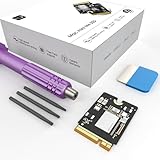
- Storage Expansion: Engineered exclusively for Mac Mini M4, this 1tb SSD quadruples your storage capacity to effortlessly house large media libraries, professional-grade applications
- High-Speed Performance: It's read/write speeds up to 3300 MB/s, enjoy lag-free multitasking for creative workflows.
- Precision-Engineered Compatibility: Featuring a proprietary M4 NVMe form factor, perfect compatibility like original equipment
- Effortless Expansion: Engineered specifically for Mac Mini M4, guaranteeing plug-and-play, operation without compatibility concerns.
- Proven Reliability: Rigorously tested for 30 days to ensure unwavering performance and sustained durability for both professional workloads and daily personal tasks.
Do not run an unfiltered command such as:
Get-AppxPackage | Remove-AppxPackageor:
Get-AppxPackage -AllUsers | Remove-AppxPackage -AllUsersThose commands can target far more than the application you intended, and AppX removal may be irreversible. Microsoft also says some system AppX packages cannot be removed and that removing the Microsoft Store app is unsupported. Read Microsoft’s in-box Store app troubleshooting guidance before proceeding.
Understand the three package states
| Command or concept | Scope | Important limitation |
|---|---|---|
Get-AppxPackage |
Packages registered for the current user | It does not show every package staged for other users. |
Get-AppxPackage -AllUsers |
Packages installed or registered across user profiles | Requires appropriate privileges and may still encounter non-removable packages. |
Get-AppxProvisionedPackage -Online |
Packages staged in the Windows image for future users | Removing provisioning does not automatically remove an existing user’s installed copy. |
Inventory before removing anything
For the current user:
Get-AppxPackage | Sort-Object Name | Select-Object Name, PackageFullName, NonRemovableFor all user profiles, run PowerShell as administrator:
Quick wins for a faster PC:
Repair Windows errors before they cause bigger problemsFix Now →Fix the driver behind crashes, sound loss and screen glitchesFind Drivers →Get-AppxPackage -AllUsers | Sort-Object Name | Select-Object Name, PackageFullName, NonRemovableFor packages provisioned for new users:
Get-AppxProvisionedPackage -Online | Select-Object DisplayName, PackageNameSearch for a known pattern rather than guessing:
Get-AppxPackage -Name '*<pattern>*' | Select-Object Name, PackageFullName, PackageFamilyName, NonRemovableReview the application’s purpose and check NonRemovable. A value of True is a strong reason not to target that package. Names containing Framework, Runtime, VCLibs, .NET, WinUI, or WindowsAppRuntime should be treated as dependencies, not clutter.
Remove one identified package for the current user
After confirming the exact package name, use a narrow command:
Get-AppxPackage -Name '<AppName>' | Remove-AppxPackageA wildcard can be used only after inspection:
Get-AppxPackage -Name '*<verified-pattern>*' | Remove-AppxPackageRemove a verified package for all users only when you understand the consequences:
Get-AppxPackage -AllUsers -Name '<AppName>' | Remove-AppxPackage -AllUsersSign out or restart after a meaningful batch, then test Start, Search, Settings, Microsoft Store, notifications, and any feature associated with the removed app. Do one application or one small, related group at a time.
What’s actually slowing this PC down?
Pick the symptom - the matching free tool is one click away.
Deprovision a package for future users
Provisioning is different from installation. To find an exact provisioned package:
Get-AppxProvisionedPackage -Online | Where-Object DisplayName -like '*<pattern>*'After verifying the returned PackageName, remove that exact package from the online image:
Remove-AppxProvisionedPackage -Online -PackageName '<exact PackageName>'The DISM equivalent is:
DISM.exe /Online /Remove-ProvisionedAppxPackage /PackageName:<exact-package-name>This changes what Windows stages for future user profiles. It does not necessarily remove an app already installed for an existing account. Feature updates, image refreshes, and servicing can also change the package inventory, so keep a documented list and check again after a major feature update.
Microsoft provides additional details in its documentation for DISM AppX servicing and provisioned AppX packages.
Store and framework warnings
- Do not remove
Microsoft.WindowsStoreif you use Store-distributed applications or rely on Store app updates. - Do not remove Start, Search, Shell Experience, Settings, or other shell packages merely because a script labels them as debloat targets.
- Do not remove framework and runtime packages. Multiple applications may depend on them.
- Xbox-related removals can affect Xbox sign-in, Game Pass, Gaming Services, Store games, cloud saves, and controller-related features.
- AppX removal is not the same as disabling telemetry, reducing memory use, or removing a Windows component.
Reinstalling a removed application
Many Store applications can be obtained again through Microsoft Store or WinGet:
winget search '<app name>'winget install --id <exact-id>Recovery is not guaranteed for every system package, which is why a restore point and a conservative, package-by-package workflow matter.
Phase 6: Disable startup applications
Disabling startup is often a better performance intervention than uninstalling software. It stops automatic launch while leaving the application available when you need it.
Use either:
- Settings > Apps > Startup
- Task Manager > Startup apps
Task Manager shows startup impact. Good candidates to disable are chat clients you rarely use, game launchers, music players, unused update helpers, promotional assistants, and deliberately unlinked cloud clients.
Free tools Windows power users keep installed
One-click scans. No signup required.
Usually leave enabled:
- Security software.
- Touchpad, keyboard, hotkey, audio, graphics, and device utilities.
- Backup and synchronization tools you depend on.
- Password managers that need to initialize.
- Accessibility software.
To inspect startup folders, press Win + R and enter:
shell:startupshell:common startupRecord the original state before changing it. Disabling an entry in Settings or Task Manager is easier to reverse than deleting shortcuts, Registry values, or services.
Phase 7: Restrict background activity
For Store apps that expose the control, open Settings > Apps > Installed apps, select the app’s three-dot menu, choose Advanced options, and set Background app permissions > Let this app run in background to Never where appropriate.
This may stop background notifications and updates. It is a good compromise when you might still want to open the app occasionally.
Recommended Free Tools
The setting mainly applies to Store-style applications. Microsoft notes that traditional desktop applications are not controlled by this Windows background-app setting; configure those applications from their own preferences or disable their startup entry.
Phase 8: Turn off suggestions, promotional content, and personalization
Windows 11 privacy controls
Open Settings > Privacy & security > General and review these controls:
- Let apps show me personalized ads by using my advertising ID.
- Let websites show me locally relevant content by accessing my language list.
- Let Windows improve Start and search results by tracking app launches.
- Show me suggested content in the Settings app.
Turning off the advertising ID does not reduce the number of advertisements. It changes personalization and may make advertisements less relevant. Microsoft explains these settings in its privacy settings for recommendations and offers.
Rank #3
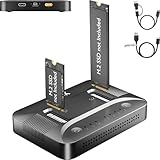
- 3-STEP OFFLINE CLONE, NO PC NEEDED — Insert both M.2 SSDs, press one button, and clone is complete — no laptop, no software, no IT skills required. Perfect for OS migration, SSD upgrades, or creating an exact backup of your drive, all while your PC stays running normally.
- UNIVERSAL NVMe & SATA COMPATIBILITY — Supports all M.2 NVMe (PCIe Gen 3/4) and SATA SSDs in sizes 2230, 2242, 2260, 2280, and 22110. Compatible with Windows, macOS, Linux, Steam Deck, ROG Ally, ASUS Gaming Handheld, and PS5 expansion drives. One dock for every device you own.
- BLAZING 10Gbps USB-C TRANSFER SPEED — Built on USB 3.2 Gen 2 protocol, the STK07 Pro delivers up to 10Gbps data transfer — 2× faster than standard USB 3.0 docks. Clone a 1TB SSD in approximately 30 minutes. Works with both USB-C and USB-A via included adapter cable.
- Expanding your Steam Deck, ROG Ally, or PlayStation 5 storage? The STK07 Pro clones your game library, save files, and system data in one offline pass — no reinstall, no data loss. RGB ambient lighting confirms clone status at a glance.
- IT PRO-GRADE OFFLINE DUPLICATOR — Deploy, replace, or back up M.2 SSDs across multiple machines without a PC connection. Sector-level 1:1 cloning ensures complete data integrity, including OS partitions, encrypted volumes, and hidden recovery sectors. Trusted by IT teams for fleet upgrades.
Device usage
Open Settings > Personalization > Device usage and turn off usage categories you do not want to influence Windows tips, offers, app suggestions, or personalized advertising. See Microsoft’s Device usage documentation.
Notifications and welcome content
Open Settings > System > Notifications. Review notifications from individual applications, Windows suggestions and tips, welcome experiences after updates or sign-in, and promotional notifications. This reduces visible clutter without removing shell components.
Start menu
Unpin applications you do not want to see. An unpinned item is not uninstalled, so this is the safest choice when you may use the application later. Microsoft’s Start-menu documentation distinguishes pinned items, installed applications, and Recommendations.
On Windows 10, equivalent privacy and notification controls may use different labels and are generally found under Settings > Privacy and Settings > System > Notifications & actions. Search Settings for a control if the wording differs on your build.
Phase 9: Manage OneDrive without deleting cloud files
Uninstalling OneDrive may be appropriate, but first determine whether it protects Desktop, Documents, or Pictures; provides Files On-Demand; synchronizes work or school files; backs up photos; or supports Microsoft 365 collaboration.
The least destructive option is to unlink the PC:
- Select the OneDrive cloud icon in the notification area.
- Choose Help & Settings > Settings.
- Open Account.
- Select Unlink this PC.
Microsoft says unlinking does not delete files from the OneDrive account. If you still want to remove the desktop client, use Settings > Apps > Installed apps > Microsoft OneDrive > Uninstall after checking synchronization and backup consequences. See Microsoft’s OneDrive disable and uninstall guidance.
Phase 10: Disable optional Windows features selectively
Optional features are not the same as ordinary applications. Identify a feature and its dependencies before disabling it.
Inventory features with PowerShell:
Get-WindowsOptionalFeature -Online | Sort-Object FeatureName | Select-Object FeatureName, StateSearch for a feature:
Get-WindowsOptionalFeature -Online -FeatureName '*<pattern>*'Disable one confirmed-unused feature:
Disable-WindowsOptionalFeature -Online -FeatureName '<FeatureName>' -NoRestartThe DISM equivalents are:
DISM /Online /Get-FeaturesDISM /Online /Get-FeatureInfo /FeatureName:<FeatureName>DISM /Online /Disable-Feature /FeatureName:<FeatureName>Possible candidates include XPS Viewer, Telnet Client, TFTP Client, or legacy media components—but only if you know you do not need them. Hyper-V, Windows Sandbox, WSL, and Virtual Machine Platform should be disabled only after checking development, virtualization, container, and testing workflows.
Do not blindly disable .NET components, printing and scanning features, media codecs, wireless display features, language and handwriting features, or anything used for accessibility. To reverse a change:
The Tool Desk
Outbyte PC Repair FREEClear out junk files and repair common Windows errorsFree Scan →Outbyte Driver Updater FREEFix the driver behind crashes, sound loss and screen glitchesFind Drivers →Enable-WindowsOptionalFeature -Online -FeatureName '<FeatureName>' -AllDISM’s payload behavior also means that disabling a feature is not necessarily a major storage-saving operation. Microsoft states that, beginning with Windows 10, Windows client editions generally retain feature payloads to support Push-button Reset, while Windows Server handles removal differently. Read Microsoft’s DISM feature servicing documentation.
Phase 11: Do not randomly disable services or scheduled tasks
A generic list of “30 Windows services to disable” is not a safe debloat method. Services often support features indirectly, and a change can cause failures long after the command was run.
Leave these categories at their normal configuration unless you are troubleshooting a specific, documented problem:
- Windows Update, Update Orchestrator, and Background Intelligent Transfer Service.
- Microsoft Defender and Windows Security.
- RPC, Plug and Play, Windows Installer, and Task Scheduler.
- Networking, audio, Bluetooth, printing, scanning, sleep, and device-management services.
- Recovery, reset, and system-protection components.
Per-user services deserve particular caution. Microsoft warns that disabling them can stop applications that depend on their data and advises against direct Registry editing unless there is no alternative. Its per-user services documentation explains the distinction. Microsoft’s service-disabling guidance also recommends leaving services at their defaults when the impact has not been fully evaluated.
Recommended Free Tools
If you are diagnosing a conflict, use a temporary clean boot to isolate background software. A clean boot is a troubleshooting state, not permission to permanently delete every service that is not immediately obvious.
Microsoft Edge is not ordinary bloat
Changing your default browser does not require removing Edge. Microsoft describes Edge as a core Windows component that supports web-based applications and says it cannot be uninstalled through the normal supported Windows path. See Why can’t I uninstall Microsoft Edge?
If you use another browser, set that browser as the default and adjust Edge’s own startup, background, and notification settings where available. Do not delete Edge directories or use an unsupported removal script on a primary PC merely because you do not browse with it.
Enterprise and Education: use policy where appropriate
Windows 11 version 24H2 and newer Enterprise and Education editions have Microsoft’s policy-based in-box app removal capability for managed devices. It can remove selected preinstalled Microsoft Store packages and block their reinstallation while the policy remains active. Microsoft documents this for devices managed through Group Policy or MDM/Intune.
This is not a general Home or Pro feature and should not be presented as a hidden Home-edition trick. On a managed organization-owned PC, coordinate with the administrator before making local changes. See Microsoft’s policy-based in-box app removal documentation.
Independent reader supportYour contribution helps us test, update, and keep practical guides available for everyone.Third-party debloat tools: convenience versus control
Scripts can save time, but they bundle decisions. Open source improves inspectability; it does not make every selected change safe, appropriate, or reversible. Download from the project’s verified repository, read the selected options, create a restore point, and test on a spare machine or virtual machine when possible.
| Approach | Best suited to | Main risk |
|---|---|---|
| Manual Settings | Most home users | Slower, but changes are visible and easier to reverse. |
| WinGet | Exact removal of ordinary applications | Requires identifying the correct package or application ID. |
| Targeted PowerShell | Advanced AppX cleanup | Can remove packages or dependencies that other apps need. |
| Group Policy or Intune | Managed Enterprise and Education devices | Edition, management, and policy-scope restrictions. |
| Win11Debloat | Users comfortable reviewing a PowerShell project | Broad changes to applications, telemetry, and interface behavior; the project itself warns users to proceed at their own risk. |
| WinUtil | Advanced users wanting a guided multi-purpose utility | Administrative script execution and many configuration choices in one tool. |
| Sophia Script | Power users willing to select and read individual functions | Requires manual review and understanding of PowerShell and execution-policy implications. |
| Modified ISO | Specialized lab or test environments | Unknown provenance, altered security and recovery, servicing problems, and difficult rollback. |
WinUtil
The Chris Titus Tech WinUtil repository describes a PowerShell utility for installation, debloating, troubleshooting, and Windows configuration. It requires administrator privileges and offers Standard, Minimal, and Advanced presets.
The project documents this remote execution command:
Free tools Windows power users keep installed
One-click scans. No signup required.
Rank #4

- UPGRADE YOUR SYSTEM - Upgrade your laptop or desktop computer and feel the difference with super-fast OS boot times and application loads
- SPEEDS - Exceptional performance offering up to 5,100MB/s seq. read and 3,200MB/s seq. write speeds in an NVMe Gen4 enabled PC desktop or laptop computer
- BACKWARDS COMPATIBILITY - Backwards compatible with Gen3, reaching 5,100MB/s seq. read and 3,200MB/s seq. write speeds in a Gen3 motherboard
- PERFORMANCE UPGRADE - High performance Internal SSD with up to 6 times the performance as compared to SATA based SSDs
- ACRONIS SUPPORT - Transfer your data using the included USB 3.0 to NVMe transfer adapter and Acronis software
irm https://christitus.com/win | iexThat command downloads a remote script and passes it directly to PowerShell’s iex for execution with administrative authority. A safer approach is to inspect or download the source from the verified repository first, understand the selected operations, and use a restore point. Its current FAQ also says Windows 10 is no longer supported by WinUtil because Windows 10 reached end of support; it is not a Windows 10 support strategy. See the project’s FAQ.
Win11Debloat
The Win11Debloat project says it works on Windows 10 and Windows 11 and can remove preinstalled applications, change telemetry settings, adjust interface behavior, and operate across users or in audit mode. Its source availability makes the actions more inspectable than those of a compiled mystery executable, but the defaults may not fit your edition or needs. Review every option rather than accepting a broad preset.
Sophia Script
Sophia Script is a modular PowerShell project intended for users who choose individual functions and edit or review the script. It is better suited to experienced users than to anyone looking for a one-click cleanup. Create a restore point, understand its execution-policy requirements, and avoid running functions whose purpose you cannot explain. The Windows Central overview provides secondary background.
Modified ISOs and custom Windows builds
Do not use a modified ISO as the normal way to get a clean Windows installation. Current reporting about AtlasOS describes changes that can remove or alter Defender, restore points, and System Reset and may affect feature updates; these claims should be understood as project and reporting claims, not as a universal test result.
Quick wins for a faster PC:
Clear out junk files and repair common Windows errorsFree Scan →Fix the driver behind crashes, sound loss and screen glitchesFind Drivers →Repair Windows errors before they cause bigger problemsFix Now →Custom builds add supply-chain and maintenance problems:
- You may not know exactly how the image was built.
- Security defaults, recovery tools, drivers, and update behavior may be altered.
- Compatibility failures can be difficult to diagnose.
- Reproducing the same installation later may be impossible.
- Returning to stock Windows may require a reinstall.
- Licensing and activation behavior may be unclear.
For a truly clean machine, use official Windows installation media, back up first, and reinstall Windows normally. A clean installation is more disruptive than debloating, but its provenance and recovery path are clearer.
The English (World) setup workaround
Some secondary guides recommend selecting English (World) or English (Europe) during Setup to avoid some promotional applications. This is not an official universal debloat workflow. Language, locale, region, formatting, regional content, and app resources are related; changing them can create unwanted side effects.
Use the correct language and region for the person who will use the PC, then remove unwanted applications after setup or use supported deployment policy. Microsoft’s documentation on language and region management explains why these settings affect more than promotional content.
What’s actually slowing this PC down?
Pick the symptom - the matching free tool is one click away.
How to measure whether debloating helped
Measure before and after instead of relying on claims such as “2 GB more RAM” or “higher FPS.” Record:
- Number of enabled startup applications and their Task Manager startup impact.
- Free storage on the system drive.
- Idle CPU, memory, and disk activity after the same startup sequence.
- Sign-in time after two normal reboots.
- Battery behavior using
powercfg /batteryreportwhen battery life is the goal. - The same workload, game, or application—not just idle memory.
For serious boot or performance analysis, Windows Performance Recorder and related performance tools are more useful than a screenshot of idle RAM. Test the functions that matter: Windows Update, Defender, Microsoft Store, Start, Search, audio, networking, Bluetooth, printing, sleep, OneDrive, Xbox or Game Pass, and your essential work applications.
Recovery if debloating breaks something
| Symptom | First response |
|---|---|
| An ordinary application disappeared or will not launch | Reinstall it with Microsoft Store, WinGet, or the vendor’s official installer. For supported apps, try Settings > Apps > Installed apps > Advanced options > Repair, then Reset if necessary. |
| Start, Search, Store, or notifications fail after AppX changes | Stop making further changes, use System Restore if the change was recent, and reinstall the affected Store application where possible. |
| A Windows feature is needed again | Re-enable it with Enable-WindowsOptionalFeature or DISM, then restart. |
| Windows components report corruption | Open an elevated Command Prompt and run DISM first, then SFC. |
| The current Windows installation is unstable | Use System Restore, or on Windows 11 use Settings > System > Recovery > Fix problems using Windows Update > Reinstall now when the option is available. |
| The machine is unbootable or badly modified | Use the Windows recovery environment, Reset this PC, or official installation media after confirming your backup. |
Repair Windows system files
From an elevated Command Prompt, run:
DISM.exe /Online /Cleanup-Image /RestoreHealthAfter DISM completes, run:
sfc /scannowMicrosoft recommends DISM before System File Checker because DISM can repair the component source used by SFC. If Windows Update cannot supply the repair source, Microsoft documents using a matching source:
For persistent Windows errors or instability after debloating, Outbyte PC Repair is an optional tool to evaluate alongside Microsoft’s built-in repair and recovery methods; it is not required.
DISM.exe /Online /Cleanup-Image /RestoreHealth /Source:C:RepairSourceWindows /LimitAccessThe repair source must match the Windows version and edition. See Microsoft’s DISM and System File Checker guidance.
Repair reinstall on Windows 11
On supported Windows 11 installations, open Settings > System > Recovery. Under Fix problems using Windows Update, select Reinstall now. Microsoft says this reinstalls the same Windows version, repairs system files and components, and preserves applications, files, and settings. The option may be unavailable on some editions, managed computers, or configurations; if you do not see it, use another recovery method.
More details are available in Microsoft’s repair reinstall documentation.
Three sensible debloat profiles
Conservative profile: recommended for most people
- Back up data and create a restore point.
- Install updates.
- Uninstall identifiable unwanted programs through Settings or Control Panel.
- Disable unnecessary startup applications.
- Restrict background permissions for apps you rarely use.
- Turn off unwanted recommendations and promotional notifications.
- Use Storage Sense.
- Leave services, framework packages, Store infrastructure, Defender, Update, and recovery components alone.
Moderate profile: targeted cleanup
- Everything in the conservative profile.
- Use WinGet with exact application IDs.
- Remove individually verified AppX packages.
- Disable confirmed-unused optional Windows features.
- Unlink or uninstall OneDrive only after checking synchronization and backup requirements.
Advanced profile: managed or test environments
- Test changes in a virtual machine, spare device, or reference image first.
- Use a reviewed script or supported Enterprise/Education policy.
- Export inventories and retain a change log.
- Apply one category at a time and reboot between meaningful batches.
- Keep recovery media and a tested backup.
- Avoid modified ISOs on primary computers.
Final checklist
- ☐ I checked the Windows edition, version, build, and support status.
- ☐ I backed up important files separately from the restore point.
- ☐ I created and labeled a restore point.
- ☐ I installed pending security and driver updates.
- ☐ I identified each application before uninstalling it.
- ☐ I recorded startup entries before disabling them.
- ☐ I avoided wildcard AppX removal.
- ☐ I did not remove Store frameworks, Start, Search, Settings, Defender, Edge, or update infrastructure.
- ☐ I tested Store, Start, Search, security, update, networking, audio, sleep, and essential applications afterward.
- ☐ I kept a recovery path in case a package or feature must be restored.
Frequently Asked Questions
Will debloating Windows increase gaming FPS?
Usually there is no universal FPS gain. Removing a dormant application does little during a game. Disabling a launcher, overlay, synchronizer, or background process that is actually consuming CPU, disk, or network resources may reduce interference, but measure the same game and workload before and after. Do not disable security or update services merely to chase an unverified FPS improvement.
Do these 3 things before closing this tab:
1Repair Windows errors before they cause bigger problems2Scan for outdated or missing drivers - takes under a minute3Clear out junk files and repair common Windows errorsCan I safely remove Microsoft Edge?
Not through the normal supported Windows path. Microsoft describes Edge as a core Windows component that supports web-based applications. Set another browser as the default and adjust Edge’s own startup, background, and notification behavior instead of deleting its files or using an unsupported removal script.
Does removing a provisioned AppX package remove it for every user?
No. Removing a provisioned package changes what Windows stages for future user profiles. Existing user profiles may still have the application installed and must be handled separately with a targeted package-removal command. Feature updates and servicing can also change the package inventory.
Is Windows 10 safe to use after debloating in 2026?
Debloating does not restore Windows 10’s normal security support. Standard Windows 10 22H2 support ended October 14, 2025. Eligible consumer editions may receive critical and important security updates through Microsoft’s ESU program through October 12, 2027, subject to eligibility and enrollment. Compatible computers should evaluate Windows 11, while LTSC editions require separate lifecycle checks.
What is the safest alternative to a debloat script?
Use manual Settings changes, WinGet for ordinary applications, targeted PowerShell only for an identified AppX package, and Storage Sense for temporary files. For a managed Enterprise or Education fleet, use supported policy. For a genuinely clean installation, use official Windows installation media rather than an unofficial modified ISO.
Outdated Drivers Are Slowing You Down
One free scan finds every outdated or missing driver and matches the right update for your exact hardware.Free scan · exact hardware matchPC Slower Than It Used to Be?
A free scan shows the junk files, broken settings and background clutter dragging Windows down - then fixes them in one click.Free scan · Windows 10 & 11The Bottom Line
Bottom line: Debloat Windows by removing what you can identify, not by stripping everything a script calls unnecessary. Settings, WinGet, startup controls, privacy options, Storage Sense, and carefully selected AppX changes can produce a cleaner and more supportable PC. Keep Windows Update, Defender, Microsoft Store dependencies, recovery, drivers, and core services intact—and treat every advanced change as something that must be documented, tested, and reversible.
Quick Recap
Product prices and availability are accurate as of the date/time indicated and are subject to change. Any price and availability information displayed on Amazon at the time of purchase will apply.

