
Quick wins for a faster PC:
Fix the driver behind crashes, sound loss and screen glitchesFind Drivers →Clear out junk files and repair common Windows errorsFree Scan →iTechGuides is reader-supported. When you buy through links on our site, we may earn an affiliate commission. As an Amazon Associate I earn from qualifying purchases. Learn more
HDMI is the most dependable way to connect a tablet to a TV. Wireless methods are more convenient, but they require the tablet and TV—or a streaming receiver such as Apple TV, Chromecast, or Google TV Streamer—to support the same ecosystem. Before buying a cable, identify the tablet’s connector and verify that its exact model supports external-video output. A USB-C port alone does not guarantee that it can send video.
Choose the right connection first
The best method depends on the tablet brand, its port, the TV’s inputs, and whether you want a full-screen mirror or only to play a video.
| Tablet or goal | Best method | What you need | Main limitation |
|---|---|---|---|
| USB-C iPad | USB-C-to-HDMI connection | A compatible USB-C display adapter and HDMI cable | The specific iPad must support external-display output, and adapter capability affects the result. |
| Lightning iPad | Lightning Digital AV Adapter | Apple’s Lightning Digital AV Adapter, HDMI cable, and optionally a power adapter | The adapter mirrors up to 1080p HD and requires a separate HDMI cable. |
| iPad without a cable | AirPlay | Apple TV 4K or an AirPlay 2-enabled smart TV | The iPad and receiver generally need to be on the same Wi-Fi network. |
| Android tablet with Google Cast | Cast from a supported app | Chromecast, Google TV Streamer, or a TV with built-in Google Cast | Not every app supports Google Cast, and the devices must use the same Wi-Fi network. |
| Samsung Galaxy Tab | Smart View, wireless DeX, or compatible HDMI connection | A compatible Samsung TV or monitor for wireless methods, or a compatible USB-C adapter for wired video | HDMI output and DeX support vary by model. Some Galaxy Tab FE models do not support HDMI output. |
| Windows tablet or Surface | Supported wired display output or Miracast | The correct USB-C, Mini DisplayPort, HDMI, DisplayPort, DVI, or VGA adapter—or a Miracast receiver | External-display support depends on the exact Windows tablet and adapter. |
Before connecting: check the tablet and TV
- Identify the tablet’s port. It may use USB-C, Lightning, Mini DisplayPort, or another display connector. A USB-C charging port may not support video.
- Find the exact model number. Check the manufacturer’s specifications or support page for terms such as external display, DisplayPort Alt Mode, HDMI output, DeX, or video output.
- Check the TV. A wired setup normally needs an available HDMI input. For wireless use, determine whether the TV supports AirPlay 2, Google Cast, Miracast, or the relevant manufacturer’s system.
- Decide whether you need mirroring or casting. Mirroring shows the tablet’s entire screen. Casting sends supported video or audio to the TV while the tablet may remain available for other tasks. App-based casting is often better for protected streaming services.
Do not assume that an adapter can add a feature the tablet lacks. An adapter can change the connector, but it cannot make a USB-C port with charging-only hardware produce HDMI video.
How to connect a tablet to a TV with HDMI
A wired connection usually has fewer variables than wireless casting. It does not depend on the TV’s Wi-Fi implementation, and it is generally the best choice for presentations, games, long viewing sessions, or situations where wireless discovery fails.
- Connect the appropriate adapter to the tablet.
- Connect an HDMI cable to the adapter.
- Connect the other end of the HDMI cable to an HDMI input on the TV.
- Turn on the TV and select that exact HDMI input using the TV remote.
- Unlock the tablet and wait for the display to appear. If the tablet offers a mode such as Samsung DeX or Windows projection, choose the desired mode.
For a compatible USB-C tablet, look for a USB-C to HDMI adapter for tablet, not a USB-C charging cable or a USB-C accessory that only supports data. A USB-C multiport adapter can be more practical if you need to charge the tablet or connect peripherals at the same time.
USB-C iPad to HDMI TV
Apple documents connecting compatible USB-C iPad models through a USB-C Display AV Adapter or a USB-C VGA Multiport Adapter, followed by the appropriate HDMI or VGA cable. For an HDMI television:
Popular on Amazon
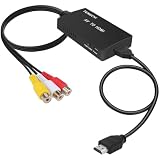
- RCA Female to HDMI Video Converters Adapter : The cable is used to convert analog composite input to HDMI 1080p output, displayed on a 1080p HD TV/TV/monitor.
- Input ports: 1xRCA Female (Yellow, White, Red), Output ports: 1xHDMI 1.3 1080p. NOT support 3D and 4K, NOT support HDMI Converts to AV
- AV to HDMI Converter: Plug and Play, Easy to Install and Operate, Powered by External USB Cable. Note: Please hook up the USB power cable (included) to 5V 1Apower source during use (not included power supply ).
- Support PAL, NTSC3.58, NTSC4.43, SECAM, PAL/M, PAL/N standard TV formats input. For PS2,PS3,Xbox,N64,STB, VHS, VCR, DVD Players and other devices with standard composite AV input.
- You Will Get : 1x RCA Female TO HDMI Converter, 1xHDMI cable, 1xUSB cable, 1xUser Manual. ONE YEAR WARRANTY - if you are not satisfied for any reason whatsoever, do not hesitate to contact us .
- Plug a compatible USB-C display adapter into the iPad.
- Connect an HDMI cable from the adapter to the TV.
- Switch the TV to the HDMI input used.
- Use a USB-C multiport adapter with charging pass-through if you need to keep the iPad powered while it is connected.
Apple’s instructions and supported output behavior can vary by iPad model and adapter. See Apple’s iPad external-display connection guide before purchasing an adapter. A useful upgrade for compatible tablets is a USB-C hub with HDMI for tablet when you need HDMI, charging, USB accessories, or card readers from one connection.
Lightning iPad to HDMI TV
Older iPad models with a Lightning port use Apple’s Lightning Digital AV Adapter:
- Connect the Lightning Digital AV Adapter to the iPad.
- Connect an HDMI cable between the adapter and the TV.
- Plug a power adapter into the adapter’s additional Lightning port if you want to charge while watching.
- Select the matching HDMI input on the TV.
Apple’s Lightning adapter mirrors up to 1080p HD. It does not include the HDMI cable, so you need a separate HDMI cable for tablet to TV. Apple’s official iPad connection instructions cover both the Lightning Digital AV Adapter and the USB-C alternatives.
Android tablet to HDMI TV
Android tablet support is model-specific. Some tablets can send video through USB-C, while others use USB-C only for charging and data. Check the exact model’s specifications before buying a compatible USB-C HDMI adapter.
The basic procedure is:
- Connect the video-capable USB-C adapter or hub to the tablet.
- Connect HDMI from the adapter to the TV.
- Select the TV’s matching HDMI input.
- Approve any display prompt on the tablet, if one appears.
Some Android tablets may show a mirrored display, while others offer a desktop-style interface or a manufacturer-specific mode. The result depends on the tablet’s software and hardware; the presence of USB-C alone is not enough.
Do these 3 things before closing this tab:
1Clear out junk files and repair common Windows errors2Scan for outdated or missing drivers - takes under a minute3Repair Windows errors before they cause bigger problemsSamsung Galaxy Tab to a TV
Samsung documents wired Galaxy tablet connections using a DeX cable, an HDMI-to-USB-C cable, or a compatible HDMI adapter. Connect USB-C to the tablet, HDMI to the TV, switch to the correct HDMI source, and select DeX if the tablet presents that option. Samsung’s Galaxy tablet DeX and external-display compatibility guidance lists the relevant connection options.
Check the exact Galaxy Tab model particularly carefully. Samsung states that several Galaxy Tab FE models do not support HDMI output. If the tablet charges when connected but the TV remains blank, that may be a hardware limitation rather than a faulty cable.
Windows tablet or Surface to a TV
Surface and other Windows tablets may support external displays through USB-C, DisplayPort, Mini DisplayPort, HDMI, DVI, or VGA, depending on the model. Use the matching cable or adapter, connect it to the TV, and switch the TV to the corresponding input.
Windows can generally use one of three projection modes:
What’s actually slowing this PC down?
Pick the symptom - the matching free tool is one click away.
Also popular on Amazon

- Solve Short Cable Frustration: Easily extend your Fire TV Stick, Roku, Chromecast, PS5, PS4, or Xbox with this HDMI extender cable, and protecting your device’s ports from wear and fits perfectly behind wall-mounted TVs or in tight setups. Works with all HDMI devices, including Blu-Ray player, Monitor, Laptop, HDTV, Apple TV, Projector, Switch, Gaming PC. Also, compatible with HDMI 2.0/1.4 gear. Choose the right length for your needs: This version is 3.3 feet. Longer options are available in the "Size" menu
- Immersive Audio-Visual Experience: Advanced HDMI extension for immersive home theater. This HDMI 2.1 extension cable supports 8K@60Hz and 4K@120Hz resolution with dynamic HDR and 3D support. Features eARC for high-quality Dolby Atmos audio, bringing theater-like sound and visuals into your home (Note: This product is an HDMI Male to Female extension cable, designed to extend your current HDMI cable)
- Next-Level Gaming & Professional Performance: Take your gaming and productivity to the next level. Featuring 48Gbps bandwidth and up to 120Hz/144Hz refresh rate at 4K resolution, this HDMI male to female adapter ensures smooth, tear-free gameplay and crisp, stable visuals for high-resolution presentations and multitasking
- Built to Last with Stable Signal: Nylon braiding and double-layer fishnet winding resist tangles and damage. 24K gold-plated connectors prevent corrosion, while triple shielding and 28AWG copper core eliminate interference for less screen flickering, or white dots, more flawless videos
- Services you will also get: Originated from confidence in product quality. Available in 1.6FT/3.3FT/5FT/6.6FT/10FT lengths to fit your space perfectly. All costs covered during 2-year service of replacement process of this HDMI to HDMI extender. Please contact us if you have any question, friendly and prompt response will be offered within 18 hours
- Duplicate: show the same image on the tablet and TV.
- Extend: use the TV as additional desktop space.
- Second screen only: use the TV as the primary display and turn off the tablet screen.
Open the Windows projection controls to choose a mode. Microsoft’s Surface external-display guide explains how support varies by Surface model, cable, and adapter.
How to connect an iPad wirelessly with AirPlay
AirPlay is the natural wireless method for an iPad when the TV supports AirPlay 2 or when an Apple TV 4K is connected to the TV. The iPad and receiving device generally need to be connected to the same Wi-Fi network.
Mirror the entire iPad screen
- Connect the iPad and Apple TV or AirPlay 2 television to the same Wi-Fi network.
- Open Control Center on the iPad. On newer iPads, swipe down from the upper-right corner; on some older models, swipe up from the bottom edge.
- Tap Screen Mirroring.
- Select the Apple TV or television.
- Enter the AirPlay passcode shown on the TV if prompted.
Stream a supported video instead
Open the video app, tap its AirPlay control, and choose the TV or Apple TV. This sends the supported video directly to the receiver rather than mirroring every item on the iPad screen. Apple explains both methods in its AirPlay streaming and screen-mirroring guide.
If your television does not support AirPlay, an AirPlay receiver for iPad—such as an Apple TV device—can provide the missing receiver. Compatibility and available features vary by TV model and region.
How to cast an Android tablet with Chromecast or Google Cast
“Chromecast” can refer to a standalone Chromecast device, while Google Cast may be built into a Google TV Streamer or a television. Google identifies Chromecast, Google TV Streamer, and TVs with Google Cast as supported receiver types, but device, network, service, and regional availability can affect the experience. Some services also require subscriptions.
Cast a video from a supported app
- Connect the Android tablet and the Chromecast, Google TV Streamer, or Google Cast TV to the same Wi-Fi network.
- Open an app that supports Google Cast.
- Tap the Cast button, usually shown as a rectangle with Wi-Fi-like waves.
- Select the TV or receiver.
- Choose a video. Use the app’s playback controls to pause, seek, or stop casting.
The Cast button may not appear in an app that does not support Google Cast. Installing a Chromecast does not automatically make every Android app castable. For Android users whose TV lacks built-in Google Cast, a Chromecast for Android tablet or Google TV Streamer can supply the receiver.
Mirror the Android tablet screen
Full-screen Android mirroring is separate from app-based casting and is not available in exactly the same way on every tablet. Use the current Google Home or Google Cast screen-mirroring workflow for the receiver. Google’s screen-casting troubleshooting guidance emphasizes using the same Wi-Fi network, the current Google Home app, and current Google Play services.
For wireless troubleshooting, confirm that both devices are on the same network name—not one on the guest network and one on the main network. Guest-network isolation can prevent the tablet from discovering the receiver.
Also popular on Amazon

- COMPATIBLE and UPGRADE: Highwings 8k HDMI extender 2.1 can achieve all the functions of a 4k HDMI extension 2.0 (4k@60hz, 4k@30hz, etc.) and enhance the features based on HDMI 2.0; It addresses issues like flickering screens and insufficient bandwidth
- SUPPORTS 8K VIDEO and MORE: This HDMI extender cable supports HDMI Ethernet Channel, 8K@60Hz, 4K@120Hz, 2K, 1080P, 48Gbps bandwidth, 48-bit HDR color depth, and Audio Return Channel (ARC); Full 3D Support without any lag, providing clear and smooth video
- DURABLE DESIGN: The SR Flexible Strength Design, 24K gold-plated ports, latch-free and military-grade tensile nylon can ensure that this 8k HDMI extension cable withstand up to 25,000 flex times and accurately transmits signals, greatly extending use life
- DESIGN YOUR HOME THEATER/GAME ROOM: HDMI male to female extends the reach of your existing HDMI cable, making it easier to connect HDMI devices with a simple plug-and-play setup; Convenient and flexible connection at any angle - port saver/space saver
- STRICT QUALITY CONTROL and AFTER-SALES SERVICE: Our HDMI adapter has undergone rigorous performance tests in the laboratory before delivery; Each box contains one HDMI male to female adapter
Samsung Galaxy Tab wireless options
Smart View
Samsung Smart View can mirror a compatible Galaxy tablet to a compatible Miracast-enabled TV:
- Connect the tablet and TV to the same network when required by the TV and setup.
- Open the tablet’s Quick Settings panel and tap Smart View.
- Select the TV.
- Approve the connection on the TV if it asks for permission.
Samsung notes that DRM-protected content may not mirror through Smart View. If the tablet’s home screen appears but a particular streaming app shows a black screen, use that service’s own Cast or AirPlay control instead. Samsung’s Smart View troubleshooting guide also covers aspect-ratio adjustments and connection problems.
Wireless DeX
Compatible Galaxy tablets can use DeX wirelessly with a compatible Samsung TV or smart monitor:
- Open Settings > Connected devices > Samsung DeX.
- Choose Connect wirelessly.
- Select the display from the list.
- Approve the connection on the TV if prompted.
Wireless DeX is a desktop-style experience rather than simple screen mirroring. It is useful for supported tablets when you want apps and windows arranged for a larger display, but DeX availability varies by Galaxy Tab model.
Windows Errors? Fix Them Before They Spread
Repair common Windows errors and clear accumulated junk for a smoother, more stable PC - no reinstall needed.Free scan · no reinstallOutdated Drivers Are Slowing You Down
One free scan finds every outdated or missing driver and matches the right update for your exact hardware.Free scan · exact hardware matchConnect a Windows tablet wirelessly with Miracast
A compatible Windows tablet or Surface can use Miracast with a Miracast-enabled TV or a wireless-display receiver. Microsoft’s Wireless Display Adapter uses HDMI for the display connection and USB for power.
- Connect the Miracast receiver to an HDMI input on the TV and provide USB power if the receiver requires it.
- Switch the TV to that HDMI input.
- On the Windows tablet, open the wireless-display controls with Windows key + K.
- Select the TV or wireless-display adapter.
- Choose Duplicate or Extend if Windows offers projection choices.
Miracast support depends on the Windows tablet, wireless hardware, drivers, receiver, and TV. Microsoft’s Wireless Display Adapter documentation describes the adapter and connection process.
A Miracast adapter for tablet to TV can be useful when the TV has HDMI but lacks Miracast. Verify that the receiver supports the tablet’s operating system before buying it.
HDMI or wireless: which should you use?
| Choose HDMI when… | Choose wireless when… |
|---|---|
| You need the most predictable connection. | You want to start playback without running a cable across the room. |
| You are presenting slides, using a game, or watching for several hours. | Your tablet and TV already share the same ecosystem. |
| The TV’s Wi-Fi is unreliable or the network blocks device discovery. | The TV supports AirPlay, Google Cast, Smart View, DeX, or Miracast. |
| You want to avoid wireless discovery and network troubleshooting. | You want app-based playback with the tablet acting as a remote. |
For a temporary setup, wireless is usually more convenient. For reliability, low-friction presentations, and a stable large-screen workspace, HDMI is usually the safer choice—provided the tablet actually supports video output.
Free tools Windows power users keep installed
One-click scans. No signup required.
What you may need to buy
USB-C-to-HDMI adapter
Buy one only after confirming that the tablet’s USB-C port supports video output. A basic adapter is enough if you only need HDMI. Choose a multiport model if you also need charging pass-through, USB accessories, or storage.
Also popular on Amazon
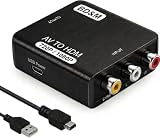
- Convert RCA to HDMI Instantly – BD&M RCA to HDMI Converter easily converts analog RCA/composite AV signals to HDMI output, allowing you to connect older devices to modern HDTVs, monitors, and projectors with clear video and audio quality.
- Wide Device Compatibility – Supports VHS players, VCRs, DVD players, camcorders, retro gaming consoles, and more including PS1, PS2, PS3, Xbox, N64, Wii, and older AV devices with standard RCA output.
- 1080P HDMI Output – Advanced signal processing delivers stable and sharp video output with support for 720P/1080P HDMI resolution, improving compatibility with modern TVs and displays.
- Plug & Play Setup – No drivers or software required. Simply connect the RCA cables, HDMI cable, and included USB power cable for quick and easy installation in minutes.
- Compact & Reliable Design – Lightweight mini converter design makes it perfect for home entertainment setups, retro gaming, travel, or converting old media collections while maintaining stable performance.
Lightning Digital AV Adapter
Lightning iPads need the appropriate Lightning Digital AV Adapter for an HDMI TV. You will also need a separate HDMI cable and may want to connect power to the adapter during use.
HDMI cable
Every wired adapter in this guide needs a cable between the adapter and TV. A short short HDMI cable can reduce clutter when the tablet is close to the television, while a longer cable helps when the TV is wall-mounted or farther away. The cable does not compensate for a tablet that lacks video output.
Chromecast or Google TV Streamer
Android users should consider a Google TV Streamer for tablet casting or Chromecast when the TV lacks built-in Google Cast. Confirm that the apps you use expose a Cast button. For full-screen mirroring, check the tablet and Google Home compatibility separately.
The Tool Desk
Outbyte PC Repair FREEClear out junk files and repair common Windows errorsFree Scan →Outbyte Driver Updater FREEFix the driver behind crashes, sound loss and screen glitchesFind Drivers →Miracast wireless-display receiver
A Miracast receiver is relevant to compatible Windows tablets and Samsung tablets when the TV lacks the appropriate wireless-display feature. It still requires a free HDMI input and, for some receivers such as Microsoft’s, USB power.
AirPlay receiver or compatible TV
iPad owners who prefer a cable-free setup need an Apple TV 4K or a television with AirPlay 2 support. An AirPlay 2 TV may not require a separate receiver, but the exact TV model determines which AirPlay features are available.
Independent reader supportYour contribution helps us test, update, and keep practical guides available for everyone.Troubleshooting: fix the problem by symptom
The TV says “No signal”
- Use the TV remote to select the HDMI input where the cable is connected.
- Disconnect and firmly reconnect the adapter at the tablet and the HDMI cable at both ends.
- Try another HDMI input on the TV.
- Try another known-good HDMI cable.
- Remove unnecessary hubs, converters, extension chains, or capture devices.
- Confirm that the adapter supports video output rather than charging or data only.
- Check the exact tablet model for external-display support.
The tablet charges, but the TV stays blank
This is one of the most important USB-C clues: charging proves only that power is passing through. It does not prove that the port supports DisplayPort Alt Mode or another video standard. Verify the model’s specifications and the adapter’s video capability. For Samsung tablets, also check whether the model supports HDMI output or DeX.
The wireless TV or receiver does not appear
- Put both devices on the same Wi-Fi network and, where applicable, the same network band or SSID.
- Move the tablet off a guest network. Client isolation can block discovery.
- Update the TV firmware and the relevant app.
- On Android, update Google Home and Google Play services.
- Restart the tablet, TV or receiver, and router.
- Check that the receiver supports the protocol you are trying to use: AirPlay, Google Cast, Smart View, DeX, or Miracast.
The picture works, but one app shows a black screen
The app may restrict screen mirroring because of digital-rights controls or may require its own casting button. Try the app’s built-in Cast or AirPlay control rather than mirroring the entire tablet. Samsung specifically documents that DRM-protected content may not mirror through Smart View.
Also popular on Amazon

- FLEXIBLY SOLVES DISTANCE ISSUES: This HDMI extender easily extends hard-to-reach HDMI ports in the tight spaces behind your TV, reducing strain on your TV’s HDMI port and protecting your device’s ports from wear and tear
- VIBRANT AND SMOOTH AV EXPERIENCE: This HDMI 2.0 male-to-female cable supports 4K@60Hz with 18 Gbps bandwidth. It also enables HDR/3D, Dolby Atmos, and ARC, delivering stunning Ultra HD visuals and immersive theater-quality sound that brings every scene to life
- UNIVERSAL COMPATIBILITY: This HDMI extender cable is fully compatible with standard HDMI interfaces and plugs. Ideal for arcades, home theaters, and video conferences, it works seamlessly with game consoles, TVs, Blu-ray players, AV receivers, laptops, projectors, streaming sticks/boxes, and CD/DVD players
- PREMIUM MATERIALS: 24K gold-plated connectors resist corrosion, while aluminum-magnesium alloy braided shielding and aluminum foil shielding effectively block EMI and RFI for consistently reliable, high-fidelity signal transmission
- COMPLETE PACKAGE & AFTER-SALES SERVICE: Each HDMI extension cable comes with a dust cap. We offer an 18-month product care period and 24/7 customer assistance
The picture is cropped, stretched, or too small
Open the TV’s picture-size or aspect-ratio controls and try a setting such as Screen Fit, Just Scan, or the television’s equivalent. On Samsung devices, check Smart View’s aspect-ratio options. In DeX or Windows, also check the display-resolution and scaling settings. Do not assume that changing the HDMI cable will fix an aspect-ratio problem.
The sound still comes from the tablet
Check the TV volume and confirm that the TV is selected as the audio output. With app-based casting, verify that playback has actually been transferred to the receiver rather than merely mirrored from a browser or app window. Disconnect Bluetooth headphones or speakers temporarily if the tablet continues routing audio elsewhere.
The connection works but is unstable or delayed
For wireless connections, reduce distance and obstructions between devices and the Wi-Fi access point, close unnecessary high-bandwidth activity, and restart the network equipment. For a presentation, game, or long viewing session where delay matters, switch to a confirmed-compatible HDMI connection.
The TV disconnects when the tablet’s screen turns off
Some wireless methods depend on the tablet remaining active, while app-based casting can continue independently. Use the app’s Cast or AirPlay control when available, adjust the tablet’s screen timeout for a mirroring session, or use HDMI for a more predictable continuous connection.
Recommended Free Tools
Common mistakes to avoid
- Buying a USB-C adapter before checking the tablet model: not all USB-C ports carry video.
- Using only a USB charging cable: a charging cable generally does not create an HDMI connection.
- Expecting Chromecast to mirror every app: Google Cast is often app-based, and unsupported apps may not show a Cast button.
- Assuming every smart TV supports AirPlay: iPad wireless mirroring requires Apple TV or a compatible AirPlay 2 television.
- Ignoring the TV input: the TV must be set to the HDMI port that is physically in use.
- Expecting DRM-protected video to mirror: some services block mirroring and require their own receiver controls.
- Adding third-party driver tools too early: first check the tablet, TV, adapter, operating-system updates, and manufacturer documentation. Driver software is not a universal fix for an incompatible port or blocked wireless protocol.
Privacy and practical considerations
Full-screen mirroring can show notifications, messages, passwords, and other private content on the TV. Turn on Do Not Disturb or use app-based casting when you only want to share a film or presentation. Wireless casting also depends on the local network, so avoid using an untrusted public or hotel network unless the receiver and tablet can communicate securely and the setup is appropriate.
Frequently Asked Questions
Can I connect any USB-C tablet to a TV with HDMI?
No. USB-C defines the connector, not necessarily video output. Check the exact tablet model for DisplayPort Alt Mode, HDMI output, external-display support, or a manufacturer-specific feature such as DeX before buying an adapter.
Can I connect a tablet to a TV without Wi-Fi?
Usually, HDMI is the simplest option because it does not require a shared Wi-Fi network. Wireless methods have different requirements: AirPlay and Google Cast generally need the tablet and receiver on the same network, while Miracast compatibility depends on the Windows or Samsung tablet and receiver.
Why does Chromecast not appear on my Android tablet?
Confirm that the tablet and receiver use the same Wi-Fi network, that the app supports Google Cast, and that Google Home and Google Play services are current. Guest-network isolation can also prevent discovery.
Why does my tablet charge when connected to HDMI but show no picture?
Charging only confirms that power is passing through. The tablet’s USB-C port may not support video, or the adapter may be charging/data-only. Check the exact model and adapter specifications, then try the correct TV input, another HDMI cable, and another HDMI port.
The Bottom Line
Use HDMI when reliability matters: confirm the tablet supports video, use the correct adapter, connect an HDMI cable, and select the matching TV input. Use wireless when convenience matters: choose AirPlay for compatible iPads, Google Cast for supported Android apps, Smart View or DeX for compatible Samsung tablets, and Miracast for compatible Windows devices. The tablet model and supported ecosystem—not the connector’s appearance alone—determine whether the connection will work.

