
Quick wins for a faster PC:
Fix the driver behind crashes, sound loss and screen glitchesFind Drivers →Repair Windows errors before they cause bigger problemsFix Now →Scan for outdated or missing drivers - takes under a minuteDriver Scan →iTechGuides is reader-supported. When you buy through links on our site, we may earn an affiliate commission. As an Amazon Associate I earn from qualifying purchases. Learn more
“Router speed” can mean three different things: your internet connection speed, the Wi‑Fi link rate between a device and the router, or the speed of transfers inside your home network. These are related, but they are not interchangeable.
For a reliable diagnosis, test in this order: establish a wired internet baseline, test Wi‑Fi in several locations, check the negotiated link rate, and use a local test such as iperf3 if you need to measure the router itself.
What router speed actually means
| Measurement | What it tells you | Typical tool |
|---|---|---|
| Internet speed | How quickly your network reaches an internet server | Fast.com, your ISP’s test, or another reputable speed test |
| Wi‑Fi link rate | The negotiated wireless connection between one device and the router | Windows netsh, macOS Wi‑Fi details, or device settings |
| Local-network throughput | How quickly two devices transfer data through your router without using the internet | iperf3 or a controlled local file transfer |
A router advertised as “AX3000,” “1,200 Mbps,” or “Wi‑Fi 7” is not promising that one phone or laptop will download at that speed. Those figures usually describe theoretical or combined wireless capacity. The actual result depends on the client’s Wi‑Fi hardware, band, channel width, signal conditions, interference, router load, and internet plan.
1. Test internet speed over Ethernet first
A wired test gives you the cleanest baseline because it removes most of the variables introduced by Wi‑Fi.
Popular on Amazon

- OneMesh Compatible Router - Form a seamless WiFi when work with TP-Link OneMesh WiFi Extenders
- Next-Gen Wi-Fi 6 Technology – The Archer AX10 leverages advanced Wi-Fi 6 features like OFDMA and 1024-QAM to deliver improved efficiency across your entire network. Perfect for high-bandwidth activities like streaming, gaming, and smart home connectivity.
- Next-gen Dual Band router - 300 Mbps on 2. 4 GHz (802. 11n) plus 1201 Mbps on 5 GHz (802. 11ax)
- Connect more devices than ever before - Wi-Fi 6 technology simultaneously communicates more data to more devices using OFDMA and MU-MIMO while reducing lag dramatically
- Powerful Dual-Core 900MHz Processor – Handles multiple data streams simultaneously for reliable performance across your devices. Ensures smooth streaming, online gaming, and video conferencing without buffering or lag.
- Connect a computer to a LAN port on the router using an Ethernet cable. Do not connect it to the modem’s separate WAN or internet port.
- Pause downloads, cloud backups, game updates, streaming, VPNs, and security-camera uploads.
- Pause heavy traffic on other devices where possible.
- Open Fast.com, your internet provider’s speed-test page, or another established testing service.
- Record download speed, upload speed, and latency. Run the test at least two or three times.
- Repeat at different times of day and compare the results with the download and upload speeds in your ISP plan.
Fast.com primarily measures the connection to Netflix’s service. Your ISP’s test may use a server inside its own network. Results can differ because of the selected server, routing, congestion, browser performance, VPN use, or competing traffic. The FCC also notes that in-home Wi‑Fi and the number of active devices can affect broadband measurements.
How to read the wired result
- Wired speed is close to your plan: the internet service and router’s WAN connection are probably working normally.
- Wired speed is consistently far below your plan: investigate the modem, cable or fiber connection, router WAN port, ISP outage, congestion, or service-plan limitation.
- Download is normal but upload is poor: check upstream service problems, cable-line issues, backup software, cameras, and other upload-heavy traffic.
2. Test Wi‑Fi in the places where you use it
Once you have a wired baseline, test Wi‑Fi separately. Use the same laptop or phone for every location, because different devices have different antennas and wireless capabilities.
- Disconnect the Ethernet cable and connect the device to the same Wi‑Fi network.
- Test beside the router. This provides a useful near-router comparison.
- Run the same speed test two or three times.
- Repeat in the room where performance is poor and in any other important locations.
- Record the download, upload, latency, approximate location, and Wi‑Fi band if available.
Microsoft recommends establishing a baseline and testing at different places in the home before and after changing the network. Keep the test conditions consistent: use the same device, test server where possible, and time window.
Do these 3 things before closing this tab:
1Scan for outdated or missing drivers - takes under a minute2Clear out junk files and repair common Windows errors3Fix the driver behind crashes, sound loss and screen glitchesUse the result pattern to find the likely cause
| Pattern | Likely cause |
|---|---|
| Wired and Wi‑Fi are both slow | ISP service, modem or WAN connection, congestion, router hardware, or plan limitation |
| Wired is fast, but Wi‑Fi is slow everywhere | Wireless configuration, interference, client adapter, router placement, or failing Wi‑Fi hardware |
| Wi‑Fi is fast beside the router but slow in distant rooms | Distance, walls, interference, band selection, mesh backhaul, or access-point placement |
| Only one phone or computer is slow | That device’s adapter, driver, power setting, VPN, software, or hardware |
| Internet tests are fast, but local file transfers are slow | Wi‑Fi throughput, Ethernet negotiation, disk speed, NAS settings, or SMB configuration |
3. Check the Wi‑Fi link rate
The link rate is the current negotiated PHY rate between your device and the access point. It is useful diagnostic information, but it is not your internet speed. Protocol overhead, interference, retransmissions, and network traffic mean usable throughput is normally lower.
Also popular on Amazon

- DUAL-BAND WIFI 6 ROUTER: Wi-Fi 6(802.11ax) technology achieves faster speeds, greater capacity and reduced network congestion compared to the previous gen. All WiFi routers require a separate modem. Dual-Band WiFi routers do not support the 6 GHz band.
- AX1800: Enjoy smoother and more stable streaming, gaming, downloading with 1.8 Gbps total bandwidth (up to 1200 Mbps on 5 GHz and up to 574 Mbps on 2.4 GHz). Performance varies by conditions, distance to devices, and obstacles such as walls.
- CONNECT MORE DEVICES: Wi-Fi 6 technology communicates more data to more devices simultaneously using revolutionary OFDMA technology
- EXTENSIVE COVERAGE: Achieve the strong, reliable WiFi coverage with Archer AX1800 as it focuses signal strength to your devices far away using Beamforming technology, 4 high-gain antennas and an advanced front-end module (FEM) chipset
- OUR CYBERSECURITY COMMITMENT: TP-Link is a signatory of the U.S. Cybersecurity and Infrastructure Security Agency’s (CISA) Secure-by-Design pledge. This device is designed, built, and maintained, with advanced security as a core requirement.
Windows 10 and Windows 11
Open Command Prompt and run:
netsh wlan show interfacesLook for fields such as:
Receive rate (Mbps)
Transmit rate (Mbps)
Signal
Radio type
Channel
The receive and transmit values show the current negotiated wireless rates. Windows 11 may also show related information at Settings > Network & internet > Wi‑Fi > [connected network]. Available fields vary by Windows version, wireless adapter, and driver.
A high receive rate with a low Fast.com result does not automatically indicate a Wi‑Fi problem. The bottleneck could be your ISP connection, VPN, test server, background traffic, or router WAN processing.
macOS
- Hold the Option key.
- Click the Wi‑Fi icon in the macOS menu bar.
- Read the expanded connection details, including channel, frequency or band, security, and 802.11 protocol.
Depending on the macOS version, the menu may also show Tx Rate. This is a negotiated PHY rate, not guaranteed internet throughput. If the Wi‑Fi icon is not in the menu bar, enable it at System Settings > Menu Bar > Wi‑Fi.
PC Slower Than It Used to Be?
A free scan shows the junk files, broken settings and background clutter dragging Windows down - then fixes them in one click.Free scan · Windows 10 & 11Outdated Drivers Are Slowing You Down
One free scan finds every outdated or missing driver and matches the right update for your exact hardware.Free scan · exact hardware matchAndroid
Android menus differ between Google Pixel, Samsung Galaxy, and other manufacturers. A common path is:
Also popular on Amazon
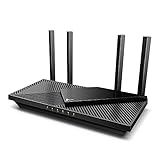
- Next-Gen Gigabit Wi-Fi 6 Speeds: 2402 Mbps on 5 GHz and 574 Mbps on 2.4 GHz bands ensure smoother streaming and faster downloads; support VPN server and VPN client¹
- A More Responsive Experience: Enjoy smooth gaming, video streaming, and live feeds simultaneously. OFDMA makes your Wi-Fi stronger by allowing multiple clients to share one band at the same time, cutting latency and jitter.²
- Expanded Wi-Fi Coverage: 4 high-gain external antennas and Beamforming technology combine to extend strong, reliable, Wi-Fi throughout your home.
- Improved Battery Life: Target Wake Time helps your devices to communicate efficiently while consuming less power.
- Improved Cooling Design: No heat ups, no throttles. A larger heat sink and redefined case design cools the WiFi 6 system and enables your network to stay at top speeds in more versatile environments.
Settings > Network & internet > Internet > [your Wi‑Fi network]
The page normally shows the connected network and signal information. Some phones show link speed; others do not. A third-party Wi‑Fi analyzer may show signal strength, channel data, or PHY rate rather than actual internet performance, so do not treat every displayed number as download speed.
4. Measure local Wi‑Fi speed with iperf3
If you want to test the router and wireless network without involving the ISP, use iperf3 between two computers on your LAN.
- Connect one computer to the router with Ethernet. This will be the server.
- Connect a second computer to Wi‑Fi. This will be the client.
- Install
iperf3on both computers. - On the wired computer, start server mode:
iperf3 -s- Find the wired computer’s local IP address, such as
192.168.1.20. - On the Wi‑Fi computer, run:
iperf3 -c 192.168.1.20Replace the example address with the wired computer’s actual LAN address. To reverse the direction and test traffic from the wired computer toward the Wi‑Fi client, run:
Also popular on Amazon

- FAST, RELIABLE WIFI: Delivers fast, reliable WiFi across your apartment or small home for streaming, video calls, browsing, and smart home devices.
- WORKS WITH YOUR EXISTING INTERNET SERVICE: Pairs with your existing modem or gateway via ethernet. Compatible with most cable, fiber, DSL, and satellite providers. Some gateways and modem router combos may require bridge mode. No coax needed.
- SET UP AND MANAGE YOUR NETWORK WITH THE NIGHTHAWK APP: Download the free Nighthawk app on iOS or Android for guided setup. Manage WiFi, run speed tests, pause devices, and set up guest networks from anywhere. Active internet required.
- READY FOR THE DEVICES YOU ALREADY OWN: Your phones, laptops, and TVs work right out of the box. WiFi 6 delivers speeds up to 1.8 Gbps across 2.4 GHz and 5 GHz bands. Backward compatible with WiFi 5 and earlier.
- COVERAGE IN EVERY ROOM: Covers up to 1,500 sq. ft. for up to 20 connected devices. Walls, floors, and interference can reduce range. Larger or multi-story homes may benefit from a NETGEAR Orbi mesh WiFi system.
iperf3 -c 192.168.1.20 -RBy default, iperf3 uses TCP port 5201. A firewall on the server may need to allow that port. This test measures local-network throughput, not internet speed. It can reveal whether slow transfers to a NAS or another computer are caused by Wi‑Fi rather than the ISP.
5. Check whether the router has its own speed test
Some routers and mesh systems run an internet test from the router itself. This can be useful because the test starts at the router rather than at a potentially weak Wi‑Fi client, but the menu is different for every manufacturer and model.
For supported NETGEAR Nighthawk systems, the path is:
Nighthawk app > Internet Speed > Test my speed
Some Nighthawk Pro Gaming models instead provide:
Router web interface > Connection Benchmark
Other brands may place the feature under Internet, Network, Diagnostics, or Administration. Check the model’s manual or app rather than assuming that a particular address or menu exists. ISP-supplied routers often use customized firmware.
Also popular on Amazon
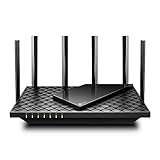
- 𝐆𝐢𝐠𝐚𝐛𝐢𝐭 𝐖𝐢𝐅𝐢 𝐟𝐨𝐫 𝟖𝐊 𝐒𝐭𝐫𝐞𝐚𝐦𝐢𝐧𝐠 – Up to 5400 Mbps WiFi for faster browsing, streaming, gaming and downloading, all at the same time. Performance varies by conditions, distance to devices, & obstacles such as walls.
- 𝐅𝐮𝐥𝐥 𝐅𝐞𝐚𝐭𝐮𝐫𝐞𝐝 𝐖𝐢𝐅𝐢 𝟔 𝐑𝐨𝐮𝐭𝐞𝐫 – Equipped with 4T4R and HE160 technologies on the 5 GHz band to enable max 4.8 Gbps ultra-fast connections.Power:12 V 2.5 A
- 𝐂𝐨𝐧𝐧𝐞𝐜𝐭 𝐌𝐨𝐫𝐞 𝐃𝐞𝐯𝐢𝐜𝐞𝐬 – Supports MU-MIMO and OFDMA to reduce congestion and 4X the average throughput
- 𝐄𝐱𝐭𝐞𝐧𝐬𝐢𝐯𝐞 𝐂𝐨𝐯𝐞𝐫𝐚𝐠𝐞 - Covers up to 2,000 sq. ft. High-Power FEM, 6× Antennas, Beamforming, and 4T4R structures combine to adapt WiFi coverage to perfectly fit your home and concentrate signal strength towards your devices.
- 𝐌𝐨𝐫𝐞 𝐕𝐞𝐧𝐭𝐬, 𝐋𝐞𝐬𝐬 𝐇𝐞𝐚𝐭 – Improved vented areas help unleash the full power of the router
On some routers, anti-bufferbloat or traffic-management features can cause an external speed-test website to report a lower result. Compare the router’s own test with a wired client test and check whether traffic controls are enabled before drawing a conclusion.
Common reasons a test looks wrong
- VPN enabled: Disable it for a baseline, then test again with it enabled if VPN performance is what you need to measure.
- Mesh satellite connection: A device connected to a satellite may be limited by the wireless backhaul to the main router. Test beside the main router and beside each satellite.
- Band steering: One SSID may place devices on 2.4 GHz, 5 GHz, or 6 GHz. Record the actual band when comparing results.
- Older client hardware: A Wi‑Fi 6E or Wi‑Fi 7 router cannot make a Wi‑Fi 4 phone operate at the newer standard’s rates. Both the router and client need compatible hardware.
- Background traffic: Cloud synchronization, streaming, cameras, updates, and another person’s speed test can consume bandwidth.
- Interference and channel width: Several signal bars do not guarantee high throughput. Neighboring networks, walls, interference, retransmissions, and a narrow channel can all reduce usable speed.
- Router reboot: Restarting the router can clear a temporary software or connection fault, but it does not increase the ISP plan or upgrade the router’s hardware.
What not to conclude from one number
- A “1,200 Mbps” router will not necessarily deliver 1,200 Mbps to one device.
- The Wi‑Fi link rate is not the same as internet download speed.
- More signal bars do not always mean faster Wi‑Fi.
- One Wi‑Fi speed test does not prove that the ISP is responsible.
- An internet test cannot measure file-transfer speed inside your home.
- Android phones do not all expose Wi‑Fi speed in the same Settings location.
FAQ
What is the best way to test my home internet speed?
Connect a computer directly to a LAN port on the router with Ethernet, pause other traffic and VPNs, then run several tests using Fast.com, your ISP’s test, or another reputable service. Test Wi‑Fi only after establishing this wired baseline.
Why is my Wi‑Fi link speed higher than my internet speed?
The link speed is the negotiated wireless PHY rate between your device and router. Internet speed also depends on protocol overhead, the router’s WAN path, ISP plan, test server, VPN, congestion, and background traffic, so the internet result is normally lower.
Recommended Free Tools
How can I test Wi‑Fi speed in different rooms?
Use the same device and speed-test service, test beside the router first, then repeat in each problem area two or three times. Record download, upload, latency, location, and the connected band where available.
How do I test the router without testing the internet?
Run iperf3 between a computer connected to the router by Ethernet and another computer connected over Wi‑Fi. Start the wired computer with iperf3 -s, then run iperf3 -c SERVER_IP on the wireless computer.
The Bottom Line
Start with a wired speed test, then compare it with Wi‑Fi beside the router and in the rooms that matter. Check the Wi‑Fi link rate for connection details, but do not confuse it with internet throughput. If internet tests are inconclusive, use iperf3 to separate local wireless performance from the ISP connection.

