
The Tool Desk
Outbyte PC Repair FREERepair Windows errors before they cause bigger problemsFix Now →Outbyte Driver Updater FREEFix the driver behind crashes, sound loss and screen glitchesFind Drivers →iTechGuides is reader-supported. When you buy through links on our site, we may earn an affiliate commission. As an Amazon Associate I earn from qualifying purchases. Learn more
Microsoft Teams does not currently provide a built-in way to cast a meeting directly to any television, Chromecast, Roku, or Apple TV. In Microsoft’s documentation, the Teams Cast feature is designed for a nearby Microsoft Teams Room (MTR) or Surface Hub.
A regular television can still show a Teams meeting if it is connected to a Teams Rooms system or used as an external display for your computer. For a non-Teams-room setup, the practical options are Miracast from a compatible Windows laptop or a wired HDMI connection.
What you need before casting Teams
Choose the method that matches your equipment:
| Setup | Best method | Important requirement |
|---|---|---|
| Teams Room or Surface Hub nearby | Teams Cast | The room must be discoverable and configured for casting |
| Teams Room on Windows or Surface Hub | Miracast | Miracast must be enabled and the room needs a Teams Rooms Pro license |
| TV connected to a room computer or console | HDMI | Connect the laptop to the room system’s HDMI cable |
| Ordinary smart TV with Chromecast, Roku, or Apple TV | No documented Teams Cast destination | Use HDMI, or use Windows wireless display if the TV supports Miracast |
For Teams Cast, Microsoft supports Teams Rooms on Windows, Teams Rooms on Android, and Surface Hub. The Teams device must also have Bluetooth beaconing enabled, and your account generally needs to be in the same Microsoft 365 tenant as the room. A federated tenant relationship may be required for cross-tenant access.
Do these 3 things before closing this tab:
1Repair Windows errors before they cause bigger problems2Fix the driver behind crashes, sound loss and screen glitches3Clear out junk files and repair common Windows errorsMethod 1: Cast Teams from the desktop app to a Teams Room
This is the simplest wireless method when your destination is an actual Teams Room or Surface Hub.
Popular on Amazon

- 4K Decode Input 1080P Output: Experience stunning clarity with 4K decoding that outputs a smooth 1080P@60Hz signal. This ensures your content, from high-resolution presentations to dynamic videos, is displayed in sharp, lifelike detail .
- Unique Cooling Design:With a more advanced Cooling design than other wireless hdmi kits, our wireless hdmi transmitter and receiver operate at significantly lower temperatures, effectively preventing overheating and signal loss, ensuring a smoother and more stable connection,thus enhancing the product's lifespan.
- 360FT/110M Range & 2.4G+5.8G Dual-Band Stability: Built with advanced 2.4G+5.8G dual-frequency chips for superior anti-interference, This wireless hdmi kit transmits signals up to 360ft/110m in open spaces or 165ft/50m indoors. It maintains a stable connection even when faced with obstacles such as furniture or partitions, making it a reliable choice for large homes, warehouses, exhibitions, bars, or backyards.(Note: Walls may have some impact on transmission distance and speed)
- Ultra-Low Latency for Real-Time Action: Designed for scenarios where every millisecond counts, our technology achieves near-zero latency. This is critical for live sports, professional presentations, and video monitoring, providing perfect synchronization between the source and display with no noticeable lag .Perfect for tidying up your home theater, office, or conference room, it's ideal for business presentations, classroom teaching, church services, live events, family movie nights, outdoor parties, or even weddings.
- Plug and Play & Mirror and Extend Mode: Get started instantly—no complicated apps, Wi-Fi, or software required. Just plug in the devices, and they connect automatically within seconds.Say goodbye to messy cables and complicated setups, and make your office or room tidier. Support both Extended and Duplicate screen modes to present or multitask seamlessly on a larger display, making every meeting, class, or any multimedia playback more efficient.
- Open the Teams desktop app and sign in.
- Select Settings and more, the three-dot button next to your profile picture.
- Select Cast.
- Select the nearby Teams Room.
- Select Next.
- If Teams detects a scheduled meeting in that room, choose either Just cast or Cast and join a scheduled meeting.
- Select Next again.
- Choose what to send: your screen, a window, a specific file, or supported PowerPoint Live content.
- Select Cast.
The computer joins the cast session with audio turned off. This helps prevent echo when the room’s speakers and microphones are being used.
What “Just cast” means
Just cast sends your selected content to the room without joining a scheduled meeting. Cast and join a scheduled meeting casts your content and joins the meeting associated with that room.
These choices do not always appear. Microsoft says they are shown only when you have a meeting scheduled in that room. If there are no meetings scheduled for the rest of the day, Teams will not display those options.
Quick wins for a faster PC:
Scan for outdated or missing drivers - takes under a minuteDriver Scan →Repair Windows errors before they cause bigger problemsFix Now →Automatic and manual acceptance
A wireless icon beside a room name indicates that the room can automatically accept casting when casting is enabled on the room device. If automatic acceptance is disabled, someone must accept the request on the Teams Rooms device.
For the smoothest experience, the room administrator should enable Automatically accept proximity-based meeting invitations. This setting works only when the wireless icon is displayed beside the room name.
Method 2: Cast Teams from a phone
The Teams mobile app can project an entire phone screen to a nearby Teams Room. This is different from sending only a presentation: everything visible on the phone, including notifications, is projected.
- Install and sign in to the Teams mobile app.
- Turn on Bluetooth.
- Make sure both the phone and the Teams Rooms device are connected to the internet.
- Move within approximately 10 meters (32.8 feet) of the room device.
- In Teams, tap Cast in the navigation bar. If it is not visible, tap More.
- Tap the available Teams Room.
- Tap Project my screen.
- On an iPhone or iPad, select Microsoft Teams if prompted.
- Tap Start Broadcast.
Microsoft provides a separate procedure for casting a PowerPoint presentation from a mobile device. Use that option when you want to share a presentation rather than mirror the whole phone.
While mobile casting is active, you cannot answer a call, join a meeting, or switch to another Teams account. To stop projecting, tap the pill-shaped status icon at the top of the screen and then tap Stop.
Method 3: Use Miracast from a Windows laptop
Miracast is useful when you want to mirror or extend a Windows laptop to a compatible Teams Room display. It is documented for Teams Rooms on Windows and Surface Hub, not as a general Teams connection to every smart TV.
The room must have a Teams Rooms Pro license, the administrator must enable Miracast, and your laptop must support Miracast. You also need to be physically in the room with the display turned on.
Also popular on Amazon

- 【No Need HDMI Cable,Easy Use】This wireless HDMI transmitter and receiver,easy installation, plug and play, no need for WiFi/APP/Bluetooth, say goodbye to the traditional cable connection can be audio and video signal transmission, make your office or room more neat.Use Delay <0.01s, almost 0 delay. Great for business meetings, teaching, churches, live broadcasts, business presentations home theater, parties, outdoor movie screenings, weddings, and more to use
- 【1080P HD Image Output】Those wireless HDMI transmitter and receiver support 4K decoding and 1080P/60Hz HD output. Image transmission is clear, stable and smooth. It is the best choice for sharing slides, pictures, videos and conference information. Make your meeting, classroom and any multimedia playback a more efficient and convenient playback experience(The wireless HDMI supports extended mode and duplicate mode)
- 【Outdoors 328ft/Indoors165ft Wireless Transmission】Those wireless HDMI transmitter and receiver distance can reach up to 165ft/50m(outdoor open distance: 328ft/100m), built-in advanced dual-frequency chip (2.4G and 5.8G), strong anti-interference ability, more stable signal transmission. Even through walls or obstacles, it can maintain more reliable connection. (Note: When the Wireless HDMI passes through walls, the transmission distance and speed will be affected to some extent)
- 【Wide Compatibility】The wireless HDMI allows you project content from laptops, cameras, set-top boxes onto HDTV, projectors, and monitors, whether you are sharing presentations, watching movies, or teaching, providing a high-quality visual feast on a larger screen. This wireless HDMI is also compatible with Blu-ray players, security cameras,DVDs, DSLRs,cable/satellite boxes, etc
- 【Portable Design for Easy Travel】 The wireless HDMI transmitter and receiver design is small, lightweight and sophisticated. (only 0.3 lbs), asking it ideal to take with you on business trips, holidays, patio, garden, caravan, camping and more. No matter where you are, you can discover the convenience of wireless HDMI and get high-quality connection. (Includes 2 accessories , Micro HDMI 8K Adapter/Mini HDMI 8K Adapter, allowing you to use it in multiple scenarios with ease)
- Press Windows key + K on the laptop.
- In the Cast panel, select the Microsoft Teams Room.
- When prompted, choose Duplicate your screen or Extend your screen.
- To disconnect, press Windows key + K again and select Disconnect.
Duplicate shows the same desktop on the laptop and room display. Extend creates a second display, allowing you to place Teams or presentation content on the TV while keeping notes on the laptop.
Windows may also show Allow mouse, keyboard, and other input from this device. Allowing it lets the room display send touch, pen, mouse, or keyboard input back to the laptop. Miracast audio behavior varies by device, and some DRM-protected streaming applications may not display correctly.
Method 4: Connect the laptop with HDMI
HDMI is usually the most dependable choice when wireless casting is unavailable. It also works with a television connected to a Teams Rooms system or with a TV used as a direct external monitor.
- Connect the laptop to the HDMI cable attached to the Teams Rooms console or room system.
- Wait for the room display to detect the connection.
- If the content does not appear automatically, select Share on the room console or system.
- During a meeting, select Share > Connected device > Share.
On Teams Rooms on Android, the room system may provide a Share system audio switch for content from a connected device. In a room with two displays, use Duplicate content to show the shared content on both screens, or Stop duplicating to return to the normal layout.
If your laptop has only USB-C, you may need a USB-C-to-HDMI adapter. For a normal TV, connect the adapter to an HDMI input, change the TV to that input, and use your computer’s display controls to duplicate or extend the screen.
Why your Teams Room does not appear
If the room is missing from the desktop or mobile Cast list, check these common causes:
- It is not a supported destination: a normal TV, Chromecast, Roku, or Apple TV will not appear in the Teams Cast list.
- Bluetooth beaconing is disabled: Teams uses proximity information to discover nearby room devices.
- The room is not configured for casting: the room administrator may need to enable casting or Miracast.
- Your account lacks access: the signed-in account may be outside the room’s tenant or lack the required device relationship.
- You are too far away: for mobile casting, move closer to the room; Microsoft specifies a range of about 10 meters.
- The room type is unsupported: the documented Teams Cast targets are Teams Rooms on Windows, Teams Rooms on Android, and Surface Hub.
- The room display is off: this is especially relevant when using Miracast.
For Windows Miracast, press Windows key + K. If the room is not listed, Miracast may be disabled on the room device or unsupported by the laptop.
Joining the meeting without creating an echo
A room meeting normally appears on the console when the organizer adds the room as the meeting location. If it is missing or has no Join button, try one of these options:
- Invite the room to the meeting.
- Scan the QR code shown on the room console.
- Select Join with an ID.
- Add the room from your personal device.
If you join from your laptop or phone and then accept the room call, turn off audio on the personal device first. Otherwise, the room and personal device can create an echo. In the Teams pre-join screen, a nearby room may appear as (suggested) beside Room audio. If the room is already in the meeting, choose Don’t use audio for Windows-based rooms or Audio off for Android-based rooms.
How to stop casting and end the meeting
To stop sharing from the room console, select Stop sharing.
Also popular on Amazon
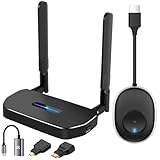
- 【SCREEN MIRRORING VIDEO/AUDIO to BIG SCREEN】 Wireless hmdi transmitter and receiver supports video resolution up to 1080P@60Hz resolutions,Built-in chip can prevent delay and lag caused by signal interference, you can enjoy clear and vivid images in a large screen. This Mirroring Dongle is perfect for learning, business meeting, family party and playing games and gives you a great screen experience.
- 【MORE ADAPTATIONS】Additional features include a mini adapter and a portable USB C to HDMI adapter (1080P@ 60Hz), USB-C (4K HDMI), suitable for MacBook Pro, Air, iPad pRPelbook, XPS, Galaxy, and more. Make this kit perfectly compatible with your commonly used machines and also compatible with more products.
- 【PLUG & PLAY】HDMI wireless transmitter and receiver No drive or APP needed, without messy wires, it’s easy to connect and pair TV and will not affect other wireless devices,Wirelessly mirror and share all contents on the big screen,include: pictures,videos,online game,online movies,web browsing,online shopping,documents and more.
- 【POWERFUL FUNCTION】HDMI Wireless adapters support stream 1080P@60Hz 3D movies,TV shows, video, games, presentations wirelessly from your Laptop,PC,Mac,Smartphone,HDSLR Camera to HDTV,Projector or Monitor.
- 【50M/165FT LONG RANGE TRANSMISSION】The hdmi sender and receiver wireless allow for stable signal transmission at a distance of up to 165FT/50M by utilizing an updated wireless frequency band with multiple channels.This ensures that you won't experience signal interruptions even at long distances. This means you don't have to buy a long HDMI cable to extend video signals.NOTE:If in different rooms, or on different floors, where the rooms are separated by cement walls, the signal transmission may be affected,and the transmission distance may be reduced to 3-5Meters.The extent of the impact will depend on the thickness of the cement walls.Therefore,this distance is only for reference.
On the casting computer, selecting End meeting ends the meeting for both the computer and the room. Selecting Leave in Teams on the computer may not end the room’s session. In that case, end the call separately on the Teams Rooms device.
For mobile projection, tap the status pill at the top of the screen and select Stop. For Miracast, press Windows key + K and select Disconnect.
Can you cast Teams to Chromecast or Apple TV?
Microsoft’s current Teams casting documentation does not list Chromecast, Roku, Apple TV, or an arbitrary smart TV as a Teams Cast destination. If one of these devices is connected to a TV, use a supported screen-mirroring feature outside Teams where available, or connect the computer directly with HDMI. A Windows laptop and a Miracast-compatible television may be able to use Windows key + K, but that is Windows wireless display functionality rather than Teams Cast.
Free tools Windows power users keep installed
One-click scans. No signup required.
FAQ
Can I cast Microsoft Teams directly to any TV?
Not through the Teams Cast feature documented by Microsoft. Teams Cast targets nearby Teams Rooms on Windows, Teams Rooms on Android, or Surface Hub devices. For an ordinary TV, use HDMI or a compatible Windows wireless-display method.
Why is Cast missing from Microsoft Teams?
On desktop, select Settings and more next to your profile picture and look for Cast. If it is absent or no rooms appear, the destination may not be a supported Teams device, Bluetooth beaconing or casting may be disabled, your account may not have access, or the room may belong to an unrelated tenant.
Can I cast Teams from an iPhone?
Yes, if a nearby supported Teams Room is available. In the Teams app, tap Cast, choose the room, tap Project my screen, select Microsoft Teams when prompted, and tap Start Broadcast. The entire phone screen, including notifications, is shared.
What is the most reliable way to show Teams on a TV?
A wired HDMI connection is generally the least dependent on room settings and wireless discovery. Connect the laptop to the TV or Teams Rooms system, select Share or Connected device on the room console when necessary, and choose the correct HDMI input.
Outdated Drivers Are Slowing You Down
One free scan finds every outdated or missing driver and matches the right update for your exact hardware.Free scan · exact hardware matchPC Slower Than It Used to Be?
A free scan shows the junk files, broken settings and background clutter dragging Windows down - then fixes them in one click.Free scan · Windows 10 & 11Does Teams Cast share computer audio?
The desktop Teams Cast session joins with audio off. Miracast audio behavior varies by device. Teams Rooms on Android may offer a Share system audio option for content sent through a connected device.
The Bottom Line
Bottom line: Teams Cast is for Teams Rooms and Surface Hub, not directly for consumer TV streaming devices. Use Settings and more > Cast when a supported room is nearby, Windows key + K for enabled Miracast rooms, or HDMI when you need the most predictable connection to a TV.

