
Free tools Windows power users keep installed
One-click scans. No signup required.
iTechGuides is reader-supported. When you buy through links on our site, we may earn an affiliate commission. As an Amazon Associate I earn from qualifying purchases. Learn more
Gaming PCs: The Ultimate Guide starts with the games and monitor you actually use, not a fashionable CPU name. As of August 18, 2026, a balanced system usually pairs a GPU suited to the target resolution with a capable CPU, 32 GB of memory, a sufficiently large NVMe SSD, reliable power, effective cooling, and a display that can show the intended frame rate.
A gaming PC is not a single product category or a race for the most expensive specifications. A competitive 1080p player, a 4K ray-tracing enthusiast, a creator who streams, and a buyer who needs a quiet small-form-factor computer require different balances of hardware.
Key takeaways
- A gaming PC should be selected from a target written as resolution, settings, frame rate, and display refresh rate—not from a CPU or GPU brand name alone.
- For a new mainstream desktop, 1440p is often a balanced target: prioritize the GPU, pair it with a modern midrange CPU, use 32 GB of memory, and plan for a 1 TB or larger NVMe SSD.
- Microsoft’s gaming guidance uses roughly 16 GB of RAM as a reference point, but 32 GB is a more comfortable practical target for a new system running games alongside browsers, launchers, chat, streaming, or mods.
- At 1080p and high refresh rates, the CPU and frame-time consistency can matter more; at 4K, ray tracing, or ultrawide resolutions, the GPU, VRAM, power supply, and cooling deserve a larger share of the budget.
- A prebuilt can be cheaper or less risky than buying parts separately, but the exact PSU, motherboard, memory layout, cooler, SSD, airflow, warranty, and proprietary components must be checked.
- Every upgrade should follow the current bottleneck: GPU for resolution and visual quality, CPU for high-refresh or simulation-heavy games, memory for paging and multitasking, and storage for capacity.
What is a gaming PC?
A gaming PC is a general-purpose computer configured to render games smoothly at a chosen resolution and frame rate. The system combines a discrete or integrated GPU, a CPU capable of feeding that GPU, sufficient memory, fast storage, a compatible motherboard, a reliable power supply, and a case-and-cooling setup that can sustain performance without unacceptable noise.
Do these 3 things before closing this tab:
1Clear out junk files and repair common Windows errors2Fix the driver behind crashes, sound loss and screen glitches3Repair Windows errors before they cause bigger problemsThe word “gaming” describes the configuration rather than a separate kind of computer. The same desktop can run office software, edit video, compile code, host virtual machines, stream games, or serve as a workstation. Gaming performance depends on how those components work together under a particular game and display—not on an isolated specification.
Popular on Amazon

- POWERHOUSE 8-CORE GAMING PERFORMANCE — Driven by the AMD Ryzen 7 8700F with 8 cores and 16 threads, boosting up to 5.0 GHz for smooth, responsive gameplay and the ability to handle AAA titles, streaming, and background tasks all at once
- NEXT-GEN BLACKWELL ARCHITECTURE — The NVIDIA GeForce RTX 5070 is powered by NVIDIA's cutting-edge Blackwell GPU architecture, delivering a massive generational leap in rasterization and ray tracing performance so you can experience your games the way they were meant to be played.
- Simplistic Design: Enjoy the latest generation of Windows 11 Home for your everyday needs. *MSI recommends Windows 11 Pro for business use.
- Cool While Gaming: In conjunction with an ARGB fan Air Cooler, the Codex R2 features four system cooling fans; three in the front and one in the rear to pull in cool air and push heat out of the PC.
- Turn on the Bright Lights: With the built-in RGB lighting, take your gaming experience to the next level by pressing the MSI LED button to cycle through lighting options. Customize lighting even further with MSI Center software.
Which type of gaming PC fits your use?
| Type | Best suited to | Main advantages | Main compromises |
|---|---|---|---|
| Custom gaming desktop | Buyers who want control and upgrades | Standard parts, component choice, repairability, and flexible future upgrades | Assembly, compatibility, and troubleshooting are your responsibility |
| Prebuilt desktop | Buyers who value convenience, warranty, or financing | One support channel, assembled system, and sometimes competitive sale pricing | Incomplete specifications, proprietary parts, or weaker cooling can limit upgrades |
| Gaming laptop | Portable gaming and limited space | Screen, keyboard, battery, and computer in one device | Less upgradeability, more noise, power limits, and generally weaker sustained performance than a similarly named desktop part |
| Small-form-factor PC | Compact desks, living rooms, and portability within a home | Small footprint and often attractive designs | GPU dimensions, cooler height, PSU format, airflow, and cable space restrict choices |
| Handheld PC | Portable, lower-power gaming | Built-in controls and screen | Small display, battery limits, and lower performance than a desktop |
| Living-room or TV gaming PC | Controller-based play from a sofa | Large-screen PC library and flexible graphics settings | TV refresh, input latency, case size, and interface convenience matter as much as components |
| Cloud-gaming client | Users with reliable high-speed internet and modest local hardware | Less local rendering hardware is required | Image quality, latency, game availability, and subscription or service dependence vary |
| Workstation that also games | Professional rendering, development, simulation, or editing | More cores, memory, storage, and expansion for demanding work | The most expensive workstation parts may not improve gaming value |
How do you choose a gaming PC target?
Write the target before choosing parts. A useful target says: “game or game class + resolution + settings + target FPS + monitor refresh rate + acceptable upscaling or frame generation.” Add the non-gaming requirements that affect the parts list.
- Name the games. Esports titles, open-world AAA games, simulators, heavily modded games, and VR workloads stress different components.
- Choose the resolution. Decide between 1080p, 1440p, 4K, or an ultrawide equivalent.
- Set a frame-rate goal. “Playable” is not a useful specification. Decide whether the goal is a stable 60 FPS, high-refresh competitive play, or the highest practical frame rate.
- Match the monitor. A 240 Hz 1440p display demands a different balance from a 4K 60–144 Hz display.
- Decide how you feel about ray tracing, upscaling, and frame generation. These options alter the GPU requirement and the trade-off between native image quality, apparent smoothness, and latency.
- List other work. Streaming, editing, development, AI workloads, virtual machines, and simulation increase CPU, RAM, encoder, and storage requirements.
- Set ownership constraints. Include budget, noise, size, appearance, power consumption, portability, warranty, and how long the system should remain satisfactory.
There is no universal “ultimate” gaming PC. The right computer is the one whose limiting component matches the experience you want. A bottleneck is not automatically a defect: every system has a component that limits performance in a particular game, resolution, setting, or frame-rate target.
Which gaming PC parts matter most?
What does the GPU do?
The GPU renders frames, textures, lighting, effects, and often ray-traced effects. For most 1440p and 4K gaming, the GPU is the largest performance purchase, but GPU choice is not determined by the model number alone.
Crashes, No Sound, or Screen Glitches?
Random freezes, missing sound and display glitches usually trace back to one bad driver. Find and replace yours safely.Free scan · under a minuteWindows Errors? Fix Them Before They Spread
Repair common Windows errors and clear accumulated junk for a smoother, more stable PC - no reinstall needed.Free scan · no reinstallCompare independent game benchmarks at the exact resolution and settings you intend to use. Consider raster performance, ray-tracing performance, VRAM capacity, drivers, upscaling and frame-generation support, encoder capabilities, display outputs, and the games’ engines and APIs. A synthetic score can reveal broad capability, but it cannot guarantee the same result in every game.
Raster rendering and ray tracing are separate performance questions. A card that is strong in conventional rasterized games may not have the same ranking with ray tracing enabled. Upscaled frames and generated frames can improve apparent smoothness, but generated frames do not replace adequate base performance and may involve image-quality or latency trade-offs.
VRAM is a capacity constraint, not a substitute for GPU speed. High-resolution textures, ray tracing, mods, multiple monitors, and newer games can increase memory demand. More VRAM can prevent texture-related stutter or setting limits, but a slower GPU with more memory does not automatically outperform a faster card with less memory in every workload.
As of August 18, 2026, current product families include NVIDIA GeForce RTX 50-series, AMD Radeon RX 9000-series, and Intel Arc B-series graphics. The families should not be treated as universally superior or inferior; model-specific benchmarks, price, VRAM, features, warranty, and power requirements determine value. Current OEM catalogs show RTX 50-series systems from Dell, Lenovo, and NZXT.
How does the CPU affect gaming?
The CPU handles game simulation, physics, NPC behavior, asset streaming, background applications, and the work required to prepare frames for the GPU. The CPU is especially important at 1080p, high refresh rates, and in CPU-heavy games such as simulation and strategy titles.
Six modern cores are a reasonable gaming starting point. More cores become useful for streaming, video creation, development, simulation, and heavy multitasking, but the fastest gaming CPU is not automatically the best value. CPU choice should balance price, gaming performance, productivity, cooling requirements, platform longevity, BIOS maturity, socket support, and the GPU being installed.
Also popular on Amazon

- Legend perfected: Modern design with a matte basalt black finish in an optimized chassis with customizable AlienFX lighting zones, including the striking stadium lighting.
- Game changing graphics: Step into the future of gaming and creation with the NVIDIA GeForce RTX 5070 graphics, powered by NVIDIA Blackwell architecture.
- Marathon gaming unlocked: This high-performance technology ensures clean energy is consistently available, unleashing the top-level power of Intel Core Ultra 7 265F processor as you game, livestream, and multi-task for hours on end.
- Total command: Alienware Command Center software allows you to create and edit AlienFX lighting across the ecosystem, choose and monitor your performance mode across distinct power states, and create custom gaming profiles for your whole library.
- Dell Services: 1 Year Onsite Service provides support when and where you need it. Dell will come to your home, office, or location of choice, if an issue covered by Limited Hardware Warranty cannot be resolved remotely.
Cache-equipped X3D-style processors can be attractive for gaming because some games benefit from additional cache, but those processors are not automatically best for every productivity workload. A high-end CPU paired with a weak cooler can throttle, run loudly, or consume budget that would have produced a more useful GPU upgrade.
Microsoft’s gaming setup guidance gives six-core-class CPUs and example gaming GPUs as broad orientation. The examples are not 2026 product recommendations without current testing. Intel likewise explains that CPU and GPU performance must be considered together in its gaming-PC build guide.
How much RAM does a gaming PC need?
For a new gaming desktop, 32 GB is a practical mainstream target. Sixteen gigabytes can still run many games, but 16 GB becomes restrictive sooner when a game runs alongside browsers, launchers, voice chat, streaming software, mods, or background applications. Microsoft’s PC buying guidance uses roughly 16 GB as a gaming or streaming reference point; that reference describes a workable baseline, not necessarily the most comfortable capacity for a new system intended to last several years.
| Memory capacity | Appropriate use | Important qualification |
|---|---|---|
| 16 GB | Entry-level gaming and lighter background use | May require closing applications or accepting more paging in demanding games and multitasking |
| 32 GB | Most new mainstream gaming desktops | A sensible balance for modern games, browsers, chat, streaming, and ordinary mods |
| 64 GB or more | Heavy modding, editing, virtual machines, development, simulation, or large projects | Extra capacity does not automatically increase FPS in ordinary gaming |
Use matched modules in the motherboard’s recommended dual-channel slots. Check whether the platform supports DDR4 or DDR5: the two memory types are not interchangeable. Advertised speed may require enabling a memory profile in firmware, and the profile may not be stable on every CPU and motherboard combination. Two larger modules are often easier to upgrade than four smaller modules.
What should you look for in a motherboard?
A motherboard should match the CPU socket and chipset, support the intended memory type and capacity, provide the required M.2 slots and expansion lanes, and offer the USB, networking, Wi-Fi, Bluetooth, audio, fan, and pump headers you actually need.
Check BIOS support for the chosen CPU before purchase. Also check VRM quality and cooling for high-power processors, GPU slot layout, form factor, future CPU support, M.2 lane sharing, and whether installing an SSD disables SATA ports or reduces access to an expansion slot. An expensive motherboard does not create FPS by itself; its value is connectivity, expansion, power delivery, firmware, and convenience.
The Tool Desk
Outbyte PC Repair FREERepair Windows errors before they cause bigger problemsFix Now →Outbyte Driver Updater FREEScan for outdated or missing drivers - takes under a minuteDriver Scan →How much storage should a gaming PC have?
An NVMe SSD is the sensible primary drive for Windows and games when the budget allows. A 1 TB drive is a practical minimum for many new builds, while 2 TB is more comfortable for a sizeable library. Modern games can be large, and free space is needed for updates, shader caches, temporary files, and normal SSD operation.
PCIe generation affects peak transfer rates more than typical game-loading experience. A good Gen4 NVMe drive is often a better value than a flagship Gen5 drive for gaming. A second SSD can be more useful than paying a premium for a faster first SSD. HDDs remain useful for archives, media, and backups, but HDDs are poor primary drives for modern game installs where loading and asset streaming matter.
Check the motherboard manual for M.2 lane sharing before installing multiple drives. One M.2 drive can disable or reduce access to particular SATA ports or expansion slots on some boards.
Also popular on Amazon
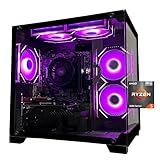
- Processor specifications: Adopting AMD Ryzen 5 5600 processor, with a basic clock speed of 3.5GHz and a turbo frequency of 4.4GHz, it can achieve fast response computing performance
- Graphics Card: Features GeForce RTX 3050 graphics card with 6GB dedicated video memory for gaming and multimedia applications
- Memory configuration: Equipped with 32GB DDR4 RAM (16GB * 2), providing sufficient memory capacity for multitasking and demanding applications
- Gaming Performance: Designed to handle modern gaming titles and graphics-intensive tasks with smooth frame rates and visual quality
- Desktop System: Complete gaming desktop computer system ready for setup and use out of the box
How do you choose a safe power supply?
The PSU is a reliability and safety component, not a place to maximize the wattage printed on the box. Check continuous rated wattage, independent reviews, protections, efficiency certification, warranty, transient-load handling, cable quality, native GPU connectors, and bend clearance.
A high-quality 750-watt PSU can be a better choice than a poor 1,000-watt unit. Size the PSU for the complete system and its intended upgrade, not an arbitrary oversized number. GPU vendor recommendations are useful starting points, but the actual GPU, CPU, drives, fans, and power limits must be considered together.
Use the connectors and cable arrangement specified by the GPU and PSU manufacturers. Do not reuse modular cables from another PSU model unless the manufacturer explicitly confirms compatibility. Never improvise with connectors that do not match the documented electrical requirements.
How should a gaming PC be cooled?
Cooling must remove sustained heat while keeping noise acceptable. Options include a stock cooler for suitable low-power CPUs, a tower air cooler, or a liquid cooler with a radiator and pump.
A well-chosen air cooler and ventilated case are often quieter, cheaper, and easier to maintain than an elaborate liquid loop. Liquid cooling can suit some high-power CPUs or cases where radiator placement is helpful, but it adds a pump and radiator as additional failure and clearance considerations.
Check front-panel restriction, intake and exhaust balance, GPU airflow, fan curves, dust filters, room temperature, cooler mounting, and sustained-load temperatures. Idle noise is not enough: evaluate acoustics while the GPU and CPU are both working. Thermal throttling, blocked intakes, dust, an aggressive power limit, or an unsuitable fan curve can all reduce sustained performance.
What physical compatibility checks prevent build mistakes?
- Confirm the motherboard form factor matches the case.
- Compare the GPU’s length, thickness, power-connector position, and radiator or front-fan clearance with the case specifications.
- Confirm CPU-cooler height or radiator size and mounting support.
- Check PSU length and cable-management space.
- Check front-radiator and GPU conflicts, especially in compact cases.
- Count included case fans and confirm fan, pump, front-panel, USB, and audio headers.
- Check vertical GPU mounting and riser-cable quality if the case uses them.
- Measure the finished case against the desk, shelf, and transport route.
Small-form-factor builds can be excellent, but compact dimensions reduce part choice and increase assembly and thermal complexity. A smaller case is not automatically a better system.
What is the difference between building and buying a gaming PC?
Building provides control and standardization; buying a prebuilt provides convenience and system-level support. Neither choice is automatically cheaper. Component pricing, promotions, assembly costs, shipping, tax, warranty, and the value of your time can reverse the usual assumption.
| Decision | Build your own | Buy a prebuilt |
|---|---|---|
| Component control | Choose every model and avoid weak parts | Depends on how completely the vendor discloses the configuration |
| Assembly | Your responsibility | Completed before delivery |
| Support | Separate warranties for individual parts | Usually one system-level warranty and support channel |
| Upgradeability | Usually strong when standard parts are used | Can be strong, limited, or proprietary depending on the exact model |
| Price | Can be competitive, especially with reused parts or sales | Can sometimes match or beat DIY pricing during promotions |
| Risk | Compatibility and troubleshooting risk | Configuration, shipping, proprietary-part, and support risk |
For a DIY build, budget for the PC, operating system, monitor, keyboard, mouse, headset or microphone, Wi-Fi or Bluetooth if absent, shipping, tax, extra fans, and replacement cables. Intel’s build guidance covers the major parts and the custom-versus-prebuilt decision, while current market coverage from TechSpot and Tom’s Guide shows why pricing must be compared using equivalent specifications.
Quick wins for a faster PC:
Scan for outdated or missing drivers - takes under a minuteDriver Scan →Repair Windows errors before they cause bigger problemsFix Now →Also popular on Amazon

- POWERED BY RTX 5070 12GB + RYZEN 7 9700X - The GeForce RTX 5070 12GB GDDR7 graphics card pairs with an 8-core AMD Ryzen 7 9700X processor to drive smooth 1440p and 4K gameplay, giving this gaming PC the headroom for modern titles, streaming, and creative work.
- 32GB (16x2) DDR5 MEMORY & 1TB NVMe SSD - 32GB of high-speed DDR5 memory and a 1TB PCIe 4.0 NVMe solid state drive deliver quick load times, smooth multitasking, and generous storage, keeping this prebuilt gaming desktop responsive under heavy workloads.
- BUILT-IN 11.3-INCH Smart DISPLAY - An integrated smart screen shows real-time CPU and GPU temperatures, usage, and weather while you play, adding a distinctive and functional touch to your battlestation.
- 850W 80+ GOLD POWER SUPPLY, 360MM LIQUID COOLING & WiFi 7 - An 850W 80 Plus Gold certified power supply provides stable, efficient power with headroom for future upgrades, while a 360mm AIO liquid cooler, WiFi 7, and an ARGB mid-tower case keep the Ryzen 7 CPU cool and connected in a clean build.
- READY TO PLAY OUT OF THE BOX - Arrives fully assembled and tested with Windows 11 Home pre-installed, so your prebuilt gaming computer is ready to set up in minutes. Assembled in the USA, and backed by a one-year limited warranty and lifetime free technical support.
How should you evaluate a prebuilt?
Ignore labels such as “Core i7,” “Ryzen 7,” or “gaming edition” until the exact model is disclosed. Require the following information before buying:
- Exact GPU model and VRAM.
- Exact CPU model.
- Two-stick or four-stick memory arrangement, memory type, and speed.
- SSD model, capacity, and availability of a second drive.
- PSU brand, model, wattage, efficiency rating, connectors, and standardization.
- Motherboard model, BIOS support, and upgrade options.
- Cooler type, radiator size if liquid-cooled, and case airflow.
- Warranty length, return window, shipping-damage policy, and support reputation.
- Any proprietary motherboard, PSU, case, front-panel connector, or replacement part.
Current US storefronts illustrate the range rather than establish permanent best values. Dell’s gaming-desktop listings included an observed Alienware configuration at $3,729.99 and systems reaching RTX 5090-class graphics; the price is a dated configuration signal, not a stable market fact. NZXT displayed a Player configuration with an Intel Core Ultra 7 and RTX 5070 at $3,499.00. Check the Dell deals page and NZXT prebuilt catalog immediately before publication or purchase because promotions and configurations change.
Is a used or refurbished gaming PC worth considering?
A used or refurbished gaming PC can deliver good value, but the buyer assumes more condition and upgrade risk. Inspect the GPU’s age and remaining warranty, signs of mining or overheating, corrosion or physical damage, SSD health and power-on hours, PSU age and model, BIOS support, and whether Windows activation transfers.
Test the computer under load before payment when possible. Avoid no-name PSUs and proprietary cases unless the price compensates for limited upgradeability. Confirm the return policy for used parts and test memory, storage, CPU, GPU, temperatures, clocks, and crashes before the return window closes.
Which gaming PC hardware matches each target?
| Gaming scenario | Prioritize | Typical compromises |
|---|---|---|
| 1080p esports | CPU consistency, low latency, high-refresh monitor, adequate GPU | An expensive flagship GPU may be wasted if settings and display do not use it |
| 1080p AAA | Balanced CPU and GPU, adequate VRAM, fast SSD | Maximum refresh rate or ray tracing may require a higher GPU tier |
| 1440p mainstream | GPU first, modern midrange CPU, 32 GB RAM, 1 TB or larger NVMe SSD | Extreme CPU and premium motherboard features |
| 1440p high refresh | Strong GPU plus CPU capable of high frame rates, stable memory, fast monitor | Some visual effects or native rendering at the highest frame rates |
| 4K or ray tracing | GPU, VRAM, upscaling support, PSU, and cooling | Some CPU excess can be traded for GPU capacity |
| Modded games | RAM capacity, CPU cache and consistency, SSD capacity, and game-specific testing | Peak ray-tracing performance may matter less than smooth asset handling |
| Streaming and creation | GPU encoder, CPU headroom, RAM, storage, and upload bandwidth | Cosmetic features and gaming-only CPU specialization |
| Quiet operation | Efficient CPU and GPU, large cooler, ventilated case, tuned fans | Maximum overclocking and unrestricted power limits |
| Small form factor | Case, GPU dimensions, PSU format, cooler, airflow, and cable space | Component choice, expansion, and sometimes sustained performance |
At higher resolutions, the GPU usually becomes the dominant gaming purchase; at lower resolutions and high refresh rates, CPU limits become more visible. A 4K 60–144 Hz display creates a different system requirement from a 1440p 240 Hz display. The best spending decision follows the monitor, not the product label.
A GPU rendering 200 frames per second cannot show 200 visible refreshes on a 60 Hz monitor. Microsoft’s optimization guidance makes the same allocation point: a GPU producing more frames than the monitor can display may not be the best use of the budget.
How do you assemble a gaming PC?
- Prepare a clean, static-safe workspace and gather a screwdriver, manuals, cable ties, and a suitable recovery USB.
- Read the motherboard and case manuals before installing hardware.
- Install the CPU without forcing the socket mechanism.
- Install the M.2 SSD and its heatsink if supplied.
- Install the memory in the motherboard’s recommended slots, normally the slots specified for a two-module configuration.
- Install the CPU cooler backplate and mounting hardware if the cooler requires them. Apply thermal compound according to the cooler instructions.
- Install motherboard standoffs and the I/O shield where applicable.
- Mount the motherboard without overtightening screws.
- Install the PSU and route its cables before the case becomes crowded.
- Install case fans and connect them to appropriate fan headers or a fan hub.
- Install the GPU in the primary full-length slot and secure its bracket.
- Connect the motherboard power cable, CPU EPS power, GPU power, storage, fan, front-panel, USB, and audio cables.
- Check for loose screws, pinched wires, obstructed fans, unlatched memory, and improperly seated connectors.
- Connect the monitor to the discrete GPU, not the motherboard video output, when using a discrete GPU.
- Enter firmware setup and confirm CPU, memory, SSD, and GPU detection.
- Set the intended boot device. Enable the memory profile only after confirming that the system can boot at baseline settings.
- Install the operating system, chipset driver, network driver, audio driver, graphics driver, and required updates.
- Test memory, CPU, GPU, storage, temperatures, fan behavior, and stability before overclocking.
- Create a restore or recovery path before changing performance settings.
What should happen on first boot?
- Fans may briefly ramp to full speed.
- The first boot may take longer while memory training occurs.
- The monitor should display firmware output on the correct video connection.
- Firmware should report the installed CPU and total memory capacity.
- The SSD should appear in the storage or boot menu.
What should you do if there is no display?
- Confirm the monitor is powered on, set to the correct input, and connected with a working cable.
- Confirm the cable is connected to the GPU when a discrete GPU is installed.
- Reseat the GPU power connectors.
- Power down safely and reseat the GPU.
- Reseat the memory and test one module at a time in the motherboard’s recommended slot.
- Confirm the CPU power connector is attached in addition to the main motherboard connector.
- Check motherboard diagnostic LEDs or display codes.
- Clear CMOS according to the motherboard manual.
- Test with minimum hardware: motherboard, CPU, cooler, one memory module, GPU if required, and PSU.
- Check BIOS compatibility and use the board’s supported flashback method if available.
- Test outside the case if a short, misplaced standoff, or mounting problem is suspected.
Do not repeatedly power-cycle a system at random or experiment with incompatible power connectors. Follow the motherboard and PSU manuals.
Independent reader supportYour contribution helps us test, update, and keep practical guides available for everyone.How should you set up and test a new gaming PC?
Install the operating system, chipset, network, audio, and GPU drivers, then apply updates. Windows 11 provides the broadest compatibility for the PC-game library and hardware-support combination. Linux and SteamOS are viable alternatives for some users, but game, launcher, driver, and anti-cheat support varies by title.
Recommended Free Tools
Do not assume every driver should be installed immediately. A stable update process is to update for a new game, security issue, hardware support, or documented bug fix, while retaining a recovery path. Keep Windows Security active, remove unnecessary vendor utilities, and disable overlays one at a time when troubleshooting.
Also popular on Amazon

- CPU: AMD Ryzen7 5700X (up to 4.6GHz) 8-Core 16-Thread to easily handle multi-line tasks
- Main board: MSI B550M-A PRO motherboard provides reliable performance and stability
- GPU: Geforce RTX 5060 8GB GDDR7 Graphics Cards (Brand may vary) Support DLSS 4 multi frame generation, ray tracing, and Reflex 2 delay optimization
- RAM: 32GB DDR4 3200MHz (16GB*2) SSD: 1TB M.2 NVMe PCIe
- Power supply: 650W (80plus bronze) certified for energy efficiency and stable performance
During testing, record average FPS, one-percent lows, frame-time spikes, input latency where relevant, GPU utilization, CPU utilization by core, VRAM use, system RAM use, temperature, clock speed, power limit, and throttling. Average FPS alone can conceal stutter and poor responsiveness.
| Observed symptom | Likely areas to investigate |
|---|---|
| Low GPU utilization | CPU limit, frame cap, background process, thermal or power issue, or driver problem |
| Stutter despite high average FPS | Shader compilation, asset streaming, insufficient RAM, storage pressure, background tasks, driver issue, or game-engine behavior |
| High temperatures | Blocked intake, poor cooler mounting, dust, aggressive power limits, or unsuitable fan curve |
| Crashes under load | Unstable memory profile, GPU overclock, inadequate PSU, driver conflict, overheating, or faulty component |
| Poor prebuilt performance | Single-channel RAM, weak cooling, excessive vendor software, incorrect power settings, or a case-constrained GPU |
| Unexpectedly low FPS | Monitor connected to motherboard, wrong resolution, render scale, ray tracing, frame cap, or integrated graphics in use |
How do you upgrade a gaming PC intelligently?
Upgrade the component that limits the experience you care about, then verify compatibility before ordering.
| Problem or goal | Likely upgrade | Checks before buying |
|---|---|---|
| Higher resolution, visual quality, or ray tracing | GPU | PSU wattage and connectors, GPU length and thickness, monitor inputs, VRAM, and CPU limitations |
| High-refresh gaming or CPU-limited simulation | CPU or platform | Socket, BIOS version, cooler capacity, motherboard power delivery, and memory compatibility |
| Paging, multitasking, mods, or large games | RAM capacity | Memory type, available slots, module matching, motherboard limits, and profile stability |
| Insufficient game-library space | Second or larger SSD | M.2 slots, lane sharing, heatsink clearance, and operating-system migration plan |
| New GPU exceeds power or connector capacity | PSU | Continuous wattage, native connectors, case length, cable bend clearance, and warranty |
| Temperature or noise limits sustained clocks | Cooler, case fans, or case | Cooler mounting, radiator and GPU conflicts, fan headers, intake restriction, and dust filters |
Before any upgrade, check the motherboard BIOS, CPU socket, PSU capacity and connectors, GPU clearance, cooler compatibility, memory type and free slots, M.2 lane sharing, warranty consequences, and the used-part return policy. A GPU upgrade may expose a CPU limit; a powerful CPU upgrade may require a cooler or motherboard upgrade; and a new GPU may require a new PSU.
What’s actually slowing this PC down?
Pick the symptom - the matching free tool is one click away.
How much should you spend on a gaming PC?
Use performance targets rather than rigid budget tiers. Prices vary by country, tax, sale, availability, included operating system, and whether the monitor and peripherals are included. A valid comparison uses the same GPU, CPU class, memory arrangement, SSD capacity, PSU quality, cooling, case, warranty, and delivered cost.
Calculate the complete purchase cost as:
Total cost = PC + operating system + monitor + keyboard + mouse + headset or microphone + Wi-Fi/Bluetooth if absent + shipping + tax + extra fans or storage.
As a dated US market signal, commercial coverage on August 16, 2026 showed prebuilt listings across RTX 50-series, Ryzen 9000X3D, and Intel Core Ultra configurations. Dell displayed an observed Alienware listing at $3,729.99, while NZXT displayed one Core Ultra 7 and RTX 5070 Player configuration at $3,499.00. Those prices are not universal recommendations or permanent facts; compare the exact delivered configurations with a standard-parts build before deciding. Current market context is discussed by TechRadar, PC Gamer, and TechSpot.
What are the biggest gaming-PC buying mistakes?
- Buying a CPU by family name while ignoring the exact model and target GPU.
- Choosing a flagship GPU for a 60 Hz display without a plan for higher resolution, quality, or a monitor upgrade.
- Treating 16 GB as universally comfortable for a new multi-year system.
- Choosing a GPU by series number, advertised AI features, or theoretical compute figure without target-resolution game benchmarks.
- Assuming more VRAM always compensates for a slower GPU.
- Paying for a flagship Gen5 SSD when a good Gen4 drive or additional capacity would be more useful.
- Using a no-name PSU, an arbitrary oversized wattage, or modular cables from another PSU.
- Ignoring single-channel memory in a prebuilt.
- Failing to check radiator, GPU, PSU, cooler-height, or M.2 lane conflicts.
- Calling a system “future-proof” without defining the games, workload, timeframe, and upgrade path.
- Comparing average FPS while ignoring one-percent lows, frame times, temperatures, and input latency.
- Forgetting Windows, monitor, peripherals, shipping, tax, extra fans, and storage in the budget.
- Assuming benchmark results transfer perfectly across game patches, drivers, BIOS settings, memory profiles, and review methods.
Gaming PC buying checklist
For a new desktop
- Games, resolution, settings, target FPS, refresh rate, and ray-tracing preference are written down.
- GPU benchmarks match the intended games and resolution.
- CPU is appropriate for the frame-rate target and other workloads.
- Memory is the correct DDR generation, uses matched modules, and has a realistic upgrade path.
- Motherboard supports the CPU, BIOS version, memory, storage, networking, and expansion needs.
- NVMe capacity leaves room for games, updates, caches, and temporary files.
- PSU has adequate continuous wattage, native connectors, protections, warranty, and upgrade headroom.
- Cooler, case airflow, GPU clearance, radiator clearance, PSU length, and cable space are confirmed.
- Monitor supports the intended resolution, refresh rate, adaptive sync, inputs, HDR needs, and response-time expectations.
- Complete cost includes Windows, display, peripherals, shipping, tax, and accessories.
For a prebuilt
- Exact GPU, VRAM, CPU, motherboard, PSU, SSD, cooler, and case are disclosed.
- RAM uses the appropriate number of modules and has a usable upgrade path.
- Cooling is adequate for sustained CPU and GPU loads.
- Proprietary components and replacement-part availability are understood.
- Warranty, returns, shipping-damage coverage, and support reputation justify the price.
- The complete system is compared against an equivalent DIY parts list.
For a used system
- GPU condition, age, warranty, mining history, temperatures, and physical damage are checked.
- SSD health and power-on hours are reviewed.
- PSU model and age are known.
- BIOS support and Windows activation are confirmed.
- The system is tested under CPU and GPU load before the return period ends.
- No-name PSU and proprietary-case risks are reflected in the price.
Research date: This guide reflects the supplied August 18, 2026 position. Product families, prices, promotions, drivers, BIOS support, and game requirements change, so verify exact specifications and local pricing before purchase.
Frequently Asked Questions
Is 32 GB of RAM necessary for a gaming PC?
32 GB is a practical target for a new gaming PC, especially when games run alongside browsers, launchers, chat, streaming, or mods. Sixteen gigabytes can still work for entry-level and lighter gaming, while 64 GB or more is justified for heavy modding, creation, development, virtual machines, or simulation.
Is it cheaper to build or buy a gaming PC?
Neither option is always cheaper. DIY pricing can win when individual parts are on sale or existing parts can be reused, while a prebuilt can match or beat DIY pricing during promotions and includes assembly and system-level support. Compare identical specifications, warranty, shipping, tax, and the value of your time.
What should I upgrade first in a gaming PC?
Upgrade the component that limits the target experience. Upgrade the GPU for higher resolution, visual quality, or ray tracing; the CPU for high-refresh or CPU-heavy games; RAM when the system pages or multitasks poorly; storage when capacity is the problem; and cooling or the PSU when sustained performance or power delivery is limiting.
Can Linux or SteamOS replace Windows for PC gaming?
Linux and SteamOS can replace Windows for some gaming libraries, but compatibility varies by game, launcher, driver, and anti-cheat system. Windows 11 remains the safest choice for the broadest PC-game and hardware-support combination.
PC Slower Than It Used to Be?
A free scan shows the junk files, broken settings and background clutter dragging Windows down - then fixes them in one click.Free scan · Windows 10 & 11Crashes, No Sound, or Screen Glitches?
Random freezes, missing sound and display glitches usually trace back to one bad driver. Find and replace yours safely.Free scan · under a minuteThe Bottom Line
The best gaming PC is not the one with the most expensive processor or the newest badge. Choose the games, display, settings, and frame-rate target first; select the GPU and CPU as a pair; then validate memory, storage, motherboard firmware, PSU, cooling, physical fit, software compatibility, and total ownership cost. A balanced standard-parts build or a fully specified prebuilt will serve you better than a headline specification surrounded by weak supporting components.

