
Outdated Drivers Are Slowing You Down
One free scan finds every outdated or missing driver and matches the right update for your exact hardware.Free scan · exact hardware matchPC Slower Than It Used to Be?
A free scan shows the junk files, broken settings and background clutter dragging Windows down - then fixes them in one click.Free scan · Windows 10 & 11iTechGuides is reader-supported. When you buy through links on our site, we may earn an affiliate commission. As an Amazon Associate I earn from qualifying purchases. Learn more
There is no clinically proven “best monitor for eyesight.” A monitor can, however, make long sessions easier when it shows crisp text, adjusts to your posture, controls reflections and brightness, and avoids visible flicker. The Dell 27 Plus 4K Monitor S2725QS is a sensible high-resolution office example; BenQ’s Eye-Care range is a feature-led alternative. Neither manufacturer feature should be treated as protection from eye disease.
Your setup and habits matter as much as the display. Position the screen about an arm’s length away, keep its top at or just below eye level, reduce glare, blink deliberately and use regular distance breaks. If blur, pain, headaches or dryness persist, arrange an eye examination instead of assuming a different monitor will solve the problem.
What a monitor can—and cannot—do for your eyesight
“For eyesight” usually means “comfortable for long computer sessions,” not a device that improves visual acuity or prevents disease. Digital eye strain (also called computer vision syndrome) can involve tired or burning eyes, intermittent blur, headaches, neck and shoulder discomfort, and dryness. EyeWiki’s overview attributes symptoms to several interacting factors: prolonged near focus, reduced blinking, glare, poor viewing distance, unsuitable lighting, uncorrected refractive error and dry-eye conditions.
Quick wins for a faster PC:
Repair Windows errors before they cause bigger problemsFix Now →Fix the driver behind crashes, sound loss and screen glitchesFind Drivers →A display is therefore one part of a workstation. Higher resolution can make letter edges cleaner, while an adjustable stand can put the screen in a neutral position. Brightness controls, a matte surface and sensible room lighting can reduce reflections. These are comfort advantages, not medical treatments.
Popular on Amazon

- 24" Full HD IPS Display: Enjoy crisp 1080p visuals and wide 178 viewing angles for work, study, streaming, and daily use
- 99% sRGB Frameless Panel: See vivid, consistent color with a slim modern design for home office, dorm, or dual monitor setups
- 120Hz Smooth Motion: Experience smoother scrolling, video, and casual gaming with a fast refresh rate that helps reduce choppy motion
- 1ms MPRT Adaptive-Sync: Reduce blur, screen tearing, and stutter for smoother gameplay, movies, and everyday entertainment
- ASUS Eye Care Technology: TV-certified Flicker-Free and Low Blue Light help support comfortable viewing during long sessions
Labels such as “low blue light,” “flicker-free” and “eye-care” describe a design feature, a test condition or a manufacturer certification. They do not prove that a screen prevents eye damage or relieves symptoms for every user. No independent head-to-head test or clinical comparison establishes one overall best monitor.
Top monitor choices by use case
The table below separates documented specifications from editorial fit. It is a shortlist, not a laboratory ranking. Check the current regional product page before ordering because ports, stands, certifications and availability can vary by market or revision.
| Use case | Example | What is documented | What you still need to verify |
|---|---|---|---|
| Sharp text for office work | Dell 27 Plus 4K Monitor S2725QS | Dell lists a 4K resolution, refresh rate up to 120Hz, ComfortView Plus, blue-light emissions at or below 35%, and four-star eye-comfort certification. | USB-C and power delivery, exact stand adjustments, current price, warranty terms and the regional specification. |
| Built-in eye-comfort controls | A model in BenQ’s Eye-Care range | BenQ describes Flicker-Free, Low Blue Light and Visual Optimizer technologies across the range. | Select a specific size and resolution, then confirm its stand, ports, brightness range, refresh rate and current certification. The range description alone does not identify one best model. |
| Certification-led shopping | A Dell model carrying the company’s five-star tier | Dell says its five-star tier combines more than 120Hz refresh, low-blue-light exposure under specified limits, color coverage and an ambient-light sensor. | The exact model and test thresholds for your region. Dell’s tiers are the company’s criteria, not a universal clinical scale. |
| USB-C desk with a $500 ceiling | Any model that meets your text and ergonomic requirements | The reader question commonly includes USB-C with power delivery, but the supplied product information does not establish those ports for a particular monitor. | Confirm one-cable video, charging wattage, hub functions, compatible input modes and the recurring—not promotional—price. |
Why the Dell S2725QS is a strong text-first example
A 27-inch 4K display gives you a dense desktop for documents, code and spreadsheets. At the same physical size, more pixels can produce finer type than a lower-resolution panel, provided your operating system scaling keeps letters large enough to read comfortably. Dell’s stated 120Hz maximum may make pointer movement and scrolling feel smoother than a 60Hz screen, but smoothness is not evidence of a health benefit.
ComfortView Plus and the “at or below 35%” blue-light figure are Dell’s specifications. The four-star eye-comfort designation is also a manufacturer-reported certification. Treat those facts as selection criteria to investigate, not a promise that symptoms will disappear. The listing does not establish USB-C power delivery, so do not assume that a 4K monitor with this model name can charge a laptop.
Also popular on Amazon

- 27-Inch Full HD IPS Panel: Enjoy vivid colors and wide viewing angles for work or movies. This 27 inch monitor is a 1080p computer monitor and IPS desktop display for everyday clarity
- 120Hz Refresh Rate & 1ms MPRT: Experience buttery-smooth web scrolling and blur-free action. This 120Hz gaming monitor features a fast 1ms response time, giving you an upgraded PC gaming screen experience
- ASUS Eye Care Technology: Reduce eye strain during long hours of work or play. TV Rheinland-certified filters make this flicker-free eye care monitor suitable for home office setups
- Adaptive-Sync (VRR) Technology: Eliminate screen tearing and choppy frame rates for distraction-free use. This VRR display acts as a brilliantly smooth gaming monitor for any PC gaming setup
- Frameless Edge-to-Edge Design: Maximize desk space with a sleek, modern look. This VESA mount compatible frameless monitor works well for creating a seamless dual monitor setup
How to approach BenQ’s Eye-Care range
BenQ groups Flicker-Free, Low Blue Light and Visual Optimizer under its Eye-Care branding. These controls can be useful if you want an easy way to reduce output or alter the picture for different rooms. They do not demonstrate that the screen prevents eye strain. Because the range contains multiple sizes and specifications, choose the exact model only after checking resolution, text scaling, stand movement, inputs, USB-C charging and the published warranty.
How to compare monitors for comfortable viewing
1. Match resolution and size to your working distance
Resolution and diagonal size work together. A very large screen viewed close up can force more eye and neck movement; a small, high-resolution screen can make unscaled menus uncomfortably tiny. For a 27-inch 4K display, begin with your operating system’s recommended scaling, then increase it until body text is readable without leaning forward. Judge the result from your normal arm’s-length position, not with your face close to the panel.
- Open a document containing the fonts and applications you use every day.
- Set the system to its recommended scaling first; increase scaling rather than moving the monitor closer when text feels small.
- Check punctuation, thin strokes and scrolling text at your normal distance. “Sharper” is useful only if you can read without squinting.
2. Prioritize physical positioning
Look for height, tilt and swivel adjustment, plus pivot if you work with long documents. If the supplied stand cannot reach a comfortable height, a VESA-compatible arm can provide the missing range. EyeWiki advises placing the top of the screen at or just below eye level and maintaining a slight downward gaze. No particular stand has been shown to cure eye strain; adjustability simply makes the recommended posture easier to achieve.
3. Control brightness and reflections
Set brightness to match the room instead of running the panel at its maximum. Place the monitor perpendicular to windows and strong lamps so light does not reflect directly toward you. A matte or antiglare surface can reduce visible reflections. EyeWiki notes that antiglare filters may reduce reflection and glare but may not reduce asthenopia, so a filter is not a guaranteed symptom remedy.
Also popular on Amazon
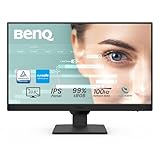
- 【100Hz Refresh Rate】Enjoy smooth and fluid visuals with our monitor's lightning-fast 100Hz refresh rate, reducing lag and motion blur for a more immersive viewing experience
- 【Professional 99% sRGB Color Gamut】Experience vivid and lifelike colors with our monitor's 99% sRGB color gamut, ensuring that images and videos are displayed with accurate and true-to-life colors.
- 【Versatil Connectivity with Easy Switch】Featuring an Input Hotkey for seamless device switching between work and play with a single click Connect to more. With HDMI * 2 and DisplayPort, you can connect to various devices with increased flexibility, making your environment even more convenient & efficient
- 【VESA Certified Media Sync】Ensures compatibility and performance between displays and devices like media players, set-top boxes, and game consoles. It aims to provide a seamless experience when using these devices together, ensuring that features like HDR, refresh rates, and resolution work optimally.
- 【BenQ Eye Care Tech-Low Blue Light Plus】Filters out the shorter, higher energy blue-violet radiation harmful to the eyes while maintaining vivid color quality, promoting eye health without compromising visual performance. This feature reduces eye strain during long periods of use
An ambient-light sensor can change brightness automatically. Dell includes such a sensor in the company’s description of its five-star tier. Consider it a convenience feature: automatic brightness is not a clinical outcome, and some users prefer to set a fixed level.
4. Treat flicker and blue-light modes as features, not cures
Ask what the manufacturer actually specifies. “Flicker-free” may refer to a particular brightness-control method; “low blue light” may describe a spectral setting or measured exposure limit. Record the exact mode and whether enabling it changes color or brightness. Dell’s ComfortView Plus and BenQ’s Flicker-Free and Low Blue Light are examples of named features, while Dell’s four- and five-star tiers are certification claims with their own stated criteria.
EyeWiki reproduces this American Academy of Ophthalmology statement: There is no scientific evidence that the light coming from computer screens is damaging to the eyes. Because of this, the Academy does not recommend any special eye wear for computer use.
A monitor’s low-blue-light mode should not be presented as proof that screen light damages eyes or that the mode treats digital eye strain.
Recommended Free Tools
5. Check ports and work requirements separately from comfort
List the connections you genuinely need: HDMI, DisplayPort, USB-C video, USB-C power delivery, USB peripherals, speakers or a headphone output. USB-C is not automatically a charging port; verify the wattage and whether the same cable carries video. If you connect a laptop, confirm that its USB-C port supports DisplayPort Alt Mode or the required protocol.
Also popular on Amazon

- 🌈24" Eye Care VESA Monitor for Home, Game and Office
- ⚡Resolution: 1920*1080(FHD); Brightness: 250Nits; FreeSync Technology
- 🔌Interface: HDMI 1.4 & VGA Ports (HDMI Cable include); No speakers and headphone jack. Wired connectivity
- 🖥️Ergonomic Design: Easy Mount Stable Stand, -5°~22°Tilt , 178°V/H Viewing Angle, 75×75mm VESA Compatible; Dimension: W 21.3 inch * D 8.3 inch * H 15.6 inch
- 🧰Warranty: SANSUI 24 inch monitor offer a 30-day money-back and free replacement warranty from order date and lifetime technical support.
Choose refresh rate, color coverage and response characteristics for your work. A 120Hz office monitor may make scrolling feel more fluid, while a color-critical workflow needs documented color coverage and a suitable calibration path. Neither requirement proves that the display is easier on the eyes.
6. Compare the complete cost and support
Use the current regional price, not an old launch figure or a temporary promotion. Add the cost of a VESA arm, USB-C cable, dock or replacement stand if those are necessary for your desk. Confirm the warranty period, dead-pixel policy and return window before buying. The available product information does not establish current prices, retailer stock or warranty terms for the examples above.
Set up the monitor step by step
- Place the desk first. Sit in your normal chair with your back supported and feet stable. Put the screen directly in front of you so you are not turning your head.
- Set the distance. Start at approximately an arm’s length, then adjust for text size and your prescription. The distance is a practical starting point, not a rigid measurement.
- Set height and angle. Raise or lower the stand so the top edge is at or just below eye level. Tilt the panel so you look slightly downward at its center rather than tipping your head back.
- Remove direct glare. Turn the monitor away from windows and lamps. Close blinds or reposition the light source before reaching for a software filter.
- Choose readable scaling. Use the operating system’s display settings to enlarge text and interface elements until you can read without leaning in. Keep application zoom settings consistent with the system setting.
- Set a comfortable brightness. Display a white page and lower brightness until it no longer looks like a light source, then fine-tune it for the room. Recheck after sunset or when the room lighting changes.
- Configure comfort modes deliberately. Enable the monitor’s low-blue-light or flicker-related mode if you prefer its appearance. Check that color-sensitive work is not being performed with an unwanted warm or altered profile.
- Make movement easy. Use the stand’s height, tilt, swivel and pivot adjustments, or install a compatible VESA arm. Keep the screen stable when you type or connect cables.
- Organize nearby documents. Place printed pages at a similar height and distance to the screen, using a document holder when possible. Repeatedly looking down at a flat page can create a separate neck and focus problem.
- Test the arrangement for a full work session. After an hour, note whether you are leaning forward, squinting, raising your shoulders or noticing reflections. Correct the physical cause rather than simply increasing brightness.
Habits that reduce digital eye strain
Use the 20-20-20 pattern
Every 20 minutes, look at an object about 20 feet away for roughly 20 seconds. The point is to relax sustained near focus; it is not a treatment for an eye disorder. A timer, calendar reminder or break utility can make the interval realistic during concentrated work.
Blink and take short breaks
People tend to blink less while reading or concentrating on a screen. Make complete blinks during pauses, and take frequent short breaks during prolonged sessions. If an air vent or fan blows toward your face, redirect it because moving air can worsen surface dryness.
Also popular on Amazon

- VIVID COLORS: Experience stunning colors across the entire display with the IPS panel. Colors remain bright and clear across the screen, even when you change angles. Tones and shades are represented consistently and beautifully with less color washing.
- SMOOTH PERFORMANCE: Stay in the action when playing games, watching videos, or working on creative projects. The 100Hz refresh rate reduces lag and motion blur so you don't miss a thing in fast-paced moments.¹
- MORE GAMING POWER: Gain a competitive edge with optimizable game settings. Color and image contrast can be instantly adjusted to see scenes more clearly, while Game Mode adjusts any game to fill your screen with every detail in view.
- EASY ON THE EYES: Protect your vision and stay comfortable, even during long sessions. Stay focused on your work with reduced blue light and screen flicker.²
- A MODERN AESTHETIC: Featuring a super-slim design with ultra-thin border bezels, this monitor enhances any setup with a sleek, modern look. Enjoy a lightweight and stylish addition to any environment.
Keep the room usable
Avoid a bright window directly behind the screen and avoid working in an otherwise dark room with a very bright monitor. Use even, indirect lighting and adjust it when daylight changes. These changes often matter more than switching between two monitors with similar specifications.
Understanding Dell’s eye-comfort tiers
Dell’s range page describes its own TÜV Rheinland tiers. According to that description, the five-star tier requires a refresh rate above 120Hz, low-blue-light exposure below specified limits, defined color coverage and an ambient-light sensor. The four-star tier uses different thresholds. These are Dell’s explanations of certification requirements, not a universal clinical ranking of monitors.
The S2725QS is identified by Dell as four-star certified for eye comfort. Compare the exact certificate and regional listing if a tier is important to you. A higher star number does not remove the need to set the screen correctly, enlarge text or address dry-eye and vision problems.
Common problems and practical fixes
| Symptom or observation | Check first | Adjustment |
|---|---|---|
| Text looks sharp but is tiring | Text size, scaling and viewing distance | Increase system or application scaling, keep the monitor about an arm’s length away and confirm that you are not leaning forward. |
| Reflections or washed-out areas | Window, lamp and screen angle | Move the light source or rotate the monitor perpendicular to it; then set brightness to match the room. |
| Dry, gritty or burning eyes | Blinking, airflow and continuous session length | Blink fully, redirect fans or vents, and insert short distance breaks. Persistent dryness warrants professional assessment. |
| Headache or neck pain | Screen height, tilt and posture | Place the top edge at or just below eye level, use a slight downward gaze and keep the screen centered. |
| Scrolling feels uncomfortable | Refresh setting and motion preferences | Use the monitor’s supported refresh rate and operating-system setting. Smooth motion may improve subjective comfort but is not a proven medical benefit. |
| Colors look too warm in a comfort mode | Low-blue-light or visual-optimizer profile | Choose a less aggressive mode for color work, then restore the comfort profile for ordinary reading if you prefer it. |
| USB-C does not charge a laptop | Port specification and cable | Verify that the monitor explicitly supports USB-C power delivery, its wattage and video input, and use a cable rated for those functions. |
When a monitor change is not the answer
Do not automatically blame the display for persistent blur, headaches, pain or dryness. EyeWiki identifies uncorrected refractive error and dry-eye conditions as possible contributors that may need assessment. Arrange an eye examination if symptoms continue after you improve distance, lighting, text size and breaks, or if symptoms interfere with normal activities.
Seek urgent medical care for sudden vision loss, a new severe eye pain, flashes with a curtain-like shadow, marked redness with light sensitivity or other acute changes. A low-blue-light setting cannot diagnose or treat those conditions.
Quick Recap
Buyer’s checklist
- Choose a resolution and size that keep text readable at your normal distance and scaling.
- Confirm height, tilt and swivel adjustment, or budget for a compatible VESA arm.
- Check brightness controls, surface finish and the physical position of windows and lamps.
- Read the exact wording behind any flicker-free, low-blue-light or eye-comfort certification.
- Verify every required port, especially USB-C video and power-delivery wattage.
- Match refresh rate and color capability to your work rather than treating higher numbers as eye protection.
- Confirm the current regional price, warranty, return policy and model number.
- Plan the workstation habits—20-20-20 breaks, blinking and lighting control—before deciding that a new monitor is necessary.

