
Free tools Windows power users keep installed
One-click scans. No signup required.
iTechGuides is reader-supported. When you buy through links on our site, we may earn an affiliate commission. As an Amazon Associate I earn from qualifying purchases. Learn more
The best first changes are targeted, reversible ones: turn off Always On if you can live with tap-to-wake viewing, narrow Background App Refresh, and set notifications per app instead of allowing every alert immediately. Then adjust notification privacy and wake behavior. Reserve Low Power Mode for travel, long workouts, or a genuinely low-battery day because it can delay notifications and disable some health measurements.
Menu names and feature availability vary by Apple Watch model and watchOS version. The paths below are the current Apple-documented locations; if a label differs slightly, use the corresponding Display, General, Notifications, or Battery section on your watch.
Change these settings in this order
This order prioritizes useful battery savings without unnecessarily sacrificing messages or health features.
What’s actually slowing this PC down?
Pick the symptom - the matching free tool is one click away.
| Priority | Setting | What to change | Main trade-off |
|---|---|---|---|
| 1 | Always On | Turn it off, or reduce what appears while your wrist is down | You must tap or raise your wrist to view the display |
| 2 | Background App Refresh | Disable it globally or for apps that do not need fresh content | Some app and complication information may update less often |
| 3 | Per-app notifications | Allow only important alerts; send low-priority alerts to Notification Center | Some alerts will no longer appear immediately |
| 4 | Notification privacy | Use summary and tap-to-reveal options when appropriate | Seeing the full message takes an extra tap |
| 5 | Wake behavior | Disable accidental wake triggers or use Theater Mode temporarily | The display may not wake from every wrist movement |
| 6 | Low Power Mode | Enable it only when maximum runtime matters more than full functionality | Delayed notifications, reduced health sampling, and limited connectivity |
1. Turn off Always On—or make it less demanding
Always On is the most direct display-related battery lever. Apple says that turning the feature off can increase battery life. You still see the time and complications by tapping the screen or raising your wrist, but the display does not remain visible while your wrist is down.
Popular on Amazon

- Make charging your Apple Watch utterly effortless. The solution combines MagSafe technology with inductive charging.
- It’s a completely sealed system free of exposed contacts. And it’s very forgiving, requiring no precise alignment.
- Compatible with all Apple Watch Models
- USB Cable Length: 1m or 3.2 feet
Turn Always On off
- On the watch, open Settings.
- Tap Display & Brightness.
- Tap Always On.
- Turn Always On off.
This is a targeted change: it is easy to reverse and does not itself turn off notifications or health features.
Keep Always On but reduce wrist-down content
If you want a visible watch face, leave Always On enabled and use its controls to limit what appears when the wrist is down. Depending on the model and watchOS version, you can restrict complication data, Live Activities, notifications, or individual apps. This middle ground preserves quick glances while reducing the amount of content that has to stay current.
2. Narrow Background App Refresh
Apple states that “Refreshing apps in the background can use power.” You do not have to disable every background update. Remove refresh permission from apps whose information is not time-sensitive and keep it for apps that genuinely need current data.
Disable refresh for selected apps
- Open Settings on the watch.
- Tap General.
- Tap Background App Refresh.
- Turn off the switch for apps that do not need fresh content, or turn off Background App Refresh globally.
A complication on the active watch face is an important exception: Apple warns that it can continue refreshing even when its app’s Background App Refresh switch is off. If a particular complication remains active, remove it from the face or choose a less frequently updated complication rather than assuming the app switch stopped all activity.
Also popular on Amazon

- Make charging your Apple Watch utterly effortless. The solution combines MagSafe technology with inductive charging.
- It’s a completely sealed system free of exposed contacts. And it’s very forgiving, requiring no precise alignment.
- Compatible with all Apple Watch Models
- USB Cable Length: 1m or 3.2 feet
3. Make notifications useful with per-app delivery
Allowing every iPhone app to alert your wrist creates noise and can produce more screen activity than a carefully selected list. By default, Apple Watch notification settings mirror the iPhone, but you can customize delivery for individual apps.
Choose the right delivery for each app
- On your iPhone, open the Apple Watch app.
- Tap My Watch.
- Tap Notifications.
- Select an app.
- Tap Custom and choose one of the available delivery options.
- Allow Notifications: use this for messages, calls, calendar events, or other alerts you need promptly.
- Send to Notification Center: use this for information you want available when you check, without an immediate wrist alert.
- Notifications Off: use this for promotional, social, game, or other noise.
Review the list by consequence rather than by app popularity. A travel or authentication alert may be important even if it is infrequent, while a high-volume social app may belong in Notification Center.
4. Protect notification privacy and control wrist-down behavior
Notification delivery and notification visibility are separate decisions. On the watch, open Settings > Notifications to control what appears immediately and how much of a message is exposed.
Quick wins for a faster PC:
Clear out junk files and repair common Windows errorsFree Scan →Fix the driver behind crashes, sound loss and screen glitchesFind Drivers →Use a summary on the lock screen
Show Summary When Locked lets you see that an alert exists without presenting all of its content at once. This is useful when other people might see the watch face.
Also popular on Amazon

- Durable, woven cable with fast-charging capabilities for select Apple Watch models.
- Simply hold the connector near the back of the watch, where magnets cause it to snap into place automatically.
- This charger is fast-charging capable when paired with an Apple 20W USB-C Power Adapter (Model A2305).
- Just 15 minutes of charging: Adds 8 hours of battery life to Apple Watch SE 3, 12 hours of battery life to Apple Watch Series 12, 18 hours of battery life to Apple Watch Ultra 4
Require a tap for the full message
Turn on Tap to Show Full Notification if you want the sender or brief alert to appear first, with the complete message behind an extra tap. It improves privacy but adds one interaction before reading.
Decide what happens with the wrist down
Show Notifications on Wrist Down makes alerts visible even when the watch is turned away. It can improve visibility when you are not actively looking at the display, but it also increases visible alert activity. Turn it off when discreet behavior matters more than seeing an alert immediately.
5. Stop accidental screen wake-ups
After Always On and background refresh, review the settings that wake the display. Unwanted activations are inconvenient and can consume additional power over the day.
The Tool Desk
Outbyte PC Repair FREERepair Windows errors before they cause bigger problemsFix Now →Outbyte Driver Updater FREEScan for outdated or missing drivers - takes under a minuteDriver Scan →Review wake triggers
- Open Settings on the watch.
- Tap Display & Brightness.
- Review Wake on Wrist Raise, Wake on Crown Rotation, and Wake Duration.
- Disable a trigger that regularly activates the screen by accident, and choose the shortest comfortable wake duration.
Use Theater Mode temporarily when you do not want wrist raises to wake the display—for example, during a meeting, movie, or sleep period. It is a situational control rather than a replacement for correcting a trigger that misfires every day.
Also popular on Amazon
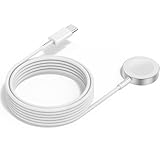
- 1 in 1 Charging Design: This Magnetic iWatch Charger Compatible with iWatch Ultra Series 9/8/7/6/SE2/SE/5/4/3/2/1 (including 38 mm 40 mm 41 mm 42 mm 44 mm 45 mm 49mm Version).
- Magnetic charging cable: The iWatch charger can be easily docked, and it takes 2-3 hours to fully charge the watch. Adsorption allows you to adjust the angle freely without deviating from the center of the charger.
- Safe and Reliabl: The Apple Watch Charger Cable made of high-quality ABS+PC and pure copper wire, after more than 10,000 tests, it can automatically detect your equipment and provide a stable, fast and safe charging experience.
- Perfect Length And Lightweight: Small, light, portable, fashionable, easy to store and travel. The perfect watch charging cable is suitable for your travel bag or pocket, which can be carried around or used at home/office/hotel/car to charge your Apple watch anytime and anywhere.
- Packing: 2Pack 1 in 1 Apple Watch Charging Cable 3FT(1m). If you have any questions welcome to find us!
6. Use Low Power Mode when runtime is the priority
Low Power Mode is the broadest intervention. To enable it, press the watch’s side button, tap the battery percentage, and turn on Low Power Mode. You can also open Settings > Battery and enable it there.
What Low Power Mode changes
- Always On is turned off.
- Some background heart-rate and blood-oxygen measurements are disabled.
- Some notifications can be delayed.
- Some Wi-Fi and cellular behavior is limited.
Those costs make it unsuitable as an automatic default for everyone. It is better suited to a long workout, travel day, or a watch that must last until a charger is available. If continuous health sampling, immediate alerts, or full connectivity is important, use the targeted settings above instead.
Automatic prompts and charging behavior
Apple Support documentation published in 2025 says the watch can ask whether to turn on Low Power Mode when the battery reaches 10 percent. Low Power Mode normally turns off automatically when the watch charges above 80 percent, unless you selected a multi-day duration. That means it can be a temporary emergency measure rather than a permanent configuration.
Which approach fits your priority?
| Approach | Battery-saving potential | Notification-delay risk | Health-feature impact | Screen convenience | Privacy | Reversibility |
|---|---|---|---|---|---|---|
| Always On off | Direct display saving; exact amount varies by model and use | None by itself | No stated reduction | Lower; tap or raise wrist to view | Can improve privacy while wrist is down | High |
| Per-app Background App Refresh | Targeted saving from selected apps | App content may be less current | No stated reduction | Usually unchanged | Unchanged | High |
| Per-app notification controls | Reduces alert-driven activity | Only for apps moved to Notification Center or turned off | Unchanged | Fewer interruptions | Can improve privacy | High |
| Wake and Theater settings | Reduces accidental activations | None for delivery | Unchanged | Less automatic waking | Can reduce visible wake-ups | High |
| Low Power Mode | Broadest runtime extension | Possible delays | Some heart-rate and blood-oxygen measurements disabled | Always On unavailable | Depends on notification choices | High, but with broad effects |
A practical setup for common situations
Normal workday
Turn off noisy app notifications, send occasional information to Notification Center, keep urgent communication on Allow Notifications, and disable Background App Refresh for apps you rarely open. Keep Always On only if constant glance access is worth the extra display use.
Also popular on Amazon

- 【Safe and Fast Wireless Watch Charging】- Our wireless charger provides a safer and faster charging mode,for a more convenient charging experience,Please take off the watch case and use a 5V/1A adapter or original adapter(ETL/UL Certified).
- 【Wide Compatible】- Our wireless batteries charger is compatible with iWatch series Ultra2/Ultra/12/11/10/9/8/7/6/SE2/SE/5/4/3/2 (including the 38 mm/40 mm/41 mm/42 mm/44 mm/45 mm Version).Please take off the watch case and use a 5V/1A adapter or original adapter(ETL/UL Certified).
- 【Portable design】- This 3.3Ft charging cable for apple watch is convenient to carry around, especially for traveling,and is suitable as a backup charger for your watch.Please take off the watch case and use a 5V/1A adapter or original adapter(ETL/UL Certified).
- 【Advanced Safety】- Built-in protection device with safety functions such as overcurrent,overvoltage,short circuit and overtemperature protection. Protect your watch battery from overcharging damage.pls note:this is support usb c port,so pls use a usb c PD adapter,and 20w-30w is the best to use.Please take off the watch case and use a 5V/1A adapter or original adapter(ETL/UL Certified).
- 【12-Month Quality Assurance 】- As a responsible brand seller, you will receive xiwxi's 12-month Quality assurance and friendly customer service.Please take off the watch case and use a 5V/1A adapter or original adapter(ETL/UL Certified).
Travel or a long day away from a charger
Start with Always On off and the targeted Background App Refresh and notification changes. If the remaining battery still will not cover the day, enable Low Power Mode and check that delayed notifications or reduced health sampling are acceptable.
Long workout or outdoor activity
Use Low Power Mode when maximum runtime matters more than full measurements and connectivity. If you need the watch’s normal health sampling, keep Low Power Mode off and instead reduce display and background activity before starting.
Meetings, theaters, and quiet rooms
Use Theater Mode to prevent wrist raises from lighting the display, and use Tap to Show Full Notification when message content should remain private. These are reversible situational controls.
Do these 3 things before closing this tab:
1Repair Windows errors before they cause bigger problems2Fix the driver behind crashes, sound loss and screen glitches3Clear out junk files and repair common Windows errorsCharging when settings cannot provide enough runtime
Settings are not a substitute for charging when the watch must operate continuously. Apple lists model-specific added runtime from 15 minutes with the Apple Watch Magnetic Fast Charger to USB-C Cable (1 m), when paired with a compatible 20W USB-C adapter: 8 hours for Apple Watch SE 3, 12 hours for Series 12, and 18 hours for Ultra 4. These are Apple figures for those specific models and should not be generalized to older watches.
The cable uses a magnetic snap-on connector. Compatibility and fast-charging behavior depend on the watch model and adapter, so verify both before relying on a short charging session.
Troubleshooting: when the changes do not seem to help
The battery still drops quickly
- Check whether a complication on the current face is still refreshing; disabling an app’s Background App Refresh switch does not necessarily stop that complication.
- Look for accidental wake-ups caused by Wrist Raise or Crown Rotation and use Theater Mode to confirm whether wake behavior is involved.
- Confirm that Always On is actually off rather than merely configured to show fewer wrist-down items.
Important alerts are missing
- Return to iPhone Apple Watch app > My Watch > Notifications and verify that the app is set to Allow Notifications, not Notification Center or Notifications Off.
- Check whether Low Power Mode is active, since Apple says it can delay some notifications.
- Review the watch’s Settings > Notifications options if alerts are arriving but their full content is hidden behind a tap.
The watch lasts longer but health data is incomplete
Check Low Power Mode first. Its reduced background heart-rate and blood-oxygen measurements are an intended trade-off, not necessarily a fault. Turn it off when those measurements matter and use the narrower display, refresh, and notification changes instead.
Recommended baseline
For most owners, begin with Always On off only if tap-or-wrist-raise viewing is acceptable, disable Background App Refresh for nonessential apps, and customize every high-volume notification. Add Tap to Show Full Notification for privacy, then tune Wrist Raise, Crown Rotation, and Wake Duration if the display activates accidentally. Keep Low Power Mode as a deliberate fallback for the days when available runtime matters more than immediate notifications, full health sampling, and unrestricted connectivity.
Recommended Free Tools
Quick Recap
Product prices and availability are accurate as of the date/time indicated and are subject to change. Any price and availability information displayed on Amazon at the time of purchase will apply.

