
Apple HomeKit smart home automation is now delivered through Apple Home, the Home app, and a compatible home hub such as HomePod mini or Apple TV 4K. Apple Home is an excellent fit for iPhone households that value simple control, family sharing, privacy, and Siri, but Matter does not guarantee identical features across ecosystems.
The requested title specified 2025, but this guide reflects the commercial and software information checked on August 18, 2026. Apple’s consumer-facing name is now Apple Home; HomeKit remains the underlying framework and compatibility label.
Key takeaways
- Apple Home is best suited to households already using iPhone, Apple Watch, Siri, and iCloud.
- A home hub is required for Apple Home remote access, shared control, automations, and adding Matter accessories.
- HomePod mini is the lowest-cost Apple-branded hub in the research snapshot, listed at $129 on Apple’s US retail page checked August 18, 2026.
- Matter expands device choice, but compatibility still depends on device type, Wi-Fi or Thread transport, Apple’s implementation, and the functions exposed by the manufacturer.
- Thread-based Matter products require a Thread-capable Apple home hub or a supported third-party Thread border router for the Thread network.
- Apple Home is easier for families than Home Assistant, but less flexible for advanced scripting, unusual hardware, and highly customized dashboards.
What is Apple HomeKit smart home automation?
Apple HomeKit smart home automation is Apple’s system for controlling compatible lights, plugs, sensors, locks, thermostats, shades, cameras, and other accessories from Apple devices. The current consumer experience is called Apple Home and is centered on the Home app; HomeKit is still the underlying Apple framework and a common compatibility term.
Apple says the Home app can control accessories across Apple devices and use HomePod, HomePod mini, or Apple TV as home hubs for remote access and automation. The platform integrates with Siri, Control Center, iPhone, iPad, Mac, and Apple Watch. See Apple’s overview of the Home app for the current product description.
The Tool Desk
Outbyte Driver Updater FREEScan for outdated or missing drivers - takes under a minuteDriver Scan →Outbyte PC Repair FREERepair Windows errors before they cause bigger problemsFix Now →#1 Best Overall

- [Multi-Protocol Hub with Matter Bridge] The M3 is a versatile hub supporting Aqara Zigbee and Thread devices. It integrates third-party devices into the Aqara Home app. Supports advanced Matter bridge functionality, enabling Aqara-exclusive scenes and signals to sync with Matter ecosystems such as Home Assistant for seamless integration. Supports up to 127 Aqara Zigbee devices (** Not third-party Zigbee devices) and 127 Thread devices (Repeaters are needed).
- [Edge Compatibilities and Local Automations] The M3 serves as an Edge Hub, prioritizing local control and automation. Upon integration, it supersedes existing Aqara hubs, shifting the automations among them to local operation (Some cloud-based notifications still require internet). Upgrade-friendly, it supports migrating Zigbee devices from older Aqara hubs.
- [Smart IR Blaster with Feedback and Learning] The 360°IR blaster not only sends commands but also provides accurate status updates by detecting traditional remote use. It connects IR air conditioning units to Matter, functioning as an AC thermostat when paired with an Aqara Temperature and Humidity Sensor. (Note: Only one AC device can be exposed to Matter. Functionality may vary based on the Matter integration app. For Apple Home exposure, use Matter integration instead of HomeKit.)
- [Optimal Wired and Wireless Connectivity] Offering both wired and wireless solutions, the smart home hub M3 provides dual-band Wi-Fi (2.4/5 GHz) with advanced WPA3 security, and a Power over Ethernet (PoE) port. The addition of a USB-C port allows for mini-UPS and power bank connections, delivering unparalleled stability. (2A USB power adapter is not included. ) . Note: To ensure a stable connection, place the Hub M3 between 6 to 19 feet from the router.
- [Privacy-Focused with Encrypted Storage, Easy Setup and Versatile Placement] The M3 prioritizes privacy by excluding microphone or camera components. It boasts 8GB end-to-end encrypted local storage, for device lists, configuration parameters, and automation configuration data. Additionally, it includes a mount and screws for flexible placement on flat surfaces, walls, or ceilings. Magic Pair technology ensures effortless detection by the Aqara Home app upon power-up.
Apple Home, HomeKit, Matter, Thread, hubs, and bridges compared
| Term | What it means | Why it matters |
|---|---|---|
| Apple Home | The consumer-facing Apple smart-home ecosystem and app experience. | Where household members view rooms, control accessories, run scenes, and manage automations. |
| Home app | The control interface on iPhone, iPad, Mac, Apple Watch, and related Apple platforms. | Provides buttons, status, notifications, Siri integration, and automation setup. |
| HomeKit | Apple’s smart-home framework and historical compatibility label. | Indicates that a product or bridge can integrate with Apple’s platform; it is not the same technology as Matter. |
| Matter | An industry interoperability standard supported by multiple smart-home ecosystems. | A Matter accessory may work with Apple Home, Google Home, Alexa, and other compatible controllers, but supported features can differ. |
| Thread | A low-power mesh networking technology used by some HomeKit and Matter devices. | Thread devices need a suitable Thread-capable hub or border-router arrangement and benefit from a healthy mesh. |
| Home hub | A stationary Apple device, usually a HomePod, HomePod mini, or Apple TV. | Enables remote access, sharing, automations, and Matter setup in Apple Home. |
| Bridge | A vendor device that translates a product family into Apple Home. | A Hue Bridge or similar product can connect many accessories, but a vendor bridge is not automatically an Apple home hub. |
The relationship is easier to picture as: accessory → Wi-Fi, Thread, or Ethernet → Apple home hub or vendor bridge → Apple Home app and Siri. Matter and HomeKit are different technologies and certification paths; Matter should not be described as “the new HomeKit.”
Who should use Apple Home?
Apple Home is a strong choice for an iPhone household that wants a relatively approachable, privacy-focused control layer rather than a hobbyist automation server. Apple Home is particularly suitable when most household members already use Apple devices.
| Apple Home is a good fit for | Apple Home is a weaker fit for |
|---|---|
| Households invested in iPhone, Apple Watch, Siri, and iCloud. | Android-first households. |
| People who want room-based controls, scenes, and family sharing. | People seeking the widest possible device catalog or unusual appliance categories. |
| Users who prefer Apple’s stated local-control and encryption design. | Enthusiasts who need extensive scripting, dashboards, conditional logic, or nearly universal integrations. |
| Homes focused on lights, plugs, sensors, locks, thermostats, shades, and everyday scenes. | Buyers seeking a complete professional alarm-monitoring or security service. |
| Families that want Siri and Control Center alongside vendor apps. | Homes with weak Wi-Fi, router isolation problems, or no suitable location for a powered hub. |
These fit judgments are practical assessments, not Apple claims. Apple Home is not universally the best platform: the right choice depends on device breadth, automation depth, privacy priorities, network quality, and the operating systems used by everyone in the home.
What equipment do you need for Apple Home?
A minimum Apple Home installation needs an iPhone or iPad with a currently supported operating system, an Apple Account with iCloud and two-factor authentication, a compatible home network, at least one compatible accessory, and a home hub for a full installation.
Free tools Windows power users keep installed
One-click scans. No signup required.
- Apple device: Use an iPhone or iPad to create and administer the home. Apple Home can also be accessed from Mac and Apple Watch.
- Apple Account: iCloud, two-factor authentication, and iCloud Keychain are important for account security and remote access.
- Network: Provide dependable Wi-Fi coverage and avoid router settings that isolate clients or interfere with local discovery and multicast traffic.
- Accessory: Select a product marked for Apple Home, HomeKit, or Matter, then check the exact model and protocol.
- Home hub: Treat the hub as part of the real entry cost if you want remote control, shared access, automations, or Matter accessories.
Apple says HomePod and HomePod mini become home hubs automatically after setup. Apple TV becomes a hub after it is assigned to a room in the Home app. Apple’s home-hub support documentation also explains that Matter accessories require a home hub in Apple Home.
How much does an Apple Home hub cost?
In the US commercial snapshot checked August 18, 2026, Apple listed HomePod mini at $129 and HomePod at $349. Those are dated US retail observations, not universal or permanent prices; check the live store page for your country and model before purchasing.
| Hub choice | Best for | Price information in the research snapshot | Trade-off |
|---|---|---|---|
| HomePod mini | Lowest-cost Apple-branded hub, Siri speaker, and Thread-capable starting point. | $129 on Apple’s US retail page checked August 18, 2026. | No display; a speaker may not be useful to buyers who want only a network appliance. |
| HomePod | Higher-end Siri speaker that also serves as a home hub. | $349 on Apple’s US retail page checked August 18, 2026. | Costs substantially more than HomePod mini if sound quality is not a priority. |
| Apple TV 4K | Homes that want a streaming box and potentially prefer a wired Ethernet connection. | Verify the live Apple US store page before publication; the research did not reliably surface a current retail price. | Not every Apple TV model has identical Thread capabilities, and buyers pay for a streaming device as well as the hub function. |
Using both a HomePod mini and Apple TV can make sense where reliability matters. Apple Home normally selects the active hub automatically; leave Automatic Selection enabled unless you are diagnosing a specific hub problem.
How should you choose Apple Home accessories?
Start with the exact model’s Apple Home compatibility and protocol rather than buying solely because a product says “smart” or “Matter.” The preferred label is Works with Apple Home, followed by confirmation in current Apple or manufacturer documentation.
What’s actually slowing this PC down?
Pick the symptom - the matching free tool is one click away.
Check these questions before buying
- Is the product native HomeKit, Matter, or dependent on a vendor bridge?
- Does it use Wi-Fi, Ethernet, Thread, Bluetooth, or a proprietary hub?
- Does a Thread model require a Thread-capable Apple hub?
- What functions appear in Apple Home: basic on/off control, temperature, lock state, camera events, energy data, or advanced settings?
- Can the accessory work locally if the vendor cloud is unavailable?
- Does the vendor app remain necessary for firmware updates or advanced features?
- Can the accessory be shared with household members?
- Can firmware be updated without removing and re-adding the device?
- Does the exact regional model work with the home’s wiring, door hardware, HVAC system, or network?
Central warning: Matter improves interoperability, but Matter does not guarantee identical features in every ecosystem. Compatibility depends on the Matter device type, Wi-Fi, Ethernet, or Thread transport, Apple’s current implementation, and the functions the manufacturer exposes through Apple Home. Apple’s developer documentation explains that supported Matter accessories can appear in Home, Siri, Control Center, and third-party HomeKit-based apps; the same documentation also describes Matter support beginning with iOS 16.1 and related platform releases. Read Apple’s Matter documentation before treating a Matter label as a complete buying answer.
What is the best way to build a starter system?
Build in stages so that a network or compatibility problem affects a few devices rather than the entire home.
Rank #2

- LOCAL PROCESSING FOR INSTANT RESPONSE: The Hubitat Elevation C-8 Pro runs automations directly on the hub, not on remote servers, so lights, locks, thermostats, and routines keep working even when your internet goes down; this local-first architecture delivers near-instant response to every trigger without relying on remote servers to process commands; compatible with 1,000+ devices across 100+ brands, and device data stays at home for enhanced privacy
- WORKS WITH ALEXA, GOOGLE HOME, AND APPLE HOMEKIT: Connect your preferred voice assistant and start controlling your smart home from day 1; the C-8 Pro is compatible with Amazon Alexa, Google Home, and Apple HomeKit, so your existing ecosystem works alongside the hub without compromise; Ring camera integration adds a concrete layer of security awareness; approachable setup is supported by step-by-step documentation and an active online community ready to guide you through every stage
- MULTI-PROTOCOL SUPPORT WITH EXTENDED RANGE: A single hub covers Matter 1.5, Z-Wave 800 Series with Long Range, Zigbee 3.0, and Bluetooth, so existing devices stay compatible without extra bridges or adapters; 800 Series Z-Wave and Zigbee 3.0 deliver improved reliability and mesh stability, backed by Z-Wave Alliance membership; 2 dedicated external antennas, one for Z-Wave and one for Zigbee, extend wireless reach in larger homes and device-dense environments where signal consistency is critical
- AI-ASSISTED AUTOMATION AND ADVANCED RULE ENGINE: The AI-assisted routine builder suggests and builds automations based on your connected devices, no programming required; Rule Machine enables multi-condition logic across lighting scenes, geofenced arrivals, layered security responses, and whole-home scheduling; when your family arrives after dark, the hub can unlock the door, activate pathway lights, and adjust the thermostat, turning complex sequences into reliable hands-free routines
- NO SUBSCRIPTION REQUIRED AND CONTINUOUS UPDATES: Full platform functionality needs no recurring subscription; every automation, integration, and advanced feature is available from setup; continuous platform updates since 2018 have expanded compatibility without requiring new hardware; an active community of tech-savvy homeowners and DIY smart home builders shares custom apps, drivers, and automation blueprints for ongoing value; compact at 3.23 x 2.95 x 0.67 in and just 0.16 lb, it fits anywhere
- Install one hub. Choose HomePod mini for the lowest-cost Apple entry point or Apple TV 4K if a streaming box and wired networking are useful.
- Add two or three simple devices. Lights and plugs are easier to validate than locks, thermostats, or cameras.
- Add one motion or contact sensor. Sensors make automations useful without introducing the safety and hardware constraints of a lock or HVAC system.
- Create a scene. “Good Night” is a practical first scene because it groups several manual actions.
- Create one automation. For example, turn an entry light on when a door opens after sunset.
- Expand carefully. Add locks, thermostats, shades, leak sensors, and cameras only after the hub and network are stable.
Accessory categories worth considering
| Category | Why it works well in a starter home | Buying limitation |
|---|---|---|
| Lights and plugs | Simple controls make pairing, rooms, scenes, and Siri easy to test. | Decorative lighting ecosystems may need a vendor bridge. |
| Motion and contact sensors | Enable practical lighting, door, occupancy, and notification automations. | Battery sensors can sleep, have placement limits, and may depend on Thread coverage or a vendor hub. |
| Locks | Useful for arrival, departure, status checks, and selected Home Key workflows. | Check door hardware, regional model, battery behavior, guest access, and whether the required controls appear in Apple Home. |
| Thermostats | Can combine schedules, presence, and comfort controls. | Verify HVAC wiring, remote sensors, regional compatibility, and Apple Home control depth. |
| Shades | Useful for schedules, sunlight, and departure scenes. | Check motor power, installation constraints, safety, and whether pet or plant rooms should be excluded. |
| Cameras | Provide live viewing, event notifications, and potentially HomeKit Secure Video. | They are not automatically a complete alarm or professional monitoring service. |
How do you set up Apple Home?
Set up the home, hub, rooms, and a small number of accessories before designing complex automations. Apple’s labels can change with major operating-system releases, so the following paths reflect the current research snapshot and may vary slightly by device version.
Step 1: Create the home and rooms
- Open the Home app.
- Add or name the home.
- Create rooms before adding dozens of accessories.
- Use consistent spoken names such as Kitchen ceiling, Front door, and Hall motion.
- Avoid duplicate accessory names across rooms because Siri can interpret duplicate names ambiguously.
Step 2: Set up HomePod or HomePod mini
Set up the HomePod or HomePod mini normally with an Apple device. Apple’s current support instructions say the device becomes a home hub automatically. Confirm that the hub is powered, connected to the household network, and running current software.
Step 3: Set up Apple TV as a hub
On Apple TV, open Settings → AirPlay and Apple Home → Room, then choose an existing room or add one. After the Apple TV is assigned to a room, confirm that Apple Home recognizes it as a hub.
Step 4: Add an accessory
- Open the Home app and use its Add control.
- Scan the HomeKit or Matter setup code when prompted.
- Keep the accessory near the iPhone and hub during pairing.
- For Matter, the iPhone provisions the accessory onto Wi-Fi or Thread as appropriate.
- Assign the accessory to a room, give it a clear name, and test basic control before creating automations.
A Matter accessory may already be paired to another ecosystem or may have a limit on the number of Matter fabrics to which it can belong. Reset the accessory according to its manufacturer’s instructions if pairing fails; do not assume that repeatedly scanning the same code will resolve a device that remains paired elsewhere.
Step 5: Verify the active hub
- Open Home.
- Open the More button.
- Select Home Settings.
- Select Home Hubs & Bridges.
- Review the active hub and leave Automatic Selection enabled unless troubleshooting.
A third-party Matter controller or Thread border router may support the network, but it does not automatically replace an Apple home hub for Apple Home remote access and automation.
What is the difference between a scene and an automation?
A scene is a group of actions that a person triggers together, while an automation runs actions after a condition occurs. For example, “Good Night” can be a scene that turns off lights and locks doors manually; an automation could run that scene at a specified time or when the last resident leaves.
Do these 3 things before closing this tab:
1Repair Windows errors before they cause bigger problems2Scan for outdated or missing drivers - takes under a minute3Clear out junk files and repair common Windows errorsHow do you create a scene?
- In Home, tap or click Add.
- Select Add Scene.
- Choose a suggested scene or select Custom.
- Name the scene.
- Add accessories and adjust each accessory’s desired state.
- Use Test This Scene where available.
- Tap or click Done.
How do you create a sensor or accessory automation?
- Select Add → Add Automation.
- Choose An Accessory is Controlled or A Sensor Detects Something.
- Select the trigger accessory and condition.
- Choose the responding accessories or scenes.
- Adjust the response settings.
- Test the automation and select Done.
How do you create a time-based automation?
- Choose Add Automation → A Time of Day Occurs.
- Select the time and days.
- Optionally restrict the automation to times when specified people are home.
- Choose the responding accessories or scenes.
- Test and save the automation.
How do location automations work?
Location automations use options such as People Arrive or People Leave. Location sharing must be enabled for the primary controlling iPhone or iPad. Apple says a Mac cannot trigger a location-based automation. If a location other than home is selected, invited users may be removed from that automation. See Apple’s current automation instructions for supported triggers and setup details.
Which Apple Home automations are genuinely useful?
The most valuable Apple Home automations reduce routine actions or provide an important notification rather than simply demonstrating that a device can be automated.
- Turn entry lights on when the front-door contact sensor opens after sunset.
- Turn hallway lights on when motion is detected, then turn them off after a delay.
- Use a “Good Night” scene to turn off lights and lock doors.
- Notify household members when a leak sensor detects water.
- Turn on a bathroom fan when humidity rises, if the accessory exposes the necessary humidity trigger.
- Set thermostat setbacks when everyone leaves, after considering pets and other occupants.
- Turn exterior lights on at sunset.
- Notify the household when a garage door remains open after a specified time.
- Close shades when leaving, while excluding rooms containing pets, plants, or safety-sensitive equipment.
Presence-based routines need cautious testing. Guests, children, shared devices, disabled location sharing, and a resident who leaves a phone behind can all make “everyone has left” less reliable than expected.
How do Siri, Apple Watch, and Control Center work with Apple Home?
Siri can control supported lights, locks, scenes, thermostats, fans, and garage doors by room or accessory name. Apple Watch, Control Center, iPhone, iPad, and Mac provide additional manual control. Apple documents that supported Matter accessories can appear in Apple Home, Siri, and Control Center after they are added to the home.
Quick wins for a faster PC:
Repair Windows errors before they cause bigger problemsFix Now →Scan for outdated or missing drivers - takes under a minuteDriver Scan →Clear out junk files and repair common Windows errorsFree Scan →Rank #3
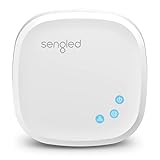
- Connect your Home: The brains of the Sengled system, the hub enables you to control up to 64 Sengled Smart lights and accessories with the hub. A hub is necessary to use a voice assistant, like Alexa, Google Assistant and HomeKit
- Easy to Install: Connect the Sengled Smart Hub to your router using the included Ethernet cable and use the in-app guide to set up
- Home Automation: Easily extend your smart home system across every room by connecting Sengled Smart LEDs and accessories to the hub, then automate
- Voice control: Connect the hub to Alexa, Google Assistant or HomeKit-enabled devices and use your voice to control your Sengled Smart LEDs and accessories
- One simple app: Control all your Sengled smart devices using the Sengled Home app (iOS/Android. ) Set schedules, group devices and more to control all of your home's Sengled smart products
Clear naming is essential. “Turn on Kitchen ceiling,” “Lock Front door,” and “Set Hallway lights to 30 percent” are more dependable than duplicate names such as “Light,” “Door,” or “Lamp.” Vendor-specific functions may still require the manufacturer’s app even when basic controls appear in Apple Home.
How should you think about cameras, locks, and thermostats?
Cameras and HomeKit Secure Video
HomeKit Secure Video is a privacy-oriented camera feature, not a complete professional security service. Live viewing, event recording, notifications, detection categories, local storage, and professional monitoring are separate capabilities, and availability depends on the camera, Apple Home support, home hub, Apple Account, and iCloud+ requirements.
Apple promotes private camera monitoring and Activity History on its Home app page. The Home App Store listing says HomeKit Secure Video requires a home hub and an iCloud+ plan and advertises up to 10 days of recording history. Verify current iCloud+ tiers, camera limits, supported detection categories, and regional terms immediately before publication because those details can change.
A camera system should not be described as continuously recording every camera, replacing an alarm company, or providing professional monitoring merely because it works with Apple Home. A buyer needing continuous recording, broad multi-user permissions, or security independent of Apple accounts should compare dedicated camera and alarm platforms.
Recommended Free Tools
Locks
Smart locks can be excellent Apple Home devices for status checks, arrival scenes, and selected Home Key workflows. Apple’s Home page identifies Level Lock+ with Home Key support as an example. Before buying, verify the regional model, deadbolt compatibility, battery behavior, guest access, and whether the desired controls appear in Apple Home rather than only the vendor app.
Level Lock+ is a candidate for a Home Key comparison; Schlage Encode Plus is another candidate, but model numbers, finishes, door compatibility, and current Home Key support must be checked for the buyer’s region. Renters and residents with restricted deadbolt changes may need a different design or landlord approval.
Thermostats
Apple Home thermostat support can simplify schedules, presence-based setbacks, and temperature changes, but HVAC compatibility matters more than the Matter label. Verify wiring, system type, remote sensors, regional availability, and which controls Apple Home exposes. Apple’s Home page features the ecobee Smart Thermostat Premium with Siri and air-quality monitoring, but the vendor app may still contain deeper settings.
Independent reader supportYour contribution helps us test, update, and keep practical guides available for everyone.Is Apple Home private and secure?
Apple says Home data is stored in a way Apple cannot read, accessories are controlled by Apple devices rather than relying exclusively on cloud control, and communication is end-to-end encrypted. Apple’s Matter documentation describes QR-code pairing and permission controls. These are Apple’s stated privacy and security properties, not a promise that every accessory is internet-independent or risk-free.
“Local control” does not mean every accessory works without the internet. A vendor cloud may still be needed for firmware updates, remote vendor features, integrations, account functions, or a device’s own operation. A compromised Apple Account, phone, router, or vendor account can also create risk.
Use a strong Apple Account password, two-factor authentication, current software, a secured router, and reputable vendor accounts. Review household permissions and avoid granting more access than a guest needs. Privacy can reduce data exposure without guaranteeing reliability or feature completeness.
Rank #4

- Multi-Protocol Smart Hub with Matter Bridge – The M100 is a versatile smart hub compatible with Thread devices and Aqara Zigbee (** Not third-party Zigbee devices), supporting up to 20 Aqara Zigbee devices and 20 Thread devices. As a Matter Bridge, it connects Aqara Zigbee products to other smart home ecosystems, compatible with Apple Home, Amazon Alexa, Home Assistant, etc. Note: Use a 5V⎓0.5A power adapter (not included) and keep the product continuously powered during use.
- Advanced Matter Bridging for Seamless Smart Home Integration – The M100 enables Aqara’s unique features, such as facial recognition and complex automation, to work across Home Assistant and other Matter ecosystems. Expand your smart home with Aqara or third-party Matter devices (requires a Matter-enabled hub). Currently supports lights, thermostats, plugs, switches, buttons, and various sensors (motion, light, door/window, temperature/humidity), with more devices to be added in the future.
- Local Automation for Reliable Performance – Supports local execution of automations for Zigbee and Matter devices, ensuring smooth operation even without Wi-Fi or cloud access. Enjoy millisecond-level response times for a more stable and reliable smart home experience. (Some automation, such as cloud push notification, will still require the cloud connection to be executed.)
- Flexible Power & Small Size – Features a universal USB-A port for power and data, allowing connection to power banks, wall outlets, PCs, or routers for a simple and quick setup. The Hub M100's shaft can be adjusted within a 210-degree range, making its placement extremely flexible.
- 2.4GHz Wi-Fi 6 for Faster & Security—This product supports a 2.4GHz Wi-Fi 6 wireless network connection, which enables more efficient connections with advanced WPA3 security. Wi-Fi 6 ensures smoother performance even in high-traffic environments, allowing multiple devices to connect without compromising speed or reliability. Note: To ensure a stable connection, place the Hub M100 between 6 to 19 feet from the router.
Why do Apple Home accessories fail?
Most Apple Home failures fall into four groups: pairing problems, missing hub connectivity, network design issues, or a feature that the accessory does not expose to Apple Home.
Accessory will not pair
- Check the setup code and confirm that the accessory is in its reset state.
- Check whether the accessory is already paired to another ecosystem.
- Keep the phone, accessory, and hub close together during setup.
- Confirm that the product is compatible with Apple Home, rather than merely controllable in a vendor app on an iPhone.
- Check Matter pairing or fabric limits.
- For a Thread product, confirm that a Thread-capable Apple hub or supported border-router arrangement is available.
Accessory appears but an automation fails
- Confirm that a home hub is active.
- Update the hub, accessory, and controlling Apple devices.
- Check whether the trigger is actually exposed to Apple Home.
- Review time, day, presence, and location conditions.
- Check whether the accessory is reachable rather than showing a cached state.
- Look for a mode change made in the vendor app.
- Confirm that the automation does not depend on a feature Matter does not expose in Apple Home.
Automations are slow or unreliable
- Improve weak Wi-Fi coverage.
- Check router client isolation, multicast, and local-discovery settings.
- Improve Thread mesh placement with powered Thread devices where appropriate.
- Check whether a preferred hub is offline or poorly located.
- Remember that battery-powered sensors may sleep between events.
- Identify whether the vendor cloud is required for the specific action.
Remote access fails
Check hub power, network connectivity, Apple Account two-factor authentication, iCloud Keychain, owner permissions, and software updates. Apple’s home-hub troubleshooting guidance specifically calls out current software, restarting hubs, network connectivity, iCloud Keychain, and two-factor authentication.
How does Apple Home compare with Alexa, Google Home, and Home Assistant?
| Platform | Strongest fit | Main trade-off |
|---|---|---|
| Apple Home | Apple households seeking privacy-oriented design, Siri, family usability, and straightforward scenes. | Narrower device choice in some categories and less advanced automation depth. |
| Amazon Alexa | Mixed-device or Android-heavy homes seeking broad product support and third-party integrations. | Different privacy model and greater dependence on cloud services. |
| Google Home | Android households and people invested in Google accounts and services. | Less natural Apple-device integration and category-specific support variation. |
| Home Assistant | Advanced users who need local control, scripting, dashboards, unusual devices, and extensive integrations. | More networking knowledge, setup work, and maintenance. |
| Vendor ecosystem | Users who want the deepest features from one lighting, sensor, thermostat, or lock brand. | Another app, account, bridge, or cloud dependency may be required. |
Home Assistant and Apple Home do not have to be mutually exclusive. A technically advanced household may use Apple Home as the family-friendly interface and another platform for specialized logic, while accepting the additional complexity.
Which Apple Home buying profile fits you?
| Profile | Starting configuration | Best for |
|---|---|---|
| Budget Apple starter | HomePod mini, two or three lights or plugs, and one motion or contact sensor. | Testing Apple Home with a small, useful system. |
| Living-room hub | Apple TV 4K plus a few Wi-Fi or Thread accessories. | Homes that also want a streaming box or prefer a wired network connection where supported. |
| Advanced or privacy-focused home | Apple Home for household control, with vendor apps or Home Assistant for deeper logic. | Users willing to maintain more than one layer to gain advanced automation or broader integrations. |
Potential product categories include Philips Hue for bridge-based lighting, Nanoleaf for decorative lighting, Eve for Apple-focused sensors, Aqara for a broad sensor range often involving a vendor hub, ecobee for thermostats, Level Lock+ or Schlage Encode Plus for selected smart-lock scenarios, and Logitech Circle View for an Apple Home camera example. Compatibility, model, region, bridge requirements, subscriptions, and Apple Home feature exposure should be verified before publication or purchase.
Frequently Asked Questions
Do you need a HomePod or Apple TV for Apple Home?
You need a compatible Apple home hub for Apple Home remote access, shared control, automations, and adding Matter accessories. A HomePod, HomePod mini, or compatible Apple TV can provide that hub function; an iPhone alone is not a complete substitute for a serious installation.
Is Matter the same as HomeKit?
Matter is a multi-ecosystem interoperability standard, while HomeKit is Apple’s smart-home framework and compatibility path. A Matter device can work with Apple Home without Matter and HomeKit being the same technology, and the features exposed by the device can differ between ecosystems.
Can Apple Home work without the internet?
Some Apple Home control can use local communication, but Apple Home is not universally internet-independent. Vendor clouds may still be required for firmware updates, remote vendor features, integrations, account functions, or the operation of particular accessories.
Is HomeKit Secure Video a professional security system?
No. HomeKit Secure Video is a privacy-oriented camera feature that can provide supported live views, event recording, and notifications, but it is not automatically an alarm company, continuous-recording service, or professional monitoring replacement.
Is Apple Home better than Home Assistant?
Apple Home is generally easier for Apple households and family members who want simple room controls, Siri, scenes, and sharing. Home Assistant is better suited to advanced users who need scripting, dashboards, unusual integrations, and extensive customization, at the cost of more setup and maintenance.
The Bottom Line
Bottom line: Apple Home is a sensible smart-home platform in 2026 for an iPhone household that values simple family control, Siri, Apple-device integration, and Apple’s stated privacy architecture. Start with a HomePod mini or Apple TV 4K, a few lights or plugs, and one sensor. Verify every accessory’s exact Apple Home, Matter, Thread, and bridge requirements before buying, and treat cameras, locks, thermostats, and cloud features as separate compatibility decisions.
Windows Errors? Fix Them Before They Spread
Repair common Windows errors and clear accumulated junk for a smoother, more stable PC - no reinstall needed.Free scan · no reinstallCrashes, No Sound, or Screen Glitches?
Random freezes, missing sound and display glitches usually trace back to one bad driver. Find and replace yours safely.Free scan · under a minuteQuick Recap
Product prices and availability are accurate as of the date/time indicated and are subject to change. Any price and availability information displayed on Amazon at the time of purchase will apply.

