
Recommended: Crashes or Glitches? A Free Driver Scan Usually Finds the Culprit →Recommended: Fix Windows Errors and Clear Junk Files in Minutes - Free Scan →Recommended: Update Every Outdated Driver on Your PC in One Scan - Free →
Special offer. See more information about Outbyte and uninstall instructions. Please review EULA and Privacy policy.
A Windows Server 2016 system image provides an easy way to recover your server in the event of a crash. Learn the steps to complete this essential task.
Step 1: Install Windows Server Backup (WSB)
- Login to the server you wish to create system image and open Server Manager
- From Server Manager, click Manage then select Add Roles or Features.

- At the Before you begin screen, click Next.

- Then select Role-based or feature-based installation and click Next.

- Select the server. Then click Next.
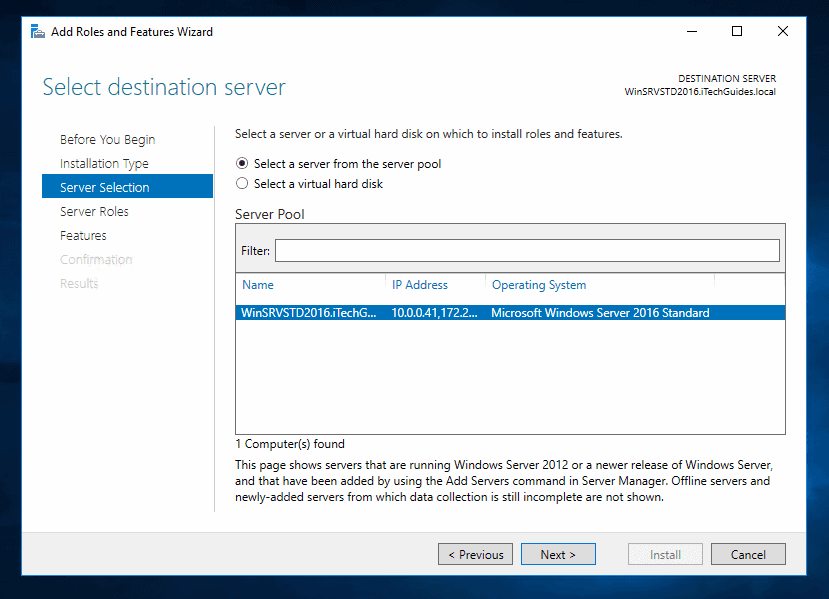
- On the Server Roles screen, click Next.

- Then at the Features screen, locate Windows Server Backup and check the box beside it.

- Finally, on the Confirmation screen, click Install.

- When the installation completes, click Close.

Step 2: Create a System Image Backup for Server 2016
- Still, on Server Manager, click Tools and select Windows Server Backup.
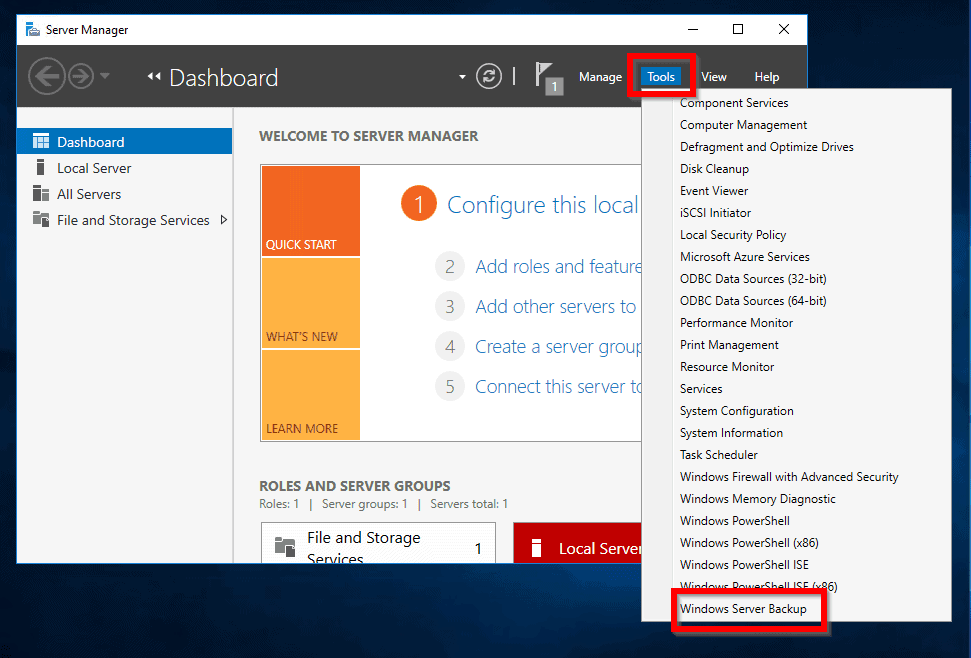
- When WSB opens, click Local Backup.

- Then to initiate backup wizard, click Backup Once…

- When the Backup Once Wizard opens, Different options should be selected. Click Next.

- Then on the Select Backup Configuration screen, select Custom and click Next.

- On the Select Items for Backup screen, click Add Items.

- When the Select Items options opens, check the box beside Bare metal recovery. The backup wizard will automatically check all options required to perform bare metal recovery backup. To save your selections, click OK.

- Back on the Select Backup Items page, click Next.

- When the Specify Destination Type screen opens, select your backup location. Then click Next. For this demo, I have selected Local drive. When you finish making your selection, click Next.

- Then select a backup Destination and click Next.
Drive C will not be available. So you must have another drive other than the drive the OS is installed. The Backup desktop drop-down displays the Volume labels of the drives.

- At the Confirmation screen, to create system image in Server 2016 click Backup. The backup will start.


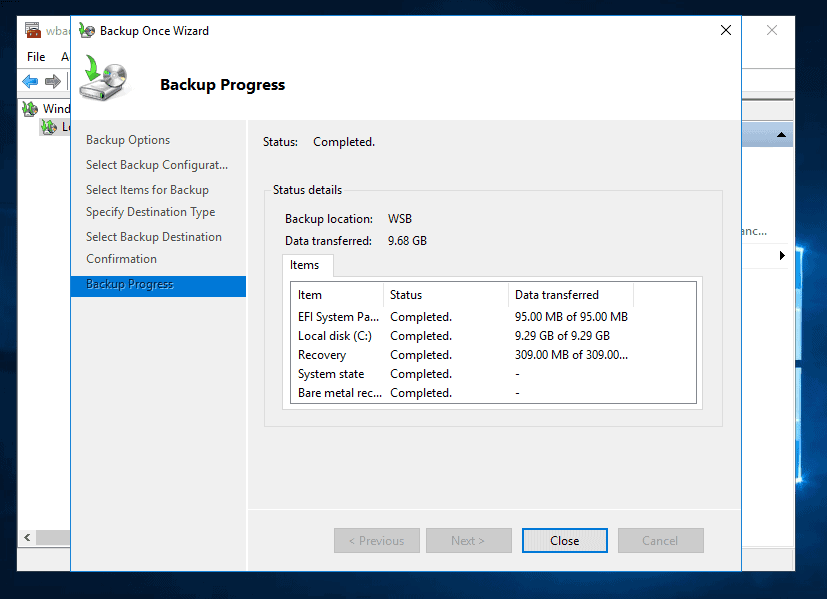
- When the backup is completed, close the Backup Wizard.
Conclusion
Creating a system restore image for a Windows Server is as simple as following the two steps in this guide. I hope you found it easy to follow.
Let me know by sparing two minutes to share your experience by responding to the “Was this page helpful?” question below.
Want more Windows Server Guides? Visit our Windows Server How-Tos page.
Windows Errors? Fix Them Before They Spread
Repair common Windows errors and clear accumulated junk for a smoother, more stable PC - no reinstall needed.Free scan · no reinstallOutdated Drivers Are Slowing You Down
One free scan finds every outdated or missing driver and matches the right update for your exact hardware.Free scan · exact hardware matchSpecial offer. See more information about Outbyte and uninstall instructions. Please review EULA and Privacy policy.
Quick Recap
SaleBestseller No. 1
SaleBestseller No. 2
SaleBestseller No. 3
SaleBestseller No. 4
Best Value

WD 4TB My Passport, Portable External Hard Drive, Black, Backup Software with Defense Against ransomware, and Password Protection, USB 3.1/USB 3.0 Compatible - WDBPKJ0040BBK-WESN
- Slim durable design to help take your important files with you
- Vast capacities up to 6TB[1] to store your photos, videos, music, important documents and more
- Back up smarter with included device management software[2] with defense against ransomware
- Help secure your important files with password protection and hardware encryption
- 3-year limited warranty
Rank #4
Sale

WD 6TB My Passport, Portable External Hard Drive, Black, Backup Software with Defense Against ransomware, and Password Protection, USB 3.1/USB 3.0 Compatible - WDBR9S0060BBK-WESN
- World’s First 6TB 2.5” Portable Hard Drive
- Slim durable design to help take your important files with you
- Vast capacities up to 6TB[1] to store your photos, videos, music, important documents and more
- Back up smarter with included device management software[2] with defense against ransomware
- Help secure your important files with password protection and hardware encryption
Rank #3
Sale

Western Digital 6TB My Book Desktop External Hard Drive, USB 3.0, External HDD with Password Protection and Auto Backup Software - WDBBGB0060HBK-NESN
- Massive capacity, up to 18TB capacity (1 1TB = one trillion bytes. Actual user capacity may be less depending on operating environment.).Specific uses: Business, personal
- Includes software for device management and backup with password protection (Download and installation required. Terms and conditions apply. User account registration may be required.)
- 256-bit AES hardware encryption
- SuperSpeed USB (5 Gbps); USB 2.0 compatible
Rank #2
Sale

WD 2TB My Passport, Portable External Hard Drive, Black, backup software with defense against ransomware, and password protection, USB 3.1/USB 3.0 compatible - WDBYVG0020BBK-WESN
- Slim durable design to help take your important files with you
- Vast capacities up to 6TB[1] to store your photos, videos, music, important documents and more
- Back up smarter with included device management software[2] with defense against ransomware
- Help secure your important files with password protection and hardware encryption
- 3-year limited warranty
#1 Best Overall
Sale

Western Digital 8TB My Book Desktop External Hard Drive, USB 3.0, External HDD with Password Protection and Backup Software - WDBBGB0080HBK-NESN
- Massive capacity, up to 22TB capacity. (1TB = one trillion bytes. Actual user capacity may be less depending on operating environment.).Specific uses: Personal
- Includes software for device management and backup with password protection (Download and installation required. Terms and conditions apply. User account registration may be required.)
- 256-bit AES hardware encryption
- SuperSpeed USB (5 Gbps); USB 2.0 compatible
- Trusted storage built with WD reliability
Product prices and availability are accurate as of the date/time indicated and are subject to change. Any price and availability information displayed on Amazon at the time of purchase will apply.
Independent reader supportYour contribution helps us test, update, and keep practical guides available for everyone.


hello, thank you for the tutorial, but it miss the restore part