
iTechGuides is reader-supported. When you buy through links on our site, we may earn an affiliate commission. As an Amazon Associate I earn from qualifying purchases. Learn more
The six best free and open-source photo geotagging tools are digiKam for most photographers, ExifTool for automation, KGeoTag for a focused Linux GUI, Geotag and Import Photos for QGIS-based assignment, ImportPhotos for mapping existing GPS-tagged images, and Advanced Photo Importer for field-photo analysis. The last three are specialist QGIS workflows, not ordinary photo managers.
Photo geotagging can mean placing coordinates manually, matching images to a GPX track, writing EXIF or XMP metadata, or importing existing coordinates into a map. Those are different jobs, so the best tool depends on whether you are organizing a personal library, processing thousands of files, or working with GIS data.
All six options below are intended for local workflows rather than uploading photographs to a free online service. “Free” and “open source” are not interchangeable: a free web tool may still require cloud uploads, while the projects discussed here provide source code or operate within an open-source application ecosystem.
Key takeaways
- digiKam is the best overall choice because it combines manual map placement, GPX correlation, reverse geocoding, cataloging, and metadata synchronization.
- ExifTool is the strongest option for scripts and large batches, including GPX-based coordinate assignment with
-geotag. - KGeoTag is a dedicated graphical geotagger with manual placement, GPX matching, and timestamp interpolation, particularly suited to Linux and KDE users.
- Geotag and Import Photos writes coordinates through ExifTool and connects folder-based photo processing with QGIS layers.
- ImportPhotos and Advanced Photo Importer primarily read and analyze existing geotags; they are not replacements for a photo geotagger when untagged images need coordinates.
- GPX correlation is only as reliable as the camera clock, track quality, GPS coverage, and time-zone correction.
What are the best free and open-source photo geotagging tools?
The best free and open-source photo geotagging tool for most people is digiKam. ExifTool is better for command-line automation, KGeoTag is better as a focused Linux graphical application, and the three QGIS options are better when photos need to be assigned to, imported into, or analyzed alongside geographic data.
#1 Best Overall
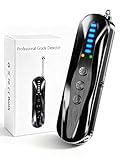
- 【Wide-Area Wireless Scan】Think your meeting is private? In larger meeting rooms or hotel spaces, scanning for hidden devices often takes time as you walk around until a signal becomes clear. As your camera detector spy camera finder, its extendable antenna helps steady RF pickup, giving a better sense of direction in wide areas. With adjustable sensitivity, you can avoid missing WiFi cameras. And for non-WiFi pin-hole cameras, the infrared scan reveals disguised tools like a prepared privacy pen.
- 【Infrared Scan】Ever wonder what’s watching you in a new hotel room? Tiny pin-hole cameras can hide in smoke detectors, clothing hooks, chargers, or fixtures you’d never notice. In a completely dark room, the infrared scan in this camera finder hidden camera detector makes hidden lenses reflect as a bright spot—revealing what the eye can’t see. Sweep mirrors, vents, picture frames, chargers, and wall fixtures; it also works as a hidden bug and camera detector to give you peace of mind before you settle in.
- 【Anti-Theft Alarm Mode】Don’t Let Danger Catch You Off Guard. While you’re asleep in a hotel room, hang this anti spy detector on the door handle—any attempt to open the door triggers an instant alert, waking you before someone gets close. And when you’re out and your luggage isn’t always in sight, attaching it to your suitcase adds protection; even slight movement sets off a loud alarm to alert you to theft. Paired with your hidden camera finder, it keeps you aware and protected wherever you go.
- 【Anti-GPS Tracking Scan】Is your car truly safe? GPS trackers can cling to your car with magnets and quietly send out your location. As your gps tracker detector, this device detects the magnetic fields where a tracker is attached and the signals its rf detector picks up when your location is shared. Sweep hiding spots—under seats, along bumpers, near the inside edge of tires. Before you drive, this spy camera detector helps you catch hidden trackers early and avoid someone following you.
- 【Pocket-Size & Long Battery Life】Every hotel room and office you enter should feel safe. With up to 25 hours of battery life and a true pocket-size build, this device stays ready all day—no hunting for outlets during trips or long workdays. Use it as your bug detector & camera finder, recording device detector, or privacy pen hidden camera detector. Slip it into your pocket for hidden camera detectors for travel, quick hotel scans, or fast checks of unfamiliar offices—giving you steady peace of mind wherever you go.
| Tool | Interface | Manual coordinates | GPX correlation | Writes photo metadata | Reads or maps existing tags | Best use |
|---|---|---|---|---|---|---|
| digiKam | Desktop GUI | Yes | Yes | Yes, subject to settings and format | Yes | General photo libraries |
| ExifTool | Command line | Indirectly | Yes | Yes | Yes | Automation and batch processing |
| KGeoTag | Desktop GUI | Yes | Yes | Yes, through its EXIF/XMP workflow | Yes | Linux/KDE-focused geotagging |
| Geotag and Import Photos | QGIS plugin GUI | Yes | Not its main documented workflow | Yes, through ExifTool | Yes | GIS-linked folder or layer workflows |
| ImportPhotos | QGIS plugin GUI | No, primarily | No | No, primarily reads metadata | Yes | Mapping existing geotagged JPG/JPEG files |
| Advanced Photo Importer | QGIS plugin GUI | No, primarily | No | No, primarily reads metadata | Yes | Field-photo filtering and analysis |
This is a functional comparison, not a speed or accuracy benchmark. No hands-on performance testing was conducted, and compatibility can change with the installed operating system, QGIS version, plugin version, image format, and project configuration.
1. digiKam: best overall photo geotagging tool
digiKam is the best overall choice for photographers who want geotagging inside a complete open-source photo manager. The official digiKam project site describes digiKam as an open-source digital asset manager with photo organization, metadata access, search, map-based location browsing, and geolocation features.
What can digiKam do?
digiKam supports both manual placement and batch correlation of GPS tracking data with image timestamps. Its geolocation documentation covers map search, reverse geocoding, GPS fields, and exporting locations and thumbnails to KML through the digiKam Geolocation Map documentation.
What’s actually slowing this PC down?
Pick the symptom - the matching free tool is one click away.
Manual geotagging is useful when you know where a landmark photograph was taken, when a camera clock is wrong, or when you are working with historical images that have no GPX track. GPX correlation is more efficient for hiking, travel, and field photography recorded while a phone or GPS device was active.
How do you geotag photos in digiKam?
- Make a backup or work on copies of the photographs.
- Select one or more images in digiKam.
- Open Item → Edit Geolocation. The documented shortcut is Ctrl+Shift+G.
- Use the map to assign a point manually, or open the GPS Correlator tab.
- Load the GPX track.
- Check the camera time, track time, and any time offset.
- Preview the proposed locations and correct questionable matches.
- Apply the changes.
- If the coordinates exist only in digiKam’s database, synchronize the metadata back to the files.
digiKam’s documentation identifies a correctly set camera clock, an active GPS logger, and a GPX track as requirements for automatic correlation; see digiKam’s geolocation and geotagging guidance.
Where does digiKam store GPS data?
digiKam can write GPS information to EXIF and XMP, but the application database and the actual file can become out of sync. The digiKam metadata settings documentation describes controls for synchronization, the ExifTool backend, and writing metadata to DNG and RAW files.
RAW and DNG writing deserves special care. A setting that displays or stores a location in digiKam does not automatically mean that every other application will see the location in the original RAW file. Check the format-specific behavior, preserve sidecars where appropriate, and verify the result with an independent metadata reader.
What are digiKam’s strengths and weaknesses?
- Strengths: the best balance of map usability, GPX correlation, cataloging, search, reverse geocoding, and metadata control.
- Weaknesses: digiKam is more software than necessary for a handful of images, database synchronization requires care, RAW behavior varies by format and configuration, and reverse geocoding may depend on an external public service.
Verdict: Choose digiKam if you want one desktop application for geotagging and long-term photo organization.
2. ExifTool: best for automation and batch processing
ExifTool is the best free and open-source photo geotagging tool for scripting, archival pipelines, and large batches. ExifTool is a platform-independent command-line metadata application. The digiKam metadata documentation describes its ability to read, write, and manipulate EXIF, IPTC, XMP, JFIF, GeoTIFF, ICC, Photoshop, and camera-specific metadata.
How do you geotag a photo with ExifTool?
To assign GPS information from a GPX track to one image, use:
exiftool -geotag track.gpx image.jpgThe official ExifTool geotagging documentation identifies -geotag as the option for assigning GPS information from a track log. A folder can be supplied instead of one image:
Quick wins for a faster PC:
Fix the driver behind crashes, sound loss and screen glitchesFind Drivers →Clear out junk files and repair common Windows errorsFree Scan →exiftool -geotag track.gpx /path/to/photos/Run a test on copies before processing an archive. ExifTool’s writing and backup behavior depends on the command options and installed version, so check the current documentation rather than assuming that every invocation produces the same recovery files.
What happens if the camera clock is wrong?
A camera-clock error shifts every GPX match, often placing photographs ahead of or behind the actual route. ExifTool documents Geosync for applying a synchronization correction during geotagging and also documents time-shift functions for correcting image timestamps before the geotagging step.
Use a photograph taken at a known location to calculate the offset in hours, minutes, and, if necessary, the date. Apply the correction to copies, then inspect images at the beginning, middle, and end of the route. A constant time-zone error can usually be corrected globally; a drifting camera clock or a GPX track with gaps needs more cautious review.
What are ExifTool’s strengths and weaknesses?
- Strengths: reproducible commands, large-batch processing, scripting, extensive metadata coverage, and precise control over EXIF and XMP output.
- Weaknesses: no beginner-friendly map interface, indirect manual placement, greater risk from a bad path or command, and a need to understand backups, metadata groups, and RAW-file limitations.
Verdict: Choose ExifTool when repeatability and scale matter more than a visual map interface.
Free tools Windows power users keep installed
One-click scans. No signup required.
3. KGeoTag: best dedicated open-source graphical geotagger
KGeoTag is the best dedicated graphical geotagger for users who want a focused application rather than a full digital asset manager. KGeoTag is a Free/Libre Open Source C++/Qt application released under the GPL, according to the official KGeoTag site.
KGeoTag supports manual coordinate assignment and GPX-based automatic tagging. The project describes chronological matching and interpolation when an exact photograph-to-track timestamp match is unavailable. That makes KGeoTag useful for travel and hiking images, provided the camera clock and track timestamps are close enough.
Which files does KGeoTag support?
The current KGeoTag handbook lists JPEG, PNG, WebP, TIFF, OpenRaster, Krita documents, and some TIFF-based RAW formats, including CR2, NEF, and DNG. The handbook also states that geodata is loaded from uncompressed GPX files; check the KGeoTag handbook for the installed release’s exact behavior.
Specific format support is not the same as guaranteed direct writing to every RAW file. Test the complete save workflow with copies and verify whether the result is stored in the image, an XMP sidecar, or both.
Recommended Free Tools
How does the KGeoTag workflow work?
- Open KGeoTag and add the photographs.
- Load the GPX track.
- Compare image and track timestamps.
- Let KGeoTag match or interpolate locations.
- Correct individual photographs manually when needed.
- Write the coordinates using the configured EXIF/XMP workflow.
KGeoTag is particularly relevant to Linux users. Its download page describes distribution repositories, KDE-related installation channels, and building from source. Availability and package versions vary by Linux distribution.
Verdict: Choose KGeoTag when you want a dedicated GUI and Linux support is acceptable, but confirm your camera’s RAW format before committing to it.
4. Geotag and Import Photos for QGIS: best GIS-linked geotagger
Geotag and Import Photos is the strongest choice when photo coordinates need to connect with QGIS layers, folders, and spatial analysis. The GPL-licensed Geotag and Import Photos plugin repository documents a workflow that relies on ExifTool for geotagging and metadata operations.
What can the QGIS geotagging plugin do?
The plugin can process folders and subfolders, assign coordinates manually, populate coordinates from a point vector layer, apply one coordinate to photographs in a folder, optionally create copies before writing, rename output files according to folder/date/time patterns, and import geotagged photographs as point data.
The Tool Desk
Outbyte Driver Updater FREEFix the driver behind crashes, sound loss and screen glitchesFind Drivers →Outbyte PC Repair FREERepair Windows errors before they cause bigger problemsFix Now →How do you set up Geotag and Import Photos?
- Install the plugin through QGIS.
- Install ExifTool separately.
- Open Vector → Geotag and import photos → Settings.
- Set the path to the ExifTool executable.
- Open the geotagging tool.
- Select the required folders or subfolders.
- Enter coordinates manually or populate them from a point layer.
- Choose whether to preserve originals and whether to rename output files.
- Run the operation and inspect the resulting photo points in QGIS.
This workflow is especially useful for surveys, conservation work, and research collections where several images share a sampling point or where coordinates already exist in a GIS layer. Folder-based assignment is not the same as timestamp-based GPX correlation, so do not select this plugin expecting digiKam-style track matching without checking the current plugin documentation.
Limitations: QGIS is excessive for ordinary vacation photographs, ExifTool must be configured separately, and the plugin’s maintenance activity and compatibility should be checked before deployment in a long-term project.
Verdict: Choose this plugin when QGIS is already part of the job and photo metadata must connect to geographic layers.
5. ImportPhotos for QGIS: best for mapping existing geotagged photographs
ImportPhotos is best for turning already-geotagged JPG and JPEG files into GIS points. ImportPhotos is principally an import and visualization plugin, not a general-purpose tool for adding coordinates to untagged photographs.
Windows Errors? Fix Them Before They Spread
Repair common Windows errors and clear accumulated junk for a smoother, more stable PC - no reinstall needed.Free scan · no reinstallCrashes, No Sound, or Screen Glitches?
Random freezes, missing sound and display glitches usually trace back to one bad driver. Find and replace yours safely.Free scan · under a minuteRank #2

- 【New-Gen Multi-Sensor Fusion Edge AI Chip】Hidden camera detectors equipped with multi-sensor AI chip, it runs lightweight deep learning algorithms locally without cloud computing. The chip cross-analyzes RF radio waves, magnetic induction and infrared lens reflection data simultaneously, intelligently filter interference from routers, mobile phones and household electronics, cutting false alarms by over 90% while locking pinhole cameras, wireless bugs and magnetic GPS trackers accurately.
- 【9-in-1 Complete Privacy Guard】Combines 9 practical detection & alert functions, covering hidden camera scanning, RF signal detection, magnetic GPS tracker locating, audio bug tracing, infrared lens recognition, laser detection night vision camera, electromagnetic interference filtering, SOS emergency alarm and abnormal motion detection. camera detector works perfectly in hotels, offices, vehicles, fitting rooms and meeting rooms to block all potential privacy threats comprehensively.
- 【6 Levels of Sensitivity & Precise Target Locating Scan Mode】Hidden camera detector features six levels of adjustable detection sensitivity, Adopts segmented signal attenuation positioning technology, Built-in high-brightness concentrated IR light array amplifies tiny lens reflections, even ultra-mini pinhole cameras concealed in wall holes can be visually pinpointed without extra auxiliary tools. Perfect for deep inspection of Airbnb rooms, fitting rooms and business vehicle interiors.
- 【3-in-1 AI Sentinel Alarm System& Green Night Vision Laser】Once the radio frequency detector abnormal motion, and the spy detector will emit vibration, buzzer sound and strobe triple alarms. A self-developed cat-e ye night vision detection algorithm keenly captures infrared nanometer wave signals from hidden cameras; laser full-area scanning combined with a green light guide precisely locks onto night vision lenses, leaving no place for various hidden pinhole night vision cameras to hide.
- 【Fast Charging & Ultra-Long Standby】Privacy pen upgraded large-capacity 2000 mAh low-power consumption lithium battery, within 1 hour via Full charge quickly (compatible with phone power bank, laptop charger). Achieves continuous 8-hour non-stop scanning or can achieve 50 days of long standby time when not in use. No need to carry extra dedicated chargers during cross-city business trips, overseas travel or long road trips; solves the trouble of frequent power loss of traditional detectors.
The QGIS plugin listing documents fields including filename, path, date and time, altitude, longitude, latitude, azimuth, camera information, title, comments, and relative path. The listing also documents export to GeoJSON, Shapefile, GeoPackage, CSV, KML, and TAB.
When should you use ImportPhotos?
Use ImportPhotos when a camera or another application has already written GPS data and you need to inspect the photographs on a map, create a standard GIS layer, click map points to open images, or continue with spatial analysis. Use digiKam, KGeoTag, ExifTool, or the QGIS geotagging plugin first when the original photographs have no coordinates.
ImportPhotos depends on the relationship between the QGIS project and the photo folder. The plugin documentation warns that photographs must remain in the expected location for saved projects to continue opening them correctly. Restore the original folder path, relink the layer, or recreate the layer if photos are moved.
Verdict: Choose ImportPhotos for GIS inspection and export of existing GPS metadata, not for initial photo geotagging.
Do these 3 things before closing this tab:
1Fix the driver behind crashes, sound loss and screen glitches2Clear out junk files and repair common Windows errors3Scan for outdated or missing drivers - takes under a minute6. Advanced Photo Importer for QGIS: best for field-photo organization
Advanced Photo Importer is the best specialist option for field researchers who need to filter, label, organize, and analyze existing geotagged photographs. The QGIS plugin listing says that Advanced Photo Importer extracts GPS coordinates, direction, and timestamps from EXIF data, creates point layers, and provides field-photo management tools.
What fieldwork features does Advanced Photo Importer provide?
Documented capabilities include recursive folder import, automatic EXIF extraction, in-memory or GeoPackage and Shapefile point-layer creation, camera markers that can rotate according to photo direction, date/time filtering, labels and styling, click-on-map photo opening, Excel metadata export and import, and group management.
Direction-aware display is useful when survey photographs record a bearing, while date and time filtering can help isolate one site visit from another. The plugin is more appropriate for a mapped inspection collection than for placing a pin on a small set of holiday images.
Advanced Photo Importer primarily reads and manages existing geotags rather than serving as a general GPS-writing application. The plugin depends on QGIS, and its specialized or relatively new status means that compatibility should be tested against the installed QGIS version before using it for a critical field project.
Verdict: Choose Advanced Photo Importer when geotagged field photographs need filtering, direction-aware mapping, grouping, and GIS export.
Independent reader supportYour contribution helps us test, update, and keep practical guides available for everyone.How should you choose a photo geotagging tool?
Choose based on the operation you need, not just the number of supported image formats or the presence of a map.
| If you need to… | Choose… | Why |
|---|---|---|
| Organize a normal desktop photo library and add locations | digiKam | Combines cataloging, manual placement, GPX correlation, and metadata synchronization. |
| Process thousands of images or build a repeatable script | ExifTool | Command-line operation is reproducible and scales well. |
| Use a focused GUI on Linux | KGeoTag | Designed specifically for manual and GPX-based photo geotagging. |
| Assign points from a QGIS layer or process survey folders | Geotag and Import Photos | Connects photo writing with QGIS layers and folder workflows. |
| Map photographs that already contain GPS data | ImportPhotos | Imports existing coordinates into common GIS formats. |
| Filter and analyze a field-photo collection | Advanced Photo Importer | Supports EXIF extraction, direction-aware markers, filtering, labels, groups, and GIS layers. |
What should you check before writing GPS metadata?
- Destination: determine whether the tool writes EXIF, writes XMP sidecars, stores data only in a catalog database, or merely creates GIS points.
- Format: verify support for the exact JPEG, TIFF, DNG, CR2, NEF, or other RAW format rather than assuming universal RAW writing.
- Workflow: distinguish manual placement, GPX timestamp correlation, one-coordinate-per-folder assignment, and GIS import.
- Reversibility: look for backup files, sidecars, copy-before-write options, or a review step.
- Connectivity: local metadata editing can work without a network, while map tiles and reverse geocoding may require network access or public services.
- Privacy: decide whether exact coordinates should remain in archival masters or be removed from copies intended for public sharing.
How do you geotag photos from a GPX track safely?
The safest beginner workflow is to use copies, correct the camera clock, preview matches, synchronize deliberately, and verify the resulting file independently.
- Copy the photographs. Keep the originals untouched until the complete workflow has been checked.
- Check the camera clock. Compare the camera’s recorded time with the GPX device’s time, time zone, daylight-saving setting, and UTC/local-time convention.
- Inspect the track. Look for gaps caused by tunnels, indoor areas, stopped logging, low battery, or poor GPS coverage.
- Load the GPX file. In digiKam, select images, open Item → Edit Geolocation, choose GPS Correlator, and load the track.
- Apply a time correction if necessary. ExifTool documents
Geosyncand timestamp-shifting functions for correcting offsets; digiKam and KGeoTag provide their own correlation controls. - Preview several proposed points. Check images from the start, middle, and end of the route rather than trusting a single match.
- Fix exceptions manually. Use manual placement for isolated images, track gaps, or photographs taken away from the recorded route.
- Write or synchronize metadata. Confirm whether the application has changed the image, created an XMP sidecar, or stored the result only in its database.
- Verify independently. Read the modified file with ExifTool or another metadata viewer and confirm that GPS latitude and longitude are physically present where intended.
What should you do when GPX geotagging fails?
Incorrect camera clock
If every photograph is displaced by a similar amount, the likely cause is a time-zone, daylight-saving, or camera-clock offset. Determine the offset from a known photograph, apply a global correction on copies, and inspect multiple points again. A clock that drifted during the trip may require more selective correction.
GPX track gaps
If some photographs remain untagged or receive implausible interpolated positions, do not treat interpolation as proof of the actual location. Manually assign isolated images, flag low-confidence matches, use another track if available, and review images taken during stops or vehicle travel.
Metadata appears in one application but not another
A photo can look geotagged in a catalog while the file lacks GPS fields. Other causes include an XMP sidecar being separated from the image, unsynchronized catalog changes, RAW write limitations, or a receiving application that does not read the metadata namespace or format. Use an independent metadata reader to distinguish a display problem from a missing file-level tag.
Original files were overwritten
Recovery is possible only if backups, sidecars, copy-before-write output, filesystem history, or cloud backups exist. “Work on copies” is therefore a required part of the workflow, not an optional precaution.
Map or reverse-geocoding services fail
A local application can still edit metadata while map tiles or reverse geocoding fail because of network access, public-service limits, or service availability. A map interface does not guarantee offline maps or offline place-name lookup.
The Tool Desk
Outbyte Driver Updater FREEScan for outdated or missing drivers - takes under a minuteDriver Scan →Outbyte PC Repair FREEClear out junk files and repair common Windows errorsFree Scan →How can you protect privacy when geotagging photos?
GPS metadata can disclose a home address, hotel, school, private event, vulnerable person, rare plant, archaeological site, or endangered wildlife location. Keep precise coordinates in a controlled archival master only when the information is necessary, and create a separate sanitized copy before publishing or sending photographs publicly.
Geotagging and metadata removal are different operations. The tools in this list focus on adding, reading, or mapping location data; the public-sharing workflow should include a separate, verified metadata-removal step. Recheck the exported copy rather than assuming that a social network, image editor, or file conversion has removed every GPS field.
Are QGIS plugins suitable for ordinary photographers?
QGIS plugins are usually not the most practical choice for ordinary photographers who want to place locations on holiday photographs. QGIS adds installation, layer, project, path, and GIS concepts that are valuable for surveys and research but unnecessary for a small personal collection.
Use digiKam for a general photo library, ExifTool for a scripted batch, or KGeoTag for a focused Linux GUI. Use the QGIS plugins when the photographs are part of a mapped survey, a fieldwork database, a GIS layer, or a spatial-analysis project.
What’s actually slowing this PC down?
Pick the symptom - the matching free tool is one click away.
Are all six tools true photo geotaggers?
No. digiKam, ExifTool, KGeoTag, and Geotag and Import Photos can support workflows that assign or write GPS information. ImportPhotos and Advanced Photo Importer primarily consume existing EXIF geotags and turn them into map layers or field-photo analysis views.
That distinction matters because an EXIF viewer, GIS importer, metadata writer, and GPX correlator solve different problems. A tool that displays latitude and longitude is not automatically capable of adding coordinates to an untagged image.
Frequently Asked Questions
Which free and open-source photo geotagging tool is best for beginners?
digiKam is the best beginner-friendly overall choice because it provides a graphical map, manual placement, GPX correlation, photo organization, and metadata synchronization in one desktop application. Work on copies and confirm that changes have been written to the files rather than only to the digiKam database.
Can ExifTool geotag photos from a GPX file?
Yes. The basic command is exiftool -geotag track.gpx image.jpg, and a folder can be supplied instead of a single image. Test the command on copies and correct any camera-clock offset before processing a large batch.
Do these 3 things before closing this tab:
1Fix the driver behind crashes, sound loss and screen glitches2Clear out junk files and repair common Windows errors3Scan for outdated or missing drivers - takes under a minuteDo QGIS photo plugins add GPS coordinates to untagged photos?
Some QGIS plugins do and some do not. Geotag and Import Photos can assign coordinates and write metadata through ExifTool, while ImportPhotos and Advanced Photo Importer primarily read existing GPS metadata and create or analyze GIS point layers.
Can photo geotagging damage or expose RAW files?
Photo geotagging can create problems if a RAW format does not support the expected writing workflow or if originals are overwritten. Use copies, preserve XMP sidecars where appropriate, check the application’s RAW settings, and verify the output with an independent metadata reader before publishing or archiving it.
The Bottom Line
Bottom line: Start with digiKam if you want the best all-purpose open-source desktop workflow. Choose ExifTool for automation, KGeoTag for a dedicated Linux GUI, and Geotag and Import Photos when QGIS must write coordinates from folders or GIS layers. Choose ImportPhotos or Advanced Photo Importer only when your photographs are already geotagged and the main task is mapping, filtering, or analyzing them in QGIS.
Quick Recap
Product prices and availability are accurate as of the date/time indicated and are subject to change. Any price and availability information displayed on Amazon at the time of purchase will apply.

