
iTechGuides is reader-supported. When you buy through links on our site, we may earn an affiliate commission. As an Amazon Associate I earn from qualifying purchases. Learn more
Android has two dependable, documented routes for putting a destination on your home screen: drag an app-provided shortcut from an app icon, or add Google Drive’s Drive shortcut widget for a selected Drive folder. The first route works only when the app exposes the shortcut; the second is specifically for folders stored in Google Drive. Android’s standard Files by Google instructions cover a Downloads shortcut, not arbitrary local files and folders. Device, launcher, app version and Android release can change which choices you see.
At a glance
| Name | Best for | Key spec | Platforms | Checked |
|---|---|---|---|---|
| App-provided shortcut | A destination exposed by an installed app, such as Files by Google Downloads | Long-press the app, then drag the desired shortcut | Android home screen | Nov 2026 |
| Google Drive Shortcut widget | A specific folder in Google Drive | Widgets > Drive > Drive shortcut, then choose a folder | Android home screen | Nov 2026 |
Which method should I use for a file or folder?
Use the app-shortcut method when the app itself offers the destination you need. Use the Drive widget when the item is a folder in Google Drive and you want a documented, direct folder link. Neither method guarantees a pin for every arbitrary file or local storage folder.
Android Help describes the general gesture: touch and hold an app icon; if shortcuts appear, touch and hold the required shortcut and drag it to an empty area. Google notes that “Some of these steps only work on Android 14 and up,” and the menu can differ by app and launcher (Google Android Help).
Do these 3 things before closing this tab:
1Clear out junk files and repair common Windows errors2Fix the driver behind crashes, sound loss and screen glitches3Repair Windows errors before they cause bigger problemsHow do I add a shortcut supplied by an app?
You need the app installed, an available home-screen position and an app that publishes shortcuts. The labels and destinations are controlled by that app.
Popular on Amazon

- 【Universal Compatibility】This phone screen amplifier works with all makes and models of smartphones (iphone, Samsung, Google, Huawei, etc.). Just put the phone into the smartphone screen amplifier, you can easily enjoy the home theater-like effect.
- 【HD Screen Amplifier】Take HD zoom optical technology, solid ABS plastic screen, 14 inch srceen magnifier effectively magnifying your phones screen by 3-4 times, makes the picture more clear, give you a different viewing enjoyment.
- 【Eye Protection】Magnifying screen for mobile phone can prevent visual fatigue caused by reading novels and watching movies and videos for a long time..
- 【Pull-Out Design】HD screen magnifier Storage type rotating folding design. Super slim when folded and also can be carried around in your bag. Suitable for indoor, camping, journey, leisure, anywhere.
- 【Great Gift】The 3d screen magnifier works without battery, simple and Stylish design make this product your best choice of holiday gifts for your friends or loved ones. A Smart Gift For Mother's Day,Father's Day,Family, Old man, Girl/Boy Friend.
- Go to the home screen and find the app whose destination you want.
- Touch and hold the app icon. Do not release when the app menu appears.
- If a shortcut list appears, touch and hold the particular entry.
- Drag it to an empty spot on the home screen and release.
- Tap the new icon to confirm that it opens the intended screen.
If no shortcut list appears, that app has not exposed one to your launcher. Android cannot manufacture a shortcut for an arbitrary file or folder through this gesture; try the app’s own menu or the Drive widget instead.
Can Files by Google add a Downloads shortcut?
Yes, Files by Google documents a Downloads home-screen shortcut. Treat it as a quick entry to the Downloads location, not as evidence that Files by Google can pin any local file or any local folder. The documented Files help result is specifically about adding the Downloads shortcut (Files by Google Help).
To use it, long-press the Files by Google icon and look for a Downloads entry. If it is offered, long-press that entry and drag it onto the home screen. If you do not see it, your app, launcher or software version does not expose the option; opening Downloads from inside Files remains available.
Can an app shortcut open a specific file or folder?
Only when the app publishes that exact destination. A shortcut may open a named section, such as Downloads, but Android’s generic instructions do not promise a shortcut for an individually selected local file or folder. For a specific cloud folder, the Drive widget is the documented choice.
What about the Files by Google Clean tab?
Clean is a tab inside Files by Google, not a destination identified in the Android or Files documentation as a universal home-screen shortcut. Open Files by Google and select Clean to reach it. If your long-press menu happens to include a Clean entry, you can drag that app-provided shortcut; otherwise there is no documented generic pinning step for the tab.
How do I add a Google Drive folder shortcut?
This route creates a home-screen widget that opens a folder selected from Google Drive. It is for Drive content, not a folder in your phone’s internal storage or an SD card.
Also popular on Amazon

- 【18-Inch Phone Screen Magnifier】Uses a 18-inch screen with high-resolution optical technology. Magnify your smartphone screen 3-5 times to keep the distance from your smartphone and protect your eyes. works with any smartphone. be suitable for watching movies, videos, and more on your phone.Note: Please do not use in places with direct sunlight as light or objects reflected in bright places. To protect your eyes, we recommend watching it from 2-2.5m away.
- 【3D HD Screen Amplifier】- HD vision, eye protection against blue radiation, no power. It will relieve the discomfort and visual fatigue causing by long time focusing on small screen.
- 【Folding Design】- HD screen magnifier Storage type rotating folding design. If the height is not enough, height can be adjusted with the ring stand. Super slim when folded and also can be carried around in your bag. Suitable for indoor, camping, journey, leisure, anywhere and etc.
- 【Compatible with All Smartphones】The mobile phone screen magnifier is specially designed for all smart phones,Such as iPhones 13/13 pro/13 mini / Xs Max/XR/X/8/8 Plus/7/7 Plus/6S, Samsung Galaxy Note 10/9/8/7/6/5 Edge Android phone smartphones.So,you can liberate your hands to enjoy Facetime calling with family or friend, to take a record in video conference, to snack while watching Youtube video etc.
- 【Christmas Gifts for Men and Women】The foldable Screen magnifier phone holder is simple and easy to use, making it an ideal gifts for men and women. It is also suitable as a kitchen gadgets,Christmas gifts,Thanksgiving Day gifts, New Year gifts, Halloween gifts ,birthday gifts, white elephant gifts for adult,mothers day gifts,fathers day gifts,Valentine's Day,mens gifts,and various anniversary gifts for him.We’re convinced you will love your new phone screen magnifier, If you have any queries with your purchase, our support team is available to assist within 24 hours
- Touch and hold an empty area of the Android home screen.
- Tap Widgets.
- Scroll to or search for Drive.
- Choose Drive shortcut. Drive may also show other widgets, such as quick actions, suggested files or scan; choose the one named Drive shortcut.
- Touch and hold the widget, then drag it to the desired home-screen page, or tap it if your launcher places widgets automatically.
- When prompted, select the Google Drive folder you want.
- Tap the resulting shortcut and verify that it opens the correct folder and Google account.
Google’s Drive instructions document this exact workflow for selecting a Drive folder (Google Drive Help). If Drive or Drive shortcut is missing from the widget picker, the available widgets depend on the installed app, launcher and device software; use the app’s normal navigation while you check those variables.
Free tools Windows power users keep installed
One-click scans. No signup required.
Can Samsung My Files create file and folder shortcuts?
Older instructions often list two Samsung My Files actions: add a folder shortcut from Samsung My Files and add an individual file shortcut from Samsung My Files. The current Google documentation supplied for this guide does not establish either action as a standard Android capability, and it does not provide an authoritative Samsung My Files procedure. Samsung One UI versions and launchers can expose different menus, so do not assume that a step shown on another phone exists on yours.
If your installed Samsung My Files app visibly offers Add to Home screen, Create shortcut or similar for the selected item, use that command and then confirm the result by opening it. A typical conditional flow is:
- Open My Files and browse to the folder or file.
- Touch and hold the item, or open its three-dot menu.
- Look for an explicit home-screen or shortcut command.
- Accept the launcher prompt and test the new icon.
If no such command appears, the documented Android app-shortcut gesture cannot add that item merely because it is stored locally. Use an app-provided destination that is available, or use the Drive widget after placing the folder in Google Drive. Do not confuse a Samsung home-screen group with a storage-folder shortcut.
Why does a home-screen folder not open my storage folder?
Android uses “folder” for two different things. A home-screen folder groups app icons or shortcuts: drag one app or shortcut onto another, then tap the group to see its contents. It does not browse a filesystem directory. A storage folder shortcut is an icon supplied by an app or widget that opens a location in that app.
Recommended Free Tools
Therefore, dragging Files, My Files or another icon onto an existing home-screen icon only organizes shortcuts. It does not create a shortcut to Downloads, a named local folder or an individual document.
Also popular on Amazon
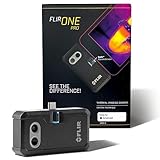
- COMPATIBILITY: Infrared camera plugs directly into phone charging port and connects with all USB-C Android devices including Samsung Galaxy, Google Pixel and more
- SUPER RESOLUTION: Vivid IR technology upscales the image to 480x360 from 160x120 for greater detail and clarity. Flir MSX technology merges thermal and visual images to enhance details in real time.
- THERMAL INSPECTION GUIDES: Within the Flir One app is a step-by-step inspection guide to help you address typical faults easily and perform accurate home inspections. Find air leaks, moisture buildup, and more
- ACCURACY: Measures temperature within ±3°C or ±5% when the unit is within 15 °C – 35 °C and the scene is within 5 °C – 120 °C
- JOBSITE TOUGH: Built to take the abuse that working on a jobsite dishes out every day, rated to take a drop from 1.5 meters and is built to last
What should I check when the shortcut is missing or stops working?
- No long-press entries: the app may expose no shortcuts, or the launcher may not display them. Open the app directly and look for its own navigation option.
- Downloads is absent: Files by Google’s documented shortcut is app- and version-dependent. Use the Files app to open Downloads instead of assuming arbitrary local pinning is supported.
- Drive shortcut is absent: check the Widgets picker under Drive. The widget list varies with device, launcher and app configuration.
- It opens the wrong place: remove the icon and create it again, selecting the intended Drive folder or app entry; verify the account when Drive asks.
- Android version differences: Google’s guide warns that some home-screen steps require Android 14 or later. Older releases may show different controls.
How do I remove or rearrange one?
Touch and hold the shortcut or widget, then drag it to Remove (the exact label and position vary by launcher). Removing the home-screen icon does not delete the Drive folder, downloaded file or app. To move it, keep holding and drag it to another page or an empty position.
Which destination is each older workflow actually suited to?
| Requested action | What the documented methods support |
|---|---|
| Add a folder shortcut from Samsung My Files | Only if your My Files and launcher visibly provide a home-screen command; not established as a universal Android feature. |
| Add an individual file shortcut from Samsung My Files | Only if that Samsung build exposes an item-level shortcut command; the generic Android method does not promise it. |
| Open a specific file | Possible only through an app-provided shortcut or an item-level command offered by that app. |
| Open a specific folder | Documented for a selected Google Drive folder with the Drive shortcut widget; local folders depend on the app. |
| Open Downloads | Files by Google documents a Downloads shortcut when the option appears. |
| Open the Clean tab | Open Files by Google and tap Clean; pinning it requires an app-provided shortcut, if available. |
How were these two methods selected?
They are the two routes directly covered by the supplied Google documentation: Android’s generic app-shortcut gesture and Google Drive’s folder-specific widget. The comparison separates cloud folders from app-owned destinations and avoids treating a Downloads entry as support for arbitrary local files or folders. Availability is qualified because Android, launcher and app versions can change the menus.
Frequently Asked Questions
Can I pin any local Android folder without installing another app?
Not through Android’s generic home-screen controls. The documented gesture works only when an app exposes a shortcut, and the Files by Google material specifically documents Downloads rather than every local directory.
Does the Drive Shortcut widget copy my folder or make it available offline?
No. It creates a home-screen entry that points to the selected folder in Google Drive; the folder remains managed by Drive and its normal account and connectivity rules.
Why do two Android phones show different long-press menus?
Shortcut lists are supplied by individual apps and displayed by the device’s launcher. Android release, launcher configuration and app version can therefore change both the labels and the destinations shown.
Will deleting the home-screen icon delete my file?
Removing an icon or widget only removes the home-screen entry. It does not delete the underlying Drive folder, local file, download or app.

