
Do these 3 things before closing this tab:
1Clear out junk files and repair common Windows errors2Fix the driver behind crashes, sound loss and screen glitches3Repair Windows errors before they cause bigger problemsSeveral CPU temperatures in a monitoring app do not automatically mean something is wrong. They can refer to individual cores, a package-level value, a temperature-control value, or a sensor on the motherboard. Your fans may be reacting to a different reading than the one you noticed first: the key is to find which temperature input controls the fan curve and compare it with fan speed as the system heats up.
Why your CPU shows more than one temperature
Processors and motherboards can expose several sensors or calculated readings at once. Those values may describe different locations or summarize temperature in different ways, so a lower motherboard reading and a higher on-die reading are not necessarily contradictory. Names and behavior vary by CPU model, motherboard, firmware, and monitoring app.
Here is what common labels can mean:
| Reading | What it represents | What to keep in mind |
|---|---|---|
| Core #n | Temperature reading for an individual CPU core. | One core can run hotter than the others under a particular workload. |
| Core Max | The maximum temperature among the CPU cores, as explained by HWiNFO Author Martin. | It is a maximum, not an average across all cores. |
| CPU Package (Intel, in HWiNFO’s explanation) | Martin describes this as a CPU-calculated 256-millisecond average of the hottest temperature sensor within the CPU package. | This is an explanation of HWiNFO’s label, not a universal definition for every CPU generation or monitoring app. |
| AMD Tctl and Tdie | Tctl is the temperature-control value. On models that use a control offset, Tdie represents the real die temperature while Tctl reflects the offset. | Some models use an offset; others report Tctl/Tdie together. Check the meaning for your CPU model. |
| Motherboard CPU / CPU (onboard) | May refer to a dedicated motherboard sensor near the socket or, in some cases, an internal CPU sensor exposed through the board interface. | Do not assume the label refers to the same physical sensor on every motherboard. |
These distinctions help explain why readings differ. They do not, by themselves, establish that a sensor is faulty or that one value is the universally correct temperature to use.
Which temperature is making the fans loud?
The fan curve—the rule that changes fan speed in response to temperature—may use a sensor other than the most prominent CPU reading in your monitoring app. To identify the likely trigger, find the temperature source assigned to the CPU fan, then watch that reading and the fan’s RPM together.
#1 Best Overall

- Fan Speed Regulator: This device is a 4 wire temperature-controlled fan speed regulator that allows for automatic or manual adjustment of fan speed based on temperature (℃) readings. It features a digital display showing both the current temperature and the fan’s rotational speed in RPM (revolutions per minute). The system helps maintain optimal cooling performance and energy efficiency by increasing fan speed as temperatures rise and reducing speed when cooling demand is lower.
- X100RPM: The RPM (rotations per minute) is displayed in units of 100 RPM, which allows it to accommodate and clearly show the speeds of high-performance fans, this makes it particularly suitable for industrial or specialized applications that utilize high-RPM fans. The maximum readable value on the display is 300 × 100 RPM = 30,000 RPM, ensuring compatibility with a wide range of fan types.
- 2 Control Modes: The device offers both manual and automatic fan speed control modes, giving users flexibility to adapt to various cooling needs and environments. This dual-mode system provides an ideal balance between user control and intelligent automation.
- Temperature Probe: To ensure accurate thermal regulation, the fan controller is equipped with a 42cm (16.54 inch) temperature probe. This probe continuously senses the surrounding temperature and sends real-time data to the controller, which is then shown on the digital display. The extended cable length provides flexibility in sensor placement, allowing users to position the probe closer to heat-sensitive components or areas where precise temperature monitoring is needed. Temperature probe parameters: NTC10KB = 3590
- Note: This controller only controls the fan speed adjustment controlled by a 4-wire PWM signal. The signal specification is 25KHZ 5V. It cannot control the speed regulation of 2-3 wire fans. The working voltage must be equal to the fan voltage.
- Note your system details. Record the exact CPU, motherboard, firmware version, and monitoring app. Sensor support and naming can differ across these components.
- Find the fan’s temperature input. Look in the motherboard firmware or the manufacturer’s fan-control utility for the CPU fan settings and the selected temperature source. Firmware may show temperatures, fan speeds, and fan settings together; the ASRock manual’s Hardware Health Event Monitoring Screen is one example for a specific board.
- Watch temperature and fan speed together. In a monitoring tool, observe the likely control input alongside CPU fan RPM while the system is in use. HWiNFO describes monitoring current, minimum, maximum, and average sensor values in its features overview. Those columns can help you see whether fan speed rises with a brief temperature spike or with heat that remains elevated.
- Compare readings that measure the same thing. Check whether the fan curve uses a core, package, die/control, or motherboard sensor. A motherboard or socket-area reading may be lower than an internal CPU reading because it comes from a different sensor location.
- Check the documentation if the pattern remains concerning. Consult the CPU and motherboard documentation for your specific system before judging whether its temperatures or fan behavior are abnormal.
HWiNFO Author Martin’s explanation of CPU temperature sensors dates to March 17, 2019. It is useful for understanding those labels, but its details should not be generalized across all CPU models and generations.
How to interpret the pattern you see
- Fan RPM rises when the selected input rises: The fan is responding to the sensor used by its control curve. The temperature that looks most striking in another app may not be that input.
- CPU readings differ from the motherboard reading: First check whether they represent different locations or sensor types; the difference alone does not show that either reading is wrong.
- Fan speed seems to react to brief peaks: Compare the current and maximum readings with the average and minimum values over the same period. This can help distinguish a short-lived peak from sustained heat, though the meaning of each value depends on the monitoring tool.
- You cannot identify the controlling sensor: Check the firmware or fan-control utility documentation for the exact motherboard and firmware. Sensor labels and available controls are not consistent across systems.
There is no universal temperature cutoff in these readings
The sensor explanations and monitoring guidance here do not establish a single safe temperature threshold for every processor, nor do they prove that a loud fan needs replacement. Use the specifications for your exact CPU and the context of your system to assess a temperature. A fan that becomes loud is a reason to investigate the selected sensor and the temperature-to-RPM pattern, not enough information on its own to diagnose a failed fan or justify a new cooler.
Quick Recap
Best Value
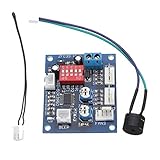
- Circuit load capacity: maximum current per output 5A, the bus currents up 9A
- Output Range: The first channel 20% -100%, or 40% -100% (TFL = ON)
- Working voltage: DC12V
- Stall alarm minimum speed: 700-800 rpm
- Temperature probe parameters: 50K B = 3950
Rank #4

- Supports all internal 12V 5A fans, synchronous rectified output, high efficiency, no need for additional heat sinks even for high current operation.
- Multiple fans can be used in parallel (total current does not exceed 5A), support automatic temperature control and air cooling speed control, temperature control speed has four temperature zone settings, widely used.
- It can be turned on with the three-wire fan monitoring function (stall warning).
- Circuit load capacity: 5A for each output and 8A for bus current.
- Output range: 20%-100% for the first channel, or 40%-100% for the first channel (TFL = ON), 10%-100% for the second channel and the third channel. (Note: The above range is only applicable to the PWM range, the actual control effect will vary depending on the fan)
Rank #3

- ✅ Ultra-Compact Design for Tight Spaces Measuring only 11mm x 17mm (about the size of a fingernail), this mini PWM fan controller is perfect for compact enclosures, small PC builds, 3D printers, Raspberry Pi projects, and other space-constrained cooling applications. No bulky modules, maximum installation flexibility.
- ✅ Smart PWM Temperature Control Fully compatible with 5V/12V standard 4-pin PWM fans (NOT for 2/3-wire fans). Features 343 customizable control modes, adjustable start temperature (35-65℃), start duty cycle (20-60%), and full-speed temperature difference (5-50℃) to match your specific cooling needs.
- ✅ Low Power Consumption & Reliable Performance Ultra-low standby power: only 10mW at 5V, 25mW at 12V, minimizing energy waste. Supports input voltage 5-15V, fan current up to 3A, with stable direct input-output transmission for long-lasting, reliable operation.
- ✅ Easy Setup & Configuration Simple button operation with LED indicator prompts for intuitive parameter setting. No complex software required—set your desired temperature thresholds, save the configuration, and the module will automatically adjust fan speed in real-time based on NTC 50K B=3950 temperature probe readings.
- ✅ Wide Application Scenarios Ideal for PC case/router cooling, 3D printer hotend/bed cooling, Raspberry Pi/DIY electronics cooling, small server racks, car audio systems, and any other 4-pin PWM fan cooling projects that require automatic temperature control.
Rank #2
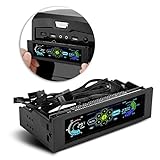
- AUTO /MANUAL manual mode automatic mode switch
- Big LCD screen to display the temperature, fan speed, alarm temperature, hard disk state, to constantly know the the working condition
- the computer temperature though controlling the wind speed of 5 groups of fans
- Can manually set up the alarm temperature range from 40 to 90 degree
- When the fan breaks down and can not cool the computer, it will alert immediately
Product prices and availability are accurate as of the date/time indicated and are subject to change. Any price and availability information displayed on Amazon at the time of purchase will apply.

