
What’s actually slowing this PC down?
Pick the symptom - the matching free tool is one click away.
If wkhtmltopdf output looks too small, first confirm that the zoom option actually reaches the wkhtmltopdf process. Then check page size and margins, DPI, intelligent shrinking, and the exact build and environment. These are separate variables: increasing zoom can make text larger while also changing wrapping, pagination, or clipping, so there is no single numeric setting that fixes every document.
What wkhtmltopdf zoom changes—and what it does not
The official settings reference describes zoom as a factor applied to the loaded content; its API setting is named load.zoomFactor. It lists intelligent shrinking, DPI, and page geometry as separate settings. That distinction is the key to diagnosing a PDF that appears undersized: zoom is only one possible cause, and changing it does not necessarily correct a mismatch in page layout or rendering environment.
In command-line use, --zoom is the option commonly used to set a zoom factor. The exact option forwarding can differ when wkhtmltopdf is called by a language wrapper or application. For those setups, confirm the wrapper’s own option syntax and inspect the command it generates rather than assuming that a setting in application code was passed through.
Intelligent shrinking is a separate behavior intended to fit more content onto a page. Turning it off may be worth testing when fitting is suspected, but it is not a guaranteed fix for tiny output. A user report describes disabling shrinking without correcting the small result. Treat it as one controlled test, not a universal remedy.
Do these 3 things before closing this tab:
1Clear out junk files and repair common Windows errors2Scan for outdated or missing drivers - takes under a minute3Repair Windows errors before they cause bigger problems#1 Best Overall

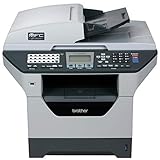
- Produce high-quality printing with this Brother laser all-in-one printer. The print speed of up to 36 pages per minute and automatic duplex printing produces documents fast, while the 250-sheet paper tray lets you handle demanding print jobs easily. This Brother laser all-in-one printer features a 2.7-inch color touchscreen, which ensures seamless setup and navigation, and the 50-sheet automatic document feeder allows hands-free operation.
- ENSURE OPTIMAL AND UNCOMPROMISING PERFORMANCE: When it’s time to replace your toner, be sure to choose Brother Genuine TN730 Standard or TN760 High-Yield replacement cartridges. And with Refresh EZ Print Subscription Service, you’ll never worry about running out of toner and you’ll enjoy savings of up to 50%(6) on Brother Genuine Toner. Get started with Refresh today with a Free Trial.(7)
- PRINT MORE, WAIT LESS - Engineered for increased efficiency with class leading class print speeds of up to 36 pages per minute(1).
- DYNAMIC FEATURES MEET YOUR EVOLVING NEEDS - The 250-sheet paper capacity helps improve efficiency with less refills and the manual feed slot offers professional prints on a variety of papers and sizes, such as card stock, envelopes, etc.
- ENGINEERED FOR PRODUCTIVITY - Helps save time with single-pass duplex (2-sided) copying and scanning via up to 50-sheet automatic document feeder, offering multi-page copy, scan & fax.
Start with a reproducible baseline
Before changing settings, make the problem measurable. Use the same input HTML, assets, wkhtmltopdf executable, and options for each run. A PDF can look different on screen because of how it is displayed, so compare a known element’s dimensions in the output and inspect page count, text size, wrapping, and overflow as well.
- Record the current setup. Note the full command, wkhtmltopdf version and build variant, operating system and architecture, wrapper or framework, and the exact HTML and assets. Include any configuration that sets zoom, DPI, paper size, orientation, margins, or shrinking.
- Make a minimal test input. Create a small HTML file with a visible element of known width and height. Avoid changing the input between runs. If the real page depends on external assets, record those too; otherwise, a missing or changed asset can be mistaken for a scale issue.
- Generate a baseline PDF. Run the installed executable directly, if possible, so a wrapper cannot silently omit or alter an option. Keep the output file for comparison.
- Change one variable at a time. Change zoom, page geometry, DPI, or shrinking in separate runs. If several settings change at once, a better-looking result does not tell you which change mattered.
- Check more than apparent size. Compare the known element, text size, line wrapping, page count, margins, and whether content is clipped or pushed onto extra pages.
A simple investigation command is:
wkhtmltopdf --zoom 1.0 --page-size A4 input.html output.pdfThis uses an example zoom value, not a recommended correction. Replace the input and output names with your files, and use the page size appropriate to your document. Check wkhtmltopdf --help on the installed build for its supported command-line options; do not assume a wrapper exposes the same names as the executable or the API setting reference.
Check that the zoom value reaches wkhtmltopdf
When a direct command behaves differently from an application-generated PDF, option forwarding is the first thing to verify. A wrapper may expect a different configuration key, may omit an option, or may build a command that differs from what you intended. The official settings reference calls its API property load.zoomFactor; that name does not guarantee that a particular wrapper accepts the same key.
Rank #2

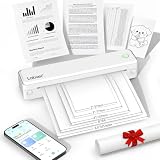
- 【All in One Printer】 A40 mobile printer, ideal for printing PDF file, test paper, webpage, contract, photo, picture, etc. Long standby time and with app which has a variety of materials and typography, easy to set up and print, an excellent assistant for study and office work.
- 【Multiple Printing Sizes】 With 2 clips to adjust the paper slot width, A40 thermal printer is support 210mm/107mm/77mm/56mm (A4/4"/3"/2") width of thermal paper now, different sizes of paper to meet your printing needs on multiple occasions. And support use with roll paper and folding paper as well.
- 【Convenient for Your Life】 With compact size - 265x80x45mm/10.4x3.1x1.8in. Built-in 2pcs 2600mAh rechargeable batteries, which can continuous print 3hrs after full charged, long standby time of 90 days, great for carry to business travel, school etc. You can print invoices, contracts, lists and exam documents contracts on site with your phone or computer.
- 【High Compatibility】 Support IOS and Android mobile phone by bt connection. Turn on the printer by pressing the power button for 2sec first. For Mobile Device, download the APP () first and enter it and connect with the machine through BT function. If you need to print with the computer, please download the driver first. (The driver is not support macOS for now)
- 【Premium Printing Quality】 A40 printer equipped with high quality print head, which has over 50km print life and printing about 168000 A4 Paper. Adopt advanced thermal printing technology, no ink cartridges or consumables are required, energy saving and environmental friendly. (Recommended to buy thermal paper together for clearer printing, not compatible with plain paper)
- Log or inspect the final command or configuration sent to the executable.
- Look for the intended zoom value and check that it is associated with the correct input or object.
- Compare a run through the wrapper with a direct command using the same input and settings.
- Confirm the installed executable’s help output before relying on a flag, especially if the wrapper or package may use a different build.
If the direct command changes output as expected but the wrapper’s output does not, focus on the wrapper’s configuration and option translation. If neither output changes, continue with geometry, DPI, shrinking, and environment checks rather than repeatedly raising the zoom value.
Quick wins for a faster PC:
Clear out junk files and repair common Windows errorsFree Scan →Scan for outdated or missing drivers - takes under a minuteDriver Scan →Repair Windows errors before they cause bigger problemsFix Now →Check page size, orientation, and margins
Paper size, custom page width or height, orientation, and margins are independent of content zoom. A document that is being made to fit within a constrained page can wrap or scale differently from what you expect. Increasing zoom may make the content appear larger but also push it beyond the printable area, increase page count, or clip content.
Confirm that the output uses the intended paper size and orientation, and inspect every margin. If custom width or height is configured, verify those values too. Compare the element’s size and its position relative to the page: a correctly sized element with unexpectedly large margins points to a different problem than an element that is uniformly too small.
Rank #3
- It can print and copy at up to 32 ppm
- It has 802.11 b/g Wireless and Ethernet interfaces
- It has automatic duplex print/copy/fax/scan
- It has up to 1200 x 1200 dpi print resolution
- It has 300 sheet paper capacity, expandable
For a fair test, keep page geometry fixed while adjusting zoom. Once the scale is stable, change geometry only if the document’s intended paper layout is wrong. Do not use a zoom change to conceal a mistaken page size or margin configuration.
Test intelligent shrinking and DPI independently
The settings reference treats intelligent shrinking and DPI as separate controls from zoom. Test each deliberately, one at a time, and keep the rest of the command constant. If changing shrinking does not affect the result, that is useful evidence: it means this setting alone did not explain the symptom in that test. A historical user report also describes a tiny result that remained tiny after shrinking was disabled, so there is no basis for treating that flag as a general fix.
DPI is another independent PDF setting to inspect, particularly if two machines produce different output from the same HTML. Record the configured value, if any, and compare the same input and page geometry across the environments. Do not assume a DPI adjustment is the answer merely because the PDF appears small; verify the effect against the known-size element and the page layout.
Rank #4
- 【Portable Thermal Printer】Take your printing anywhere with this compact portable thermal printer. Lightweight and easy to carry, it fits neatly into backpacks, briefcases, or car storage. Perfect for business trips, remote work, home offices, truck drivers, students, and professionals who need reliable printing on the go
- 【Inkless Thermal Printing】Powered by advanced thermal printing technology, this inkless printer eliminates the need for expensive ink cartridges, toner, or ribbons. Simply load thermal paper and enjoy crisp black-and-white printing with no messy refills, clogged printheads, or ongoing ink costs
- 【Wireless Bluetooth Printing】Print wirelessly from your iPhone, Android phone, tablet, or laptop with a fast and stable Bluetooth connection. Easily print PDFs, contracts, invoices, study notes, web pages, forms, and other everyday documents wherever you are. USB connection is also supported for Windows and Mac computers
- 【Supports Multiple Paper Sizes】Designed for everyday document printing, this portable wireless printer supports 8.5" × 11" US Letter, A4, and A5 thermal paper. Ideal for business documents, contracts, work orders, travel forms, reports, study materials, and office paperwork with clear, professional-quality results
- 【Long Battery Life】Built with a high-capacity rechargeable battery, this portable printer delivers reliable printing wherever you need it. Complete setup in just minutes using the mobile app or USB connection. Compatible with iPhone, Android, Windows, and Mac, it's the perfect wireless printer for home, office, travel, school, and business use
When testing the shrinking option, check whether your installed build lists the relevant flag in wkhtmltopdf --help. The setting is documented separately from zoom, but available command-line syntax can depend on the executable and how it is packaged. A test that changes both DPI and shrinking cannot identify which setting affected the output.
Tune zoom only after the other variables are stable
If a controlled test shows a consistent scale mismatch after option forwarding, page geometry, shrinking, and DPI have been checked, adjust zoom incrementally. After every change, measure the known element and inspect text size, wrapping, page count, and clipping. Keep the smallest change that produces the intended dimensions without introducing layout problems, and save the working command alongside the exact input and build details.
A 2018 issue report described a 400-by-600-pixel image appearing smaller in wkhtmltopdf output than in browser printing. The reporter said --zoom 1.3 matched that image in that environment. This is a case-specific report, not a recommended default: the result does not establish that 1.3 is correct for other documents, builds, or operating systems.
Best Value
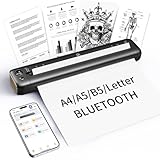
- 【Advanced Inkless Thermal Printing】The RONGTA F81 portable thermal printer uses cutting-edge inkless thermal technology, delivering high-speed, crisp, and clear prints in seconds—no ink cartridges needed. Perfect for printing on US Letter, A4, A5 and B5 paper sizes, making it the ultimate inkless printer for home, office, or travel.
- 【Fast & Smooth Wireless Printing with Bluetooth】Enjoy faster and smoother wireless printing with the RONGTA F81’s Bluetooth connection. Print seamlessly from Android, iOS smartphones, tablets, and desktops. The RONGTA F81 also supports USB connections, ensuring full compatibility with Windows and Mac computers—an ideal solution for portable wireless printers for travel or home use.
- 【Ultra-Portable & Quiet Printing】Weighing only 0.992 lbs (450g) and measuring 10.6 x 2.3 x 1.2 inches (268 x 58 x 30mm), the RONGTA F81 is an ultra-compact portable thermal printer designed for ultimate portability. It fits easily into your bag or backpack, making it perfect for business trips or on-the-go printing. Plus, with noise levels under 60dB, this mini thermal printer operates quietly, ideal for printing in quiet spaces like libraries, meetings, or at home.
- 【Long-Lasting Battery】With a powerful 2400mAh battery, the RONGTA F81 can print up to 210 pages on a single charge. Equipped with a standby protection mode, it ensures your portable printer is ready for use when you need it most—whether for long trips or business meetings
- 【Easy & Convenient Printing with "RONGTA" App】The F81 pairs effortlessly with the "RONGTA" app, enabling quick and easy printing from your phone printer. Connect via Bluetooth, select your document, and start printing instantly. The app supports multiple file formats, including PDFs, Word documents, images, and more, making it perfect for all your portable printer needs.
When browser printing and wkhtmltopdf disagree
A mismatch with browser printing does not by itself show that the zoom flag is broken. The two outputs may have been produced under different page dimensions, margins, DPI, or rendering environments. First compare the same input and intended paper geometry. Then check that the wkhtmltopdf process received the options you expect and compare actual element dimensions rather than judging only how each PDF looks in a viewer.
Historical issue reports describe environment-specific differences, but they do not establish one cross-platform cause. A Windows discussion reported zoom differences associated with display scaling in that user’s circumstances; it does not prove Windows display scaling is a general cause for current builds. If the discrepancy occurs only between machines, record the operating system, architecture, package source, build variant, and relevant settings on both sides before drawing a conclusion.
Compare exact builds when results differ between systems
Version and build details can matter. A macOS report compared versions 0.12.3 and 0.12.4 and described text shrinking in 0.12.4; the issue metadata lists 0.12.5 as its milestone. This historical report makes build comparison a sensible diagnostic step, but it does not establish that changing versions will resolve every zoom issue.
For each machine, record:
- wkhtmltopdf version, package source, architecture, and build or Qt variant;
- operating system and the exact executable or wrapper used;
- the generated command, zoom value, DPI, and shrinking state;
- paper size, custom dimensions, orientation, and margins;
- the exact HTML and asset files used for the comparison.
Keep the input fixed and change one setting at a time. If two outputs still differ, the recorded build and environment information gives you a controlled basis for isolating the difference instead of attributing it to zoom alone.
Recommended Free Tools
Common symptoms and practical next steps
| Symptom | What to check | Next test |
|---|---|---|
| The PDF is uniformly too small | Whether the zoom option reaches the executable; page geometry and DPI | Run the minimal known-size test directly, then compare one zoom change at a time. |
| Turning off shrinking changes nothing | Whether shrinking was the cause in this input and build | Restore the baseline and test option forwarding, page geometry, and DPI separately. |
| The content becomes larger but clips or wraps differently | Page size, margins, and whether the page can accommodate the enlarged content | Return to the baseline geometry; validate dimensions and pagination after each zoom adjustment. |
| A wrapper produces different output from a direct run | The wrapper’s option names and generated command | Compare the final command and run the executable directly with the intended settings. |
| Two machines produce different scale | Version/build, OS, architecture, DPI, package source, and display environment | Use identical input and options, then compare one environment variable or setting at a time. |
Or skip the browser setup
If your actual goal is to capture a webpage as an image or PDF rather than to repair an existing wkhtmltopdf workflow, ScreenshotNeo offers a website screenshot API and MCP server. It does not change how wkhtmltopdf renders your HTML. A single GET request can capture a URL; see the ScreenshotNeo API documentation.
Quick Recap
curl -G "https://api.screenshotneo.com/v1/shot" -d access_key=YOUR_API_KEY --data-urlencode url=https://stripe.com -o shot.webpBefore capture, ScreenshotNeo can accept cookie or consent banners and remove more than 60 known consent platforms, newsletter popups, and chat widgets; each step can be turned off. Bot checks or CAPTCHAs, blank pages, timeouts, failed loads, and cache hits are not billed, and the response identifies the page verdict and billing status in headers. Its MCP server provides take_screenshot, get_page_info, and capture_pdf tools for Claude, Cursor, and other MCP clients. The free plan includes 1,000 screenshots a month with no card; paid plans start at $5 for 3,000 shots. Every feature is on every plan. Sign up for 1,000 free screenshots a month, with no card required.
Product prices and availability are accurate as of the date/time indicated and are subject to change. Any price and availability information displayed on Amazon at the time of purchase will apply.

