
The Tool Desk
Outbyte PC Repair FREERepair Windows errors before they cause bigger problemsFix Now →Outbyte Driver Updater FREEFix the driver behind crashes, sound loss and screen glitchesFind Drivers →Windows 11 uses RAM for the operating system, drivers, open apps, background tasks and cached data. A high memory percentage on its own does not mean something is wrong: check how much memory is available and whether the PC is actually slowing down, then use Task Manager to find the processes consuming the most.
Why Windows 11 can appear to use so much RAM
Memory shown as “in use” covers more than the apps you can see. Windows, hardware drivers and background tasks also need memory. Windows additionally uses some available RAM to cache data and files so they can be accessed more quickly.
Microsoft defines total memory as in-use memory plus available memory. Available memory includes both free memory and standby memory; standby holds cached data that is not actively being used and can be made available to apps when needed. A large cache is therefore not automatically a problem or memory permanently taken away from your programs. Microsoft’s explanation of Windows memory management describes these categories.
There is no single official Windows 11 idle-RAM figure that applies to every PC. The reading varies with installed memory, drivers, apps, background activity and workload. Rather than comparing your PC with an arbitrary “normal idle” percentage, look at available memory and whether you experience slowdowns.
#1 Best Overall
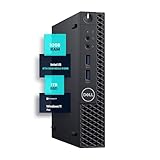
- SPACE-SAVING PERFORMANCE FOR HOME & OFFICE – The Dell OptiPlex 3070 Micro delivers dependable computing power in a compact footprint, making it ideal for desks with limited space or clean, minimal workstations.
- RELIABLE INTEL PROCESSING POWER – Equipped with an Intel Core i5 9th Gen Hexa-Core processor (i5-9500), this system offers smooth performance for everyday multitasking, web browsing, and business productivity.
- CONFIGURED FOR EFFICIENCY – Comes with 32GB DDR4 RAM and a 1TB SSD, delivering fast load times, responsive multitasking, and ample storage for files and applications.
- WINDOWS 11 PRO & WIRELESS CONNECTIVITY – Pre-installed with Windows 11 Pro, offering advanced features and security for business or home use. Includes a WiFi and Bluetooth adapter for convenient wireless connectivity.
- VERSATILE & ENERGY-EFFICIENT DESIGN – The ultra-small form factor is ideal for space-conscious users and supports a variety of mounting and placement options. Its low power usage and quiet operation make it perfect for professional environments.
How to see what is using memory
- Press Ctrl + Shift + Esc to open Task Manager.
- Select Performance > Memory to review installed, in-use and available memory.
- Select Processes, then select the Memory column to sort processes by their reported memory use.
- Look for apps you recognize that are using a substantial amount of memory. Close only apps you are not using; do not end unfamiliar Windows processes or services.
Task Manager is Microsoft’s built-in tool for monitoring system resources. If one app consistently consumes a lot of memory or its use keeps growing, investigate that app and its updates or support information rather than assuming Windows itself is the cause. Microsoft’s PC performance guidance also recommends checking resource use in Task Manager.
What to try if the PC is slow
High RAM use matters most when it coincides with symptoms such as sluggish app switching or slowdowns during your usual workload. Microsoft lists limited hardware, many open apps or browser tabs, startup apps, background activity and outdated software among possible contributors to poor performance.
Rank #2

- 【 Powerful Office Mini PC】The Origimagic C4 Plus mini pc is powered by the AMD Ryzen 5 3501U, featuring 4 cores and 8 threads with a maximum clock speed of 3.7GHz, is paired with Radeon Vega 8 Graphics that can reach up to 1200MHz. Built on the advanced Zen+ 12nm architecture, it offers a performance boost of 35% compared to Intel's N150/N100 series processors. This makes it a strong choice for tasks like office work, light gaming video streaming, home tasks use, and multitasking in workstations.
- 【Expandable Memory and Storage】The 3501u mini pc ships with 8gb ddr4 RAM (expandable up to 32GB) and a 256GB M.2 2280 SSD, letting you run multiple high-performance tasks simultaneously. Fast data read/write speeds and storage capabilities ensure smooth application performance. If you need more storage space, you can easily add the M.2 2280 NVMe PCIe 3.0 X4 SSD and upgrade it to a maximum of 4TB.
- 【Dual RJ45 Gigabit LAN Ports】The 3501U mini pc equipped with the RTL8111H chip includes dual 1000Mbps ports. You can enjoy enhanced performance, reliable connections, bandwidth aggregation, and intelligent load balancing, high-speed home or office networks. Whether for office work, teaching, photo editing, home theater setups, or conference presentations, this mini PC handles it all with ease.
- 【Versatile Connectivity Options】 The mini computer comes with a versatile array of ports: USB3.2 Gen2 *3(10Gbps), USB2.0*1, USB-C*1, RJ45 LAN *2, HDMI2.0*1, DP*1, 3.5mm Combo Jack *1, 5.5*2.5mm DC Jack*1. The USB-C port supports 5Gbps data transmission and 1080P video output—all with a single cable handling data and display. It keeps your desk clutter-free. This mini computer can meet your various needs for life, work, and entertainment.
- 【Wi-Fi 5 and Bluetooth 5.0】The small pc delivers stable, reliable wireless connectivity for fast web browsing, smooth video streaming, and seamless office tasks. Built-in Bluetooth lets you connect multiple wireless devices: mice, keyboards, headphones, printers, monitors, and TVs. With high-speed wireless technology, you’ll enjoy consistent, efficient internet speeds for browsing and streaming.
- Close what you are not using. Save your work first, then close unnecessary apps and browser tabs. Recheck Task Manager to see whether available memory improves.
- Review startup apps. Go to Settings > Apps > Startup, or open Task Manager > Startup apps. Turn off only apps you do not need to start automatically; disabling one may mean you need to open it yourself when needed. Microsoft notes that startup apps can affect startup speed and overall performance in its startup-app guidance.
- Restart the PC. If closing unnecessary apps does not help, restart and see whether the reading or symptoms return with your usual workload.
- Update Windows and applicable drivers. If you are seeing broader performance problems, check for available Windows updates and optional drivers through Settings. Follow the update guidance for your specific device.
- Investigate persistent use. If one process grows over time, or the PC remains slow with little available memory, check that app, its driver and your computer maker’s support information. Task Manager readings, workload and PC model are needed to diagnose a specific case.
These checks are more useful than registry edits, “RAM cleaner” utilities, disabling core Windows services or manually setting a fixed page file. They are not established general fixes for high memory use.
Independent reader supportYour contribution helps us test, update, and keep practical guides available for everyone.Does Windows 11 need more RAM?
Microsoft lists 4 GB as the minimum RAM requirement for Windows 11, not a guarantee of comfortable performance for every app or workload. Microsoft cautions that particular features, apps and added hardware may require more; for some PCs, an upgrade path may be available through the manufacturer or a retailer. See Microsoft’s Windows 11 requirements.
Recommended Free Tools
Rank #3

- ⚡ Potencia para las tareas diarias: Equipado con el procesador Intel N100 y 4 GB de memoria LPDDR5, el IdeaPad Slim 3i ofrece un rendimiento rápido y confiable para el trabajo, los estudios, el streaming, la navegación web y la multitarea diaria.
For broader memory guidance, Microsoft suggests 8 GB for longer-term use and says 16 GB or more might suit some photo or video editing and high-performance projects. These are general recommendations, not proof that every Windows 11 PC needs an upgrade. The right amount depends on what you run and whether memory is actually constraining that work. Microsoft’s computer-memory guide provides this workload context.
Check compatibility before buying RAM
Consider an upgrade when available memory is repeatedly constrained during your normal workload and the computer supports more RAM. Before purchasing, identify the exact PC model and check its manufacturer specifications or service manual for:
- Supported memory type and speed
- Maximum capacity and supported module configuration
- Form factor and number of memory slots
- Whether memory is soldered or replaceable
- Installation steps and any warranty implications
Some PCs have soldered memory or other upgrade restrictions. A module that fits physically may still be incompatible, so verify the exact model with its manufacturer or a qualified retailer. Adding RAM can help when capacity is the constraint, but it will not by itself fix a runaway app, driver problem or unnecessary background activity.
Quick Recap
Product prices and availability are accurate as of the date/time indicated and are subject to change. Any price and availability information displayed on Amazon at the time of purchase will apply.
Do these 3 things before closing this tab:
1Clear out junk files and repair common Windows errors2Scan for outdated or missing drivers - takes under a minute3Repair Windows errors before they cause bigger problems
