
What’s actually slowing this PC down?
Pick the symptom - the matching free tool is one click away.
iTechGuides is reader-supported. When you buy through links on our site, we may earn an affiliate commission. As an Amazon Associate I earn from qualifying purchases. Learn more
Why is my printer printing pink? Pink output usually means the printer is not delivering cyan, yellow, black, or another color channel in the expected proportion. On an inkjet, check the nozzle pattern, ink supply, cleaning, alignment, and print settings; on a color laser, check toner, calibration, and registration.
The fastest safe diagnosis is to print the printer’s built-in nozzle-check or print-quality diagnostic page. The pattern tells you whether to troubleshoot ink delivery and the printhead or move directly to paper, driver, application, and color-management settings.
Key takeaways
- Pink or magenta output usually means the printer is not delivering cyan, yellow, black, or another color channel in the expected proportion.
- A nozzle-check or print-quality diagnostic page distinguishes an ink-supply or printhead problem from a document, paper, driver, or color-management problem.
- Inkjet printers need cartridge or tank checks, built-in cleaning, and sometimes printhead alignment; color laser printers need toner, calibration, and color-registration checks instead.
- Printhead cleaning consumes ink, so use the normal cleaning cycle only as directed and avoid repeating it indefinitely.
- A clean diagnostic page combined with pink documents usually points to paper, color, application, driver, or color-profile settings rather than a clogged nozzle.
What causes a printer to print pink?
A printer prints pink when the balance of cyan, magenta, yellow, and black is wrong. The visible result does not prove that the magenta cartridge is defective: missing cyan can make colors look pink or reddish, while low ink, a clogged nozzle, a misaligned printhead, unsuitable paper settings, or incorrect color management can also produce the same symptom.
The correct fix depends first on the printer type and the test result. The six-step workflow below is primarily for inkjet printers. Color-laser printers use toner and need a different maintenance path.
Popular on Amazon

- 【Printhead Nozzles Cleaner 100mL for All Inkjet Printers】Absonic Inkjet Printer Cleaning Solution for Epson Inkjet Printer, Printer Nozzle Cleaning Kit Solution for HP Inkjet Printer, Printer Printhead Cleaning Kit for Canon Inkjet Printer, Printer Head Cleaning Kit for Brother Inkjet Printer, Printhead Cleaner Kit for Samsung Printer, Print Head Cleaner Kit for Lexmark Printer, Printer Head Cleaner Kit for DTF Printer (If you don't find your inkjet printer model, you can always contact us)
- 【Printer Cleaner Solution for All Inkjet Printers】Absonic Inkjet Printhead Cleaner Kit is suitable for Epson EcoTank/Epson WorkForce/Epson Expression/Epson Stylus Inkjet Printers, such as ET 2720 2750 2760 3760 2760 2800 4800 4850; WF 7710 7720 3820 3823 4820 4830; XP 4205 7100 970, Printer Head Cleaning Solution for Canon MegaTank/Maxify/Office and Business Inkjet Printers, such as MX492 MX922 MG2520 MG2522 MG2525 MG3620 GX5020 IP110 G3260 G3270 G6020 TS702a TS3520 TS5120 TS5320 TS6320
- 【Print Head Nozzles Cleaner with All Inkjet Printers】Print Head Cleaning Solution for Brother MFC Inkjet Printers, such as J825DW J1010DW J1205W J1170DW J4335DW J4535DW J4620DW J5340DW; Printer Printhead Cleaning for HP Officejet/HP Deskjet/HP Envy/HP Smart Tank Inkjet Printers, such as HP OfficeJet 3830 4650 7740 8015 8020 8035 8210 8600 6978 Pro 9015 9025 9018, HP Envy 4520 5055 6055e 6455e 7955e, HP DeskJet 2640 2700 2723e 2742e 2755e 3755e 4155 4158, HP Smart Tank 5101 6001 7001 7301 7602
- 【Ink Cleaner for Inkjet Printer】Ink Cartridge Cleaner Ink Jet Head Cleaner Ink Jet Printer Cleaner Kit Cleaner for Ink, Inkjet Printhead Cleaning Solution Print Head Cleaner for Sublimation Ink Printhead Nozzles Cleaner Kit Print Head Cleaner Set Inkjet Cleaning Solution Cleaning Printer Head Cleaning Printer, Ink Head Cleaning Kit Inkjet Cleaning Kit Inkjet Cleaning Solution Kit Inkjet Head Cleaner Ink Head Cleaner Kit Ink Cartridge Head Cleaner Kit
- 【Printhead Cleaning Solution for Inkjet Printer Easy to Operate】The Printer Printhead Nozzle Cleaning Kit includes 100mL Inkjet Print Head Cleaning Fluid, syringe, white nozzle, yellow nozzle, L-shaped tubes, silicone tubing, gloves, and instructions. Inkjet Printhead Cleaning Kit comes with different sizes of nozzles to fit different ink-filling ports. The yellow nozzle is for Epson and Brother Inkjet Printers; The white nozzle is for HP and Canon Inkjet Printers
| What you see | Most likely area | Best next action |
|---|---|---|
| A color block or nozzle pattern is missing | Low ink, cartridge, tank, nozzle, or printhead | Check the affected supply, then run the printer’s normal cleaning cycle |
| Colors are present but shifted, fringed, or shadowed | Printhead alignment or laser color registration | Run alignment, calibration, or registration from the printer menu |
| The diagnostic page is clean but photos are pink | Paper type, color mode, driver, application, or color profile | Correct print-dialog and color-management settings |
| Only a Windows computer produces the wrong result | Driver or computer-side print settings | Check the application and printer driver, then use Microsoft’s Windows printer troubleshooting steps |
1. How do you print and read a nozzle check?
Print the printer’s built-in nozzle-check or print-quality diagnostic page before replacing parts. A nozzle check shows whether each ink channel is actually reaching the paper, and it prevents unnecessary cartridge replacements or cleaning cycles.
Menu names vary by model. Look under Maintenance, Tools, Setup, or Print Quality for options such as Nozzle Check, Check Print Head Nozzle, or Print Quality Diagnostic Page. Canon documents the nozzle check as a way to investigate faint printing or a color that fails to print, while Epson and HP provide equivalent diagnostic procedures for incorrect colors and missing lines.
Compare the printed pattern with the example in the printer’s manual:
- Missing, broken, incomplete, or streaked lines: suspect the affected ink channel, cartridge or tank, nozzle, or printhead.
- One color completely absent: target that color’s supply and nozzle instead of performing whole-printer maintenance.
- All colors present and lines are clean: skip directly to paper, color, application, driver, and color-management checks.
- Colors are present but visibly displaced: alignment or registration may be the problem.
Canon’s official nozzle-check guidance states: “Where the horizontal lines are not in line or are missing, the color nozzle is blocked.” Read the Canon nozzle-check instructions for the pattern and interpretation used by that printer family. The wording is manufacturer guidance, not an independent diagnosis of every printer model.
2. How do you check the printer’s ink cartridge or tank?
Check the ink level and installation of the color channel implicated by the nozzle check. A low or empty cartridge, an incorrectly seated cartridge, a tank in the wrong position, or protective tape left on a new cartridge can prevent the printer from producing the expected color balance.
- Open the printer’s ink-level screen or inspect the transparent tank, if the model has one.
- Confirm that each cartridge is in the correct color position and is fully seated.
- Check that all shipping tape or protective seals specified for removal have been removed.
- Look for an error message, expired or damaged cartridge warning, leakage, or an air gap in a tank system.
- Replace only the depleted or suspect supply after confirming the exact printer model and cartridge number.
Canon’s PIXMA color-troubleshooting documentation specifically directs users to check the problem-color ink tank and cartridge installation. Epson identifies low ink as a possible cause of incorrect colors, and HP includes very low ink and cartridge condition among print-quality checks.
Do not assume that a printer “has ink” because one cartridge or tank is full. A printer can still print pink when cyan, yellow, or black is empty or not reaching the printhead. Do not buy generic replacement ink until the exact model and cartridge or tank number are known; compatibility, ink chemistry, firmware behavior, and warranty conditions differ between models.
Also popular on Amazon

- Printhead Cleaning Kits for Inkjet Printers: Fosgoit Inkjet Printhead Cleaner for Epson Printer, Ink Jet Cleaning Solution for Canon Inkjet, Printer Printhead Cleaning Kit Cleaner for Print Head, Inkjet Cleaning Solution Kit for HP Printer Head, Inkjet Printhead Cleaning Kit Epson Eco Tank, Ink Cartridges Cleaning Solution for et-4800, Ink Cartridges Cleaner Solution for Epson, Printhead Cleaner for Print Head, Inkjet Cleaner Solution for Canon Print Head
- Cleaner for Inkjet Printers: Fosgoit Printhead Cleaning Solution for Inkjet Printers are Suitable for Epson EcoTank WorkForce Inkjet Printers, Print head Cleaner Solution for HP Officejet HP Deskjet Canon Inkjet Printers. Inkjet Cleaning Solution for Epson 2720 2750 2760 2800 2803 2850 3760 4700 4800 5170 8500 8550 15000 Inkjet Printers; Epson WF 7710 7720 110 2830 2860 3820 4820 4830 7310 7820 7840 Inkjet Printers; Epson XP 330 340 424 15000 4100 4105 7100 960 Inkjet Printers
- Compatible with HP Epson Canon Inkjet Printers: Print Head Nozzle Cleaning for HP OfficeJet 8600 8610 8620 8025 6835 3830 5255 6230 6700 6978 7740 8022 8710 Inkjet Printers HP Envy 4520 5055 6052 6055 6055e 6075 6452 HP DeskJet 2622 2752 2752e 2755 2755e Inkjet Printers, Inkjet Cleaning Solution for MFC J491DW J5845DW J995DW J1010DW J1170DW Inkjet Printers, Cleaning for Inkjet Printer for Canon MX492 MX922 MG2522 MG2525 MG3620 G3260 TS3520 TS5320 TS6320 Inkjet Printers
- Compatible Design of Printers Cleaning Solution: The yellow nozzle is for Epson and printers. The white is for HP and Canon printers. Each size of the nozzles is specifically designed to fit different ink fig port, which can avoid liquid leakage. Cleaning your inkjet printer with an effective printer head cleaner instead of discarding, it can bring your printer a brand new look and help you save money. Printer cleaning supplies protect the printhead and extend your printer life!
- Wide Applications of Printer Cleaner: Fosgoit printer head cleaning kit can be used for OEM factory ink, dye ink, pigment ink, sublimation ink, heat transfer ink. Our print head cleaning solution contains degradation factors, which can dissolve the hard block and other soluble impurities left after the ink hardens, making the ink flow more smoothly and wouldn't corrode the print head.
3. How do you unclog a printer nozzle?
If the nozzle check contains gaps or missing color segments, run the printer’s built-in Printhead Cleaning or Head Cleaning function, then print another nozzle check. The normal cleaning cycle is the safest first response to a suspected clogged inkjet nozzle.
- Load the paper recommended by the printer’s manual.
- Start the normal cleaning cycle from the control panel or the manufacturer’s printer software.
- Wait for the cycle to finish; do not switch off the printer during maintenance.
- Print a fresh nozzle-check pattern.
- Compare the new pattern with the first one before deciding whether another supported cleaning attempt is appropriate.
Canon says cleaning is needed when a color pattern is missing or patchy. Epson recommends cleaning when the nozzle pattern has gaps, and HP documents printhead cleaning for incorrect colors, streaks, and faded output. The Epson printhead checking and cleaning instructions illustrate the diagnostic-first sequence.
Cleaning uses ink. Do not run cleaning cycles continuously, and do not jump to Deep Cleaning unless the printer’s documentation recommends it after normal cleaning fails. Deep cleaning can consume substantially more ink, and the permitted number of attempts and waiting period are model-specific.
Should you use a manual printhead-cleaning kit?
A manual inkjet printer printhead cleaning kit is a late-stage option only when the built-in nozzle check and manufacturer cleaning routine indicate a persistent clog. Confirm exact model compatibility, printhead access, ink chemistry, and warranty limitations before using fluid, syringes, hoses, or adapters. A manual kit can damage a printhead or introduce contamination when used incorrectly, so follow both the kit instructions and the printer manufacturer’s instructions.
Quick wins for a faster PC:
Fix the driver behind crashes, sound loss and screen glitchesFind Drivers →Clear out junk files and repair common Windows errorsFree Scan →Do not use a cleaning kit as the first response, and do not use inkjet nozzle advice on a color-laser printer. The printhead-cleaning-kit instructions show why compatibility and procedure matter; the document is marketplace product documentation, not proof that one kit works with every printer.
4. Which paper and color settings stop pink prints?
If the nozzle-check page is clean, correct the print dialog’s paper, color, and quality settings before cleaning the printhead again. Confirm that the selected paper type matches the paper loaded, color printing is enabled, grayscale or black-only mode is off, and the intended color-correction setting is selected.
Check these settings in the application and printer driver:
- Paper type: select plain paper, matte photo paper, glossy photo paper, or the closest manufacturer-specific option that matches the loaded media.
- Color mode: choose color rather than grayscale, black-only, or monochrome.
- Print quality: use a suitable quality level; draft or economy modes may alter coverage and appearance.
- Color correction: avoid applying competing corrections in both the application and printer driver unless the workflow specifically requires it.
- Paper size and source: confirm that the selected size and tray match the paper actually loaded.
- Color profile: use the profile intended for the printer and paper when the application supports color-managed printing.
| Diagnostic result | Setting to inspect | Why it matters |
|---|---|---|
| Clean nozzle check, pink photo | Paper type and photo-paper profile | A plain-paper profile or unsuitable photo profile can change the color balance |
| Clean nozzle check, pink document | Application color mode and printer-driver correction | Software may be sending a different color workflow than expected |
| Black text also looks colored | Black-only, composite-black, and color settings | The printer may be building dark tones from color ink or receiving a color job |
| Screen and print disagree | Display and print color management | Screen colors and printed colors are different systems |
Epson’s official guidance notes, “Your printed colors can never exactly match your on-screen colors.” Compare the print after the ink has dried and under neutral lighting. The Epson paper and color-management guidance covers paper selection, color correction, and the limits of screen-to-print matching. HP likewise recommends checking color, paper type, paper size, and quality settings in its color and print-quality troubleshooting documentation.
The Tool Desk
Outbyte PC Repair FREERepair Windows errors before they cause bigger problemsFix Now →Outbyte Driver Updater FREEScan for outdated or missing drivers - takes under a minuteDriver Scan →Also popular on Amazon
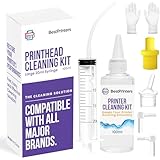
- High Success Rate: Save hundreds of dollars with our best printing cleaning kit for restoring print quality on inkjet printers. Access additional video support of the best printers cleaning kit on YouTube Channel. Remember to run a printhead or power cleaning after use to bring ink back into the printhead
- User-Friendly Design: DIY Print Head Cleaning Kit for Epson. No expertise is required! This cleaning kit fixes common printing issues like discoloration, missing colors, low-quality prints, blank pages and streaks
- Wide Compatibility: Works with popular printer models, including Epson EcoTank, Epson WorkForce HP SmartTanks, HP OfficeJet, Canon Pixma, Brother MFC, DTF, Sublimation and many more.
- Complete Cleaning Solution: Includes a LARGE 20ml print head cleaner syringe and multiple attachments for hp officejet printhead cleaning kit. Our ionized cleaning solution is safe to use on all printer components
- Complete Printhead Cleaning Solution: Includes specialized cleaning fluid, syringes, and tools; printer cleaning kit flush cleaner removes dried ink buildup; extends printhead lifespan and delays replacement
5. When should you align or calibrate the printer?
Run printhead alignment when the colors are present but shifted, fringed, shadowed, or unevenly registered. Alignment will not normally restore a completely missing ink channel; a missing pattern points first to ink delivery, a nozzle, or a printhead.
Search the official manual for the exact model’s menu item, such as Align Printhead, Printhead Alignment, Color Calibration, or Color Registration. Use the specified paper, print the alignment or calibration sheet, and complete any scan-back step shown on the page. The procedure can differ between printers: inkjets commonly align the printhead, while color lasers may calibrate color density or correct registration between cyan, magenta, yellow, and black toner layers.
Canon includes printhead alignment in its troubleshooting path for uneven or streaked colors. HP also documents alignment for supported inkjet models. If a color laser prints pink, inspect cyan, magenta, yellow, and black toner cartridges, then run the printer’s color calibration and registration diagnostics instead of trying to unclog an inkjet nozzle.
6. What should you do if the color remains pink?
If the affected color is still absent after checking the supply, running the documented normal cleaning cycle, using model-supported deep cleaning, and aligning or calibrating the printer, stop consuming ink and arrange manufacturer support or authorized service. A damaged or inaccessible printhead may require service or replacement.
Recommended Free Tools
Canon’s escalation guidance says that when deep cleaning does not resolve the issue after the documented attempts, the printhead may be damaged and the user should contact a service center. Follow the Canon unresolved-color troubleshooting guidance for that model family, or use the support page and manual for the actual printer model.
For a Windows-only problem, first test the same document from another application or computer and verify the selected printer driver and color settings. Microsoft’s Windows printer troubleshooting guidance covers restart and printer-side connection or software checks. A Windows utility should not be the primary fix when the printer’s own diagnostic page is missing a color.
Independent reader supportYour contribution helps us test, update, and keep practical guides available for everyone.Inkjet versus color laser: which fix applies?
Inkjet and color-laser printers can both produce pink output, but the maintenance steps are not interchangeable.
Also popular on Amazon

- Wide Compatibility: Wawocs printhead cleaning kit is highly compatible with All inkjet printers like Epson, Canon, Brother, HP inkjet printers and so on. It would not corrode the printer nozzle and no damage to your printer. Our printer cleaning kit is compatible for Epson WF2750 WF3720 WF7620 WF7710 WF7720, Epson Ecotank ET-2800 ET-2803 ET-4800 ET-8500 ET-2400, HP 8600 8610 8620 6968 8210 8710 8715 8725 8720 8730, Canon G3260 MX922 TS6320 TR8520 TS9020, Brother MFC printers, etc
- Remove Blockage Professionally: This printer cleaning kit is design for cleaning clogged printer head effectively. Inkjet printer cleaning kit for Epson ecotank inkjet printers. Printer head cleaning kit for Canon. Printer nozzle cleaner for HP officejet. Brother printer cleaner for clear clogged printer nozzle. Printer head cleaning solution kit for Samsung printer. It also work for dtf printer like Epson ET-8550, XP-15000, L1800, L805, R1390, R2400
- Easy to Use: There is a clear instruction coming with our printer head cleaner kit. It's recommended to read the instruction or our product video before you clean your printer. Also, the different cleaning tools in the package can help you to clean the print head more convenient and easier
- Excellent Performance: This printer head cleaning kit has strong cleaning ability, use for cleaning dye ink, pigment ink, sublimation ink etc. It can effectively help to dissolve printer head clogging (vertical stripes, horizontal stripes, text printing, or incomplete patterns), and improve the printing effect of your inkjet printer, make it like brand new
- Package Contents: Wawocs printer cleaning solution includes: 1 x print head cleaner (100 ml) , 1 x syringe (5 ml), 1 x silicone tube, 1 x white nozzle, 1 x yellow nozzle, 2 x L-shaped tubes, 1 x gloves, 1 x instructions. Different tools fit for cleaning differenct kinds of inkjet printer head.
| Printer type | Supply to check | Diagnostic path | Do not assume |
|---|---|---|---|
| Inkjet | Cyan, magenta, yellow, and black cartridges or tanks | Nozzle check, normal printhead cleaning, alignment | Pink always means the magenta cartridge is bad |
| Color laser | Cyan, magenta, yellow, and black toner cartridges | Diagnostic page, toner checks, color calibration, color registration, and supported cleaning page | An inkjet nozzle-cleaning cycle will solve the problem |
When the printer type is uncertain, check the model’s manual or supplies: cartridges or refillable tanks indicate an inkjet branch, while toner cartridges indicate a laser branch. Menus and maintenance names are model-specific, so use the manufacturer’s documentation rather than forcing a generic procedure.
Do these 3 things before closing this tab:
1Scan for outdated or missing drivers - takes under a minute2Clear out junk files and repair common Windows errors3Fix the driver behind crashes, sound loss and screen glitchesQuick decision checklist
- Identify whether the printer is inkjet or color laser.
- Print a nozzle check or print-quality diagnostic page.
- If a color pattern is missing, check that color’s cartridge, tank, or toner supply and installation.
- For an inkjet, run the normal built-in printhead cleaning cycle and reprint the nozzle check.
- If colors are shifted rather than missing, run printhead alignment or laser color registration and calibration.
- If the diagnostic page is clean, match the paper type and inspect color, grayscale, quality, driver, application, and profile settings.
- Escalate to manufacturer support or authorized service when the color remains absent after documented maintenance.
How do I fix a printer that prints everything pink?
Print a nozzle-check or print-quality diagnostic page first. If the page is missing cyan, yellow, black, or another channel, check the corresponding ink or toner and use the correct printer maintenance routine. If the diagnostic page is clean, correct paper, color-mode, driver, and color-management settings.
Why does my printer print pink instead of black?
A printer can print pink instead of black when black ink or toner is empty, blocked, incorrectly installed, or disabled, or when the driver is sending a color job that builds dark tones from color inks. Check the black channel on the diagnostic page and verify that black-only or grayscale settings are configured as intended.
My printer has ink but prints pink—what should I do?
A full ink supply does not prove that ink is reaching the paper. Check cartridge seating and protective seals, print a nozzle check, and run the manufacturer’s normal cleaning cycle if the pattern has gaps. A clean nozzle check shifts the investigation to paper, application, driver, and color-profile settings.
Frequently Asked Questions
Why is my printer printing pink?
Pink output usually means the printer is missing or misbalancing one or more color channels. Print a nozzle-check or print-quality diagnostic page to determine whether the problem is ink delivery, a nozzle, a printhead, or software settings.
Does pink printing always mean the magenta cartridge is bad?
Yes. Missing cyan, yellow, black, or another channel can make output look pink even when the magenta supply is working. Check the diagnostic pattern and the ink or toner supply for every color channel.
Is it safe to use a printer nozzle-cleaning kit?
A manual printhead-cleaning kit may help with a persistent inkjet clog only after the built-in nozzle check and manufacturer cleaning cycle fail. Confirm exact model compatibility and warranty limitations before using one.
The Bottom Line
Start with the printer’s own diagnostic page, not a replacement cartridge or cleaning kit. Missing color segments call for an ink or printhead workflow; a clean diagnostic page calls for paper and software checks. Use a manual cleaning kit only as a model-compatible late-stage option, and seek service when documented cleaning does not restore the channel.

