
Do these 3 things before closing this tab:
1Repair Windows errors before they cause bigger problems2Scan for outdated or missing drivers - takes under a minute3Clear out junk files and repair common Windows errorsA scheduled product-page screenshot shows the page as it was rendered when the capture actually succeeded—not necessarily what the retailer shows now. Yesterday’s price can result from a delayed or skipped capture, cached screenshot image, stale page data, or a price that loaded after the screenshot was taken. Check the capture’s actual timestamp and run status first, then test the screenshot URL and the retailer page as separate sources.
Why a scheduled screenshot can show yesterday’s price
A screenshot is a time-stamped rendering, not a live price guarantee. The intended schedule time, the time a job actually runs, the time a screenshot is delivered, and the time the retailer updates its page can all differ. That means a new-looking image link may show an older capture, while a newly captured image may faithfully show old content served by the retailer or its platform.
| # | Preview | Product | Price | |
|---|---|---|---|---|
| 1 |
|
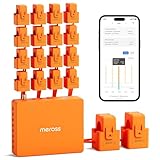
Meross Smart Home Energy Monitor, Real-Time Power & Cost Tracking | $159.99 | Buy on Amazon |
There is no established general statistic for how often scheduled product screenshots show a previous day’s price. The cause in a particular case cannot be identified without the provider, product URL, capture timestamp, schedule settings, and run history.
Diagnose the problem in this order
1. Verify the actual capture time and run status
Find the capture record or job history; do not rely on the filename or the time you opened the image. Compare the successful capture timestamp with the intended schedule, including the configured time zone and cadence. Check whether the run succeeded, failed, was skipped, or was paused. Scheduled-capture services such as Site-Shot describe schedule health states and scheduled capture times, and Allscreenshots documents recurring capture history. If the last successful capture was before the price update, the image may be old even if the schedule was meant to run later.
#1 Best Overall
- SAFE & RELIABLE: Meross smart energy consumption monitor is ETL‑certified and compliant with the UL 61010 testing standard, ensuring safe and reliable home energy monitoring. Works with most US homes: single-phase 2-wire systems, single-split phase 3-wire systems, and 3-phase 4-wire Wye systems with earthed (TN or TT) neutral (no Delta). Easy clamp‑on design installs in minutes. Invert CT readings in the app—no physical flipping. PROTECTED BY 2-YEAR WARRANTY for worry-free use.
- TRACK ENERGY & CUT BILLS: Track power, voltage, current, and power factor within ±1% accuracy. Clear power usage and cost charts by minute/hour/day/month/year help you easily understand your energy use. Store up to 5 years of data and export hourly reports for deep analysis. Most users save 10–20% on energy costs by spotting energy hogs and getting accurate insights to cut their bills.
- 24/7 ENERGY MONITORING + SMART ALERTS: Real-time home energy monitoring from anywhere. Set custom alerts for unusual usage spikes and threshold breaches for total peace of mind. Catch issues early with no subscriptions, no cloud lock‑in, and no hidden fees — all built-in. Supports 2 main circuits (200A) + 16 branch circuits (60A), making it perfect for precise, circuit-level energy monitoring.
- MAXIMIZE YOUR SOLAR SAVINGS (HOME ASSISTANT): This solar energy monitor integrates with Home Assistant to detect solar surplus and automatically power EV chargers, water heaters, and other high‑use appliances. Stop wasting solar energy—use it yourself and cut your electricity bill faster. The perfect home energy monitor for solar homes.
- LOCAL DATA, FULL PRIVACY, NO SUBSCRIPTIONS: Connect seamlessly with Home Assistant for advanced energy automation. All energy data stays local—no cloud, no delays, no privacy concerns. Take full control of your home energy, reduce waste, and protect your privacy. Supports Open API and Web Control.
2. Test the screenshot image URL for caching
A provider may serve a cached screenshot at a stable image URL after a newer capture has run. Check the provider’s current documentation for cache lifetime and whether it offers a fresh or cache-bypass option. For example, ScreenshotEngine says its evergreen image links can be cached for up to 12 hours; Capture documents a 24-hour CDN edge cache and a fresh option that bypasses its screenshot cache. These are provider-specific behaviors, not general rules for all screenshot services.
If the provider supports a fresh capture or cache-bypass setting, use it to compare against the usual image URL. If only the usual URL is old, the issue is likely in image delivery or caching rather than the capture itself. Do not assume adding a random query parameter bypasses every provider’s or CDN’s cache.
3. Check whether the retailer page itself is stale
Open the exact product page in a separate browser session and compare its visible price with the screenshot. Keep the region, currency, account state, product variant, and promotion consistent. If a fresh capture shows the same old price, the screenshot may be accurately reflecting stale page content rather than serving an old image.
Page-platform snapshots and browser or ISP caches are possible causes. Salesforce Commerce documents public-page snapshots refreshed on a cadence: its documentation says snapshots are taken every 15 days, with incremental snapshots for newly added pages every 24 hours, and describes a manual snapshot option for time-sensitive information such as flash-sale prices. Those intervals apply to Salesforce Commerce’s snapshot service—not every retailer. A vendor support article also identifies browser or ISP caching as possible causes of old displayed prices, while noting that caching is not the only explanation.
Free tools Windows power users keep installed
One-click scans. No signup required.
4. Check whether the price had finished rendering
Retail pages may insert or update a price dynamically after the initial page load. If the capture is taken too early, it can preserve an earlier or incomplete state. Compare captures with the default timing and with a modest post-load delay, or wait for a known price element if your tool supports that option. Scheduled-capture guidance identifies dynamic content and loading-time differences as sources of variation.
Preserve the conditions needed to reach the same offer: region selection, consent state, product variant, login or session state, and any required navigation. A longer wait alone will not fix a page that is serving stale data, and unnecessary waits can make monitoring slower.
5. Confirm that the prices represent the same offer
Before treating a difference as a price change, compare the product variant, region, currency, promotion, stock status, shipping, and account or session conditions. A visual-difference alert records changed pixels; it does not prove that the numeric price changed. A banner, layout shift, availability message, or other page change can trigger an alert without changing the offer price.
Separate the two cache layers
“Cache” can refer to two different things in this problem, and each needs a separate check:
- Source-page or platform cache: the retailer’s site delivers old content, so a newly generated screenshot can still show yesterday’s price.
- Screenshot-image or CDN cache: the retailer page may be current, but the image URL returns a previously generated screenshot.
First compare the current page with a confirmed fresh capture. Then compare that capture with the image URL used by your dashboard or alert. This helps distinguish stale page content from a stale delivered image.
Independent reader supportYour contribution helps us test, update, and keep practical guides available for everyone.Make a price-monitoring workflow more dependable
If you are setting up monitoring rather than diagnosing one image, assess the whole workflow—not just capture frequency. Provider capabilities vary, so confirm current documentation for the options you need.
- Run history and failure visibility: retain actual capture timestamps and states so skipped and failed jobs are distinguishable from successful captures.
- Capture conditions: check whether you can control geography, session, viewport, and any required interactions so the same offer is captured consistently.
- Freshness controls: establish whether you can bypass screenshot caching or request a fresh image.
- Evidence retention: check whether timestamped captures can be retained and exported for later comparison.
- Price validation: consider checking extracted price text as well as pixels. A visual alert alone cannot establish that the numeric price changed.
- Cadence and timing: choose a schedule appropriate to the retailer’s update pattern, and verify the actual run history rather than assuming every intended run succeeded.
Or skip the browser setup
ScreenshotNeo is a website screenshot API and MCP server. Its API returns a screenshot or PDF from a GET request; its clean-shot steps accept consent banners and remove 60+ known consent platforms, newsletter popups, and chat widgets before capture, and those steps can be turned off. Bot checks or CAPTCHAs, blank pages, timeouts, failed loads, and cache hits are not billed; response headers identify the page verdict and billing status. ScreenshotNeo also has MCP tools for AI agents, including take_screenshot, get_page_info, and capture_pdf. These features can simplify capture, but you should still verify the target page’s price, offer conditions, and successful capture time.
For example, this cURL request captures a product page. Replace the URL with the page you need and YOUR_API_KEY with your key:
curl -G "https://api.screenshotneo.com/v1/shot" -d access_key=YOUR_API_KEY --data-urlencode url=https://stripe.com -o shot.webpSee the ScreenshotNeo API documentation for request options. One thousand screenshots per month are free with no card; paid plans start at $5 for 3,000. Sign up for free.
Frequently Asked Questions
Can a new screenshot request still show an old price?
Yes. A fresh image can capture old content if the retailer or its platform serves stale page data, or if the price has not finished rendering when capture occurs.
Does a screenshot difference prove the product price changed?
No. Changed pixels can come from banners, layout, availability, or other page changes. Compare the numeric price under matching offer conditions.
How can I tell whether the screenshot or the page is stale?
Compare the retailer page with a confirmed fresh capture, then compare that capture with the image URL your workflow displays. This tests source content and screenshot delivery separately.
Quick wins for a faster PC:
Clear out junk files and repair common Windows errorsFree Scan →Fix the driver behind crashes, sound loss and screen glitchesFind Drivers →Quick Recap
Product prices and availability are accurate as of the date/time indicated and are subject to change. Any price and availability information displayed on Amazon at the time of purchase will apply.

