
The Tool Desk
Outbyte PC Repair FREERepair Windows errors before they cause bigger problemsFix Now →Outbyte Driver Updater FREEFix the driver behind crashes, sound loss and screen glitchesFind Drivers →iTechGuides is reader-supported. When you buy through links on our site, we may earn an affiliate commission. As an Amazon Associate I earn from qualifying purchases. Learn more
For most phone, tablet, and cloud-gaming sessions, use the host’s Xbox/XInput-style controller profile when it is available, then verify the game’s on-screen prompts. Start camera or look sensitivity at the game’s default and change one control at a time in small steps; there is no published ATOM+-specific number that can honestly be called the universal best.
Pair the ATOM+ in the operating system first, use the CRKD app only where it recognizes your controller and firmware, and treat older ATOM button-hold instructions as historical guidance rather than guaranteed ATOM+ commands.
The best default setup
The most reliable starting point is to make the ATOM+ present itself in the layout expected by the host device or cloud client. When an Xbox/XInput option exists, choose it, because many cloud services and games are designed around that logical face-button order. The labels printed on the controller are not the final authority: the connected mode determines which logical input the game receives, and the game’s own prompts show how it interpreted that input.
Free tools Windows power users keep installed
One-click scans. No signup required.
- Cloud gaming on a phone or tablet: pair through the operating system, select the cloud service’s Xbox/XInput profile when offered, and test every face and menu button before launching a long session.
- Native Android or iOS games: use the platform mode named in the current ATOM+ guide, then correct any labels in the game or CRKD app if those controls are exposed.
- Games that need camera movement as well as movement: keep two analog inputs if the game requires them. A D-pad-to-stick reassignment is a task-specific workaround, not a universal layout.
For sensitivity, begin with the game or cloud client’s default. Make one small change, repeat the same movement or aiming test, and record the result. Keep separate profiles or notes for slow precision games and fast camera-driven games rather than searching for one setting that suits every title.
Popular on Amazon

- POCKET-SIZED MINI CONTROLLER WITH FULL GAMING CONTROLS, COMPATIBLE WITH NINTENDO SWITCH 2 Most portable controllers cut corners. The ATOM+ doesn't. At 90mm x 48mm, smaller than most phones, it fits in your pocket, your bag, anywhere. But it has everything: dual analog sticks, digital triggers, bumpers, and a full face button layout. Real controls. Real games. No bulk.
- NO STICK DRIFT TMR THUMBSTICKS. ZERO-CONTACT MAGNETIC TECHNOLOGY The ATOM+ uses TMR (Tunneling Magnetoresistance) thumbsticks, the same zero-contact magnetic technology found in CRKD's full-sized pro controllers. Better precision and linearity than Hall Effect, with lower power draw and no physical wear over time. Drift-free from the first session to the thousandth.
- BLUETOOTH WIRELESS CONTROLLER COMPATIBLE WITH NINTENDO SWITCH 2, SWITCH OLED, PC, iOS, ANDROID & SMART TV Pair via Bluetooth to Nintendo Switch 2, Nintendo Switch, Switch OLED, PC, PC handhelds, iPhone, iPad, Android, tablets, and Smart TVs. No dongle needed. Built-in rechargeable battery charges via USB-C. Take it anywhere, play on everything
How the ATOM and ATOM+ button modes differ
The original CRKD ATOM manual documents a specific behavior in XInput mode: “When connecting ATOM as an Xinput Device, the button mappings for X/Y and A/B will be switched. Specifically, Y will function as X, and B will function as A, and vice versa.” This describes logical input translation, not a change to the printed artwork. A cloud client may therefore display an Xbox-style prompt even though the physical buttons carry different letters.
| What you observe | What it usually means | What to do |
|---|---|---|
| The game’s prompts match the actions you expect | The selected mode and the game’s mapping agree | Leave the layout alone and tune only sensitivity or dead-zone controls that the game exposes. |
| A and B appear reversed, or X and Y appear reversed | The host may be using XInput translation or a platform-specific mode | Confirm the connected mode, then use the game’s remap screen or a supported CRKD app layout. |
| Every game shows a different convention | Each title or cloud service is interpreting the same logical inputs differently | Use the game’s prompts as the authority and save a per-game layout if available. |
The original manual also describes a mapping toggle activated by holding D-pad Down plus Minus for five seconds. Recent ATOM+ guidance warns that three-second or other combinations from the older ATOM documentation should not automatically be reused on ATOM+. Before trying a shortcut, verify that the current ATOM+ quick-start material or CRKD support documentation names that exact combination for your model and firmware. If it does not, change the mapping in the host game or in the CRKD app when the app recognizes the controller.
Cloud gaming setup on a phone or tablet
- Charge and power the controller. A low battery can make a later mapping test misleading because the session may disconnect while you are changing settings.
- Open the operating system’s Bluetooth settings. Pair the ATOM+ there before opening the CRKD app or the cloud-gaming client. The app cannot repair a pairing that the operating system has not established.
- Check the CRKD app, if supported. The app listing says supported CRKD controllers can expose vibration, trigger sensitivity, button layouts, and firmware functions. The controls shown depend on the detected controller and firmware; do not assume that every ATOM+ unit has every option.
- Launch the cloud service and inspect its controller settings. If it offers Xbox, Xbox Wireless, or XInput as a layout choice, select that profile first. If it offers only a generic gamepad option, keep the host default and rely on the game’s own prompts.
- Run a button check before starting the game. Open a menu, move through one item, activate it, return, and test both shoulder buttons. Then test the two sticks or the D-pad in a quiet area of the game. This catches a reversed face-button pair before a match or quest begins.
- Correct a mismatch at the narrowest layer. First use the game’s own remapping screen. If that is unavailable, use a CRKD app layout that is visibly offered for the connected ATOM+. Change the cloud client’s global profile only when the same correction is needed across several games.
- Reconnect and retest after changes. Some special functions documented for the original ATOM reset after a power cycle. ATOM+ firmware and app behavior can differ, so confirm the result after turning the controller off and on.
Cloud services can translate controller events differently from native mobile games. A layout that works in one service is not proof that the same physical button will be labeled identically in another. Keep a short note of the profile that produced correct prompts for each service you use.
Native Android and iOS games
A recent ATOM+ guide reports support for iPhone, Android, Switch, and PC, but it also distinguishes the current product from the older ATOM manual. Select the mode named by the current ATOM+ documentation for your platform instead of assuming that an ATOM shortcut applies unchanged.
When the game recognizes the controller but labels are wrong
Do not judge by the letter printed on the shell. Press the button that the game identifies, note the action it performs, and open the game’s controller-layout screen if one exists. A game-level remap is preferable because it leaves other titles untouched. If the CRKD app exposes a button-layout editor for the detected ATOM+ firmware, use that editor only after confirming which logical action each physical button currently sends.
When the game does not respond at all
- Close the game, verify that the ATOM+ appears as connected in the operating system, and reopen the game.
- Check whether the title supports controllers on your specific mobile platform; recognition by the operating system does not guarantee in-game support.
- Disconnect other gamepads during the test so the game does not bind to a different device.
- Use the current ATOM+ pairing instructions rather than a three-second combination copied from the original ATOM manual.
Using the D-pad as an analog input
The original ATOM documentation provides a special-function assignment that can route D-pad input to the left stick, the right stick, or the default D-pad behavior. It describes holding the relevant D-pad direction with Minus for five seconds. This can help a title that expects a second directional input when your particular game does not need the D-pad’s normal role.
Also popular on Amazon

- WIRELESS CONNECTION - Bluetooth allows for seamless wireless connection compatible with Nintendo Switch, PC/Mac, Mobile/Tablet or Smart TV.
- EASILY ATTACHABLE - Whether it’s your keys, backpack, or any other accessory, ATOM adds a touch of individuality and style to your lifestyle.
- IMPOSSIBLY SMALL - Yet fully functional and packed with features. ATOM is the ideal travel companion for any gamer on the go, ready to play in an instant across a wide variety of gaming platforms.
- 10 HOURS OF PLAY - Featuring a rechargeable battery, the ATOM delivers up to 10 hours of gaming on a single charge & comes with a USB-C charging cable.
- COLLECTIBLE DESIGNS - Select from 8 unique editions compatible with the True Collection System, allowing you to tap your mobile device to the product revealing its product number & rarity rank.
There are important limits:
- The documented procedure belongs to the original ATOM material. Confirm that the current ATOM+ guide supports the same function before attempting it.
- A D-pad is digital: it reports directional steps rather than the continuously variable range of an analog stick. A game that needs gradual walking, camera speed, or analog steering may remain difficult to control.
- Reassignment can make menus or inventory navigation awkward. Use it for a specific game and restore the default layout when finished.
- The original manual says special-function settings return to default after a power cycle. Check the layout again after reconnecting instead of assuming that the workaround persisted.
How to tune camera and look sensitivity
No manufacturer-published ATOM+-specific sensitivity table establishes a single optimum. Sensitivity is primarily a game or cloud-client setting, and the useful value depends on the title’s camera model, acceleration, field of view, dead zone, and the player’s thumb movement. Treat the following as a repeatable method, not as a tested numeric prescription.
Quick wins for a faster PC:
Clear out junk files and repair common Windows errorsFree Scan →Fix the driver behind crashes, sound loss and screen glitchesFind Drivers →Repair Windows errors before they cause bigger problemsFix Now →Establish a baseline
- Reset look, camera, and aim sliders to the game or service default.
- Use a repeatable scene: face a fixed landmark, make one comfortable thumb sweep, and observe how far the character turns.
- Change only one slider or axis. Avoid changing sensitivity, acceleration, dead zone, and inversion simultaneously because you will not know which change helped.
- Repeat the same landmark test several times, then play a short section that uses the control naturally.
Precision aiming and slower games
Lower the sensitivity until a short thumb movement stops overshooting a target. If the reticle still jumps when the stick is nearly centered, inspect the game’s dead-zone control before lowering sensitivity further. Keep inversion and acceleration at the game’s defaults unless you already know that your preferred scheme differs; those options change the feel in ways a single sensitivity slider cannot compensate for.
Fast shooters and camera-heavy action
Raise sensitivity until a comfortable thumb sweep can turn the character without lifting and replacing your thumb. Test both a small correction and a large turn. A setting that handles a quick 180-degree turn may be too fast for fine aiming, so use separate horizontal and vertical controls when the game provides them and adjust one at a time.
Cloud-streamed games
Change the setting in the cloud game’s own menu rather than searching for a controller-wide number. Streaming can add visual or input delay that feels like low sensitivity, but increasing the slider will not remove network delay. Test after the stream reaches a stable connection and keep the setting that gives predictable movement rather than chasing a particular number.
| Use case | Starting point | Adjustment signal | Stop condition |
|---|---|---|---|
| Precision aiming | Game default | Lower in small steps when a short movement overshoots | You can track and stop on a target without repeatedly correcting |
| Fast camera action | Game default | Raise in small steps when one comfortable sweep cannot turn far enough | A large turn is possible without losing fine control |
| Menu or strategy play | Game default | Change only if pointer movement feels slow or overly jumpy | Selection moves one predictable item at a time |
What the CRKD app can and cannot tell you
The CRKD app listing describes support for remapping, vibration, trigger sensitivity, button layouts, and firmware functions on supported CRKD controllers. That is evidence that these categories may be available, not a promise that every ATOM+ firmware version exposes every control. User reports include both successful tuning and occasional connection problems; those reports are experience evidence, not controlled testing.
What’s actually slowing this PC down?
Pick the symptom - the matching free tool is one click away.
Open the app only after Bluetooth pairing and check the controller identity and firmware information it displays. If a control is absent, do not substitute a hidden shortcut from another model. Update firmware only through the app’s presented function and follow its on-screen instructions; interrupting an update can create a different problem from a simple layout mismatch.
Also popular on Amazon
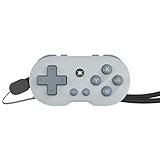
- WIRELESS CONNECTION - Bluetooth allows for seamless wireless connection compatible with Nintendo Switch, PC/Mac, Mobile/Tablet or Smart TV.
- EASILY ATTACHABLE - Whether it’s your keys, backpack, or any other accessory, ATOM adds a touch of individuality and style to your lifestyle.
- IMPOSSIBLY SMALL - Yet fully functional and packed with features. ATOM is the ideal travel companion for any gamer on the go, ready to play in an instant across a wide variety of gaming platforms.
- 10 HOURS OF PLAY - Featuring a rechargeable battery, the ATOM delivers up to 10 hours of gaming on a single charge & comes with a USB-C charging cable.
- COLLECTIBLE DESIGNS - Select from 8 unique editions compatible with the True Collection System, allowing you to tap your mobile device to the product revealing its product number & rarity rank.
Keep dead-zone, acceleration, inversion, and camera sensitivity in the game or cloud client unless the connected ATOM+ firmware visibly exposes those settings. A controller remap changes which action a button sends; it does not automatically create a better camera curve.
Independent reader supportYour contribution helps us test, update, and keep practical guides available for everyone.Why a remap disappears after turning the controller off
The original ATOM manual explicitly states: “NOTE: Any special function settings will reset back to default after any power-cycle.” That explains why a D-pad reassignment or other temporary function may vanish after shutdown. ATOM+ persistence can differ by firmware and app version, so test it rather than assuming that an original-ATOM rule applies.
- After making a change, power the ATOM+ off and back on.
- Reconnect it in the operating system and open the game’s controller test.
- If the change is gone, recreate it only if the current ATOM+ documentation supports the procedure, or save the equivalent layout in the game or CRKD app.
- If the app repeatedly loses the controller, remove the Bluetooth pairing, restart the phone or tablet, pair again, and check whether the app now identifies the device correctly.
Troubleshooting by symptom
| Symptom | Likely layer to inspect | Recovery sequence |
|---|---|---|
| A/B or X/Y prompts are backwards | Host protocol or game layout | Confirm XInput versus platform mode, compare the game prompt with the physical action, then remap in the game or supported app. |
| The cloud client sees the controller but buttons do nothing | Cloud-service profile | Close and reopen the client after OS pairing, select its Xbox/XInput profile if offered, and test Menu, View/Minus, shoulders, and both sticks. |
| A shortcut from an ATOM tutorial has no effect | Model or firmware mismatch | Stop repeating the combination; verify it in the current ATOM+ guide or CRKD support material. |
| D-pad-to-stick behavior works until shutdown | Non-persistent special function | Expect a reset if using the original ATOM procedure, then apply a per-game or app layout that the ATOM+ firmware actually supports. |
| Aim feels too fast or too slow | Game sensitivity, dead zone, or acceleration | Return to default, change one slider in a small step, and repeat the same landmark test. |
| The app lacks a setting shown in a tutorial | Detected firmware or model support | Check the controller identity and firmware in the app; absence of a control is not evidence that a hidden shortcut exists. |
A practical profile strategy
Instead of one permanent configuration, maintain a small set of purpose-based layouts. Use the host’s Xbox/XInput profile for cloud services that offer it, a platform mode for native mobile games that require it, and a temporary D-pad reassignment only for a title that genuinely needs a second directional input. Name or document each profile by host and game so that a later reconnect does not become guesswork.
Windows Errors? Fix Them Before They Spread
Repair common Windows errors and clear accumulated junk for a smoother, more stable PC - no reinstall needed.Free scan · no reinstallOutdated Drivers Are Slowing You Down
One free scan finds every outdated or missing driver and matches the right update for your exact hardware.Free scan · exact hardware matchFor sensitivity, record the game name, horizontal and vertical values if they are separate, dead-zone or acceleration changes, and whether the setting survived a reconnect. This record is more useful than a claim that one number is “best,” because it preserves the conditions under which the value felt correct.
What is established—and what is not
- The original ATOM manual documents XInput face-button translation and a D-pad special-function procedure, including reset after power cycling.
- Current ATOM+ guidance covers iPhone, Android, Switch, and PC support and warns against treating older ATOM three-second combinations as ATOM+ documentation.
- The CRKD app listing describes remapping, vibration, trigger sensitivity, button layouts, and firmware functions for supported controllers.
- No cited manufacturer source publishes a validated ATOM+-specific sensitivity number, universal LED pattern, or complete list of button-hold combinations for every firmware version.
Consequently, the defensible recommendation is a setup process: choose the host protocol that matches the game, verify prompts in the title itself, tune sensitivity from its default with repeatable tests, and recheck settings after every power cycle or firmware change.
Quick Recap
Product prices and availability are accurate as of the date/time indicated and are subject to change. Any price and availability information displayed on Amazon at the time of purchase will apply.

