
Recommended Free Tools
iTechGuides is reader-supported. When you buy through links on our site, we may earn an affiliate commission. As an Amazon Associate I earn from qualifying purchases. Learn more
WUXGA is a display resolution of 1920 × 1200 pixels with a 16:10 aspect ratio. Compared with 1920 × 1080 Full HD (1080p), it has the same number of horizontal pixels but 120 additional vertical pixels. That provides 11.1% more total pixels and a little more usable space for documents, websites, spreadsheets, code, and timelines.
WUXGA describes only the pixel dimensions of a display. It does not tell you whether the screen is bright, color-accurate, fast, sharp for its size, or suitable for gaming. Those qualities depend on separate specifications.
WUXGA at a glance
| Specification | WUXGA |
|---|---|
| Full name | Widescreen Ultra Extended Graphics Array |
| Horizontal resolution | 1,920 pixels |
| Vertical resolution | 1,200 pixels |
| Total pixels | 2,304,000 |
| Aspect ratio | 16:10, or 1.6:1 |
| Common shorthand | 1200p; often FHD+ |
| Typical orientation | 1,920 × 1,200 landscape; 1,200 × 1,920 portrait |
The acronym is sometimes capitalized differently in product documentation, including forms such as “eXtended.” The spelling matters less than the numeric specification: 1920 × 1200. WUXGA is a resolution label, not a panel technology, image-quality certification, or refresh-rate standard. The name and 16:10 definition are explained in references from Corsair and Dell.
The Tool Desk
Outbyte Driver Updater FREEScan for outdated or missing drivers - takes under a minuteDriver Scan →Outbyte PC Repair FREEClear out junk files and repair common Windows errorsFree Scan →WUXGA vs. 1080p: what is the difference?
| Resolution | Total pixels | Aspect ratio | What it means |
|---|---|---|---|
| WUXGA | 1920 × 1200 = 2,304,000 | 16:10 | 120 additional vertical pixels |
| Full HD, FHD, or 1080p | 1920 × 1080 = 2,073,600 | 16:9 | Common television, streaming-video, and monitor format |
Both formats are 1,920 pixels wide. The difference is entirely in the vertical dimension: WUXGA has 1,200 rows of pixels, while Full HD has 1,080. That means WUXGA has:
Popular on Amazon

- Clear presentation detail: Native 1920 x 1200 WUXGA resolution and 5,200-lumen output in Normal mode support detailed charts, text and video.
- Flexible placement: A 1.6x manual optical zoom, 1.09-1.77:1 throw ratio and vertical/horizontal lens shift help fit the image to your installation.
- Practical connections: Two HDMI inputs support HDCP 1.4 and 4K/30p signals, displayed at native WUXGA resolution. LAN and RS-232C support control integration.
- Laser light source: Rated to reach approximately 50% light output after 20,000 hours in Normal/Quiet mode or 24,000 hours in Eco mode; actual life varies with operating conditions.
- Large-screen setup: Projects a 30-300-inch diagonal image at 16:10 aspect ratio and includes a 10W mono speaker. Wireless connectivity requires an optional module.
- 120 more vertical pixels.
- 230,400 more pixels overall.
- 11.1% more total pixels than 1080p.
- A taller 16:10 shape instead of the wider 16:9 shape.
So is WUXGA better than 1080p? It is better when you value vertical workspace and the rest of the product is comparable. It is not automatically better in every situation. A Full HD display may be the better purchase if it has a brighter panel, better color, a higher refresh rate, longer battery life, or a lower price.
The basic resolution comparison is also shown in Tom’s Hardware’s resolution guide and Epson’s projector-resolution guide.
What does the extra 120 pixels look like?
For work, the additional height can reveal a little more of a document, web page, spreadsheet, coding file, editing timeline, or application interface before you need to scroll. The improvement is modest rather than transformative, but it is noticeable when you spend many hours working with vertically organized content.
On a laptop, the 16:10 shape can provide this extra height without making the chassis dramatically wider. That is one reason 1920 × 1200 remains a current option in laptops and other devices. Manufacturer catalogs from ASUS, Lenovo, and other vendors continue to list WUXGA products.
What happens to 1080p content?
A 1920 × 1080 image does not naturally fill a 1920 × 1200 canvas while preserving its original shape. If it is displayed at 1:1 pixel size and centered, the image normally leaves 120 unused vertical pixels: 60 pixels above and 60 below.
Depending on the operating system, graphics driver, game, monitor, or projector, the image may instead be:
- Letterboxed: black or empty bars appear at the top and bottom while the 16:9 image remains undistorted.
- Stretched: the image fills the 16:10 screen but people and objects may look slightly wider.
- Cropped: the image fills the screen but some content at the top or bottom is removed.
- Scaled and centered: the system enlarges or reduces the image and may retain borders.
For games and other applications, scaling behavior can be controlled by the graphics hardware or driver. NVIDIA documents aspect-ratio scaling, full-screen scaling, and no-scaling modes in its display-scaling documentation. Intel also describes related scaling and border behavior here.
Is WUXGA the same as FHD+ or 1200p?
Often, but not always. Many manufacturers use FHD+ as a marketing label for 1920 × 1200. ASUS, for example, has product listings that explicitly pair “FHD+” with “1920 × 1200, WUXGA.” Dell and Lenovo also use FHD+ for some 1920 × 1200 products; examples can be found in ASUS ROG’s catalog, Dell’s laptop listings, and Lenovo’s product specifications.
However, FHD+ is less precise than WUXGA. It is a vendor marketing term rather than one universally fixed resolution. If a listing says only “FHD+,” open the detailed specifications and confirm that the panel is actually 1920 × 1200.
1200p is another informal shorthand for the 1,200-pixel vertical resolution. The clearest description remains “1920 × 1200 WUXGA,” because “1200p” alone does not identify the horizontal pixel count.
How WUXGA compares with other resolutions
| Name | Resolution | Aspect ratio | Relationship to WUXGA |
|---|---|---|---|
| WXGA | 1280 × 800 | 16:10 | Same general shape, but considerably lower resolution |
| UXGA | 1600 × 1200 | 4:3 | Older 1,200-pixel format that is less wide |
| WUXGA | 1920 × 1200 | 16:10 | The resolution discussed here |
| FHD or 1080p | 1920 × 1080 | 16:9 | Same width, but 120 fewer vertical pixels |
| QHD, WQHD, or 1440p | 2560 × 1440 | 16:9 | More pixels and generally more workspace and detail |
| WQXGA | 2560 × 1600 | 16:10 | Higher-resolution 16:10 format |
| 4K UHD | 3840 × 2160 | 16:9 | Much higher resolution than WUXGA |
These names can be confusing because they describe families of resolutions rather than a simple quality ranking. Epson’s resolution guide distinguishes WXGA and WUXGA, while projector documentation such as this ProjectorCentral manual distinguishes UXGA from WUXGA. Current laptop catalogs also list WQXGA at 2560 × 1600 and 4K-class panels at much higher dimensions, as shown in ASUS’s catalog.
By pixel count, WUXGA contains:
- 62.5% as many pixels as QHD at 2560 × 1440.
- 27.8% as many pixels as 4K UHD at 3840 × 2160.
At the same diagonal screen size, a 16:10 display is approximately 8.1% taller and 2.7% narrower than a 16:9 display. That physical difference is separate from pixel count: two screens can have different shapes but similar sharpness, or the same resolution but very different pixel densities.
What WUXGA does—and does not—tell you
The resolution tells you how many pixels the display has. It does not tell you the quality of those pixels or the behavior of the device around them.
Screen size and pixel density
A 14-inch laptop and a 24-inch monitor can both be WUXGA, but the smaller screen packs the pixels more tightly. Using the 1920 × 1200 pixel dimensions, the approximate pixel densities are:
Also popular on Amazon

- Experience true-to-life colors thanks to the 3LCD, 3-chip technology
- 5200 lm brightness helps you view sharp and lively visuals
- Enjoy crystal clear projection with WUXGA resolution
- Project image instantly from a PC or MacBook with the USB port
| Diagonal size | Approximate pixel density |
|---|---|
| 14 inches | 162 pixels per inch |
| 16 inches | 142 pixels per inch |
| 24 inches | 94 pixels per inch |
A higher pixel density generally makes text and fine details appear sharper at the same viewing distance. Screen size, viewing distance, operating-system scaling, and the quality of the panel all affect what you actually see. WUXGA is not automatically “sharper” than 1080p unless the comparison also considers screen size and pixel density.
Free tools Windows power users keep installed
One-click scans. No signup required.
Panel type
A WUXGA panel may use IPS, VA, OLED, or another display technology. Panel type influences viewing angles, contrast, black levels, motion behavior, and color performance. The resolution alone cannot tell you whether the panel is good.
Refresh rate and response time
WUXGA displays can run at 60 Hz, 100 Hz, 144 Hz, 165 Hz, or other refresh rates. They can also have very different response times and motion performance. A 1920 × 1200 label does not mean that a screen is limited to office-oriented 60 Hz operation. Current gaming listings demonstrate that WUXGA can be paired with high-refresh-rate panels, but the specific product must be checked; ASUS’s current gaming catalog shows this variation.
Brightness, contrast, color, and HDR
Two WUXGA displays may differ substantially in brightness, contrast, color gamut, factory calibration, uniformity, bit depth, and HDR support. For color-sensitive work, look for specifications such as sRGB, Display P3, or Adobe RGB coverage, along with calibration information. A WUXGA screen can provide useful workspace for creative applications without being professionally color-accurate.
Current product listings show how widely these specifications can vary even when the resolution is identical. Treat WUXGA as one line in the specification sheet, not as a guarantee of overall image quality.
What’s actually slowing this PC down?
Pick the symptom - the matching free tool is one click away.
Connectivity and scaling
The device, cable, dock, adapter, and input port must all support the desired 1920 × 1200 mode and refresh rate. Not every USB-C, HDMI, or DisplayPort connection supports every combination of resolution and refresh rate. If a WUXGA mode is missing, check the display’s documentation, graphics driver, dock, adapter, cable, and selected input before assuming the panel is defective.
Native WUXGA vs. WUXGA support
This distinction is especially important for projectors and external displays:
- Native WUXGA: the physical panel or imaging chip has 1920 × 1200 pixels.
- Supports WUXGA: the device can accept or process a 1920 × 1200 input signal, but its physical panel may have a different resolution and scale the image.
“Supports up to 1920 × 1200” is therefore not the same as “native resolution: 1920 × 1200.” When native WUXGA image quality matters, look specifically for native resolution in the detailed specification.
For example, a projector may accept several input formats while using a different native imaging resolution. Epson’s WUXGA projector specifications separately identify native resolution and supported input or resize formats. A non-native resolution can be scaled, which may make text less crisp or result in borders, stretching, or a centered image.
Is WUXGA good for different types of use?
Office work, school, and general browsing
Yes, usually. The 16:10 shape is well suited to documents, PDFs, email, web research, spreadsheets, and split-screen work. The extra 120 vertical pixels do not create a huge workspace increase, but they reduce scrolling and make better use of a laptop’s vertical panel area.
For a general-purpose laptop, WUXGA is a sensible middle ground: it offers more workspace than 1080p without the rendering and battery trade-offs that may accompany QHD or 4K. Do not choose it solely on the name, though. Compare brightness, viewing angles, color coverage, refresh rate, and battery-life claims as well.
Programming and technical work
WUXGA is useful for coding because editors, terminals, browser documentation, and debugging panels benefit from additional vertical lines. A larger QHD or WQXGA display can show substantially more content, but WUXGA may be easier for a modest GPU to drive and may require less aggressive interface scaling on a smaller laptop.
Gaming
WUXGA can be a good gaming resolution, particularly on laptops and handhelds. It is more demanding than 1080p but considerably less demanding than QHD or 4K, and its 16:10 shape can show additional game-world or interface space when a game supports it.
Quick wins for a faster PC:
Clear out junk files and repair common Windows errorsFree Scan →Fix the driver behind crashes, sound loss and screen glitchesFind Drivers →Repair Windows errors before they cause bigger problemsFix Now →Do not assume that WUXGA is automatically the best gaming choice. Check:
Also popular on Amazon
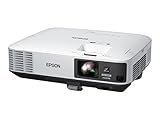
- Far more accurate color with Epson — 3LCD, 3-chip technology for 3x Higher Color Brightness (1) and up to 3x Wider Color Gamut (3) than competitive DLP projectors
- Look for two numbers — 5,000 lumens (2) Color Brightness for more accurate, vivid color 5,000 lumens (2) White Brightness for well-lit rooms
- Bright, widescreen images up to 300" — WUXGA resolution (1920 x 1200); Full HD 1080p support
- Remarkable sharpness and detail — 15,000:1 contrast ratio; added clarity when displaying text and graphics
- Optional wireless networking — optional module required; enterprise-level security for peace of mind; compatible with WEP, WPA, WPA2-PSK and WPA2-EAP security protocols
- The panel’s native refresh rate.
- Response time and motion clarity.
- Adaptive-sync or other variable-refresh support.
- Your GPU’s performance at 1920 × 1200.
- Whether the games you play support 16:10 properly.
- Whether your cable, dock, adapter, or port can deliver WUXGA at the advertised refresh rate.
Rendering at native WUXGA requires processing 11.1% more pixels than native 1080p. That can affect frame rate, but the actual result depends on the GPU, game engine, graphics settings, refresh rate, and upscaling technology. Resolution alone cannot predict gaming performance.
Movies and streaming video
Most conventional television and streaming content uses a 16:9 frame. On a 16:10 WUXGA display, preserving that shape can produce small bars at the top and bottom. This is normally preferable to stretching the image. If you want video to fill the screen, the alternative is to stretch or crop it, each of which has a visual disadvantage.
Photo and video editing
WUXGA provides useful room for a preview window, timeline, tools, and media bins, but it is not a professional-editing certification. For color-critical work, verify:
- Color gamut, such as sRGB, Display P3, or Adobe RGB.
- Factory calibration or support for calibration.
- Brightness, contrast, and uniformity.
- HDR capability, if required by the workflow.
- Panel type, bit depth, and color-management support.
A higher-resolution WQXGA, QHD, or 4K display may be preferable when you need more detailed previews or more workspace. A well-calibrated WUXGA display can still be more useful than a poorly specified higher-resolution panel.
Projectors
WUXGA projectors can be useful for business presentations, classrooms, and computer output because many modern laptops use a 16:10 screen. A native 1920 × 1200 projector can display computer content without first reducing it to a lower native format. Epson notes that WUXGA projectors can also support 4:3 and 16:9 inputs alongside their native 16:10 format.
For a projector, resolution is only one buying criterion. Prioritize these factors in order appropriate to your room and installation:
- Native resolution: confirm that 1920 × 1200 is native if that is what you need.
- Brightness: choose a level appropriate to ambient light and screen size.
- Lens and throw distance: make sure the projector can produce the required image size from its mounting position.
- Keystone correction and lens shift: check the adjustment range and its effect on image quality.
- Input compatibility: verify the required computer, video, and wireless connections.
- Screen aspect ratio: ensure the projection surface suits 16:10 content.
- Fan noise and operating costs: consider the room and the cost of lamps or other consumables.
Do not select a projector based on WUXGA alone. Brightness and optics may matter more than the difference between WUXGA and a nearby resolution.
Crashes, No Sound, or Screen Glitches?
Random freezes, missing sound and display glitches usually trace back to one bad driver. Find and replace yours safely.Free scan · under a minutePC Slower Than It Used to Be?
A free scan shows the junk files, broken settings and background clutter dragging Windows down - then fixes them in one click.Free scan · Windows 10 & 11Handheld devices
WUXGA can be a practical resolution for handheld gaming systems and compact computers because it offers a modest increase over 1080p without the pixel load of QHD or 4K. The value depends heavily on the screen size, battery capacity, GPU, refresh rate, and the operating system’s scaling. On a small handheld, the difference may be less noticeable than it is on a laptop used for documents.
How to decide whether WUXGA is right for you
Choose WUXGA when:
- You read documents, browse, code, or use spreadsheets frequently.
- You prefer a 16:10 laptop shape and want more vertical room than 16:9 provides.
- You want more workspace than Full HD without moving to QHD or 4K.
- Your graphics hardware is better suited to a moderate resolution.
- You need a projector for computer content from 16:10 laptops.
- The particular product combines WUXGA with suitable brightness, color, refresh rate, and panel quality.
Consider 1920 × 1080 instead when:
- You primarily watch 16:9 video.
- You do not need additional vertical workspace.
- Your graphics hardware is limited.
- The Full HD model has a better panel, refresh rate, battery life, or price.
Consider QHD, WQXGA, or 4K instead when:
- You want noticeably more workspace or sharper detail.
- The screen is large enough for the extra pixels to be useful.
- Your GPU can handle the additional rendering load.
- You accept possible increases in price, power use, interface scaling, or reduced gaming performance.
Do not assume that a higher resolution always consumes less or more power in isolation. Pixel count can affect rendering workload, but real device power depends on the panel technology, brightness, refresh rate, GPU, battery, and power-management design.
Independent reader supportYour contribution helps us test, update, and keep practical guides available for everyone.How to check whether a device is running WUXGA
Windows 11 and Windows 10
- Open Start > Settings > System > Display.
- If more than one screen is connected, select the display you want to inspect.
- Look under Display resolution.
- Select 1920 × 1200 if the display supports it. Windows normally marks the panel’s preferred mode as Recommended.
Microsoft explains this path and the effects of using a non-native resolution in its guide to changing screen resolution and layout. Text that looks blurry may indicate that the display is running below its native resolution, although operating-system scaling can also affect apparent size and sharpness.
macOS
- Open the Apple menu > System Settings.
- Select Displays.
- Select the display you want to check.
- Choose a resolution, or enable Show all resolutions if that option is available.
macOS may present scaled choices such as “more space” or “larger text” rather than exposing the physical pixel mode in the most obvious place. Apple’s display-resolution guidance also notes that an unsupported change can temporarily produce a blank screen; pressing Escape may revert the setting.
Do these 3 things before closing this tab:
1Fix the driver behind crashes, sound loss and screen glitches2Clear out junk files and repair common Windows errors3Scan for outdated or missing drivers - takes under a minuteWUXGA buying checklist
When a product advertises WUXGA, confirm the following before buying:
- Exact resolution: does the detailed specification say 1920 × 1200?
- Native or supported: is 1920 × 1200 the physical panel or projector resolution, or merely an accepted input?
- Screen size and PPI: will the pixel density be appropriate for your viewing distance?
- Aspect ratio: is the 16:10 shape desirable for your applications?
- Refresh rate: is it 60 Hz, 100 Hz, 144 Hz, 165 Hz, or another rate?
- Response time and variable refresh: especially important for gaming.
- Brightness and contrast: important for bright rooms and general comfort.
- Color coverage and calibration: important for photography, design, and video work.
- HDR: verify actual HDR capability rather than assuming it from the resolution.
- Connections: can the laptop, dock, cable, adapter, or graphics card deliver 1920 × 1200 at the desired refresh rate?
- Scaling: will your operating system and applications display the interface at a comfortable size?
Common WUXGA problems and fixes
The product says FHD+ but does not show the dimensions
Do not rely on FHD+ alone. Check the manufacturer’s full specifications, product manual, or display settings. Confirm that the resolution is actually 1920 × 1200.
The product says “supports WUXGA” or “up to WUXGA”
That wording may describe signal compatibility rather than a native WUXGA panel. Look for a separate native resolution entry.
Also popular on Amazon

- Demo WUXGA 5300 Lumens Laser Project
1080p video has bars
This is expected when 16:9 content is shown on a 16:10 screen without distortion. Check the scaling settings if you prefer a different behavior, but stretching can distort the image and cropping can remove content.
The image looks stretched
Full-screen scaling may be forcing a 16:9 or 4:3 image into the 16:10 frame. Select an aspect-ratio-preserving mode in the monitor, projector, operating system, or GPU control panel.
Text looks blurry
Confirm that the display is using its native 1920 × 1200 mode. Also check operating-system scaling, application settings, the cable, dock, adapter, and graphics driver.
1920 × 1200 is not available
First verify that the panel or projector is actually WUXGA. Then check the graphics driver, cable, dock, adapter, input port, and supported refresh-rate combinations. In a multi-monitor Windows setup, select the individual display before changing its resolution because each screen can have a different recommended mode.
The bottom line
WUXGA means 1920 × 1200 pixels in a 16:10 aspect ratio. It is a useful step above 1080p for people who want additional vertical workspace, while remaining less demanding than QHD or 4K. It is especially practical for laptops, office work, coding, presentations, and some gaming systems.
Buy WUXGA for the space and shape—not because the label guarantees image quality. Before choosing a product, verify its native resolution, screen size, brightness, color performance, refresh rate, response time, connectivity, and scaling behavior.
Frequently Asked Questions
Is WUXGA better than 1080p?
WUXGA is better than 1080p for vertical workspace because it has 1,200 rather than 1,080 vertical pixels and 11.1% more total pixels. It is not automatically better overall: a Full HD product may have a better panel, higher refresh rate, longer battery life, or lower price.
Is WUXGA the same as 1200p?
Usually, 1200p is shorthand for the 1,200-pixel vertical resolution used by WUXGA. The unambiguous specification is 1920 × 1200, because “1200p” alone does not state the horizontal pixel count.
Is WUXGA the same as FHD+?
Often, but not universally. Many manufacturers use FHD+ to mean 1920 × 1200 WUXGA, but FHD+ is a less precise marketing label. Check the detailed product specification for the actual dimensions.
The Tool Desk
Outbyte PC Repair FREEClear out junk files and repair common Windows errorsFree Scan →Outbyte Driver Updater FREEScan for outdated or missing drivers - takes under a minuteDriver Scan →Is WUXGA good for gaming?
It can be, especially on laptops and handhelds. It is moderately demanding and can offer more vertical space than 1080p. Check the display’s refresh rate, response time, variable-refresh support, GPU performance, game compatibility with 16:10, and the capabilities of the cable or dock.
Is WUXGA 4K?
No. WUXGA is 1920 × 1200, or 2.304 million pixels. 4K UHD is 3840 × 2160, or about 8.29 million pixels, so 4K has substantially more detail and rendering workload.
Does WUXGA mean 16:10?
Yes, the standard WUXGA definition of 1920 × 1200 has a 16:10 aspect ratio. A product listing should still be checked for its exact dimensions, particularly when it uses a marketing term such as FHD+.
Can a WUXGA display show 1080p video?
Yes. A WUXGA display can show 1920 × 1080 video, but preserving the 16:9 shape may leave small bars at the top and bottom. Scaling can instead stretch, crop, or center the image depending on the device and settings.
Free tools Windows power users keep installed
One-click scans. No signup required.
What is the difference between native WUXGA and supported WUXGA?
Native WUXGA means the physical display or projector has 1920 × 1200 pixels. Supported WUXGA means the device can accept a 1920 × 1200 signal, but its physical panel may use another resolution and scale the image.

