
iTechGuides is reader-supported. When you buy through links on our site, we may earn an affiliate commission. As an Amazon Associate I earn from qualifying purchases. Learn more
Google Home for PC is available through Google Home for web at home.google.com, not as a full Windows or Mac download. You can view Nest cameras, run most automations, and control selected devices in a browser, but initial setup and some controls still require the Google Home mobile app.
Google’s current desktop option is a browser-based service. The standard Google Home mobile app cannot be installed and used directly on a computer, according to Google’s device and operating-system requirements.
This distinction matters because “Google Home on PC” can mean three different things: the modern Google Home website, the legacy Nest web app, or an unofficial attempt to run the mobile app in an emulator. The right option depends on how your devices were originally set up.
Quick wins for a faster PC:
Clear out junk files and repair common Windows errorsFree Scan →Fix the driver behind crashes, sound loss and screen glitchesFind Drivers →Repair Windows errors before they cause bigger problemsFix Now →The details below reflect Google’s documented behavior checked on August 18, 2026.
Popular on Amazon

- External computer speaker in Black (set of 2) for amplifying PC or laptop audio
- USB-Powered from USB port of PC or Laptop
- In-line volume control for easy access
- Blue LED lights; metal finish and scratch-free padded base
- Bottom radiator for “springy” bass sound
Key takeaways
- Google Home for PC is a browser service at home.google.com, not a native Windows or macOS version of the mobile app.
- New Google Home devices must be set up and added to a home with the mobile app before they appear on the web.
- Google Home for web supports Nest camera grids, enlarged live feeds, supported Picture-in-Picture viewing, most automations, and selected device controls.
- Web controls vary by device and may be less complete than mobile controls, especially for third-party products.
- Older products configured through the Nest app may still require the legacy Nest web app at home.nest.com.
- Google documents a five-minute live-stream stop for battery-powered Nest cameras and doorbells and up to 12 hours for a camera connected to home power.
Is there a Google Home app for Windows or Mac?
There is no full official native Google Home app for Windows or macOS that replaces the mobile Google Home app. Google’s supported computer option is Google Home for web, which you open in a browser at home.google.com.
Google states that the Google Home app cannot be used directly on a computer and that device setup requires a supported mobile device. Google lists Android 9 or later for Android phones and tablets, and iOS 17 or later for iPhone and iPad, in its official Google Home requirements.
That means you should not download an installer advertised as “Google Home for PC,” an APK bundle, or an unknown desktop utility claiming to be Google’s official app. Those downloads are not the documented Google desktop route and can introduce account, privacy, or malware risks.
Which Google Home website should you use?
Use the website that matches the way your device was configured. Google Home for web is the modern route for devices added through the Google Home app, while the Nest web app remains relevant to some products originally set up in the Nest app.
| What you want to do | Use | Important qualification |
|---|---|---|
| Use newer Nest cameras or doorbells set up in Google Home | home.google.com | Camera features and controls vary by model. |
| Access devices originally configured in the Nest app | home.nest.com may be required | A Nest account may need to be migrated to a Google Account for some Google Home features. |
| Set up a new Google Home-compatible device | Google Home mobile app | Initial setup and adding devices to rooms still require the mobile app. |
| Run or manage advanced scripted automations | home.google.com/automations | The script editor requires Google Home Public Preview access. |
| Get the broadest device setup and control options | Google Home mobile app | The web interface does not expose every mobile feature. |
Do not automatically send every Nest owner to home.nest.com. Newer devices may be designed for Google Home rather than the Nest app, so the setup history of the device is the deciding factor. Google explains the distinction between Google Home for web and the Nest web experience in its Google Home for web help documentation.
What do you need to use Google Home for PC?
To use Google Home for PC, you need a Google Account that manages the home, a compatible device already set up in the Google Home mobile app, and a supported browser with the required media capabilities.
- Google Account: Sign in on the computer with the same account used to manage the home in the mobile app.
- Mobile setup: Set up each device, add it to a home, and assign it to a room before expecting the device to appear online.
- Supported browser: Use a current version of Chrome, Edge, Firefox, or Safari.
- Browser media support: Google Home for web requires WebRTC for real-time camera streaming and Media Source Extensions, or MSE, for browser media playback.
- Internet access: The computer, Google Home services, camera, and smart-home device must be able to communicate online.
Internet Explorer is not supported by Google Home for web. Google’s legacy Nest web app has separate older browser and operating-system requirements; those legacy requirements should not be treated as the requirements for the modern Google Home website. See Google’s current Google Home for web requirements and feature list.
Some Google Home features may be unavailable with Google Workspace accounts depending on the country and feature. A personal Google Account may provide broader compatibility, as Google notes in its Google Nest account requirements.
How do you use Google Home on a PC?
After the mobile setup is complete, the basic Google Home for PC setup takes place entirely in the browser.
Also popular on Amazon

- [COMPATIBLE WITH USB DEVICES] - Our USB Speakers are compatible with Windows, macOS, ChromeOS, and Linux, making them ideal for PC, laptop, and desktop computer. Incompatible Devices: Monitors TVs and Projector.
- [COMPATIBLE WITH USB-C DEVICES] - Thanks to the built-in USB-C to USB Adapter, our USB-C speakers are now compatible with devices that only have USB-C interface, such as the latest MacBook, Mac mini, iMac, iPad, Android phones, and tablets.
- [INCREDIBLE LOUD SOUND WITH RICH BASS] - Our small computer speaker is equipped with dual ultra-magnetic drivers and dual passive radiators, providing high-quality stereo sound with powerful volume and deep bass for an incredible audio experience.
- [ADAPTIVE-CHANNEL-SWITCHING WITH G-SENSOR] - Ensures the left and right sound channels remain correctly positioned whether the speaker is clamped to the top or bottom of your monitor.
- [CONVENIENT TOUCH CONTROL] - Three intuitive touch buttons on the front allow for easy muting and volume adjustment.
- Open the Google Home mobile app on your Android device or iPhone/iPad.
- Set up each Google Home-compatible device in the mobile app.
- Add each device to the correct home and assign it to a room.
- On your computer, open a current Chrome, Edge, Firefox, or Safari browser.
- Go to home.google.com.
- Select Go to Google Home if Google displays that prompt.
- Sign in with the same Google Account used in the mobile app.
- Select Devices, choose a room, and select a device tile.
The tile shows only the controls available for that particular device. If a device was never added to a home through the mobile app, the device will not become available on Google Home for web simply because the device is powered on.
What can Google Home for web do?
Google Home for web is most useful for desktop camera viewing, selected smart-home controls, and automation management. It is not a complete desktop replacement for the mobile app.
| Web feature | What it lets you do | Limits |
|---|---|---|
| Nest camera grid | View live feeds from linked Nest cameras and doorbells together. | The camera must be supported, online, and associated with the signed-in home. |
| Expanded camera view | Open a camera tile in a larger live view. | Available camera controls depend on the model. |
| Picture-in-Picture | Keep a camera stream visible in a floating browser window while using other tabs. | Requires a browser that supports the relevant Picture-in-Picture behavior. |
| Camera clips | Save supported camera-event clips to the computer. | Availability depends on the camera and supported event features. |
| Device controls | Control certain compatible lights, thermostats, plugs, locks, and other devices. | Controls vary by device and may still require the mobile or manufacturer app. |
| Automations | Check and run most routines and automations. | Advanced scripted automation editing is a Public Preview feature. |
Google says web device controls are limited, vary by device, and are being rolled out in batches. Google’s Google Home product overview also highlights desktop-browser access for Nest camera video and automations.
How do you view Nest cameras on a PC?
To view Nest cameras on a PC, open Google Home for web, select Cameras, and choose a camera tile to enlarge its live feed.
- Open home.google.com in a supported browser.
- Sign in with the Google Account that manages the home.
- Select Cameras.
- Review the camera grid, then select a camera tile for a larger live view.
- Use any camera controls shown for that model.
- Use the browser’s Picture-in-Picture control if you want the live feed to float above other tabs and applications.
Google says the first desktop camera view can show the live feeds from all Nest cameras in the home. A camera may show a status such as On, Off, Offline, or Idle; battery-powered cameras can show Idle when they are conserving power.
Google documents automatic live-stream limits for some camera configurations. A Nest Cam battery and Nest Doorbell battery live video stop after five minutes, while a camera connected to home power may remain active for up to 12 hours before live video stops. These are Google’s documented behaviors, not a guarantee that every camera model, account, or region will behave identically. The Google camera-streaming guidance contains the current qualification.
Do these 3 things before closing this tab:
1Clear out junk files and repair common Windows errors2Fix the driver behind crashes, sound loss and screen glitches3Repair Windows errors before they cause bigger problemsBecause of those time limits and model-dependent features, Google Home for web is useful for checking cameras or monitoring a feed temporarily. It should not automatically be treated as a guaranteed, uninterrupted 24/7 surveillance console.
How do you control lights and other smart-home devices?
To control a supported device from a PC, select Devices, choose the room, select the device tile, and use the controls Google displays.
- Open home.google.com.
- Select Devices.
- Choose the room containing the device.
- Select the device tile.
- Use the available controls, such as power, brightness, temperature, or another model-specific option.
A light may expose power, brightness, and color controls, while another product may expose only its status or no web control at all. The absence of a control does not necessarily indicate a broken device; Google Home for web does not offer the complete feature set for every product.
Also popular on Amazon

- IMPORTANT UPDATE NOTICE -- Based on extensive customer advises, we’ve rolled out two major upgrades to this desktop speaker. First, volume control buttons have been added. Second, we increased the product thickness for a larger sound cavity, bringing moderate improvements in sound quality and volume.
- HIGH-QUALITY SOUND -- This laptop speaker is equipped with Dual 3W High-Excursion Drivers & Passive Radiator, delivering louder sound, wider dynamic range, enhanced bass and reduced distortion.
- ONE CABLE FOR BOTH AUDIO & POWER -- No 3.5mm AUX jack needed. Just one USB cable delivers both audio signal and power for the computer speaker to cut down cable clutter.
- WIDE SYSTEM COMPATIBILITY -- This upgraded PC speaker works with Windows, macOS, Linux and ChromeOS laptops & PCs, compatible with HP, Lenovo, ThinkPad, ASUS, Dell, Samsung, Acer, LG and more. Simply install the latest audio driver for smooth audio playback.
- PLUG-N-PLAY FOR SIMPLE SETUP -- For Windows PCs: Plug the speaker into your computer’s USB port, click the taskbar “Speaker” icon, then select “USB Speakers” as your playback device, and you’re ready.
Third-party compatibility needs the same caution. “Works with Google Home” does not mean that every function in the manufacturer’s app will work on Google Home for web. Google gives the example that a third-party light may support voice on/off control without supporting brightness or color control. Google’s third-party smart-home compatibility guidance explains why supported features can differ.
Recommended Free Tools
When a device appears in Google Home but lacks the control you need, try the Google Home mobile app first and then the manufacturer’s own app or web dashboard. A manufacturer’s dashboard may provide controls that Google Home does not expose.
Can you run Google Home routines and automations from a computer?
Google Home for web lets you check and run most routines in the Automations section. Advanced scripted automations can also be created or edited from a computer when Public Preview access is enabled.
How do you create a scripted automation?
- Join Google Home Public Preview through the Google Home system.
- Open home.google.com/automations.
- Sign in with the Google Account that manages the home.
- Select Add new.
- Write the automation in YAML.
- Select Validate.
- Correct any validation errors.
- Select Save.
- Leave the automation activated, or turn activation off if you want it saved but paused.
Google labels the script editor as a Public Preview feature. Scripted automations provide additional starters, conditions, actions, and logic beyond ordinary routines, but supported devices, traits, and commands vary. Google’s YAML script syntax documentation and scripted automation guidance should be treated as the authority for the current syntax.
Illustrative YAML example
The following example turns on a porch light at sunset. The example is illustrative; the device name must match the device and room name recognized in your Google Home setup.
The Tool Desk
Outbyte PC Repair FREERepair Windows errors before they cause bigger problemsFix Now →Outbyte Driver Updater FREEFix the driver behind crashes, sound loss and screen glitchesFind Drivers →metadata:
name: Turn on porch light at sunset
description: Turns on the porch light when the sun sets
automations:
starters:
- type: time.schedule
at: SUNSET
actions:
- type: device.command.OnOff
devices:
- Porch Light - Front Porch
on: trueUse Google Home’s autocomplete where available, keep YAML indentation exact, and select Validate before saving. A script can validate but still fail to run if the device is offline, the device does not support the selected command, or a manufacturer update changes its supported traits.
Do not use a Google Home automation as the only control for safety-critical equipment or as a guaranteed security system. Google warns that automations depend on internet access, Wi-Fi, Google services, and third-party manufacturer services. Google’s automation permissions and safety guidance provides additional limitations.
What about Google’s AI automation scripting?
Google has also documented “Help me script” as an experimental, limited-time preview capability. Treat that feature as separate from the standard automation editor and do not assume that preview behavior, availability, or generated scripts will remain unchanged. See Google’s Help me script documentation.
Why is a Google Home device missing from the PC website?
A missing device usually means that setup, account, home selection, device compatibility, or legacy Nest migration needs attention.
What’s actually slowing this PC down?
Pick the symptom - the matching free tool is one click away.
Also popular on Amazon

- Surge Stereo Sound - 4 large amplifier IC horns! Computer speakers achieved Distortion Free and Noiseless in stunning sound. Immersive cinema effect for movies, videos, games and music.
- Touch Angular Game Lights - Unique Dynamic Angular Game Atmosphere design! Desktop speaker with latest One Touch to turn on/off lights, avoid the traditional cumbersome button design.
- All In One Compact - Fits any desktop computer! Perfectly under the monitor without taking up any extra desktop space. Cables are glued together to avoid desktop clutter.
- Plug And Play - No need for any driver! Must Plug in the USB powered cable and 3.5mm audio cable to enjoy now! Top volume knob for easier volume adjustment.
- Type C Adapter Included & Compatibility - USB speakers match computers, desktops, PCs, laptops. Suitable for windows(Vista/7/8/10), Mac OS, Chrome OS, etc.
- Confirm mobile setup: Make sure the device was added in the Google Home mobile app, not merely connected to Wi-Fi.
- Check the account: Confirm that the browser and mobile app use the same Google Account.
- Check the home: If the account manages multiple homes, select the correct home and room.
- Check connectivity: Confirm that the device is online in the mobile app.
- Identify the setup app: A product originally configured through the Nest app may belong on home.nest.com.
- Check migration: If the product uses a legacy Nest account, verify whether migration to a Google Account is required or available.
Google specifically requires devices to be added to a home through the mobile app before the devices become available in Google Home for web. The official web-app troubleshooting and feature documentation covers this setup relationship.
Why does a device appear without controls?
A device can appear in Google Home while offering limited or no controls on the web because Google Home for web supports selected device controls rather than every feature for every product.
Try the mobile Google Home app to see whether the missing function is available there. If the mobile app also lacks the function, open the manufacturer’s app. Third-party products can display status in Google Home without exposing all manufacturer-specific actions; Google documents these differences in its device setup and third-party device guidance.
Also check the exact model, region, account type, and setup method. A product’s general Google Home compatibility label does not promise identical functionality across Google Home for web, the mobile app, voice commands, and the manufacturer’s own software.
Crashes, No Sound, or Screen Glitches?
Random freezes, missing sound and display glitches usually trace back to one bad driver. Find and replace yours safely.Free scan · under a minutePC Slower Than It Used to Be?
A free scan shows the junk files, broken settings and background clutter dragging Windows down - then fixes them in one click.Free scan · Windows 10 & 11What should you do if the camera feed is blank?
If a Nest camera feed is blank or unavailable on Google Home for web, first check the browser, extensions, permissions, account, and camera connection before assuming the camera is defective.
- Try a current Chrome, Edge, Firefox, or Safari browser.
- Temporarily disable aggressive ad blockers or privacy extensions.
- Allow cookies and requested camera or media permissions.
- Sign out of Google Home for web, then sign in again.
- Confirm in the mobile app that the camera is online and its live feed works.
- Try the camera’s appropriate website. A camera originally set up through the Nest app may require home.nest.com.
- Check Google service status if multiple devices or Google Home services are failing.
Google’s Google Home sign-in troubleshooting guidance recommends trying another browser, allowing required cookies, disabling interfering extensions, and checking service availability.
There is one important mobile-browser exception: Google Home for web does not support cameras originally set up with the Nest app when accessed through an iPhone or iPad browser. That restriction applies to iPhone and iPad browser access and should not be generalized to desktop computers.
Independent reader supportYour contribution helps us test, update, and keep practical guides available for everyone.Why might a Google Home automation validate but not run?
A scripted automation may pass validation but fail during execution when the device name, room name, command, connectivity, or activation state is wrong.
- Match the exact device and room names shown by Google Home.
- Check YAML indentation and required starters and actions.
- Confirm that the device supports the selected trait or command.
- Confirm that the device is online.
- Review automation logs for execution errors.
- Check whether a manufacturer update changed the device’s supported traits.
- Confirm that the automation is activated rather than saved in a paused state.
Google recommends autocomplete, validation, checking device connectivity, and reviewing automation logs. Passing validation means the script has acceptable structure; it does not guarantee that every referenced device can execute the action.
Also popular on Amazon
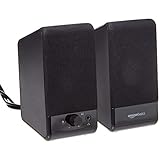
- USB-powered (5V) speakers plug directly into your computer for portable convenience
- Turn the speakers on and adjust the volume using one simple control (located on the front of the speakers); volume control includes On/Standby
- Simple plug-and-play setup (no drivers needed); can be used with headphones via the 3.5mm jack connector
- Frequency range of 103 Hz - 20 KHz; 2.2 watts of total RMS power (1.1 watts per speaker)
- Measures 2.76 by 3.55 by 5.3 inches (LxWxH); weighs approximately 1.4 pounds;
What can Google Home for web not replace?
Google Home for web does not turn a computer into a Google Nest speaker, a Google Assistant hub, or a universal desktop control panel for every smart-home brand.
- Mobile setup: New devices still need the mobile Google Home app for initial setup, home assignment, room assignment, and some account-management tasks.
- Complete device control: The website does not expose every control available in the mobile app or manufacturer app.
- Third-party apps: A third-party device may show status in Google Home without supporting all of its manufacturer-specific features.
- Legacy Nest support: Some older Nest products still follow the Nest web-app path or require account migration.
- Always-on surveillance: Camera stream timeouts and model-dependent behavior make the web interface unsuitable as a guaranteed uninterrupted security monitor.
- Desktop Assistant hardware: Opening Google Home in a browser does not make the computer function as a Nest speaker or display.
What are the best alternatives to Google Home for PC?
The best alternative depends on whether you need one missing device control, a broader dashboard, or simply a way to run the mobile app.
| Alternative | Best for | Trade-offs |
|---|---|---|
| Manufacturer’s own web dashboard or desktop app | Controlling a camera, light, thermostat, lock, or appliance that Google Home does not fully control. | Each brand has its own interface, account, and feature set. |
| Home Assistant | Advanced users who want a customizable dashboard and broader integrations. | It is a separate platform requiring additional hardware, installation, configuration, and maintenance; it is not an official Google Home client. |
| Android emulator | Experimenting with the mobile Google Home app on a computer. | Not Google’s documented PC method; local-network discovery, Bluetooth setup, camera permissions, notifications, and authentication may fail. |
For most users, Google Home for web is the safest and simplest desktop route. Use the manufacturer’s software when a device-specific control is missing. Choose Home Assistant only if you are prepared to operate a separate smart-home system rather than looking for a one-click Google Home download.
Free tools Windows power users keep installed
One-click scans. No signup required.
Should you buy a Nest camera or speaker for Google Home on PC?
Buy a Nest camera or doorbell because you need that camera or doorbell, not because you expect it to provide a downloadable Google Home PC app. Google Home for web can make browser-based camera viewing useful, but model-specific controls, streaming limits, recording features, and regional availability should be checked before purchase.
Nest speakers and displays, including Nest Mini, Nest Audio, Nest Hub, and Nest Hub Max, belong to the Google Home ecosystem but do not turn a PC into a Google Home speaker. Their primary value is voice control and in-home interaction, not desktop access.
Matter compatibility also does not guarantee that every device feature will be available through Google Home for web. Verify the exact product, setup path, and controls supported in your region before choosing hardware.
Google Home Premium is a separate subscription service associated in Google’s current materials with advanced AI, video history, and smart-home features. A subscription is not required merely to open home.google.com, and no current U.S. price is stated here because the permitted research did not verify one. Google’s Google Home Premium information sheet describes the service without establishing a price for every market.
Free tools Windows power users keep installed
One-click scans. No signup required.
Frequently Asked Questions
Can I install Google Home on a Windows PC?
You cannot install the full official Google Home mobile app as a native Windows program. Use Google Home for web at home.google.com after setting up your devices in the mobile app.
Can I use Google Home on a Mac?
Yes, you can use Google Home on a Mac through a supported browser at home.google.com. Initial device setup and some controls still require the Google Home mobile app.
Can I view Google Nest cameras from a PC?
Yes, Google Home for web can show linked Nest camera and doorbell feeds, including a camera grid and enlarged views. Battery-powered camera streams may stop after five minutes, according to Google’s documented behavior.
Why does my older Nest camera not appear in Google Home for web?
An older Nest camera originally set up in the Nest app may need to be accessed through home.nest.com instead. Check which app originally configured the camera and whether the Nest account requires migration to a Google Account.
The Bottom Line
Bottom line: The official way to use Google Home for PC is Google Home for web, not an unofficial download or emulator. The website is effective for Nest camera viewing, most automation management, and selected device controls, but the Google Home mobile app remains necessary for initial setup and some features. If your devices were configured in the old Nest app, try home.nest.com instead.

