
Choose the connection your source device and display both support, then confirm that every part of the signal path can handle your target resolution and refresh rate. USB-C is a connector shape, not a promise of video output; a USB-C port must support a video mode such as DisplayPort Alternate Mode or HDMI Alt Mode to send a picture.
Start with the ports and the video output your source supports
Check the exact specifications for your laptop, tablet, or phone and your monitor or TV. A USB-C port can support charging and data without supporting video. Look specifically for DisplayPort Alternate Mode (DP Alt Mode), HDMI Alt Mode, or an explicit statement that the port supports display output.
DP Alt Mode carries DisplayPort video over USB-C. VESA explains that it can use some or all of USB-C’s high-speed lanes for DisplayPort. The USB-C shape alone does not tell you whether the mode is supported. HDMI also has an Alt Mode for USB-C, but the source must explicitly support it.
Next, check the display’s inputs. If both devices have a suitable matching port, a direct connection is often the simplest route. If the source outputs video over USB-C but the display accepts HDMI, use a compatible USB-C-to-HDMI adapter or cable. If the display accepts DisplayPort, consider a USB-C-to-DisplayPort cable or adapter. A converter cannot make a USB-C port that lacks video output send a picture.
Quick wins for a faster PC:
Fix the driver behind crashes, sound loss and screen glitchesFind Drivers →Clear out junk files and repair common Windows errorsFree Scan →#1 Best Overall

- The Anker Advantage: Join the 65 million+ powered by our leading technology.
- Supports 4K: Connect your USB-C phone or laptop to a DisplayPort monitor and access resolutions of up to 4K@60Hz. Note: this adapter only works with DP cable and is not compatible with HDMI cable.
- Multiple Display Modes: Allows you to both mirror or extend your display.
- Plug and Play: Start using immediately, with no installation necessary.
- What You Get: PowerExpand USB-C to DisplayPort Adapter, welcome guide, our worry-free 18-month warranty, and friendly customer service.
Compare the connection against the display mode you need
Do not choose by interface name alone. The supported resolution, refresh rate, color depth, and HDR capabilities depend on the exact versions and configurations involved. Check the source, interface mode, adapter or dock, cable, and display together.
| Connection or example | What the cited specification describes | Important qualification |
|---|---|---|
| HDMI 1.4b | 4096×2160 at 24 Hz; 3840×2160 at 24, 25, or 30 Hz; and 1920×1080 at 120 Hz. | These are examples on HDMI Licensing Administrator’s HDMI 1.4b page, not guarantees for every HDMI device or cable. HDMI 1.4b features. |
| HDMI 2.2 | The current overview describes full-chroma 8K at 60 Hz and 4K at 240 Hz at 10-bit and 12-bit color. | These are HDMI 2.2 capabilities, not a blanket statement about older HDMI equipment or any cable. Check the connected devices and cable for the specific mode. HDMI specification overview. |
| USB-C carrying DisplayPort, DP 1.4a example | VESA’s presentation shows 5K (5120×2800) at 60 fps with four lanes at maximum link rate without compression; with two lanes, it shows 4K at 60 fps. | These are presentation examples with specified color-format assumptions, not promises for an arbitrary laptop or adapter. VESA notes that two-lane operation is common for USB-C DP Alt Mode. |
| USB-C carrying DisplayPort, DP 2.0 example | VESA’s presentation shows 10K (10240×4320) at 60 fps with four lanes at maximum link rate without compression; with two lanes, it shows 8K at 30 fps. | These are version- and configuration-specific examples with specified color-format assumptions. The presentation also includes higher compressed examples; actual support depends on the full signal path. |
The DisplayPort-over-USB-C examples come from VESA’s DisplayPort Alt Mode presentation. Its lane counts matter: USB-C video may use two or four high-speed lanes, and lane allocation affects the available video bandwidth. Compression and color format also affect the mode that can be carried. Treat the figures as examples of specified configurations, not as a prediction of what a port marked USB-C will do.
Rank #2

- 【8K HDR DisplayPort to USB C Adapter】 8K HDR Display Port to USB C adapter supports up to 8K (7680 x 4320@60Hz), backward compatible with 5K and 4K resolution. No Flickering Gaming Experience to get 144Hz & 240Hz. USBC to Display Port adapter supports Multi-Stream (MST) for daisy chaining multiple monitors and also supports precision audio for a full range of audio types, including SACD, DVD-Audio, DTS-HD Master Audio, and Dolby TrueHD(Note : Uni-directional, only from USB C input to DisplayPort output)
- 【Optimized for High-Refresh Gaming】 The DP 1.4 version transmits data at speeds of up to 32.4Gbps and 240Hz. With the stable signal transmission, the USB C to Display Port adapter can ensure amazing sound and image quality, and an end to screen flickering. Variable refresh rate (VRR) and auto low latency mode (ALLM) bring you smoother game experience. The USBC to DP adapter also supports flawless audio including eARC, DTS, and Dolby. Through this you can get an immersive view experience
- 【Wide Compatibility】 Only for USB-C ports with video output function "DP Alt Mode" and Thunderbolt 3 & 4, the USB C to Displayport adapter is compatible with iPhone 16/15 Pro Max/Pro/Plus, Galaxy S25, MacBook Pro/Air 2024, Mac Mini M4, iPad Pro/Air 2024, XPS 17, Chromebook x360, Surface Book, Surface Laptop 4, Samsung Tablet S9, LG V40, Valve Steam Deck and more. Connect to all devices with DP ports, compatible with Nvidia RTX 3090 and AMD Radeon RX 6900 graphic cards, HDTV, computer and others
- 【Compact & Durable More 】Compact and lightweight, with user-friendly non-slip design for easier plug and unplug. Braided nylon cable for extra durability. Premium aluminum casing for better heat insulation. A thicker copper wire has maximum conductivity while minimizing signal loss. Fits snugly with the USB C ports on your devices, better signal transfer protection
- 【Incompatible Devices Include】Nintendo Switch. Please note that this is USB C to DP converter, which is the ideal adapter for DP monitor, and we do NOT suggest you use DP to HDMI, DP to VGA, DP to DVI cable to convert. It is not compatible with HDMI, VGA or DVI display. Please confirm the interface of your monitor before purchaing
Choose HDMI or DisplayPort based on your setup
Choose USB-C to HDMI when the display has HDMI
If your source supports video over USB-C and your TV or monitor takes HDMI, a USB-C-to-HDMI adapter or cable is a practical way to connect them. Confirm the adapter’s stated output resolution and refresh rate against the host’s USB-C video mode and the display’s input support. If you are considering a dock, verify its HDMI output specifications as well as the host’s compatibility.
Choose USB-C to DisplayPort when the display has DisplayPort
If the display has a DisplayPort input, a compatible USB-C-to-DisplayPort cable or adapter can connect it directly to a source that supports DP Alt Mode. Check the required mode across the host, adapter or cable, and display; the DisplayPort name alone does not guarantee a particular resolution or refresh rate.
Windows Errors? Fix Them Before They Spread
Repair common Windows errors and clear accumulated junk for a smoother, more stable PC - no reinstall needed.Free scan · no reinstallOutdated Drivers Are Slowing You Down
One free scan finds every outdated or missing driver and matches the right update for your exact hardware.Free scan · exact hardware matchRank #3

- USB-C to DisplayPort adapter in aluminum housing connects a computer or smartphone with a USB Type-C or Thunderbolt 5/4/3 port to a monitor with DisplayPort input; USB C to DisplayPort adapter requires DisplayPort Alternate Mode support to view video over USB-C. Enjoy all of the DisplayPort 1.4 features this DisplayPort to USBC adapter can offer
- 8K HDR Display Port to USB C adapter supports up to 3840x2160@240Hz / 7680x4320@60Hz with this USB C to DP adapter and compatible equipment; USB C to DisplayPort cable adapter is backwards compatible with 4K and 1080p resolution. USBC to Display Port adapter supports Multi-Stream (MST) for daisy chaining multiple monitors; USB C to Display Port adapter also supports precision audio for a full range of audio types, including SACD, DVD-Audio, DTS-HD Master Audio, and Dolby TrueHD.
- Rugged metal housing on this lightweight DisplayPort to USB C adapter protects the adapter for frequent use and traveling; Superior construction of the USBC to DisplayPort adapter combines a sturdy metal housing, strain relief on the cable tail and gold-plated connectors. DP to USBC adapter is compatible with new MacBook, MacBook Air, MacBook Pro, iMac, iMac Pro, iPad Pro with Thunderbolt 4 port.
- Dell companion Thunderbolt 4 to DisplayPort adapter connects to monitors in the conference room or classroom; USB Type C to DisplayPort adapter is compatible with popular Dell models with Thunderbolt 3 portsincluding the Dell XPS 12 9250, 13 9350/9360/9365, 15 9550/9560, Latitude 5480/5580/7275/7280/7370/7480/7520/7720/E5570, Precision 3520/15 3510/5510/M7510, 17 M7710, Alienware 13/15/17
- Thunderbolt to DisplayPort adapter is compatible with HP Elite X2 1012 G1/G2, Z1 Workstation G3, Spectre 13.3/x360, EliteBook 1040 G4/X360 G2/X 360 1020 G2/Folio G1, ZBook 17 /15 /Studio, Envy 27 All-in-One, Legion Y720, IdeaPad Y900, Miix 720, ThinkPad P 50/70, T 470/470S/570, X270, X1 Carbon, X1 Yoga, Yoga 370/900/910, MSI Phantom Pro, Samsung Galaxy S10/S10+/S10e, Galaxy S9/S9+, Galaxy S8/S8+, Galaxy Note 9/Note 8. DeX mode for Samsung phones requires the latest Android 9 Pie (One UI)
Use a dock when you need more than a display connection
A USB-C dock can be useful when you also need ports for other accessories. Its video output still depends on the host’s USB-C capabilities and the dock’s supported video modes, so check both before buying. A dock is not a workaround for a host port that does not output video unless its documentation explicitly describes another supported display connection.
Independent reader supportYour contribution helps us test, update, and keep practical guides available for everyone.Check these details before buying an adapter or cable
- Find the exact source-device model. Read its specifications for video output over the particular USB-C port you plan to use. Do not infer video support from the connector’s shape.
- Identify the display input. Confirm whether the monitor or TV accepts HDMI, DisplayPort, or both, and check the input’s supported resolution and refresh rate.
- Set your target mode. Note the resolution, refresh rate, and any color-depth or HDR requirement that matters to you. Confirm that the source and display both support it.
- Check the entire connection chain. Verify the capabilities of the adapter, dock, and cable as well as the source and display. For a USB-C-to-HDMI setup, the host must output video over USB-C and the adapter must support the required HDMI mode.
- Prefer a direct connection when it meets your needs. If a suitable matching port is available, compare that route before adding an adapter or dock. Add a converter only when the source and display use different inputs.
HDMI Licensing Administrator describes a Premium Cable Certification Program for HDMI cables. If you need a particular HDMI mode, check the applicable cable requirements and certification information rather than assuming any cable will support it.
Quick Recap
Best Value
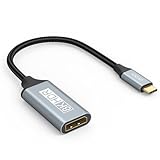
- USB C to DisplayPort 1.4 Adapter: 8K USB C to DisplayPort Adapter for connecting laptops/ipad/mac mini/macbook (Compatible with Thunderbolt 5/4/3) or equipped with USB Type-C (DP Alt Mode) to monitors with DisplayPort. Supports 32.4Gbps ultra high-speed transmission of video and audio. [Note: Only supports unidirectional transmission from USB-C to DisplayPort]
- 8K@60Hz Enhanced Experience: USBC to DisplayPort Adapter Male to Female supports up to 8K@60Hz(7680x4320), 4K@240Hz(3840x2160) resolution and is backward compatible with 5K@60Hz, 4K@144Hz/120Hz/60Hz, 2K@240Hz/144Hz/60Hz, 1080P. Elevate your video experience with crystal-clear, high-resolution support that brings every detail to life
- Upgrade Technology: USB-C to DisplayPort Adapter delivers enhanced bandwidth via HBR3 (32.4 Gbps). Supports all features of Display Port 1.4 and including Display Stream Compression 1.2 (DSC), FEC error correction, 32-channel audio, HDCP 2.3, Dynamic HDR, 16-bit color depth, SACD, DVD-Audio, DTS-HD Master Audio, and Dolby TrueHD. Plug & Play, Supports Mirror, Extended Modes and MST (Multi-Stream Transport) technology can maximize office efficiency
- Anti-Interference, Ultra Durability: This lightweight USB Type C to DP adapter features a stylish nylon braided design that withstands 30,000+ bends, greatly improving the durability of the cable. And its compact size saves space in your computer bag, making it ideal for mobile office use or travel. 24K gold-plated connectors and pure copper cables to minimize interference and provide optimal signal clarity
- Universal Compatibility: Designed for USB C ports with video output capability (DP Alt Mode) Compatibility with Thunderbolt 5/4/3 including MacBook Pro (2016 and later), MacBook Air (2018 and later), iMac (2017 and later), iPad Pro (2021 and later), Mac Mini, Mac Studio, Mac Pro, Surface Laptop, Dell XPS, iPhone 17/16/15 Series, Galaxy S25/S24/S23, LG, HP, ASUS, Chromebook Pixel, Acer, and more
Rank #4

- Portable and Compact: Small form factor portable USB C to Display port adapter is ideal for an on-the-road or work-from-home setup; Carry this 8K USBC to Display port adapter in a pocket, in a laptop case, or with a tablet or phone like iPad Pro, iPhone 15, iPhone 15 Pro; Portable USB-C to Displayport adapter (USB-C to DP 1.4 adapter) features a foldable tether cable for compact storage on-the-go
- Durable and Thoughtful Design: Premium construction of the DisplayPort to Type C adapter features a sleek black case and durable short pigtail cable wraps securely around the adapter for protection in transit
- Wide Compatibility: Leverage ultra high resolution video on the latest hardware; The USB C Displayport 1.4 adapter (USBC DisplayPort 1.4 adapter) is compatible with newer Nvidia RTX 4000 series and AMD Radeon RX7000 series graphics cards or USB4 (USB 4) and Thunderbolt 4 port on a laptop with 11th generation Intel Tiger Lake or 12th Intel Ader Lake or newer Intel CPU and Intel Iris Xe graphics. *NOTE: The host USB-C port must support video output via DisplayPort Alt Mode, USB4, or Thunderbolt
What to do if there is no picture or the display mode is limited
- No picture over USB-C: Recheck the source specifications for video output on that exact port. If video support is not listed, an adapter alone will not add it.
- The display works but not at the intended resolution or refresh rate: Check the supported mode of each component in the chain, including the display input, host port, adapter or dock, and cable. Also confirm the interface generation, lane allocation, compression, and color format where the device documentation specifies them.
- You are choosing between a direct cable and a dock: Use a direct cable or adapter if your only need is a display connection and the combination supports your target mode. Choose a dock when its additional ports are useful, after confirming its video compatibility.
Product prices and availability are accurate as of the date/time indicated and are subject to change. Any price and availability information displayed on Amazon at the time of purchase will apply.

