
iTechGuides is reader-supported. When you buy through links on our site, we may earn an affiliate commission. As an Amazon Associate I earn from qualifying purchases. Learn more
Setting up a small business Wi-Fi network correctly means building a wired network with a firewall, managed PoE switch, and centrally managed access points—not relying on one powerful router or consumer mesh system. Use wired AP backhaul, separate staff, guest, and IoT VLANs, appropriate WPA2/WPA3 security, and validate coverage, capacity, roaming, and recovery.
A reliable network for a small office, shop, clinic, studio, warehouse, or professional practice starts with requirements rather than a Wi-Fi generation number. The right design depends on the building, client density, applications, cabling, Internet service, security requirements, management model, and budget.
Key takeaways
- A sound small-business Wi-Fi network normally uses a business firewall, managed PoE switch, and one or more centrally managed access points connected by Ethernet.
- Coverage, capacity, performance, and resilience are different requirements; strong signal bars do not prove that a network can handle busy voice, video, POS, scanner, or cloud workloads.
- Staff, guest, IoT, and management traffic should use separate VLANs, with firewall rules—not SSID names alone—enforcing isolation.
- Wi-Fi 6 remains sufficient for many small offices, while Wi-Fi 6E and Wi-Fi 7 are most useful when compatible 6-GHz clients, high density, local traffic, and suitable switching justify them.
- Every AP should be checked for Ethernet speed, PoE class, switch budget, VLAN support, and controller requirements before purchase.
- A deployment is not complete until DHCP, DNS, Internet access, internal permissions, guest isolation, roaming, real devices, firmware recovery, and documentation have been tested.
What does setting up a small business Wi-Fi network require?
Setting up a small business Wi-Fi network requires five connected layers: an Internet gateway and firewall, managed Ethernet switching, correctly placed access points, segmented wireless networks, and an operating process for monitoring, updates, backups, and recovery.
Internet/ISP
    |
ISP modem or ONT
    |
Firewall/router/gateway
    |
Managed PoE switch
 |       |        |
AP 1    AP 2     AP 3
Wired devices such as desktops, printers, VoIP phones, cameras, servers, NAS devices, and UPS equipment can connect directly to the switch. An out-of-band management connection can provide an additional recovery path when the primary network is unavailable.
Popular on Amazon

- Dual-band Wi-Fi with 5 GHz speeds up to 867 Mbps and 2.4 GHz speeds up to 300 Mbps, delivering 1200 Mbps of total bandwidth¹. Actual speeds cannot exceed your internet plan and vary based on conditions, distance, and obstacles such as walls.
- Dual-band routers do not support 6 GHz.
- Covers up to 1,000 sq. ft. with four external antennas for stable wireless connections and optimal coverage.
- Supports IGMP Proxy/Snooping, Bridge and Tag VLAN to optimize IPTV streaming
- Access Point Mode - Supports AP Mode to transform your wired connection into wireless network, an ideal wireless router for home.
The design deliberately avoids the common “one powerful router” solution. A high-end wireless radio cannot compensate for poor AP placement, inadequate cabling, congested spectrum, an overloaded firewall, weak VLAN rules, or an Internet connection that is too slow for the workload.
What should you measure before buying Wi-Fi hardware?
Before choosing an AP, gateway, or switch, document the site and answer the following questions:
| Requirement | What to record | Why it matters |
|---|---|---|
| People and clients | Employees, expected visitors, simultaneous clients, and busy periods | AP capacity and airtime use depend on concurrent devices, not the total number of registered devices. |
| Applications | Web access, cloud apps, VoIP, video calls, POS, scanners, cameras, printers, or medical/industrial devices | Voice, video, roaming, and low-latency systems need more predictable service than occasional web browsing. |
| Building | Floor area, shape, floors, walls, concrete, glass, metal, shelving, machinery, and occupancy changes | Construction materials and client locations determine AP placement and usable coverage. |
| Network closet | Internet handoff, rack location, cable paths, switch location, ventilation, and UPS capacity | APs work best with Ethernet backhaul, and the closet becomes a central point of failure. |
| Existing cabling | Outlet locations, cable category, termination quality, length, and negotiated link speeds | Fast APs are limited by old, damaged, or incorrectly terminated cabling. |
| Operations | Remote management, alerts, support expectations, acceptable outage, and replacement time | Cloud management, local controllers, and managed services have different costs and recovery requirements. |
| Identity and audit | Whether users need individual credentials, 802.1X, RADIUS, or access logs | A shared passphrase is simpler, but individual authentication improves offboarding and accountability. |
| Resilience | What must continue during an Internet, switch, AP, power, or controller failure | One failed AP or switch can otherwise take down an entire business area. |
Separate four concepts during planning:
- Coverage: whether a client can hear an AP.
- Capacity: whether the AP has enough airtime and radio resources for the client population.
- Performance: whether throughput, latency, packet loss, and roaming support the applications.
- Resilience: whether a failed device or service causes an unacceptable outage.
Which Wi-Fi topology is best for a small business?
Multiple access points connected by wired Ethernet are the preferred topology for most small businesses. One AP can be appropriate for a small, open premises, while wireless mesh is a fallback when Ethernet cannot be installed.
What’s actually slowing this PC down?
Pick the symptom - the matching free tool is one click away.
When is one access point enough?
One AP may be sufficient when the premises are small and open, walls are limited, client density is modest, the AP can be centrally mounted, and a failed AP is tolerable. One AP is not automatically appropriate merely because a vendor advertises a large coverage radius.
When should you use multiple wired access points?
Use multiple wired APs when the office has several rooms or floors, dense or shielded walls, many simultaneous clients, or applications that require roaming across the site. Multiple APs at lower transmit power generally produce a more usable network than one AP operating at maximum power.
Is wireless mesh suitable for business Wi-Fi?
Wireless mesh is suitable where cabling is genuinely impractical, but mesh APs use some wireless airtime for backhaul. That can reduce capacity and make performance more sensitive to the signal between mesh nodes. Wired AP uplinks are normally the better long-term choice for predictable business performance.
Do not size APs from maximum coverage or concurrent-client figures alone. TP-Link’s 2026 Omada catalog lists model-specific coverage and client specifications, but also distinguishes radio configuration, Ethernet speed, PoE requirements, and controller-dependent features. Vendor figures are specifications, not guarantees for a particular building or workload.
Recommended Free Tools
How should you place business Wi-Fi access points?
Place APs near the center of the areas they serve, preferably on the ceiling, and validate the design with real client devices after installation.
- Keep APs away from electrical rooms, metal cabinets, concrete columns, elevator shafts, large appliances, and dense storage racks.
- Do not hide APs inside cabinets or above metal ceilings.
- Do not put every AP at one end of a long building simply because that is where cable installation is easiest.
- Place APs according to where people and devices actually use the network.
- Account for walls, glass, shelving, machinery, people, and seasonal changes in occupancy.
- Prefer more APs at lower transmit power over a single AP at maximum power.
A professional predictive survey is ideal for a complex office, warehouse, clinic, or multi-floor site. A small business can often begin with a floor plan, mark likely AP locations, install the equipment, and perform a post-installation survey that checks signal, channel utilization, roaming, and application performance. Aruba’s Wi-Fi 6E deployment guidance recommends surveying, checking, and validating deployments with the target client devices.
Should a small business choose Wi-Fi 6, Wi-Fi 6E, or Wi-Fi 7?
Wi-Fi 6 is the best default for many small businesses; Wi-Fi 6E or Wi-Fi 7 becomes worthwhile when compatible 6-GHz clients, high client density, substantial local traffic, or a long replacement cycle justify the extra infrastructure and cost.
| Standard | Best fit | Important limitation |
|---|---|---|
| Wi-Fi 6 | General office access, mixed client fleets, moderate density, and cost-conscious deployments | Does not provide 6-GHz operation. |
| Wi-Fi 6E | Compatible 6-GHz clients that benefit from cleaner spectrum | 6-GHz clients and suitable security are required; range and wall penetration are lower than 2.4 GHz. |
| Wi-Fi 7 | Compatible newer laptops and phones, high throughput or lower latency, and deployments with suitable switching | Most Wi-Fi 5/6 clients do not receive Wi-Fi 7-specific benefits, and faster AP uplinks and PoE may be required. |
Wi-Fi 6E adds the 6-GHz band. Wi-Fi 7 can use features such as Multi-Link Operation and channel widths up to 320 MHz on 6 GHz, but a wider channel or higher link rate is not a guaranteed real-world throughput result. Actual performance depends on client compatibility, signal quality, interference, airtime contention, protocol overhead, and the wired uplink.
The Tool Desk
Outbyte Driver Updater FREEScan for outdated or missing drivers - takes under a minuteDriver Scan →Outbyte PC Repair FREEClear out junk files and repair common Windows errorsFree Scan →Also popular on Amazon

- 𝐅𝐮𝐭𝐮𝐫𝐞-𝐏𝐫𝐨𝐨𝐟 𝐘𝐨𝐮𝐫 𝐇𝐨𝐦𝐞 𝐖𝐢𝐭𝐡 𝐖𝐢-𝐅𝐢 𝟕: Enjoy faster speeds with Multi-Link Operation, increased reliability with Multi-RUs, and more data capacity with 4K-QAM. Actual speeds cannot exceed your internet plan.
- 𝐁𝐄𝟑𝟔𝟎𝟎 𝐃𝐮𝐚𝐥-𝐁𝐚𝐧𝐝 𝐖𝐢-𝐅𝐢 𝟕 𝐑𝐨𝐮𝐭𝐞𝐫: Delivers up to 2882 Mbps (5 GHz), and 688 Mbps (2.4 GHz) speeds for 4K/8K streaming, AR/VR gaming & more. Dual-band routers do not support 6 GHz. Performance varies by conditions, distance, and obstacles like walls.
- 𝐔𝐧𝐥𝐞𝐚𝐬𝐡 𝐌𝐮𝐥𝐭𝐢-𝐆𝐢𝐠 𝐒𝐩𝐞𝐞𝐝𝐬 𝐰𝐢𝐭𝐡 𝐃𝐮𝐚𝐥 𝟐.𝟓 𝐆𝐛𝐩𝐬 𝐏𝐨𝐫𝐭𝐬 𝐚𝐧𝐝 𝟑×𝟏𝐆𝐛𝐩𝐬 𝐋𝐀𝐍 𝐏𝐨𝐫𝐭𝐬: Maximize Gigabitplus internet with one 2.5G WAN/LAN port, one 2.5 Gbps LAN port, plus three additional 1 Gbps LAN ports. Break the 1G barrier for seamless, high-speed connectivity from the internet to multiple LAN devices for enhanced performance.
- 𝐍𝐞𝐱𝐭-𝐆𝐞𝐧 𝟐.𝟎 𝐆𝐇𝐳 𝐐𝐮𝐚𝐝-𝐂𝐨𝐫𝐞 𝐏𝐫𝐨𝐜𝐞𝐬𝐬𝐨𝐫: Experience power and precision with a state-of-the-art processor that effortlessly manages high throughput. Eliminate lag and enjoy fast connections with minimal latency, even during heavy data transmissions.
- 𝐂𝐨𝐯𝐞𝐫𝐚𝐠𝐞 𝐟𝐨𝐫 𝐄𝐯𝐞𝐫𝐲 𝐂𝐨𝐫𝐧𝐞𝐫 - Covers up to 2,000 sq. ft. for up to 60 devices at a time. 4 internal antennas and beamforming technology focus Wi-Fi signals toward hard-to-reach areas. Seamlessly connect phones, TVs, and gaming consoles.
UniFi’s 6-GHz documentation states that 6-GHz operation requires compatible Wi-Fi 6E or Wi-Fi 7 hardware, appropriate regional support, WPA3-compatible security, and Protected Management Frames. Six-GHz availability, channels, power limits, indoor/outdoor rules, and AFC requirements vary by regulatory domain; the stated requirements should not be assumed outside the United States or other supported regions.
How should you design SSIDs and VLANs?
A practical small-business design uses separate VLANs for staff, guests, IoT or operational devices, and network management, with a small number of purposeful SSIDs.
| SSID | Example VLAN | Devices | Internet | Internal access |
|---|---|---|---|---|
| Staff | 10 | Managed employee laptops and phones | Yes | Only approved business resources |
| Guest | 20 | Visitors and customers | Yes | None by default |
| IoT/Operations | 30 | Cameras, printers, scanners, POS, and smart devices | Usually | Only explicitly required services |
| Management | 99 | Network equipment administration | Restricted | Administrators and trusted management hosts only |
SSID separation alone is not security. The gateway firewall and VLAN configuration must enforce the boundaries.
Use these firewall rules as a starting policy:
- Guest VLAN to Internet: allow.
- Guest VLAN to internal RFC1918 networks: deny.
- IoT VLAN to staff devices: deny by default.
- IoT VLAN to DNS, NTP, required vendor cloud services, printers, cameras, or controllers: allow only what is necessary.
- Staff VLAN to approved business resources: allow according to business needs.
- Management VLAN to network equipment: allow only from administrator devices or trusted management hosts.
- Inter-VLAN traffic: deny by default, then add narrow exceptions.
Keep SSIDs modest. Separate staff, guest, and IoT networks are usually useful; creating an SSID for every department, room, or device category increases management overhead and beacon traffic. Where supported, dynamic VLAN assignment, RADIUS, or PPSK can reduce SSID sprawl, but each method has compatibility and operational trade-offs. UniFi’s SSID documentation describes SSID-to-VLAN assignment, AP trunking, guest isolation, PPSK, and RADIUS-based VLAN assignment.
What wireless security should a small business use?
Use WPA3-Personal for a modern managed fleet, WPA2/WPA3 transition mode during migration, or WPA3-Enterprise with 802.1X and RADIUS when the business needs individual user identity and centralized offboarding.
| Network | Recommended security | Compatibility note |
|---|---|---|
| Staff | WPA3-Personal, transition mode, or WPA3-Enterprise | Enterprise authentication is preferable when individual credentials and auditability matter. |
| Guest | Separate VLAN, client isolation, Internet-only rules, optional captive portal or OWE | Captive portals are not a replacement for firewall isolation. |
| IoT | Dedicated VLAN and SSID; WPA2-Personal when required | Legacy devices may fail with WPA3, transition mode, fast roaming, or 6 GHz. |
When should you use WPA3-Enterprise?
Use WPA3-Enterprise with 802.1X and RADIUS when the organization needs individual credentials, centralized identity, rapid employee offboarding, or stronger access records. WPA3-Personal is simpler for a small, controlled fleet but uses a shared secret.
How should you handle guest Wi-Fi?
Put guest users on a separate VLAN, block access to internal networks, enable client isolation, and optionally add a captive portal, vouchers, expiration, or bandwidth limits. Enhanced Open or OWE can encrypt guest traffic without requiring a shared password on compatible clients. Cisco Meraki’s WPA3 guidance documents WPA3, OWE, and related compatibility qualifications.
UniFi’s current captive portal configuration includes Settings > WiFi for an SSID-level hotspot; VLAN-wide hotspot configuration uses Settings > Security > Firewall with zone-based firewalling in Network 9.0 and later, according to UniFi’s captive portal documentation. Product interfaces change, so confirm the menu path for the installed software version.
How should you support old IoT devices?
Use a dedicated 2.4-GHz IoT SSID with WPA2-Personal when necessary, then restrict the IoT VLAN’s lateral and outbound access. Do not weaken the main staff network to accommodate one legacy device. Some IoT clients fail with WPA2/WPA3 transition mode or cannot use 6 GHz; UniFi documents that changing an SSID to WPA2-only disables 6-GHz operation for that SSID.
Use a unique, long Wi-Fi passphrase, never reuse it for administrator accounts, rotate credentials when people with access leave, enable MFA where available, store recovery codes securely, and disable WPS unless a specific controlled use case justifies it.
What switch, cabling, and PoE specifications matter?
The AP is only one part of the network. Check cable condition and category, switch port speed, PoE standard, total PoE budget, gateway uplink, AP uplink, VLAN tagging, rack ventilation, and UPS capacity.
Also popular on Amazon

- FAST, RELIABLE WIFI: Delivers fast, reliable WiFi across your apartment or small home for streaming, video calls, browsing, and smart home devices.
- WORKS WITH YOUR EXISTING INTERNET SERVICE: Pairs with your existing modem or gateway via ethernet. Compatible with most cable, fiber, DSL, and satellite providers. Some gateways and modem router combos may require bridge mode. No coax needed.
- SET UP AND MANAGE YOUR NETWORK WITH THE NIGHTHAWK APP: Download the free Nighthawk app on iOS or Android for guided setup. Manage WiFi, run speed tests, pause devices, and set up guest networks from anywhere. Active internet required.
- READY FOR THE DEVICES YOU ALREADY OWN: Your phones, laptops, and TVs work right out of the box. WiFi 6 delivers speeds up to 1.8 Gbps across 2.4 GHz and 5 GHz bands. Backward compatible with WiFi 5 and earlier.
- COVERAGE IN EVERY ROOM: Covers up to 1,500 sq. ft. for up to 20 connected devices. Walls, floors, and interference can reduce range. Larger or multi-story homes may benefit from a NETGEAR Orbi mesh WiFi system.
| Check | Why it matters | Common mistake |
|---|---|---|
| PoE standard | APs may require 802.3af, 802.3at, or 802.3bt. | Installing an AP on an underpowered switch port and assuming every radio feature is available. |
| Total PoE budget | The switch must power all APs and other PoE devices simultaneously. | Adding cameras, phones, and APs beyond the switch’s total wattage. |
| AP uplink speed | Dense or high-throughput deployments may exceed a 1-Gb link. | Buying a 2.5-, 5-, or 10-Gb AP while retaining a gigabit bottleneck. |
| Gateway and switch uplink | All client traffic may converge at this link. | Blaming Wi-Fi for a saturated gateway or switch uplink. |
| VLAN trunk support | Multiple SSIDs need multiple VLANs across the AP uplink. | Configuring the AP port as an ordinary single-VLAN access port. |
| Cabling | Fast Ethernet requires correctly terminated, suitable cabling. | Ignoring damaged cable, poor terminations, or negotiated speed. |
Some tri-radio Wi-Fi 7 APs require more power than older dual-radio models. Aruba’s Wi-Fi 7 deployment guidance identifies 802.3at/PoE Class 4 or better for some tri-radio AP deployments, while current Omada documentation lists model-specific 802.3at or 802.3bt requirements. Always check the exact AP model rather than assuming a product family has one universal requirement.
Windows Errors? Fix Them Before They Spread
Repair common Windows errors and clear accumulated junk for a smoother, more stable PC - no reinstall needed.Free scan · no reinstallCrashes, No Sound, or Screen Glitches?
Random freezes, missing sound and display glitches usually trace back to one bad driver. Find and replace yours safely.Free scan · under a minuteA 1-Gb AP uplink can remain adequate for a small office, particularly when Internet service and client demand are modest. Do not pay for 10-Gb AP uplinks unless the switch, cabling, gateway, client population, and workload can benefit from them.
How should you configure radio settings?
Start conservatively, observe the site, and change settings incrementally instead of enabling every advanced feature at once.
| Band | Practical starting point | Trade-off |
|---|---|---|
| 2.4 GHz | 20-MHz channels | Better reuse and less overlap in congested environments, but lower peak speed. |
| 5 GHz | 20 or 40 MHz in busy offices; 80 MHz only where spectrum allows | Wider channels can increase peak rate but consume more spectrum. |
| 6 GHz | 80 MHz is a practical starting point for many deployments | Wider channels can reduce reuse and range even while increasing peak speed. |
Aruba’s U.S.-oriented Wi-Fi 6E planning guidance gives 20 MHz on 2.4 GHz, 20 or 40 MHz on 5 GHz, and 80 MHz on 6 GHz as starting points, while emphasizing survey and validation. Channel availability and power rules differ by country.
- Use automatic channel selection initially, then inspect channel utilization.
- Avoid maximum transmit power by default; excessive power can create large cells and poor roaming.
- Enable band steering and BSS transition only when the client fleet behaves well.
- Enable fast roaming only after testing phones, scanners, printers, and older laptops.
- Use DFS channels only with awareness that radar detection can trigger channel changes and some clients may not support DFS reliably.
- Test MLO, minimum-RSSI rules, airtime fairness, and aggressive optimization features individually.
A channel plan copied from an online guide cannot replace an on-site survey. Wider channels are not automatically better: they consume more spectrum, increase overlap risk, and can reduce aggregate performance in a busy office.
How do you install and configure the network?
- Inventory the site. Save the floor plan, dimensions, cable outlets, ISP details, existing equipment, wireless and wired devices, critical applications, and coverage areas. Identify devices that cannot be upgraded.
- Choose the management model. Cloud-managed systems simplify remote administration and alerts but may involve subscriptions and vendor dependence. Local controllers provide local control but require maintenance and backups. Standalone APs can work for one or two APs but provide weaker centralized visibility. A managed service adds expertise and recurring labor cost.
- Install the gateway and switch. Put ISP equipment into bridge or modem mode when appropriate, configure the WAN, change default credentials, enable MFA, update firmware, create LAN and VLAN interfaces, configure DHCP and DNS, and deny unnecessary inter-VLAN traffic by default.
- Configure switch ports. Set the switch management address and VLANs. Configure AP-facing ports as tagged trunks carrying the management VLAN and required client VLANs. Ordinary end devices generally use access ports assigned to one VLAN.
- Adopt and update APs. Connect each AP by Ethernet and PoE, adopt it into the controller, update firmware during a maintenance window, give it a useful name such as
Office-East-AP1, and confirm its management IP, PoE draw, and negotiated link speed. - Create wireless networks. In a UniFi deployment, the current path for creating or modifying Wi-Fi networks is Settings > WiFi. Map each SSID to its intended VLAN, choose compatible bands, select WPA3 or a compatibility mode, and enable guest isolation where appropriate. Exact labels vary by vendor and software version.
- Apply firewall policy. Test that guests cannot reach internal networks, IoT devices cannot reach staff devices, staff can reach approved resources, and administrators can reach network equipment only from trusted locations.
- Test real devices. Test DHCP, DNS, Internet access, internal permissions, roaming, voice and video calls, printers, scanners, POS terminals, cameras, guest isolation, AP reboot, switch reboot, Internet outage, and recovery after firmware updates.
- Document the result. Save the network diagram, VLAN and subnet table, SSID-to-VLAN mapping, gateway and switch backups, AP locations, administrator recovery methods, ISP details, firmware versions, warranty information, and validation date.
What should you test before calling the deployment finished?
A business Wi-Fi acceptance test should use the devices and applications that matter to the business, not only a phone standing beside an AP.
- Join every SSID and confirm the expected VLAN and DHCP lease.
- Resolve DNS and browse the Internet from staff, guest, and IoT networks.
- Confirm permitted internal services and verify forbidden internal services are blocked.
- Walk between APs while monitoring a voice or video call.
- Test POS terminals, barcode scanners, printers, cameras, medical devices, and other operational equipment.
- Measure performance in busy areas, not only next to the AP.
- Reboot an AP and confirm expected client recovery.
- Disconnect the Internet and determine what continues locally and what cloud functions become unavailable.
- Restore a gateway, switch, or controller configuration backup in a controlled test where possible.
What are the most common small-business Wi-Fi failures?
| Symptom | Likely causes | First checks |
|---|---|---|
| Client sees the SSID but has no Internet | Wrong VLAN, DHCP failure, trunk error, firewall policy, DNS, or captive portal | Check DHCP lease, AP trunk, native/untagged VLAN, gateway interface, firewall, DNS, and portal state. |
| Client cannot see 6 GHz | Unsupported client, regulatory setting, WPA3/PMF issue, distance, or incompatible AP | Check client hardware and OS, country setting, WPA3/OWE, PMF, AP model, and distance. |
| IoT device refuses to connect | WPA3 incompatibility, band steering, fast roaming, 5-GHz-only settings, or local discovery blocking | Try a dedicated 2.4-GHz WPA2 SSID and verify required DNS, cloud, and local services. |
| Roaming is poor | Bad placement, excessive power, client drivers, poor overlap, or incompatible roaming features | Check placement, power, drivers, 802.11k/v/r settings, and whether the client decides when to roam. |
| Performance worsened after adding APs | Too much overlap, wide channels, saturated uplink, wireless backhaul, too many SSIDs, or distant client association | Inspect channel utilization, power, negotiated links, backhaul type, SSID count, and client associations. |
| Captive portal does not appear | DNS, HTTPS behavior, VPN, encrypted DNS, private MAC address, isolation, or redirect issues | Try a normal browser, inspect DNS and firewall rules, and test without VPN or encrypted DNS. |
| AP has reduced function or drops offline | Insufficient PoE, exhausted switch budget, bad cable, or failed negotiation | Check PoE class, total budget, cable termination, link speed, and whether an injector is required. |
Incorrect VLAN tagging is a particularly common failure: a client may see an SSID but fail to complete connection or obtain an IP address when the AP trunk, switch port, gateway interface, and SSID VLAN do not agree. UniFi’s VLAN and SSID guidance identifies VLAN assignment and trunk configuration as central troubleshooting points.
Some clients may prefer 6 GHz even when the signal is weaker, producing unexpected roaming or performance behavior. UniFi’s 6-GHz guidance recommends considering client compatibility, security, regional support, and the 6-GHz connection path when troubleshooting.
Independent reader supportYour contribution helps us test, update, and keep practical guides available for everyone.Which management model and ecosystem should you choose?
The best ecosystem is determined more by management, support, cabling, VLAN, and recovery requirements than by the Wi-Fi generation printed on the AP.
Free tools Windows power users keep installed
One-click scans. No signup required.
| Option | Strengths | Weaknesses | Good fit |
|---|---|---|---|
| Cloud-managed | Remote access, unified dashboard, alerts, and simpler multi-site administration | Subscription or cloud dependence may apply | Businesses needing remote support and centralized operations |
| Local controller | Local ownership and control, often lower recurring cost | Controller maintenance and backup responsibility | Businesses with an IT administrator or local service provider |
| Standalone APs | Low complexity for one or two APs | Weaker unified roaming, policy, and troubleshooting | Small premises with simple requirements |
| Managed service | Outsourced expertise, monitoring, and support process | Recurring labor cost and provider dependence | Businesses without internal networking skills |
What is the practical difference between UniFi, Omada, Aruba Instant On, and Meraki?
UniFi is worth investigating when a small business wants relatively low hardware cost and a broad self-managed gateway, switch, and AP ecosystem. The Ubiquiti UniFi U7 Pro was listed at $189 per AP in the supplied U.S. store snapshot dated August 16, 2026; 6-GHz features still require compatible clients, suitable security, regional support, and appropriate PoE and network infrastructure.
The UniFi U7 Pro Wall was listed at $199 in the same August 16, 2026 U.S. snapshot and is intended for wall-mounted or hospitality-style deployments. The displayed optional UI Care coverage was $39 per unit for the shown five-year option. Prices, availability, taxes, shipping, support terms, and reseller discounts can change.
Also popular on Amazon
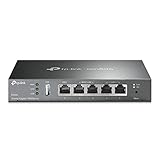
- 【Five Gigabit Ports】1 Gigabit WAN Port plus 2 Gigabit WAN/LAN Ports plus 2 Gigabit LAN Port. Up to 3 WAN ports optimize bandwidth usage through one device.
- 【One USB WAN Port】Mobile broadband via 4G/3G modem is supported for WAN backup by connecting to the USB port. For complete list of compatible 4G/3G modems, please visit TP-Link website.
- 【Abundant Security Features】Advanced firewall policies, DoS defense, IP/MAC/URL filtering, speed test and more security functions protect your network and data.
- 【Highly Secure VPN】Supports up to 20× LAN-to-LAN IPsec, 16× OpenVPN, 16× L2TP, and 16× PPTP VPN connections.
- Security - SPI Firewall, VPN Pass through, FTP/H.323/PPTP/SIP/IPsec ALG, DoS Defence, Ping of Death and Local Management. Standards and Protocols IEEE 802.3, 802.3u, 802.3ab, IEEE 802.3x, IEEE 802.1q
The TP-Link Omada EAP773 is a Wi-Fi 7 ceiling AP with a 10-Gb Ethernet interface, WPA3, OWE, VLANs, captive portal support, and centralized or standalone management. No current official retail price was verified in the supplied research, so buyers should check an authorized U.S. seller before publication or purchase. A 10-Gb AP is unnecessary when the switch, cabling, gateway, and workload are all gigabit-limited.
Aruba Instant On is a simpler SMB-oriented ecosystem with guest networking, WPA2/WPA3 Personal, OWE, and cloud or app-based management. It suits businesses that value an established networking vendor and simpler operations, but may be less attractive to buyers seeking maximum local configurability or the lowest hardware cost. No current official price was verified in the supplied research.
Do these 3 things before closing this tab:
1Fix the driver behind crashes, sound loss and screen glitches2Clear out junk files and repair common Windows errors3Scan for outdated or missing drivers - takes under a minuteCisco Meraki is a premium cloud-managed option with centralized administration and enterprise-oriented security features. Meraki can suit businesses that value support processes and remote management, but required licensing must be included in total cost of ownership. No current official price was verified in the supplied research.
Do not assume that a single-vendor design is mandatory. A single ecosystem simplifies adoption, firmware management, VLAN and SSID configuration, roaming features, and alerts. Mixed vendors can preserve existing equipment or reduce cost, but advanced roaming, RF optimization, captive portals, and dynamic VLAN behavior may not interoperate consistently.
How should you maintain and recover the network?
Maintenance should be treated as part of the network design, not as an emergency activity after a failure.
- Keep a current inventory of gateways, switches, APs, power supplies, injectors, cables, and serial numbers.
- Review firmware releases and schedule updates during maintenance windows.
- Back up gateway, switch, controller, and RADIUS configurations securely.
- Enable alerts for offline APs, high channel utilization, failed authentication, power problems, and unusual traffic where supported.
- Review administrator accounts, MFA, recovery codes, and staff Wi-Fi access periodically.
- Record every VLAN, subnet, DHCP scope, SSID, firewall exception, AP location, and switch-port assignment.
- Keep spare hardware or document realistic replacement lead times.
- Test an Internet outage and local-management path; cloud dashboards and some portal or identity functions may be unavailable during an ISP outage.
- Reassess coverage and capacity after construction, furniture changes, machinery installation, staffing changes, or major increases in wireless clients.
A written recovery plan should state how to reach the gateway locally, where backups are stored, how to restore a configuration, how to replace an AP, which ISP and vendor contacts to use, and what services must be restored first.
Quick wins for a faster PC:
Clear out junk files and repair common Windows errorsFree Scan →Scan for outdated or missing drivers - takes under a minuteDriver Scan →What should be on the final small-business Wi-Fi checklist?
- Requirements and simultaneous-client estimates are documented.
- AP locations are based on a floor plan, survey, or post-installation validation.
- APs use Ethernet backhaul wherever practical.
- Gateway, managed PoE switch, and AP capacities are matched.
- PoE class and total switch budget are sufficient.
- AP uplink, switch uplink, cabling, and gateway speeds match the workload.
- Staff, guest, IoT, and management networks are separated with VLANs.
- Firewall rules block unnecessary inter-VLAN access.
- WPA3, transition mode, WPA2 exceptions, or WPA3-Enterprise are chosen deliberately.
- Guest client isolation and Internet-only access have been tested.
- Legacy IoT devices have a contained compatibility strategy.
- Radio channels, widths, transmit power, roaming, and optional features have been validated with real clients.
- DHCP, DNS, Internet access, internal access, roaming, voice/video, POS, scanners, printers, and cameras have been tested.
- Configuration backups, administrator recovery, firmware versions, topology, and AP locations are documented.
- Recurring licenses, support costs, replacement process, and outage behavior are understood.
Frequently Asked Questions
Is Wi-Fi 7 necessary for a small business?
Wi-Fi 7 is not necessary for many small businesses. Wi-Fi 6 is usually sufficient for mixed clients and moderate office traffic; Wi-Fi 7 is most useful when compatible clients, 6-GHz coverage, high density, faster wired uplinks, and a long replacement cycle justify the cost.
Can one powerful router replace multiple business access points?
One powerful router can serve a small, open premises with modest client density, but one router cannot solve dense walls, poor placement, roaming requirements, or capacity problems. Multiple Ethernet-connected managed APs are normally more reliable for multi-room or multi-floor businesses.
Should guest Wi-Fi use the same network as employees?
Guest Wi-Fi should use a separate VLAN with Internet-only firewall rules and client isolation. A separate SSID helps users select the right network, but the gateway firewall—not the SSID name—must enforce the separation.
Why can a device connect to Wi-Fi but receive no Internet?
A device that connects to Wi-Fi but has no Internet commonly has a DHCP, VLAN trunk, gateway interface, firewall, DNS, or captive-portal problem. Check the client’s IP lease and trace the SSID VLAN across the AP port, switch, and gateway.
Does a wider Wi-Fi channel always provide faster business Wi-Fi?
A wider channel can increase peak link speed but consumes more spectrum and can increase overlap and contention. In a busy office, 20- or 40-MHz channels may provide better aggregate performance than 80- or 160-MHz channels; validate the choice on site.
The Bottom Line
The dependable small-business design is a wired Ethernet foundation with a properly sized firewall, managed PoE switch, and centrally managed APs. Choose Wi-Fi 6, 6E, or 7 according to compatible clients and workload—not marketing speed—then separate staff, guest, and IoT traffic with VLANs and firewall rules. Placement, testing, documentation, backups, and recovery planning matter as much as the AP model.

