
The Tool Desk
Outbyte Driver Updater FREEFix the driver behind crashes, sound loss and screen glitchesFind Drivers →Outbyte PC Repair FREEClear out junk files and repair common Windows errorsFree Scan →iTechGuides is reader-supported. When you buy through links on our site, we may earn an affiliate commission. As an Amazon Associate I earn from qualifying purchases. Learn more
The answer to “Top 5 Laptops for Seniors: Easy Use Guide Now” depends less on age than on familiar software, eyesight, dexterity, required applications, and available help. The five strongest U.S. choices checked August 18, 2026 are the M5 MacBook Air 15-inch, Surface Laptop 13.8-inch, Lenovo Chromebook Plus 14, Acer Chromebook Plus 516, and Acer Chromebook Plus Spin 514.
There is no universally easiest laptop for every older adult. A longtime Windows user will usually create fewer support problems with Windows, an iPhone owner may prefer a Mac, and someone who mainly browses, emails, streams, and joins video calls may find ChromeOS the simplest option.
Key takeaways
- The 15-inch MacBook Air with Apple’s current M5 chip is the best overall choice for a buyer who values a large, sharp screen, Apple integration, and Apple support.
- The 13.8-inch Microsoft Surface Laptop, 7th Edition, is the strongest Windows choice, with a listed starting price of $949.99 for the Snapdragon X Plus configuration when checked August 18, 2026.
- The Lenovo Chromebook Plus 14 offers 16GB of memory, 256GB of storage, and a claimed battery life of up to 17 hours, but ChromeOS is unsuitable for many desktop-only Windows and Mac applications.
- The Acer Chromebook Plus 516 is the affordable large-screen choice, with a 16-inch 1920×1200 display and a listed starting MSRP of $479.
- The Acer Chromebook Plus Spin 514 is worth choosing only when a touchscreen or tablet-style mode will genuinely help the user.
Quick comparison: which laptop fits which user?
The best laptop for an older adult is the model that matches the user’s habits, eyesight, applications, and support network—not necessarily the model with the fastest processor.
| Laptop | Best for | Operating system | Screen | Listed configuration | Price signal checked August 18, 2026 | Main drawback |
|---|---|---|---|---|---|---|
| MacBook Air 15-inch with M5 | Large readable workspace and Apple-device owners | macOS | 15 inches; 500 nits | 16GB unified memory; 512GB storage among displayed configurations | Apple buying page did not expose a reliable dollar price | More expensive and unfamiliar to many Windows users |
| Microsoft Surface Laptop 13.8-inch, 7th Edition | Existing Windows users needing broad Windows compatibility | Windows 11 on Arm | 13.8 inches | Snapdragon X Plus or X Elite; 16GB RAM/512GB SSD option listed | From $949.99 X Plus; $1,149.99 X Elite | Older drivers and specialized software may need Arm compatibility checks |
| Lenovo Chromebook Plus 14 | Premium web-first use and light maintenance | ChromeOS | 14 inches; 1920×1200 | MediaTek Kompanio Ultra; 16GB RAM; 256GB storage | From $749 MSRP | Expensive for basic browsing and limited as a desktop-software replacement |
| Acer Chromebook Plus 516 | Large text and video at a lower cost | ChromeOS | 16 inches; 1920×1200 | Intel Core i3-1315U; 8GB RAM; 128GB storage | From $479 MSRP | Less portable and limited local storage |
| Acer Chromebook Plus Spin 514 | Touchscreen, tablet, tent, or stand modes | ChromeOS | 14 inches; 1920×1200 | Intel Core i5/8GB/512GB or MediaTek/12GB/256GB configurations | From $549.99 Intel; $699 MediaTek MSRP | Convertible design adds cost and weight |
Manufacturer battery figures in this table are claims, not guarantees. Google says Chromebook battery life varies with use, specifications, applications, and environment. Product prices and configurations also change, so confirm the exact model and price before buying.
Popular on Amazon
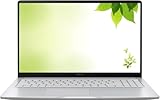
- Intel Processor Up to 2.80GHz, 4GB DDR4, 128GB Storage
- 15" FHD IPS Display, Intel UHD Graphics
- 1x USB Type C, 1 x USB Type A, 1x Headphone/Microphone Combo Jack, HDMI
- Fast WiFi and Bluetooth, Integrated Webcam
- Chrome OS, AC Charger Included, Pastel Silver
1. MacBook Air 15-inch with M5: best overall for a large, comfortable screen
The 15-inch MacBook Air with M5 is the strongest overall recommendation for an older adult who wants a generous reading area, owns Apple devices, and can afford a premium laptop.
Apple’s current MacBook Air page lists M5 models in both 13-inch and 15-inch sizes. The displayed configurations include 16GB of unified memory and 512GB of storage, Apple states up to 18 hours of battery life, and the display is listed at 500 nits. Apple describes the Air as less than half an inch thick.
The 15-inch screen gives enlarged text, photos, captions, and side-by-side windows more room. A larger display does not replace accessibility settings, but it reduces the cramped feeling that can occur when text and interface elements are enlarged.
Do these 3 things before closing this tab:
1Fix the driver behind crashes, sound loss and screen glitches2Clear out junk files and repair common Windows errors3Scan for outdated or missing drivers - takes under a minuteWhy the MacBook Air can reduce support problems
- An existing iPhone, iPad, or Apple Watch owner may find passwords, messages, calls, photos, and file sharing more coherent across devices.
- Apple highlights Migration Assistant for moving files from an older Mac or PC.
- Apple provides online, telephone, and in-store support, although retail support availability depends on location.
- Apple describes the Air’s fanless design as quiet during ordinary use.
macOS includes display scaling, Zoom, a larger pointer, VoiceOver, Spoken Content, Dictation, closed captions, Accessibility Shortcuts, and mouse and trackpad controls. Apple’s Mac accessibility resources cover vision, hearing, speech, mobility, and cognitive features. Feature availability can vary by operating-system version, language, region, and device.
When should you not buy the MacBook Air?
Do not choose the MacBook Air merely because “Macs are easier.” A longtime Windows user may find keyboard shortcuts, file management, settings, and application choices unfamiliar. Windows-only accounting tools, older utilities, specialized accessibility software, and hardware-management programs may not have equivalent Mac versions.
The 15-inch model is also less convenient to carry than a 13-inch laptop, and the premium price is difficult to justify for someone who needs only browser-based email, streaming, and simple documents.
Recommended configuration: Choose at least 16GB of memory and 512GB of storage. Pay for more storage only if the user keeps a substantial local photo or video library rather than storing most files in the cloud.
What’s actually slowing this PC down?
Pick the symptom - the matching free tool is one click away.
2. Microsoft Surface Laptop 13.8-inch, 7th Edition: best Windows choice
The Microsoft Surface Laptop, 7th Edition, is the best Windows choice for someone who already knows Windows, needs Microsoft 365 or Windows utilities, and wants a clean conventional laptop.
Microsoft’s Surface Laptop listing identifies a 13.8-inch model with Snapdragon X Plus and X Elite processor options. The retrieved Microsoft Store result listed the X Plus configuration from $949.99 and the X Elite configuration from $1,149.99 on August 18, 2026. Prices and promotions are volatile, so treat those figures as dated price signals rather than permanent prices.
Microsoft lists a 16GB RAM and 512GB SSD configuration among the available choices. That combination is a sensible target for email, documents, video calls, browsing, photo management, and general Windows use. The 13.8-inch size balances portability with more usable space than a very small laptop.
What is the main Surface Laptop compatibility warning?
The Surface Laptop configurations listed by Microsoft use Snapdragon processors, which means Windows runs on an Arm platform. Many everyday applications work, but older utilities, unusual drivers, specialized assistive technology, printer and scanner software, VPN programs, accounting tools, medical portals, hardware-control utilities, and legacy games should be checked before purchase.
Quick wins for a faster PC:
Clear out junk files and repair common Windows errorsFree Scan →Fix the driver behind crashes, sound loss and screen glitchesFind Drivers →Repair Windows errors before they cause bigger problemsFix Now →Windows familiarity remains the Surface Laptop’s biggest advantage. If the person already knows where the Start menu, File Explorer, printer settings, and Windows applications are located, changing to macOS or ChromeOS may create more support calls than it prevents.
Microsoft maintains Windows and Surface accessibility resources and offers support through its Disability Answer Desk, including support resources for Microsoft 365, Windows, and Surface. Support availability and language options can vary by country.
Recommended configuration: Choose 16GB of RAM and a 512GB SSD. Choose the X Plus model unless the buyer has demanding productivity or creative workloads. Do not pay extra for Copilot+ branding solely because the laptop is intended for an older adult; AI features are optional and may add buttons, prompts, privacy questions, and subscription offers.
3. Lenovo Chromebook Plus 14: best premium Chromebook for web-first use
The Lenovo Chromebook Plus 14 is the best Chromebook choice in this shortlist for a user whose life is centered on web browsing, Gmail, Google Docs, YouTube, streaming, online photos, and video calls.
PC Slower Than It Used to Be?
A free scan shows the junk files, broken settings and background clutter dragging Windows down - then fixes them in one click.Free scan · Windows 10 & 11Crashes, No Sound, or Screen Glitches?
Random freezes, missing sound and display glitches usually trace back to one bad driver. Find and replace yours safely.Free scan · under a minuteGoogle’s Chromebook Plus listings show a Lenovo Chromebook Plus 14 with a MediaTek Kompanio Ultra processor, 16GB of RAM, 256GB of storage, a 14-inch 1920×1200 display, claimed battery life of up to 17 hours, and a listed starting MSRP of $749.
ChromeOS keeps the main workflow in the browser and generally involves fewer traditional desktop maintenance tasks. A family member can often help by managing the Google Account, recovery email, and cloud files. That simplicity is valuable when the user does not need complex software.
What accessibility tools does Chromebook provide?
ChromeOS provides browser zoom, display-size controls, font-size controls, a large cursor, full-screen and docked magnification, high-contrast mode, captions, and other audio accessibility tools. Google’s Chromebook accessibility guide documents these controls and gives Ctrl + Search + H as the shortcut for high-contrast mode. The key may be labeled Search or Launcher depending on the Chromebook model.
Google documents full-screen magnification of up to 20 times the default size. That figure describes the available control, not a promise that every enlarged page will remain practical to use.
Free tools Windows power users keep installed
One-click scans. No signup required.
Also popular on Amazon

- 🌸 【Stylishly Portable & Ultra Thin Design】 : Experience elegance and mobility with this stunning rose gold laptop. Weighing just 1.25kg (2.76 lbs) with an ultra-slim profile, it's your perfect companion for coffee shop, campus, or travel. The 180° hinge allows you to share your screen comfortably. Built‑in front‑facing camera delivers clear video for Zoom classes, Teams meetings, or catching up with family.
- 🚀 【Ready to Use Right Out of The Box】 : Skip complicated setup and extra costs! This laptop comes with Win 11 Pro pre-activated, so you can hit the ground running. From the moment you press the power button, you're all set for work, study, streaming, and beyond. Perfect for students, seniors, or as a thoughtful gift.
- ⚡ 【Efficient Performance for Daily Tasks】 : Powered by a Quad-Core Celeron J4105 Processor (burst up to 2.5GHz), this notebook handles everyday digital life with ease. Smooth performance for web browsing, email, video conferencing (Zoom/Teams), online learning, document editing, and HD video streaming. The 8GB RAM ensures smooth multitasking, while the 256GB SSD provides quick boot-ups and ample storage. *(Note: Best for daily tasks and light use – not designed for heavy gaming or 50+ browser tabs.)*
- 🖥️ 【Vivid FHD IPS Display】 : Immerse yourself in crystal-clear visuals on the 14-inch Full HD (1920x1080) IPS display. Enjoy wider viewing angles, vibrant colors, and sharp details whether you're binge-watching movies, attending online classes, or editing photos. The IPS technology ensures your content looks great, no matter how you tilt the screen.
- 🔗 【Comprehensive Connectivity & Warranty】 : Stay connected with 2x USB 3.0, Mini HDMI, TF Card Reader, and 3.5mm headphone jack. Easily connect to external monitors or transfer files. With built-in Wi-Fi and Bluetooth, go completely wireless. We back your purchase with a 12-month warranty and responsive customer support, ensuring you can buy with confidence.
When is the Lenovo Chromebook Plus 14 a poor fit?
A Chromebook is not a full Windows or Mac replacement. The Lenovo Chromebook Plus 14 may frustrate a user who depends on desktop Outlook, complex Excel workbooks, specialized tax software, legacy genealogy programs, Windows-only utilities, extensive offline work, or applications that require local installation.
The listed $749 MSRP is also not especially low for a web-only computer. The Lenovo model makes sense when the buyer values its screen, memory, battery claim, and build quality—not because a basic browsing user needs a powerful processor.
Recommended configuration: The listed 16GB/256GB model is the premium Chromebook pick. Confirm that the user understands cloud storage and that the Google Account recovery method is documented.
4. Acer Chromebook Plus 516: best affordable large-screen laptop
The Acer Chromebook Plus 516 is the best lower-cost choice for a desk-based user who benefits from a 16-inch screen and mainly reads, browses, streams, and video-calls.
Google lists the Acer Chromebook Plus 516 with an Intel Core i3-1315U processor, 8GB of RAM, 128GB of storage, a 16-inch 1920×1200 display, claimed battery life of up to 15.5 hours, and a starting MSRP of $479. Google’s product listing labels the price as MSRP and qualifies battery figures as usage-dependent.
The 16-inch 1920×1200 display is the main reason to buy this model. Enlarged browser text, documents, captions, and photos have more physical room than on a compact screen. The resolution is also preferable to a low-resolution 1366×768 panel for reading and multitasking.
What are the Acer Chromebook Plus 516 trade-offs?
- The 16-inch body is heavier and less convenient to carry than a 13- or 14-inch laptop.
- 128GB is workable for cloud-first use but unsuitable for a large local media collection.
- 8GB of RAM is acceptable for ordinary Chromebook work but provides less headroom for many browser tabs or demanding Android and Linux applications.
- The user should try ChromeOS before purchase if the user has always worked on Windows.
ChromeOS includes browser zoom, display-size and font-size settings, cursor-size controls, magnification, captions, and contrast options. A Chromebook accessibility setup can make the large screen substantially more useful than simply increasing the laptop’s brightness.
Recommended configuration: Choose the Acer 516 for a mostly stationary desk. Add a comfortable external mouse if trackpad precision is difficult.
5. Acer Chromebook Plus Spin 514: best touchscreen and 2-in-1 option
The Acer Chromebook Plus Spin 514 is the best choice in this group when the user will genuinely benefit from a touchscreen, tablet mode, tent mode, or stand mode.
Google lists multiple Spin 514 configurations. One listed model has a MediaTek Kompanio Ultra 910 processor, 12GB of RAM, 256GB of storage, a 14-inch 1920×1200 display, and claimed battery life of up to 17 hours, with a starting MSRP of $699. Another listed model has an Intel Core i5-1334U processor, 8GB of RAM, 512GB of storage, the same 14-inch 1920×1200 screen, claimed battery life of up to 10 hours, and a starting MSRP of $549.99. These specifications and prices come from Google’s Chromebook Plus listing.
Touch can help a user tap large buttons, scroll through photos, or browse without precise trackpad movements. A convertible hinge also lets the screen be positioned for a video call or reading.
Does a touchscreen automatically make a laptop easier?
No. Touchscreens help some users and confuse others. Accidental touches can be frustrating, and a mouse may provide more deliberate control for someone with a tremor or limited dexterity. A convertible hinge also adds weight and complexity, while the 14-inch display is smaller than the Acer Chromebook Plus 516.
Recommended configuration: Prefer the 512GB Intel configuration if its price is close to the 256GB model. Choose the MediaTek configuration when long claimed battery life and more memory matter more than maximum application compatibility. Do not pay for tablet functionality that the user will never use.
Which operating system should a senior choose?
The right operating system is usually the one the user and helper already understand, unless the user’s applications clearly require a different platform.
| Operating system | Choose it when | Strengths | Check before buying |
|---|---|---|---|
| Windows | The user already knows Windows or needs Windows software and drivers | Broad compatibility, familiar file management, Microsoft 365, and many local repair options | Arm compatibility on Snapdragon laptops; printer, scanner, assistive-technology, VPN, and legacy software support |
| macOS | The user owns Apple devices or wants Apple’s support ecosystem | Apple integration, built-in accessibility tools, quiet MacBook Air design, and Apple support resources | Windows-only software, changed keyboard and file-management habits, price, and nearby Mac support |
| ChromeOS | The user mainly browses, emails, streams, video-calls, and uses web documents | Browser-centered workflow, low maintenance, useful accessibility controls, and strong cloud integration | Offline needs, desktop applications, local storage, printer/scanner compatibility, and Google Account recovery |
“Senior” is not a technical specification. Ease of use depends more on prior operating-system experience, eyesight, dexterity, hearing, cognitive load, required applications, and who will provide support.
What should you look for before buying?
1. Screen size, resolution, and glare
For most users who read for long periods, prioritize a screen of at least 14 inches. Choose 15 or 16 inches for reduced vision or a mostly stationary desk, provided the user can comfortably lift and position the laptop. A 1920×1200 display is preferable to a low-resolution 1366×768 panel when enlarged text and multitasking matter.
Recommended Free Tools
Brightness, viewing angle, and low-glare treatment can matter more than processor performance. A large screen will not solve every vision problem, so demonstrate text size, browser zoom, display scaling, cursor size, and contrast settings.
2. Memory and storage
| Platform | Practical target for a new purchase | Why it matters |
|---|---|---|
| Windows or macOS | 16GB RAM and 512GB SSD where the budget allows | Leaves more room for updates, browser tabs, photos, documents, and several years of ordinary use |
| ChromeOS | 8GB RAM works for basic use; 12GB or 16GB is preferable for many tabs and longer useful life | ChromeOS is cloud-first, but browser tabs and Android or Linux applications still consume memory |
| Any platform | 256GB for cloud-first use; 512GB for local photos and downloads | Reduces storage warnings and dependence on constant file cleanup |
Avoid a very cheap 4GB/64GB laptop for someone who expects to keep the computer for several years. Low memory, small storage, a dim display, weak hinges, and excessive preinstalled software can make a low purchase price expensive in frustration.
3. Keyboard, mouse, and touchpad
Test the physical controls where possible. Ask whether the letters have enough contrast, whether the keyboard is backlit, whether the Enter and arrow keys are easy to identify, and whether the touchpad is too sensitive. Check whether the user can perform a right-click and find the power button and charging port.
Also popular on Amazon

- Effortlessly chic. Always efficient. Finish your to-do list in no time with the Dell 15, built for everyday computing with Intel Core 3 processor.
- Designed for easy learning: Energy-efficient batteries and Express Charge support extend your focus and productivity.
- Stay connected to what you love: Spend more screen time on the things you enjoy with Dell ComfortView software that helps reduce harmful blue light emissions to keep your eyes comfortable over extended viewing times.
- Type with ease: Write and calculate quickly with roomy keypads, separate numeric keypad and calculator hotkey.
- Ergonomic support: Keep your wrists comfortable with lifted hinges that provide an ergonomic typing angle.
For tremor or reduced dexterity, an external mouse may be easier than a touchpad. A touchscreen may help with tapping and scrolling, but touch is not automatically more precise.
A comfortable external mouse is often a more useful accessibility purchase than a faster processor or premium touchscreen. Choose a model with a shape the user can grip, large buttons, and adjustable pointer speed.
4. Webcam, microphone, and speakers
Check camera placement, microphone clarity, speaker loudness, and the visibility of mute, camera, and hang-up controls. Confirm that the chosen video-call application works on the selected operating system. A laptop is not useful for family calls if the user cannot reliably join, hear, or leave a meeting.
5. Ports and accessories
Check the exact laptop’s ports before buying a printer, scanner, external display, wired network connection, SD card, or older USB accessory. A simple USB-C adapter may be needed for older USB-A devices, but compatibility still depends on the accessory and operating system.
A laptop stand can help a desk-based reader raise and angle the screen, reduce neck bending, and position a large laptop more comfortably. A stand does not make a heavy 16-inch laptop portable.
What’s actually slowing this PC down?
Pick the symptom - the matching free tool is one click away.
6. Support and recovery
Apple Store access may matter for a Mac buyer. Microsoft provides Windows, Surface, and Microsoft 365 accessibility support, including its Disability Answer Desk. Chromebook support can be simpler, but cloud files and account recovery depend on a functioning Google Account.
Before handing over the laptop, record the recovery email, recovery phone number, password-manager arrangement, Wi-Fi password, printer model, and backup plan. The support person’s familiarity may matter more than the laptop’s advertised simplicity.
Independent reader supportYour contribution helps us test, update, and keep practical guides available for everyone.How much should you spend on a laptop for a senior?
Use spending bands as planning guidance, not as verified market averages. Prices change frequently, and a good display, adequate memory, and supportability are often better uses of money than a faster processor.
| Approximate budget | What it can cover | What to prioritize |
|---|---|---|
| Around $350–$500 | Basic Chromebook or entry-level Windows laptop | 8GB RAM, a usable display, a warranty, and a return period; avoid 4GB/64GB models |
| Around $500–$800 | Stronger Chromebook, 2-in-1, or midrange Windows machine | Screen comfort, 8GB–16GB RAM, 256GB or more storage, and the right operating system |
| Around $900–$1,300 | Premium Windows laptop or MacBook Air, depending on configuration and promotions | Familiarity, support, application compatibility, 16GB RAM, and 512GB storage |
Do not assume a higher price automatically means easier use. A premium Mac can be the wrong choice for a Windows-dependent user, while a premium Chromebook can be unnecessary for basic web tasks.
Should you buy a refurbished laptop?
A refurbished laptop can be a good value when it comes from the manufacturer or a reputable refurbisher, has a clear return period and warranty, discloses battery condition, and still receives security updates.
For a Chromebook, verify the exact model’s automatic-update expiration before purchase. Google’s Chromebook update schedule provides model-specific automatic-update information. Do not buy a discounted Chromebook that is already near the end of its support life without understanding the trade-off.
Do seniors need AI features?
Usually, no. Copilot+, Apple Intelligence, and Google AI features are optional extras rather than requirements for browsing, email, streaming, photos, printing, documents, and video calls. AI tools may help with writing, searching, or summarizing, but they can also introduce unfamiliar buttons, prompts, privacy questions, and subscription offers.
How should you set up the laptop before giving it to the user?
A careful setup can prevent more support problems than spending extra on a faster model.
Quick wins for a faster PC:
Clear out junk files and repair common Windows errorsFree Scan →Scan for outdated or missing drivers - takes under a minuteDriver Scan →Repair Windows errors before they cause bigger problemsFix Now →- Install all operating-system, application, and firmware updates.
- Create or verify the user’s account and recovery method.
- Add the home Wi-Fi network and confirm that the laptop reconnects.
- Install only the required applications.
- Remove unnecessary trial software and duplicate utilities.
- Set browser zoom to a comfortable level.
- Increase system display scaling or text size.
- Enlarge the mouse pointer and adjust pointer speed.
- Turn on captions if hearing support is useful.
- Pin email, the browser, video calls, photos, and documents where the user can find them.
- Set up the printer and print a test page.
- Configure automatic cloud or external-drive backups.
- Demonstrate fake virus warnings, fake delivery messages, suspicious phone numbers, and requests for remote access.
- Do not save payment details on unfamiliar shopping sites.
- Leave a simple card showing how to turn the laptop on, connect the charger, open email, join a video call, and contact the helper.
Which laptop should you buy?
Use the user-profile decision tree rather than a generic “best laptop” ranking:
- Uses an iPhone and wants the most coherent premium experience: choose the 15-inch M5 MacBook Air, provided required software works on macOS.
- Uses Windows and needs familiar software: choose the 13.8-inch Surface Laptop, after checking Snapdragon Arm compatibility for unusual applications and peripherals.
- Uses only browser tasks, email, streaming, and video calls: choose a Chromebook Plus model.
- Needs a large readable screen at a lower cost: choose the Acer Chromebook Plus 516.
- Wants touch or tablet mode: choose the Acer Chromebook Plus Spin 514, but only if those modes will actually be used.
The lowest-support choice is usually the laptop that matches the user’s existing habits and the helper’s expertise. Prioritize a comfortable display, adequate memory and storage, reliable support, account recovery, and a tested printer over benchmark scores or unnecessary AI features.
Frequently Asked Questions
Is a Chromebook really a laptop?
Yes. A Chromebook is a laptop that runs ChromeOS rather than Windows or macOS. ChromeOS handles browser-based email, documents, photos, streaming, video calls, and many web or Android applications, but it may not run every Windows or Mac desktop program.
Is a Mac easier to use than Windows for a senior?
Neither macOS nor Windows is universally easier. macOS may be easier for someone who already uses an iPhone or iPad, while Windows is usually less disruptive for someone who has used Windows for years. ChromeOS may be simplest for a browser-only user.
Should you buy a touchscreen laptop for an older adult?
Buy a touchscreen only when the user is likely to tap, scroll photos, or use tablet, tent, or stand modes. Touch can help some users, but an external mouse may be easier for someone with a tremor or poor trackpad control.
How much RAM and storage should a senior’s laptop have?
For a new Windows or Mac laptop, target 16GB of RAM and a 512GB SSD where the budget allows. For a Chromebook, 8GB is workable for basic use, while 12GB or 16GB is preferable for many browser tabs and longer useful life; 256GB is suitable for cloud-first use and 512GB is safer for local photos and downloads.
The Bottom Line
Bottom line: Choose the 15-inch M5 MacBook Air for an Apple-oriented user who values screen space and support, the Surface Laptop for a Windows user, the Lenovo Chromebook Plus 14 for premium web-first use, the Acer Chromebook Plus 516 for an affordable large display, and the Acer Chromebook Plus Spin 514 for a user who will actually use touch or tablet modes. Familiarity and supportability matter more than age or benchmark speed.

