
iTechGuides is reader-supported. When you buy through links on our site, we may earn an affiliate commission. As an Amazon Associate I earn from qualifying purchases. Learn more
The top 5 budget laptops for Linux are a discounted Lenovo ThinkPad E14, a refurbished ThinkPad or Dell Latitude, an Ubuntu-certified Dell, the Framework Laptop 13, and—if you can spend much more—the System76 Lemur Pro. For the lowest price, choose mainstream AMD or Intel hardware with verified compatibility rather than assuming every Linux-first laptop is a bargain.
For this guide, “budget” means roughly under $800 for a new laptop in the United States, with refurbished systems considered separately. The most important distinction is between a laptop that merely boots a Linux installer and one with reliable Wi-Fi, suspend/resume, firmware updates, graphics, webcam, audio, and input support.
Key takeaways
- Ubuntu certification is tied to particular laptop configurations and Ubuntu releases, so search the exact model identifier rather than relying on a family name such as “ThinkPad E14” or “Dell Inspiron.”
- A practical Linux configuration should include 16 GB of memory, a 512 GB NVMe SSD, integrated AMD or Intel graphics, and a 1920×1080-or-better display where possible.
- Under $500, a refurbished ThinkPad T14, T480, T490, E-series, or Dell Latitude can offer better value than a new entry-level consumer laptop, but battery, display, firmware-lock, and return-policy checks are essential.
- The Framework Laptop 13 is the strongest choice for repairability and upgrades, but modularity can raise the purchase price and Expansion Cards cost extra.
- The 2026 System76 Lemur Pro is a Linux-first option rather than a conventional budget laptop because System76 reported a $1,999 starting price for the refresh.
What are the top 5 budget laptops for Linux?
The best choice depends on whether the priority is the lowest price, official compatibility evidence, repairability, or Linux preinstallation. The five recommendations below deliberately separate those goals instead of treating every Linux laptop as equally affordable or equally supported.
Do these 3 things before closing this tab:
1Clear out junk files and repair common Windows errors2Scan for outdated or missing drivers - takes under a minute3Repair Windows errors before they cause bigger problems| Pick | Best for | Approximate US price position | Configuration target | Linux evidence | Main drawback |
|---|---|---|---|---|---|
| Lenovo ThinkPad E14 Gen 7 AMD | Best new mainstream value | Under $800 only with a sale, outlet unit, lower configuration, or older generation; Lenovo pages showed approximately $1,179–$1,299 configurations in the research snapshot | Ryzen 5 or better, 16 GB RAM, 512 GB NVMe SSD, matte 1080p-or-better display | ThinkPad Linux documentation and Ubuntu certification must be checked for the exact configuration | Current-generation pricing can exceed the budget; panel and build quality vary |
| Framework Laptop 13 | Repairability and upgrades | Near the budget only when discounted or ordered barebones; final cost varies by configuration and Expansion Cards | AMD or Intel, 16 GB RAM, 512 GB SSD; barebones only for experienced builders | Framework’s Linux compatibility documentation and participation in Ubuntu Certified/Fedora Ready programs on some products | Modularity does not guarantee the lowest upfront price |
| Ubuntu-certified Dell laptop | Mainstream vendor and warranty route | Often fits the new-laptop budget only in selected configurations or promotions; verify live US pricing | Latitude or another exact certified model, 16 GB RAM, 512 GB SSD, integrated graphics | Canonical Ubuntu certification listings and Dell Linux guidance | Linux support is not uniform across every Dell family or configuration |
| Refurbished ThinkPad or Latitude | Best strict-budget value | Roughly $300–$700 depending on generation, condition, battery, display, and seller | ThinkPad T14 Gen 1–3, T480/T490, E14 Gen 4–6, L14, or a comparable Latitude with 16 GB RAM and an SSD | Mature hardware, extensive community documentation, and exact-model checking | Battery wear, poor panels, damaged ports, BIOS locks, and inconsistent refurbisher quality |
| System76 Lemur Pro | Linux preinstallation and vendor support | Not truly budget; System76 reported a $1,999 starting price for the 2026 refresh | Choose the configuration that meets the workload; 14-inch and 16-inch versions were announced | Linux-first vendor integration and support | Premium price makes it a stretch-budget or Linux-first upgrade, not a cheap recommendation |
Prices are snapshots rather than permanent US prices. Lenovo’s pages showed changing configurations, discounts, and estimated values, so compare the cost of a usable configuration—not the lowest headline price. Eight gigabytes of RAM, a 128 GB or 256 GB drive, and a low-quality display can make an apparently cheap laptop a poor long-term Linux purchase.
Popular on Amazon

- Live Boot: Simply plug the USB drive into your computer, select the USB drive as your boot device, and experience Linux Mint without installation. This allows you to test the OS and its features before making any changes to your system.
- Install Option: Once you've tested and decided to keep Linux Mint, you can easily install it on your computer directly from the USB drive.
- Pre-installed software like LibreOffice for office tasks, a capable web browser (Firefox), email client (Thunderbird), and multimedia tools. This minimizes the need for additional downloads, saving you time and effort.
- Resource Efficiency: Designed to run efficiently on a variety of hardware configurations. It demands fewer system resources compared to some other operating systems, making it an excellent choice for older computers or devices with limited hardware specifications.
- Compatible with PC/Laptop/Desktop brands - Dell, HP, Sony, Lenovo, Samsung, Acer, Toshiba & more. Minimum system requirements 4 GB RAM Dual-Core Processor (2 GHz) 20 GB of free disk space
1. Lenovo ThinkPad E14 Gen 7 AMD: best new budget choice when discounted
The Lenovo ThinkPad E14 Gen 7 AMD is the strongest mainstream new-laptop candidate when a sale, outlet unit, lower configuration, or previous-generation model brings the price near the budget. The E14 family is widely available, relatively serviceable compared with many thin consumer laptops, and familiar to Linux users.
AMD configurations are attractive for a general-purpose Linux laptop because integrated graphics avoid much of the driver and power-management complexity associated with discrete graphics. The recommended target is an AMD Ryzen 5-class processor or better, 16 GB of RAM, a 512 GB NVMe SSD, and a matte 1920×1080-or-better display.
Lenovo’s US shopping pages surfaced ThinkPad E14 Gen 7 AMD configurations priced at approximately $1,179 to $1,299 in the research snapshot, depending on configuration and discount. That price signal is above the strict under-$800 definition, so the E14 Gen 7 AMD should not be presented as universally cheap. Check Lenovo’s current ThinkPad listings for sales, outlet stock, and older E14 generations before buying.
The Tool Desk
Outbyte PC Repair FREEClear out junk files and repair common Windows errorsFree Scan →Outbyte Driver Updater FREEScan for outdated or missing drivers - takes under a minuteDriver Scan →Who should buy it?
- Students and office users who want a conventional keyboard and chassis.
- Developers who prefer a mainstream laptop and are comfortable installing Linux.
- Buyers who can wait for a promotion instead of buying the first low-priced configuration.
What should you verify?
“ThinkPad” does not automatically mean that every E14 configuration is officially certified for every Linux distribution. Check the exact machine type, processor, wireless chipset, fingerprint reader, display, and firmware support. Lenovo’s Linux-related product pages can provide useful direction, but the model and configuration still need to be verified rather than inferred from the ThinkPad name.
The E-series also does not have the same premium construction as Lenovo’s higher-end T-series. The display option matters particularly: two laptops sold as the same E14 family can have materially different panel quality, resolution, brightness, or touch features.
2. Framework Laptop 13: best Linux laptop for repairability
The Framework Laptop 13 is the best pick for buyers who value replaceable components, upgrades, repair documentation, and long-term ownership more than the lowest checkout price. Framework publishes model-specific Linux information, including distribution, kernel, and known-issue notes, through its official Linux compatibility guide.
A sensible configuration target is an AMD or Intel model with 16 GB of RAM and a 512 GB SSD. A barebones system can reduce the upfront configuration cost for someone who already owns compatible memory and storage, but barebones is not a beginner shortcut: the buyer must source parts, install them, and troubleshoot any component mismatch.
Free tools Windows power users keep installed
One-click scans. No signup required.
What does the Framework premium buy?
The value is in modularity and documentation rather than guaranteed lowest price. Depending on the model, buyers can replace or upgrade memory and storage, change ports through Expansion Cards, and service more of the machine than is possible on many thin consumer laptops. Expansion Cards also increase the total cost if the desired port selection is not included.
Framework participates in Ubuntu Certified and Fedora Ready programs on some products, but Linux support remains model- and distribution-dependent. Read the compatibility notes for the exact Framework configuration and intended distribution before ordering. Ubuntu-certified behavior should not be assumed to be identical under Fedora, Mint, Arch, or another distribution.
Who should skip it?
Skip the Framework Laptop 13 if the only goal is the lowest possible initial price, if a traditional service network matters more than repairability, or if the final configuration cost is substantially above a comparable refurbished business laptop. Choose Framework when reduced replacement risk and upgrade flexibility justify the premium.
Also popular on Amazon

- Intel Core i5-1335U Processor (12M Cache, 12 Threads, up to 4.6 GHz) - 256GB Solid State Drive - 16GB DDR4 SDRAM
- 15.6" FHD (1920x1080) Non-Touch Anti-Glare Display - Intel UHD 620 Integrated Graphics - Stereo Speakers
- 720p HD Webcam with Privacy Shutter. Integrated Microphone - Intel Dual Band Wireless-AC (2x2) 8265, Bluetooth Version 4.2
- I/O Ports: 2x USB 3.0, 1x USB 3.1 Type-C 3.1, Headphone/Mic Combo Port, 4-in-1 Card Reader, HDMI, Kensington Mini-Lock Slot
- Linux Mint (Cinnamon) 64-Bit - Keyboard with Full NumberPad - Fast Charging
3. Ubuntu-certified Dell laptop: best mainstream support path
An Ubuntu-certified Dell laptop is a strong choice for buyers who want a large manufacturer, recognizable warranty infrastructure, and a documented path to Ubuntu. Dell provides Linux guidance for Dell desktops and laptops, including information about Linux-preinstalled systems and warranty support.
Start with business-oriented Latitude models or another exact Dell model listed in Canonical’s Ubuntu-certified laptop database. Canonical’s database includes systems from Dell, Framework, HP, and Lenovo, but certification is associated with particular hardware combinations and Ubuntu releases. A Dell family name alone is not enough evidence.
How should you choose a certified Dell?
- Find the exact Dell model and configuration, not just “Dell 14,” “Inspiron,” or “Latitude.”
- Confirm that the listing applies to the Ubuntu LTS release you intend to install.
- Prefer Intel or AMD integrated graphics for a simpler budget setup.
- Check the wireless chipset, fingerprint hardware, panel, memory layout, and storage before placing the order.
- Compare Dell’s current US configuration and warranty terms with a Lenovo or refurbished alternative.
Dell’s Linux support route is valuable, but not every Dell consumer laptop has the same level of Linux documentation or certification. NVIDIA-equipped models can work with Linux, but proprietary drivers, hybrid graphics, external displays, and suspend may require more configuration than integrated graphics.
4. Refurbished ThinkPad or Latitude: best value under $500
A refurbished business laptop is often the most realistic way to buy a capable Linux laptop under $500. Recommended targets include a ThinkPad T14 Gen 1 through Gen 3, ThinkPad T480 or T490, ThinkPad E14 Gen 4 through Gen 6, ThinkPad L14, or a comparable refurbished Dell Latitude.
Older business platforms can provide mature kernel support, familiar components, strong keyboards, replaceable parts, and extensive community documentation. That is a practical value judgment based on the maturity and popularity of these platforms, not a promise that every used ThinkPad or Latitude will work perfectly.
Quick wins for a faster PC:
Clear out junk files and repair common Windows errorsFree Scan →Scan for outdated or missing drivers - takes under a minuteDriver Scan →What should you inspect before buying refurbished?
| Check | What to look for | Why it matters for Linux |
|---|---|---|
| Exact model and generation | T14 generation, T480/T490, E14 generation, L14, or exact Latitude model | Hardware, firmware, ports, and kernel support can differ within one product family |
| Battery | Health, cycle count, charging behavior, and replacement availability | Linux battery life and suspend behavior are already hardware- and firmware-dependent; a worn battery makes the result worse |
| Display | Prefer 1920×1080 or better; verify panel type and condition | Low-resolution or poor-quality panels are common cost-cutting points |
| Memory and storage | 16 GB RAM where possible and an SSD; verify whether memory is upgradeable | Development tools, containers, browsers, and multiple distributions can outgrow 8 GB or 256 GB quickly |
| Ports and charger | USB-C charging, port condition, included charger, and dock compatibility | Damaged USB-C ports or missing proprietary chargers can erase the apparent savings |
| Firmware lock | No BIOS supervisor password or device-management lock | A locked BIOS can prevent boot-order changes, firmware settings, or a clean Linux installation |
| Wireless and camera | Exact Wi-Fi chipset, webcam, microphone, and Bluetooth operation | Wireless, camera, and audio failures are more important than small CPU differences |
| Seller terms | Return period, warranty, condition grading, and battery guarantee | Refurbisher quality varies and some problems appear only after installation |
The main risks are battery degradation, damaged USB-C ports, low-quality displays, missing chargers, BIOS locks, and limited warranty coverage. A refurbished laptop with a healthy battery, a good 1080p display, and a return policy is usually a better purchase than a new machine with 8 GB of soldered memory and a small drive.
5. System76 Lemur Pro: best Linux-first experience, not a budget laptop
The System76 Lemur Pro belongs on this list as a Linux-first exception, not as a normal under-$800 recommendation. System76 announced a 2026 Lemur Pro refresh with 14-inch and 16-inch versions and reported a $1,999 starting price in its July 2026 announcement, making the model a premium option for buyers who specifically value Linux preinstallation and vendor support.
System76’s approach can reduce the post-installation work involved in hardware support, firmware integration, and distribution setup. System76’s 2026 Lemur Pro announcement is the verified source for the refresh and reported starting price. Confirm the live configuration and price before publication or purchase because prices and availability change.
WIRED’s February 2026 Linux-laptop guide includes the Lemur Pro among its Linux-oriented recommendations and describes System76 and TUXEDO as established Linux-support vendors. The recommendation is useful for support-conscious buyers, but a premium Linux-first laptop should not be compared with a refurbished ThinkPad solely as a price-per-processor purchase.
Who is the Lemur Pro for?
- Buyers who want Linux preinstalled rather than installing and configuring it themselves.
- Professionals who consider vendor support and firmware integration worth paying for.
- Users who want a Linux-focused supplier and are not constrained by the ordinary budget definition.
Choose a mainstream certified Dell, Lenovo, or refurbished business laptop instead if the priority is value, broad retail availability, or a large conventional service network.
Also popular on Amazon

- 【Speed DPI Switch】 Bengoo customizable RGB gaming mice, with 4 adjustable DPI speed Switch:1200-1600-2400-3600, you can control the speed more freely and easily. No need any driver, plug and play directly.
- 【Flexible Buttons】 Equipped with six buttons: Left button, Right button, Forward, Back, DPI button and Scroll wheel, meets for your demands excellently for different games, enables to switch fast while gaming.
- 【Lighting Colors】 Muti-colors lights greatly match your style, provide you fancy gaming environment and highlight your game atmosphere.
- 【Ergonomic Design】 Perfectly fits under your palm, skin-friendly material we take provides you a perfect hand feel, gives gamers the most comfortable gaming experienece and makes you feel free from fatigue.
- 【Wide Compatibility】 Support Windows XP, Vista, Windows 7, Windows 8. Adaptable for Notebook, PC, laptop, Computer, Macbook and so on.
What does “Linux-compatible” actually mean?
Linux compatibility is a range of outcomes, not a binary yes-or-no label. A laptop may boot an installer and still have a broken fingerprint reader, unreliable sleep, missing firmware updates, or graphics-switching problems.
| Compatibility level | What it means |
|---|---|
| Boots the installer | The laptop can start a Linux installer from a bootable USB, but individual devices have not been validated. |
| Installs successfully | The operating system can be installed and started from the internal drive. |
| Everyday hardware works | Wi-Fi, Bluetooth, keyboard, touchpad, brightness controls, webcam, microphone, speakers, and external display operate as expected. |
| Reliable power management | Suspend/resume works, sleep does not drain the battery unexpectedly, and the laptop wakes reliably. |
| Complete device support | Fingerprint authentication, touchscreen, pen, rotation sensors, card readers, and graphics switching also work where fitted. |
| Maintained Linux platform | Firmware updates, kernel support, vendor documentation, and recovery procedures are available through Linux or a documented alternative. |
| Officially certified | Canonical lists the particular hardware configuration for a particular Ubuntu release in its certification database. |
| Linux-first support | The laptop ships with Linux or is sold by a vendor that specifically integrates and supports Linux. |
The recurring trouble spots are Wi-Fi, fingerprint readers, suspend/resume, graphics switching, webcams, card readers, and newer hardware that requires a recent kernel. A laptop can be entirely usable even if one optional component, such as a fingerprint reader, remains unsupported, but buyers should know that limitation before purchasing.
Which hardware specifications matter most?
For a general-purpose Linux laptop, balanced components and documented compatibility matter more than chasing the highest processor tier. The following targets are practical rather than absolute requirements.
- Processor: AMD Ryzen 5-class or Intel Core 5/Core i5-class hardware is a sensible minimum for browsing, writing, programming, and office work. Avoid very low-end processors if the laptop will run virtual machines, containers, large browser sessions, or development environments.
- Memory: Treat 8 GB as an entry-level minimum and target 16 GB. Confirm whether memory is replaceable, partly soldered, or fully soldered before assuming an upgrade is possible.
- Storage: Target a 512 GB NVMe SSD. A 256 GB drive can become restrictive after adding development tools, containers, games, or multiple distributions.
- Wireless: Wi-Fi compatibility can matter more than a modest CPU difference. Intel wireless hardware is commonly a safer Linux choice, but verify the exact chipset and required kernel or firmware rather than assuming every Intel or AMD wireless device is trouble-free.
- Graphics: Integrated AMD or Intel graphics are generally the safer budget choice. NVIDIA can be appropriate for CUDA, gaming, or AI workloads, but proprietary drivers, hybrid graphics, power management, and external displays can require additional configuration.
- Display: Prefer a 1920×1080-or-better panel. High resolution, high refresh rates, touchscreens, and OLED panels can affect battery life and Linux behavior, and manufacturers may sell materially different panels under the same model name.
- Firmware and boot: Check UEFI settings, Secure Boot support, firmware update procedures, and whether the manufacturer documents Linux installation. Secure Boot is not inherently incompatible with Linux, although proprietary drivers and custom kernels can require extra steps.
Which Linux distribution should you install?
Ubuntu LTS is the most practical baseline when certification and vendor documentation matter. Fedora may provide newer kernels and newer hardware support, while Linux Mint is approachable for many Windows converts; Arch and other rolling distributions can work well but place more responsibility on the user.
An Ubuntu-certified laptop is not guaranteed to behave identically under Fedora, Mint, Arch, or another distribution. Certification is associated with specific Ubuntu releases and hardware configurations, so check the manufacturer’s compatibility notes and the distribution’s own requirements before changing operating systems.
How much should you spend on a Linux laptop?
The useful budget depends on whether the laptop is new, refurbished, preconfigured with Linux, or upgradeable. Use these bands as buying guidance rather than permanent price promises.
| US budget | Most realistic strategy | What to prioritize |
|---|---|---|
| Under $400 | Refurbished business laptop | Battery health, 1080p display, SSD, return policy, and no BIOS lock |
| $400–$700 | Refurbished ThinkPad or Latitude, or a discounted mainstream laptop | 16 GB RAM and 512 GB SSD before premium processor branding |
| $700–$1,000 | Stronger new ThinkPad, Dell, or Framework configuration when discounted | Exact Linux evidence, upgrade path, display, and warranty |
| Over $1,000 | Premium repairable or Linux-first laptop becomes easier to justify | Vendor support, firmware integration, repairability, and workload-specific hardware |
The Lenovo research snapshot showed E14 Gen 7 configurations around $1,179–$1,299, which illustrates why the current-generation model may require a sale, outlet stock, or an older generation to fit a strict budget. The System76 Lemur Pro’s reported $1,999 starting price is a separate Linux-first premium category, not evidence that a normal budget laptop should cost that much.
How do you verify Linux compatibility before buying?
Verify the exact laptop configuration before paying, then test the hardware in a live Linux environment before erasing an existing operating system.
- Record the exact identity: Write down the model family, generation, processor, GPU, wireless chipset, display type, RAM layout, storage type, and machine or service identifier.
- Search Canonical’s database: Use the Ubuntu Certified laptop database and confirm the exact model and Ubuntu release. Do not treat certification of one E14, Latitude, or Framework configuration as certification of every version.
- Read the manufacturer’s Linux page: Check Dell’s Linux guidance, Framework’s model-specific Linux notes, or the relevant Lenovo documentation.
- Search known issues: Look specifically for the exact wireless chipset, fingerprint reader, webcam, suspend/resume, touchscreen, card reader, and graphics configuration.
- Check the firmware path: Confirm whether BIOS and device firmware can be updated through Linux, through a bootable vendor utility, or only through Windows.
- Confirm the return policy: A return window is important when compatibility evidence is incomplete or the laptop is refurbished.
How do you test a laptop before installing Linux permanently?
A live USB test is the safest practical check because the buyer can test core hardware without immediately changing the internal drive.
- Back up existing files and record the Windows recovery options if Windows is currently installed.
- Download Ubuntu, Fedora, Mint, or the chosen distribution from its official website.
- Create a bootable USB installer with a trusted USB flash drive.
- Enter the UEFI boot menu and start the live environment. Secure Boot may remain enabled for mainstream distributions, although custom kernels or proprietary drivers can require additional steps.
- Test Wi-Fi and Bluetooth, then verify that the system reconnects after a reboot.
- Test the webcam, microphone, speakers, headphone output, keyboard, touchpad, brightness keys, function keys, and screen scaling.
- Connect an external display and test the ports that matter to the intended setup.
- Close the lid or select suspend, wait, and test wake-up. Check whether the laptop drains unusually quickly while suspended.
- Test fingerprint authentication, touchscreen input, pen support, rotation, card readers, and graphics switching if the laptop includes those features.
- Install only after the essential hardware works and the return decision is clear.
- After installation, apply distribution updates and available firmware updates, then create a backup or recovery plan.
The live environment is a useful screening test, not a guarantee of perfect long-term behavior. Kernel updates, desktop environments, Wayland or X11 sessions, proprietary drivers, and firmware can change suspend, graphics, and battery behavior.
Also popular on Amazon
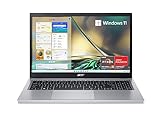
- Purposeful Design: Travel with ease and look great doing it with the Aspire's 3 thin, light design.
- Ready-to-Go Performance: The Aspire 3 is ready-to-go with the latest AMD Ryzen 3 7320U Processor with Radeon Graphics—ideal for the entire family, with performance and productivity at the core.
- Visibly Stunning: Experience sharp details and crisp colors on the 15.6" Full HD IPS display with 16:9 aspect ratio and narrow bezels.
- Internal Specifications: 8GB LPDDR5 Onboard Memory; 128GB NVMe solid-state drive storage to store your files and media
- The HD front-facing camera uses Acer’s TNR (Temporal Noise Reduction) technology for high-quality imagery in low-light conditions. Acer PurifiedVoice technology with AI Noise Reduction filters out any extra sound for clear communication over online meetings.
Should you buy a Chromebook for Linux?
A Chromebook can be inexpensive, but a Chromebook is not automatically a good Linux laptop for replacing ChromeOS. ChromeOS’s Linux development container is different from installing Linux as the primary operating system, and native installation may involve firmware replacement, hardware-specific restrictions, or uneven support.
Windows Errors? Fix Them Before They Spread
Repair common Windows errors and clear accumulated junk for a smoother, more stable PC - no reinstall needed.Free scan · no reinstallCrashes, No Sound, or Screen Glitches?
Random freezes, missing sound and display glitches usually trace back to one bad driver. Find and replace yours safely.Free scan · under a minuteChoose a Chromebook only after checking the exact model’s Linux method, firmware situation, storage, memory, and return options. For a straightforward Ubuntu or Fedora installation, a refurbished ThinkPad or Latitude is usually a less complicated recommendation.
Should you buy a laptop without an operating system?
A barebones or no-operating-system laptop can reduce the configured price, but it is best for readers who are comfortable creating a bootable USB, partitioning a drive, installing firmware and drivers, troubleshooting a bootloader, and diagnosing suspend problems.
A no-OS purchase does not remove the need to check compatibility. The laptop still has a specific wireless chipset, display, firmware implementation, and memory layout, and those components determine the Linux experience.
Which Linux laptop should you choose?
Use the following decision rules to match the laptop to the purchase constraint.
What’s actually slowing this PC down?
Pick the symptom - the matching free tool is one click away.
- Under $500: Buy a refurbished ThinkPad or Dell Latitude, prioritizing battery condition, a 1080p display, an SSD, a return policy, and a BIOS without a supervisor lock.
- Around $600–$800: Look for a discounted AMD ThinkPad E-series or an exact Ubuntu-certified Dell configuration with 16 GB RAM and a 512 GB SSD.
- You want repairability: Choose the Framework Laptop 13 if the final configuration price and Expansion Cards are acceptable.
- You want Linux preinstalled and vendor-supported: Consider System76 or another Linux-first vendor, accepting that support and integration can cost substantially more.
- You need NVIDIA or CUDA: Prioritize the required workload, driver version, graphics-switching behavior, and power management over a generic “best budget” recommendation.
- You want the least troubleshooting: Prefer an exact Ubuntu-certified configuration or a Linux-first machine over an unverified consumer laptop.
Final buying checklist
- Exact model, generation, and machine identifier confirmed.
- Ubuntu certification or a manufacturer Linux guide checked.
- Intended Linux distribution and release selected.
- 16 GB RAM preferred; upgrade path verified.
- 512 GB NVMe SSD preferred; storage expandability verified.
- Wireless chipset identified.
- Fingerprint reader, webcam, suspend/resume, touchscreen, and graphics-switching expectations checked.
- UEFI, Secure Boot, and firmware-update path understood.
- 1920×1080-or-better display verified for the exact configuration.
- Battery condition, BIOS lock, charger, ports, warranty, and return policy checked for refurbished systems.
- Live USB test planned before permanently replacing the existing operating system.
Frequently Asked Questions
What is the cheapest reliable laptop for Linux?
A refurbished business laptop such as a Lenovo ThinkPad T14, T480, T490, E14, L14, or comparable Dell Latitude is usually the most realistic low-cost choice. Check the exact configuration, battery health, 1080p display, SSD, BIOS status, and return policy before buying.
Is Ubuntu certification a guarantee that every part of a laptop works under Linux?
No. Ubuntu certification applies to particular hardware configurations and Ubuntu releases. Certification is useful evidence, but buyers should still check Wi-Fi, fingerprint, suspend/resume, webcam, graphics, firmware, and the intended distribution.
Is 8 GB of RAM enough for a Linux laptop?
Eight gigabytes can run a basic Linux desktop, but 16 GB is the more practical long-term target. Developers, users of containers or virtual machines, and people who keep many browser tabs open can outgrow 8 GB quickly.
Are Linux-first laptops worth the extra cost?
Linux-first laptops are worth the premium when preinstallation, vendor support, firmware integration, or repairability matters more than the lowest purchase price. Linux-first vendors are not automatically the best value for buyers comparing ordinary processor, memory, and storage specifications.
Recommended Free Tools
The Bottom Line
Bottom line: For most US buyers, start with a discounted AMD ThinkPad E14 or an exact Ubuntu-certified Dell. If the budget is below $500, a carefully inspected refurbished ThinkPad or Latitude is usually the better value. Choose Framework for repairability and System76 for a Linux-first experience—not because either is guaranteed to be the cheapest.

