
iTechGuides is reader-supported. When you buy through links on our site, we may earn an affiliate commission. As an Amazon Associate I earn from qualifying purchases. Learn more
The top 20 free documents management platforms fall into two groups: easy cloud storage such as Google Drive and OneDrive, and self-hosted document-management systems such as Paperless-ngx and Mayan EDMS. Cloud platforms are simpler for everyday collaboration; self-hosted systems are better for OCR, metadata, privacy, and archival control, but require administration and backups.
There is no single best free platform for every reader. The right choice depends on whether you are managing ordinary office files, scanned records, team documents, or regulated business content; whether you need cloud convenience or data control; and whether you can operate your own server.
Key takeaways
- Google Drive is the easiest general-purpose choice for personal users and Google-based collaboration, with up to 15 GB shared across Drive, Gmail, and Google Photos.
- Microsoft OneDrive is the strongest fit for Windows and Microsoft 365 users, but the current US consumer free tier provides 5 GB.
- Paperless-ngx is the best fit for searchable scans, receipts, invoices, statements, and PDFs, while Nextcloud is better for general private-cloud file synchronization and sharing.
- Mayan EDMS and OpenDocMan provide more traditional document-management functions than consumer cloud drives, including metadata, permissions, revisions, or workflows.
- Free self-hosted software still requires paid or personally supplied infrastructure, backups, updates, security configuration, and administrator time.
What are the top 20 free documents management platforms?
The top 20 free documents management platforms are not equivalent products. Google Drive, OneDrive, Dropbox, and Box are primarily cloud file-storage and collaboration services. Paperless-ngx, Mayan EDMS, and OpenDocMan are closer to dedicated document-management systems. Notion is a knowledge base, Seafile is primarily file synchronization, and Filestash is mainly a unified interface for existing storage.
The shortlist below is organized by what each platform actually does rather than by pretending that every product offers the same level of document control. Free-plan details, community editions, licensing, and regional availability can change. Self-hosted entries should be checked against their official product or licensing pages before deployment; the research snapshot for this guide was prepared for August 18, 2026.
Popular on Amazon

- PORTABLE SCANNER FOR USE ON-THE-GO — The fastest and lightest mobile single-sheet-fed compact document scanner in its class¹
- QUICK DOCUMENT SCANNING ― This Epson ultra-fast scanner scans a single page as quickly as 5.5 seconds²; Windows and Mac compatible
- VERSATILE PAPER HANDLING ― Portable scanner scans documents up to 8.5 x 72 in; Also easily digitizes receipts and ID cards to make accounting, bookkeeping, and organizing simpler
- INTUITIVE, HIGH-SPEED SOFTWARE — Epson ScanSmart Software³ is a smart tool allowing you to easily scan, review, and save; Stay organized easily with the help of this Epson scanner
- EASY SETUP — USB-powered connect to your computer for quick and simple scanning; No batteries or external power supply required to operate portable document scanner; Standard Connectivity: USB 2.0
Quick comparison of the 20 platforms
| # | Platform | Best for | Deployment | Free model | OCR | Collaboration | Main limitation |
|---|---|---|---|---|---|---|---|
| 1 | Google Drive | Personal files and Google Docs collaboration | Cloud | Free account tier | Limited/document-search dependent | Strong | 15 GB is shared with Gmail and Photos |
| 2 | Microsoft OneDrive | Windows and Microsoft Office users | Cloud | Free account tier | Limited | Strong with Microsoft apps | 5 GB in the current US free tier |
| 3 | Dropbox | Simple synchronization and sharing | Cloud | Free account tier | Limited | Good | Restrictive free storage and device limits |
| 4 | Box | External sharing and business-oriented controls | Cloud | Free account tier | Limited or plan-dependent | Good | Free-plan storage, upload, and collaboration restrictions |
| 5 | Zoho WorkDrive | Small teams using Zoho applications | Cloud | Free or trial availability varies | Plan-dependent | Good | Country and plan limits require verification |
| 6 | Notion | Knowledge bases and internal documentation | Cloud | Free plan | Not a primary OCR system | Strong for pages and databases | Not a conventional archival DMS |
| 7 | ONLYOFFICE Workspace | Office editing in a team workspace | Cloud or self-hosted, edition-dependent | Community edition and trials vary | Not its primary function | Strong for office files | Deployment and edition limits matter |
| 8 | Seafile | Fast private-cloud file synchronization | Self-hosted or hosted | Community/open-source edition | Not its primary function | Good for file sharing | More sync-oriented than records-oriented |
| 9 | Nextcloud | Private cloud and team file management | Self-hosted or hosted | Open-source Community edition | App or integration-dependent | Strong | Hosting and maintenance are your responsibility |
| 10 | Paperless-ngx | Scanned receipts, bills, letters, and PDFs | Self-hosted or hosted | Free/open source | Strong archival focus | Limited compared with office suites | Not a real-time co-authoring suite |
| 11 | Mayan EDMS | Structured open-source document management | Self-hosted or hosted | Free/open source | Indexing and deployment-dependent | Workflow-oriented | More complex to administer |
| 12 | OpenKM Community | Traditional DMS installations | Self-hosted | Community edition availability | Feature-dependent | Workflow-oriented | Community and commercial editions differ |
| 13 | Alfresco Platform | Large-scale content services | Self-hosted or enterprise deployment | Community availability has changed | Platform-dependent | Strong for enterprise processes | Heavyweight for individuals |
| 14 | OpenDocMan | Basic web-based document control | Self-hosted | Free/open source | Not its defining feature | Basic | Older-style interface and self-managed security |
| 15 | LogicalDOC Community Edition | DMS experimentation and small installations | Self-hosted | Community edition availability | Feature-dependent | Workflow-oriented | Edition and licensing boundaries need checking |
| 16 | Docspell | Personal and small-team document archives | Self-hosted | Free/open source | OCR-assisted | Basic to moderate | Smaller ecosystem |
| 17 | Teedy | Lightweight self-hosted DMS use | Self-hosted | Free/open source | Search-oriented | Basic | Project footprint and maturity require evaluation |
| 18 | Pydio Cells Home | Private file sharing and collaboration | Self-hosted or hosted | Home edition availability | Not its primary function | Good | Edition restrictions matter |
| 19 | FileRun | Personal private-cloud file management | Self-hosted | Edition-dependent free options | Not its primary function | Basic to moderate | Licensing and free-edition limits need checking |
| 20 | Filestash | One interface for multiple storage backends | Self-hosted | Open-source availability | No full archival DMS layer | Sharing-focused | Does not replace a repository or OCR system |
Which free cloud platform is best for ordinary documents?
Google Drive and OneDrive are the best starting points for ordinary personal documents, schoolwork, and collaborative office files. Dropbox is a strong choice when synchronization and simple sharing matter most, while Box and Zoho WorkDrive make more sense when external sharing or an existing business-app ecosystem is important.
1. Google Drive: best overall for Google users
Google Drive is the easiest choice for users who want browser-based editing, comments, sharing, search, and integration with Google Docs, Sheets, Gmail, and Photos. Google accounts currently include up to 15 GB of storage shared across those services, according to Google One’s current plans page.
Google Drive works particularly well when several people edit the same document simultaneously. Google Drive is a weaker fit for self-hosting, strict data-sovereignty requirements, or formal records retention that needs specialized governance. Large Gmail attachments and photo libraries can consume the same allowance, leaving less capacity for documents than the headline figure suggests.
2. Microsoft OneDrive: best for Windows and Microsoft 365 users
OneDrive is the natural choice for readers who use Windows, Word, Excel, PowerPoint, or Microsoft 365. The service combines cloud files with web and mobile access, sharing, device integration, and Microsoft application compatibility.
The current US consumer free tier provides 5 GB, according to Microsoft’s OneDrive storage page. The free tier does not include the full desktop Office suite or the broader business administration available in paid Microsoft 365 plans. Microsoft 365 Basic was displayed at $19.99 per year or $1.99 per month, Microsoft 365 Personal at $99.99 per year or $9.99 per month, and Microsoft 365 Family at $129.99 per year or $12.99 per month in the supplied US pricing snapshot; prices and promotions should be checked again before purchase.
3. Dropbox: best for straightforward sync
Dropbox is best when the core requirement is reliable synchronization across devices, uncomplicated sharing, file recovery, and a mature third-party integration ecosystem. Dropbox is less suitable for a large free archive, OCR-heavy records, custom metadata, or formal approval workflows because the free tier is comparatively restrictive and advanced team controls are paid.
Use Dropbox when convenience and cross-platform synchronization matter more than document classification. Do not mistake synchronization for backup: a deletion synchronized to every device can still require independent recovery copies.
4. Box: best for external sharing
Box is oriented toward sharing, previews, collaboration, and business-style content controls. Box is worth considering when clients, contractors, or outside partners regularly need access to files and the organization may later need workflow or governance features.
Box is not the obvious choice for a personal user seeking the largest free archive. Free-plan storage, upload-size, and collaboration restrictions can be significant, and business workflow and governance features generally require an upgrade. Confirm current limits on the official Box pricing page.
5. Zoho WorkDrive: best for existing Zoho customers
Zoho WorkDrive is most compelling for organizations already using Zoho CRM, Books, Projects, Writer, Sheet, or Show. The official WorkDrive plan comparison lists plan-dependent features such as team folders, universal search, file activity, versioning, access controls, labels, and Zoho Office integration.
Zoho WorkDrive free availability and limits vary by plan and region. Check the intended country before presenting Zoho WorkDrive as a permanent free business option.
6. Notion: best for documentation and knowledge bases
Notion is excellent for internal documentation, project notes, structured pages, databases, templates, and lightweight team knowledge bases. Notion is not a conventional document archive with the same emphasis on OCR, records retention, document expiration, or formal repository controls.
Also popular on Amazon

- FAST SPEEDS - Scans color and black and white documents a blazing speed up to 16ppm (1). Color scanning won’t slow you down as the color scan speed is the same as the black and white scan speed.
- ULTRA COMPACT – At less than 1 foot in length and only about 1. 5lbs in weight you can fit this device virtually anywhere (a bag, a purse, even a pocket).
- READY WHENEVER YOU ARE – The DS-640 mobile scanner is powered via an included micro USB 3. 0 cable allowing you to use it even where there is no outlet available. Plug it into you PC or laptop and you are ready to scan.
- WORKS YOUR WAY – Use the Brother free iPrint&Scan desktop app for scanning to multiple “Scan-to” destinations like PC, Network, cloud services, Email and OCR. (2) Supports Windows, Mac and Linux and TWAIN/WIA for PC/ICA for Mac/SANE drivers. (3)
- OPTIMIZE IMAGES AND TEXT – Automatic color detection/adjustment, image rotation (PC only), bleed through prevention/background removal, text enhancement, color drop to enhance scans. Software suite includes document management and OCR software. (4)
Choose Notion for policies, meeting notes, research notes, and linked knowledge. Choose Paperless-ngx or a traditional DMS for large collections of scanned invoices, receipts, letters, or legally significant records.
7. ONLYOFFICE Workspace: best for self-hosted office collaboration
ONLYOFFICE Workspace combines document, spreadsheet, presentation, and collaboration functions in a workspace product. The official Workspace page makes it a better fit for teams that want online office editing alongside document storage rather than a pure archive.
Community, hosted, trial, and commercial editions have different features and limits. ONLYOFFICE Workspace is not the first choice when OCR, classification, and long-term archival retrieval are more important than co-authoring.
8. Seafile: best for lean private-cloud synchronization
Seafile is a strong option for users who want fast file synchronization, libraries, sharing, and control over a private server. Seafile’s official product positioning emphasizes open-source file synchronization and sharing, so Seafile should be treated as a private-cloud file platform rather than a full records-management system.
Seafile is a good alternative to a broader platform such as Nextcloud when file sync is the priority. Seafile is a weaker choice for OCR-driven archives, retention schedules, or complex document workflows.
Which open-source platform is best for self-hosted document management?
Nextcloud is the best general-purpose private cloud, Paperless-ngx is the best scanned-document archive, and Mayan EDMS is the strongest choice when structured metadata, permissions, indexing, workflows, and formal repository behavior matter more than ease of deployment.
9. Nextcloud: best general-purpose private cloud
Nextcloud provides file synchronization, sharing, comments, versioning, user management, and an extensible app ecosystem. Nextcloud describes its Files product as an open-source file-sync and sharing platform, which makes Nextcloud a strong private-cloud candidate.
Nextcloud does not automatically become a formal records-management system merely because it is self-hosted. DMS capabilities depend partly on apps, configuration, authentication, backup design, and administrative procedures. Nextcloud is a poor fit for readers who want zero maintenance.
10. Paperless-ngx: best for scanned records
Paperless-ngx is designed for searchable digital archives created from paper documents and PDFs. Its documentation covers installation and operation, while the platform’s core strengths include OCR-assisted ingestion, tags, correspondents, document types, custom fields, full-text search, and automated document intake. See the Paperless-ngx documentation before choosing a deployment method.
Paperless-ngx is not a replacement for Google Docs, Microsoft Word collaboration, or a full enterprise content-services platform. Paperless-ngx is a poor fit for real-time co-authoring and a strong fit for receipts, bills, statements, letters, contracts, and other documents that need retrieval more than simultaneous editing.
11. Mayan EDMS: best for formal open-source DMS features
Mayan EDMS is a dedicated open-source document-management system with an emphasis on document types, metadata, permissions, indexing, workflows, versioning, and audit-oriented repository behavior. The official Mayan EDMS site is the appropriate place to verify current deployment and feature information.
Mayan EDMS is more capable and more complex than a consumer cloud drive. Mayan EDMS suits a technical administrator who needs structured document controls; Mayan EDMS is excessive for someone who only wants folders and sharing.
Also popular on Amazon
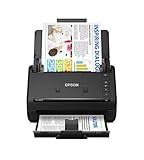
- FAST DOCUMENT SCANNING — Document scanner with feeder allows you to speed through stacks with a 50-sheet Auto Document Feeder (ADF); Efficient office scanner to help you scan more productively
- INTUITIVE, HIGH-SPEED SOFTWARE — Quickly scan with this desktop document scanner; Epson ScanSmart Software lets you easily preview scans, email files, upload to the cloud, and more; Plus, automatic file naming saves even more time
- SEAMLESS INTEGRATION — Easily incorporate your data into most document management software with the included TWAIN driver; Office document scanner integrates seamlessly with business workflows
- EASY SHARING — Duplex scanner allows you to scan straight to email or popular cloud storage2 services like Dropbox, Evernote, Google Drive, and OneDrive for simple storage and sharing
- SIMPLE FILE MANAGEMENT — Scanner allows the creation of searchable PDFs with Optical Character Recognition (OCR) and convert scans to editable Word or Excel files effortlessly; Designed for home and office document scanning
12. OpenKM Community: best for traditional DMS experimentation
OpenKM Community is a traditional document-management option with repository, metadata, versioning, search, and workflow-oriented capabilities. The OpenKM Community page should be checked to distinguish current community features from commercial-edition functionality.
OpenKM is more appropriate for a technical installation than for a personal user seeking an instant cloud service. Licensing, support, and feature boundaries should be confirmed before a production deployment.
13. Alfresco Platform: best for larger content-service deployments
Alfresco Platform is aimed at enterprise content services, extensibility, process integration, and governance rather than simple personal storage. The current Alfresco Platform product page should be consulted for current edition, licensing, and availability information.
Alfresco is usually too heavyweight for an individual or small team that needs a free document archive. Community-edition availability and licensing have changed over time, so do not assume that an older tutorial’s free edition remains available or suitable.
14. OpenDocMan: best for straightforward document control
OpenDocMan is open-source document-management software with user permissions, departments, document revisions, expiration dates, and web-based access. The official OpenDocMan site presents it as a DMS rather than a consumer synchronization service.
OpenDocMan can work when basic revision and access control are enough, but its interface is less polished than modern cloud drives. The administrator must secure the web server, apply updates, configure HTTPS, and protect the database.
15. LogicalDOC Community Edition: best for testing DMS concepts
LogicalDOC Community Edition offers repository, metadata, search, versioning, and workflow-oriented functions for users experimenting with open-source DMS software or operating a small installation. Verify current edition boundaries and licensing on the LogicalDOC Community Edition page.
LogicalDOC is not automatically a free, fully supported enterprise deployment. Support, implementation, and advanced features may follow a commercial model.
16. Docspell: best for a smaller document archive
Docspell is a free, open-source option for personal or small-team archiving, with OCR-assisted ingestion, tags, full-text search, and structured organization. Docspell’s official site is the starting point for current installation requirements and project information.
Docspell has a smaller ecosystem than Paperless-ngx. Test ingestion, OCR accuracy, export, backup, and upgrade procedures with representative documents before moving a large archive.
17. Teedy: best for lightweight self-hosting
Teedy provides a web interface for document organization, sharing, tagging, and search-oriented workflows. Visit the official Teedy site to verify current maintenance, deployment requirements, and feature maturity.
Teedy can be attractive when a lightweight interface is more important than a broad ecosystem. Smaller project footprints make maintenance history and export testing especially important.
Also popular on Amazon

- Scanner type: Document
- Connectivity technology: USB
- With Auto Scan Mode, the scanner automatically detects what you're scanning
- Digitize documents and images
18. Pydio Cells Home: best for private file sharing
Pydio Cells Home is aimed at self-hosted file sharing, user management, collaboration, and private-cloud deployment. The Pydio Cells product page should be checked for current Home-edition restrictions.
Pydio Cells is not primarily an OCR or records-retention system. Choose Pydio Cells for controlled file access and collaboration rather than scanned-document classification.
19. FileRun: best for a familiar private-cloud interface
FileRun provides a familiar file-management interface with sharing, previews, and integrations. Free availability depends on the edition and deployment, so confirm current terms on the official FileRun site.
FileRun is better understood as private-cloud file management than as a complete compliance DMS. Licensing and free-edition limits require careful checking before installation.
20. Filestash: best for one interface over existing storage
Filestash is a self-hosted web interface for accessing multiple storage backends from one place. The official Filestash site supports treating Filestash as a centralized storage client rather than as a complete repository, OCR engine, or records-management platform.
Filestash is useful when files already live in different backends and users need a unified web interface. Filestash does not replace Paperless-ngx, Mayan EDMS, or another system that provides document lifecycle controls.
What does “free” mean for document-management software?
“Free” describes several different arrangements, and the difference affects the real cost and risk of a platform.
| Free model | What the reader receives | What may still cost money | Typical examples |
|---|---|---|---|
| Free forever cloud tier | A permanent account with storage or user limits | Extra storage, advanced administration, larger files, governance, or business support | Google Drive, OneDrive, Dropbox, Box |
| Free trial | Temporary access to paid features | The subscription after the trial expires | Some hosted and commercial workspace plans |
| Free community edition | Software at no license charge, often with edition limits | Server, storage, backups, support, and administration | Some DMS and workspace products |
| Open-source software | Source-available software under a stated license | Infrastructure, setup, maintenance, migration, and professional support | Nextcloud, Paperless-ngx, Mayan EDMS, Seafile |
Open source does not automatically mean easy deployment, unrestricted commercial use, professional support, or long-term continuity. Projects can change maintainers, licenses, databases, deployment methods, release schedules, or the boundary between community and commercial editions.
Cloud versus self-hosted: which model should you choose?
Cloud platforms are easier to start and usually provide better browser and mobile experiences. Self-hosted platforms provide more control over deployment and data, but the administrator becomes responsible for the system’s security, availability, recovery, and upgrades.
| Consideration | Cloud platform | Self-hosted platform |
|---|---|---|
| Setup | Create an account and begin uploading | Install software, database, storage, networking, and often containers |
| Maintenance | Vendor handles much of the platform maintenance | Administrator handles patches, TLS, authentication, monitoring, and upgrades |
| Sharing | Usually easy to share with nontechnical collaborators | Requires user setup, secure links, and reliable internet exposure |
| Data control | Less control over hosting location and vendor architecture | More control over server, region, storage, and access design |
| Scale | Subject to plan, storage, user, file-size, and fair-use limits | Subject to hardware, database, search-index, backup, and network capacity |
| Reliability | Usually includes vendor-managed availability and redundancy, subject to terms | Depends on hardware, backups, monitoring, and disaster recovery |
| True cost | Free tier may become a subscription | Software may be free, but hosting, storage, backups, and administrator time are not |
Self-hosting is not automatically cheaper. A self-hosted DMS may require a VPS or NAS, storage expansion, backup storage, a domain name, an email relay, managed hosting, support, security monitoring, and migration work. OCR processing, thumbnails, databases, and search indexes can also consume substantial CPU, memory, and disk space.
Which features matter most in a free document-management platform?
The most important feature depends on the document type. Folder sharing is enough for ordinary files, while scanned records need OCR and full-text search. Teams need permissions and version recovery, and formal records programs need retention, auditability, controlled disposition, and often legal-hold support.
| Criterion | Why it matters | Most relevant users |
|---|---|---|
| Storage allowance | Determines how long a free cloud tier remains useful | Everyone using cloud storage |
| Maximum file size | Matters for scans, video, CAD, and design exports | Creative teams and large archives |
| Users and team spaces | Free plans may restrict shared ownership or team folders | Businesses and clubs |
| OCR and full-text search | Makes scanned images and PDFs searchable | Receipt and paper-record users |
| Metadata, tags, and custom fields | Finds documents without relying on folder names | Archives and structured DMS users |
| Version history and recovery | Restores earlier content after mistakes or unwanted changes | Collaborative teams |
| Sharing controls | May include link expiry, passwords, download restrictions, or external access | Client-facing teams |
| Permissions and audit logs | Shows who can access or change documents | Organizations with accountability needs |
| Workflow and approvals | Routes contracts, policies, and operational documents | Small businesses and departments |
| Retention and disposition | Controls how long records are kept and how they are disposed of | Formal records programs |
| Mobile scanning and offline access | Captures paper at the point of use and supports work without connectivity | Field workers and mobile users |
| API, integrations, and export | Reduces lock-in and supports migration | Growing organizations |
| Backup support | Protects against deletion, corruption, ransomware, or server failure | Every self-hosted deployment |
| Deployment difficulty | Often determines whether a free tool is practical | Nontechnical users and small teams |
Is security the same as compliance?
Security is not the same as compliance. Encryption, passwords, access controls, and activity logs can improve security, but a platform should not be called HIPAA-, GDPR-, SOC 2-, ISO-, FINRA-, or SEC-compliant merely because the product has security features or a certification somewhere in its ecosystem.
Also popular on Amazon

- OUR MOST ADVANCED SCANSNAP. Large touchscreen, fast 45ppm double-sided scanning, 100-sheet document feeder, Wi-Fi and USB connectivity, automatic optimizations, and support for cloud services. Upgraded replacement for the discontinued iX1600
- CUSTOMIZABLE. SHARABLE. Select personalized profiles from the touchscreen. Send to PC, Mac, mobile devices, and clouds. QUICK MENU lets you quickly scan-drag-drop to your favorite computer apps
- STABLE WIRELESS OR USB CONNECTION. Built-in Wi-Fi 6 for the fastest and most secure scanning. Connect to smart devices or cloud services without a computer. USB-C connection also available
- PHOTO AND DOCUMENT ORGANIZATION MADE EFFORTLESS. Easily manage, edit, and use scanned data from documents, receipts, photos, and business cards. Automatically optimize, name, and sort files
- AVOIDS PAPER JAMS AND DAMAGE. Features a brake roller system to feed paper smoothly, a multi-feed sensor that detects pages stuck together, and skew detection to prevent paper damage and data loss
Compliance depends on the specific plan, region, contract, configuration, identity controls, retention settings, administrative procedures, and organization. Legal holds, e-discovery, immutable storage, tax-record retention, and regulated recordkeeping require evidence that the selected service and operating process support the applicable obligation.
What is the difference between synchronization, backup, archiving, and records management?
Synchronization copies changes between devices; synchronization is not the same as an independent backup. Version history restores earlier versions, backup maintains a separate recoverable copy, an archive preserves documents for retrieval, and records management governs lifecycle, retention, access, audit, and disposition.
- Synchronization: Keeps folders or libraries consistent across devices.
- Version history: Stores earlier versions of changed files.
- Backup: Maintains an independent copy that can survive a synchronized deletion or system failure.
- Archive: Preserves documents for long-term retrieval, often with metadata and OCR.
- Records management: Applies lifecycle rules, retention, access, audit, legal holds, and controlled disposition.
A synchronized deletion can propagate to every connected device. Test recovery and maintain an independent backup rather than assuming that a cloud drive or self-hosted DMS is automatically a backup system.
Which platform should you choose for each scenario?
| Scenario | Best starting choices | Why | Avoid when |
|---|---|---|---|
| Personal documents | Google Drive or OneDrive | Fast setup, familiar apps, search, sharing, and browser access | You need self-hosting or a large scan archive |
| Google-centric team | Google Drive | Strong Docs collaboration and Google account integration | Formal records retention is the primary requirement |
| Microsoft-centric team | OneDrive | Windows, Word, Excel, PowerPoint, and Microsoft 365 integration | You want a vendor-neutral repository |
| Simple cross-platform sync | Dropbox | Mature synchronization and sharing | You need OCR, metadata, or formal workflows |
| External client sharing | Box or Dropbox | Sharing and preview workflows are central | You need a large free personal archive |
| Zoho business ecosystem | Zoho WorkDrive | Team folders, activity, versioning, and Zoho Office integration vary by plan | Your organization does not use Zoho and needs a broad ecosystem |
| Scanned receipts and invoices | Paperless-ngx | OCR, tags, correspondents, document types, and full-text search | You need real-time document co-authoring |
| Private general-purpose cloud | Nextcloud | File sync, sharing, users, versions, apps, and private deployment | You cannot maintain a server or backups |
| Formal open-source DMS | Mayan EDMS | Metadata, permissions, indexing, versions, workflows, and audit-oriented controls | You only need drag-and-drop storage |
| Basic traditional document control | OpenDocMan | Revisions, departments, permissions, and expiration dates | You expect a modern consumer-cloud experience |
| Self-hosted office editing | ONLYOFFICE Workspace | Documents, spreadsheets, presentations, and collaboration in one workspace | OCR archiving is the central need |
| Lean self-hosted sync | Seafile | Efficient file synchronization and sharing | You need records retention or specialized OCR |
How should you test and migrate to a free DMS?
- Inventory the collection. Separate office documents, PDFs, scans, receipts, contracts, policies, design files, and media.
- Remove duplicates. Preserve the authoritative copy and record any decisions that affect business or legal records.
- Choose folders versus metadata. Use folders for broad navigation and tags or custom fields for attributes such as client, year, document type, or status.
- Import a representative test batch. Include clean PDFs, skewed scans, tables, multi-column pages, handwriting, stamps, and low-resolution files.
- Check OCR accuracy. Preserve the original scan. OCR can misread handwriting, stamps, seals, tables, checkboxes, unusual fonts, shadows, and skew.
- Test access and sharing. Verify internal permissions, external links, expiry behavior, download controls, and account recovery.
- Test version recovery. Change, delete, and restore sample files before trusting the platform with important documents.
- Test export. Export a sample with metadata and confirm that another person can understand and restore the data.
- Configure backup. For self-hosting, back up the database, original files, media, configuration, and search indexes as appropriate.
- Test restoration. A backup that has never been restored is an assumption, not a recovery plan.
- Document administration. Record server access, encryption keys, recovery accounts, update procedures, and who owns the system if the administrator leaves.
What are the main failure modes?
- Unexpectedly full cloud storage: Google’s allowance is shared across Drive, Gmail, and Google Photos, so email attachments and photo libraries can reduce available document capacity.
- Team lock-in: A free plan may provide one user, no shared drives, no administrator console, limited version history, or no centralized ownership when an employee leaves.
- False OCR confidence: Searchable text is not necessarily accurate text. Review OCR for legal, financial, tax, and compliance documents.
- Unsafe internet exposure: A self-hosted system exposed without current patches, HTTPS, strong authentication, firewall rules, and monitoring can create a serious security risk.
- Missing independent backups: Synchronization and version history may not protect against every deletion, corruption, account compromise, or infrastructure failure.
- Capacity surprises: Large self-hosted archives need room for originals, thumbnails, OCR output, databases, indexes, backups, and future growth.
- Edition changes: Community editions, licenses, download policies, supported databases, and commercial feature splits can change.
How can a free platform support a future upgrade?
Choose a platform with a clear export path and an upgrade that matches the problem you expect to have. More storage points toward Google One, Microsoft 365, Dropbox, Box, or Zoho WorkDrive. Office collaboration points toward Google Workspace, Microsoft 365, Zoho WorkDrive, or ONLYOFFICE. Managed private hosting points toward a Nextcloud host or managed Paperless-ngx deployment. Formal workflows may require paid support, implementation, or a commercial DMS such as an enterprise offering related to OpenKM, Alfresco, or LogicalDOC.
Free software can still create commercial infrastructure needs. Self-hosted users may eventually pay for a VPS, NAS hardware, backup drives, off-site backup, managed updates, administrator support, migration, or workflow design. Evaluate the total ownership cost rather than comparing only the license price.
Hosted-service pricing and country availability change. Recheck the official Google One, Microsoft OneDrive, Dropbox, Box, and Zoho WorkDrive pages in the target country before publishing or purchasing.
Frequently Asked Questions
Is Google Drive a document-management system?
Google Drive is a capable cloud file-storage and collaboration platform, but it is not automatically a formal records-management system. Google Drive is strong for folders, sharing, search, comments, and Google Docs collaboration; retention, auditing, identity administration, and governance depend on the account and plan.
What is the best free OCR document manager?
Paperless-ngx is the best fit in this list for searchable scans, receipts, invoices, statements, letters, and PDFs. Paperless-ngx is primarily an archival and document-ingestion system, so it does not replace a collaborative office suite.
Is a self-hosted document-management system really free?
A self-hosted DMS can be free of software licensing charges, but hosting, storage, backups, domain services, security, updates, monitoring, support, and administrator time still have costs. Self-hosting is free software, not necessarily free infrastructure.
Can a free document platform satisfy compliance requirements?
A free platform should not be assumed to satisfy HIPAA, GDPR, SOC 2, ISO, FINRA, SEC, tax-retention, legal-hold, or e-discovery requirements. Compliance depends on the specific plan, region, contract, configuration, controls, and organizational procedures.
What happens when a free cloud storage limit is reached?
When a free cloud limit is reached, new uploads or synchronization may stop, and the user may need to delete content, move files, or upgrade. The exact behavior varies by provider, so export and recovery should be tested before the account becomes full.
The Bottom Line
For most people, start with Google Drive or OneDrive. Choose Paperless-ngx when the real problem is a growing pile of scans and PDFs, Nextcloud when private-cloud control matters, and Mayan EDMS when structured DMS workflows justify self-hosting. Before migrating important records, test OCR, permissions, version recovery, export, backups, and restoration.

