
Recommended Free Tools
iTechGuides is reader-supported. When you buy through links on our site, we may earn an affiliate commission. As an Amazon Associate I earn from qualifying purchases. Learn more
Windows 11 does not have one universal “Thunderbolt driver” that belongs on every computer. The correct setup depends on whether the PC uses a modern USB4 implementation, an older Thunderbolt 3 or 4 controller, a Thunderbolt add-in card, or an OEM dock.
Start with the computer, motherboard, or add-in-card manufacturer’s support page. Windows 11 may already provide the required USB4 connection-manager drivers, while the manufacturer may still supply essential BIOS, controller-firmware, chipset, graphics, dock-firmware, or security updates.
What you actually need to install
On compatible USB4 systems, Windows 11 supplies the connection manager and its core system drivers. These include:
USB4HostRouter.sys— manages the USB4 host router.USB4DeviceRouter.sys— manages USB4 and Thunderbolt 3 hubs and devices.USB4P2PNetAdapter.sys— supports USB4 host-to-host networking.
That does not mean every Thunderbolt PC needs no manufacturer software. Depending on the model, you may still need:
Popular on Amazon

- 【Up to 40Gbps Data Sync】Delivers up to 40Gbps high speed transaltion, 4x faster than USB 3.2 cable, 2x faster than previous generation USB4 cable. It can copy 10GB files in seconds, avoid waiting, and effortlessly get everything you want. Plug and play, no drive needed.*The final performance depends on whether your device supports USB4, Thunderbolt 4/3.
- 【240W Rapid Charging】Up to 240W (48/5A) power supply when paired with a compatible charger. Backward compatible with 100W, 140W, 180W in Extended Power Range(EPR). It is ready to provide you with enough power at any time. Equipped E-Marker chip for safety, stability, and battery protection. Support PD 3.1, QC 4.0, FCP, AFC fast charging technology for future proof.
- 【8K HDR Design for Professionals】 Provide a single 8K@60Hz / 5K@60Hz / 4K@144Hz or dual 4K@60Hz display support. Connect your laptop or dock to a monitor and get a crisp detail and 10-bit color depth view. Support MST Daisy Chain, release your efficiency and improve the professionalism of the project.
- 【Future-proofed Compatibility】The USB 4 cable fully supports the function of Thunderbolt 4. Backward compatible with Thunderbolt 3, USB 3.2 Gen 2, USB 3.2 Gen 2 x 2, USB 2.0. It works seamlessly with all Thunderbolt 4 / 3 / Type-C devices. Compatible with Apple Studio Display, Mac Studio, Mac Mini, MacBook, Surface, iPad Pro, iPhone 18/17/16, docking station, SSD, power bank, GaN charger, etc. We recommend using cables below 5FT when connecting to the docking for stable performance.
- 【Top-Notch Material】Aluminum shell ensures efficient heat dissipation and protects the chip. Experience unprecedented durability with our unique 48-strand braided techniques. It offers 3x protection without tangle and gets worry-free usage. Triple protection with EMI-resistant tinplate, 28 AWG OFC conductors, and stainless steel connectors improves signal quality and ensures long-lasting connections.
- An OEM Thunderbolt controller or USB4 driver.
- BIOS or UEFI updates.
- Thunderbolt controller firmware.
- Dock firmware.
- Chipset, PCIe, graphics, and power-management drivers.
- An OEM authorization or security component.
Intel distributes many Thunderbolt updates to computer manufacturers and generally does not directly support most OEM systems. Therefore, a driver found on a random download site—or even a generic Intel package—may be wrong for the particular PC.
Before installing anything, verify the hardware
A USB-C socket is not automatically a Thunderbolt port. A USB-C port may support only USB data, charging, DisplayPort output, USB4, or some combination of those features.
- Find the exact computer model, motherboard model, or Thunderbolt add-in-card model.
- Open the manufacturer’s technical specifications.
- Check which physical USB-C port supports Thunderbolt or USB4.
- Check the required cable specification for the dock or peripheral.
A lightning-bolt symbol beside a port is a useful clue, but the model’s specifications are more reliable. On some computers, only one of several USB-C ports supports Thunderbolt.
Quick wins for a faster PC:
Repair Windows errors before they cause bigger problemsFix Now →Scan for outdated or missing drivers - takes under a minuteDriver Scan →Recommended Windows 11 installation order
1. Update Windows
Open Start > Settings > Windows Update, then select Check for updates. Restart if Windows requests it.
Also inspect optional driver updates:
Start > Settings > Windows Update > Advanced options > Optional updates > Driver updates
Select an applicable driver and choose Download and install. Optional driver updates are not necessarily installed automatically, so this page is worth checking when troubleshooting a newly connected dock or peripheral.
2. Download the package for the exact model
Go to the support page for the PC, motherboard, or add-in card. Search by serial number or exact model rather than by processor family. Look under headings such as:
Also popular on Amazon
- Thunderbolt Driver
- Intel Thunderbolt Controller Driver
- USB4 Driver
- Thunderbolt Software
- Chipset
- Applications
Manufacturers categorize these packages differently. A Thunderbolt package may appear under Chipset on one support site and Applications on another. Do not install a package intended for a similar model simply because both computers use the same Intel processor or Thunderbolt generation.
3. Install BIOS and firmware updates
Install the manufacturer’s BIOS or UEFI update if it addresses USB4, Thunderbolt, PCIe, or dock compatibility. Also install a Thunderbolt controller or dock firmware update when one is provided for the exact hardware.
A Windows driver cannot repair incompatible controller firmware or enable a feature disabled in BIOS. Follow the manufacturer’s instructions carefully: some firmware tools require the driver first, and most require a restart. For example, some Dell firmware utilities require the applicable Thunderbolt driver before the controller firmware update will work.
4. Restart and test the device directly
- Restart Windows after installing drivers and firmware.
- Connect the Thunderbolt device directly to the computer.
- Use a cable rated for the required Thunderbolt generation.
- Do not initially connect through another hub or dock.
Once direct detection works, reconnect the intermediate dock or hub. This separates a PC or driver problem from a cable, dock, or daisy-chain problem.
What’s actually slowing this PC down?
Pick the symptom - the matching free tool is one click away.
How to check Thunderbolt or USB4 detection
Check USB4 settings
On supported Windows 11 systems, open:
Start > Settings > Bluetooth & devices > USB > USB4 Hubs and Devices
This page lists connected USB4 hubs and devices and may show their capabilities. Microsoft added the page beginning with Windows 11 build 22621.1778, delivered through KB5026446.
If the page is missing, that does not automatically mean Thunderbolt is broken. Older Thunderbolt systems may not expose the newer USB4 settings interface, and the page appears only when Windows identifies the system as USB4-capable.
Also popular on Amazon

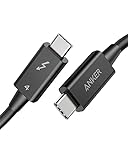
- 240W Ultra-Fast Charging: Quickly charge your devices with 240W fast charging. Power a 14-inch MacBook Pro (M3) from 0 to 50% in just 29 minutes.
- 40Gbps Transfer Speed: Share and transfer files at unprecedented speeds of up to 40Gbps. Transfer 2.5GB files in just one second.
- Single 8K or Dual 4K Displays: Enjoy ultra-clear visuals whether streaming in 8K or multitasking with dual 4K displays. Note:For dual displays using daisy-chaining, make sure your laptop and display are equipped with a USB-C port supporting DisplayPort alternate mode, or a Thunderbolt port (version 3 or higher).
- Thunderbolt 4-Certified: Experience safe and fast charging along with data transfer, backed by Thunderbolt 4 certification and USB4 compliance.
- What You Get: Anker Prime Thunderbolt 4 Cable (3.3 ft, 240W, 40Gbps), welcome guide, 18-month warranty, and our friendly customer service.
Inspect Device Manager
Open Start, search for Device Manager, and launch it. Depending on the computer and driver stack, inspect:
Free tools Windows power users keep installed
One-click scans. No signup required.
- System devices
- Universal Serial Bus controllers
- Software components
- Network adapters
On a USB4 system, entries such as USB4 Host Router and USB4 device routers may appear. Windows may not display an item explicitly named “Thunderbolt Controller” even when the port is operating correctly through the Windows USB4 stack.
For a more useful hardware view, select View > Devices by connection. Expand the relevant host-controller tree while the dock or peripheral is attached.
If a device has a warning icon:
- Right-click it and select Properties.
- Read the message under Device status.
- Note the error code.
- Open the Driver tab to check the provider, date, and version.
For a potentially corrupted installation, right-click the device, select Uninstall device, restart the computer, and allow Windows or the OEM package to rediscover it. Avoid deleting the driver package unless the manufacturer specifically instructs you to do so.
Thunderbolt Control Center on Windows 11
Thunderbolt Control Center is not a universal Windows 11 requirement. Intel describes the application as designed for Windows 10 and incompatible with Windows 11. On Windows 11, it may open but show no attached devices, omit the controller driver version, or provide no useful management information.
Do these 3 things before closing this tab:
1Scan for outdated or missing drivers - takes under a minute2Repair Windows errors before they cause bigger problems3Fix the driver behind crashes, sound loss and screen glitchesThis is confusing because some older manufacturer support documents still tell users to install Thunderbolt Control Center from the Microsoft Store. Those instructions may be valid for a particular legacy model, but they should not be treated as a general Windows 11 rule.
Use this practical rule:
Install Thunderbolt Control Center only when the current support instructions for the exact PC, dock, or add-in card require it.
Also popular on Amazon
 [Intel Certified] Cable Matters 40Gbps Thunderbolt 4 Cable, 3.3ft / 1m | Black, [8K@60Hz / 4K@240Hz, 240W Charging, 40Gbps Data Transfer], Compatible with Thunderbolt 3, USB4, USB-C
- Advanced Thunderbolt 4: The Cable Matters Thunderbolt 4 cable combines the newest Thunderbolt cable and USB 4 cable standards in one versatile solution. Take advantage of the 40Gbps Thunderbolt 4 connector with this all-in-one Thunderbolt 4 cable and USB4 cable, ideal for professional and home setups.
- Certified Thunderbolt 4 Cable with 240W PD: This certified Thunderbolt 4 cable supports the latest Thunderbolt 4 features, delivering reliable 40Gbps data transfer across all Thunderbolt 4 devices. Power and charge devices efficiently with USB Power Delivery (PD) 3.1 support up to 240W charging.
- 8K Video and High Bandwidth Support: The USB C Thunderbolt cable 4 delivers enough bandwidth to drive one 8K display or two 4K displays. Connect high-definition monitors and TVs for vibrant 8K video and rich, high-quality audio. Compatible with Thunderbolt 4 monitors including Dell UltraSharp U3224KB, Dell UltraSharp U4025QW, and BenQ PD3225U, making it ideal for creators, professionals, and gamers.
- Backward Compatible with Thunderbolt 3: This Thunderbolt 4 to Thunderbolt 3 cable offers full backward compatibility with Thunderbolt 3 cable standards, devices, and hosts. Upgrade your Thunderbolt cables to fully support the latest features while maintaining compatibility with existing setups.
- USB4 Compatibility with Full Feature Support: This Thunderbolt 4 cable also functions as a USB 4 cable, supporting 40Gbps data transfer, DisplayPort Alt Mode (DP Alt Mode), and USB-C Power Delivery. Fully compatible with USB4, USB-C 3.2, 3.1, and 2.0 devices. This USB-C cable works flawlessly with Thunderbolt 4 computers including MacBook Pro M4, Mac Mini M4, Dell XPS 13 Plus (9320), XPS 17 (9730), and HP Spectre x360 14, ensuring high-speed performance across platforms.
Do not use the Store app as proof that Thunderbolt is installed. The app does not replace the controller driver, firmware, BIOS support, cable, or physical Thunderbolt hardware.
Thunderbolt Share is a different application
Thunderbolt Share is Intel’s PC-to-PC sharing application. It is separate from both the Thunderbolt driver and Thunderbolt Control Center.
The Tool Desk
Outbyte Driver Updater FREEScan for outdated or missing drivers - takes under a minuteDriver Scan →Outbyte PC Repair FREEClear out junk files and repair common Windows errorsFree Scan →Thunderbolt Share requires:
- Two PCs with Thunderbolt 4 or Thunderbolt 5 ports.
- A Thunderbolt 4 or Thunderbolt 5 cable.
- At least one PC or Thunderbolt accessory licensed for Thunderbolt Share by its manufacturer.
- Intel graphics driver version 31.0.101.4826 or later, where applicable.
The software can install on an unlicensed system, but the application will not operate unless at least one connected PC or accessory includes the required manufacturer-provided license.
The basic setup is:
- Install Thunderbolt Share on both PCs.
- Connect the PCs with a suitable Thunderbolt cable.
- Wait for the application to verify the connection and hardware license.
- Use the application’s main menu after verification completes.
Installing Thunderbolt Share will not fix a missing Thunderbolt controller, an unsupported port, or a faulty dock.
Independent reader supportYour contribution helps us test, update, and keep practical guides available for everyone.Common problems and what to check
“Thunderbolt device functionality might be limited”
Check these items in order:
- Move the device to the USB-C port that the PC specifications identify as Thunderbolt-capable.
- Replace the cable with one rated for the required Thunderbolt generation and bandwidth.
- Connect the device directly instead of through another hub.
- Update the PC BIOS, Thunderbolt or USB4 firmware, dock firmware, and OEM drivers.
- Update chipset, graphics, and power-management drivers where the manufacturer provides them.
USB peripherals can work even when DisplayPort, PCIe, or full Thunderbolt tunneling does not. A working keyboard or USB storage device therefore does not prove that every dock feature is functioning.
Thunderbolt Control Center is blank
On Windows 11, a blank Control Center window can be an application-compatibility issue rather than a hardware failure. Check Settings > Bluetooth & devices > USB > USB4 Hubs and Devices when that page exists, then use Device Manager and the OEM support utility to inspect the actual driver and firmware state.
Windows Errors? Fix Them Before They Spread
Repair common Windows errors and clear accumulated junk for a smoother, more stable PC - no reinstall needed.Free scan · no reinstallCrashes, No Sound, or Screen Glitches?
Random freezes, missing sound and display glitches usually trace back to one bad driver. Find and replace yours safely.Free scan · under a minuteThe driver installer fails on a newer Intel system
Some newer systems already use Windows 11’s built-in USB4 connection-manager stack. If the manufacturer says a standalone Thunderbolt package is unnecessary or unsupported, do not force-install an older package. A failed installer may simply be rejecting a package that does not apply to that model.
Also popular on Amazon

- 240W Superfast Charging: Empower your devices with Superb 240W PD 3.1, charging a MacBook Pro 16" to 56% in 30 minutes. Backward compatible with 140W/100W/65W devices, ensuring future-proof performance for laptops, phones, and accessories
- Lightning 80Gbps Data Transfer: Transfer a 20GB 4K movie in just 3 seconds with USB4 Gen4's 80Gbps bandwidth, 8x faster than standard USB C cables. Perfect for photographers, developers, or anyone moving massive files between SSDs, NAS, or dual computers
- Industry Leading HD Display: Unlock cinematic visuals with DisplayPort 2.1 mode, supporting up to 16K@60Hz and extending to dual 8K@60Hz or triple 4K@144Hz Display. Ideal for gaming rigs, 3D rendering workstations, or multi screen traders demanding ultra smooth, zero lag visuals
- All-in-One Solution: A single USB C to C cable handles 240W charging, 80Gbps data syncing, and 16K max video output. Seamlessly connect USB C laptops, such as MacBook Pro Air, Dell XPS, phones,such as iPhone 16, Galaxy S24, tablets like iPad Pro, monitors, and accessories. Supports Thunderbolt 4 3, USB4, USB 3.2 3.1 3.0, and more
- Sturdy and long-lasting: Solid and durable nylon braided cable ensures longer service life up to 10,000 bends. Double sided USB C connectors with over molded strain relief are designed for frequent insertions, Aluminum housing, high purity copper wire, and triple shielding will keep long lasting fast charging performance
The device disappears after hibernation or rapid reconnects
Rapidly removing and reinserting Thunderbolt devices, or swapping them while the PC is hibernating, can leave the port unresponsive and may produce Device Manager Code 31 errors.
Use this recovery procedure:
- Disconnect every device from the Thunderbolt ports.
- Wait at least five seconds.
- Reconnect the devices.
If the problem returns, perform a full restart and update the PC and dock firmware before testing again.
A desktop Thunderbolt add-in card is not detected
Thunderbolt add-in cards depend heavily on motherboard BIOS support, PCIe configuration, card firmware, and the card manufacturer’s package. The Windows USB4 connection manager was not designed to make every older add-in-card installation work automatically.
Check whether the motherboard supports that specific card, whether the required internal header cable is connected, whether Thunderbolt is enabled in BIOS, and whether the card’s firmware and drivers match the motherboard and Windows 11 release.
Claims to ignore
| Claim | What is actually true |
|---|---|
| Every Windows 11 PC needs Intel’s Thunderbolt driver. | Modern USB4 systems may use Windows 11’s built-in connection manager; other systems need an OEM-specific package. |
| Thunderbolt Control Center is the Windows 11 Thunderbolt app. | Intel identifies it as a Windows 10-designed application and does not generally support it on Windows 11. |
| Installing the Microsoft Store app installs Thunderbolt. | The app does not install or replace the controller, firmware, BIOS support, cable, or hardware. |
| Every USB-C port supports Thunderbolt. | Port capabilities vary by computer and by physical port. |
| Thunderbolt Share is a driver. | It is a separate PC-to-PC sharing application with Thunderbolt 4/5 and licensing requirements. |
FAQ
Do I need to download a Thunderbolt driver for Windows 11?
Not always. Windows 11 supplies core USB4 connection-manager drivers on modern USB4 systems. For other computers, install the Thunderbolt, USB4, chipset, BIOS, and firmware packages supplied for the exact PC, motherboard, or add-in card.
Why is Thunderbolt Control Center not showing my device?
Intel says Thunderbolt Control Center was designed for Windows 10 and is not compatible with Windows 11. On Windows 11, check USB4 Hubs and Devices in Settings when available, and use Device Manager and the computer manufacturer’s support tools.
Is Thunderbolt Share the same as Thunderbolt Control Center?
No. Thunderbolt Share is a separate PC-to-PC sharing application. It requires compatible Thunderbolt 4 or 5 hardware, a suitable cable, and a manufacturer-provided license on at least one connected PC or accessory.
Can a USB-C cable or port cause Thunderbolt problems?
Yes. USB-C describes the connector, not the complete feature set. Use the port identified by the PC manufacturer as Thunderbolt-capable and a cable rated for the required Thunderbolt generation. Test the device directly before using a hub or dock.
The Bottom Line
Do not begin by downloading a generic Thunderbolt app. Confirm that the port supports Thunderbolt or USB4, update Windows, install the package for the exact PC or add-in card, and apply matching BIOS, controller, and dock firmware updates. Use Device Manager and the USB4 settings page—not the presence of Thunderbolt Control Center—as the primary evidence that Windows 11 detects the hardware.

