
Quick wins for a faster PC:
Fix the driver behind crashes, sound loss and screen glitchesFind Drivers →Clear out junk files and repair common Windows errorsFree Scan →iTechGuides is reader-supported. When you buy through links on our site, we may earn an affiliate commission. As an Amazon Associate I earn from qualifying purchases. Learn more
Using a stylus on any laptop is possible, but no single pen works with every laptop. A passive capacitive stylus can act like a finger on many touchscreens; real handwriting and drawing require a matching active-pen digitizer and protocol such as MPP, Wacom AES, Wacom EMR, or USI. Non-touch laptops need an external graphics tablet or pen display.
The decisive question is not whether the laptop responds to your finger. The decisive question is whether the exact laptop configuration contains a pen-enabled digitizer and supports the protocol used by the stylus.
Key takeaways
- A touchscreen laptop is not automatically compatible with an active pen because finger touch and pen input can use different hardware layers.
- Windows laptops commonly use Microsoft Pen Protocol (MPP), Wacom AES, or Wacom EMR, while compatible Chromebooks commonly use USI; the exact model and screen configuration determine compatibility.
- Bluetooth pairing can enable pen buttons and shortcuts, but Bluetooth discovery does not prove that a laptop can detect pen contact.
- A passive capacitive stylus is suitable for tapping, scrolling, and rough annotation, but normally cannot provide pressure sensitivity, hover, tilt, or reliable palm rejection.
- A non-touch laptop can still support pen input through an external graphics tablet or pen display connected by USB or wireless communication.
What does “using a stylus on any laptop” really mean?
Using a stylus on any laptop does not mean buying one universal pen. “Any laptop” means choosing a workable input method for the laptop category: a passive stylus for ordinary touchscreen interaction, a protocol-matched active pen for a pen-enabled display, or an external tablet when the built-in screen has no pen digitizer.
What’s actually slowing this PC down?
Pick the symptom - the matching free tool is one click away.
Buying by laptop brand alone is unreliable. One product family may be sold with several screen configurations, and one generation may use a different pen technology from another. A pen can carry the same brand name as a laptop and still fail to write because the digitizer and protocol do not match.
Popular on Amazon
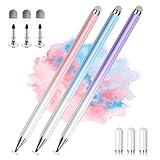
- 【PREPARE YOUR IPAD BEFORE USE】Before using our iPad pen, ensure the "Only Draw with Apple Pencil" feature is off in Settings > Apple Pencil. Disabling this option is crucial for proper stylus functionality.
- 【UNIVERSAL STYLUS】Our stylus pens for touch screens are widely compatible with all touch screens including smartphones, Android tablets, touch screen laptops/PCs. They also work with Apple iPads, iPhones, iPad Pro, iPad Mini, iPad Air, Surface, Chromebooks and other capacitive touch screen devices.
- 【2-in-1 DESIGN】The stylus pen comes with different tips on both ends. One end is the disc tip, which is more accurate and sensitive, suitable for taking notes and drawing. The other end is a durable fibre tip for browsing or scrolling web pages, effectively protecting the screen from fingerprints or smudges.
- 【HIDDEN SPARE TIP】This 3 pack of stylus pens includes 3 additional disc tips and 3 extra fibre tips. Each disc tip is placed inside the stylus body. The spare tip can be taken out by simply rotating the fibre tip end. Convenient for always having a spare pen tip ready to go.
- 【HIGH PRECISION & SENSITIVITY】The stylus pen features a flexible disc tip that fits flexibly on the screen without leaving broken lines. Additionally, the disc tip is transparent, allowing you to get a clearer view when writing or drawing.
Which stylus or tablet should you use?
The best starting point depends on the task and the hardware already in the laptop.
| Reader’s goal | Best starting point | What to expect |
|---|---|---|
| Tapping buttons or scrolling | Passive capacitive stylus | Finger-like touch input without active-pen features |
| Handwriting on a supported Windows 2-in-1 | Active pen matching the laptop’s protocol | Potentially better precision, palm rejection, pressure, and buttons |
| Drawing with pressure and palm rejection | Compatible active pen and digitizer, or a pen display | Pressure and other features still depend on the app |
| Using a non-touch laptop | External graphics tablet or pen display | The tablet captures pen movement independently of the laptop screen |
| Occasional PDF annotation | Passive stylus, supported touchscreen laptop, or external tablet | Choose based on whether direct-on-screen writing matters |
| Handwriting on a Chromebook | Supported USI stylus or the Chromebook’s included pen | Compatibility is model-specific |
| Handwriting on a Mac laptop | External graphics tablet, pen display, or separate tablet workflow | An Apple Pencil is not a universal pen for the MacBook’s built-in display |
Passive capacitive stylus: best for simple touch
A passive capacitive stylus is a finger replacement. The screen detects the stylus because the tip interacts with the touchscreen’s capacitive layer. Passive models require no pairing and usually require no charging, so they have the broadest compatibility with ordinary capacitive touchscreens.
Passive styluses are useful for tapping small controls, scrolling, selecting objects, and making rough annotations. Fine-point disc or mesh tips can feel more precise than large rubber tips, but a fine tip does not turn a passive stylus into an active digital pen.
A passive capacitive stylus normally does not provide true pressure sensitivity, electromagnetic hover, tilt data, or active-pen palm rejection. The operating system generally treats the input much like a finger, and application behavior can vary.
Active digital pen: best for supported pen displays
An active pen communicates with a digitizer built into the laptop’s display. Compatible hardware can provide more precise tracking, pressure data, tilt, hover, eraser functions, shortcut buttons, and palm rejection.
Active-pen features are not guaranteed merely because the pen is expensive or has Bluetooth. Pressure sensitivity requires support from the display digitizer, pen, operating system, and application. Tilt and eraser functions have similar dependencies.
Microsoft describes supported Windows pen input as capable of handwriting, drawing, annotation, pressure data, and handwriting-to-text conversion when the device and application support those features. Read Microsoft’s documentation on Windows pen and stylus interactions for the capabilities exposed to compatible software.
Battery-free EMR pen: convenient but not universal
Wacom EMR is a digitizer technology distinct from Wacom AES. Many EMR pens can draw power from the EMR sensor and therefore do not need a replaceable or rechargeable battery, but an EMR pen still needs an EMR digitizer in the laptop or tablet.
A battery-free EMR pen will not work on an ordinary touchscreen merely because it has no battery. Wacom EMR and Wacom AES are not interchangeable technologies.
External graphics tablet: the practical answer for non-touch laptops
An external graphics tablet connects to the laptop through USB or wireless communication and sends pen movement to the computer as cursor or drawing input. The laptop does not need a touchscreen or a built-in pen digitizer.
A graphics tablet is often the right choice for a MacBook, a non-touch Windows laptop, or a touchscreen laptop whose display accepts fingers but not active pens. A screenless tablet is generally less expensive and easier to carry than a pen display, although the pen moves on the tablet while the cursor appears on the laptop screen.
Pen display or separate tablet: when the laptop screen is the limitation
A pen display adds a dedicated screen on which the user writes directly. A separate tablet, such as an iPad or another supported tablet computer, provides an independent handwriting surface and can sometimes participate in a laptop workflow through platform-specific software.
Also popular on Amazon

- [Universal Stylus Pen] Our stylus pens for touch screens have broad compatibility and works seamlessly with iPhone, iPad, Android devices, tablets, Samsung and most capacitive touchscreen devices. You can enjoy a versatile digital experience.[Note]: This stylus does not have a function to prevent accidental touches.
- [One Touch Switch] Experience easy and comfortable control with the one-touch switch design. Save time and realize quick creativity by turning your iPad pen on or off with just one touch
- [Magnetic Adsorption Design] The iPad pencil with an authentic magnetic design that securely attaches to the side of your iPad.This innovative feature ensures that your stylus stays within reach and prevents it from getting lost! Note: Only support iPad Pro11"& iPad Pro12.9"(3th/4th Gen)
- [Accuracy & Sensitivity] This stylus pen for iPad works without delay or lag, won't damage the screen, and comes with 2 complimentary nibs, giving you more options for a more precise writing and drawing experience
- [Quick Charge] The iPad pen can be fully charged in just 40 minutes and can be used continuously for 9-10 hours. Keep your creative juices flowing without worrying about charging, it won't affect your creativity!
Choose a pen display when direct-on-screen drawing and a larger working surface matter. Choose a screenless graphics tablet when cost, portability, or compatibility with a non-touch laptop matters more. Choose a separate tablet when handwriting, battery life, and a standalone note-taking experience are more important than controlling the laptop directly.
How can you check whether a laptop supports a stylus?
Check the exact laptop model and screen configuration before buying an active pen. “Touchscreen,” “stylus-ready,” and “pen-enabled display” are not interchangeable specifications.
- Find the exact model number. Record the full model, generation, service tag, or product number rather than relying on a family name such as “Yoga,” “Inspiron,” or “Chromebook.”
- Open the manufacturer’s specifications, manual, accessory page, or compatibility tool. Manufacturer documentation is more reliable than a marketplace listing that simply says “universal.”
- Search for explicit terminology. Look for “active pen support,” “pen-enabled display,” “digitizer,” “Microsoft Pen Protocol,” “MPP,” “Wacom AES,” “Wacom EMR,” “USI,” or “Windows Ink.”
- Check the screen option. Confirm that pen support applies to the installed display, not only to another configuration in the same product family.
- Identify the supported pen model. An official accessory list can reveal the required protocol and generation.
- Check operating-system and application requirements. The laptop may recognize basic contact while a drawing application lacks pressure, tilt, or handwriting recognition support.
- Confirm return and warranty terms. This matters when the manufacturer’s compatibility information is incomplete or the pen is sold for multiple device generations.
Dell’s documented process is to enter the computer’s Service Tag or model number and inspect the specifications for active-pen, stylus, pen-enabled-display, MPP, or Wacom AES support. Dell also warns that an active pen works only with a compatible pen-enabled display. Use Dell’s active-pen identification and troubleshooting guidance when checking a Dell computer.
Crashes, No Sound, or Screen Glitches?
Random freezes, missing sound and display glitches usually trace back to one bad driver. Find and replace yours safely.Free scan · under a minuteWindows Errors? Fix Them Before They Spread
Repair common Windows errors and clear accumulated junk for a smoother, more stable PC - no reinstall needed.Free scan · no reinstallWhich pen protocols do laptops use?
The pen protocol is the communication method between the active pen and the display digitizer. Matching the protocol is more important than matching the logo printed on the pen.
| Technology | Where it is commonly found | Important limitation |
|---|---|---|
| Microsoft Pen Protocol (MPP) | Many Windows pen-enabled devices | The pen must support the MPP version and implementation used by the laptop |
| Wacom AES | Some Windows laptops | A Wacom AES pen does not automatically work with an MPP display |
| Wacom EMR | Devices with an EMR digitizer | An EMR pen requires an EMR sensor and is not interchangeable with AES |
| USI | Supported Chromebooks and selected ChromeOS devices | USI support is specific to the Chromebook model and is not a universal Windows solution |
What is Microsoft Pen Protocol?
Microsoft Pen Protocol, commonly abbreviated MPP, is used by many Windows pen-enabled devices. Basic pen contact is handled through the display’s digitizer, while Bluetooth may handle buttons, shortcuts, pairing, or other features.
Microsoft documents integrated Windows pen devices as HID devices and describes Windows support for compatible pen implementations in its pen protocol implementation guidance. A pen that appears in Windows Bluetooth settings can still fail to write if the laptop lacks an MPP-compatible digitizer.
What is Wacom AES?
Wacom AES is an active-pen technology used in some Windows laptops. AES pens must be matched to a display that supports the relevant AES implementation and generation.
Some multi-protocol pens can switch between Wacom Active ES and MPP. Wacom’s Bamboo Ink Plus setup documentation explains its protocol-switching behavior. Multi-protocol does not mean universal: the exact laptop still needs to appear on a compatibility list or be documented as supporting one of those modes.
What is Wacom EMR?
Wacom EMR is a separate electromagnetic-resonance digitizer technology. EMR pens are often battery-free, but the laptop must contain an EMR sensor. An EMR pen cannot create EMR support in a display that was manufactured only for capacitive touch, MPP, or AES input.
What is USI on a Chromebook?
USI, or Universal Stylus Initiative technology, is used by some Chromebook models. Google states that only some Chromebooks support USI styluses, so buyers must check the exact Chromebook model in Google’s Chromebook stylus compatibility guidance.
USI pens are not a universal solution for Windows laptops. A USI pen should be purchased for a Chromebook that explicitly lists USI support or includes a compatible pen.
The Tool Desk
Outbyte PC Repair FREERepair Windows errors before they cause bigger problemsFix Now →Outbyte Driver Updater FREEScan for outdated or missing drivers - takes under a minuteDriver Scan →How do you set up an active pen in Windows?
Windows setup has two separate parts: getting the pen to write through the display digitizer and pairing Bluetooth features such as shortcut buttons. Complete compatibility and basic contact testing before troubleshooting Bluetooth.
Also popular on Amazon
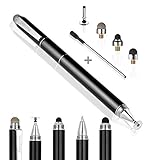
- 4-in-1 UNIVERSAL STYLUS: Penyeah stylus pen for touchscreen include 4 different of touch screen stylus replaceable tips: 1 X 0.27" clear disc tip; 1 X 0.23" mesh fiber tip; 1 X 0.16" rubber tip and 1 X 0.2 " rubber tip; plus a smooth black ink ball point writing pen. One stylus delivers 4 different using experience; Note: It's not paml-rejection, please don't rest your hand on the screen, or it will not work smoothly
- FULLY COMPATIBLE & VERSITILE: The clear disc stylus is universal and drawing like a fine point stylus; 100% compatible with all capacitive touch screen devices (iPhone,iPad,iPad Pro,Samsung,Galaxy, Android, Cellphone,Laptop,Computer,Kindle,Tablets,HP,Dell,Microsoft,Surface etc.); Perfect for digital signing,browsing,writing,taking notes,drawing apps,playing games; Quick responsive, no battery required, no need for setup; Slim with sturdy pocket clip, easy to use and carry around
- UNIQUE DESIGN FOR YOUR STYLE: The tablet pens for touch screen is made of high grade metal material, handy comfortable feeling, solid, durable and corrosion resistant. All screw type tips are interchangeable. So you can DIY your-style stylus pen according to your needs and using preference
- HIGH ACCURATE & PRECISE: The precison stylus for ipad disc tip provides much better flexibility and accuracy, allows you to see exactly where your mark is being made and gives you the accurate point; Mesh fiber tip glides easily on your screens, and rubber tips can help you select small icons exactly, Penyeah stylus provide you more choice for all your daily use
- WHAT YOU GET: Penyeah universal stylus pen x1; High sensitive disc stylus tip x1; Responsive mesh stylus tip x1; 0.16 inch fine point small rubber tip x1; 0.2 inch larger rubber tip x1; Standard D1 pen refill x1; black pen sleeve x1; User manual x1.
Initial Windows setup
- Charge the pen or insert the specified battery.
- Confirm that the laptop supports the pen’s protocol.
- Install pending Windows updates and manufacturer updates, including firmware or BIOS updates where the manufacturer recommends them.
- Turn on the pen if the pen has a power control.
- Write directly on the laptop screen before pairing Bluetooth.
If the pen writes, the digitizer and basic protocol connection are working. If the pen does not write, Bluetooth pairing is unlikely to solve the underlying compatibility problem.
How do you pair a Bluetooth pen in Windows 11?
On current Windows settings, open Start > Settings > Bluetooth & devices > Bluetooth, put the pen into pairing mode, select Add device > Bluetooth, and choose the pen. Microsoft notes that the precise pairing gesture varies by pen; consult the pen’s instructions if holding its button does not activate pairing.
Bluetooth may be required for a pen’s buttons, shortcuts, or configuration, but Bluetooth does not make a non-pen-enabled touchscreen compatible. A pen can appear as paired and still produce no ink.
Free tools Windows power users keep installed
One-click scans. No signup required.
How do you configure pen behavior in Windows?
In current Windows 11 builds, open Start > Settings > Bluetooth & devices > Pen & Windows Ink. Depending on the device and Windows build, available options can include writing hand, what happens when the pen is detected, shortcut-button actions, press or double-press behavior, press-and-hold behavior, and visual notifications.
Older Windows documentation uses Devices > Pen & Windows Ink, so menu paths should not be assumed identical across Windows versions. Microsoft’s current pen-with-Windows support page covers pairing, battery guidance, and the current settings terminology.
How should you test a Windows pen?
Test the pen in at least three places: Windows desktop navigation, a handwriting or drawing application, and a browser or PDF application. Testing across several contexts separates a hardware or protocol fault from a problem limited to one application.
How do you use a stylus on a Chromebook?
Chromebook stylus use depends on whether the Chromebook has a built-in pen, supports USI, or accepts only ordinary touch. Confirm model compatibility first; Google’s Chromebook documentation specifically says that Bluetooth styluses cannot be used through the normal Bluetooth-stylus route and that some capacitive styluses may not work well.
Do these 3 things before closing this tab:
1Fix the driver behind crashes, sound loss and screen glitches2Clear out junk files and repair common Windows errors3Scan for outdated or missing drivers - takes under a minute- Confirm that the Chromebook model supports stylus input or USI.
- If the Chromebook includes a pen, remove the pen from its storage bay.
- Open the stylus tools from the shelf.
- Use available tools such as Create note, screenshot annotation, laser pointer, or magnifying glass.
- Choose a compatible note-taking application.
- Use handwriting mode on the virtual keyboard where available.
Google documents Chromebook handwriting input and PDF annotation with a stylus in its handwriting and PDF annotation guidance. Tool availability can vary by Chromebook model, ChromeOS version, language, and application.
Can you use a stylus on a MacBook or non-touch laptop?
A MacBook or other non-touch laptop generally cannot accept direct writing from a screen stylus because the built-in display lacks the required touch or active-pen digitizer. An external graphics tablet, pen display, or separate tablet workflow is usually the practical alternative.
Do not treat Apple Pencil as a universal MacBook pen. Apple Pencil is designed for supported Apple tablet hardware, not as a pen that pairs with a MacBook and writes directly on the MacBook’s built-in screen. A Mac user who wants pressure-sensitive drawing can connect a Wacom Intuos or similar graphics tablet, connect a pen display, or use a separate tablet workflow where the relevant Apple software supports it.
A passive capacitive accessory is not a general solution for a non-touch MacBook screen. A passive stylus needs a capacitive touchscreen to detect its finger-like contact.
Recommended Free Tools
What can you do with a compatible laptop stylus?
Note-taking and handwriting
A compatible active pen can be used in OneNote, Microsoft Journal, a Chromebook note tool, or another handwriting application. Handwriting-to-text conversion and searchable ink depend on the operating system, language, application, and recognition engine.
Also popular on Amazon

- 【2-In-1 Dual Rubber Tip Design】:Each passive capacitive stylus is equipped with rubber tips of two different diameters on both ends: a 0.27-inch wider tip and a 0.21-inch precision fine tip. The fine tip delivers accurate control for handwriting, detailed sketching and precise icon selection, while the wider soft tip is ideal for scrolling, color filling and daily screen navigation. No charging or Bluetooth pairing required — ready to use straight out of the package.
- 【Universal Compatibility With All Capacitive Touch Screens】:Our stylus pens work seamlessly with all capacitive touchscreen devices on the market. They are fully compatible with iPads, iPhones, Android smartphones & tablets, touchscreen laptops, e-readers and all mainstream touchscreen products. One pen fits all your devices with no extra setup or drivers needed.
- 【Smooth Writing Experience & Screen Protection】:Made with premium soft rubber material, the nibs glide smoothly across the screen with moderate resistance, delivering a natural writing and drawing feel. The gentle rubber surface will not scratch or abrade your display, and also helps reduce fingerprint smudges caused by direct finger touch.
- 【Durable Alloy Body & Vibrant Mixed Colors】:Crafted with a solid alloy metal body, each stylus measures 5.31 inches in length for a balanced, comfortable grip and long-lasting durability for daily use. This 10-pack comes in a mix of vibrant colors, making it easy to distinguish pens for different users or scenarios — perfect for home, classroom and office shared use.
- 【High-Value Bulk Set With Replacement Tips】:Each package includes 10 dual-tip stylus pens plus 20 matching replacement rubber nibs, providing sufficient supply for long-term daily use. The nibs are quick and easy to replace without any extra tools. This bulk pack offers exceptional cost-effectiveness for personal use, as well as school or office bulk procurement.
Writing larger, leaving visible spaces between words, and retaining the original ink can improve recovery when recognition makes mistakes. A ruled or grid template can also make handwritten notes more legible.
PDF annotation
A stylus can highlight text, draw freehand marks, add signatures, write comments, and draw shapes in a PDF application that supports annotation. Check how the application saves the result: annotations may remain editable markup, or the application may flatten them permanently into the PDF.
For occasional markup, a passive stylus may be sufficient on a supported touchscreen. For frequent handwritten comments, an active pen or external graphics tablet provides better control.
Drawing
Drawing requires more than cursor movement. Confirm that the laptop digitizer, pen, and drawing application support pressure, and test tilt separately if tilt effects matter. A pen can move the pointer correctly while pressure remains unavailable because the application does not support it or the hardware is operating in the wrong protocol mode.
Calibrate an offset display when the manufacturer provides a calibration utility. Test without magnetic accessories, and check whether a screen protector affects tracking before assuming that the pen or digitizer is defective.
Presentations and whiteboards
Presentation software can use pen input for live markup, while compatible Chromebook tools can provide screenshot annotation, a laser pointer, or magnification. Button shortcuts can launch an application or tool when the pen, operating system, and software support those actions.
Whiteboarding and remote-teaching applications should be evaluated for ink tools, pointer behavior, export, collaboration, and whether pen pressure or palm rejection is supported.
Which pen features matter?
| Feature | Why it matters | Caveat |
|---|---|---|
| Pressure sensitivity | Changes line weight or brush size | Requires compatible digitizer, pen, and software |
| Tilt | Enables shading or angle-based brush effects | Not universal across protocols or applications |
| Palm rejection | Allows the hand to rest naturally while writing | Usually depends on active-pen hardware and application behavior |
| Hover | Shows the pointer before the tip touches the screen | Requires a compatible digitizer |
| Bluetooth | Enables buttons, shortcuts, or device features | Does not make a touchscreen pen-enabled |
| Rechargeable battery | Can support a slim pen and avoids disposable batteries | The pen must be charged |
| Replaceable battery | Allows quick replacement during use | Requires a spare battery |
| Eraser | Provides a natural correction workflow | May work only in supported applications |
| Magnetic attachment | Provides convenient storage | May not charge the pen and can interfere with some devices |
| Multi-protocol support | Can serve devices using more than one listed protocol | Still requires checking every exact device |
How do you calibrate and improve pen accuracy?
Identify the symptom before changing settings. Cursor offset means the pointer does not align with the tip. Edge inaccuracy means the center works better than the edges. Jitter produces wobbly lines even when the pen is steady. Parallax is the visible gap between the physical tip and the cursor, often caused by the display construction. Palm-rejection failure produces unwanted marks or scrolling. Pressure failure produces a line but no variation in a pressure-aware app.
- Remove magnetic accessories and test the pen again.
- Restart the laptop.
- Install relevant Windows, ChromeOS, BIOS, firmware, and manufacturer-driver updates.
- Check the pen battery or charge.
- Verify the protocol or protocol-switch position.
- Test in another supported application.
- Test another known-compatible pen if one is available.
- Check whether the problem affects the entire screen or only one region.
- Run the manufacturer’s calibration utility if one exists.
- Inspect the nib and replace it if worn or damaged.
- Contact the laptop manufacturer if the digitizer itself may be defective.
Do not begin by installing random third-party “universal stylus” drivers. Many integrated Windows pen devices use system HID support rather than a separate universal stylus driver, and an incorrect driver can create additional problems. Microsoft’s Windows pen protocol and HID documentation explains the system-level implementation.
Why does the touchscreen work but the pen does not?
When a finger works but an active pen does not, the most likely explanation is that the display supports touch but does not contain an active-pen digitizer. Other common causes include a wrong protocol, a pen designed for another generation, an incorrect protocol mode, a depleted battery, or a driver, firmware, or operating-system problem.
Check the exact model specification before trying more pairing steps. If the specification lists touch but does not list active-pen, stylus, digitizer, MPP, AES, EMR, or Windows Ink support, an active pen may have no compatible sensor to communicate with.
Do these 3 things before closing this tab:
1Clear out junk files and repair common Windows errors2Fix the driver behind crashes, sound loss and screen glitches3Repair Windows errors before they cause bigger problemsWhat should you do when a pen pairs but does not write?
Bluetooth pairing does not establish screen compatibility. Pairing may activate buttons, shortcuts, or configuration features while the display still lacks the digitizer needed for pen contact.
Also popular on Amazon

- ❤ 【About The Stylus】 - Length:5.5"(140mm); Pen tube diameter 0.35"(9mm); Disc diameter: 0.27" (6.8mm) including 2mm rubber point ; Fiber tip Diameter:0.24 (6mm); Weight: 24g -- Made from stainless steel and Aluminum, no plastic parts, real pen feeling
- ❤【Precision and Sensitivity】- One end is clear disc tip, which can clearly see exactly where your mark is being made and gives you the accurate point. Perfect for taking notes and drawing apps The other end is a durable fiber tip, which is very suitable for daily use, such as tapping, coloring and scrolling.
- ❤ 【Compatible with All Touch Screens】-These stylus pens are compatible with Smart Phones, iPhone Duo, Android Tablets, Touch Screen Laptops /PC. (Apple/ iPhone/ Ipad pro/ Mini/ Air/ Android/ Nintendo Switch/Surface) and other capacitive touch screens devices
- ❤【Package Included】- 2Pcs Stylus; 4 Pcs Replacement Disc Tip;2 Pcs Replacement Fiber Tip. To find extra replacement Disc tips, please search ASIN: B016X4QJWE on Amazon. Replacement Fiber Tip - Please search ASIN:B074HP7WJ5 on Amazon
- 🎁 【Note】- Though the Disc works just like a fine point stylus, the disc stylus is not fine point stylus. If you need a true FINE POINT Stylus, please search Asin: B0B5GFDJ3X on Amazon.
- Test the pen tip directly on the screen without Bluetooth pairing.
- Confirm the laptop’s exact supported protocol.
- Check that the pen is in the correct MPP, Wacom Active ES, or other protocol mode.
- Charge the pen or replace its battery.
- Test in Windows desktop navigation and a second application.
- Try a known-compatible pen if available.
If no compatible pen writes but finger touch still works, the laptop may have a touch-only display or a defective pen digitizer.
How do you fix a replacement pen that does not work?
A replacement pen can fail even when the original included pen worked because the replacement uses a different protocol, a different AES or MPP generation, a different digitizer technology, or a different model-family implementation.
Compare the original pen’s model number with the manufacturer’s accessory list. Do not assume that a pen branded for the same manufacturer is compatible. Lenovo, Dell, Microsoft, and Wacom all sell or support multiple pen families, and the laptop model remains the deciding factor.
How do you fix missing pressure, tilt, palm rejection, or buttons?
When the pen writes but advanced features fail, test the feature in an application known to support it and verify that the pen is using the correct protocol mode.
- No pressure: The digitizer, pen, or application may not support pressure, or pressure may be disabled in the application.
- No tilt: Tilt may not be supported by the pen, digitizer, protocol implementation, or application.
- Palm rejection fails: The laptop may be accepting the input as finger touch, or the application may not implement palm rejection correctly.
- Buttons do nothing: Bluetooth pairing, a pen utility, application support, or a shortcut assignment may be required.
- Writing works but hover does not: Hover depends on the digitizer and pen combination and is not guaranteed by active-pen branding.
These features are separate from basic cursor movement. A pen can be compatible enough to draw a line while lacking the hardware or software support for pressure, tilt, hover, or button actions.
Which stylus solution fits each laptop category?
| Laptop category | Recommended solution | Do not assume |
|---|---|---|
| Windows 2-in-1 with documented MPP support | Compatible MPP pen, such as a model listed for the laptop | Every MPP pen has identical features on every device |
| Windows laptop with documented Wacom AES support | Compatible Wacom AES or explicitly multi-protocol pen | A Wacom EMR or generic MPP pen will work |
| Windows touchscreen without active-pen support | Passive capacitive stylus for basic touch, or external graphics tablet for real pen input | Touch input proves pen compatibility |
| Non-touch Windows laptop | External graphics tablet or pen display | A screen stylus can write on the built-in display |
| Chromebook with USI support | USI pen listed for that Chromebook | Any Bluetooth stylus or any USI pen works with every Chromebook |
| MacBook | External graphics tablet, pen display, or separate tablet workflow | Apple Pencil writes directly on the MacBook screen |
What should you buy for common scenarios?
Use the scenario rather than a generic “best stylus” ranking. Verify the exact laptop model and protocol before purchasing an active pen.
- Windows 2-in-1 with MPP: Choose a compatible MPP pen. Microsoft Surface Pen may suit Surface hardware and other explicitly compatible MPP devices, but it is not a safe choice for an unspecified touchscreen laptop.
- Windows laptop with Wacom AES: Choose an AES-compatible pen. The Wacom Bamboo Ink Plus is relevant only when the laptop is documented as supporting Wacom Active ES or MPP and the correct mode is selected.
- Chromebook with USI: Choose a USI pen listed for the Chromebook or use the included pen.
- Touchscreen without active-pen support: Choose a passive capacitive stylus for taps and rough annotation, or an external graphics tablet for handwriting and drawing.
- Non-touch laptop or MacBook: Choose an external graphics tablet such as a Wacom Intuos-style device, or use a pen display if writing directly on a screen matters.
- Large-surface drawing: Choose a pen display rather than relying on a small laptop touchscreen.
- Replacement parts: Check the manufacturer for compatible nibs, batteries, chargers, carrying cases, and replacement pens.
Official product and support pages are safer starting points than generic marketplace compatibility claims. Relevant manufacturer resources include Microsoft’s Surface Pen product page, Wacom’s official store, Dell’s official accessories store, and Lenovo’s official accessories store. Check current availability and compatibility on the applicable product page because prices and stock change.
Free tools Windows power users keep installed
One-click scans. No signup required.
Which apps are useful with a laptop stylus?
| Task | Software category | Features to verify |
|---|---|---|
| Handwriting and notes | OneNote, Microsoft Journal, Chromebook note tools, or another notes app | Ink, handwriting recognition, language support, search, and export |
| Drawing | Pressure-aware drawing application | Pressure curves, tilt, palm rejection, tablet mapping, and shortcut support |
| PDFs | Annotation-capable PDF reader | Ink, highlights, signatures, editable markup, and export behavior |
| Whiteboarding | Canvas or collaboration application | Ink tools, shape recognition, sharing, and recovery |
| Presentations | Presentation or screen-markup application | Live ink, pointer tools, screenshots, and button shortcuts |
| Handwriting conversion | Application with ink-to-text recognition | Reader language, recognition quality, correction, and original-ink retention |
Microsoft provides OneNote information and Microsoft Journal information. Wacom users can find supported software and device utilities through the Wacom driver and support page. Do not assume that an operating system’s general pen support means every application supports pressure, tilt, eraser input, or palm rejection.
What is the fastest compatibility decision tree?
- Does the laptop have a touchscreen? If no, use an external graphics tablet or pen display; a screen stylus cannot write on the built-in panel.
- Does the exact touchscreen configuration list active-pen support? If no, use a passive capacitive stylus for finger-like input or an external tablet for real pen input.
- Which protocol does the display use? Match MPP, Wacom AES, Wacom EMR, USI, or the manufacturer’s specified technology.
- Does the chosen pen support the required features? Check pressure, tilt, hover, eraser, buttons, battery, charging, and nib availability.
- Does the application support those features? Test the intended note, drawing, PDF, or presentation application.
- Can the purchase be returned? Keep the exact model information and verify compatibility before opening or using the pen.
This decision tree prevents the most expensive mistake: buying an incompatible active pen because a laptop has a touchscreen or because the pen appears in Bluetooth settings.
Frequently Asked Questions
Can any stylus work on a laptop touchscreen?
No. A passive capacitive stylus may work like a finger on many capacitive touchscreens, but an active pen requires a compatible digitizer and protocol. A touchscreen can accept fingers without supporting active-pen input.
Why does my pen show in Bluetooth but not write?
Bluetooth pairing may control buttons, shortcuts, or configuration, but pen contact is handled by the display digitizer. If the laptop lacks a compatible MPP, Wacom AES, Wacom EMR, or other required digitizer, the pen can pair without writing.
Recommended Free Tools
Can an Apple Pencil write directly on a MacBook?
No. Apple Pencil is not a universal stylus for the MacBook’s built-in display. MacBook users generally need an external graphics tablet, pen display, or a separate tablet workflow.
Is a USI stylus compatible with every Chromebook?
No. Google says USI compatibility is model-specific, so the exact Chromebook must explicitly support USI or include a compatible pen. A USI pen is not a universal solution for Windows laptops.
What should I use with a non-touch laptop?
Use an external graphics tablet for a screenless drawing surface or a pen display for drawing directly on a dedicated screen. A passive stylus cannot add touch capability to a non-touch laptop display.
The Bottom Line
Match the pen to the laptop’s digitizer and protocol—not merely to the laptop brand. Check the exact model, screen configuration, operating system, and application before buying. If the laptop has touch but no active-pen support, use a passive stylus for simple interaction or an external graphics tablet or pen display for genuine handwriting and drawing.
What’s actually slowing this PC down?
Pick the symptom - the matching free tool is one click away.

