
iTechGuides is reader-supported. When you buy through links on our site, we may earn an affiliate commission. As an Amazon Associate I earn from qualifying purchases. Learn more
Start with Settings > Security and privacy > Permission manager (or Privacy > Permission manager) and remove access apps do not need. Then check Privacy Dashboard, enable Auto Blocker, and review optional data-sharing controls. Samsung’s documentation does not establish a One UI 9-specific feature list or rollout matrix, so the exact labels and availability can vary by Galaxy model and software version. If a path differs, search Settings for “Privacy,” “Permission manager,” or “Auto Blocker.”
Which privacy settings should you enable first?
For most Galaxy owners, the best starting point is a short audit rather than switching on every restriction available. Check which apps can use sensitive data, look at recent access history, and enable protections that do not interfere with the way you use the phone. After that, decide whether you want to limit optional data sharing or put selected files behind a separate lock.
These controls address different risks. Permission settings govern what an app may access; the Privacy Dashboard helps you review recent use; Auto Blocker adds security restrictions; Secure Folder protects selected content. None is a substitute for the others, and no single setting makes the whole phone private.
Samsung’s published instructions describe Galaxy settings generally, not a confirmed One UI 9 feature list. Menu wording, availability, and screen layout can differ by model, region, carrier, and software version. The paths below are the labels to look for, not a guarantee that every device will show the same screens.
Popular on Amazon
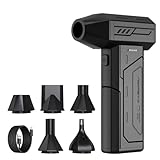
- Powerful Turbo Fan:CAGIWIRU Electric Air Duster have reached speed up to 130000RPM,Can efficient remove dust and debris.With LED light and Three Adjustable Speed to meet with different cleaning tasks.
- With Attached USB C Fasting Charging cable.Charing 3 hours,Enjoy up to 240 minutes of use on the lowest setting, For third speed can use for 25mins.with four charging options to meet with your needs.
- Wide Application: attached 5 different nozzles,making it suitable for a variety of scenes, such as car,pet, pc, keyboards, and other electronic devices. It also serves for office and home clean duster.
- Handy Design & Portable:Cordless air duster electric nozzle is Light weight and small size, design and comfortable to hold and space saving, convenient to carry around. You can put it in your room or inside the car without taking up space.
- Economical &Reusable: Built durable materials with a long-lasting battery,our CAGIWIRU air duster it's a sustainable alternative to disposable air cans.
Audit Permission manager before changing anything else
Permission manager is the most direct way to reduce unnecessary app access. Samsung describes it as a place to manage permissions across apps and services, including Calendar, Camera, location, and microphone. Open Settings > Security and privacy > Permission manager; on some versions, look under Settings > Privacy > Permission manager. You can also search Settings for “Permission manager.”
Review the permissions with the greatest privacy impact
Start with Camera, Microphone, Location, Contacts, and Photos and videos. Then review other categories shown on your device. Open a category to see which apps have access and what access choices are available. Do not assume every app listed needs the permission simply because it requested it.
For each app, ask whether the permission is necessary for a feature you actually use. A mapping app may need location while you navigate; a photo editor may need access to images you select. An app that has no clear reason to use a permission is a reasonable candidate for Don’t allow. If you are unsure, deny access first and see whether the feature you care about still works.
Do these 3 things before closing this tab:
1Scan for outdated or missing drivers - takes under a minute2Clear out junk files and repair common Windows errors3Fix the driver behind crashes, sound loss and screen glitchesChoose the narrowest access that still works
- Don’t allow: Choose this when the app has no clear need for that data or feature. A dependent function may stop working, but you can revisit the permission if needed.
- Ask every time: Use this where offered if you want to make a fresh decision each time the app requests access. It adds prompts and may be inconvenient for features used frequently.
- Allow only while using the app: Prefer this over broader access when the app only needs the permission during active use. The exact options differ by permission and software version.
Permission choices can break app features by design: denying location may affect navigation, while denying camera or microphone access may stop an app’s corresponding capture or calling function. If something stops working, return to the same permission category and grant only the access needed for that feature.
Use Privacy Dashboard to investigate recent access
Permission Manager shows what access is allowed; Privacy Dashboard helps answer a different question: which apps used permissions recently, and when? Find it through Settings search for Privacy Dashboard or a similar “Privacy” label, then choose a permission category to inspect the activity and listed apps. Samsung describes its dashboard as providing insight into security settings and interactions that could affect privacy. Google’s Android guidance likewise says the dashboard shows which apps accessed data, which permissions they used, and when access occurred.
Also popular on Amazon

- Screen Cleaner is Your Screen’s New Bestfriend! - EVEO is proud to present a screen cleaner that’s perfectly suited for your TV. Meet your new screen cleaner, computer screen cleaner, laptop cleaner, iPad cleaner, Macbook,tv cleaner or any other electronic device. Our screen cleaner spray and wipe along with the included plush microfiber cloth, easily removes dust, fingerprints & other smudges on the screen’s surface. Clean effectively for a streak-free screen
- Gentle on your Screens - Our screen cleaner spray and wipes is compatible to be used even for the most sensitive LCD, LED, CRT, and OLED screens in proper use. Be at ease knowing that this product is compatible with all the major brands: LG, SONY, Samsung, Sharp, iPad, iPhone, Android screens, Kindle, PC monitors - we’ve got you covered! Can be used as LCD screen cleaner, tv cleaner, smart tv screen cleaner, and more
- Premium Super Soft Plush Microfiber Cloth - Included in this efficient screen cleaning kit. This screen cleaner spray and wipe has our signature plush microfiber cloth specially designed to comply with screens and monitors and leave them streak-free. Has been shown to effectively absorbs stubborn stains, zero streaks, and no fiber shedding. Always use this together with our screen cleaner for the best results
- Easy-to-Use Screen Cleaner Kit + microfiber cleaning cloth - The EVEO Screen Cleaning Kit will easily be your new favorite tool when it comes to taking care of the things you love most, quick and easy solution for a streak-free screen. Simply screw on the sprayer gun on the screen cleaner bottle. Spray the cleaning liquid onto the microfiber cloth, then wipe the screen until desired cleanliness & shine is achieved.
- Quality Screen Care Kit Worth Purchasing - Enjoy a convenient Screen Cleaner anytime, anywhere you need it. Your satisfaction is our top priority. We stand behind the quality of our products and that’s why, you shouldn’t be worrying at all. We manufacture the Best Screen Cleaner. and can be used for laptop cleaning kit, laptop screen cleaner, tv screen cleaner for smart tv. MacBook screen cleaner, monitor cleaner or screen cleaner spray for electronic devices with microfiber cleaning cloth
The available history window is platform-dependent, not a guaranteed One UI 9 behavior: Samsung Knox documentation describes a 24-hour permissions-used view, while Google says Android 13 and later can show up to seven days of activity and Android 12 shows 24 hours. Use the time range displayed on your own phone.
What to do with an unexpected entry
- Open the permission category named in the history, such as location, camera, or microphone.
- Identify the app and note when the access occurred. Consider whether you were using a feature that reasonably needed it at that time.
- If the access seems unnecessary, open that app’s permission entry in Permission manager and switch to a narrower choice or deny it.
- Recheck the app’s essential functions. If one no longer works, decide whether restoring limited access is worth the trade-off.
A dashboard entry is a prompt to review context, not proof of wrongdoing: an app can use a permission for a feature you intentionally used. Conversely, an app’s permission being allowed does not mean the dashboard proves it used that data during the displayed period.
Free tools Windows power users keep installed
One-click scans. No signup required.
Keep camera and microphone access easy to shut off
Review camera and microphone access in Permission manager, then check whether your Galaxy offers system-level camera or microphone controls under Settings > Privacy or Additional privacy controls. Samsung documents controls for these kinds of access, but the precise labels and locations depend on software version.
If your Quick Settings panel includes camera or microphone access tiles, consider adding them so you can switch access off quickly when you want a system-level pause. Swipe down to open Quick Settings and use the panel’s edit controls to see whether the relevant tiles are available. If they are not present, do not assume your phone has a hidden equivalent: rely on Permission manager and the controls actually shown in Settings.
Turning off access can interrupt camera, recording, or calling features that need it. Restore access when you want those features to work. These controls are useful for deliberate shutoff; they do not replace reviewing which individual apps have permissions.
Also popular on Amazon

- 【Large size】:Measuring 800 x 300 mm/ 31. 5×12 inches, which is wider and taller than others. Large mouse pad can perfectly fit your keyboard and mouse of any size, and there is also ample space for peripherals such as phones, tablets, etc.
- 【LED backlight mouse pad】:Blade Hawks RGB mouse pad provides 7 static modes and 7 dynamic modes will give you the options you are looking for. Power-off memory function remembers the last lighting mode you selected. The super glow fiber Chroma will give you a colorful gaming setup that you want.
- 【Anti-slip rubber base】:Made from Natural rubber, this gaming mousepad will firmly grip your desktop, allowing you to enjoy the ultimate precision in the games you are most passionate about. It also comes with a texture that enhances this ability even further.
- 【Smooth and waterproof surface】: Micro-textured cloth surface, for extremely precise mouse control and a smooth movement. When liquid splashes on the gaming mouse pad, it forms water droplets and slides down. Will not delay your work or gameplay.
- 【Plug and play】: This mouse and keyboard pad is powered by USB, plug and play, no driver required. One button control light modes. Press one time to change the lighting mode, press twice to change the brightness, press and hold about 3 seconds turn ON/OFF.
Enable Auto Blocker for a low-friction security baseline
Samsung recommends keeping Auto Blocker enabled for protection on Galaxy devices. Look under Settings > Security and privacy > Auto Blocker, or search Settings for “Auto Blocker.” Samsung describes the feature as a group of security settings intended to block smartphone threats. Its stated protections include blocking app installs from unauthorized sources, running app-security checks, blocking commands sent over USB, and adding messaging protection.
Crashes, No Sound, or Screen Glitches?
Random freezes, missing sound and display glitches usually trace back to one bad driver. Find and replace yours safely.Free scan · under a minuteWindows Errors? Fix Them Before They Spread
Repair common Windows errors and clear accumulated junk for a smoother, more stable PC - no reinstall needed.Free scan · no reinstallSamsung Knox says Auto Blocker is available on Galaxy devices running One UI 6.0/Android 14 or later. That is a documented availability threshold, not confirmation that every feature or label will be identical on a One UI 9 device. If the setting does not appear, check your device’s software version and search Settings before assuming it is supported.
For many users, enabling the standard Auto Blocker is a sensible default: it adds restrictions intended to reduce several attack paths without requiring a routine manual decision for each one. A restriction may nevertheless affect an app installation or workflow that the feature treats as unsafe. If you encounter a block, pause to confirm that you trust the source and understand why the action is being restricted rather than bypassing protection automatically.
Use Maximum restrictions only if its trade-offs fit
Samsung presents Maximum restrictions as an advanced option for people who prefer stronger security even at the cost of convenience. It can prevent some accessories, apps, or connections from working. It is not a necessary first step for every Galaxy owner, and it may be a poor fit if your everyday work depends on compatibility with a particular app or accessory.
Before enabling it, read the explanation shown on your phone and consider which devices and services you rely on. If something stops working afterward, return to the same security settings and adjust the restriction rather than repeatedly retrying the blocked connection. The control’s exact location and availability may vary by model and software version.
Also popular on Amazon

- 【Softer and More Comfortable】Vaydeer wrist rest has unique diamond pattern, which is the combination of softness and aesthetics. The materials of wrist rest are improved into higher quality memory foam and covered with silky smooth lycra. The computer wrist rest makes you as comfortable and cushiony as like rest your wrists on clouds.
- 【Ergonomic Wrist Saver】The wrist rests for keyboard and mouse comes with a 17.32×3.15×0.83 inch keyboard wrist pad and a 5.94×3.15×0.83 inch mouse wrist support. Based on ergonomic design, the unique concave shape is the perfect fit for your wrist joints. The wrist rest pad fits most computer keyboards and laptops, improve hand and wrist posture, release your wrist and arm stress.
- 【Non-Slip Rubber Bottom】Featuring an anti-skid silicone base on the bottom, this wrist keyboard support stays firmly in place on your desk, preventing the padding from sliding around, ensuring stable and consistent wrist support during extended computer sessions.
- 【Better Experience & Pain Relief】Our keyboard arm rest is beneficial to alleviate the soreness caused by direct contact and friction between your arm and a hard desk surface, reducing the risk of wrist fatigue or carpal tunnel. The soft texture of memory foam can evenly distribute the pressure around your wrists and provide good support with just enough give.
- 【Helpful in Multiple Scenarios】Whether you're working, studying, writing, typing, gaming, this keyboard and mouse rest combo is an essential accessory to add comfort and support to your hands and wrists. It’s also a great gift for men, women, family, friend, coworker, gamer, teacher, etc.
Review optional data-sharing and personalization settings
After runtime permissions, make a second pass through More privacy settings or similarly named privacy controls. Samsung and Google controls may be presented in different places, and the available options can vary. Look for settings related to diagnostic-data sharing, advertising or personalization, clipboard access, and other optional data use.
Turn off optional collection or personalization that you do not want. The trade-off is that recommendations or advertising may become less relevant or personalized. These controls are distinct from app permissions: changing them does not automatically revoke an app’s camera, location, or contact access. Review the descriptions on the screen before changing a control, particularly when it is unclear whether it affects optional features or a service you depend on.
Put selected sensitive files in Secure Folder
Secure Folder is a locked area intended for private files and photos. It can be useful for identity documents, private pictures, or work material that should require separate authentication from ordinary access to the phone. Find Secure Folder through Settings search if it is not immediately visible in your menus, then follow the on-device setup prompts and choose a lock method.
Move only the copies or items you intend to keep in that protected area, and confirm they are there before removing any originals elsewhere. Secure Folder protects selected content; it is not a blanket privacy setting for every app or file on the device. Use it when a separate lock boundary for particular material is useful, not as a replacement for account security or permission review.
Quick wins for a faster PC:
Scan for outdated or missing drivers - takes under a minuteDriver Scan →Repair Windows errors before they cause bigger problemsFix Now →Fix the driver behind crashes, sound loss and screen glitchesFind Drivers →Consider Secure Wi-Fi on public networks
Samsung lists Secure Wi-Fi among additional security options for public or unsecured networks. If the option is available on your device and its terms suit you, consider it when using those networks. Availability and plan requirements can vary, so it is an optional feature, not a universal guarantee that all traffic or risks are covered. Read the description and terms shown on the phone before relying on it.
Also popular on Amazon

- 【No Drill Mounted】Cable management tray can be assembled in as little as 3 minutes or less-simply. Side clips easily clampe the edge of desk, pass through the holes on the sides, and secure excess cables with baskets. Desk cable management supports inward or outward installation to meet your needs in different scenarios, and provides you with great convenience when collecting and organizing wires.
- 【Rubber Pad Protects Desk】Wire organizer under desk built-in soft rubber pads on the clamp protect your desk from scratches, so you will not damage your furniture or office.
- 【Sturdy and Beautiful】Cord management under desk is made of high-quality carbon steel and holds about 15 lbs. The wire basket has 2 holes on each side of the tray to enable your cables to pass freely. Cable baskets are suitable for desk thickness use from 0.4" to 2.4".
- 【Space Saving & Keep Organized】Desk cable management tray holds all your power cords, outlet strips, USB hubs and computer transformers hidden from your feet, and the data cables will not enter the vacuum cleaner to keep your desk clean and tidy. Desk wire organizer is also suitable for use in the kitchen and outdoors.
- 【Reduce Safety Risks】Cable tray under desk keeps all plugs away from your kids, no more worry about tripping. Using 2 holes wire tray saves extra space, helps you easily cabling and wire protection. The mesh design is not easy to accumulate dust, but avoids safety accidents caused by messy wires.
Compare the settings by protection, friction, and compatibility
| Setting | Protection gained | Daily friction | Compatibility impact | Review cadence |
|---|---|---|---|---|
| Permission manager | Limits unnecessary app access to sensitive permissions. | Low after the initial audit; prompts or missing features depend on the access choice. | A denied permission can disable a feature that needs it. | Review when installing apps, when a feature behaves unexpectedly, or during a periodic privacy check. |
| Privacy Dashboard | Makes recent permission use reviewable by app, permission, and time. | Low; it is primarily a review tool. | None from viewing the history; changing permissions based on it may affect features. | Check periodically and after an unexpected camera, microphone, or location event. |
| Camera and microphone controls | Provide a way to pause access at the system level where the controls are available. | May require switching access back on for camera or calling features. | Apps needing the blocked input cannot use it while access is off. | Use when you want access paused; verify the available controls on your device. |
| Auto Blocker | Blocks certain unauthorized app installs, USB commands, and messaging threats; Samsung also describes app-security checks. | Generally low for ordinary use. | A legitimate installation or workflow may be restricted. | Keep enabled as a baseline; revisit if it blocks an action you need and have verified. |
| Maximum restrictions | Adds stronger security restrictions beyond the standard settings. | Potentially high when a restriction interrupts normal use. | Samsung warns some accessories, apps, or connections may not work. | Review after enabling and whenever a device or app no longer works as expected. |
| Data-sharing and personalization controls | Reduce optional diagnostic sharing or personalization where those controls are offered. | Low, though recommendations may change. | Personalized recommendations or ad relevance may decrease. | Review when privacy preferences change or after a software update surfaces new choices. |
| Secure Folder | Adds a separate lock boundary around selected files and photos. | Requires deliberate access to the protected area. | Only selected content is covered; ordinary files remain outside it. | Check contents when adding or removing sensitive material. |
| Secure Wi-Fi | Offers an additional option for public or unsecured networks. | Depends on availability and any applicable plan requirements. | Service availability and terms vary. | Check the feature’s availability and terms before use on a relevant network. |
A practical setup order
- Search Settings for Permission manager. Review Camera, Microphone, Location, Contacts, Photos and videos, and other sensitive categories. Remove access without a clear purpose.
- Search for Privacy Dashboard. Check the history window your phone displays and investigate access you do not recognize.
- Find camera and microphone controls. Check whether your device offers Settings controls or Quick Settings tiles, and learn where they are before you need them.
- Search for Auto Blocker. Enable it if available and leave Maximum restrictions for a deliberate decision after considering its compatibility costs.
- Open More privacy settings. Decide whether you want diagnostic sharing, ad personalization, clipboard access, or related optional controls enabled.
- Set up Secure Folder if you have specific files to protect. Secure only the content that benefits from a separate lock boundary.
- Check Secure Wi-Fi if you use public networks. Confirm availability and any plan requirements on your phone.
When a setting is missing or an app stops working
The menu path does not match
Use Settings search with the control’s name rather than assuming a missing menu means the feature is absent. Try “Privacy,” “Permission manager,” “Privacy Dashboard,” “Auto Blocker,” or “Secure Folder.” Samsung notes that menu names and screens vary by model and software version, so a different route or label is possible.
A permission change breaks a feature
Identify the feature that stopped working, then return to the relevant Permission manager category and grant the narrowest access that supports it. If the app offers its own feature settings, check those too. Avoid restoring broad access to unrelated categories as a troubleshooting shortcut.
A security restriction blocks a trusted task
For Auto Blocker or Maximum restrictions, read the on-screen explanation and verify the app, accessory, or source before changing anything. Standard Auto Blocker and Maximum restrictions have different purposes and trade-offs; do not disable every protection just to make one blocked action work. Adjust only the restriction necessary for a trusted task, then reassess whether leaving it changed is acceptable.
Recommended Free Tools
You cannot tell whether access was expected
Use the app’s function and the time of access as context. A map app accessing location during navigation is different from an unrelated app accessing it without an obvious reason. Where you still cannot establish a need, choose the more restrictive permission and test the feature you rely on.
Quick Recap
Product prices and availability are accurate as of the date/time indicated and are subject to change. Any price and availability information displayed on Amazon at the time of purchase will apply.

