
iTechGuides is reader-supported. When you buy through links on our site, we may earn an affiliate commission. As an Amazon Associate I earn from qualifying purchases. Learn more
For a strong starting setup, enable IPVanish’s kill switch and available DNS and IPv6 leak protections, leave split tunneling off unless you have a specific reason to bypass the VPN, and choose WireGuard with a nearby server when speed is the priority. Then verify the setup: app settings alone do not prove that traffic is protected, and no VPN setting guarantees streaming access.
Start with privacy protection, then verify it
Privacy settings are useful only if they behave as expected on your device. Turn on the protections available in your installed IPVanish app, then check for leaks rather than assuming a toggle is working. Menu labels and available controls can differ by platform and app release, so follow the current app’s wording instead of looking for a universal menu path.
Enable the kill switch
A kill switch is intended to block internet traffic if the VPN connection drops, rather than let the device silently continue over its ordinary connection. Enable it if your app offers the control. Because independent RTINGS testing found kill-switch failures under some conditions, treat this as a setting to test—not an absolute guarantee that traffic can never escape.
What’s actually slowing this PC down?
Pick the symptom - the matching free tool is one click away.
Enable DNS and IPv6 leak protection where available
DNS requests can reveal which sites or services a device is trying to reach, while an IPv6 connection can expose traffic outside the VPN if it is not handled correctly. Enable the app’s DNS and IPv6 leak protections if they are available on your platform. VPNmeter documents these controls, but notes that their names and availability vary by platform and release.
Popular on Amazon
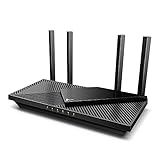
- Next-Gen Gigabit Wi-Fi 6 Speeds: 2402 Mbps on 5 GHz and 574 Mbps on 2.4 GHz bands ensure smoother streaming and faster downloads; support VPN server and VPN client¹
- A More Responsive Experience: Enjoy smooth gaming, video streaming, and live feeds simultaneously. OFDMA makes your Wi-Fi stronger by allowing multiple clients to share one band at the same time, cutting latency and jitter.²
- Expanded Wi-Fi Coverage: 4 high-gain external antennas and Beamforming technology combine to extend strong, reliable, Wi-Fi throughout your home.
- Improved Battery Life: Target Wake Time helps your devices to communicate efficiently while consuming less power.
- Improved Cooling Design: No heat ups, no throttles. A larger heat sink and redefined case design cools the WiFi 6 system and enables your network to stay at top speeds in more versatile environments.
Leave split tunneling off by default
Split tunneling lets selected apps or domains use the ordinary internet connection instead of the VPN. That can be useful when a particular service needs a direct connection, but the excluded traffic does not receive VPN protection. Keep split tunneling off unless you know which app or domain must bypass the VPN; if you create an exception, make it as narrow as possible and remember that its traffic follows a different route.
Run leak checks after changing settings
After you enable protections or change split-tunnel rules, test the connection for IP, DNS, and IPv6 leaks. Do this once while connected and, if you are relying on the kill switch, test what happens when the VPN connection is interrupted. RTINGS reported system DNS leaks and kill-switch failures under some conditions, which is why verification matters. A clean result is evidence about the tested device and moment; it is not proof that every app, network, or future connection will behave identically.
Set up IPVanish for speed
Start with WireGuard and a nearby server, then measure your own connection. Distance usually makes a server a less useful speed choice: a nearby endpoint is a sensible first test, while a distant one can add delay. The fastest option for you still depends on your internet connection, the route to the server, server load, device, protocol, and test conditions.
Also popular on Amazon

- New-Gen WiFi Standard – WiFi 6(802.11ax) standard supporting MU-MIMO and OFDMA technology for better efficiency and throughput.Antenna : External antenna x 4. Processor : Dual-core (4 VPE). Power Supply : AC Input : 110V~240V(50~60Hz), DC Output : 12 V with max. 1.5A current.
- Ultra-fast WiFi Speed – RT-AX1800S supports 1024-QAM for dramatically faster wireless connections
- Increase Capacity and Efficiency – Supporting not only MU-MIMO but also OFDMA technique to efficiently allocate channels, communicate with multiple devices simultaneously
- 5 Gigabit ports – One Gigabit WAN port and four Gigabit LAN ports, 10X faster than 100–Base T Ethernet.
- Commercial-grade Security Anywhere – Protect your home network with AiProtection Classic, powered by Trend Micro. And when away from home, ASUS Instant Guard gives you a one-click secure VPN.
Use WireGuard as the first protocol to test
If WireGuard is offered in your app, select it for the initial speed test. Tom’s Guide reported a median of 738 Mbps on its nearest tested server and 449 Mbps on its farthest tested server using WireGuard in its 2026 review. These are results from that review’s test setup, not promised speeds or a prediction for your home connection. Top10VPN also found OpenVPN much slower over distant locations, reinforcing the case for testing a nearby endpoint before choosing a distant one.
Compare servers under controlled conditions
- Measure your baseline. Disconnect IPVanish and run a speed test using the same device and test site you will use for the VPN comparisons. Record latency, download speed, upload speed, and whether the result is stable.
- Connect to a nearby server. Select a server close to your physical location and use WireGuard if it is available. Run the same test and record the same four measures.
- Test two or three nearby servers. Keep the device, test site, protocol, and time window consistent. Change only the server so the results are more useful to compare.
- Repeat if results vary. A single measurement can be affected by changing network conditions. If one server’s result looks unusually poor or unstable, run the same comparison again before deciding it is the better or worse option.
- Try another protocol only when useful. If WireGuard is unavailable or a particular connection is unreliable, compare another protocol while keeping the server fixed. That isolates the protocol change instead of mixing it with a server change.
Use the measurements that matter to your task. Latency can matter for responsiveness, while download and upload throughput matter for moving data; stability matters when a connection must keep running. A high headline download result is not automatically the best choice if the connection is erratic or the latency is unsuitable for what you are doing.
How to read the results
Compare each VPN result with your no-VPN baseline, not just with a speed figure from someone else’s review. If all nearby servers are slow, repeat the baseline and VPN measurements under the same conditions before changing several settings at once. If one endpoint is consistently worse, compare another nearby server. If the server stays fixed but changing protocols improves the result, the protocol is a more likely explanation than distance. These comparisons help identify what changed; they do not establish that the same server or protocol will remain fastest at another time.
Also popular on Amazon

- DUAL-BAND WIFI 6 ROUTER: Wi-Fi 6(802.11ax) technology achieves faster speeds, greater capacity and reduced network congestion compared to the previous gen. All WiFi routers require a separate modem. Dual-Band WiFi routers do not support the 6 GHz band.
- AX1800: Enjoy smoother and more stable streaming, gaming, downloading with 1.8 Gbps total bandwidth (up to 1200 Mbps on 5 GHz and up to 574 Mbps on 2.4 GHz). Performance varies by conditions, distance to devices, and obstacles such as walls.
- CONNECT MORE DEVICES: Wi-Fi 6 technology communicates more data to more devices simultaneously using revolutionary OFDMA technology
- EXTENSIVE COVERAGE: Achieve the strong, reliable WiFi coverage with Archer AX1800 as it focuses signal strength to your devices far away using Beamforming technology, 4 high-gain antennas and an advanced front-end module (FEM) chipset
- OUR CYBERSECURITY COMMITMENT: TP-Link is a signatory of the U.S. Cybersecurity and Infrastructure Security Agency’s (CISA) Secure-by-Design pledge. This device is designed, built, and maintained, with advanced security as a core requirement.
Choose a server for streaming
For a streaming service, the right server is the one that matches the service region you need and works at the time you use it. Access can depend on the service, region, endpoint reputation, and protocol. Services can change their policies and block VPN endpoints, so a successful connection today is not a guarantee of uninterrupted access later.
PC Slower Than It Used to Be?
A free scan shows the junk files, broken settings and background clutter dragging Windows down - then fixes them in one click.Free scan · Windows 10 & 11Crashes, No Sound, or Screen Glitches?
Random freezes, missing sound and display glitches usually trace back to one bad driver. Find and replace yours safely.Free scan · under a minute- Identify the required catalog or service region. Choose the country or region associated with the content you want to access.
- Connect to a server in that region. Start with a nearby server within the required country when one is available; the relevant goal is the correct region, not simply the server nearest your home.
- If playback fails, try another server in the same country. A different endpoint may work, but changing countries can defeat the purpose if the service’s region is essential.
- Test another protocol with the server held constant. Compare WireGuard with another protocol the app offers. Change one variable at a time so you can tell whether the endpoint or protocol affected playback.
- Restart the browser or streaming app after changing endpoints. Reopen it after switching servers or protocols, then test playback again.
Tom’s Guide reported that IPVanish unblocks a fair share of streaming sites, but that finding should not be read as a list of services that will always work. The service’s own rules and VPN endpoint blocks can change. No server, protocol, or setting guarantees access to a particular catalog or continuous playback.
When the streaming device does not support a VPN app
Many smart TVs and game consoles do not offer native VPN software. Top10VPN notes that these devices can be difficult to use with a VPN without router support or Smart DNS. Router configuration is one route to whole-home coverage; whether it works depends on the router, its firmware, and the provider’s setup instructions. A router connection changes the network path for devices using it, but does not make every device or streaming service compatible.
Also popular on Amazon

- New-Gen WiFi Standard - Supporting 802.11ax WiFi standard for better efficiency and throughput.
- Ultra-fast WiFi Speed - RT-AX3000S supports 1024-QAM for dramatically faster wireless connections. With a total networking speed of about 3000Mbps — 574 Mbps on the 2.4GHz band and 2402 Mbps on the 5GHz band.
- Increase Capacity and Efficiency - Supporting not only MU-MIMO but also OFDMA technique to efficiently allocate channels, communicating with multiple devices simultaneously
- Easy Extendable Network - Enjoy seamless roaming with rich, advanced features by adding any AiMesh-compatible router.
Use IPVanish on a router for whole-home coverage
RTINGS reports that IPVanish can be configured on a router, and a VPN-enabled router can cover devices that lack their own VPN application when they connect through that router. This may suit a home with a smart TV or console that cannot run the app directly. It is a different setup from enabling IPVanish on one computer or phone: the router’s model and firmware become part of the compatibility and troubleshooting picture.
Check compatibility before changing or buying hardware
- Confirm that the specific router model supports VPN configuration.
- Check that its installed firmware supports the required setup.
- Follow IPVanish’s current instructions for that router and firmware rather than assuming a generic router procedure will apply.
- Before buying hardware for this purpose, verify compatibility and configuration requirements. A VPN-compatible Wi-Fi 6 or Wi-Fi 6E router is an optional hardware choice, not a requirement for using IPVanish on a device with the app.
The available evidence establishes that router configuration is possible, but does not establish a universal compatible-model list, a single firmware path, or identical steps across router interfaces. Confirm the exact model and firmware details before relying on router coverage.
Free tools Windows power users keep installed
One-click scans. No signup required.
Expect settings to differ by platform
IPVanish’s controls are not identical across operating systems. VPNmeter documents Windows and macOS differences for kill-switch behavior, DNS and IPv6 protection, threat protection, and split tunneling. The names, locations, and availability of settings can also vary by app release. This is why a path copied from instructions for another platform—or an older version—may not match what you see.
Also popular on Amazon

- AX3000 Wi-Fi 6 Speed & Wide Coverage: Enjoy 4-stream dual-band Wi-Fi 6 with speeds up to 2402 Mbps on 5 GHz and 574 Mbps on 2.4 GHz, covering up to 130 m² (1,400 ft²) with Beamforming for stronger signals
- 4 Gigabit Ports & Powerful Performance: Features 1 Gigabit WAN and 3 Gigabit LAN ports for wired PCs, gaming consoles, and smart TVs, plus a 1.2 GHz dual-core CPU for responsive networking and smooth data handling
- Efficient Multi-Device Wi-Fi & Cudy Mesh: OFDMA, MU-MIMO, and BSS Color improve network efficiency for busy homes, supporting up to 128 devices (70 recommended); Cudy Mesh enables seamless roaming with compatible devices
- Easy App Control & Flexible Network Modes: Manage your network locally or remotely via the Cudy App and cloud control; supports Router, Access Point, Range Extender, WISP, and Client modes, plus WPS for quick device pairing
- Advanced Security & VPN Features: WPA/WPA2/WPA3 security and Separate Client help protect connected devices; WireGuard, OpenVPN, PPTP, L2TP, and IPsec support VPN server/client use, plus Captive Portal, Wake on LAN, and Online Detection
On mobile devices, the operating system may provide its own always-on or block-without-VPN behavior. Treat that as a separate OS-level control: review the options on your device and confirm the behavior with leak tests rather than assuming the app’s settings alone determine how the phone handles a dropped connection.
Troubleshoot by changing one thing at a time
If you are concerned about a leak
- Check that the kill switch and available DNS and IPv6 protections are enabled in the current app.
- Review split-tunnel exceptions; traffic excluded from the VPN uses the ordinary connection.
- Run IP, DNS, and IPv6 leak checks again on the affected device.
- If the issue involves traffic after a VPN interruption, test the kill-switch behavior directly and review any relevant operating-system VPN controls.
If speeds are poor or inconsistent
- Run a no-VPN baseline, then repeat the VPN test using the same device, site, time window, and protocol.
- Compare two or three nearby servers before trying distant endpoints.
- Keep the server fixed when comparing protocols, and keep the protocol fixed when comparing servers.
- Record latency, download, upload, and stability; do not select an endpoint based on one download result alone.
If streaming fails
- Confirm that the server is in the required service region.
- Try another server in that same country before changing regions.
- Hold the endpoint steady while comparing available protocols.
- Restart the streaming app or browser after changing the connection, then test playback again.
These steps isolate common variables without implying that a particular failure has a guaranteed fix. Streaming endpoint blocks, app behavior, and network conditions can change independently of your settings.
Quick Recap
Product prices and availability are accurate as of the date/time indicated and are subject to change. Any price and availability information displayed on Amazon at the time of purchase will apply.
The Tool Desk
Outbyte PC Repair FREEClear out junk files and repair common Windows errorsFree Scan →Outbyte Driver Updater FREEScan for outdated or missing drivers - takes under a minuteDriver Scan →
