
iTechGuides is reader-supported. When you buy through links on our site, we may earn an affiliate commission. As an Amazon Associate I earn from qualifying purchases. Learn more
There is no single best graphic design application for every job. Adobe Photoshop is the strongest choice for professional raster editing, Illustrator remains the safest pick for serious vector work, Affinity is the most compelling free all-in-one desktop option, and Figma is the best fit for collaborative UI and product design. Canva and Adobe Express win when speed and templates matter more than fine-grained control.
The right choice depends on what you are making: a photo, logo, brochure, app interface, illustration, or social-media campaign. This guide separates those workflows instead of ranking unlike tools on one misleading “best overall” list. Prices and availability were checked against the supplied current product information for August 10, 2026; plans, AI limits, platforms, and promotions can change.
Quick answer: the best graphic design software by workflow
| Best for | Recommended software | Listed price or access | Why choose it | Main drawback |
|---|---|---|---|---|
| Professional raster editing and photo compositing | Adobe Photoshop | US$22.99/month, annual billed monthly | Deep layers, masks, retouching, compositing, RAW workflows, and mature generative tools | Subscription-only for the full desktop application |
| Professional vector illustration | Adobe Illustrator | US$22.99/month, annual billed monthly | Excellent path, typography, tracing, brush, logo, packaging, and print controls | Expensive for occasional users and often used alongside other Adobe applications |
| Free all-in-one desktop design | Affinity by Canva | Core application free | Combines vector, pixel, and page-layout work in one application | New unified Affinity should not be confused with the older paid V2 applications; compatibility still needs testing |
| UI, product design, prototypes, and collaboration | Figma | Starter free; Professional Full seat listed at US$16/month when billed annually | Real-time collaboration, components, auto layout, libraries, variables, prototypes, and developer handoff | Not a complete replacement for dedicated print, photo, or advanced illustration software |
| Print-heavy vector, signage, and mixed production | CorelDRAW Graphics Suite | Subscription, maintenance, or one-time purchase options | Strong vector editing, layout, typography, print production, and broad file support | Edition differences affect updates, cloud features, content, and AI credits |
| Fast branded social and marketing graphics | Canva | Free plan; Pro listed at US$144/year for one person | Templates, brand tools, stock content, resizing, collaboration, and quick publishing | Less suitable for precision illustration, complex raster work, or demanding prepress |
| Quick Adobe-based content production | Adobe Express | Premium listed at US$9.99/month | Templates, resizing, scheduling, Adobe Stock assets, brand controls, and lightweight AI tools | It does not provide Photoshop, Illustrator, or InDesign-level document control |
| Free/open-source vector graphics | Inkscape | Free and open source | SVG-first vector design on Windows, macOS, and GNU/Linux | Commercial file fidelity and production convenience can lag paid competitors |
| Free/open-source raster editing | GIMP | Free and open source | Image manipulation, compositing, Linux support, and improving PSD exchange | Not a vector or page-layout application, and professional workflows may require more setup |
| Digital painting and animation | Krita | Free/open-source option | Brushes, painting tools, illustration features, and animation | Not designed to replace a full brand, layout, or photo-production stack |
| Tablet drawing and painting | Adobe Fresco | Free, subject to platform and feature availability | Raster, live, and vector brushes with animation and Adobe synchronization | Current platform and feature parity should be verified, particularly on Windows |
These recommendations follow the category-based approach used in PCMag’s current tested roundup, while adding the workflow, file-compatibility, pricing, and print-production distinctions that are usually missing from general software lists.
What “graphic design software” actually means
The phrase covers several different kinds of applications. Comparing Photoshop with Canva as though they were direct substitutes is like comparing a camera, a typesetting system, and a presentation template library.
Popular on Amazon
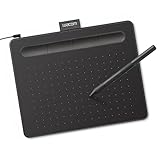
- Wacom Intuos Small Graphics Drawing Tablet: Enjoy industry leading tablet performance in superior control and precision with Wacom's EMR, battery free technology that feels like pen on paper
- Works With All Software: Wacom Intuos tablet can be used in any software program to explore new facets of digital creativity; draw, paint, edit photos/videos, create designs, and mark up documents
- What the Professionals Use: Wacom's industry leading pen technology and pen to paper feeling makes it the preferred drawing tablet of professional graphic designers
- Software and Training Included: Only Wacom gives you software with every purchase. Register your Intuos tablet and gain access to some of the best creative software and Wacom's online training
- Wacom is the Global Leader in Drawing Tablet and Displays: For over 40 years in pen display and tablet market, you can trust that Wacom to help you bring your vision, ideas and creativity to life
| Category | What it works with | Typical projects | Examples |
|---|---|---|---|
| Raster or pixel editing | Pixels arranged in a fixed-resolution image | Photo retouching, compositing, texture, painting, image manipulation | Photoshop, Affinity Pixel tools, GIMP |
| Vector illustration | Mathematically defined paths, shapes, fills, and strokes | Logos, icons, diagrams, illustrations, packaging, scalable artwork | Illustrator, CorelDRAW, Affinity Vector tools, Inkscape |
| Page layout | Text, images, pages, styles, and document structure | Books, reports, brochures, magazines, catalogs | InDesign, Affinity Layout, CorelDRAW |
| UI and product design | Reusable components, constraints, prototypes, and design systems | Websites, mobile apps, dashboards, developer handoff | Figma, Sketch |
| Template-led marketing design | Prebuilt layouts, stock assets, brand kits, and automated resizing | Social posts, presentations, flyers, ads, email graphics | Canva, Adobe Express, CorelDRAW Go |
A photo is usually a raster problem. A logo is usually a vector problem. A magazine is a layout problem. An app screen is a UI-design problem. An Instagram campaign may be best handled by a template application, even if the original logo and product photography were created elsewhere.
The detailed picks
Adobe Photoshop: best for professional raster editing
Choose Adobe Photoshop when your work is primarily pixel-based: retouching, compositing, masking, color correction, photo manipulation, texture, or layered marketing artwork. It is also the safest choice when clients, agencies, photographers, and vendors specifically expect PSD files.
Photoshop’s advantages are depth and ecosystem. Its layer and mask model is mature, it handles complex selections and retouching, and it integrates with other Adobe applications, Creative Cloud Libraries, Adobe Fonts, and related services. Adobe’s current AI feature set includes Generative Fill, Generative Expand, Generate Background, Harmonize, Generative Upscale, and Generate Similar. Adobe describes Generative Fill as creating a generative layer, which is useful when an edit must remain separate from the original artwork; however, AI usage is governed by plan-level generative-credit rules.
What’s actually slowing this PC down?
Pick the symptom - the matching free tool is one click away.
The individual plan is listed at US$22.99 per month, billed annually. That is not the same as a flexible month-to-month price. The larger Creative Cloud Pro plan is listed at US$69.99 per month, billed annually, and includes more than 20 applications, Photoshop, Illustrator, Premiere, Adobe Express Premium, Firefly features, 100GB of storage, and 4,000 monthly generative credits for premium AI features.
- Choose Photoshop if: you need advanced retouching, compositing, RAW support, masks, layered PSD delivery, or generative image editing.
- Do not use it as your only application if: you produce logos that must scale indefinitely, multi-page documents, responsive interfaces, or work on Linux.
- Best companion: Illustrator for vector artwork and InDesign for long documents and professional page layout.
Adobe Illustrator: best for professional vector illustration
Adobe Illustrator is the strongest default for logos, icons, packaging, typography-led artwork, diagrams, vector illustrations, and print assets that must remain clean at any size. Its path and node tools, Boolean operations, gradients, vector brushes, tracing, type controls, and Creative Cloud integration give it a high ceiling for precision work.
Illustrator is particularly sensible when client or vendor compatibility matters. Many production workflows are built around AI, PDF, SVG, and related Adobe files. That does not mean every imported or exported file will preserve every effect perfectly, but it reduces the risk of asking a client or printer to adapt to an unfamiliar native format.
Adobe lists the individual Illustrator plan at US$22.99 per month, billed annually. Adobe describes current access across desktop, iPad, and web, although feature parity naturally varies by device. For a professional print workflow, Illustrator is often only one part of the stack: Photoshop handles raster assets and InDesign handles substantial multi-page documents.
- Choose Illustrator if: vector precision, typography, logo construction, icons, packaging, or print illustration is central to your work.
- Think twice if: you only make occasional social posts, reject subscriptions, or need real-time product-design collaboration.
- Best companion: Photoshop for images and InDesign for books, brochures, reports, and magazines.
Affinity by Canva: best free all-in-one desktop suite
The new Affinity by Canva is the most important alternative for designers who want vector, pixel, and page-layout capabilities without a mandatory Adobe subscription. Canva announced the unified application on October 29, 2025, describing it as a combination of photo editing, vector design, and page layout in one application and making the core application free.
That combination is its main attraction. A freelancer or small studio can create vector artwork, edit images, and assemble layouts without maintaining three separate specialist applications. It is also appealing to students, hobbyists, and designers who prefer local files and a conventional desktop workflow.
Do not confuse the new unified product with the older Affinity V2 applications: Affinity Designer 2, Affinity Photo 2, and Affinity Publisher 2. Canva’s launch materials describe a new unified Affinity, while older learning documentation still refers to those separate applications. Check the product name, installer, current platform availability, and any optional Canva or AI features before buying or migrating.
The launch announcement said the new application was available for Mac and Windows, with iPad coming soon at launch. Do not assume that the current iPad build has complete desktop parity without checking the current product page. Canva also says Affinity supports formats including PSD, AI, PDF, SVG, TIFF, and IDML. Import support is not the same as perfect editability: effects, fonts, meshes, transparency, symbols, and live objects may still change.
Free tools Windows power users keep installed
One-click scans. No signup required.
- Choose Affinity if: you want a free desktop suite covering a broad range of vector, pixel, and layout work.
- Do not treat it as a total Adobe replacement if: your clients require Adobe-native files, you rely on Adobe Fonts, Libraries, plug-ins, specialized typography, Photoshop-specific AI, Illustrator-specific effects, or InDesign production pipelines.
- Best companion: Figma for collaborative UI work, or Canva for high-volume template-led marketing production.
Canva describes Affinity as free and says its content is stored locally and not used to train Canva AI features. Those are vendor statements, not a guarantee that every future plan or feature will remain unchanged. Recheck the current free-model announcement and terms before making a business-wide migration.
Figma: best for UI, product design, and collaboration
Figma is the right primary tool for website and app interfaces, design systems, responsive screens, interactive prototypes, and developer handoff. Its biggest advantages are not traditional illustration tools but shared files, real-time co-editing, comments, reusable components and libraries, auto layout, variables, prototyping, version history, and Dev Mode.
Also popular on Amazon

- Word-first 16K Pressure Levels: The upgraded stylus features 16,384 levels of pressure sensitivity and supports up to 60 degrees of tilt, delivering smoother lines and shading for a natural drawing experience. With no battery or charging needed, it operates like a real pen, making it easy for beginners to create effortlessly. This functionality helps novice artists develop their skills and explore their creativity without the intimidation of complex tools
- Designed for Beginners: This drawing pad desinged with 8 customizable shortcuts for both right and left-hand users, express keys create a highly ergonomic and convenient work platform
- Perfectly Adapted for Android: The XPPen Deco 01 V3 art tablet supports connections with Android devices running version 10.0 and above. It is recommended to download the XPPen Tools Android application, which adapts to your smartphone's screen aspect ratio, ensuring accurate mapping. It also supports mapping on Android screens with different aspect ratios in portrait mode
- Large Drawing Space, Bigger Bold Inspiration: This expansive drawing pad has10 x 6.25-inch helps you break through the limit between shortcut keys and drawing area
- Easy Connectivity for Beginners: The Deco 01 V3 offers USB-C to USB-C connectivity, plus adapters for USB C. This ensures easy connection to various devices, allowing beginner artists to set up quickly and focus on their creativity without compatibility concerns. Whether using a laptop, tablet, or desktop, the Deco 01 V3 provides a seamless experience, making it an ideal choice for those just starting their digital art journey
Figma’s documentation explains that auto layout responds dynamically as content changes. That matters when a button, card, navigation bar, or screen must adapt instead of being manually rearranged. Dev Mode adds developer-oriented inspection, code-related handoff, version comparison, annotations, and asset export. The Starter plan is free; the pricing page lists a Professional Full seat at US$16 per month when billed annually, with separate Dev and Collab seat types.
Figma is now broader than a pure UI tool. Figma Draw adds brushes, dynamic strokes, progressive blur, texture and noise effects, text on a path, and more detailed vector editing. That makes Figma more useful for digital-first illustration and social graphics, but it does not automatically make it a complete Illustrator replacement.
- Choose Figma if: several people need to edit, review, prototype, inspect, or hand off the same digital product.
- Do not make it your only tool if: you need demanding CMYK prepress, complex illustration, advanced photo retouching, or robust offline production.
- Best companion: Illustrator or Affinity for source vector artwork, and Photoshop or Affinity Pixel for photography and image compositing.
CorelDRAW Graphics Suite 2026: best for print, signage, and mixed production
CorelDRAW Graphics Suite remains a strong choice for signage, apparel, engraving, packaging, traditional print production, and shops that exchange CDR files. Its professional suite combines vector illustration, page layout, photo editing through PHOTO-PAINT, typography, and production-oriented tools.
The 2026 release adds AI Generate, AI-powered background removal, AI object selection, and clip masking in PHOTO-PAINT, alongside a refreshed interface and performance improvements. Corel’s official update page identifies July 2026 update v27.1. The suite is offered through subscription, maintenance, and one-time-purchase paths, and those options do not contain identical features.
The official comparison and purchase pages should be checked at checkout rather than relying on old roundup prices. Corel says one-time purchasers receive a one-time bundle of 2,000 AI credits, while subscribers receive 2,000 monthly credits. A secondary 2026 report mentioned US$549 for one-time purchase and US$269 per year for subscription, but those figures require confirmation on the publication date and should not be treated as permanent list prices.
- Choose CorelDRAW if: your printer, sign shop, apparel vendor, or production team already uses CDR; you need strong node editing and layout; or ownership matters.
- Check before choosing: whether the one-time edition includes the cloud features, updates, content, and AI access you need.
- Best companion: Photoshop or PHOTO-PAINT for complex images and Figma for collaborative digital-product work.
Canva: best for fast branded marketing graphics
Canva is the best fit for marketers, entrepreneurs, teachers, social-media managers, and occasional designers who need a polished result quickly. Templates, stock content, brand kits, resizing, presentations, flyers, social posts, team review, and publishing tools are more important here than manually constructing every path or controlling every print variable.
Quick wins for a faster PC:
Fix the driver behind crashes, sound loss and screen glitchesFind Drivers →Repair Windows errors before they cause bigger problemsFix Now →Scan for outdated or missing drivers - takes under a minuteDriver Scan →The US pricing page lists a free plan and Canva Pro at US$144 per year for one person. The free plan includes templates, stock content, 5GB of storage, limited AI access, and access to Affinity according to Canva’s current pricing information. Exact AI allowances, stock availability, and plan labels can change, so verify them in the account you intend to use.
Canva is not the right primary editor for a complex logo system, advanced photo composite, long publication, or printer-controlled prepress job. It can be the front end of a professional workflow, however: create the source logo and product images in Illustrator, Affinity, or Photoshop, then let a marketing team adapt approved assets in Canva.
Adobe Express: best lightweight Adobe companion
Adobe Express occupies a similar speed-first space to Canva, with an advantage for organizations already invested in Adobe assets and accounts. Its Premium plan is listed at US$9.99 per month and includes premium templates and assets, 250 monthly generative credits, one-click resize, more than 200 million Adobe Stock assets, more than 30,000 fonts, scheduling, 30-day version history, and 100GB of storage.
Express is useful for producing variations of approved campaigns, resizing content for multiple channels, scheduling posts, and giving non-designers controlled brand tools. It is not Photoshop, Illustrator, or InDesign: it favors templates, brand controls, and browser or mobile production over deep layers, advanced paths, complex typography, and prepress.
The Tool Desk
Outbyte Driver Updater FREEFix the driver behind crashes, sound loss and screen glitchesFind Drivers →Outbyte PC Repair FREERepair Windows errors before they cause bigger problemsFix Now →- Choose Express over Canva if: Adobe Stock, Adobe Fonts, Adobe account integration, or a lightweight Adobe workflow is especially valuable.
- Choose Canva instead if: your team already works in Canva, wants its template ecosystem, or needs its specific collaboration and publishing workflow.
Inkscape, GIMP, and Krita: the strongest free/open-source options
Free software is not one category. Affinity and Fresco are proprietary products with free access; Canva, Express, and Figma have restricted free tiers; Inkscape, GIMP, and Krita are free/open-source projects. The latter are especially important if Linux support, local ownership, or avoiding vendor accounts is a priority.
Inkscape: best free/open-source vector tool
Inkscape is free and open source, uses SVG as its primary format, and runs on GNU/Linux, Windows, and macOS. It supports importing and exporting SVG, AI, EPS, PDF, PS, and PNG. The project identifies 1.4.x as the stable bugfix branch and reported version 1.4.2 on May 12, 2025.
It is a practical choice for logos, diagrams, education, SVG assets, and budget-constrained work. It is not a promise of perfect AI, EPS, PDF, or CDR round-tripping. Commercial print files may require manual checks, especially around fonts, effects, color, and unsupported live objects.
Also popular on Amazon

- Customize Your Workflow: The 6 customizable press keys on Huion H640P drawing tablet for pc let you assign your most-used commands—like undo, zoom, brush switch, or save—so you can keep your hands on the tablet and your mind on the art. Whether you're a digital painter switching brushes, or a comic artist zooming in and out, these keys keep your workflow smooth and uninterrupted. Plus, the Huion driver lets you save different shortcut profiles for different apps, so you never have to reconfigure when switching software.
- Professional Pen Performance: Huion H640P drawing pad for computer comes with the battery-free PW100 stylus that's always ready when inspiration strikes. With 8192 levels of pressure sensitivity, every light sketch, or bold stroke responds naturally to your hand—just like a real pen. The 5080 LPI resolution and 233 PPS report rate deliver lag-free, precise strokes, so you can draw confidently without second-guessing your cursor. The pen side buttons help you switch between pen and eraser instantly.
- Compact and Portable: Huion H640P computer graphics tablet features a compact, ultra-portable design at just 0.3 inches thin and 0.61 lbs light, so it slides easily into your backpack—perfect for sketching in coffee shops, taking notes in class, or editing on the go between home and studio. The 6x4 inch active area offers enough room for natural pen movements while fitting comfortably on crowded desks, or lecture hall seats.
- Stable Compatibility: Huion H640P graphic drawing tablet works seamlessly with Mac, Windows, Linux PCs, and Android smartphones/tablets (OS version 6.0 or later). Left-handed friendly, and you just need to flip the tablet and adjust the settings in the driver. Please note: H640P does NOT support iPhone/iPad.
- Move Beyond the Mouse: Huion Inspiroy H640P is a pen tablet that replaces your mouse for more natural, precise control. Freehand draw, take notes, or even play OSU—everything you do with a mouse, you can do better with a pen. The precise tip makes it ideal for detailed photo editing, graphic design, or signing PDF. Meanwhile, the ergonomic pen grip helps you avoid the strain that comes from hours of using a mouse.
GIMP: best free/open-source raster editor
GIMP 3.2.4 was released on April 19, 2026. GIMP 3 introduced non-destructive editing for many commonly used filters and improved PSD and file-format exchange. It is a capable option for image manipulation, basic compositing, and Linux-based workflows.
Do these 3 things before closing this tab:
1Clear out junk files and repair common Windows errors2Fix the driver behind crashes, sound loss and screen glitches3Repair Windows errors before they cause bigger problemsGIMP is not an Illustrator replacement. It is also not automatically a drop-in Photoshop replacement for every professional pipeline: evaluate its typography, color management, plug-ins, PSD fidelity, and handoff requirements using your own files.
Krita: best free digital-painting alternative
Krita is focused on digital painting, illustration, brushes, and animation. Its official release pages list 5.3 and 6.0 release lines in 2026, including 5.3.2.1 and 6.0.2. Choose it for brush-led artwork rather than page layout, brand systems, or production photography.
Adobe Fresco: best free tablet-oriented drawing app, subject to verification
Adobe Fresco is described by Adobe as a free professional-level drawing and painting application with thousands of brushes, vector brushes, raster brushes, live brushes, animation tools, and synchronization with Photoshop or Illustrator. Adobe’s current product page prominently advertises iPadOS and iOS downloads, while the current PCMag roundup also lists Windows. Because those sources do not present identical platform information, verify Windows availability and feature parity before recommending Fresco for a Windows tablet.
Adobe vs. Affinity vs. CorelDRAW
This is the most useful comparison for freelancers and small studios deciding whether to stay with Adobe, move to Affinity, or choose CorelDRAW.
PC Slower Than It Used to Be?
A free scan shows the junk files, broken settings and background clutter dragging Windows down - then fixes them in one click.Free scan · Windows 10 & 11Crashes, No Sound, or Screen Glitches?
Random freezes, missing sound and display glitches usually trace back to one bad driver. Find and replace yours safely.Free scan · under a minute| Consideration | Adobe | Affinity by Canva | CorelDRAW |
|---|---|---|---|
| Ownership model | Subscription for current full desktop applications; individual apps or Creative Cloud bundle | New unified core application announced as free | Subscription, maintenance, and one-time purchase options |
| Raster editing | Photoshop is the deepest specialist option | Pixel/photo capabilities are built into the unified application | PHOTO-PAINT covers image editing in the suite |
| Vector work | Illustrator has a mature professional ecosystem | Strong value for combined vector, pixel, and layout work | Strong path editing and production workflow, especially where CDR is expected |
| Page layout | InDesign is the specialist Adobe choice | Layout is included in the unified Affinity application | Layout is included in Graphics Suite |
| Typography and ecosystem | Adobe Fonts, Libraries, plug-ins, linked applications, and established agency compatibility | Less ecosystem dependence and more local-desktop emphasis | Established production tools and file ecosystem, particularly in some print and signage markets |
| Collaboration | Strong cloud-connected ecosystem, with product-specific workflows | Do not assume Figma-style real-time collaboration without verifying the current plan and feature set | Cloud and update access varies by purchase option |
| AI | Photoshop and other Adobe products offer integrated generative tools with plan-level credit rules | Optional Canva-related AI features and separate terms should be checked | 2026 tools include AI Generate and background/object features; credits differ by license |
| Best reason to switch | Client compatibility and the broadest specialist stack | Lower cost and one free application covering many common tasks | Print production, CDR compatibility, and ownership option |
Can Affinity replace Adobe? It can replace a great deal of everyday vector, raster, and layout work, particularly for freelancers, students, hobbyists, and small studios. It is not automatically a complete replacement for an Adobe pipeline that depends on Photoshop-specific AI, Illustrator-specific effects, InDesign publishing, Adobe Fonts, Libraries, plug-ins, or clients who require native Adobe files. Test your real documents before cancelling an Adobe plan.
Figma versus traditional graphic-design applications
Figma wins when the deliverable is a digital product rather than a conventional print file. Components, variants, auto layout, variables, libraries, prototypes, comments, version history, and developer inspection reduce the friction between design and implementation.
Traditional applications win when the job requires high-end photo manipulation, intricate vector construction, demanding typography, color-managed CMYK production, spot colors, complex page layout, or a vendor-specific file format. Figma Draw makes digital illustration more viable inside Figma, but broader illustration features do not erase those distinctions.
A common professional combination is Figma plus Photoshop or Affinity for visual assets. A product team might create interface components and prototypes in Figma while editing photography in Photoshop. A brand team might create a logo in Illustrator or Affinity, build the product interface in Figma, and distribute approved social templates through Canva or Express.
Recommended Free Tools
Which application should a beginner learn first?
Start with the work you want to do, not with the most famous application:
- General visual content: Canva or Adobe Express. They offer the shortest path to a competent first result.
- Professional vector fundamentals: Illustrator, Affinity’s vector tools, CorelDRAW, or Inkscape. These teach paths, nodes, shapes, fills, strokes, and scalable artwork.
- Photo editing: Photoshop, Affinity’s pixel tools, or GIMP. Learn layers, masks, selections, adjustment workflows, and non-destructive editing.
- UI/UX: Figma. Learn frames, components, auto layout, prototyping, variables, and handoff.
- Digital painting: Fresco on a supported device or Krita. Brush behavior and canvas feel matter more than template libraries.
- Print layout: InDesign, Affinity’s layout tools, or CorelDRAW. Learn styles, master pages, bleed, preflight, and PDF export.
“Easy to start” and “easy to master” are different measurements. Canva and Express can produce a polished first result quickly. Photoshop, Illustrator, Affinity, and CorelDRAW take longer to learn but provide substantially more control.
What print designers must check before switching
PDF export alone does not make an application suitable for professional print. Before committing to a tool, confirm all of the following with the printer or production vendor:
- CMYK document and output support.
- ICC color-profile handling.
- Spot-color support and current Pantone availability.
- Bleed, trim marks, slug areas, and page geometry.
- PDF/X export options and the printer’s preferred PDF/X version.
- Transparency handling, flattening, overprint, and knockout behavior.
- Font embedding, font licensing, and outlining options.
- Image-resolution warnings and effective resolution after scaling.
- Linked versus embedded assets and whether links survive handoff.
- Preflight tools that identify missing fonts, profiles, low-resolution images, and overflow.
- Whether imported PDFs remain editable rather than becoming flattened artwork.
- Whether a file survives a round trip through the applications and RIP used by the printer.
Common failures include sending an RGB document to a CMYK printer, forgetting bleed, substituting a missing font, using an incorrect black mix, losing a spot color, creating hairline strokes that disappear, or exporting transparency that produces artifacts. Ask for a proof and run the printer’s preflight rather than trusting a generic “print-ready” label.
Also popular on Amazon
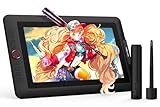
- PLEASE NOTE:XPPen Artist13.3 Pro drawing tablet Need to connect with computer,you need to use it with your computer or laptop, the 3 in 1 cable is included
- Drawing Tablet with Screen: Tilt Function- XPPen Artist 13.3 Pro supports up to 60 degrees of tilt function, so now you don't need to adjust the brush direction in the software again and again. Simply tilt to add shading to your creation and enjoy smoother and more natural transitions between lines and strokes
- Graphics Tablets: High Color Gamut- The 13.3 inch fully-laminated FHD Display pairs a superb color accuracy of 88% NTSC (Adobe RGB≧91%,sRGB≧123%) with a 178-degree viewing angle and delivers rich colors, vivid images, and dazzling details in a wider view. Your creative world is now as powerful as it is colorful
- Drawing Pad: One is enough- The sleek Red Dial on the display is expertly designed with creators in mind, its strategic placement allows for natural drawing postures. With just one wheel, you can effortlessly zoom in and out, adjust brush sizes, and flip the canvas—all tailored to suit the habits of everyday artists. The 8 customizable shortcut keys allow you to personalize your setup, streamlining your workflow and enhancing creative efficiency
- Universal Compatibility & Software Support:supports Windows 7 (or later), Mac OS X 10.10 (or later), Chrome OS 88 (or later), and Linux systems. Fully compatible with major creative software including Photoshop, Illustrator, SAI, and Blender 3D. Register your device to access additional programs like ArtRage 5 and openCanvas for expanded creative possibilities.
File compatibility: opens is not the same as round-trips
When a product page says it supports AI, PSD, PDF, EPS, SVG, TIFF, or IDML, ask four separate questions:
- Can it open the file? The application may display the artwork but flatten or substitute unsupported elements.
- Can it edit the important objects? Text, masks, gradients, symbols, live effects, meshes, and adjustment layers may not remain native.
- Can it export a usable file? The receiving application may interpret transparency, profiles, or fonts differently.
- Can the file round-trip without material changes? Reopen the exported file in the originating application and inspect it.
Before changing tools, use a real client file containing text, effects, masks, gradients, transparency, linked images, and multiple layers. Open it, edit it, save it, export it to a second application, and compare the result. “Compatible” can mean fully editable native objects, partially editable objects, flattened artwork, missing effects, missing fonts, or rasterized content.
Independent reader supportYour contribution helps us test, update, and keep practical guides available for everyone.How to evaluate AI features responsibly
Do not choose software because it has the largest number of AI buttons. Test whether AI improves your actual workflow:
- Does the result remain editable inside a normal layer or object workflow?
- Are prompts repeatable enough for production?
- How well does it render text, edges, masks, and fine details?
- Can you control references, composition, aspect ratio, and output resolution?
- How many credits are included, and do they roll over?
- What happens when the allowance is exhausted?
- What are the commercial-use terms for the specific plan and model?
- Are user uploads, prompts, and generated results retained or used for training?
- Are opt-out controls, provenance metadata, or Content Credentials available?
- Does the feature work on the free plan, desktop, web, and mobile versions?
Adobe describes Photoshop’s Generative Fill as a generative layer for non-destructive editing. Canva says content is not used to train its AI by default and provides an opt-in setting. Canva also says Affinity content is stored locally and is not used to train Canva AI features. These are vendor claims and should be checked against the current terms, especially for confidential client work. Never describe AI output as commercially safe without verifying the exact plan, model, geography, and any indemnification policy.
What “free” really means
Before choosing a free application, check more than the price:
- Free proprietary application: Affinity’s core application and Adobe Fresco are examples, subject to current platform and feature availability.
- Freemium: Canva, Adobe Express, and Figma have free entry plans with restrictions on storage, collaboration, assets, features, or AI.
- Free/open source: Inkscape, GIMP, and Krita can be used without a proprietary subscription, but may require more manual setup and may not preserve every commercial file format.
- Free AI is limited: generated images, background removal, and other features may consume credits or require a paid tier.
- Free may still require an account: cloud tools can depend on sign-in, internet access, or service availability.
- Commercial use still needs checking: the application license, stock assets, fonts, templates, and AI output may have separate terms.
A practical decision tree
- Are you mainly editing photos or compositing pixels? Start with Photoshop. Choose Affinity’s pixel tools or GIMP if cost or local/open-source operation is more important.
- Are you creating logos, icons, or scalable artwork? Start with Illustrator, Affinity’s vector tools, CorelDRAW, or Inkscape.
- Are you producing a brochure, report, magazine, or book? Use InDesign, Affinity’s layout tools, or CorelDRAW. Do not force a photo editor to manage a long document.
- Are you designing an app or website? Use Figma, particularly when components, responsive behavior, prototypes, review, and developer handoff matter.
- Do you need quick branded posts, slides, flyers, or ads? Choose Canva or Express.
- Is painting the central activity? Choose Krita or Fresco, depending on device support and the brush workflow you prefer.
- Is avoiding subscriptions decisive? Consider Affinity, CorelDRAW’s one-time-purchase edition, Inkscape, GIMP, or Krita. Confirm update, cloud, AI, and file-handoff limitations first.
Why a two- or three-tool stack is often better
Professional designers rarely need one application to perform every job. A practical stack might be:
- Adobe stack: Illustrator for vector artwork, Photoshop for images, and InDesign for long documents.
- Lean independent stack: Affinity for desktop vector, pixel, and layout work, plus Figma for collaborative UI projects.
- Production shop stack: CorelDRAW for vector and print production, plus PHOTO-PAINT or Photoshop for image work.
- Marketing stack: Illustrator or Photoshop for approved source assets, then Canva or Express for scaled content production.
- Open-source stack: Inkscape for SVG and vector work, GIMP for raster editing, and Krita for painting.
A stack is worthwhile when it prevents a tool from being used outside its strengths. It is not worthwhile if your team constantly converts files, loses editability, or pays for features nobody uses.
How credible software testing should work
The title’s “tested” premise should not be confused with repeating vendor feature lists. The current category recommendations draw on the documented product evaluation in PCMag’s syndicated roundup. A fresh lab comparison should disclose its test date, product version, operating system, hardware, plan or license, required cloud access, source files, tasks, and independent inspection of exported files.
Do these 3 things before closing this tab:
1Repair Windows errors before they cause bigger problems2Fix the driver behind crashes, sound loss and screen glitches3Clear out junk files and repair common Windows errorsA useful test suite includes:
Raster and compositing
Use the same RAW or high-resolution TIFF in each eligible editor. Test opening, layers, masks, adjustment layers, healing, cloning, object removal, selections, generative editing, 16-bit handling, CMYK conversion, and PSD export and reopening.
Vector illustration
Recreate the same logo or icon set. Test pen and node tools, Boolean operations, gradients, mesh fills, patterns, variable-width strokes, text on a path, typography, image tracing, and SVG, PDF, EPS, and AI interchange.
Layout and print
Create a four-page brochure or report. Test master pages, paragraph and character styles, baseline grids, linked text frames, tables, bleed, slug, preflight, CMYK conversion, PDF/X export, font embedding, transparency, and overprint behavior.
UI and product design
Create a responsive mobile screen set and a small component library. Test components, variants, auto layout, constraints, variables, prototypes, comments, version history, simultaneous editing, developer inspection, annotations, and asset export.
Templates and marketing
Create an Instagram post, presentation slide, flyer, email header, and alternate aspect-ratio versions. Measure template quality, brand-kit controls, automatic resizing, asset search, copy replacement, team review, scheduling, publishing, and export consistency.
Also popular on Amazon
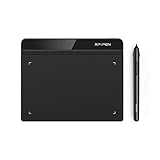
- Battery-Free Pen: StarG640 drawing tablet is the perfect replacement for a traditional mouse! The XPPen advanced Battery-free PN01 stylus does not require charging, allowing for constant uninterrupted Draw and Play, making lines flow quicker and smoother, enhancing overall performance
- Ideal for Online Education: XPPen G640 graphics tablet is designed for digital drawing, painting, sketching, E-signatures, online teaching, remote work, photo editing, it's compatible with Microsoft Office apps like Word, PowerPoint, OneNote, Zoom, Xsplit etc. Works perfect than a mouse, visually present your handwritten notes, signatures precisely
- Compact and Portable: The G640 art tablet is only 2 mm thick, it's as slim as all primary level graphic tablets, allowing you to carry it with you on the go
- Chromebook Supported: XPPen G640 digital drawing tablet is ready to work seamlessly with Chromebook devices now, so you can create information-rich content and collaborate with teachers and classmates on Google Jamboard’s whiteboard; Take notes quickly and conveniently with Google Keep, and effortlessly sketch diagrams with the Google Canvas
- Multipurpose Use: Designed for playing OSU! Game, digital drawing, painting, sketch, sign documents digitally, this writing tablet also compatible with Microsoft Office programs like Word, PowerPoint, OneNote and more. Create mind-maps, draw diagrams or take notes as replacement for mouse
Interchange and recovery
Open PSD, AI, SVG, PDF, TIFF, and IDML files where supported. Modify text, effects, masks, gradients, and layers; save to the native format; reopen it in the originating application; export it to a second application; and record what changes, flattens, disappears, or becomes uneditable. Also check offline launch, local-file access, recovery after an interrupted sync, and what happens if an account or cloud service is unavailable.
Final recommendations
For most professional raster work, choose Photoshop. For vector illustration and the safest agency or vendor compatibility, choose Illustrator. For a free desktop application that combines several design disciplines, choose Affinity. For UI and product design, choose Figma. For print shops, signage, apparel, and CDR-centered workflows, choose CorelDRAW. For quick branded marketing content, choose Canva or Express. For open-source workflows, choose Inkscape, GIMP, or Krita according to whether you need vector, raster, or painting tools.
Before switching, test your real files, printer requirements, fonts, cloud needs, offline process, and client handoff. The application that completes your complete workflow reliably is a better choice than the one with the longest feature list.
Free tools Windows power users keep installed
One-click scans. No signup required.
Frequently Asked Questions
Is Photoshop still worth paying for in 2026?
Yes, if you need advanced raster editing, retouching, compositing, RAW workflows, generative image tools, PSD delivery, or Adobe ecosystem integration. It is harder to justify if you only make occasional graphics, need vector-first work, or want to avoid subscriptions.
Can Affinity replace Adobe?
Affinity can replace much everyday vector, pixel, and layout work, especially for freelancers and small studios. It is not guaranteed to replace an Adobe pipeline that depends on Photoshop- or Illustrator-specific features, InDesign publishing, Adobe Fonts, Libraries, plug-ins, or client-required native files. Test representative projects before migrating.
Is Canva professional enough for graphic design?
Canva is professional enough for many marketing, social, presentation, and brand-content workflows. It is not a precision-first replacement for Illustrator, Photoshop, or InDesign when you need complex illustration, advanced image manipulation, multi-page typography, or demanding prepress.
Is Figma good for graphic design?
Figma is excellent for UI and product design, design systems, prototypes, collaboration, and developer handoff. Figma Draw expands its illustration capabilities, but Illustrator, Affinity, CorelDRAW, or Photoshop remain better choices for many traditional print, photo, and high-end illustration tasks.
What’s actually slowing this PC down?
Pick the symptom - the matching free tool is one click away.
Which free tool is closest to Illustrator?
Inkscape is the strongest free/open-source vector alternative, while Affinity is the more complete free desktop option for users who also need pixel editing and layout. Neither should be assumed to preserve every AI, EPS, PDF, CDR, font, or live-effect feature perfectly.
Which free tool is closest to Photoshop?
GIMP is the leading free/open-source raster alternative. Affinity also covers pixel editing as part of its broader desktop suite. Compare your actual PSD files, color-management needs, plug-ins, typography, and export requirements before replacing Photoshop.
Do I need more than one graphic design application?
Often, yes. A common professional setup uses a vector tool, a raster editor, and sometimes a page-layout or UI tool. Using two specialized applications can be more reliable than forcing one application to handle logos, photographs, long documents, and prototypes.
What should I test before sending files to a printer or client?
Check CMYK and ICC profiles, spot colors, bleed, trim marks, PDF/X export, transparency, overprint, font embedding, image resolution, linked assets, preflight, and whether the file remains editable after export. Open and inspect the result in the receiving workflow whenever possible.
Windows Errors? Fix Them Before They Spread
Repair common Windows errors and clear accumulated junk for a smoother, more stable PC - no reinstall needed.Free scan · no reinstallOutdated Drivers Are Slowing You Down
One free scan finds every outdated or missing driver and matches the right update for your exact hardware.Free scan · exact hardware matchThe Bottom Line
Bottom line: choose the tool that matches the deliverable, not the most famous brand. Photoshop is the best raster choice, Illustrator the best professional vector choice, Affinity the best free all-in-one desktop option, Figma the best collaborative UI tool, CorelDRAW the strongest print-production alternative, and Canva or Express the fastest route to branded marketing content. For a no-cost open-source workflow, use Inkscape for vector work, GIMP for raster editing, and Krita for painting.

