
Free tools Windows power users keep installed
One-click scans. No signup required.
iTechGuides is reader-supported. When you buy through links on our site, we may earn an affiliate commission. As an Amazon Associate I earn from qualifying purchases. Learn more
The best free tools for editing PDFs without Adobe Acrobat depend on the job. PDFgear is the strongest general desktop choice for changing existing text, PDF24 is best for unlimited page and document operations, Sejda is convenient for occasional browser edits, and LibreOffice Draw is a useful offline fallback for simple PDFs.
“Edit a PDF” can mean replacing text already embedded in a document, adding a text box, annotating, filling a form, signing, rearranging pages, or using OCR on a scan. Those tasks do not have the same requirements, so the right free Acrobat alternative depends on what you need to change and whether the document can leave your device.
Key takeaways
- PDFgear desktop is the best first choice when you need to replace existing PDF text rather than place an annotation over the page.
- PDF24 is the strongest free toolkit for merging, splitting, rotating, compressing, converting, signing, OCR, and creating form fields; PDF24 Creator provides offline Windows processing.
- Sejda is convenient for occasional browser editing, but its listed free limits include three tasks per day, files up to 50 MB or 200 pages, and OCR up to 10 pages.
- LibreOffice Draw keeps simple PDF edits local and open source, but complex layouts, fonts, forms, and page structures can change during import and export.
- Browser PDF editors require uploading the document, even when the provider encrypts transfers or deletes files after processing; local desktop processing is preferable for confidential files.
What is the best free tool for editing PDFs without Adobe Acrobat?
The best free tool for editing PDFs without Adobe Acrobat is PDFgear desktop for direct editing of existing text and general-purpose PDF work. PDF24 is a better choice for high-volume page operations, Sejda is better for a quick browser task, and LibreOffice Draw is better when an offline open-source option is more important than perfect layout preservation.
The Tool Desk
Outbyte Driver Updater FREEScan for outdated or missing drivers - takes under a minuteDriver Scan →Outbyte PC Repair FREERepair Windows errors before they cause bigger problemsFix Now →| Tool | Best for | Existing-text editing | OCR | Forms | Offline use | Free limits or caveat | Platforms |
|---|---|---|---|---|---|---|---|
| PDFgear | Broad direct editing | Desktop: yes, according to the vendor; web: adding text and annotations | Available; vendor-reported accuracy should not be treated as an independent benchmark | Fill and edit PDF workflows are advertised | Desktop option | Desktop and web features differ; verify the current version and platform | Desktop, web, mobile availability advertised |
| PDF24 | Page and document operations | Limited for sophisticated internal text editing | Available | Form Editor creates interactive fields | PDF24 Creator on Windows | Online tools advertise no registration, time, or usage limits; web files leave the device | Browser; Windows desktop |
| Sejda | Occasional browser edits | Yes, within free-tool limits | Up to 10 pages on the listed free desktop limits | Fill forms and sign | Desktop edition available, but free limits remain | Three tasks per day; 50 MB or 200 pages; other tool-specific caps | Windows, macOS, Linux, Chromebook routes, browser |
| LibreOffice Draw | Simple offline edits | Works best with simple page objects | Not the main strength of the workflow | Not a full Acrobat-style form editor | Yes | Importing and exporting can alter layout, fonts, forms, and structure | Desktop platforms supported by LibreOffice |
| iLovePDF | Merge, split, compress, and convert | Not the primary reason to choose it | Available among its workflow tools, subject to plan limits | Routine document workflows | Paid desktop tools provide local processing | Free plan is limited; Premium was displayed at $5 monthly or $60 annually in the U.S. pricing view observed August 16, 2026 | Web, mobile, desktop |
What does “edit a PDF” actually mean?
Editing a PDF can describe several different operations, and a tool that performs one operation may not perform another.
Popular on Amazon
| Task | What changes | Free tools likely to help |
|---|---|---|
| Add text | A new text box or overlay is placed on the page | PDFgear web, PDF24, Sejda, iLovePDF |
| Change existing text | Text already embedded in the PDF is selected and replaced | PDFgear desktop; Sejda within limits; LibreOffice Draw for simple PDFs |
| Edit a scanned PDF | OCR creates a searchable or editable text layer from an image | PDFgear, PDF24 OCR, Sejda OCR within its page limit |
| Annotate | Highlights, comments, stamps, drawings, or markup are added | PDFgear, Sejda, Xodo, and many PDF viewers |
| Fill a form | Existing interactive fields receive typed information | PDFgear, PDF24, Sejda, Xodo |
| Create a form | Text fields, checkboxes, dropdowns, radio buttons, or signature fields are added | PDF24 Form Editor |
| Sign | A typed, drawn, or image signature is added | PDFgear, Sejda, PDF24, iLovePDF, Xodo |
| Rearrange pages | Pages are merged, split, rotated, extracted, deleted, or reordered | PDF24, Sejda, iLovePDF |
| Convert | The PDF becomes a Word file, image, or another format | PDFgear, PDF24, Sejda, iLovePDF |
| Compress | File size is reduced, potentially with quality loss | PDF24, Sejda, iLovePDF |
The most important distinction is between editing existing text and covering a page with new content. A white rectangle followed by a new text box may look correct but leave the original words underneath. Select, replace, save, close, reopen, and search the result before treating a PDF as genuinely edited.
Why is PDFgear the best overall free PDF editor?
PDFgear is the best overall free PDF editor when the main requirement is changing existing text in a desktop application alongside annotations, forms, signatures, conversions, and OCR. PDFgear’s official editor page says the web editor can add text, highlights, comments, annotations, and fill forms, while changing or replacing existing text requires the desktop app; see the vendor’s PDFgear editing feature comparison.
That desktop-versus-web distinction matters. Opening PDFgear in a browser may be enough to add a note or type over a page, but users who need to select a sentence already in the PDF should install the desktop edition and test the original text directly.
PDFgear’s official product page also advertises PDF organization, conversion, OCR, merging, splitting, signing, and form tools across desktop, web, and mobile products. Those are vendor-described capabilities, not independent performance results; feature availability can vary by operating system, app edition, and version. Consult the official PDFgear product page before installing.
PDFgear advertises a 98.6% OCR accuracy figure on its text-editing page. The available source does not establish the test documents or methodology, so treat the figure as a vendor claim rather than a neutral benchmark. OCR output still requires careful proofreading, especially for names, dates, numbers, columns, and legal language.
How should you use PDFgear to edit existing text?
- Download the desktop application from PDFgear’s official site.
- Open a copy of the PDF rather than the only original.
- Click or select the existing text; do not start by adding a new text box.
- Replace a short phrase and inspect the font, spacing, line breaks, links, and surrounding objects.
- Save the result under a new filename.
- Open the saved PDF in another viewer and verify that the replacement remains selectable and searchable.
- For a scan, run OCR first, then compare every important word against the page image.
When is PDF24 better than PDFgear?
PDF24 is better than PDFgear when the job is mainly merging, splitting, rotating, extracting, compressing, converting, signing, numbering, OCR, or managing many PDF pages rather than reflowing complex existing text. PDF24’s online service advertises no registration, no time restrictions, and no usage restrictions on its free tools; the service is supported by advertising, as described on the official PDF24 online tools page.
PDF24 is especially useful for a workflow such as combining several applications into one PDF, deleting unwanted pages, rotating scans, compressing the result, and adding page numbers. PDF24’s web editor should not automatically be treated as a sophisticated Acrobat-style editor for every internal text object.
Do these 3 things before closing this tab:
1Scan for outdated or missing drivers - takes under a minute2Clear out junk files and repair common Windows errors3Fix the driver behind crashes, sound loss and screen glitchesPDF24 also has a Form Editor for adding, adjusting, and removing text fields, checkboxes, radio buttons, dropdowns, list fields, action buttons, and signature fields. That makes PDF24 a notable free choice when the requirement is creating a fillable form, not merely filling an existing one. See the PDF24 Form Editor documentation.
Should you use PDF24 online or PDF24 Creator?
Use PDF24 Creator when the document should stay on a Windows computer; use the browser tools when convenience matters more than local-only processing. PDF24’s official FAQ says its online service uses encrypted transfer, processes files on servers in the EU, and automatically deletes uploaded files after one hour. Those measures reduce exposure but do not make browser processing equivalent to never uploading the document; the relevant PDF24 privacy and security FAQ explains the online model.
PDF24 Creator is the offline Windows edition. The official download page displayed version 11.30.1, dated April 21, 2026, when the research was collected. Recheck the PDF24 Creator download page immediately before publication or installation because software versions change.
Is Sejda the best free browser PDF editor?
Sejda is the best fit for an occasional browser PDF edit when you want to add or change text, insert images, sign, fill forms, or manipulate pages without creating an account. Sejda is not the best free choice for frequent or large jobs because its free tier has explicit daily, file-size, page-count, OCR, and batch limits.
What’s actually slowing this PC down?
Pick the symptom - the matching free tool is one click away.
Sejda’s official desktop page lists these free limits: three tasks per day; documents up to 50 MB or 200 pages; compression up to 100 MB; OCR up to 10 pages; images up to 5 MB; combining up to 30 files and 50 pages; and one-by-one conversion instead of batch conversion. The limits are documented on the Sejda desktop and free-limits page.
Sejda offers desktop installation routes for Windows, macOS, Linux, and Chromebook users, but desktop availability does not mean unlimited free use. Sejda’s upgrade page says free use requires no signup but remains subject to page, hourly, upload, and tool-specific restrictions.
Prices are regional and can change. The Sejda upgrade page displayed a web plan at $7.50 per user per month and a Desktop + Web annual plan at $63 per user per year on August 16, 2026; the desktop page displayed a $7.95 seven-day pass. Treat those as observed prices, not permanent pricing. See the official Sejda upgrade page.
Can LibreOffice Draw edit a PDF offline?
LibreOffice Draw can edit simple PDFs offline, especially one-page flyers, basic forms, and documents made from straightforward visible objects. LibreOffice Draw is not a full replacement for Acrobat’s structured PDF editing because importing a PDF may reconstruct text, tables, and graphics as separate objects.
Windows Errors? Fix Them Before They Spread
Repair common Windows errors and clear accumulated junk for a smoother, more stable PC - no reinstall needed.Free scan · no reinstallOutdated Drivers Are Slowing You Down
One free scan finds every outdated or missing driver and matches the right update for your exact hardware.Free scan · exact hardware matchLibreOffice’s documentation describes Draw as the suite’s vector-graphics component and documents PDF support. The documentation also warns that PDFs with sophisticated layouts may not import cleanly and that ordinary PDFs open in Draw for modification; consult the official LibreOffice PDF documentation.
How do you edit a PDF in LibreOffice Draw?
- Make a backup copy of the original PDF.
- Open the copy with LibreOffice Draw.
- Select the visible text or object and make the smallest possible change.
- Export the result as a new PDF instead of overwriting the source.
- Compare every page with the original.
- Check fonts, line breaks, tables, hyperlinks, forms, bookmarks, text selection, and accessibility-related structure.
LibreOffice Draw is a sensible choice when local processing and open-source software matter most. LibreOffice Draw is a poor choice for a long, highly designed, scanned, legally exact, or form-heavy PDF unless you can thoroughly validate the output.
Is iLovePDF a good free Acrobat alternative?
iLovePDF is a good free Acrobat alternative for merging, splitting, compression, conversion, and routine document workflows, but its free plan is limited and is not a fully unlimited replacement for Acrobat. iLovePDF is most attractive when a polished browser workflow matters and the documents are appropriate to upload.
The U.S. pricing display observed on August 16, 2026 listed Premium at $5 per month or $60 billed annually. The official pricing page describes the free Basic plan as limited and Premium as adding unlimited processing, digital signatures, workflows, ad-free use, and access across web, mobile, and desktop. Confirm the current price and regional terms on the official iLovePDF pricing page.
iLovePDF’s desktop page describes local desktop processing for privacy and offline workflows, but the desktop tools require a subscription; the free desktop product is presented as a PDF reader. The iLovePDF desktop page is the appropriate source for the current edition distinction.
What can you use on a phone or Chromebook?
Phone and Chromebook users can use browser-based PDF editors for one-off tasks, while mobile-oriented applications such as Xodo are more naturally suited to annotation, form filling, and signing than to unrestricted editing of existing PDF text.
Xodo is worth considering for mobile annotation and signing, but current free limits, pricing, and the availability of direct existing-text editing were not verified in the available research. Check the official Xodo site before relying on Xodo for a specific free workflow. Do not assume that a mobile app that can highlight, sign, or fill a form can replace words embedded in the original PDF.
Also popular on Amazon
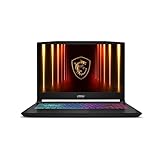
- Intel Core i9 HX Power for Elite Gaming: Dominate demanding titles with the Intel Core i9-14900HX and its 24-core hybrid architecture, delivering fast load times, high FPS, and smooth multitasking.
- GeForce RTX 5070 With Ray Tracing & DLSS 4: Powered by NVIDIA Blackwell, the RTX 5070 delivers stronger ray tracing, higher FPS, faster AI upscaling, and more responsive gameplay—ideal for competitive and cinematic gaming.
- QHD 165Hz, 100% DCI-P3 for Ultra-Clear Combat: The QHD 165Hz display reveals more detail, reduces motion blur, and boosts visibility in fast-paced games while delivering richer, more accurate colors.
- Cooler Boost 5 for Sustained Performance: Dual fans and a 5-heat-pipe share-pipe design keep the CPU and GPU cool, maintaining stable frame rates during long gaming marathons.
- 4-Zone RGB Keyboard + Full Game-Ready Ports: Customize your setup with a 4-zone RGB keyboard and highlighted WASD keys. Includes USB-C Gen 2, HDMI up to 8K, multiple USB-A ports, RJ45, Wi-Fi 6E & Hi-Res Audio.
Sejda lists desktop routes for Chromebook users, while browser tools work across operating systems. PDF24 Creator is the notable offline desktop exception in this group because its Creator product is Windows-focused.
Quick wins for a faster PC:
Repair Windows errors before they cause bigger problemsFix Now →Scan for outdated or missing drivers - takes under a minuteDriver Scan →How should you choose between desktop and browser PDF editors?
Choose a desktop editor when confidentiality, large files, repeated work, or offline access matters; choose a browser editor when the job is occasional, the document is non-sensitive, and installation would be inconvenient.
| Situation | First choice | Reason | Important caution |
|---|---|---|---|
| Replace existing text for free | PDFgear desktop | Desktop editing is the edition PDFgear identifies for changing or replacing existing text | Test fonts, spacing, links, and saved-text searchability |
| Merge, split, rotate, compress, or convert many PDFs | PDF24 | Broad free toolkit with an offline Windows Creator edition | Use Creator for confidential files; web tools upload documents |
| Make one quick edit in a browser | Sejda | Direct editing without installation or signup | Three daily tasks and other free limits apply |
| Edit a simple PDF locally | LibreOffice Draw | Offline and open source | Layout reconstruction can alter the document |
| Convert or compress documents in a polished workflow | iLovePDF | Strong routine-operation coverage | Free processing is limited; desktop tools require a subscription |
| Annotate or sign on a phone | Xodo or PDFgear mobile | Mobile-oriented workflow | Verify current free features and distinguish annotation from text editing |
| Edit a confidential legal, medical, or financial document | PDFgear desktop, PDF24 Creator, or LibreOffice Draw | Local processing reduces the need to upload the file | Review telemetry, cloud defaults, retention, and output quality |
How do you edit a PDF safely?
- Keep the original. Work on a duplicate and preserve the source file until the output has been checked.
- Identify the PDF type. Try selecting and copying a sentence. If the page behaves like a picture, run OCR before attempting text edits.
- Choose local or online processing. Use a desktop application for confidential documents. Encrypted transfer and automatic deletion do not mean that a browser tool is local-only.
- Test one page first. Replace a small phrase, save it, and inspect the result before processing a long document.
- Check the actual content. Confirm that text is selectable, searchable, and genuinely replaced rather than hidden beneath a rectangle or overlay.
- Check layout fidelity. Inspect fonts, line wrapping, tables, columns, page dimensions, images, hyperlinks, bookmarks, and page order.
- Check forms and signatures. Confirm whether fields remain interactive and whether a signature is merely visual or cryptographically certified.
- Reopen the output elsewhere. Open the saved PDF in a separate viewer or on another device to catch viewer-specific problems.
- Handle temporary files carefully. Remove downloaded exports and online-service copies when the document is confidential, consistent with the service’s stated retention behavior.
Why do scanned PDFs need OCR before editing?
A scanned PDF is usually an image of a page rather than a collection of editable characters. The normal workflow is to run OCR, create a searchable text layer, edit the recognized text, proofread it against the scan, and then verify names, dates, numbers, columns, and punctuation.
OCR can misread small type, unusual fonts, handwriting, tables, multi-column pages, stamps, and low-quality scans. OCR should never be accepted without review for legal, financial, medical, identity, or contract documents. A vendor’s claimed OCR percentage is not a substitute for checking the particular document.
What are the most important PDF editing failure modes?
Fonts and line wrapping change
If the original font is unavailable or cannot be reused, an editor may substitute another font. Substitution can change line breaks, spacing, page count, and the position of nearby objects. Open the output on another device or in another viewer when visual fidelity matters.
Password and permission restrictions prevent saving
A PDF may require an opening password, restrict editing or printing, use certificate-based rights management, or contain a damaged structure. A tool may display such a PDF but fail when saving changes. Obtain an authorized editable copy instead of bypassing security controls.
A black rectangle is not secure redaction
A black shape, whiteout, or changed text color may leave the supposedly hidden content underneath. A permanent redaction workflow should use a dedicated redaction command, save a new copy, reopen it, and test selection, search, copying, and text extraction. The workflow should also inspect metadata, hidden layers, comments, attachments, and revisions. If a free tool cannot demonstrate permanent removal, do not use the tool for sensitive redaction.
A signature image is not automatically a digital signature
A typed name, drawn mark, or inserted signature image is a visual or electronic signature, not automatically a certificate-based digital signature. The legal status of a signature depends on jurisdiction, document type, and signing workflow.
Filling and creating forms are different
Filling an existing field is easier than creating a fillable form. A form editor must add interactive text fields, checkboxes, dropdowns, radio buttons, or signature fields. Flattening a form makes the fields non-editable, and some tools preserve only the visible appearance when exporting.
Editing can damage accessibility and archival structure
General-purpose free editors may damage tagged PDF structure, reading order, alternative text, bookmarks, PDF/A compliance, form labels, or language metadata. Accessibility remediation and archival workflows require validation beyond checking whether the page looks correct.
When should you edit the original source instead?
If the PDF came from Word, Google Docs, LibreOffice, Canva, or another design application, edit the source document and export a new PDF whenever possible. Source-file editing normally preserves paragraph flow, fonts, styles, tables, accessibility structure, and links more reliably than reconstructing a finished PDF.
Use a PDF editor for targeted corrections, signatures, annotations, page assembly, form filling, and conversion. Use the original authoring application for major revisions or documents whose layout must remain exact.
What can free tools not reliably replace?
Free PDF tools are excellent for common tasks but do not reliably replace every professional Acrobat workflow. Expect limitations with complex text reflow, permanent redaction, certificate-based or regulated signatures, accessibility remediation, PDF portfolios, embedded files, layers, large batch jobs, PDF/A validation, and high-fidelity prepress production.
Recommended Free Tools
For those workflows, select software based on verified requirements such as audit logs, administrative controls, signing compliance, redaction validation, accessibility testing, and archival conformance rather than on a general “free PDF editor” label.
Which free PDF editor should you choose?
Choose PDFgear desktop for broad direct editing, especially replacing existing text. Choose PDF24 for free page and document operations or interactive form creation, using PDF24 Creator on Windows when files should remain offline. Choose Sejda for an occasional browser edit within its stated limits. Choose LibreOffice Draw for simple local edits when open-source software matters more than perfect PDF structure. Choose iLovePDF for polished conversion and document-management workflows, while recognizing that its free plan is limited.
No single free application matches every Acrobat feature. The safest decision is to match the tool to the operation, verify that the tool changes the underlying PDF content rather than merely adding an overlay, and validate the saved file before sending or signing it.
Frequently Asked Questions
Can I edit a PDF without Adobe Acrobat for free?
Yes. Free tools can add text, annotate, fill forms, sign, rearrange pages, convert, compress, and sometimes replace existing text. Complex layouts, secure redaction, certificate signatures, accessibility remediation, and high-volume batch work remain common limitations.
What is the best free PDF editor for changing existing text?
PDFgear desktop is the strongest first choice for changing existing PDF text, according to the feature distinction on PDFgear’s official editing page. The web edition is described as handling added text, highlights, comments, annotations, and form filling, so use the desktop edition when the original text must be selected and replaced.
Which free PDF editor works offline?
PDFgear desktop, PDF24 Creator on Windows, and LibreOffice Draw can support local workflows, although the exact feature set depends on the edition and operating system. Browser tools process uploaded files on a service’s servers, even when the service uses encryption or deletes files after a stated period.
Is adding a text box the same as editing PDF text?
No. Adding a text box places new content over the page, while true text editing selects and replaces characters already embedded in the PDF. After saving, search for the old wording and try selecting the replacement to confirm that the underlying text was changed.
Can free PDF editors securely redact information?
Do not assume that a free PDF editor securely redacts information. A black rectangle or whiteout can leave the original content underneath; use a dedicated redaction function and test selection, searching, copying, extraction, metadata, layers, comments, and attachments before sharing the file.
Do these 3 things before closing this tab:
1Repair Windows errors before they cause bigger problems2Fix the driver behind crashes, sound loss and screen glitches3Clear out junk files and repair common Windows errorsThe Bottom Line
Bottom line: Start with PDFgear desktop for direct text editing, PDF24 for free document utilities and offline Windows processing, Sejda for occasional browser work, or LibreOffice Draw for simple local edits. Always distinguish genuine text replacement from an overlay, and never trust an untested PDF with confidential content, redactions, signatures, or legally exact formatting.

