
iTechGuides is reader-supported. When you buy through links on our site, we may earn an affiliate commission. As an Amazon Associate I earn from qualifying purchases. Learn more
If AirPrint is not working on your iPhone, first identify which failure you have: there is no Print option, the printer does not appear, or the printer appears but the job does not finish. The fixes differ.
If AirPrint is not working on your iPhone, first identify which failure you have: there is no Print option, the printer does not appear, or the printer appears but the job does not finish. The fixes differ.
- No Print option: the app may not support printing.
- “No Printer Selected” or no printer listed: check AirPrint compatibility and the local Wi-Fi connection.
- Printer appears but nothing prints: check the printer’s ready state, errors, and the iPhone’s print queue.
1. Confirm that the printer supports AirPrint
AirPrint works only with printers that support AirPrint. Check the exact model—not just the brand—on the manufacturer’s specifications or support page. If AirPrint is not listed, changing an iPhone setting will not make that printer an AirPrint printer.
What’s actually slowing this PC down?
Pick the symptom - the matching free tool is one click away.
AirPrint uses a network connection. The printer must be connected to Wi-Fi or, for supported printer configurations, to the same local network through Ethernet. A printer connected to a computer by Bluetooth is not automatically available to AirPrint, and a conventional USB connection does not provide the normal iPhone-to-printer AirPrint path.
Popular on Amazon

- Affordable Versatility - A budget-friendly all-in-one printer perfect for both home users and hybrid workers, offering exceptional value
- Crisp, Vibrant Prints - Experience impressive print quality for both documents and photos, thanks to its 2-cartridge hybrid ink system that delivers sharp text and vivid colors
- Effortless Setup & Use - Get started quickly with easy setup for your smartphone or computer, so you can print, scan, and copy without delay
- Reliable Wireless Connectivity - Enjoy stable and consistent connections with dual-band Wi-Fi (2.4GHz or 5GHz), ensuring smooth printing from anywhere in your home or office
- Scan & Copy Handling - Utilize the device’s integrated scanner for efficient scanning and copying operations
2. Use the correct iPhone printing workflow
From an app that supports printing:
- Open the photo, document, webpage, email, or other content.
- Tap Share or the app’s Actions button.
- Scroll down and tap Print.
- Tap No Printer Selected.
- Choose the AirPrint printer.
- Set options such as the number of copies or page range, then tap Print.
Not every iPhone app includes a Print action. Try printing the same type of content from Photos, Mail, or Safari. If the Print option is missing only in one app, the problem is probably that app’s feature set or configuration—not AirPrint, the iPhone, or the printer. Check that app’s documentation before resetting network settings.
3. If the iPhone cannot find the printer
When No Printer Selected shows no available printer, begin with discovery rather than the print queue. Work through these checks in order:
- Wake the printer. Turn it on and wait until it reports that it is ready. Some printers disconnect from Wi-Fi while asleep and need a moment to reconnect.
- Check the printer’s network status. Its wireless indicator, network menu, or printed network report should show an active connection.
- Check the Wi-Fi name on the iPhone. Open Settings > Wi-Fi and note the connected network.
- Check the Wi-Fi name on the printer. It must be connected to the same local network, not merely to an internet connection provided by the same router.
- Move off guest Wi-Fi. A guest network commonly blocks communication between wireless clients. Put both devices on the main home network for testing.
- Wait after restarting the printer. Discovery may not work until the printer has fully joined Wi-Fi.
A Wi-Fi icon on both devices does not prove that they can discover one another. AirPrint discovery generally relies on local discovery traffic, including Bonjour/mDNS. Guest-network restrictions, wireless-client isolation, different subnets, or a router that does not pass Bonjour traffic can prevent the printer from appearing even when both devices have internet access.
PC Slower Than It Used to Be?
A free scan shows the junk files, broken settings and background clutter dragging Windows down - then fixes them in one click.Free scan · Windows 10 & 11Outdated Drivers Are Slowing You Down
One free scan finds every outdated or missing driver and matches the right update for your exact hardware.Free scan · exact hardware match4. Check the router for isolation or subnet problems
If the printer works from other devices but is invisible to the iPhone, or if AirPrint stopped after replacing the router or changing Wi-Fi equipment, investigate the network path:
- Compare the iPhone’s Wi-Fi network name with the printer’s network name or connection report.
- Make sure neither device is connected to a guest, visitor, hotspot, or isolated IoT network.
- Check whether the router has a setting called AP isolation, client isolation, wireless isolation, or a similar name.
- On a business, school, or managed network, ask the administrator whether Bonjour/mDNS traffic is permitted between the printer and the iPhone’s network or VLAN.
- Install router firmware updates when the manufacturer provides one, then restart the router and modem.
Do not disable wireless isolation casually. Isolation can protect devices on a shared network from communicating with one another. If you adjust it, use the router manufacturer’s instructions and understand the security trade-off. On a managed network, an administrator may need to configure Bonjour forwarding rather than simply putting every device on the same segment.
If the router offers separate 2.4 GHz and 5 GHz networks, testing the other available network can help identify a general Wi-Fi compatibility or coverage problem. However, switching bands is not a guaranteed AirPrint fix. The important requirement is reliable local connectivity and permission for the devices to communicate.
Also popular on Amazon

- Affordable Versatility - A budget-friendly all-in-one printer perfect for both home users and hybrid workers, offering exceptional value
- Crisp, Vibrant Prints - Experience impressive print quality for both documents and photos, thanks to its 2-cartridge hybrid ink system that delivers sharp text and vivid colors
- Effortless Setup & Use - Get started quickly with easy setup for your smartphone or computer, so you can print, scan, and copy without delay
- Reliable Wireless Connectivity - Enjoy stable and consistent connections with dual-band Wi-Fi (2.4GHz or 5GHz), ensuring smooth printing from anywhere in your home or office
- Scan & Copy Handling - Utilize the device’s integrated scanner for efficient scanning and copying operations
5. Check the printer before blaming the iPhone
A printer can be visible to AirPrint but unable to execute a job. Inspect its display and status lights for:
Quick wins for a faster PC:
Scan for outdated or missing drivers - takes under a minuteDriver Scan →Repair Windows errors before they cause bigger problemsFix Now →- empty paper tray or unsuitable paper;
- empty ink or toner;
- paper jams;
- an open cover;
- an offline or paused state;
- an error that requires confirmation on the printer;
- loss of Wi-Fi connection after the printer woke from sleep.
Clear the physical or control-panel error first, then retry. If the manufacturer offers a firmware update for the exact model, install it according to the manufacturer’s instructions. Some printer models require firmware updates for reliable AirPrint support.
6. Cancel a stuck iPhone print job in Print Center
If the printer appears but the job remains queued, inspect the iPhone’s print queue:
- Open the iPhone’s App Switcher by swiping up from the bottom and pausing, or by double-clicking the Home button on an older iPhone.
- Tap Print Center if it is shown.
- Select the queued document.
- Tap Cancel Printing if the job is stuck.
- Return the printer to a ready state and submit the job again.
Print Center may disappear when there are no active jobs. That is normal. A printer being listed does not guarantee that it has paper, supplies, or a functioning network connection.
7. Review Local Network permission only for third-party printer apps
iOS includes a Local Network permission for apps that need to discover or communicate with devices on your network. To review it, open Settings > Privacy & Security > Local Network.
This setting is especially relevant when you use a printer manufacturer’s companion app for setup, scanning, firmware updates, or printer discovery. If that app cannot find the printer, enable its Local Network access and try setup again.
Also popular on Amazon
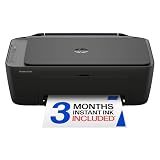
- PERFECT FOR BASIC PRINTING NEEDS – Print everyday color documents like to-do lists, letters, financial documents and recipes
- KEY FEATURES – Color print, copy, scan, and a 60-sheet input tray, plus mobile and wireless printing
- OPTIMIZE PRINT FORMATTING WITH HP AI – Print web pages and emails with precision—no wasted pages or awkward layouts; HP AI easily removes unwanted content, so your prints are just the way you want
- ICON LCD – Print your basic documents with ease from the intuitive control panel
- PRINT SPEED – Up to 7.5 ppm black, 5.5 ppm color
Do not assume that enabling Local Network access for a printer app is required for native AirPrint in every case. Native AirPrint is a system service, and an app can use a system service such as AirPrint without having direct Local Network access itself. For native AirPrint problems, prioritize:
- AirPrint compatibility;
- the same local Wi-Fi network;
- printer readiness;
- guest-network and isolation settings; and
- router or subnet restrictions.
8. Restart the devices in a safe order
A restart refreshes device and network state without deleting saved Wi-Fi credentials. Use this sequence:
- Cancel any stuck job in Print Center.
- Turn the printer off, wait briefly, and turn it back on.
- Wait until the printer says it is connected and ready.
- Restart the iPhone.
- If other devices also have Wi-Fi or local-network problems, restart the router and modem.
- Reconnect the iPhone to the intended Wi-Fi network if necessary.
- Try the AirPrint workflow again from Photos, Mail, Safari, or another known printing-capable app.
If printing stopped immediately after changing routers or internet providers, reconnect the printer to the new Wi-Fi network. The iPhone may already be on the new network while the printer is still configured for the old one.
9. Reset Network Settings only as a last resort
If the iPhone connects to Wi-Fi but AirPrint remains broken after checking compatibility, printer status, and router settings, you can try resetting the iPhone’s network configuration.
Go to:
Settings > General > Transfer or Reset iPhone > Reset > Reset Network Settings
This does not erase your photos, apps, or other personal content, but it is disruptive. It removes saved Wi-Fi networks and passwords and can reset mobile, VPN, and APN-related network settings. Make sure you know the Wi-Fi passwords and are prepared to reconnect other network services before using it.
Also popular on Amazon

- AFFORDABLE ALL-IN-ONE FOR HOME AND HOME OFFICE: Print, copy, and scan on one compact wireless printer designed for everyday home office printing, schoolwork, documents, and reports. Produce beautiful prints for results that stand out.
- EASY TO USE WITH CLOUD APP CONNECTIONS: Print from and scan to popular Cloud apps(2), including Google Drive, Dropbox, Box, OneDrive, and more from the simple-to-use 1.8” color display on your printer.
- FULL-SIZE FEATURES IN A COMPACT DESIGN: This printer includes automatic duplex (2-sided) printing, a 20-sheet single-sided Automatic Document Feeder (ADF)(3), and a 150-sheet paper tray(3). Engineered to print at fast speeds of up to 16 pages per minute (ppm) in black and up to 9 ppm in color(4).
- MULTIPLE CONNECTION OPTIONS: Connect your way. Interface with your printer on your wireless network or via USB.
- MOBILE PRINTING MADE EASY: Go mobile with the Brother Mobile Connect app(5) that delivers easy onscreen menu navigation for printing, copying, scanning, and device management from your mobile device. Monitor your ink usage with Page Gauge to help ensure you don’t run out(6).
Do not factory-reset the iPhone for an ordinary AirPrint failure. A full erase is far more disruptive and is not a normal troubleshooting step for printer discovery.
10. When to replace the printer
Replacement is reasonable when the exact printer model does not support AirPrint, cannot remain connected to a modern Wi-Fi network, or has a persistent hardware or firmware problem that prevents it from becoming ready. Before buying, verify AirPrint support for the exact model and regional configuration in the manufacturer’s specifications.
If you need new hardware, look for an AirPrint-enabled wireless printer rather than a generic USB or Bluetooth printer. Check the model’s current documentation before purchase; wireless capability alone does not guarantee AirPrint compatibility.
Paper is relevant only after the printer is detected but cannot complete a job because the tray is empty or the loaded media is unsuitable. Paper will not make a missing or incompatible printer appear in AirPrint.
AirPrint troubleshooting checklist
- ☐ The exact printer model supports AirPrint.
- ☐ The iPhone and printer are on the same local Wi-Fi network.
- ☐ Neither device is using guest Wi-Fi or an isolated network.
- ☐ The printer is powered on, awake, connected, and ready.
- ☐ The printer has paper and ink or toner and shows no jam or cover error.
- ☐ The source app actually supports printing.
- ☐ Any stuck job has been canceled in Print Center.
- ☐ The printer, iPhone, router, and modem have been restarted as appropriate.
- ☐ The manufacturer’s app has Local Network permission if that app is being used.
- ☐ Router isolation, subnet, Bonjour, and firmware issues have been checked.
- ☐ Reset Network Settings was reserved for last, after saving or locating Wi-Fi passwords.
Bottom line
Most AirPrint failures are caused by one of three things: the app does not offer printing, the printer and iPhone cannot discover each other on the local network, or the printer is visible but not ready to print. Confirm AirPrint support, put both devices on the same non-isolated network, clear printer errors and stuck jobs, and restart before changing iPhone network settings. Replace the printer only when it lacks AirPrint or has a genuine compatibility or hardware problem.
Do these 3 things before closing this tab:
1Repair Windows errors before they cause bigger problems2Scan for outdated or missing drivers - takes under a minute3Clear out junk files and repair common Windows errorsFrequently Asked Questions
Does every wireless printer support AirPrint?
AirPrint requires an AirPrint-compatible printer and a network connection between the iPhone and printer. Bluetooth-to-computer printing does not make a printer available through AirPrint. Check the exact model’s specifications or manufacturer support page.
Why is there no Print option on my iPhone?
No. Try Photos, Mail, or Safari. If Print is missing only in one app, that app may not support printing. If it is missing everywhere, check the content and iPhone software before troubleshooting the printer.
Also popular on Amazon

- FROM AMERICA'S MOST TRUSTED PRINTER BRAND – The Envy 6155 is perfect for homes printing everyday high-quality color documents like homework and borderless photos. Print speeds up to 10 ppm black, 7 ppm color.
- 3 MONTH TRIAL OF INSTANT INK – Subscribe to the Instant Ink delivery service to get ink delivered directly to your door before you run out, and you save up to 50% on ink. After 3 months, a monthly fee applies unless cancelled.
- KEY FEATURES – Color print, copy and scan, plus auto 2-sided printing and a 100-sheet input tray
- HP'S MOST INTUITIVE COLOR TOUCHSCREEN – Smoothly navigate your printer with the easy-to-use 2.4" touchscreen
- WIRELESS PRINTING – Stay connected with our most reliable dual-band Wi-Fi, which automatically detects and resolves connection issues
Why does my iPhone say no AirPrint printers found?
Connect both devices to the same main local Wi-Fi network. Avoid guest Wi-Fi, client isolation, and separate subnets that block Bonjour/mDNS discovery. Also make sure the printer is awake, connected, and ready.
Do I need to enable Local Network for AirPrint?
No. Local Network permission mainly affects a manufacturer’s companion app when it discovers or configures the printer. Native AirPrint is a system service, so first check compatibility, same-network status, printer readiness, and router isolation.
Free tools Windows power users keep installed
One-click scans. No signup required.
How do I cancel a stuck AirPrint job?
Open the App Switcher and select Print Center while a job is active. Select the queued document and tap Cancel Printing, then clear any printer error and retry.
Will resetting network settings fix AirPrint?
Use Settings > General > Transfer or Reset iPhone > Reset > Reset Network Settings only after less disruptive fixes fail. It removes saved Wi-Fi networks and passwords and can affect mobile, VPN, and APN settings.
The Bottom Line
Bottom line: Separate the problem into app support, printer discovery, or print-job execution. Check AirPrint compatibility, same-network connectivity, printer readiness, and Print Center before resetting the iPhone. Reset Network Settings only as a last resort, and replace the printer only if the exact model lacks AirPrint or cannot be made reliable.

