
The Tool Desk
Outbyte Driver Updater FREEScan for outdated or missing drivers - takes under a minuteDriver Scan →Outbyte PC Repair FREEClear out junk files and repair common Windows errorsFree Scan →iTechGuides is reader-supported. When you buy through links on our site, we may earn an affiliate commission. As an Amazon Associate I earn from qualifying purchases. Learn more
Windows Auto HDR and Smart HDR Manager solve different problems. Auto HDR is a built-in Windows 11 feature that converts supported older SDR DirectX 11 and DirectX 12 games to HDR. Smart HDR Manager is a third-party utility that automates when Windows HDR is enabled for selected games, browsers and video players. If you want the game conversion itself, start with Auto HDR. If you want HDR to switch on and off automatically for different applications, Smart HDR Manager is the relevant tool. You can also use both: Auto HDR can perform the conversion while Smart HDR Manager controls the system HDR state.
Both approaches require an HDR-capable display, and Windows must be able to use HDR on that display. The practical choice therefore depends on your content, how much automation you want and whether your hardware matches Smart HDR Manager’s currently reported testing.
The difference in one view
Auto HDR operates inside the Windows gaming pipeline. It takes qualifying older games that were authored for standard dynamic range (SDR) and increases their color range and brightness for an HDR-capable display. It is a content-conversion feature, not a general-purpose HDR switch.
Smart HDR Manager operates at the Windows display-control layer. It does not replace Auto HDR’s game conversion. Instead, it can turn Windows HDR on or off according to the application you launch or the content that is playing. Its documented targets include games, supported web browsers and local video players.
Popular on Amazon
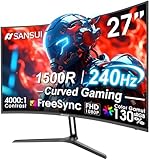
- 27” 240Hz 1500R Curved FHD 1080P Gaming Monitor for Game Play.
- Prioritizes Gaming Performance: Up to 240Hz high refresh rate, more immersive 1500R Curvature, FreeSync, MPRT 1ms Response Time, Black Level adjustment(shadow booster), Game Modes Preset, Crosshair.
- Cinematic Color Accuracy: 130% sRGB & DCI-P3 95% color gamut, 4000:1 contrast ratio, 300nits brightness, HDR, Anti-flicker; Anti-Glare.
- Plug & Play Design: HDMI & DP1.4 & Audio Jack(No built-in speakers), durable metal stand, tilt -5°~15, VESA 100*100mm compatible.
- Warranty: Money-back and free replacement within 30 days, 1-year quality warranty and lifetime technical support. Pls contact SANSUI service support first if any product problem.
| Comparison point | Windows Auto HDR | Smart HDR Manager |
|---|---|---|
| Primary purpose | Converts supported older SDR games to HDR presentation | Automates the Windows HDR display state for selected applications |
| Content scope | Supported DirectX 11 and DirectX 12 games on Windows 11 | Games, browser video and local video players, using per-application modes |
| How it is installed | Built into Windows 11 and enabled in Settings | Third-party Windows utility; the project lists x64 packages |
| Main controls | Windows HDR toggle and an Auto HDR intensity control in Game Bar | Per-app rules, browser script, video modes, wait timers and launch behavior |
| Display requirement | HDR-capable display with HDR enabled in Windows | Also depends on an HDR-capable display and Windows HDR support |
| Current compatibility evidence | Documented by Microsoft for Windows 11 HDR-capable systems | Project-reported testing on Windows 11 25H2, an RTX 5070 Ti and one HDR monitor; AMD, Intel, multi-monitor systems and laptops remain untested |
The features can be complementary rather than competing. That combination is an inference from their documented scopes: Auto HDR handles the game’s image conversion, while Smart HDR Manager handles the timing of the system-level HDR switch.
What Windows Auto HDR actually does
It upgrades selected older games
Microsoft describes Auto HDR as a way to play older games in a new light on an HDR-capable display. The feature automatically upgrades supported DirectX 11 or DirectX 12 games from SDR to HDR. The game does not have to provide a modern HDR mode for Auto HDR to attempt the conversion, but the game must fall within Windows’ supported Auto HDR behavior.
Auto HDR is therefore most useful when your main goal is better HDR presentation in an older PC game. It is not a switch that makes every application HDR-aware, and it does not automatically manage HDR for browser video or a local media player.
What’s actually slowing this PC down?
Pick the symptom - the matching free tool is one click away.
Requirements
- Windows 11 is required for the Windows Auto HDR feature described here.
- The computer must be connected to an HDR-capable display.
- HDR must be enabled for the selected display in Windows before Auto HDR can work.
- The game must be a supported DirectX 11 or DirectX 12 title that Windows can process with Auto HDR.
An HDR-capable monitor is a requirement, not an optional quality upgrade. If the display cannot accept HDR, enabling a software toggle cannot create the display capability that is missing.
How to turn it on
- Open Settings in Windows 11.
- Go to System > Display.
- Select the display on which you will play.
- Turn on the display’s HDR setting in Windows.
- Turn on Auto HDR.
Selecting the correct display matters when more than one screen is connected. Windows applies the HDR setting to the display you selected, so enabling Auto HDR while another screen is selected can produce the impression that the feature is not working.
Adjusting the result
Microsoft also documents an Auto HDR intensity slider in Game Bar. Use it to adjust the perceived vividness and brightness of Auto HDR output. The slider changes the presentation produced by Auto HDR; it does not turn a non-HDR monitor into an HDR monitor and does not control HDR switching for other applications.
Also popular on Amazon
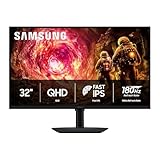
- Samsung’s 32” Odyssey G5 QHD Gaming Monitor delivers brilliant visuals for exhilarating gameplay that’s more immersive than ever before.
- QHD resolution (2560 x 1440) boasts incredibly detailed, pin-sharp images.
- With a wide 178° viewing angle, the IPS panel consistently delivers crisp, clear hues from various viewpoints.
- 180Hz Refresh Rate and 1ms response time (GtG) allow fast reactions for ultra-smooth gaming, plus G-Sync compatibility syncs the GPU and panel to reduce choppiness, screen lag, and image tearing.
- HDR10 provides brighter highlights and nuanced shadows for added depth.
Where Auto HDR stops
Auto HDR’s scope is deliberately narrow: supported older SDR DirectX games. It does not provide per-browser rules, playback timers or a launch command for a video player. If your annoyance is that Windows HDR stays on after a game closes, Auto HDR alone is not an automation system for that state change.
Do these 3 things before closing this tab:
1Repair Windows errors before they cause bigger problems2Scan for outdated or missing drivers - takes under a minute3Clear out junk files and repair common Windows errorsWhat Smart HDR Manager does
Per-application HDR switching
Smart HDR Manager is designed to automate Windows HDR for applications you choose. The project documentation describes per-app modes for games, browsers and video players. In practice, this means you can define when HDR should be enabled rather than manually opening Windows Display settings every time you change activities.
The utility manages the display state; it is not documented as an alternative game-to-HDR conversion engine. A game can still rely on Auto HDR or on its own HDR implementation while Smart HDR Manager supplies the timing of the Windows HDR switch.
Browser support and the browser script
The documented browser list includes Chrome, Edge, Firefox, Brave, Opera and Vivaldi. Browser handling uses a browser script. That script is relevant when you want HDR behavior tied to browser video, such as a web video session, rather than simply turning HDR on for every browser window all the time.
Because browser support depends on the script and the supported browser list, treat an unlisted browser as unverified rather than assuming that any Chromium- or Firefox-based browser will behave identically.
Video-player modes
For video players, the project documents three modes:
Also popular on Amazon

- CRISP CLARITY: This 23.8″ Philips V line monitor delivers crisp Full HD 1920x1080 visuals. Enjoy movies, shows and videos with remarkable detail
- INCREDIBLE CONTRAST: The VA panel produces brighter whites and deeper blacks. You get true-to-life images and more gradients with 16.7 million colors
- THE PERFECT VIEW: The 178/178 degree extra wide viewing angle prevents the shifting of colors when viewed from an offset angle, so you always get consistent colors
- WORK SEAMLESSLY: This sleek monitor is virtually bezel-free on three sides, so the screen looks even bigger for the viewer. This minimalistic design also allows for seamless multi-monitor setups that enhance your workflow and boost productivity
- A BETTER READING EXPERIENCE: For busy office workers, EasyRead mode provides a more paper-like experience for when viewing lengthy documents
- Auto: switch HDR according to playback activity.
- HDR only: use the HDR behavior for HDR playback rather than for all video.
- Off: do not let the manager enable HDR for that player.
Smart HDR Manager can switch HDR while a video is playing and can wait for a configured period after playback stops before changing the display back. That delay helps avoid an immediate switch during brief pauses or when a player is changing state.
Launching with HDR already enabled
The utility can launch games or players with HDR enabled before the application starts. This is useful for software that checks the display’s HDR state only during startup. Without that behavior, an application may open while Windows is still in SDR and fail to expose the mode you expected until it is restarted.
Version and test-status caveats
The releases page lists version 2.5.2 x64 packages for Windows 10 and Windows 11. The project’s release notes report testing on Windows 11 25H2 with an RTX 5070 Ti and one HDR monitor. They also state that AMD and Intel graphics, multi-monitor systems and laptops are still untested. Those are project-reported limits, not independent certification that the utility will fail on every such system.
If your setup falls into an untested category, keep expectations conservative: install only if you can tolerate manual HDR control when an automation rule does not behave as expected.
Which one do you need?
Choose Auto HDR when game conversion is the goal
Use Windows Auto HDR if you mainly play supported older SDR PC games and want Windows to provide an HDR presentation through a built-in setting. It has the simpler setup: enable HDR for the display, enable Auto HDR and adjust intensity in Game Bar if needed.
Consider Smart HDR Manager when switching is the problem
Smart HDR Manager is the better fit when your requirement is automatic state management. Typical examples include:
Also popular on Amazon

- - 24’’ 200Hz gaming monitor fast 1ms FreeSync for gaming, business, entertainment
- - Response time: MPRT 1ms, FreeSync tech, 110%sRGB color gamut, Contrast Ratio 4000:1, Brightness 300Nits, HDR, Over Drive, Anti-flicker, Low blue light,Anti-glare
- - Multiple Ports: HDMI & DP 1.4 Ports(up to 200Hz), 1 HDMI cable included, Audio Jack (no built-in speakers)
- - VESA mount (75x75mm), -5°to 15°Tilt , 178°wide Viewing Angle, Cable Managed, CrossHair /Timer/ Blacklevel Adjust/RTS /FPS /RACING
- - Warranty: Money-back and free replacement within 30 days, 1-year quality warranty and lifetime technical support.
- Turning HDR on for a particular game before launch and restoring the previous state afterward.
- Enabling HDR for browser video without leaving HDR enabled for the entire desktop.
- Changing HDR behavior for a local video player using Auto, HDR only or Off.
- Adding a wait period after playback stops.
These are workflow requirements, not image-conversion requirements. Smart HDR Manager can address them even when Auto HDR is already enabled, because Auto HDR does not provide those per-application rules.
Use both for older games and automated switching
A combined setup makes sense when you want Auto HDR’s game conversion and Smart HDR Manager’s timing. In that arrangement, Auto HDR remains the Windows feature that converts a supported game’s SDR output, while Smart HDR Manager turns Windows HDR on when that game launches and off when your rule says it should.
| Your main situation | Starting choice | Reason |
|---|---|---|
| One or more supported older DirectX games; manual switching is acceptable | Auto HDR | Built-in conversion with the fewest moving parts |
| Games, browser video and local video need different HDR behavior | Smart HDR Manager | Per-app modes cover more application types |
| Older games need conversion and HDR should switch automatically | Both | Each feature handles a different layer |
| Unsupported GPU, laptop or multi-monitor configuration | Auto HDR first; test Smart HDR Manager cautiously | Smart HDR Manager’s project notes identify those configurations as untested |
Set up a reliable HDR foundation first
Check the display and selected screen
Open Settings > System > Display, select the display you intend to use and inspect its HDR capabilities. Turn HDR on for that display before troubleshooting either Auto HDR or Smart HDR Manager. If you have multiple screens, verify that the game or player is opening on the display whose HDR state you changed.
Prefer an extended desktop over duplicated displays
Microsoft’s HDR settings guidance notes that duplicating displays can prevent HDR from working. For an external HDR monitor, use the Extend display arrangement instead of duplicating the screens. This removes a common configuration conflict before you evaluate application behavior.
Check laptop power behavior
On laptops, battery settings may turn HDR off to save power. If HDR appears to enable and then disappear when you unplug the charger or change a power mode, check the laptop’s power state before changing application rules. Smart HDR Manager’s release notes also identify laptops as untested, so a laptop setup has both a Windows power variable and an unverified utility environment.
Free tools Windows power users keep installed
One-click scans. No signup required.
Adjust SDR and HDR brightness separately
Microsoft documents separate SDR and HDR brightness controls and notes that results vary by display model. A desktop that looks too dim or too bright after enabling HDR may need those controls adjusted rather than a different automation rule. Auto HDR intensity in Game Bar is a separate control for the game’s converted image.
Also popular on Amazon

- MSI's 23.8-inch Full HD IPS gaming monitor (1920×1080) delivers a 1500:1 contrast ratio with wide 178°/178° viewing angles — producing deeper blacks, brighter highlights, and accurate colors from virtually any position for gaming and productivity.
- TÜV Rheinland certified Flicker Free and Low Blue Light — eliminating the ~200Hz screen flicker common on standard monitors and reducing harmful blue light exposure to minimize eye strain during extended gaming or work sessions.
- 144Hz high refresh rate delivers ultra-smooth motion and sharper tracking versus standard 60Hz or 75Hz monitors — keeping every frame fluid and responsive for fast-paced FPS, racing, and action games without screen tearing or stuttering.
- MSI's built-in Eye-Q Check provides a vision assessment tool to help optimize display settings for healthier long-term viewing — designed for professionals and students spending extended hours in front of a Full HD IPS screen.
- Tilt-adjustable stand (-5°~20°) for comfortable viewing at any desk setup, with VESA 100×100mm wall mount compatibility for monitor arms, brackets, and multi-monitor arrangements — reducing neck strain during long gaming or work sessions.
Troubleshoot common failures
Auto HDR is missing or has no visible effect
- Confirm that you are running Windows 11 and that the intended display is selected in Settings > System > Display.
- Confirm the display is identified as HDR-capable and that Windows HDR is on.
- Check that the game is a supported DirectX 11 or DirectX 12 title rather than assuming every older game qualifies.
- If the image is too subdued or too intense, adjust the Auto HDR intensity slider in Game Bar.
If the display is duplicated with another screen, change the arrangement to Extend and test again.
HDR keeps turning on and off
That pattern usually indicates a state-management rule or a Windows power/display change, not a failure of Auto HDR’s conversion. Review Smart HDR Manager’s per-app assignment, its video mode and its wait period after playback. Also check whether the laptop changed power state or whether Windows is switching between displays. Temporarily turn off the relevant Smart HDR Manager rule and test manual HDR control; if manual control is stable, rebuild the rule one application at a time.
A game starts in SDR even though HDR is enabled later
Some applications inspect HDR only at launch. Configure Smart HDR Manager to launch the game with HDR already enabled, then close and relaunch the game so its startup check occurs while Windows is in HDR. Auto HDR cannot provide this launch timing by itself.
Quick wins for a faster PC:
Fix the driver behind crashes, sound loss and screen glitchesFind Drivers →Clear out junk files and repair common Windows errorsFree Scan →Browser video does not trigger HDR
Verify that the browser is one of the documented choices—Chrome, Edge, Firefox, Brave, Opera or Vivaldi—and that the browser script is installed and active as required by the project. Test one browser at a time. If the browser is not on that list, the behavior is unverified rather than evidence that Windows Auto HDR is malfunctioning; Auto HDR is a game feature and does not govern browser video.
Video returns to SDR too quickly after a pause
Use Smart HDR Manager’s post-playback wait period. A pause, buffering event or player state change can otherwise be interpreted as playback ending. Set a delay long enough for normal pauses but short enough that HDR does not remain enabled unnecessarily after you stop watching.
Multi-monitor or AMD/Intel behavior is inconsistent
The project’s current release notes say those configurations are untested. Confirm that Windows itself can enable HDR on the target display, use an extended desktop and keep a manual fallback. Do not treat one successful or failed test on an RTX 5070 Ti and one monitor as a guarantee for another GPU or display arrangement.
What monitor do you need for Auto HDR?
You need an HDR-capable display that Windows recognizes as supporting HDR. The feature requirement is capability, not a particular brand, panel type or brightness specification. After connecting the display, select it in Settings > System > Display and verify that the HDR control is available and can be enabled.
Display quality still affects the result. Microsoft notes that SDR/HDR brightness behavior varies by display model, so two monitors can produce different-looking Auto HDR output with the same game and intensity setting. If you use an external monitor with a laptop or a second screen, configure the display arrangement and power settings before judging image quality.
A practical setup sequence
- Validate Windows HDR manually. Select the target screen in Settings > System > Display and enable HDR. If this step fails, fix the display, cable, arrangement or power condition before adding automation.
- Test the game without automation. Enable Auto HDR and launch a supported DirectX 11 or DirectX 12 game. Adjust Auto HDR intensity in Game Bar only after confirming that HDR is active.
- Add Smart HDR Manager only if switching is a requirement. Install the appropriate x64 package for Windows 10 or 11, then create a rule for the specific game, browser or player.
- Choose the narrowest rule. Use a game launch rule for a game, a browser rule for browser video and the documented Auto, HDR only or Off mode for a video player. Avoid a global rule when only one application needs HDR.
- Test start, pause and exit behavior. Confirm the display state when the application launches, during playback or gameplay, after a pause and after the application closes. Adjust the wait period if video pauses cause unwanted switching.
- Keep a manual recovery path. If a rule misfires, disable that rule and control HDR from Windows Display settings while you diagnose the application, display arrangement or power condition.
Bottom-line decision
Auto HDR is the right first choice for supported older SDR DirectX 11 and DirectX 12 games on Windows 11. Smart HDR Manager is the additional tool for automatic, per-application HDR state changes across games, supported browsers and video players. You do not need Smart HDR Manager merely to use Auto HDR. You need it when manual HDR switching, browser/video coverage or launch-time HDR behavior is the problem. When both needs apply, run them together, recognizing that Smart HDR Manager’s broader hardware scenarios remain project-reported and partly untested.
Quick Recap
Product prices and availability are accurate as of the date/time indicated and are subject to change. Any price and availability information displayed on Amazon at the time of purchase will apply.

