
Do these 3 things before closing this tab:
1Fix the driver behind crashes, sound loss and screen glitches2Repair Windows errors before they cause bigger problems3Scan for outdated or missing drivers - takes under a minuteiTechGuides is reader-supported. When you buy through links on our site, we may earn an affiliate commission. As an Amazon Associate I earn from qualifying purchases. Learn more
Service Host: Network Service is not a single application. It is a Windows host process (svchost.exe) that loads one or more system services. High network usage usually comes from a legitimate activity such as Windows Update, Microsoft Store updates, Delivery Optimization, or the Background Intelligent Transfer Service (BITS)—but you must identify the service and destination before deciding what to change.
Use this order: check for active updates, map the process ID (PID) to its services, inspect the actual network connections, then adjust Delivery Optimization or repair Windows Update if the traffic is stuck. Do not end every svchost.exe process or disable the Network Service account.
What “Service Host: Network Service” means
Windows uses svchost.exe as a shared container for services implemented as DLL files. Services with similar security or operating requirements may be grouped into the same host process. “Network Service” identifies the Windows account or hosting context—not the exact service responsible for the traffic.
Depending on the Windows version, configuration, and system resources, Windows may group several services together or place services in separate svchost.exe processes. Consequently, two computers can show different numbers of Service Host processes, and two entries with similar names can have different causes.
Popular on Amazon
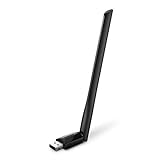
- 𝐋𝐨𝐧𝐠 𝐑𝐚𝐧𝐠𝐞 𝐀𝐝𝐚𝐩𝐭𝐞𝐫 – This compact USB Wi-Fi adapter provides long-range and lag-free connections wherever you are. Upgrade your PCs or laptops to 802.11ac standards which are three times faster than wireless N speeds.
- 𝐒𝐦𝐨𝐨𝐭𝐡 𝐋𝐚𝐠 𝐅𝐫𝐞𝐞 𝐂𝐨𝐧𝐧𝐞𝐜𝐭𝐢𝐨𝐧𝐬 – Get Wi-Fi speeds up to 200 Mbps on the 2.4 GHz band and up to 433 Mbps on the 5 GHz band for upgraded web surfing, gaming, and streaming. Performance varies by conditions, distance to devices, and obstacles such as walls.
- 𝐃𝐮𝐚𝐥-𝐛𝐚𝐧𝐝 𝟐.𝟒 𝐆𝐇𝐳 𝐚𝐧𝐝 𝟓 𝐆𝐇𝐳 𝐁𝐚𝐧𝐝𝐬 – Dual-bands provide flexible connectivity, giving your devices access to the latest routers for faster speeds and extended range. Wireless Security - WEP, WPA/WPA2, WPA-PSK/WPA2-PSK
- 𝟓𝐝𝐁𝐢 𝐇𝐢𝐠𝐡 𝐆𝐚𝐢𝐧 𝐀𝐧𝐭𝐞𝐧𝐧𝐚 – The high gain antenna of the Archer T2U Plus greatly enhances the reception and transmission of WiFi signal strengths.
- 𝐀𝐝𝐣𝐮𝐬𝐭𝐚𝐛𝐥𝐞, 𝐌𝐮𝐥𝐭𝐢-𝐃𝐢𝐫𝐞𝐜𝐭𝐢𝐨𝐧𝐚𝐥 𝐀𝐧𝐭𝐞𝐧𝐧𝐚: Rotate the multi-directional antenna to face your router to improve your experience and performance
Common legitimate sources of network activity include:
- Windows Update: downloading or installing system updates.
- Microsoft Store and Microsoft 365 updates: downloading application or product updates in the background.
- Delivery Optimization: obtaining update and app content from Microsoft and, depending on your settings, from other computers on your local network or the internet.
- Background Intelligent Transfer Service (BITS): transferring files over HTTP or SMB, resuming interrupted downloads, and adjusting its speed according to available bandwidth and congestion.
A temporary spike during an update is generally expected. The important question is not simply “Why is svchost.exe using the network?” but “Which service is inside this particular process, and where is it connecting?”
First, check whether Windows is updating
Before changing services or troubleshooting malware, open Settings > Windows Update in Windows 11, or Settings > Update & Security > Windows Update in Windows 10.
Recommended Free Tools
Look for statuses such as Downloading, Installing, Pending restart, or a recently completed update. Windows 11 normally downloads and installs updates automatically, so a bandwidth increase can be normal. Also check the Microsoft Store and any Microsoft 365 installation or update activity if the timing matches.
If the usage drops after the update finishes and there are no other symptoms, no repair may be necessary. If the traffic continues for a long time, repeatedly returns while no update is shown, or affects a capped connection, continue with the identification steps below.
Identify the service inside the high-usage process
1. Find the process ID in Task Manager
- Press Ctrl + Shift + Esc to open Task Manager.
- On the Processes tab, expand or locate Service Host: Network Service.
- Right-click the entry and choose Go to details, if available. Alternatively, use the Details tab and locate the matching
svchost.exe. - Note the process ID in the PID column.
Do not assume that every Service Host: Network Service entry has the same PID or contains the same services. You need to investigate the specific process showing the traffic.
2. Map the PID to its hosted services
Open an elevated Command Prompt:
- Open Start and type
Command Prompt. - Right-click Command Prompt and choose Run as administrator.
- Run:
tasklist /svc /fi "imagename eq svchost.exe"The /svc option lists the services hosted by each process. Find the PID you recorded and read the service names on that row. You can also filter the output by PID after identifying it:
Quick wins for a faster PC:
Fix the driver behind crashes, sound loss and screen glitchesFind Drivers →Repair Windows errors before they cause bigger problemsFix Now →Scan for outdated or missing drivers - takes under a minuteDriver Scan →tasklist /svc /fi "pid eq 1234"Replace 1234 with the actual PID. Depending on the Windows build, several services may appear for one process. Names such as wuauserv (Windows Update), BITS, and DoSvc (Delivery Optimization) provide useful clues, but service identification alone does not prove which one is transferring data.
Also popular on Amazon

- Fast 1300Mbps USB WiFi Adapter - Nineplus wifi adapter provides long-range and stable wifi connections,Upgrade your desktop or laptop wifi Technology with our AC1300Mbps usb wireless Adapter. Whether your desktop pc's wifi usb is malfunctioning or you’re looking to upgrade to faster dual-band 5GHz and 2.4GHz speeds, this pc wifi adapter is the ideal choice. It’s a budget-friendly way to extend your device’s life and experience the benefits of modern WiFi technology
- Dual-band 5.8GHz and 2.4GHz Bands - 5.8Ghz wifi Connection speed up to 867Mbps,2.4GHz 400Mbps,With these upgraded speeds, web surfing, gaming, and streaming online meeting is much more enjoyable without buffering or interruptions,Experience the High Wi-Fi speed of our AC1300Mbps wifi dongle delivers faster internet speeds and stronger, more reliable signal penetration over long distances. It's a high-speed dual-band wifi usb adapter for pc and easy for the modern user.
- Two 5dBi High Gain Wifi Antenna – The high gain antenna of the desktop wifi adapter greatly enhances the reception and transmission of WiFi signal strengths.Equipped with dual high-gain pc wifi antenna, our wifi dongle for desktop pc ensures accurate capture of WiFi signals, providing a stable and strong connection even at greater distances, ideal for overcoming poor signal issues in bedrooms. This computer wifi adapter, wifi card, and usb wifi antenna extend your coverage.
- Super Speed USB 3.0 - wifi adapter for desktop pc Connect speeds Up to 10x faster than USB 2.0 USB, Super USB3.0 delivers faster data transfer, a more reliable network connection, and improved compatibility for wifi adapter for pc. It fully supports the high-speed demands of AC1300 wireless adapter, ensuring peak performance. Plus, it's backward compatible with standard USB 2.0 ports for added flexibility.usb wifi adapter for desktop pc 3.0
- Compatibility Systems: This Wi-Fi usb adapter is compatible with Windows11/10/8.1/8/7/XP,not supports Mac OS or Chromebook or Linux. Most Windows 11/10 systems will automatically detect and install the drivers. If the system does not detect the driver, you will need to download it from our website. For Windows 7, you will need to manually install the driver for this wifi card.or you go to the website online-setup support,we do online-setup for you.
See what is actually using the connection
Resource Monitor
Resource Monitor provides more useful network detail than the broad percentage shown in Task Manager:
- Press Windows key + R.
- Enter
resmonand press Enter. - Open the Network tab.
- Review Processes with Network Activity, Network Activity, and TCP Connections.
Use the PID you recorded to correlate the Service Host process with send and receive rates, remote addresses, and active connections. This helps distinguish a Windows update transfer from an unrelated executable or an unusual connection.
Task Manager’s percentage is not necessarily a percentage of your full internet plan. It may reflect activity relative to the current network interface or a momentary measurement. Check the actual receive and send throughput in Resource Monitor or the network adapter’s performance view.
What’s actually slowing this PC down?
Pick the symptom - the matching free tool is one click away.
Delivery Optimization Activity Monitor
If the service mapping points toward update activity, open:
Settings > Windows Update > Advanced options > Delivery Optimization > Activity monitor
The Activity Monitor can show download sources, average speeds, and upload activity. It is especially useful because Task Manager may display only the generic Service Host name while Delivery Optimization is obtaining or sharing update content.
Delivery Optimization can download content from Microsoft and, when peer sharing is enabled, from other PCs on a local network or the internet. It can also upload eligible update content to peers. Peer activity does not automatically indicate malware.
Outdated Drivers Are Slowing You Down
One free scan finds every outdated or missing driver and matches the right update for your exact hardware.Free scan · exact hardware matchPC Slower Than It Used to Be?
A free scan shows the junk files, broken settings and background clutter dragging Windows down - then fixes them in one click.Free scan · Windows 10 & 11Reduce bandwidth use safely
Option 1: Restrict or disable internet peer sharing
In Windows 11, open Settings > Windows Update > Advanced options > Delivery Optimization. Under Allow downloads from other devices, choose one of these settings:
Also popular on Amazon

- INSTANT WIFI UPGRADE FOR YOUR PC: Revive your aging computer with cutting-edge WiFi in seconds - no new network card needed. Plug into a USB 3.0 port for up to 10x the data speed of USB 2.0
- EVEN THE BUSIEST HOMES STAY CONNECTED: Enjoy more stable HD streaming, video calls, and gaming with AX1800 dual-band speeds up to 1.8 Gbps, far steadier than old USB 2.0 dongles
- STABLE, RELIABLE CONNECTION WHEN NEEDED MOST: Smart dual-band connectivity automatically balances the 2.4 and 5 GHz bands to optimize speed and range, reducing dropouts and buffering on busy networks
- STRONGER SIGNAL, LONGER RANGE: Pull in a more reliable connection across the room with the flippable, high-gain external antenna that adjusts to find the best signal
- WORKS WITH ANY ROUTER: Connects to any WiFi router or mesh system or ISP, with WPA3 security on every connection. Backward compatible with WiFi 5
- Devices on my local network: prevents internet peer sharing while allowing sharing with devices on your local network.
- Devices on my local network and devices on the internet: allows both local and internet peer sharing.
- Off: prevents peer downloading and uploading through Delivery Optimization.
Turning this setting off does not disable Windows Update or Microsoft Store updates. Windows can still obtain content directly from Windows Update and Microsoft. It only removes the peer-sharing component.
Option 2: Set download and upload limits
Delivery Optimization settings may include controls for automatic download bandwidth, upload bandwidth, and a monthly upload limit. These are useful when the issue is not that updates are unwanted, but that they are competing with video calls, gaming, work, or a capped connection.
Be aware of the scope of these limits: Microsoft’s Delivery Optimization controls apply to automatic update downloads. A download that you manually start from Settings may not obey the same automatic-download limits.
Option 3: Mark the connection as metered
For a capped or expensive connection, open Settings > Network & internet, select Wi-Fi or Ethernet, choose the connected network, and enable Metered connection.
A metered connection tells Windows and applications to control or restrict some background activity. It can reduce unwanted transfers, but it may also prevent some updates from installing automatically. Treat this as a bandwidth-management choice, not a permanent repair for a stuck update.
For managed computers: Delivery Optimization policy controls
On work or school computers, an administrator can configure Delivery Optimization policies such as download mode, maximum foreground and background bandwidth, maximum upload bandwidth, and a monthly upload data cap.
Policies can be more restrictive than the normal Settings page. For example, a simple mode can prevent peer traffic and cloud-service traffic associated with Delivery Optimization, while a bypass mode uses BITS instead of Delivery Optimization. Do not change organizational policy on a managed computer without confirming the required update behavior with your administrator.
The Tool Desk
Outbyte PC Repair FREERepair Windows errors before they cause bigger problemsFix Now →Outbyte Driver Updater FREEFix the driver behind crashes, sound loss and screen glitchesFind Drivers →Repair a stuck Windows Update transfer
Only move to repair steps when the diagnosis points to Windows Update or BITS and the activity is stuck, repeatedly failing, or consuming bandwidth without progress. A short-lived spike is not a reason to delete update files.
Also popular on Amazon
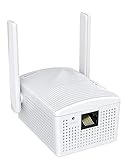
- Connet your wired device to wifi : by using this dual band Ethernet to wireless adapter, your Ethernet-enabled devices can access the Internet via wireless connection, powered by electrical outlet
- Work with any Ethernet enabled devices: This wireless to Ethernet adapter supports smart TV, game console, blu-ray player, network printer, raspberry pi, Ethernet switch or computer etc., no driver installation or update needed
- AC1200 faster wireless speed: up to 867Mbps on 5GHz WiFi or 300Mbps on 2.4GHz WiFi, excellent for online video streaming, gaming, high quality music and facebook by using this 802.11ac WiFi to Ethernet adapter, 4 X speed of N300
- Universal compatibility: This 5GHz universal wireless adapter works with any 802.11ax/ac/a/b/g/n WiFi routers;
- Better WiFi signal: the Ethernet wireless adapter comes with 2X angle adjustable external smart WiFi antennas which pick up stronger WiFi signal than internal ones
Run the Windows Update troubleshooter
In Windows 11, open Settings > System > Troubleshoot > Other troubleshooters, find Windows Update, and select Run. In Windows 10, open Settings > Update & Security > Troubleshoot > Additional troubleshooters, select Windows Update, and run the troubleshooter.
Restart the computer when it recommends doing so, then check Windows Update again.
Reset update components carefully
If the troubleshooter does not resolve a persistent update problem, Microsoft’s documented recovery procedure includes stopping the relevant services, renaming the update cache folders, restarting the services, and checking for updates again. Renaming is safer than immediately deleting because the original folders can be restored if necessary.
From an elevated Command Prompt, the general sequence is:
net stop bits
net stop wuauserv
net stop cryptsvc
net stop msiserver
ren %systemroot%SoftwareDistribution SoftwareDistribution.old
ren %systemroot%System32catroot2 catroot2.old
net start msiserver
net start cryptsvc
net start wuauserv
net start bits
If a service reports that it is not running, continue unless the command reports a more serious error. Restart Windows, then check for updates. Do not rename or delete these folders while the associated services are actively using them. Back up important files first, and use an administrator account.
Repair the Windows image and system files
Corrupted system components can cause update failures and repeated background activity. In an elevated Command Prompt, run:
DISM.exe /Online /Cleanup-Image /RestoreHealth
sfc /scannow
Allow each command to finish. DISM may take some time and may appear to pause. Restart the computer afterward and test Windows Update again.
Free tools Windows power users keep installed
One-click scans. No signup required.
Use Windows 11’s repair reinstall as a later escalation
Some Windows 11 installations provide Settings > System > Recovery > Fix problems using Windows Update. Selecting Reinstall now reinstalls the current Windows version while preserving apps, files, and settings.
Also popular on Amazon

- Wifi 6 High-speed Transmission: The WiFi adapter supports the new generation of WiFi6 technology with transmission speeds of up to 600 Mbps on 5 GHz + 287 Mbps on 2.4 GHz, enabling lightning-fast transmission of video at ultra-high speed and low latency
- Dual-band Connection: The AX900 USB WiFi adapter under the AX standard, the 5G band rate can reach 600Mbps, and the 2.4G band can reach 286Mbps. Note: Use WiFi 6 Router to achieve AX900 speed
- Built-in Drivers for Windows 10/11: The WiFi Adapter for Desktop PC just supports Windows 10/11 which CPU architecture is X86/X64, supports CD-free installation, no need to download drivers, saving time and worry. Please note this Adapter doesn't support MacOS/Linux/Win 8, 8.1, 7, XP
- Receive & Transmit Two in One: A desktop computer can connect to the WiFi wireless Internet by connecting it to a wireless network card. A networked computer can connect to the network card to transmit WiFi and share it with other devices
- Stay Safe Online: The wifi dongle supports WPA-PSK, WPA2-PSK, WPA/WPA2 mixed encryption modes. Note: Make sure that the distance between the adapter and router should be within 30ft
This is an escalation step for persistent Windows Update problems, not a response to one normal download. The option may not appear on every edition, build, or managed device. Keep the computer connected to power and back up important data before using major recovery features.
Independent reader supportYour contribution helps us test, update, and keep practical guides available for everyone.When the traffic may require a security investigation
Do not label the activity malware solely because Task Manager shows svchost.exe. It is a normal Windows component, and update services commonly use it. Escalate the investigation when several of the following are true:
- The PID maps to an unexpected service or the traffic continues when no Windows, Store, or Microsoft 365 update is active.
- The process is not the genuine Windows executable or is running from an unusual folder rather than the Windows system directory.
- Resource Monitor shows unexplained remote destinations or connections that do not fit the identified service.
- There are unexplained pop-ups, browser redirects, new startup items, disabled security tools, account alerts, or other signs of compromise.
- Network activity remains high after updates finish and after restarting the computer.
Run a Windows Security scan, keep Windows Security definitions current, and investigate the specific executable and service rather than killing every host process. On a work device, contact IT before removing services or changing update policy.
What not to do
- Do not end every
svchost.exeprocess. The processes may contain essential networking, update, licensing, and system services. Ending one can interrupt Windows or force a restart. - Do not disable the Network Service account. It is a standard Windows security context, not a suspicious application.
- Do not delete the entire SoftwareDistribution or catroot2 folder while services are running. Stop the relevant services and follow the reset procedure.
- Do not install a driver updater just because network usage is high. Bandwidth use does not demonstrate a driver defect. Use Windows Update or the computer/network adapter manufacturer’s official support page when a driver problem is actually indicated.
- Do not assume a percentage in Task Manager equals your full internet capacity. Confirm the transfer rate and destination in Resource Monitor.
- Do not treat one update-related episode as proof of malware. Map the PID, inspect the service and destinations, and then scan if the evidence remains unexplained.
Windows 10 support status
The same basic mechanisms apply to Windows 10: Service Host grouping, BITS, Delivery Optimization, metered connections, and Windows Update troubleshooting are all relevant.
However, Microsoft ended Windows 10 support on October 14, 2025. Microsoft no longer provides free Windows Update software updates, technical assistance, or security fixes for the operating system. Persistent update behavior on Windows 10 should therefore be considered in that context. Where the hardware and organizational requirements allow it, moving to a supported Windows release is the safer long-term option.
A practical decision checklist
- Is Windows, the Store, or Microsoft 365 actively downloading? If yes, allow the transfer to finish or configure Delivery Optimization limits.
- Which PID is busy? Record it from Task Manager.
- Which services are inside that PID? Run
tasklist /svc /fi "pid eq PID"from an elevated Command Prompt. - What is the actual throughput and destination? Check Resource Monitor’s Network tab.
- Does Delivery Optimization explain it? Review its Activity Monitor for source, speed, and upload details.
- Is peer sharing the problem? Restrict it to the local network, turn it off, or configure limits.
- Is the update stuck? Run the troubleshooter, then carefully reset update components and use DISM/SFC if needed.
- Does the traffic remain unexplained? Run Windows Security and investigate the executable, service, persistence, and destinations.
Frequently Asked Questions
Is Service Host: Network Service a virus?
Usually not. It is a normal Windows hosting process used by system services. Suspicion is warranted only when the executable is in an unusual location, the hosted service is unexpected, or its network connections remain unexplained after checking updates and Resource Monitor.
Can I stop Service Host: Network Service?
Do not stop the process indiscriminately. It may host essential networking or update services. Identify the PID and services first, and change only the specific setting responsible for unwanted traffic.
Why is Service Host: Network Service using bandwidth when Windows Update shows nothing?
The activity may come from Delivery Optimization, BITS, Microsoft Store or Microsoft 365 updates, a transfer that has not yet appeared clearly in Settings, or an unrelated service in that host. Use the PID, Resource Monitor, and Delivery Optimization Activity Monitor to distinguish these possibilities.
Will turning off Delivery Optimization stop Windows updates?
No. Turning off peer sharing prevents Delivery Optimization from obtaining or uploading eligible content through peers, but Windows can still obtain updates and Microsoft Store apps directly from Windows Update and Microsoft.
Should I use a third-party driver updater for this problem?
Not as a first step. High network usage is not evidence of a driver fault. Diagnose the service and transfer first, then use Windows Update or the device manufacturer’s official support channel if the evidence points to a driver problem.
The Bottom Line
The safest fix is diagnosis before disruption. Service Host: Network Service is a container, so map its PID to the hosted services and inspect the destination before changing anything. If Delivery Optimization is responsible, restrict peer sharing or apply bandwidth limits. If Windows Update is stuck, use Microsoft’s troubleshooter and repair procedures. Only escalate to security investigation when the service, executable, or network destination does not fit normal Windows activity.

