
iTechGuides is reader-supported. When you buy through links on our site, we may earn an affiliate commission. As an Amazon Associate I earn from qualifying purchases. Learn more
The right scanner depends on what you scan and how often: use a flatbed for photos, books, artwork, and fragile originals; a sheet-fed document scanner with an automatic document feeder (ADF) for stacks of loose pages; a duplex model when pages have printing on both sides; and a portable scanner for travel, receipts, or occasional forms. Film, transparency, graphics, and drum scanners are specialist choices for negatives, slides, maps, and high-detail production work.
Before buying, check operating-system compatibility, paper and media handling, optical resolution, OCR and file output, connectivity, speed, duty cycle, and maintenance. The workflow below helps you choose a scanner that fits both today’s originals and your future archive.
At a glance
| Name | Best for | Key spec | Checked |
|---|---|---|---|
| Flatbed scanner | Photos, books, artwork, fragile or archival originals | Glass platen accepts different sizes and thicknesses | Nov 2026 |
| Sheet-fed document scanner | Fast paperwork batches and home-office records | ADF moves loose pages through the sensor | Nov 2026 |
| Duplex document scanner | Double-sided forms, invoices, and records | Captures both sides automatically | Nov 2026 |
| Portable/mobile scanner | Travel, receipts, and limited desk space | Compact sheet-fed design; verify power and media support | Nov 2026 |
| Photo/film scanner | Negatives, slides, and photographic enlargements | Transparency support and high optical resolution | Nov 2026 |
| Flatbed plus ADF combination | Mixed office and archival work | One device provides glass and feeder paths | Nov 2026 |
| Graphics, large-format, or drum scanner | Maps, artwork, aerial photography, and professional printing | Specialized precision imaging workflow | Nov 2026 |
| Handheld or barcode scanner | Barcode reading and highly mobile capture | Lightweight, but motion stability and scan size matter | Nov 2026 |
Which scanner type matches your originals?
Start with the original, not the headline resolution. A scanner designed for loose office paper can damage a bound book, while a photo-oriented flatbed is inefficient for hundreds of pages.
Free tools Windows power users keep installed
One-click scans. No signup required.
Flatbed scanners
A flatbed uses a glass platen and a moving sensor. Place each sheet, photograph, page, or object on the glass, then close the lid. Flatbeds handle different sizes and thicknesses, including books, and avoid pulling delicate media through rollers; the ENERGY STAR scanner buying guide identifies these uses. They are the safest choice for family photographs, artwork, certificates, magazines, and fragile or archival originals.
Popular on Amazon
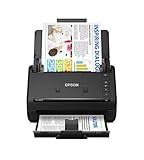
- FAST DOCUMENT SCANNING — Document scanner with feeder allows you to speed through stacks with a 50-sheet Auto Document Feeder (ADF); Efficient office scanner to help you scan more productively
- INTUITIVE, HIGH-SPEED SOFTWARE — Quickly scan with this desktop document scanner; Epson ScanSmart Software lets you easily preview scans, email files, upload to the cloud, and more; Plus, automatic file naming saves even more time
- SEAMLESS INTEGRATION — Easily incorporate your data into most document management software with the included TWAIN driver; Office document scanner integrates seamlessly with business workflows
- EASY SHARING — Duplex scanner allows you to scan straight to email or popular cloud storage2 services like Dropbox, Evernote, Google Drive, and OneDrive for simple storage and sharing
- SIMPLE FILE MANAGEMENT — Scanner allows the creation of searchable PDFs with Optical Character Recognition (OCR) and convert scans to editable Word or Excel files effortlessly; Designed for home and office document scanning
Sheet-fed and ADF document scanners
Rollers move loose pages past a sensor. An ADF lets you load a stack and scan it with minimal supervision, making this the practical choice for home-office paperwork, invoices, forms, and searchable records. Confirm the ADF capacity, supported paper weights, maximum and minimum sizes, receipt or card handling, mixed-size support, and whether long documents are accepted.
Simplex and duplex models
Simplex captures one side at a time. Duplex captures both sides automatically, which is valuable for double-sided forms, invoices, and office records. If duplex work is a major part of your workload, a single-pass design that captures both sides in one feed can reduce handling; AIIM’s capture checklist recommends duplex capability when many documents are printed on both sides.
Portable and mobile scanners
Portable sheet-fed units take little desk space and suit travel, field work, receipts, and occasional forms. Check whether the scanner is USB-powered, whether its software supports your operating system, and whether the feed accepts cards and narrow receipts. Epson groups mobile and compact desktop units as a distinct business-scanner category in its scanner buying guide.
Quick wins for a faster PC:
Fix the driver behind crashes, sound loss and screen glitchesFind Drivers →Repair Windows errors before they cause bigger problemsFix Now →Photo, film, transparency, graphics, and drum scanners
Negatives and slides need a transparency adapter or a dedicated film scanner; ordinary document feeders cannot capture them correctly. Graphics, large-format, and drum scanners target maps, artwork, aerial photographs, and professional printing where precision and tonal detail outweigh convenience. The USGS scanning-hardware guidance describes these specialized imaging requirements.
Handheld, barcode, and combination scanners
Handheld scanners are maneuverable for barcodes or surfaces that cannot be placed on a platen, but your hand motion affects alignment and consistency. A flatbed-plus-ADF combination is the most flexible option for an office that alternates between bound material and large stacks; its trade-offs are higher cost, greater size, and two capture paths to maintain. Ricoh/PFU’s overview of scanner types explains these product families.
How do you choose a scanner for documents or photos?
Use this sequence before comparing models.
- Inventory the originals. List loose pages, bound books, photos, negatives, slides, receipts, cards, artwork, and any unusual sizes. Note whether originals are clean and flat or fragile and irreplaceable.
- Estimate the workload. Count pages in a typical batch and your largest batch, then estimate weekly volume. Occasional forms do not justify an office-class ADF, while large batches make a flatbed-only workflow slow and tiring.
- Choose the capture path. Select a flatbed for fragile or bound items, a sheet-fed ADF for loose stacks, duplex for two-sided records, portable for mobility, or a combination for mixed work.
- Check compatibility first. Verify the exact model’s drivers for Windows or macOS, bundled scanning software, TWAIN or ISIS support if your workflow needs it, destination services, security requirements, and file formats. A scanner that cannot connect to your computers or document system is not a useful bargain.
- Choose the output. Decide whether you need image files, multipage PDFs, searchable PDFs, editable text, or direct delivery to a folder, email, cloud service, or document-management system.
What optical resolution, sensor, and color settings do you need?
Optical resolution is the detail the sensor actually captures; use it instead of an inflated interpolated-resolution figure. Ordinary text generally needs moderate resolution, while small type, film, detailed artwork, or an enlargement benefits from more. AIIM’s published checklist gives a 100–1600 dpi range as a planning reference, but the correct setting depends on the original and the intended output.
Scanner sensors are commonly CCD or CIS. CCD designs generally favor image quality and depth, while CIS sensors enable thinner, lighter, and more durable units. Bit depth describes how many shades the scanner records; higher depth preserves more tonal information in photos and artwork, although the saved file and software must support it.
The Tool Desk
Outbyte Driver Updater FREEFix the driver behind crashes, sound loss and screen glitchesFind Drivers →Outbyte PC Repair FREEClear out junk files and repair common Windows errorsFree Scan →Set resolution and color deliberately rather than using one setting for everything:
- Text for search: choose a moderate optical resolution, grayscale or black-and-white when appropriate, and enable deskew and blank-page removal if the software offers them.
- Family photographs: use color, inspect highlights and shadows, and retain enough resolution for the largest planned print or crop. Scan the clean original rather than a photocopy.
- Film, slides, and detailed artwork: use the scanner’s higher optical range and a color mode that preserves tonal transitions; allow extra storage for larger files.
- Mixed documents: use automatic color detection only after checking sample pages. It can save space, but receipts, pale pencil, and colored forms may need manual settings.
Enable appropriate corrections—deskew, orientation detection, background removal, moiré reduction, bleed-through reduction, and dust or scratch correction—only when they improve the result. Aggressive background cleanup can erase faint signatures or pencil marks, so compare a corrected page with the original.
How important are ADF capacity, speed, and paper handling?
ADF capacity should exceed your normal batch, not merely match it. A larger feeder reduces reloads, but capacity does not guarantee reliable feeding of mixed paper, curled pages, receipts, or cards. Check roller design, separation-pad replacement, supported paper weight, maximum document length, and whether a carrier sheet is required for delicate or irregular media.
Compare pages per minute (ppm) for one-sided work and images per minute (ipm) for duplex work at the resolution you will actually use. Canon Electronics lists document-scanner models reaching 50 ppm simplex and 100 ipm duplex at 200/300 dpi; its specifications illustrate why ppm and ipm should not be treated as interchangeable. Also check the recommended daily duty cycle, not just peak speed, and choose a model with headroom above your weekly volume.
Do these 3 things before closing this tab:
1Repair Windows errors before they cause bigger problems2Fix the driver behind crashes, sound loss and screen glitches3Clear out junk files and repair common Windows errorsFor fast paperwork batches, load pages in the manufacturer’s order, fan a stack to separate sheets, remove clips and staples, and keep the guides snug without bending paper. For occasional forms or a few pages, a compact feeder or flatbed may be quieter and simpler than a high-duty-cycle machine.
Will OCR make your scans searchable?
OCR converts printed characters into a text layer so you can search a PDF and, when supported, edit or copy its text. OCR accuracy depends on focus, resolution, contrast, skew, language, and the condition of the original; the USGS notes the relationship between scan quality and OCR results. Check whether OCR runs locally in bundled software or through a cloud workflow, and confirm that the languages and privacy controls fit your records.
For searchable records, scan a clean page, apply deskew and orientation correction, run OCR, then search for a distinctive word before accepting the batch. Keep the original image layer in the PDF so you can verify the recognized text. OCR is not a substitute for inspecting signatures, numbers, or other legally significant fields.
Which connectivity and sharing features matter?
USB is broadly supported and is often the simplest choice for one computer. Wi-Fi or Ethernet can let several users share a networked or workgroup scanner, but verify authentication, destination-folder permissions, encryption, firmware support, and whether scans can be sent to a shared location without a permanently connected host.
Also popular on Amazon

- OUR MOST ADVANCED SCANSNAP. Large touchscreen, fast 45ppm double-sided scanning, 100-sheet document feeder, Wi-Fi and USB connectivity, automatic optimizations, and support for cloud services. Upgraded replacement for the discontinued iX1600
- CUSTOMIZABLE. SHARABLE. Select personalized profiles from the touchscreen. Send to PC, Mac, mobile devices, and clouds. QUICK MENU lets you quickly scan-drag-drop to your favorite computer apps
- STABLE WIRELESS OR USB CONNECTION. Built-in Wi-Fi 6 for the fastest and most secure scanning. Connect to smart devices or cloud services without a computer. USB-C connection also available
- PHOTO AND DOCUMENT ORGANIZATION MADE EFFORTLESS. Easily manage, edit, and use scanned data from documents, receipts, photos, and business cards. Automatically optimize, name, and sort files
- AVOIDS PAPER JAMS AND DAMAGE. Features a brake roller system to feed paper smoothly, a multi-feed sensor that detects pages stuck together, and skew detection to prevent paper damage and data loss
Direct cloud buttons are convenient only if the service, account type, and organization policy are supported. Canon’s guidance notes that duplex, ADF, OCR, and connectivity options can raise cost; its document-and-photo scanner advice is a useful reminder to price the workflow rather than one headline feature.
How should you prepare originals and handle photos safely?
- Remove staples, clips, adhesive notes, dust, and loose debris. Flatten folds only as far as the material safely allows.
- Separate photos, receipts, cards, and documents into groups with compatible settings. Never force a thick, brittle, or curled original through an ADF.
- Use clean, dry hands or lint-free gloves when the collection requires them; hold photographs by the edges and keep food, liquids, and direct sunlight away from the scanning area.
- For books and bound records, support the spine and avoid pressing the lid. A flatbed with a lid that accommodates bound material is safer than repeated feeder passes.
- Place each item squarely against the platen guides, or align a stack in the ADF without overfilling it.
For family photographs, preserve the physical originals after scanning. Do not use adhesive tape or aggressive cleaning on historical prints; if a photo is stuck to glass, seek conservation advice instead of forcing it.
Independent reader supportYour contribution helps us test, update, and keep practical guides available for everyone.What should you inspect after scanning?
Inspect the first page before scanning a large batch, then sample the beginning, middle, and end. Check cropping, orientation, skew, missing backs, streaks, color casts, clipped shadows, moiré, bleed-through, blank-page removal, and OCR text. Open the saved file on another device or viewer to confirm that all pages are present and readable.
Keep a simple naming convention such as date, collection, and sequence number. For records, include a descriptive folder name and document type rather than relying on the scanner’s default filename. If a page is unacceptable, rescan it immediately while the original is still available.
What’s actually slowing this PC down?
Pick the symptom - the matching free tool is one click away.
How do you preserve and back up important scans?
For long-term preservation, keep a high-quality master and create smaller access copies separately. Use a stable, widely supported format such as TIFF for image masters when your workflow calls for it, and PDF/A or another approved archival PDF profile for document collections; confirm the requirements of your institution before committing.
Maintain at least two backups on different storage systems, with one copy separated from the computer used for scanning. Periodically open representative files, verify checksums or other integrity records if your organization uses them, and migrate the collection when storage or file-format support changes. Preserve the original scan even if OCR or aggressive corrections produce a more convenient derivative.
What maintenance does a scanner need?
Dust on the glass or sensor path causes lines and spots; clean the platen with the manufacturer-approved method and keep liquid away from openings. For ADF units, inspect rollers and separation pads, remove scraps, and follow the replacement schedule. Large offices should record page counts, cleanings, consumables, firmware, and driver versions.
Plan for calibration, roller replacement, and support availability before deploying a shared office scanner. Leppert’s equipment-selection guidance highlights maintenance and workflow considerations that are easy to miss when comparing only speed and resolution. Use sleep mode and automatic shutoff where appropriate; these features reduce energy use without changing scan quality.
Is a portable duplex scanner enough for home or travel?
It can be, when most originals are loose pages and volume is modest. Brother’s DS-740D Duplex Portable Document Scanner is documented as a dual-CIS, sheet-fed portable model with duplex scanning, USB 3.2 Gen 1, and scan-to-PC, OCR, file, and cloud-service workflows. That example shows the features to verify, but a portable feeder is not a replacement for a flatbed when you scan books, photos, or fragile originals.
Which scanner should you buy for common situations?
- Mostly multi-page paperwork: choose a desktop sheet-fed scanner with an ADF, automatic duplex, OCR, and a duty cycle above your weekly volume.
- Home-office paperwork and occasional forms: choose a compact ADF model if you scan several pages at a time; choose a flatbed if photos and bound pages are equally important.
- Photos, artwork, books, or fragile originals: choose a flatbed with suitable optical resolution, color depth, and a lid that accommodates bound material.
- Travel, receipts, and field work: choose a portable sheet-fed model and verify USB power, card and receipt handling, drivers, and bundled OCR.
- Negatives, slides, or enlargements: choose a dedicated film scanner or a flatbed with a transparency adapter and the optical resolution needed for your output size.
- Mixed office and archival work: choose a flatbed-plus-ADF combination if the added space, cost, and maintenance are justified by the workflow.
- Several users in a shared office: choose a network-capable model only after confirming access controls, shared destinations, driver deployment, and support for your document system.
How we picked
The recommendations match scanner type to original media and workload, then weigh ADF capacity, duplex behavior, speed, duty cycle, optical resolution, sensor and bit depth, OCR, file output, paper handling, connectivity, compatibility, safe media handling, energy use, and maintenance. No single specification decides the purchase; the best fit is the one that captures your originals safely and produces files your people can find, use, and preserve.
Frequently Asked Questions
Can one scanner handle receipts, cards, and normal office paper?
Some portable and desktop ADF models support receipts and cards, but the feed path may require a carrier sheet or a dedicated slot. Check the manufacturer’s supported dimensions and paper weights, and test a representative receipt before committing to a large batch.
What is single-pass duplex scanning?
A single-pass duplex scanner reads the front and back during one movement through the feeder. It can shorten two-sided jobs and reduce the chance of a page being rescanned out of sequence, although the rated speed and media limits still apply.
Recommended Free Tools
How can I scan a bound book without damaging it?
Use a flatbed with a lid that can rest over the open book without pressing the spine. Scan one page or spread at a time, support the binding, and stop if the paper or cover resists lying flat.
How often should scanner rollers be replaced?
There is no universal interval because wear depends on page count, paper dust, humidity, and media types. Follow the model’s maintenance counter or service schedule, and replace rollers sooner if you see double feeds, slipping, or repeated skew.

