
PC Slower Than It Used to Be?
A free scan shows the junk files, broken settings and background clutter dragging Windows down - then fixes them in one click.Free scan · Windows 10 & 11Crashes, No Sound, or Screen Glitches?
Random freezes, missing sound and display glitches usually trace back to one bad driver. Find and replace yours safely.Free scan · under a minuteiTechGuides is reader-supported. When you buy through links on our site, we may earn an affiliate commission. As an Amazon Associate I earn from qualifying purchases. Learn more
Windows includes a graphical tool for viewing drives, creating volumes, assigning drive letters, and managing partitions. It is called Disk Management, although Windows Search usually lists it under the less obvious name Create and format hard disk partitions.
The same classic Disk Management console is available in Windows 10 and Windows 11. The quickest ways to open it are the Start shortcut menu, Search, and the diskmgmt.msc Run command.
1. Open Disk Management from the Start menu
This is usually the fastest method:
- Right-click the Start button.
- Select Disk Management.
You can also press Windows key + X to open the same menu, then select Disk Management.
If the option is missing, the Windows-X menu may have been changed by your organization or customized by system software. Use Search or the Run command instead.
Popular on Amazon

- SINGLE-LAYER ORGANIZATION DESIGN: This desk organizer can be added to the side of your desk to easily organize laptops, tablets, concealed cables, office accessories, binders, books and other items. The double tier storage design can categorize files and equipment, increase storage capacity, expand your desk space and keep your desktop neat and clean.
- PREMIUM MATERIALS: Our hanging laptop stand is made of carbon steel and the matching magnetic pen holder is made of ABS. Under desk laptop holders are made of durable materials and can hold up to 22 pounds. It attaches to cable holders, USB hubs and other devices. Since the desk organizer is made of steel, it can hold magnetic items to increase storage space even further.
- NO DRILLING & EASY INSTALLATION: This no-drill table side storage organizer, under table cable manager is easy to install. No extra tools needed, you can use it directly, solidly on the side of the table, and it won't damage your table.
- SUITABLE FOR MOSTLY TABLES: The under desk laptop holder can be mounted on table tops from 0.7 inches to 2.3 inches thick. This side-mounted desktop storage cabinet is sturdy and practical and can support most tables, whether your table is made of wood, glass or stainless steel, the under desk storage drawer can do the job. However, our laptop stand is only suitable for tables with flat edges and is not suitable for curved edges and special-shaped tables.
- HEAT SINK AND NON-SLIP SHEET DESIGN: HAMOPY desk side storage is designed with heat sink holes, the metal material makes the heat dissipation faster, when your cell phone, tablet and other devices are charging, you don't need to worry about the heat dissipation of your devices, better protect your devices. The inner surface, bottom and clip ends of the product are equipped with non-slip tabs to secure your devices such as laptop or tablet to the desk organizer.
2. Search for “Create and format hard disk partitions”
Disk Management is not normally shown in Search as an app named simply “Disk Management.” Use its full system search result:
- Press the Windows key, or select Search on the taskbar.
- Type Create and format hard disk partitions.
- Select the matching result.
This opens the classic Disk Management console. You can also right-click the result and choose Run as administrator if you need to make changes that require elevation.
Opening the console and changing a disk are separate actions. You may be able to view disks without elevation, but initializing a new disk, creating a volume, deleting a partition, or changing some disk settings can trigger a User Account Control prompt.
Recommended Free Tools
3. Run diskmgmt.msc
The Run dialog provides a direct command for the Disk Management Microsoft Management Console snap-in:
Also popular on Amazon

- Original Design, U.S. Design Patent Registered: Protected by U.S. Design Patent No. D1,112,102 S, this original Cantalop cable management box preserves its unique rattan structure, proportions, and overall visual design.
- Elegant Handwoven Rattan Aesthetic: Handcrafted with premium synthetic rattan, this cord organizer adds warm texture and visual balance to your space—designed to be left out, not hidden.
- Organize Cables, Elevate Your Space: Designed to conceal power strips, routers, USB hubs, and cords within a compact 13 x 5.1 x 5.1-inch box, while the flat lid doubles as a surface for small decor or essentials.
- Easy Access with Clean Cable Flow: Two open slots allow smooth cable entry and exit, keeping wires accessible without visual clutter—ideal for desks, living rooms, or home offices.
- Safe, Ventilated & Family-Friendly: A ventilated hollow structure helps dissipate heat, while the enclosed design keeps cables safely out of reach from children and pets.
- Press Windows key + R.
- Enter
diskmgmt.msc. - Press Enter or select OK.
Type the command exactly, including the .msc extension. The commonly repeated command diskmgmt.exe is not the command Microsoft documents for opening this console.
If Windows says it cannot find diskmgmt.msc, try the Search method. If other built-in Windows tools are also failing, damaged system files or Windows components may need repair.
4. Open it through Computer Management
Computer Management contains Disk Management as one of its storage tools:
- Search for Computer Management.
- Open it.
- In the left pane, expand Storage.
- Select Disk Management.
For an elevated session, right-click Computer Management in Search, select Run as administrator, approve the User Account Control prompt, and then go to Storage > Disk Management.
Also popular on Amazon

- FREE-CUTTING: Our cable tie roll is 20ft long x 3/4in wide. You can cut freely to get the size you need. It must be great for storage.
- ECO-FRIENDLY: Our cable management roll are made of high-quality materials, Fastening, and strong durability. They are Reusable Cable Straps, replacing traditional disposable cable ties and reducing waste.
- HEAVY DUTY STRAPS: This hook and loop roll can be used for large cables, sports equipment, wood, and more. You need to adjust the length, and you can organize any space.
- MULTI-FUNCTION: Self-fastening wire management for office, home, and warehouse. Suitable for the wire of computers, electronics, tools, and so on.
- SAFE: OneLeaf cable strips roll can be used to manage wires and cords, messy and extra-long cords are no longer your trouble. Not only neat and beautiful, but more importantly, it ensures safety, eliminating electrical safety hazards.
This is a useful alternative when the direct Search result does not offer the elevation option you need.
5. Use Control Panel
Control Panel reaches Disk Management through the administrative tools folder. The folder has a different name depending on your Windows version.
| Windows version | Path |
|---|---|
| Windows 11 | Control Panel > System and Security > Windows Tools > Computer Management > Storage > Disk Management |
| Windows 10 | Control Panel > System and Security > Administrative Tools > Computer Management > Storage > Disk Management |
To use this method:
- Open Control Panel.
- Select System and Security.
- In Windows 11, select Windows Tools. In Windows 10, select Administrative Tools.
- Open Computer Management.
- Select Storage > Disk Management.
If you cannot see System and Security, Control Panel may be using a different view. Set View by to Category, or use the Control Panel search box to find Windows Tools or Administrative Tools.
Free tools Windows power users keep installed
One-click scans. No signup required.
What Disk Management is used for
Once open, Disk Management displays physical disks in the lower pane and their partitions or volumes. Common tasks include:
Also popular on Amazon
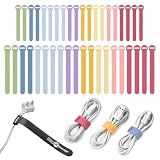
- TWO SIZES FOR EVERY CORD: Slim 5-inch ties bundle phone chargers, earbuds and USB cables; longer 8-inch ties wrap laptop chargers, HDMI, monitor, network and small appliance cords
- LOOPS ON AND STAYS PUT: Each self-gripping cable tie threads through its own slot and stays attached to the cord when unwrapped, so the tie is right there the next time you coil it
- REUSABLE ALTERNATIVE TO ZIP TIES: The hook and loop closure opens and refastens with no cutting; loosen it to add a cable, cinch it tighter, or link two ties end to end for a longer wrap
- MACARON COLORS FOR YOUR DESK: Match a dorm, craft room or home office setup and color-code cables by device, so the laptop charger, phone cable and monitor cord are easy to tell apart
- INCLUDES: (20) 5-inch x 0.5-inch and (20) 8-inch x 0.75-inch Macaron color self-gripping cable ties; a practical gift for students, teachers, home office workers and anyone with a tangled drawer
- Checking whether Windows detects a new internal or external drive.
- Creating and formatting a volume in unallocated space.
- Assigning, changing, or removing a drive letter.
- Extending or shrinking certain partitions.
- Bringing an offline disk online.
- Initializing a new disk as GPT or MBR.
Available actions depend on the disk layout, file system, Windows permissions, and whether the volume is currently in use. Some operations are destructive, particularly deleting a volume or formatting a partition.
Disk Management versus Storage settings
Windows 10 and Windows 11 also include storage controls in the Settings app. In Windows 11, for example, you may find storage-related controls under Settings > System > Storage, including Disks & volumes.
That interface is not the same navigation path as the classic Disk Management console. If a guide specifically tells you to open Disk Management, use one of the five methods above or run diskmgmt.msc. Settings may expose similar functions, but its layout and available controls differ.
Before changing a partition
- Back up important files. A wrong disk or partition selection can cause data loss.
- Check the disk number and capacity. Do not identify a disk only by its drive letter; removable drives can receive different letters.
- Do not delete EFI System or Recovery partitions simply because they appear small, empty, or show unusual free-space information. They can contain boot or recovery files.
- Use GPT for most modern PCs. MBR may be needed for compatibility with older hardware or operating systems, but it has different partition and capacity limitations.
- Wait for external drives to appear. Try another USB port, cable, or powered enclosure if the disk is absent from the console.
Windows 10 reached the end of normal support on October 14, 2025, but Disk Management remains part of the operating system. On supported Windows 11 systems, the same classic console is still available.
Also popular on Amazon

- Tired of unplugging the wrong cord? We were! Avoid the frustration with Cable Labels
- Quickly and Easily Identify Cords, Cables, Wires and More: These cable identifiers are perfect as cord labels for electronics, computer cable labels, charger labels, network cable labels, ethernet cable labels, wiring labels, wire tags, speaker wire labels, audio cable labels and for anywhere else you need cable management
- Easy to Write On: Surface is easy to write on with a pen
- No Sticky Residue: These cord labels feature hook and loop closure so there is no sticky residue left over from other cable tags or identifiers
- Includes 30 size medium cable labels // PATENT PENDING"
FAQ
What is the fastest way to open Disk Management?
Right-click the Start button, select Disk Management, and the console will open. The equivalent shortcut is Windows key + X, followed by Disk Management.
Why can’t I find an app called Disk Management in Search?
Search for Create and format hard disk partitions instead. That is the name Windows commonly gives the shortcut to the Disk Management console.
What command opens Disk Management?
Press Windows key + R, type diskmgmt.msc, and press Enter. Include the .msc extension.
Do these 3 things before closing this tab:
1Scan for outdated or missing drivers - takes under a minute2Clear out junk files and repair common Windows errors3Fix the driver behind crashes, sound loss and screen glitchesDo I need administrator rights to use Disk Management?
Not always to view disks, but many changes—including initializing a disk, creating a volume, deleting a partition, or changing partitions—require administrator approval.
The Bottom Line
For the quickest route, press Windows key + X and select Disk Management. If that option is unavailable, press Windows key + R, run diskmgmt.msc, or search for Create and format hard disk partitions. Take a backup and verify the disk identity before making partition or formatting changes.


download-online-casino
My page royal
bad-wiessee-casino-no-deposit-bonus-codes-for-free-spins-2026