
Recommended Free Tools
To keep videos in an OBS playlist the same displayed size, apply sizing to the playlist source—not just to whichever video is playing now. OBS’s playlist-capable VLC Video source can show files with different dimensions or aspect ratios at different sizes. A Scaling/Aspect Ratio Filter set to your target area is a reported workaround, but test it with your installed OBS and VLC versions because the behavior is not guaranteed for every setup.
Make playlist videos use a consistent display area
- Confirm you are using VLC Video. In OBS, open the Sources panel and check that the playlist is a VLC Video source. OBS documents VLC Video for playlist playback; it requires VLC to be installed. A Media Source is for an individual media file, rather than a playlist. See the OBS Media Sources guide.
- Select the VLC Video source in the Sources panel. You can resize and position a selected source in the preview, or open its context menu and use the transform controls. OBS describes these source-sizing controls in its Overview Guide.
- For sizing that should carry across playlist items, test a Scaling/Aspect Ratio Filter. Right-click the VLC Video source, choose Filters, and add the available scaling/aspect-ratio filter. Set its target to the display area you want. A community report describes this approach with a 1920×1080 target; that is one user’s example, not a universal setting or an official guarantee. Test the filter as the playlist advances. The report is at this OBS community post.
- Choose how mismatched aspect ratios should look. Fit the whole image and accept bars, enlarge or crop to fill the area and lose some edges, or stretch only if changing the image proportions is acceptable. OBS warns that stretching can distort the picture; its Overview Guide explains the aspect-ratio choices.
- Check the canvas and output separately. In Settings → Video, Base (Canvas) Resolution is the workspace where you arrange sources. Output (Scaled) Resolution is the size sent to your stream or recording. Set the canvas for your intended composition and the output for the destination; changing the output resolution does not reposition a source. OBS’s Overview Guide describes these controls.
Use the scaling filter’s target to match the area the playlist should occupy in the scene. Do not change the entire canvas just to fix one source: canvas changes can require you to reposition and resize other scene elements.
Choose fit, crop, or stretch
| Choice | What happens | Use it when |
|---|---|---|
| Fit | The full frame remains visible; bars or empty space may appear. | You must preserve all of the image. |
| Crop or scale larger | The display area fills more completely, but some edges may be cut off. | Filling the frame matters more than retaining every edge. |
| Stretch | The frame fills the area, but its proportions change and the image may look distorted. | Distortion is acceptable for the content. |
OBS identifies 16:9 as a common display aspect ratio and gives 1920×1080, 1280×720, and 3840×2160 as examples. These are examples, not a requirement that every playlist use 16:9. Choose the target based on your scene and intended output. See the OBS Overview Guide.
Keep canvas size, output size, and source size straight
- Source size and transform: controls where the VLC playlist appears and how large it is within the scene.
- Base (Canvas) Resolution: defines the scene workspace used to arrange sources.
- Output (Scaled) Resolution: defines the resolution of the stream or recording. OBS says it should match the stream output resolution; scaling down can reduce encoder load. See the Overview Guide.
For example, if you arrange a 1920×1080 scene and stream at 1280×720, keep the scene layout at the intended canvas size and set the output separately. Lowering the canvas to address one playlist source can force other sources to be repositioned and resized. OBS’s settings optimization guide also recommends using lower-resolution media when higher-resolution source material is unnecessary for its displayed size or output.
#1 Best Overall
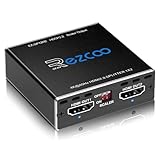
- Experience seamless and high-quality video with the Mini Size 1 to 2 4K HDMI Splitter. Enjoy simultaneous playback of 4K and 1080P resolution on two screens with ease. This splitter features two HDMI outputs that can independently down-scale 4K to 1080P, making it perfect for use with older TVs or displays.
- This device supports HDCP2.2 HDMI2.0, allowing you to enjoy content at 4K 60Hz 4:4:4, 8bit,18Gbps,HDR D-o-l-b-y Vision. The audio formats of D-o-l-b-y Digital 7.1CH, D-o-l-b-y Atmos, DTS:X, D-o-l-b-y TrueHD, DTS-HD Master, LPCM 2.1/ 5.1/ 7.1CH are also supported, providing a true immersive audio experience.
- Please note that this HDMI splitter can only down-scale 4K/4KHDR to 1080P, and does not support options for up-scaling or ARC eARC VRR, NO CEC. It is recommended to use new HDMI2.0 cables, less than 3 meters in length, for best performance. Additionally, to get VRR or Down-scale 4K HDR D-o-l-b-y Vision, you can ask your seller to upgrade the Firmware.
- Setting up and using this splitter is hassle-free. Simply connect your devices, set EDID COPY, and adjust the scaler settings as needed. It is compatible with a wide range of devices such as Nvidia Shield, Xfinity box, Game Capture, Apple TV, Amazon Fire TV, PS4 Pro, X BoX series, Comcast, Soundbar, and more. It also features USB power and comes with a cable tie for easy installation.
- In case you encounter any issues, rest assured that EZCOO provides efficient online after-sales technical support. Additionally, they offer a 30-day free refund upon order date. Experience high-quality video with ease using Mini Size 1 to 2 4K HDMI Splitter – the perfect device for your entertainment needs. Please note that this splitter does not have up-scaling capabilities.
Troubleshoot inconsistent sizing
- Only the first video looks right: If you transformed the currently playing item, that may not carry over when the playlist advances. Apply sizing to the VLC Video source and test the Scaling/Aspect Ratio Filter with multiple items. The filter workaround is reported by a community user, not promised by OBS for every version.
- A video has bars: The selected fit behavior is preserving the full frame. To fill the area, try cropping or enlarging, understanding that edges may be lost.
- The picture looks squashed or stretched: Avoid stretching when image proportions matter. Use fit or crop instead.
- Other scene elements moved or changed size: Check whether Base (Canvas) Resolution changed. Restoring the intended canvas may not automatically restore source positions, so inspect and realign the scene.
- The filter result is soft, unexpectedly cropped, or inconsistent: Check the target dimensions and aspect-ratio choice, then test each playlist item. OBS and VLC versions may affect behavior; the community report does not establish universal filter behavior.
- Performance is the concern: Consider reducing Output (Scaled) Resolution or using media closer to the size at which it will appear. Avoid reducing the canvas as a shortcut, since that can complicate capture and scene layout. OBS does not publish a universal performance cost for scaling a mixed-resolution playlist.
Or let it run in the cloud
If your goal is a continuous YouTube stream of uploaded videos rather than an OBS scene you operate locally, StreamNeo is a cloud option: upload a recording or build a playlist, add your YouTube stream key, and go live. Nothing has to stay on at home; it streams the uploaded video as made, up to 4K 60fps at one price per slot, and automatically recovers if YouTube drops the stream. The first day is free with no card. Monthly pricing is $9.99 per month. It is for uploaded videos on YouTube, not a camera stream. Start your free day on StreamNeo.
Quick Recap
Best Value

- 4x4 HDMI Matrix with Quad Multi-Viewer – Connect 4 HDMI sources to 4 displays with ultra-fast seamless switching; supports quad view, PIP, and multi-screen layouts for professional AV, control rooms, and home theaters.
- 4K HDMI Switching with Zero Lag – Supports 4K@30Hz, 1080p@60Hz, and lower resolutions with real-time switching; ideal HDMI matrix switch for gaming consoles, streaming devices, and AV systems. Only OUT A supports seamless switching.
- Multiple Display Modes & Easy Control – Features 5 viewing modes with customizable window placement; control via IR remote, front-panel buttons, or RS-232, making it perfect for commercial and residential installations.
- HDMI Audio Extraction & Broad Compatibility – Supports LPCM, AC3, DTS audio with optical (SPDIF) and L/R stereo audio output; compatible with PS5, Xbox, Nintendo Switch, Roku, Fire TV, Blu-ray players, PCs, and cable boxes.
- Plug & Play with Global Power Support – Includes dual-voltage power supply with US plug and international adapter; package includes HDMI matrix switch, remote, power adapter, and manual; backed by a 1-year warranty and lifetime OREI support.
Rank #4

- 4K VIDEO SCALING: Supports HDMI 2.0 video up to 4K@60Hz with 4:4:4 input and up to 18Gbps bandwidth; output can be scaled to multiple resolutions for different displays.
- HDMI AUDIO EXTRACTION: Extracts HDMI audio to both S/PDIF digital and 3.5mm analog L/R outputs. Supports LPCM 2.0 audio with a 48kHz sample rate
- FLEXIBLE RESOLUTION CONTROL: Select output resolutions using the built-in DIP switches, with support for resolutions from 640×480@60Hz up to 3840×2160@60Hz.
- EDID & CEC MANAGEMENT: Provides selectable EDID modes to optimize source/display compatibility while CEC pass-through maintains communication between compatible HDMI devices.
- RS-232 & COMPACT DESIGN: RS-232 control supports AV automation and advanced functions including resolution, EDID, mute, freeze, mirror and standby settings. Compact 4.33 × 3.15 × 0.83 in design fits residential and commercial installations.
Rank #3

- 【4K 120Hz HDMI 2.1 Splitter 1 in 2 out】 This splitter can split a signal source into two outputs to different monitors or TVs, projectors. Aluminum HDMI Splitter for Dual Monitor Duplicate/Mirror 4K 120hz & 1080P 120Hz work in Sync for Xbox, PS5 4K 120Hz, Sky q, IPS gaming monitor,Up to 8K@60Hz,4K@120Hz, D-olby vision, HDR and HDCP2.3, Deep Color, 3D, Lip Sync,EDID management,Down scaler function.
- 【Video & Audio Format】Video Format:HDMI 2.1 Splitter supports multiple resolution up to 8K@60Hz 4K@120Hz 5120x1440@120Hz 1080P@240Hz 4:4:4 8bit VRR ALLM HDR10 HDCP2.3 D-olby vision, 3D effect. Audio Format:Supports D-olby Atmos, DTS X,Dolby True HD, DTS-HD Master Audio, PCM7.1. Support Freesync/Gsync Does NOT support Sonos-ARC/e-ARC CEC Bi-directional. DO NOT down-scale HDR D-olby Vision.
- 【HDMI 2.1 Splitter EDID Scaler Easy Set Up】supports 4K120Hz and 1080P 120Hz output simultaneously. Type C cable for power supply. Highly recommend use certified HDMI 2.1 cable less than 10ft / 3m. Non-compliant cables will cause problems such as blurred pictures and out-of-sync sound. When outputting 4K120Hz, the downscaler will be 1080P 120Hz. Please choose the appropriate EDID according to your needs. Otherwise, please choose COPY. It will read the EDID of the TV connected to OUT1.
- 【Broad Compatibility】HDMI 2.1 Splitter 1 In 2 out can compatible with partly HDMI device such as NVIDIA AMD Amazon Fire Stick, Apple TV, LE TV, PS3/ 4/ 5 Video Games, Macbook, VCD/ DVD Player, IP TV, STB, Media Box, Camera, Xbox360, Xbox one, Huawei Box, Smart Box, Blue-ray Player Chromecast, PC/Computer, YUV 60Hz, RGB 30Hz, ROKU 4, SAT Receiver, Digital camera, Projector.
- 【Please Note】Most using issues are cuased by poor quality cables. Highly recommend certified HDMI 2.1 cable less than 10ft / 3m. Please see ASIN B0BB78BFNJ if needed. Does NOT support Sonos-ARC/e-ARC CEC Bi-directional. NOT support 8K 60HZ 4:4:4 48Gbps, DO NOT down-scale HDR D-olby Vision (4K60 4:2:2). Does not convert HDR to SDR. Does not support 60hz & 120hz work in sync. Does not EXTEND screen, only Copy/ Mirror. If any problem occurs during the use of the product, you can contact us at any time to return or exchange the product.
Rank #2

- 【Wide Compatibility】It's widely used with Blu-ray DVD, STB, PS3, PS4, PS5, R-o-k-u players, Amazon Fire TV Stick, PC and other devices with HDMI output. Allow users to enjoy high definition video and audio on traditional televisions or projectors when watching movies or playing games.
- 【Ultra HD 4K Input & Multiple Component Resolutions Output】This HDMI to Component converter converts digital HDMI video and audio signal into analog YPbPr video + R/L audio output. Supports maximum HDMI input resolution up to 4K/60Hz(HDMI 2.0). Supports multiple Component resolutions output, including 480i / 576i Component.
- 【Scaling Function】With built-in scaling technology, our HDMI to YPbPr converter can easily up-scale or down-scale HDMI signals into multiple resolution of Component signals. Just select resolutions by the switch button on the converter. Perfect solution to solve display problems when the source resolution is greater than the display.
- 【Zoom Function】Supports 5 kinds of picture zoom modes for picture gradual enlargemen.(No function for gradual reduction)
- 【On-Screen Display】The OSD (On-Screen Display) will show input and output resolutions when start working or switching resolutions.
Product prices and availability are accurate as of the date/time indicated and are subject to change. Any price and availability information displayed on Amazon at the time of purchase will apply.

