
Recommended Free Tools
iTechGuides is reader-supported. When you buy through links on our site, we may earn an affiliate commission. As an Amazon Associate I earn from qualifying purchases. Learn more
To avoid looking washed out on your webcam, put the brightest light in front of your face rather than behind you, soften and lower the light until your forehead and cheeks retain detail, then reduce exposure and correct white balance if your camera allows it. Physical lighting should come before software brightness controls.
A washed-out image is not always caused by simple “brightness.” A bright window, harsh ring light, white wall, reflective desk, automatic exposure, incorrect white balance, or a calling app’s low-light and appearance processing can all make your face look pale, gray, hazy, or featureless.
Key takeaways
- A bright window behind you can create a high-contrast scene that makes webcam exposure unstable or leaves your face too dark, pale, or constantly changing.
- A soft light placed behind or beside the webcam, slightly above eye level, is usually more useful than a very bright light aimed directly at your face.
- Featureless white patches on the forehead, cheeks, nose, or clothing indicate lost highlight detail; lower the light or exposure instead of increasing brightness.
- Exposure controls brightness, while white balance controls color; correct exposure before trying to fix a blue, gray, or orange cast.
- Zoom and Microsoft Teams brightness or low-light controls are primarily designed for dim video and may not repair clipped highlights.
How can you avoid looking washed out on your webcam?
The fastest reliable fix is to change the room before changing the camera settings: face the largest soft light, remove or cover a bright window behind you, turn off competing lamps, and lower the front light until facial highlights still show texture. After that, disable automatic exposure if your webcam supports it and reduce exposure manually.
Crashes, No Sound, or Screen Glitches?
Random freezes, missing sound and display glitches usually trace back to one bad driver. Find and replace yours safely.Free scan · under a minutePC Slower Than It Used to Be?
A free scan shows the junk files, broken settings and background clutter dragging Windows down - then fixes them in one click.Free scan · Windows 10 & 11- Move the camera and your chair so the main light is in front of your face.
- Close blinds or curtains if a window is much brighter than the room.
- Turn off harsh overhead lighting and unnecessary lamps with a different color.
- Diffuse the front light with a lampshade, sheer curtain, wall bounce, or diffuser.
- Check the brightest parts of your forehead, cheeks, nose, and shirt in the actual calling app.
- Lower the physical light or camera exposure if those areas become solid white.
- Adjust white balance only after the brightness looks correct.
What does a washed-out webcam image look like?
A washed-out webcam image usually has highlights so bright that the camera no longer records useful facial or fabric detail. Skin can look unnaturally pale or gray, the forehead and cheeks can become flat white patches, and the entire image may look hazy or low-contrast.
Popular on Amazon

- Webcam Light is 10” LED RING LIGHT: the led light design with 10 adjustable brightness for your choose, meet all your needs in different circumstances. 3 light modes: white, warm yellow, warm yellow + white. It will come in handy whenever you need extra light for making up, taking photos, making videos, reading books, and live streaming!
- Webcam Light comes with phone holder: Universal cell phone holder, very easy to use: It will compatible with most of smart phones screen size under 6.2 inches, like iphone/Samsung/LG/Google/Motorola,ect.
- Ring Light power supplied by USB port, work with multiple devices. The USB ports can be used with multiple devices,such as connect computer host,laptop,mobile power and USB charger.You will be able to enjoy LED ring light at any time freely!
- Ring Light with standard 1/4''-20 screw thread hole, can fit your Tripods, Monopods, Stands,Mounts,anything with 1/4''-20 screw thread;
- We suggest 2A AC Adapter to supply power; The ring light is made of energy-saving LED beads,high color rendering,soften the light source and enhance skin tone in portraits photography.The SMD LED technology inside of the light offers shadowless and even lighting to make you get the perfect skin and the ring shape of the light will give you a charming eye effect.
Other symptoms include weak colors, a cool-looking complexion, a light shirt with no visible texture, and dramatic brightness changes when you move. A camera that looks acceptable while you sit still but suddenly brightens or darkens as your head moves is often reacting to a high-contrast scene with automatic exposure or other automatic processing.
| What you see | Likely cause | First fix |
|---|---|---|
| Your face is dark while the background is bright | Backlighting from a window or lamp | Face the window or add soft front fill |
| Forehead, cheeks, or nose are solid white | Overexposure or a harsh, close light | Lower light intensity or exposure and diffuse the source |
| Your face is gray, blue, or unusually cool | Incorrect white balance or a cool light source | Match the dominant light or warm the white balance |
| Brightness changes when you move | Automatic exposure responding to contrast | Balance the room or disable auto exposure |
| Your face is bright but noisy | Digital brightness lifting shadows or insufficient sensor light | Add controlled light and reduce software brightness |
| There are shiny hotspots on skin, glasses, or a bald head | Direct light or reflection | Move the light off-axis, raise it, and diffuse it |
| The image is pale but facial detail remains | White balance, soft-focus, beauty, HDR, or tone-mapping processing | Disable effects, then correct color rather than adding light |
Is the problem overexposure or underexposure?
If the face is dark but still detailed, the image is probably underexposed and needs better-positioned light. If bright areas have turned into featureless white patches, the image is overexposed and adding brightness will make the problem worse.
Look at the brightest parts of your face and clothing rather than judging the whole frame. Visible pores, skin texture, and fabric detail indicate that the highlights are still usable. A solid white forehead or shirt means the sensor has lost detail that software cannot restore.
The Tool Desk
Outbyte Driver Updater FREEFix the driver behind crashes, sound loss and screen glitchesFind Drivers →Outbyte PC Repair FREERepair Windows errors before they cause bigger problemsFix Now →A pale-looking face is not automatically overexposed. Correct brightness with the light and exposure controls first. If facial detail is intact but the skin still looks blue, gray, or orange, investigate white balance, color temperature, filters, glare, and automatic tone mapping.
Why does a bright window behind you make a webcam image look bad?
A bright window behind you creates a large difference between the background and your face, forcing the webcam and its software to balance a difficult frame. Depending on the camera, the face may become dark, pale, or unstable while automatic exposure continually recalculates.
The practical solution is to face the window so daylight illuminates your face, or reduce the window’s intensity with blinds or curtains. If you cannot move, place a soft front light near the camera so your face is closer in brightness to the background. Avoid framing your head directly against the sharp edge of a bright window.
Windows are not the only issue. Zoom’s lighting guidance warns that windows, walls, blinds, tables, and whiteboards can reflect light or interfere with automatic camera adjustment. A glossy desk, white wall, glass surface, or reflective blind can bounce light back into the lens even when the main lamp appears correctly positioned.
Do these 3 things before closing this tab:
1Fix the driver behind crashes, sound loss and screen glitches2Repair Windows errors before they cause bigger problems3Scan for outdated or missing drivers - takes under a minuteWhere should a webcam light go?
Place the main light behind or beside the webcam, slightly above eye level, and aim it toward your face rather than directly into the lens. Keep the light close enough for even illumination but far enough away that it does not produce hard highlights.
A light slightly to one side gives the face shape. A bare light directly on-axis can flatten facial features and create reflections in glasses or shiny skin. A light directly above your head can produce dark eye sockets and a bright forehead, while a light below eye level can create unnatural upward shadows.
Use a wall bounce, lampshade, diffuser, or sheer curtain when the source looks harsh. Indirect light is often forgiving, but direct light can also work if the source is softened, angled, and carefully controlled. Logitech’s video-positioning guidance similarly recommends placing light in front of you so your face, not the background, becomes the visual center of attention.
Also popular on Amazon

- New Adjustable Multifunctional Stand : 2025new upgraded ring light, using a new design concept. Perfectly circumvent the traditional clip-on ring light poor fixity and screen unfriendly problems. With a stretchable horizontal plate, 2-2.5 inches, it can perfectly match notebook & desktop computers and securely fix on straight or curved screens, and the main body of the stand adopts an adjustable design, 6.5-8.5inch, providing solutions for a wider range of usage scenarios
- All-in-one Service : Evershop desktop ring light adopts a new construction design to provide a new All-in-one solution for ring video light for cell phone fixing, you can place your cell phone Ipad on the stand, the operation is very simple, you can use our stand for cell phone video call anytime and anywhere, our fill light will assist you to show your best to your family and friends, light up your beauty
- Light and portable & plug and play :The Evershop small ring light features a USB-powered design, excluding batteries, and can be used with PC/laptop/mobile power/charging plug, making it plug and play. With its compact and lightweight design, our ring light weighs only 7.1 ounces, has a 5-inch light head diameter, and comes with a compact and versatile bracket, making it very easy to fit into shoulder bags and handbags. Its small and portable design allows for easy transportation to the office, outdoor, and during travel
- 10-Level Brightness & 3 Lighting Colors : Evershop ring light uses 64 high-efficiency LEDs with a 10W power output, delivering brighter and more consistent illumination across all three lighting modes—white, natural, and warm. Enhanced by CRI >98 color accuracy, it reveals true-to-life skin tones so you always look natural and polished on camera. With 30 adjustable brightness levels, you can fine-tune the light for any environment, helping you stay confident during video conferencing, Zoom meetings, video recording, webcam calls, smartphone selfies, and makeup lighting
- Foldable Ring Light : Our ring light adopts a flexible structure design, the bracket can be folded 90°, the ring light base can also be folded 180°, saving your use of space, and can be rotated horizontally 360°, flexible structural design is designed to help you find the best shooting angle, so that you and the object in the video in the most beautiful posture. Premium ABS build. Our products provide 12 months validity protection, If you have any questions, please do not hesitate to contact us
How bright should webcam lighting be?
There is no universal brightness setting for every webcam or room. The right level depends on the sensor, the distance from the light, window brightness, wall and desk reflectivity, clothing, skin tone, camera framing, and the calling app’s processing.
Start at low power and increase the light until your face is clear. Then reduce it slightly if the forehead, cheeks, nose, glasses, or light-colored clothing loses texture. If you need to squint, the source is probably too bright or too direct.
For a professional video-conferencing space, Zoom lists approximately 20–30 foot-candles of vertical illumination on faces and 10–15 foot-candles on walls. Those figures are guidance for conference spaces, not a universal home-office requirement or a brightness target you must measure to get a good call.
Two moderately bright lights at lower output can be more comfortable and balanced than one very bright source. A single ring light is convenient, but direct symmetrical illumination can flatten the face and create circular reflections in eyes or glare on glasses.
What is the best no-cost webcam lighting setup?
The best no-cost setup uses a large window or soft room light in front of you and removes the strongest competing sources.
- Raise the laptop or webcam to approximately eye level.
- Face the largest window or brightest soft source.
- Close the blinds or curtains enough to prevent the window from dominating the frame.
- Turn off a harsh overhead light that creates eye sockets or a forehead hotspot.
- Move bright lamps and reflective objects away from the area behind the camera.
- Sit against a moderately darker, uncluttered background rather than a bright wall or window.
- Open the preview in the calling app and adjust your position before touching software brightness.
Daylight changes with clouds, time of day, and season. If you need consistent interview or meeting lighting, use curtains or blinds to control the window and add a stable artificial fill rather than relying on direct sunlight.
How do you set up one light for video calls?
For a one-light setup, use a soft, adjustable source behind or beside the webcam, slightly above eye level, and begin at low intensity.
- Put the camera at eye level and frame your head and shoulders.
- Place the light just to one side of the camera or slightly behind it.
- Raise the source a little above your eyes and angle it downward.
- Aim the light at your face, not into the camera lens.
- Diffuse the source or bounce it from a nearby wall if the highlights look hard.
- Increase brightness until your eyes and face are clear.
- Reduce brightness slightly if the forehead or cheeks become featureless white.
- Match the light’s color to the dominant room light, or turn off competing lamps.
A larger panel or key light is generally easier to position off-axis than a small bare bulb. A ring light is compact and simple, but the direct circular source can emphasize shine and produce a flat, symmetrical look.
How do you set up two lights without creating glare?
Use one key light at roughly 30–45 degrees to one side of the camera and a weaker fill light on the opposite side. The fill should soften deep shadows, not match the key’s brightness.
Free tools Windows power users keep installed
One-click scans. No signup required.
A wall bounce can act as the fill without putting another bright source directly in front of your glasses or skin. If the image becomes flat or reflective, lower the fill before lowering the key. Two weaker sources can be more comfortable and even than one intense source, but the arrangement requires more desk space and adjustment.
Also popular on Amazon
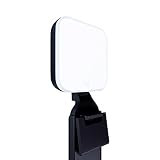
- Natural skin tones, radiant look: Logitech’s TrueSoft technology delivers balanced, full-spectrum LED light with cinematic color accuracy and optimal lighting for video conferencing or Zoom meetings
- Wide, flattering light: Litra Glow's frameless diffuser radiates wide, soft light that flatters the subject and eliminates harsh shadows in any setting, providing flawless webcam lighting
- Safe for all-day streaming: Whether gaming, podcasting or broadcasting, Litra Glow adjustable LED light has cleared even the strictest UL testing guidelines for all-day streaming*
- Freedom of light placement: Patent-pending, 3-way monitor mount with adjustable height, tilt, and rotation for precise light positioning on your desktop computer or laptop
- Fine-tune your on-camera look: Adjustable brightness and color temperature settings help you quickly achieve the video look you want, from warm candlelight to cool blue
How do you fix automatic exposure?
Automatic exposure is convenient in changing rooms, but high-contrast lighting can make the image pump between bright and dark. If the webcam supports manual exposure, disable automatic exposure and lower the exposure until facial highlights retain detail.
- Open the webcam manufacturer’s camera utility.
- Find Exposure, Auto Exposure, or Camera Controls.
- Turn off automatic exposure.
- Lower the exposure gradually while watching the forehead, cheeks, nose, and shirt.
- Check the complete background and clothing, not just a close-up of the face.
- Move slightly and confirm that brightness remains stable.
- Save a profile if the camera software supports profiles.
- Open the calling app and verify the final image there.
On Logitech cameras, Logitech documents the setting in G Hub as the camera settings screen with Auto Exposure turned off. In Logi Options+, the path is Camera Settings → Exposure → Auto exposure. Logitech also recommends disabling auto exposure and adjusting the exposure bar for an overexposed BRIO 90/100/101 image; the same utility may expose brightness, contrast, saturation, sharpness, and white-balance controls through the camera’s supported settings.
Camera controls vary by model and operating system. Some built-in laptop cameras provide little or no manual control, and a calling app may override or ignore settings made in another utility. Manual exposure is most useful in a stable room; if daylight changes substantially, automatic exposure combined with better physical lighting may be more reliable.
Elgato likewise recommends manual exposure when automatic exposure is unsuitable. Elgato’s Facecam guidance explains that additional light can allow the camera to use lower ISO and reduce visible image noise, although the exact result depends on the camera’s sensor and processing.
When should you adjust white balance?
Adjust white balance after exposure and physical lighting are stable. Exposure controls how bright the image is; white balance controls whether the image looks warm, cool, blue, orange, or gray.
- If the face looks orange, reduce warmth or select a cooler setting.
- If the face looks blue or gray, choose a warmer setting.
- If daylight and a warm desk lamp illuminate the face together, turn off one source or match their colors.
- Use a white sheet of paper or gray card as a rough reference, but remember that a white shirt is not guaranteed to look pure white under every light source.
White balance cannot restore detail in a clipped white highlight. If the face is both white and orange, fix the excessive light or exposure first, then address the color cast.
What webcam settings can you change in Zoom?
In the Zoom desktop app, open Profile picture → Settings → Video & effects → Camera. Depending on the current app version, device, and account, the area can include camera preview, Portrait lighting, Adjust for low light, and Touch up my appearance.
Zoom describes low-light adjustment as a way to brighten dark video. If your face is already too bright or has white patches, leave low-light processing off or avoid increasing it until the physical light and camera exposure are correct. Portrait lighting can change the balance between foreground and background, so compare the preview with the effect disabled as well as enabled.
Always check the image in the same Zoom account and device you will use for the call. A preview in a manufacturer utility may not match Zoom after Zoom applies its own processing.
What webcam settings can you change in Microsoft Teams?
In the Teams desktop app, open Settings and more → Settings → Devices. Microsoft documents camera selection, Automatically adjust camera controls, Adjust brightness, Soft focus, and video preview controls in that area.
Also popular on Amazon

- 【4K UHD Webcam】This webcam for pc supports resolutions from 4K@30FPS to 1080P@60FPS, with frame rates that capture every detail for a clear and smooth video conferencing experience. This web cam is perfect for conference calls, online classes or live streaming.
- 【Three Colours Infinitely Dimmable】The built-in ring fill light has 3 color temperature settings (white /natural /warm ), and the color temperature can be adjusted by touching the sensor area on the back of the camera with your fingertips. Adapt to different environments, always present the best skin color. The streaming camera's innovative outer ring rotary adjustment brightness light intensity control, even in low light conditions can also get the best fill light effect.
- 【TOF autofocus dual noise-canceling microphones】The TOF fast autofocus function instantly locks onto faces or moving objects, ensuring ultra-clear image quality performance in dynamic scenes stays in perfect focus. Equipped with dual noise-canceling microphones, this computer camera effectively reduces background noises such as keyboard tapping and air-conditioning operation, ensuring that your voice is always clearly conveyed.
- 【Built-in Privacy Cover】The 4K webcam has a built-in sliding privacy cover that physically blocks the lens with a gentle push, completely eliminating the risk of hackers peeking in or privacy leaks, allowing you to control your privacy and security at all times.
- 【Widely Compatible】The web camera runs easily on multiple platforms such as Windows (Win7, 10, 11), Mac OS 10.6 and higher and Linux. Ideal for use with Zoom, Teams and other popular communication software such as Skype, Facetime, Microsoft Teams and more.
Teams says Adjust brightness is intended to improve low-light video, so it is not a precision exposure control for clipped highlights. If your face is already washed out, reduce the physical light, disable automatic adjustments where available, and use the webcam manufacturer’s exposure controls instead. The pre-join screen and in-call video controls can also expose brightness and effects, but labels and availability can vary between work or school Teams and Teams Free.
See Microsoft’s current Teams device-settings instructions for the version of Teams you use, then verify the result in the pre-join preview.
Why does the webcam look fine in one app but washed out in another?
Different apps can apply different processing, select different cameras, or use a virtual camera rather than the physical webcam. A manufacturer utility, Zoom, Teams, OBS, and a browser may each have their own brightness, low-light, HDR, portrait, beauty, or appearance processing.
- Test the camera in the operating system’s native camera app.
- Test it in the webcam manufacturer’s utility.
- Confirm that Zoom, Teams, or the browser has selected the same physical camera.
- Temporarily disable virtual-camera effects.
- Turn off low-light, portrait-lighting, beauty, soft-focus, HDR, and appearance filters.
- Close other applications that may be controlling the camera.
- Restart the calling app after changing camera settings.
Microsoft’s Teams camera troubleshooting guidance notes that virtual cameras can cause Teams to receive an unexpected image or feed. A setting saved in Logi Options+, G Hub, Zoom, Teams, OBS, or a browser may not carry over to every other application.
How do you prevent glare from glasses, skin, or a bald head?
Change the light’s size, angle, and distance instead of making the entire image darker. Raise the source slightly, angle it downward, move it farther away, reduce its intensity, and place it 20–45 degrees to one side of the camera.
Quick wins for a faster PC:
Fix the driver behind crashes, sound loss and screen glitchesFind Drivers →Clear out junk files and repair common Windows errorsFree Scan →Scan for outdated or missing drivers - takes under a minuteDriver Scan →Diffusion makes the light appear larger and reduces hard reflections. Clean the webcam lens and glasses, remove any protective film from the camera, and avoid a bare LED aimed straight at the face. Normal non-reflective grooming or makeup choices can reduce shine when appropriate, but lighting geometry is the primary fix.
How does camera distance affect webcam appearance?
Camera distance changes framing, facial perspective, and how much of the room influences automatic exposure. Logitech suggests experimenting at around 30 inches from the camera as a practical starting point, not as a universal rule.
A camera that is too close can exaggerate facial features and make light falloff more obvious. A camera that is too far away makes the face a smaller part of the frame, which can encourage automatic exposure to respond more to the room. Move the camera or chair gradually while keeping the face large enough in the frame and checking highlight detail.
Independent reader supportYour contribution helps us test, update, and keep practical guides available for everyone.Should you buy a light or a better webcam?
Buy or add controlled lighting before replacing the webcam. A bright window behind you or a harsh light aimed at your face can make an expensive camera look poor, while a basic built-in camera can look substantially better after the room and exposure are balanced.
What’s actually slowing this PC down?
Pick the symptom - the matching free tool is one click away.
| Option | Best for | Trade-off | Research price signal |
|---|---|---|---|
| Window, curtain, wall bounce, or existing lamp | No-cost correction and occasional calls | Daylight and room conditions are less consistent | No purchase required |
| Logitech Litra Glow | Simple desktop or monitor-mounted lighting | Less control and output than a larger key light | U.S. page displayed $65.89 sale / $69.99 listed on August 18, 2026 |
| Logitech Litra Beam | A more substantial single key light | Costs more and needs more desk or mounting space | U.S. page displayed $89.99 sale / $119.99 listed on August 18, 2026 |
| Elgato Key Light Neo | Smaller desks and compact setups | Not as suitable for a wide room or multiple people | U.S. page result displayed a $59.99 product subtotal; verify package and checkout price |
| Elgato Key Light | Large, soft, app-controlled, repeatable lighting | Expensive for occasional calls | U.S. page displayed $179.99; two-light bundle displayed $324.99 on August 18, 2026 |
| Second weaker fill light | Reducing deep shadows without one intense source | Requires additional space and setup | Price depends on the chosen light |
| Better webcam | A camera that remains poor after lighting, lens, and app checks | Cannot fix backlighting or clipped detail caused by the room | Model and regional price not specified here |
Prices are U.S. page signals observed on August 18, 2026. Discounts, bundles, stock, regional availability, included stands or clamps, and shipping can change, so confirm the current product page before buying.
Also popular on Amazon

- Adjustable Color Temperature & Brightness: ACMEZING video conference light has 5 color temperature: Warm warm, Warm white, Natural white, Daylight, Cold white, adjustable range is 3200K to 6500K. Equipped with 64 10W brightness lamp beads and 5 level brightness adjustment. This webcam light can meet your different lighting need under various occasions to help you look your best.
- Ring Light Design & Multi-Purpose: The zoom light adopts ring design to produce a soft, pleasing light that helps to smooth shadows and hide skin imperfections. It’s a desirable feature for anyone who’s concerned about how they look on video calls. The light for video conferencing is widely used for video conferencing, remote working, zoom call, self broadcast, live streaming, makeup, YouTube, Tiktok.
- Stable Clamp & Flexible Tripod: The metal clip of the laptop light for video conferencing has a strong spring, which is firm and stable. It's equipped with foam cushion to ensure anti-scratch and anti-slip. The package also comes with a highly functional mini octopus tripod, which legs can grip, wrap or stand. These two types of brackets allow you to install the video conference light anywhere you want, you can install it on your laptop, PC monitor, desk, conference table, dressing table, etc.
- USB Powered & Plug and Play: The USB charging cable brings us more power options. All devices with USB ports can supply power to the ring light for computer, such as monitor, laptops, mobile power supplies and USB chargers. The zoom lighting for computer is small size, light weight, easy to carry when going out, and the power cord is up to 2m, which can meet your lighting needs anytime, anywhere.
- What You Get: 1*Ring Light For Webcam, 1*Superior Clamp, 1*Flexible Tripod, 1* Manual. We care about all details, each light for video conferencing is tested manually, it will be the best solution for your video conference lighting. 60-day refund and 18-month warranty, if you have any questions, please feel free to contact us, we will reply within 12 hours.
For Logitech owners, free Logi Options+ may be the most sensible software-first step if the webcam is supported and you need exposure or white-balance controls. For compatible Apple users in a genuinely dim room, Apple’s Edge Light can provide a no-purchase screen-border fill effect; it is not a remedy for a bright window behind you or already clipped highlights.
Apple says Edge Light requires an Apple-silicon Mac running macOS Tahoe 26.2 or later, while automatic activation requires a Mac introduced in 2024 or later. Apple’s Edge Light support page contains the current compatibility conditions.
What should you check before an interview or important call?
- The main light is in front of you, not behind you.
- No window is creating a bright rectangle directly behind your head.
- Your forehead, cheeks, nose, and shirt retain visible detail.
- Your eyes are visible without a harsh overhead shadow.
- Glasses do not contain a strong reflection of the lamp or screen.
- The background is not dramatically brighter than your face.
- White balance looks natural under the dominant room light.
- Brightness stays stable when you move slightly.
- Low-light, portrait, beauty, soft-focus, HDR, and appearance effects are intentional rather than accidental.
- The selected camera is the one you tested.
- The preview was checked inside the actual calling app.
Webcam washout troubleshooting by symptom
The face is dark but detailed
Add or reposition soft front light, open the curtains if the window is in front of you, or use modest low-light correction. Do not immediately increase exposure if a bright background is already visible.
Windows Errors? Fix Them Before They Spread
Repair common Windows errors and clear accumulated junk for a smoother, more stable PC - no reinstall needed.Free scan · no reinstallCrashes, No Sound, or Screen Glitches?
Random freezes, missing sound and display glitches usually trace back to one bad driver. Find and replace yours safely.Free scan · under a minuteThe face has white patches with no detail
Reduce light intensity or camera exposure, move the light farther away, and diffuse it. Software brightness cannot recover highlight detail that the sensor has already clipped.
The whole image is gray or colorless
Disable soft-focus, beauty, HDR, and appearance effects, clean the lens, remove protective film, and check white balance. If brightness is correct, color processing is more likely than a need for more light.
The image pumps when you move
Reduce the contrast between your face and background, close or diffuse the window, add stable front fill, or disable automatic exposure. If daylight changes throughout the day, automatic exposure may be more practical than a fixed manual setting.
The image looks different in Zoom, Teams, and the camera app
Confirm the selected camera in each application, disable virtual-camera effects, turn off app-specific enhancement controls, close competing camera utilities, and restart the calling app. Test the final appearance where the call will actually happen.
Do these 3 things before closing this tab:
1Scan for outdated or missing drivers - takes under a minute2Repair Windows errors before they cause bigger problems3Fix the driver behind crashes, sound loss and screen glitchesFrequently Asked Questions
Can software brightness fix a washed-out webcam image?
Software brightness can help when video is slightly dim, but software brightness cannot restore detail in clipped white highlights. Reduce or diffuse the physical light and lower exposure first when the forehead, cheeks, nose, or shirt has featureless white patches.
Should I use low-light mode when my webcam looks washed out?
Usually not. Zoom and Teams low-light or brightness controls are primarily intended to brighten dark video, so they can make an already bright face worse. Balance the room and correct exposure before enabling low-light processing.
Does white balance fix pale skin on a webcam?
White balance fixes a color cast, not overexposure. Adjust exposure and lighting first; then change white balance if the face still looks blue, gray, or orange while facial detail remains visible.
What is the best light position for webcam glasses glare?
Place a diffused light slightly above eye level and 20–45 degrees to one side of the camera, then reduce its intensity or move it farther away. An off-axis, softened source is less likely to reflect directly into glasses than a bare light aimed straight at the face.
Can Apple Edge Light replace a webcam light?
Apple Edge Light can provide a no-purchase screen-border fill effect for compatible Apple-silicon Macs running macOS Tahoe 26.2 or later, but it is intended for low-light video calls. It does not solve strong backlighting, harsh physical light, or clipped highlights.
The Bottom Line
Fix webcam washout in this order: put the main light in front of you, soften and lower it, control the window and reflective surfaces, then reduce exposure and correct white balance. Check the final result in Zoom, Teams, or the app you will actually use. If the camera still looks poor after the room and settings are stable, consider a dedicated light before buying a new webcam.

