
Free tools Windows power users keep installed
One-click scans. No signup required.
iTechGuides is reader-supported. When you buy through links on our site, we may earn an affiliate commission. As an Amazon Associate I earn from qualifying purchases. Learn more
Intel’s 0x12B microcode update was a significant mitigation for the 13th- and 14th-generation desktop Core instability problem, but it was not a repair for processors that had already degraded. Released with BIOS updates in September 2024, 0x12B addressed elevated-voltage requests during idle and light workloads and bundled the earlier 0x125 and 0x129 mitigations.
That is the historically accurate answer to the October 2024 claim that Intel had “fixed” the voltage issue. However, Intel later released 0x12F on May 1, 2025. As of August 11, 2026, Intel recommends a motherboard BIOS containing microcode 0x12F or later, together with the applicable Intel Default Settings profile.
What Intel’s 0x12B update actually fixed
Intel called the problem Vmin Shift Instability. In its September 25, 2024 root-cause analysis, Intel said a clock-tree circuit inside the IA core was particularly vulnerable to reliability aging when exposed to elevated voltage and temperature. That aging could shift the clock duty cycle and eventually produce instability. Intel’s explanation is documented in its official Vmin Shift root-cause analysis.
Recommended Free Tools
The 0x12B update addressed the fourth voltage-related operating scenario Intel identified: firmware and microcode behavior that could request elevated core voltage while the processor was idle or only lightly active. Intel described 0x12B as incorporating the earlier 0x125 and 0x129 mitigations rather than replacing them with an unrelated fix.
Popular on Amazon

- 24-core Intel Core Ultra desktop processor
- Up to 5.7 GHz max turbo frequency
- 36 MB Intel Smart Cache
- Unlocked desktop processor
- Supports DDR5 memory
In practical terms, 0x12B was a preventive firmware mitigation. It changed the voltage-request behavior so an affected system would be less likely to remain in conditions that contribute to further Vmin Shift degradation. It was not a hardware replacement, a reconditioning process, or a way to restore a processor’s original electrical margins.
The four scenarios behind the instability investigation
Intel’s September 2024 analysis separated the problem into four operating scenarios. Understanding them explains why several microcode revisions were released instead of one universal switch labeled “fixed.”
| Scenario | What Intel identified | Related mitigation |
|---|---|---|
| Motherboard power settings above Intel guidance | Some boards could run the processor with power-delivery behavior beyond Intel’s recommended settings. | Use the motherboard’s applicable Intel Default Settings profile. |
| eTVB algorithm behavior | An eTVB microcode algorithm affecting 13th- and 14th-generation Core i9 desktop processors could contribute to damaging operating conditions. | Intel said microcode 0x125, released in June 2024, addressed this algorithmic issue. Intel also said the eTVB bug was not itself the entire root cause. |
| SVID voltage requests | An SVID microcode algorithm could request high voltage at frequencies and durations that contributed to Vmin Shift. | Intel released 0x129 in August 2024 to address the behavior. |
| Elevated voltage during idle or light activity | Microcode and BIOS behavior could request elevated core voltage even when the processor was not under a heavy workload. | 0x12B addressed this remaining identified scenario and bundled the earlier mitigations. |
Intel’s earlier 0x129 guidance said elevated operating voltage could increase the minimum operating voltage required across multiple cores. It also described a preventive limit on voltage requests above 1.55 V, primarily for K, KF, and KS processors. That mitigation did not prohibit user overclocking, but Intel stated that overclocking remained at the user’s risk. The 0x129 announcement provides the relevant historical detail.
Why 0x12B was called the “final fix” in 2024
Contemporary coverage published on October 7, 2024 described 0x12B as resolving the voltage issue and called it the “final fix” at the time. That headline reflected Intel’s September position: 0x12B closed the last of the four identified voltage-request scenarios and consolidated the previous mitigations.
It should not be used as a present-tense claim that no later firmware was needed. Intel released 0x12F on May 1, 2025 as a supplement to 0x12B. Intel said the newer revision further improved system conditions that could contribute to Vmin Shift Instability. The current Intel support guidance, last reviewed July 21, 2026, recommends a BIOS containing 0x12F or later and the relevant Intel Default Settings profile.
So the clean distinction is:
- 0x125: addressed the eTVB algorithm issue identified earlier.
- 0x129: addressed incorrect high-voltage requests through the SVID-related behavior.
- 0x12B: addressed elevated voltage requests during idle and light activity while incorporating the earlier mitigations.
- 0x12F: supplemented 0x12B and is now the more appropriate minimum target where Intel’s current guidance applies.
What 0x12B could not do
A firmware patch can change future CPU control behavior. It cannot reverse reliability aging that has already occurred inside the processor.
Also popular on Amazon

- Next‑Gen Platform Support: Compatible with Intel 800 Series Chipset‑based motherboards with LGA1851 Socket enabling PCIe 5.0/4.0 and high‑speed DDR5 memory (up to 7200 MT/s).
- High‑Performance Core Configuration: Features up to 24 cores (8 P‑cores + 16 E‑cores) for demanding gaming and creator
- Ultra‑Fast Boost Clocks: Reaches up to 5.5 GHz max turbo frequency for top‑tier responsiveness and performance
- Built for Enthusiasts: Unlocked for performance tuning when paired with Intel Z‑series chipsets, making it ideal for overclockers and power users.
- Robust Power & Thermal Design: Engineered with 125W base power and 250W max turbo power to sustain high‑intensity
Intel stated in a July 26, 2024 support-process clarification that damage already inflicted could not be undone with a microcode change; the purpose of microcode was to mitigate further damage. Intel’s later warranty and exchange guidance is consistent with that distinction. A CPU that remains unstable after the appropriate BIOS update may need diagnosis, support validation, or replacement rather than another attempt to “repair” it in software.
Therefore, avoid statements such as:
- “0x12B repaired every affected CPU.”
- “The update made degraded processors as good as new.”
- “Any previously unstable processor is guaranteed to become reliable after the BIOS update.”
The accurate formulation is: 0x12B corrected the identified firmware voltage-request behavior and reduced future exposure, but it did not reverse physical degradation already suffered by a processor.
Which processors are affected?
This specific Vmin Shift issue concerns 13th- and 14th-generation desktop Core processors. Intel explicitly stated that its 13th- and 14th-generation mobile processors were unaffected by this Vmin Shift issue. A laptop CPU should not be treated as affected merely because it carries a 13th- or 14th-generation label.
Intel’s earliest public guidance focused heavily on unlocked K, KF, and KS desktop models, including processors such as the Core i9-14900K, Core i9-14900KF, Core i9-14900KS, Core i7-14700K and KF, and Core i5-14600K and KF, along with their 13th-generation counterparts. Later guidance broadened the user-facing instruction to 13th- and 14th-generation desktop processor users. Intel’s current support page identifies affected 13th- and 14th-generation desktop Core i5, i7, and i9 product families.
That does not mean every processor in those families has degraded or will fail. It means owners should follow the current firmware and settings guidance instead of assuming that only a short list of unlocked models needs attention.
How the microcode reaches your computer
Intel does not normally deliver these revisions as ordinary Windows updates. The processor microcode must be incorporated into a BIOS or UEFI release by the motherboard manufacturer, OEM, or system integrator. Intel distributed the update to those vendors and directed users to check the support page for the exact motherboard or prebuilt system.
A graphics-driver installer, Windows update, or generic third-party driver updater should not be treated as an installation method for 0x12B or 0x12F. The relevant update is a vendor BIOS or UEFI release whose notes identify the required microcode or the related Intel stability update.
Also popular on Amazon

- Game Without Compromise. Play harder and work smarter with Intel Core 14th Gen processors
- 20 cores (8 P-cores plus 12 E-cores) and 28 threads. Integrated Intel UHD Graphics 770 included
- Up to 5.6 GHz with Turbo Boost Max Technology 3.0 gives you smooth game play, high frame rates, and rapid responsiveness
- Compatible with Intel 600-series (with potential BIOS update) or 700-series chipset-based motherboards
- DDR4 and DDR5 platform support cuts your load times and gives you the space to run the most demanding games
What to do: a safe update checklist
- Identify the exact system. For a self-built PC, record the motherboard manufacturer, complete model name, revision number if the board uses one, current BIOS version, and processor model. For a prebuilt desktop, record the system manufacturer and exact model or service identifier. Do not rely only on “Z790” or “14th Gen”; those labels are not enough to select a BIOS file.
- Open the manufacturer’s support page. Use the support page for the exact board or system, not a similarly named model. Read the release notes and look for a BIOS containing microcode 0x12F or later, or an explicit Intel 13th/14th-generation desktop instability mitigation.
- Prepare before flashing. Follow the vendor’s instructions, use a stable power source, save important work, and avoid interrupting the update. BIOS update procedures and recovery options vary by board. If the system is unstable enough that a normal update cannot be performed safely, consult the board or system manufacturer before proceeding.
- Load Intel Default Settings. After the update, select the BIOS profile or setting named Intel Default Settings if the firmware exposes it. If the board has a vendor performance profile that exceeds Intel’s guidance, do not assume that installing the microcode alone puts the system into the recommended operating condition.
- Recheck manual tuning. Temporarily remove CPU overclocks, aggressive voltage offsets, or other settings that complicate diagnosis. Establish a stable Intel-default baseline first. You can evaluate custom settings later, one change at a time, understanding that overclocking is outside the protected baseline Intel is describing.
- Confirm the result. Check the BIOS information screen and the vendor’s release notes where possible. Some firmware exposes a microcode revision directly; others identify it only in the BIOS changelog. A successful Windows boot by itself does not prove that the required microcode is installed.
Do not install a BIOS file for a different board revision or a related model. There is no responsible universal BIOS version to name without knowing the exact motherboard, system, region, and vendor release history.
How to respond if the computer is still unstable
First, confirm that the system is actually running the current vendor firmware and Intel Default Settings. A BIOS update that was downloaded but never completed, or a BIOS that installed without the relevant microcode, does not provide the intended mitigation.
What’s actually slowing this PC down?
Pick the symptom - the matching free tool is one click away.
Next, return the configuration to a diagnostic baseline and look for other causes. Memory instability, storage errors, cooling problems, power delivery, operating-system corruption, and unrelated drivers can also cause crashes. Persistent failures after the correct firmware update are not proof by themselves that the processor is physically damaged, but they justify a structured support investigation.
Intel provides the Intel Processor Diagnostic Tool as an official downloadable diagnostic utility. It can be useful as one piece of evidence, but it should not be presented as a definitive detector of every form of Vmin Shift degradation or as a substitute for Intel’s warranty process.
When contacting support, record the processor model, system or motherboard model, BIOS version, default-versus-overclocked configuration, the applications or workloads that fail, and whether the failures remain after Intel Default Settings are loaded. Avoid claiming that a single benchmark proves the CPU is healthy or damaged; support decisions may require the vendor’s own validation.
Warranty and replacement routes
Intel’s current support article says eligible processors received an additional two years of warranty coverage, for up to five years from the original purchase date. Eligibility, documentation, and the remedy depend on the processor type, purchase channel, symptoms, and support validation. The extension should not be interpreted as an automatic replacement or refund guarantee.
The Tool Desk
Outbyte PC Repair FREEClear out junk files and repair common Windows errorsFree Scan →Outbyte Driver Updater FREEScan for outdated or missing drivers - takes under a minuteDriver Scan →Also popular on Amazon
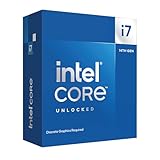
- 20 cores with 8 Performance-cores and 12 Efficient-cores
- 28 processing threads
- Up to 5.6 GHz Max Turbo Frequency
- 33 MB Intel Smart Cache
- Unlocked for overclocking
Intel’s stated routing is:
- Processor installed in an OEM or system-integrator desktop: contact the system manufacturer first.
- Boxed desktop processor: contact Intel Customer Support.
- Tray processor: contact the place of purchase or the applicable system vendor.
A replacement may be appropriate when a processor remains unstable after the recommended firmware and settings are in place, but the manufacturer or seller must determine eligibility. Firmware cannot convert an already degraded CPU into a new one.
Do you need a new motherboard?
Most owners should check whether their existing board has a BIOS containing 0x12F or later before buying hardware. A new board is not required simply because the processor is from the affected generation.
A replacement platform becomes relevant if the existing motherboard has no applicable BIOS release, cannot be updated because of a failed or unsupported firmware path, or has an independent hardware fault. In that situation, look for an LGA1700 motherboard with a supported BIOS update and verify the exact processor, board revision, BIOS support, and update method before purchase. A board with a BIOS Flashback-style recovery feature may make future firmware maintenance easier, but that feature and its procedure vary by model.
Buying a new motherboard does not repair a physically degraded CPU. It only provides a platform capable of running the recommended firmware and settings.
Performance: should you expect a slowdown?
Intel’s September 2024 comparison of 0x12B against 0x125 used a Core i9-14900K test system with DDR5 memory. Intel reported that the listed application and gaming results were within run-to-run variation. That was Intel’s internal testing, not an independent benchmark study, and Intel cautioned that results depend on configuration and other factors.
For 0x12F, Intel said its own microcode testing and validation found no measurable performance impact. That statement should remain attributed to Intel. It is not a guarantee that every motherboard, cooling setup, memory configuration, power limit, workload, or overclock will produce identical results.
Loading Intel Default Settings can change performance compared with a motherboard’s factory “enhanced” profile, especially if the board previously exceeded Intel’s recommended power behavior. That difference is a settings comparison, not evidence that the microcode itself universally slows the processor.
Also popular on Amazon

- Game and multitask without compromise powered by Intel’s performance hybrid architecture on an unlocked processor.
- Discrete graphics required
- Compatible with Intel 600 series and 700 series chipset-based motherboards
- Intel and reg; Core and reg; i5 processor offers hyper-threading architecture that delivers high performance for demanding applications with improved onboard graphics and turbo boost
- The processor features Socket LGA-1700 socket for installation on the PCB
Timeline of Intel’s mitigation updates
- June 18, 2024
- Intel identified elevated voltage input and an eTVB algorithm issue as contributing operating conditions, recommended Intel Default Settings, and directed users to vendor BIOS updates. Intel said the eTVB bug was not itself the complete root cause. See Intel’s June guidance.
- July 22, 2024
- Intel said its analysis of returned processors linked instability to elevated operating voltage caused by a microcode algorithm making incorrect voltage requests. See the July update.
- August 9, 2024
- Intel announced microcode 0x129 for incorrect voltage requests and said it would be distributed through BIOS updates.
- September 25, 2024
- Intel confirmed the Vmin Shift root cause, described four contributing operating scenarios, and announced 0x12B as the consolidated mitigation for the idle and light-activity voltage-request scenario.
- October 7, 2024
- Secondary coverage described 0x12B as the final fix. That description was historical and did not account for the later 0x12F supplement.
- May 1, 2025
- Intel released 0x12F to supplement 0x12B and further improve conditions that could contribute to Vmin Shift Instability.
- July 21, 2026
- Intel’s current support article was last reviewed and recommended 0x12F or later with Intel Default Settings. It also described the extended warranty coverage for eligible processors.
The practical conclusion for owners
If you own a 13th- or 14th-generation desktop Core processor, do not stop at an old article that says 0x12B was the final fix. Identify the exact motherboard or prebuilt system, install the vendor BIOS that contains 0x12F or later where available, and apply Intel Default Settings.
Windows Errors? Fix Them Before They Spread
Repair common Windows errors and clear accumulated junk for a smoother, more stable PC - no reinstall needed.Free scan · no reinstallCrashes, No Sound, or Screen Glitches?
Random freezes, missing sound and display glitches usually trace back to one bad driver. Find and replace yours safely.Free scan · under a minuteIf the system is still unstable afterward, treat that as a support and diagnosis issue—not as proof that another driver utility or Windows update will repair the CPU. Intel’s warranty route depends on whether the processor is boxed, tray, or installed in an OEM system, and a replacement may be necessary if the processor has already degraded.
Frequently Asked Questions
Is 0x12B still the latest Intel microcode recommendation?
No. Intel released 0x12F on May 1, 2025 as a supplement to 0x12B. Intel’s current support guidance recommends a BIOS containing 0x12F or later, together with the applicable Intel Default Settings profile.
Can 0x12B repair a 13th- or 14th-generation processor that is already unstable?
No. The update can reduce future exposure to the voltage-request behavior Intel identified, but it cannot reverse physical degradation that has already occurred. Persistent instability after the correct BIOS update should be handled through diagnosis and the applicable Intel, OEM, or retailer support process.
Are 13th- and 14th-generation Intel laptop processors affected?
Intel’s September 2024 root-cause statement said its 13th- and 14th-generation mobile processors were unaffected by this specific Vmin Shift Instability issue. The guidance concerns the affected desktop product families.
Do these 3 things before closing this tab:
1Clear out junk files and repair common Windows errors2Fix the driver behind crashes, sound loss and screen glitches3Repair Windows errors before they cause bigger problemsWill Windows Update or a graphics-driver utility install 0x12B or 0x12F?
Do not rely on either. These microcode revisions are delivered by motherboard, OEM, or system-integrator BIOS/UEFI updates. Check the exact system or motherboard support page and its BIOS release notes.
Does installing the mitigation guarantee unchanged performance?
No universal performance guarantee is appropriate. Intel reported that its 0x12B comparison results were within run-to-run variation and that its 0x12F testing found no measurable performance impact. Those were Intel’s internal results; power limits, cooling, memory, BIOS settings, workload, and overclocking can change a particular system’s behavior.
Who should handle a warranty claim?
For a processor inside an OEM desktop, contact the system manufacturer. For a boxed desktop processor, contact Intel Customer Support. For a tray processor, contact the retailer or system vendor. Intel says eligible processors may receive an additional two years of warranty coverage, up to five years from the original purchase date, but eligibility and remedies require support validation.
The Bottom Line
Intel’s 0x12B update was a real and important mitigation, not a complete hardware cure. It addressed the remaining identified elevated-voltage request scenario and bundled earlier fixes, but it could not undo degradation. For current systems, use the motherboard BIOS containing 0x12F or later and Intel Default Settings; if instability persists, pursue the correct warranty or replacement channel.
Quick wins for a faster PC:
Repair Windows errors before they cause bigger problemsFix Now →Scan for outdated or missing drivers - takes under a minuteDriver Scan →Clear out junk files and repair common Windows errorsFree Scan →
