
Quick wins for a faster PC:
Fix the driver behind crashes, sound loss and screen glitchesFind Drivers →Repair Windows errors before they cause bigger problemsFix Now →Scan for outdated or missing drivers - takes under a minuteDriver Scan →htop 3.5.0’s headline addition is an optional process backtrace screen built with libunwind-ptrace. The release also improves text editing and meter configuration. The 3.5.0 feature release dates to 9 April; the project’s release page subsequently lists 3.5.1 and 3.5.2, so “htop 3.5” can refer to more than one patch version.
What is new in htop 3.5.0?
The official htop ChangeLog groups the 3.5.0 additions across process diagnostics, interface editing, meters, and terminal presentation.

Process backtraces
The defining feature is a backtrace screen, implemented using libunwind-ptrace. It can show a process’s call stack for diagnosis, but the feature is optional at build time: the repository documents an --enable-backtrace build option. Whether it is available therefore depends on how the installed htop binary was built or packaged.
Editing and interaction
Search, Filter, and screen renaming now use a line editor, making it easier to enter or revise text. Numeric options also gained digit editing, so users can edit values by digit rather than treating the number as one undifferentiated field.
#1 Best Overall

- Linux Service Management Made Easy with systemd: Advanced techniques to effectively manage, control, and monitor Linux systems and services
- ABIS BOOK
- Packt Publishing
Meters and display
- A CPU SMT label option lets the display identify simultaneous multithreading information.
- MemoryMeter was reworked to provide platform-specific control.
- The new
--no-metersoption starts htop without meters. - Temperature support includes Tctl readings, and a SecondsUptimeMeter adds uptime display in seconds.
- GPU meter text display was adjusted.
Terminal colors
Version 3.5.0 explicitly supports the NO_COLOR environment variable, detects *-256color terminals, and adds a Nord color scheme.
How to use the backtrace screen
First check whether your htop build includes the feature. The repository documents --enable-backtrace as the build option; an ordinary packaged binary may not have been compiled with it. The ChangeLog describes the feature but does not specify a universal keyboard shortcut or a single set of screen steps, so consult the help shown by your own build rather than assuming the same control is available everywhere.
- Check the package or build information for your installed htop version and whether backtrace support was enabled.
- Open htop in a terminal and select the target process using the controls documented by that version.
- Use the build’s help or action list to find and invoke its backtrace action, if present.
- If no backtrace action is available, use a build that enables
--enable-backtraceand has the required libunwind-ptrace support, or obtain a package explicitly built with backtrace support.
A backtrace is diagnostic context about a process’s current call stack, not a complete performance profile or explanation of every cause of high CPU or memory use.
How the 3.5.0 meters and controls differ
The changes are useful primarily if you rely on htop’s terminal display as a configurable monitoring view. Their presence does not mean every platform exposes identical sensors or meter choices: the release specifically reworks memory-meter control by platform, and the backtrace feature also depends on build configuration.
What’s actually slowing this PC down?
Pick the symptom - the matching free tool is one click away.
Rank #3

- 19" LED CCTV HD Security Monitor, Ultra fine pixel pitch for close viewing in surveillance applications
- Rich Video Input interfaces: 19 inch small monitor provides a rich set of video input options with HDMI VGA BNC AV For Raspberry Pi, DSLR, PC DVD,VCD,TV-Box,CCTV Security camera,car backup monitoring, video switcher display,debug video systems,fpv monitor,monitoring hardware Temps(gaming rig to watch temperature sensors)etc. By connect with a TV-box, you can use it as a small TV.
- Use the CPU SMT label option when you want the CPU display to make SMT-related labeling clearer.
- Use the reworked MemoryMeter controls to adapt memory presentation to the platform-specific options available in your build.
- Use
--no-meterswhen you want a process-focused display without meter rows. - Look for Tctl and SecondsUptimeMeter in the available meter choices if those readings suit your system and monitoring needs.
Which htop 3.5.x version should you use?
The release page lists 3.5.0, 3.5.1, and 3.5.2, with 3.5.2 the latest listed there at the time of the page’s publication data. The feature descriptions below distinguish the initial release from later fixes; consult the project’s release page for the current release sequence.
| Version | What the project records |
|---|---|
| 3.5.0 | Feature release dated 9 April, introducing the backtrace screen, editing improvements, meter changes, terminal-color support, and related updates. |
| 3.5.1 | Maintenance update dated 28 April. The ChangeLog includes a fix for a null-pointer dereference in actionBacktrace(). |
| 3.5.2 | Later maintenance update with effective proportional set size (M_EPSS), sticky-follow behavior, stable tree view, improved following, and platform and robustness fixes. |
| 3.5.3 | The ChangeLog also records this later patch: zswap pool usage meters, htoprc parser hardening addressing CVE-2024-37676, and CPU hot-unplug handling. |
The release page dates 3.5.0 to 9 April and 3.5.1 to 28 April; it does not state a year in the cited release summary. The ChangeLog records 3.5.3 changes, so do not treat 3.5.2 as the newest 3.5.x version if your package offers a later patch.
Rank #4
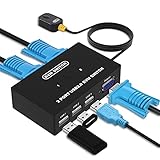
- Ideal Sharing Devices: USB VGA KVM Switch Box allows you to control 2 PCs via 1 Video Monitor and 3 USB2.0 Devices such as a printer, scanner, mouse, keyboard. It includes 2 KVM cables, VGA cables, and USB cables are 2 in 1 to keep your workspace tidy and efficient.
- Easy to install: plug and play with no driver required. With the switch button that you can easily switch 2 PCs without constantly swapping cables or setting up complicated software.
- High resolution: This KVM switch's resolution up to 1920 * 1440 and supports a super widescreen display. Support for DDC and high-quality auto-identification.
- Fast switching: you can easily and conveniently switch between 2 computers by pressing the buttons on the wired desktop controller.
- High compatibility: DGODRT KVM switch works with great compatibility, suit for DOS, Windows, Netware, Unix, Linux, Vista, Mac OS. For a business, office, multimedia classroom, meeting room, game room, home theater, research test, etc.
Should you upgrade from an earlier htop version?
Upgrading is most compelling if you want the new editing controls or meter options, or if you can use a build with backtrace support. If you already run a 3.5.x release, compare your installed patch version with the project’s current releases: 3.5.1 and later include maintenance and behavior changes beyond the 3.5.0 feature set. Choose a distribution package that fits your platform and its update policy, and check its build options when backtraces matter.
Independent reader supportYour contribution helps us test, update, and keep practical guides available for everyone.Is htop 3.5 available on Linux and other Unix-like systems?
htop is a terminal process monitor, and the 3.5.0 changes include platform-aware memory-meter control and platform fixes in later patch releases. The cited release information does not provide a complete operating-system-by-operating-system availability list, and package availability can differ by distribution and platform. Check the htop package source for your system and verify its version and build options, especially for backtrace support.
Do these 3 things before closing this tab:
1Scan for outdated or missing drivers - takes under a minute2Repair Windows errors before they cause bigger problems3Fix the driver behind crashes, sound loss and screen glitchesQuick Recap
Best Value

- Triple Screen Productivity Boost: Transform your laptop into a quad-screen workstation with this triple laptop monitor extender. Perfect for programmers, financial analysts, traders, and remote professionals who need multiple windows for coding, spreadsheets, dashboards, meetings, and data analysis at the same time.
- One USB-C Connection for 4 Screens: With just one USB-C cable, you can connect the entire triple monitor setup. Easily expand your workspace anywhere—home office, workspace, or travel—without complex setup or external monitor stands.
- Smart Auto-Rotation Top Display: The top screen automatically rotates when folded backward, providing flexible viewing angles. Adjustable side screens rotate up to 360°, allowing easy screen sharing, multitasking, or face-to-face collaboration.
- Stable Aluminum Alloy Stand Design: Unlike clip-on extenders that stress your laptop screen, this monitor extender features a built-in aluminum alloy stand for improved stability and durability. It protects your laptop while providing a secure and professional workstation setup.
- 15.6'' FHD IPS Display for Eye Comfort: Each 15.6'' 1080P IPS portable monitor delivers sharp text, clear charts, and accurate colors at 60Hz refresh rate. With 400 nits brightness and low blue light technology, it reduces eye strain during long working sessions.
Product prices and availability are accurate as of the date/time indicated and are subject to change. Any price and availability information displayed on Amazon at the time of purchase will apply.

