
Free tools Windows power users keep installed
One-click scans. No signup required.
iTechGuides is reader-supported. When you buy through links on our site, we may earn an affiliate commission. As an Amazon Associate I earn from qualifying purchases. Learn more
To use your Android phone as a webcam for your PC, first select Webcam in the phone’s USB settings with a data-capable cable. If that option is unavailable, use Windows 11’s connected-camera feature or a third-party app such as DroidCam, Iriun, or Camo; support depends on the phone, Windows version, and app.
The simplest path is the built-in USB method, but Android manufacturers can enable, modify, or omit the underlying webcam feature. The steps below separate native USB, Windows 11 wireless, and third-party approaches so you can stop when one works.
Key takeaways
- Android 14 QPR1 or later can support USB webcam mode, but the phone manufacturer must enable the feature.
- Windows 11 can use a compatible Android 10-or-later phone as a connected camera through Link to Windows version 1.24022.0 or later.
- A USB webcam connection requires a data-capable cable; a charge-only cable will not work.
- DroidCam, Iriun Webcam, and Camo are fallback options when native USB webcam mode is unavailable or when you need Wi-Fi or extra controls.
- Camera permissions, application restarts, correct source selection, stable mounting, and heat management determine whether the setup works reliably.
Which method should you use?
The best method depends on what your phone and PC support. Try the built-in USB webcam mode first because it does not require a virtual-camera app and presents the phone as a standard USB Video Class camera. If you use Windows 11 and have a compatible Android phone linked with Link to Windows, the connected-camera feature avoids a USB cable. Use a third-party app for Wi-Fi, cross-platform flexibility, manual controls, or OBS-focused features.
Recommended Free Tools
| Method | What you need | Connection | Best for | Main limitation |
|---|---|---|---|---|
| Android built-in USB webcam | Phone with manufacturer-enabled webcam support; data-capable USB cable | USB | Simple, broadly compatible webcam setup | Not available on every Android phone, even with a recent Android version |
| Windows 11 connected camera | Windows 11 PC; Android 10 or later; Link to Windows 1.24022.0 or later | Wireless through Link to Windows | Windows 11 users who want to avoid a cable | Requires a supported Link to Windows setup |
| DroidCam | Android app and PC client | Wi-Fi or USB | Wi-Fi/USB choice, microphone support, and OBS use | Requires third-party software |
| Iriun Webcam | Android app and desktop client | Same Wi-Fi network or USB where supported | Simple wireless use across Windows, Mac, and Linux | Requires third-party software and current app compatibility |
| Camo | Camo Android app and desktop software | Wired or Wi-Fi | Crop, orientation, stabilization, overlays, and other image controls | Features and frame rates depend on the phone and workload |
How do you use an Android phone as a webcam over USB?
Use Android’s built-in USB webcam mode if your phone exposes a Webcam option in its USB settings. Android’s official device-as-webcam documentation describes support for devices running Android 14 QPR1 or later, but manufacturers must enable and integrate the feature; Android version alone does not guarantee that the menu exists. The phone presents itself to the PC as a USB Video Class, or UVC, camera, which can be used by compatible camera applications on Windows, macOS, Linux, and ChromeOS.
Popular on Amazon

- 【Latest Version USB C 3.2 Gen 2 Cable】ZeroneTeck latest USB C for Thunderbolt cable: ①This 20Gbps USB C to USB C data cable is capable of meeting your ultra-fast data transfer needs. ②USB C to USB C monitor cable support 4K@60Hz Ultra HD video output ③In addition, this Type c to Type c cable also has a faster than normal 60W data cable with 100W ultra fast charging. Makes it easy for you to solve all your problems with just one cable.
- 【20Gbps USB C Data Cable】USBC to USBC data transfer cable provides explosive transfer speed up to 20Gbps, connect hard drives and SSDs, Also suitable for phone to laptop data transfer, transfer large files in seconds and save you more work time. Meanwhile, USBC to USBC 3.2 gen 2 20gbps data transfer cable backward compatible with USB 3.1, USB 3.0 and USB 2.0.(*Note: Maximum speeds are achieved when both upstream and downstream devices are Thunderbolt 3/4 interfaces.)
- 【4K@60Hz USB C Cable for Monitor & Plug and Play】Plug and play, no drivers or applications required to use this cable! USB C monitor cord to stream 4K@60Hz (3840*2160) content directly from your phones, tablets, laptops and desktop computers to large screens such as monitors, HDTVs and projectors. You will enjoy stunning Ultra HD video and colorful image quality. (Note: Please make sure your device has a USB-C port and supports DP Alt mode).
- 【5A/100W Fast Charging Cable】USB Type C fast charging cable with E-Marker IC chip, safely charges your devices with up to 100W power. It can fully charge a MacBook Pro 60%, an iPad Pro 75%, a iPhone 15 85%, and a Switch 95% in 35 minutes. Fully satisfies the charging power needs of professionals for MacBooks Pro, Android devices, Samsung and iPad Pro. Charge any USB-C device at maximum speed for timely use and no more waiting. *Note: Requires a C-port adapter of appropriate power.
- 【Dual Vehicle System】 Flawlessly supports CarPlay & Android Auto for seamless navigation/music streaming. 20Gbps ultra-speed — 40× faster than USB 2.0 CarPlay cables with enhanced signal stability.
- Update the phone. Install any available system update, then check whether the phone supports USB webcam mode. Manufacturer menus vary, and some phones may omit or rename the feature.
- Use a data-capable USB cable. A charging-only cable cannot provide the data connection required for webcam mode. If your computer has USB-A and your phone has USB-C, make sure both the cable and any adapter support data.
- Unlock the phone and connect it to the PC.
- Open the USB notification. It is usually labelled something similar to Charging this device through USB.
- Choose Webcam under Use USB for. The exact wording can differ by manufacturer. If Webcam is missing, skip to the troubleshooting section rather than assuming the cable is defective.
- Frame the shot. If the phone displays a webcam notification or preview, use it to select the front or rear camera and adjust the available zoom or focus controls.
- Select the phone on the PC. Open your meeting, recording, or streaming application and choose the phone’s UVC camera. The camera name varies by phone and operating system.
Google’s Pixel webcam instructions specifically require a USB cable that supports data. The same instructions say a supported Pixel can continue charging over USB while webcam mode is active. The webcam stream pauses if another application takes control of the phone camera, such as a video call running on the phone itself.
If you need one, choose a USB-C data cable whose phone and PC connectors match. Verify that the cable supports data rather than charging only; the connector shape by itself does not establish data support.
Why is the Webcam option missing on Android?
The Webcam option can be missing because the phone manufacturer has not enabled Android’s device-as-webcam implementation. A sufficiently recent Android version is not a universal guarantee. The Android Open Source Project webcam documentation describes the implementation and requirements, while the manufacturer decides whether the feature appears on a particular device.
Do these 3 things before closing this tab:
1Fix the driver behind crashes, sound loss and screen glitches2Clear out junk files and repair common Windows errors3Scan for outdated or missing drivers - takes under a minuteOther possibilities include a charge-only cable, a locked phone, an unsupported USB connection, or a vendor-specific USB menu. Try another known data cable and USB port, unlock the phone, and check the USB notification. If the option still does not appear, use Windows 11’s connected-camera feature if available or install a reputable third-party webcam app.
How do you use an Android phone as a webcam wirelessly in Windows 11?
Windows 11’s connected-camera feature lets a compatible Android phone act as a camera for PC applications through Link to Windows. Microsoft documents these requirements: Windows 11 or later, Android 10 or later, and Link to Windows version 1.24022.0 or later.
- Link the phone and PC. Pair the devices through the Link to Windows app and a Microsoft account. Microsoft’s Phone Link requirements and setup documentation lists the current pairing requirements.
- Open the Windows camera setting. Go to Settings > Bluetooth & devices > Mobile devices > Manage devices.
- Enable the connected camera. Select the linked Android device and turn on Use as connected camera.
- Choose the phone in your application. Open Teams, Meet, Zoom, OBS, or another camera application and select the linked phone as the camera source.
This method is separate from Android’s USB UVC mode. Windows’ route depends on a supported Link to Windows connection, whereas the USB route depends on the phone exposing its own Webcam USB function. If Windows does not list the camera, check Link to Windows camera permission on the phone and Windows camera access.
Also popular on Amazon

- Move Files Fast: Transfer music, movies, or entire seasons of TV shows in seconds at 40 Gbps.
- HD Display: Connect your laptop to an external monitor to mirror or extend your screen in up to 8K@60Hz or 4K@144Hz.
- Huge Range of Power: Supports a maximum 240W charge when paired up with a compatible charger. Charge virtually any USB-C device from phones and accessories to laptops.
- Built to Last: Proven in lab tests to withstand up to 5,000 bends.
- What You Get: Anker 515 USB-C to USB-C Cable (USB4, 3.3ft), welcome guide, our worry-free 18-month warranty, and friendly customer service.
Which third-party Android webcam app should you use?
Use a third-party app when the phone lacks native Webcam mode, when you need Wi-Fi, when you want support across different desktop operating systems, or when you need controls beyond a basic camera stream. Install the current phone app and desktop client from the developer’s official site, because app menus and compatibility can change.
What is DroidCam best for?
DroidCam connects an Android phone to a PC over Wi-Fi or USB and exposes it as a webcam for applications such as Zoom, Discord, Microsoft Teams, and OBS Studio. The official DroidCam documentation also describes microphone support, local-network operation, camera controls, and a separate OBS integration path. DroidCam is a practical fallback when native USB webcam mode is unavailable but you want both wireless and wired connection choices.
What is Iriun Webcam best for?
Iriun Webcam is a simple cross-platform wireless alternative. Install the desktop client and Android companion app, connect the phone and computer to the same Wi-Fi network, or use USB where supported, then select Iriun Webcam in the video application. Iriun lists Windows, Mac, and Linux support and compatibility with applications including Zoom, Teams, Meet, OBS, Skype, and Discord on its official product page. Do not assume a particular resolution or latency without checking the current app documentation for your device.
What is Camo best for?
Camo is suited to users who want more image controls than a basic webcam stream. Reincubate describes wired and Wi-Fi connections plus controls for crop, orientation, camera settings, stabilization, overlays, and Smartzoom. Camo supports Android phones with Windows and Mac computers and offers a free edition, according to its official Camo documentation.
Camo’s capabilities are device-dependent. Reincubate’s Camo troubleshooting documentation warns that many Android phones limit third-party camera applications to 30 frames per second at all resolutions, with device-specific exceptions. Do not assume that every Android phone can output 4K or a high frame rate through Camo.
Also popular on Amazon
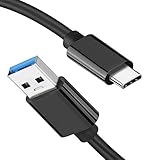
- [ Excellent Performance ] This USB C 3.1 cable connects a portable external USB C 3.1 SSD to a computer for speedy file transfer or syncs and charges Samsung smartphones or tablets equipped with the USB C port. Data synchronization is 20 times faster than USB 2.0 cables (480Mbps). (Does not support video output.)
- [ Fast Charging & High Speed Data Transfer ] This usba to usbc data power cable can sync your favourite photos, videos and music at a data transfer rate of up to 10Gbps(1250MB/s). Files can be synchronised in seconds. In addition, it can quick-charge your USB-C devices at up to 3A safe charging power. Tested charge Samsung Galaxy S22 from 0 to 60% in 30mins with Qualcomm Quick Charge 3.0 technology.Tips: USB 3.1 Gen 2 renamed to USB 3.2 Gen 2 by USB-IF in 2019.
- [ Extreme Durability & High Quality ] : Unique ABS case with the reinforced connector withstand 10000+ bending test. Durable TPE cable not only stay tangling-free but also flexible enough to be wrapped up and put in a bag ! (PS:The connector shell is wrapped around by a piece of plastic film to protect the shell from scraching ,feel free to remove the film when you use it.)
- [ Universal Compatibility ] This USB C to USB A Charger cable is Compatible with almost all USB-C devices. For Samsung Galaxy S24/S24+/S24 Ultra/S23/S23+/S23 Ultra/S22/S21/S20/S10/S9/Note 20/10/A70/A80/A90/A54, iPhone 16/16 Plus/16 Pro/16 Pro Max, iPhone 15/15 Plus/15 Pro/15 Pro Max, Google Pixel 9/8/7/6/5/, Moto G9/G8/G7/G Pure, LG G7/G6/V50, Sony XZ, Bose 700, GoPro, Nintendo switch, Samsung Galaxy Tab S6, iPad Pro 2018 11''/12.9", Samsung T7/T5, Crucial X8/X6, LaCie Rugged SSD, G-Drive, WD My Passport, Seagate Fast, SanDisk Extreme Portable SSD etc. (OnePlus phones are not supported.)
- [ What You Get ] 1 X Super-Fast USB-A to USB-C 3.1 Gen 2 Cable (3 ft including both ends), our worry-free LIFETIME WARRANTY and friendly customer service. NOTE: If you have any questions, please feel free to contact us, we will be happy to serve you and give you an easy and pleasant shopping experience.
How do you select the phone camera in Meet or another app?
After the phone appears to the PC as a camera source, select it in the video application’s camera menu; the phone will not necessarily be chosen automatically.
- Open the application’s video or camera settings.
- Choose the phone’s UVC camera, connected-camera source, DroidCam, Iriun Webcam, or Camo, depending on the method used.
- Check the preview and confirm that the correct front or rear camera is active.
- Test the camera before joining the call.
In Google Meet, choose the camera from the pre-join preview or go to Settings > Video. Google’s Meet camera and audio instructions recommend testing the camera before joining.
For browser-based meetings, grant camera permission to both the browser and the meeting website. In Windows, review Settings > Privacy & security > Camera. Google’s camera troubleshooting guidance also covers browser and site permissions for Meet.
What should you do if the Android webcam does not work?
Work through the connection, permission, application, and network checks in that order. The sequence below identifies whether the problem is the phone, the connection, Windows, or the original video application.
- Confirm the method is active. The phone must be unlocked, USB Webcam mode must be selected, Link to Windows connected-camera mode must be enabled, or the third-party app must be running on both devices.
- Check the cable. For USB, use a cable that supports data and try another USB port. A charge-only cable will not expose a camera.
- Close camera conflicts. Close any phone application or desktop application already using the camera. Native webcam streaming can pause when another phone application takes control of the camera.
- Restart the video application. Virtual-camera software may not appear until the meeting or recording application is restarted. Camo’s troubleshooting guidance specifically notes that applications may need to restart before detecting a newly available camera.
- Check permissions. Enable camera access in Windows and grant camera access to the browser and meeting site where applicable.
- Choose the source manually. Open the application’s camera selector and select the phone-based source instead of waiting for automatic selection.
- Test another camera application. If the phone works elsewhere, the original application is likely the problem. If no application detects it, return to the connection and permission checks.
- Stabilize a Wi-Fi connection. If wireless video stutters, switch to USB where the selected app supports it, reduce video quality, move closer to the access point, and close bandwidth-heavy activity. These steps improve the conditions for a wireless stream but do not guarantee a particular latency or quality.
On macOS, the Android Open Source Project documents a specific compatibility issue in which Android webcam mode may not work with USB 3.0-or-later cables because of an Apple UVC-driver problem. This is a macOS caveat, not a general Windows limitation. If you are using macOS and the native USB method fails, try a compatible cable or a third-party application.
Also popular on Amazon

- 【USB C 3.2 High-Speed Data Cable】 USB 3.2 Gen 2 cable supports up to 20Gbps data transfer, moving large files in seconds, not minutes. Compatible with USB4, Thunderbolt 3, and backward compatible with USB 3.1/3.0/2.0. Works with SanDisk, Samsung T7/T5, SSK, Crucial, WD, and USB C NVMe SSD enclosures (actual speed depends on device)
- 【USB C Display Cable 4K@144/120/60Hz】 Supports stable UHD video & audio output from laptops to USB C monitors. Compatible with popular 2K/4K displays including Dell S2722DC / S3425DW, LG 34WR55QK-B / 32U631A-B, and Samsung S50GC / S65UA series. Backward compatible with 2K & 1080p
- 【USB C Video Cable for Portable Monitors】 Works with USB C portable monitors for single-cable video output. Supports plug-and-play operation with no drivers required. Compatible with popular portable displays including ARZOPA, KYY, MNN, InnoView, ViewSonic, ASUS ZenScreen, and AOC. Note: Source USB C port must support DP Alt Mode
- 【100W C to C Fast Charging Cable】 Supports PD 3.0 fast charging up to 20V/5A (100W max) for laptops, tablets, smartphones, and other USB C powered devices. Built-in E-Marker chip ensures safe, stable power negotiation with 96W/87W/65W/61W USB C chargers. Delivers the fastest charge your device supports—efficient, reliable, and fully backward compatible
- 【Reliable & Supported】 Designed with a durable nylon braided jacket, this USB-C cable offers improved flexibility and long-lasting performance, tested to endure 40,000+ bends. Tinplate-reinforced connectors help protect against breakage at stress points. With gold-plated USB-C contacts, 86% high-purity tinned copper conductors, and a triple-layer shielding system (graphene + aluminum foil + internal shielding), it ensures reduced interference and consistently stable transmission
How should you mount, power, and position the phone?
Place the phone at eye level, keep it stable, and aim the active camera at the subject. A small tripod, desk stand, or clamp prevents framing changes caused by touching the phone. An adjustable phone tripod mount or desk stand is useful for calls, streaming, and recording because it keeps the phone pointed at the subject without requiring a particular mount model.
The rear camera is generally the better choice when you want to use the phone’s main camera and can frame the shot without viewing the screen. Use the front camera when you need to monitor your composition directly, or use the webcam app’s preview or a second display to frame a rear-camera shot.
For long USB sessions, Google’s Pixel documentation says the phone charges normally while supported webcam mode is active. Third-party apps can behave differently: power use and heat depend on the phone, cable, app, resolution, and connection type. Keep vents unobstructed, avoid direct heat, and check the phone periodically during long calls or recordings.
What are the privacy and compatibility limits?
A phone-as-webcam setup gives the selected computer application access to the camera feed, so review camera permissions and stop the webcam mode when the call or recording ends. Do not leave a third-party webcam app running unnecessarily, especially when the phone is connected to a shared network.
No method guarantees compatibility with every video application. Native USB mode has broad host compatibility because the phone identifies as a UVC camera, but an individual application can still require camera permission, a restart, or manual source selection. Third-party applications add another software layer and may impose device-specific limits on frame rate, resolution, controls, or operating-system support.
Which Android webcam method is the right choice?
Choose native USB webcam mode when the phone shows Webcam in its USB settings and you want the fewest extra components. Choose Windows 11 connected camera when your Android phone and Link to Windows meet Microsoft’s requirements and avoiding a cable matters. Choose DroidCam for Wi-Fi or USB flexibility, Iriun for a straightforward cross-platform wireless setup, and Camo for richer image controls. Mount the phone securely and use a data-capable cable for the most predictable physical setup.
Also popular on Amazon

- 【Up to 40Gbps Data Sync】Delivers up to 40Gbps high speed transaltion, 4x faster than USB 3.2 cable, 2x faster than previous generation USB4 cable. It can copy 10GB files in seconds, avoid waiting, and effortlessly get everything you want. Plug and play, no drive needed.*The final performance depends on whether your device supports USB4, Thunderbolt 4/3.
- 【240W Rapid Charging】Up to 240W (48/5A) power supply when paired with a compatible charger. Backward compatible with 100W, 140W, 180W in Extended Power Range(EPR). It is ready to provide you with enough power at any time. Equipped E-Marker chip for safety, stability, and battery protection. Support PD 3.1, QC 4.0, FCP, AFC fast charging technology for future proof.
- 【8K HDR Design for Professionals】 Provide a single 8K@60Hz / 5K@60Hz / 4K@144Hz or dual 4K@60Hz display support. Connect your laptop or dock to a monitor and get a crisp detail and 10-bit color depth view. Support MST Daisy Chain, release your efficiency and improve the professionalism of the project.
- 【Future-proofed Compatibility】The USB 4 cable fully supports the function of Thunderbolt 4. Backward compatible with Thunderbolt 3, USB 3.2 Gen 2, USB 3.2 Gen 2 x 2, USB 2.0. It works seamlessly with all Thunderbolt 4 / 3 / Type-C devices. Compatible with Apple Studio Display, Mac Studio, Mac Mini, MacBook, Surface, iPad Pro, iPhone 18/17/16, docking station, SSD, power bank, GaN charger, etc. We recommend using cables below 5FT when connecting to the docking for stable performance.
- 【Top-Notch Material】Aluminum shell ensures efficient heat dissipation and protects the chip. Experience unprecedented durability with our unique 48-strand braided techniques. It offers 3x protection without tangle and gets worry-free usage. Triple protection with EMI-resistant tinplate, 28 AWG OFC conductors, and stainless steel connectors improves signal quality and ensures long-lasting connections.
Frequently Asked Questions
Does every Android 14 phone work as a USB webcam?
No. Android 14 QPR1 or later provides the documented platform support, but the phone manufacturer must enable USB webcam mode. A recent Android version alone does not guarantee that the Webcam option will appear.
Can I use a charging-only cable to connect my Android phone as a webcam?
No. USB webcam mode requires a cable that supports data. A charge-only USB cable cannot expose the phone as a camera to the PC.
Can I use my Android phone as a wireless webcam in Windows 11?
Yes, if the phone and Link to Windows setup meet Microsoft’s requirements. The documented requirements are Windows 11 or later, Android 10 or later, and Link to Windows version 1.24022.0 or later.
Why is my PC not detecting my Android phone as a webcam?
Restart the video application after installing or enabling the phone webcam, then check Windows, browser, and meeting-site camera permissions. Manually select the phone-based camera and test it in another camera application.
The Bottom Line
Start with the phone’s built-in USB Webcam option. If the option is unavailable, try Windows 11’s connected-camera feature or use DroidCam, Iriun, or Camo according to your connection and control needs. A data-capable cable, correct permissions, manual camera selection, and a stable mount solve most setup problems.
What’s actually slowing this PC down?
Pick the symptom - the matching free tool is one click away.

