
Free tools Windows power users keep installed
One-click scans. No signup required.
iTechGuides is reader-supported. When you buy through links on our site, we may earn an affiliate commission. As an Amazon Associate I earn from qualifying purchases. Learn more
Amazon Fire tablets use Amazon Kids for child profiles and parental controls. Amazon Kids is free and does not require Prime. Amazon Kids+ is the optional paid subscription that adds a larger child-focused catalog of books, apps, games, videos, and other content.
This guide covers creating profiles, switching between users, approving content, setting time limits, restricting the browser, managing purchases, and locking down features such as the camera, Bluetooth, volume, and profile switching. Menu names can vary slightly by Fire tablet model, Fire OS version, and country.
What you need before setting up a child profile
- An Amazon account. A free account is sufficient; Prime is not required for the free Amazon Kids controls.
- The Fire tablet’s adult-profile PIN or password.
- The child’s name and birth date. Amazon uses the birth date to assign an age group and suggest suitable defaults.
- Optional: an Amazon Kids+ subscription if you want access to its premium catalog.
Amazon supports up to four child profiles on one Fire tablet. Each profile can have different content, time limits, web settings, and other restrictions.
Recommended Free Tools
Amazon’s current names are Amazon Kids, Amazon Kids+, Child Profile, Grownups, Parent Dashboard, and Child Settings. Older guides may call the feature Amazon FreeTime or FreeTime Unlimited; those are outdated names.
Popular on Amazon

- Like-New Amazon Fire HD 10 tablet is refurbished, tested, and certified to look and work like new and comes with the same limited warranty as a new device. Like-New Amazon devices may be packaged in generic Amazon-branded boxes.
- Do what you love, uninterrupted — 25% faster performance than the previous generation and 3 GB RAM are ideal for seamless streaming, reading, and gaming.
- High-def entertainment — A 10.1" 1080p Full HD display brings brilliant color to all your shows and games. Binge watch longer with 13-hour battery of video playback, 32 or 64 GB of storage, and up to 1 TB expandable storage with micro-SD card (sold separately).
- Thin, light, durable — Tap into entertainment from anywhere with a lightweight, durable design and strengthened glass made from aluminosilicate glass. As measured in a tumble test, Fire HD 10 is 2.7 times as durable as the Samsung Galaxy Tab A8 (2022).
- Stay up to speed — Use the 5 MP front-facing camera to Zoom with family and friends, or create content for social apps like Instagram and TikTok.
How to create a child profile
During Fire tablet setup
- Start setting up the tablet and follow the on-screen prompts.
- When the Import a Profile screen appears, tap Add Child.
- Enter the child’s name and birth date.
- Review the suggested settings and finish creating the profile.
If the tablet does not already have an adult PIN or password, setup will require you to create one. Do not use a PIN the child can easily guess: it protects the adult profile and the parental controls.
After setup is complete
- Open Amazon Kids from the Fire tablet’s Home screen.
- Choose the option to add a child profile.
- Enter the child’s name and birth date.
- Complete the profile setup and select the content and restrictions you want to use.
For more extensive controls, use the Parent Dashboard in a browser or install the Amazon Kids Parent Dashboard app for iOS or Android.
Switch between adult and child profiles
Switch from the adult profile to a child profile
- Open Amazon Kids from the Home screen.
- Tap the child profile you want to use.
Switch from a child profile to the adult profile
- On the child-profile Home page, tap the Grownups icon in the top-right corner.
- Tap Switch Profiles.
- Select the adult profile.
- Enter the adult profile’s password or PIN.
Never share the adult PIN with a child. Anyone who knows it may be able to leave the child profile or change restrictions.
Outdated Drivers Are Slowing You Down
One free scan finds every outdated or missing driver and matches the right update for your exact hardware.Free scan · exact hardware matchPC Slower Than It Used to Be?
A free scan shows the junk files, broken settings and background clutter dragging Windows down - then fixes them in one click.Free scan · Windows 10 & 11Open Child Settings
You can open a child’s settings from either profile.
From the adult profile
- Open Amazon Kids.
- Tap the gear-shaped Options icon next to the child’s name.
From the child profile
- Tap Grownups in the top-right corner.
- Tap Settings.
- Select an adult profile and enter its PIN.
- Tap Launch, or scan the displayed QR code to open Parent Dashboard on a phone.
- In Parent Dashboard, tap the Settings icon next to the child’s profile.
Some controls are available directly on the tablet, while others open Parent Dashboard. If a menu in this guide is missing, check the web or mobile dashboard as well.
Set age filters
Age Filters help determine which books, apps, videos, and other content are suitable for a child’s age group.
- From the child profile, tap Grownups → Settings.
- Choose an adult profile and enter the PIN.
- Tap Launch or scan the QR code.
- In Parent Dashboard, tap the Settings icon next to the child’s profile.
- Turn Age Filters on.
- Configure the age range or other available filter options.
Age filters do not inspect or control the content inside third-party apps such as Netflix or Hulu. Configure those services’ own child profiles and parental controls separately.
Quick wins for a faster PC:
Repair Windows errors before they cause bigger problemsFix Now →Fix the driver behind crashes, sound loss and screen glitchesFind Drivers →Add books, apps, and videos to a child profile
Add content from the adult profile
- Open Amazon Kids from the Home tab.
- Tap the child’s gear icon.
- Choose Manage Content → Amazon Content.
- Select the relevant content tab.
- Select the content to share with the child.
- Tap Done.
Add content from the child profile
- Tap the parent overlay or Grownups menu in the top-right corner.
- Tap Manage Content.
- Choose Library or Amazon Kids+.
- Enter the device PIN or password.
- Select the content.
- Tap Done.
Shared content may take several minutes to appear in the child profile. If Learn First is enabled, entertainment content may remain unavailable until the child completes the required daily reading or educational goal.
Also popular on Amazon

- Fire HD 8 offers an 8" HD display for seamless streaming and gaming, coupled with a 5MP rear facing camera for photos—with a thin, light, durable design.
- Fast and responsive with long battery life - With up to 4 GB RAM (2X more than 2022 release), 64GB of storage, and up to 1 TB of expandable storage (sold separately). Hexa-core processor for fast, responsive performance. Up to 13 hours of reading, browsing the web, watching videos, gaming, and listening to music at home and on-the-go.
- Save time, get creative - Enjoy three smart tools to help you send polished emails, quickly summarize webpages, and create unique wallpapers.
- Stream or download your favorite shows, movies, and games (like Minecraft, Roblox, and more). Enjoy your favorite content from Facebook, Hulu, Instagram, TikTok, and more through Amazon’s Appstore (Google Play not supported. Subscription for some apps required).
- Stay connected with family and friends - ask Alexa to make video calls to friends and family or download apps like Zoom.
Content that cannot be shared
| Content type | Can it be added to a child profile? |
|---|---|
| Purchased videos | Yes, where supported |
| Personal documents | No |
| Music | No |
| Prime Video rentals | No |
| Videos included with Prime | No |
Apps and content from outside the Amazon Kids+ catalog may contain advertising, external links, in-app purchases, or requests for personal information. Amazon also notes that it cannot prevent navigation to websites embedded inside content even when web access is disabled.
Set daily screen-time limits
- Open Parent Dashboard in the app or at parents.amazon.com.
- Select the child profile.
- Open Settings → Daily Screen Time.
The available controls include:
| Control | What it does |
|---|---|
| Schedule | Defines when and for how long connected devices can be used. |
| Screen time | Sets limits for apps, reading, watching videos, other activities, or one total daily limit. |
| Learn First | Requires reading or educational-app/video goals before entertainment content becomes available. |
Use separate activity limits when you want to encourage reading without banning all tablet use. Use a total daily limit when you want a simpler hard cutoff.
Restrict or configure the web browser
- Open Parent Dashboard.
- Choose the child profile.
- Go to Settings → Fire Tablet Web Browser.
- Choose one of the available browser modes.
| Setting | Result |
|---|---|
| Web Browser off | Disables the child-profile browser. |
| Hand-Selected Websites & Videos | Limits access to websites and videos pre-screened by Amazon Kids. |
| Filtered Websites & Videos | Provides a more open but filtered experience and lets you block specific websites. |
Review the child’s web history from the Parent Dashboard home page by opening the child’s activity or history and selecting Web. On the tablet, use Grownups → Settings → adult profile → PIN → Launch or QR code → Recent activity beside the child profile → Web.
Control the camera, profile visibility, volume, and switching
Allow or block the camera and photo gallery
- Open Grownups → Settings.
- Select an adult profile and enter the PIN.
- Open Other Settings.
- Turn Enable Camera & Photo Gallery on or off.
Show or hide the child profile on the lock screen
- Open Grownups → Settings.
- Choose the adult profile and enter the PIN.
- Tap Other Settings → Lock Screen.
- Toggle Show Profile on Lock Screen.
Stop the child from leaving the profile
- Go to Grownups → Settings.
- Select the adult profile and enter the PIN.
- Tap Other Settings → Lock Screen.
- Turn on Enable Child’s Lock Screen Password.
- Configure the new PIN or password.
This separate child-profile PIN is required when exiting that specific child profile. Keep it different from any code the child knows.
Set a maximum volume
- Open Grownups → Settings.
- Choose the adult profile and enter the PIN.
- Tap Other Settings → Set Max Volume.
- Turn the control on and configure the volume limit.
Manage purchases and store access
Control in-app purchase requests
- Open Grownups → Settings.
- Select the adult profile and enter the PIN.
- Tap Launch or scan the QR code.
- Tap the child profile’s Settings icon.
- Open In-App Purchase Requests.
You can also manage store access in Parent Dashboard by opening Content → Store Access. This can let a child request free or paid apps and games from developers outside Amazon. The request must be approved before the item downloads.
Amazon Kids+ catalog apps and games do not include in-app purchasing. Apps added from outside that catalog may include in-game purchases, so check each app’s permissions and purchase behavior.
Enable or disable calling and messaging
Calling, messaging, and household Alexa announcements are not automatically available to a child. On supported devices, a parent must enable them.
Do these 3 things before closing this tab:
1Fix the driver behind crashes, sound loss and screen glitches2Repair Windows errors before they cause bigger problems3Scan for outdated or missing drivers - takes under a minute- Open Parent Dashboard.
- Go to Settings → Communications.
- Tap Calling & Messaging.
- Toggle the feature on or off and configure the permitted contacts or devices.
Pair Bluetooth headphones from a child profile
- Switch to the child profile.
- Swipe down to open Quick Settings.
- Press and hold the Bluetooth icon until adult profiles appear.
- Choose an adult profile and enter its PIN.
- Turn Bluetooth on and tap Pair new device.
- Select the headphones or other Bluetooth device.
Bluetooth connections do not carry over between profiles. A device may need to be connected again after switching profiles.
Also popular on Amazon
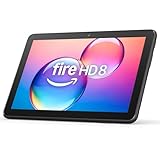
- Like-New Amazon Fire HD 8 tablet is refurbished, tested, and certified to look and work like new and comes with the same limited warranty as a new device. Like-New Amazon devices may be packaged in generic Amazon-branded boxes.
- Fire HD 8 offers an 8" HD display for seamless streaming and gaming, coupled with a 5MP rear facing camera for photos—with a thin, light, durable design.
- Responsive with all day battery life - Includes 3GB RAM (50% more than 2022 release), 32GB of storage, and up to 1 TB of expandable storage (sold separately). Up to 13 hours of reading, browsing the web, watching videos, gaming, and listening to music at home and on-the-go.
- Save time, get creative - Enjoy three smart tools to help you send polished emails, quickly summarize webpages, and create unique wallpapers.
- Stream or download your favorite shows, movies, and games (like Minecraft, Roblox, and more). Enjoy your favorite content from Facebook, Hulu, Instagram, TikTok, and more through Amazon’s Appstore (Google Play not supported. Subscription for some apps required).
Remove or manage an inactive child profile
Amazon says child profiles that remain inactive for more than 18 months are automatically removed and can no longer be accessed. Profile removal and inactive-profile management are handled from the child profile’s information page, where available.
Before removing a profile, check whether the child has content, settings, or activity history you need to retain. Removing a profile may affect access to its associated settings and content.
Important limitations
- Amazon Kids+ is optional. The child-profile system and basic parental controls are free.
- Prime is not required. You need a free Amazon account for Parent Dashboard, but not a Prime membership.
- Third-party apps are separate environments. Amazon’s age filters do not control what appears inside Netflix, Hulu, or other external apps.
- Apps may have their own risks. External apps can include ads, links, subscriptions, in-app purchases, or requests for personal data.
- Features vary. Amazon Kids availability and menu options depend on the tablet, Fire OS version, and marketplace.
- There are no commands to enter. Fire tablet setup and Amazon Kids controls use graphical menus; Amazon’s documented process does not require ADB, shell, or command-line syntax.
FAQ
Is Amazon Kids free on a Fire tablet?
Yes. Creating a Child Profile and using the free Amazon Kids parental controls do not cost extra and do not require Prime. Amazon Kids+ is a separate optional subscription for premium child-focused content.
How many child profiles can a Fire tablet have?
A Fire tablet supports up to four child profiles. Each profile can have its own content, age filters, time limits, browser settings, and other restrictions.
Why is content missing from the child profile?
Shared content can take several minutes to appear. Also check whether Learn First is enabled, because entertainment content may stay unavailable until the child completes the daily goal. Some content types, including personal documents, music, Prime Video rentals, and Videos Included with Prime, cannot be added.
Can Amazon Kids age filters control Netflix or Hulu?
No. Amazon Kids age filters do not control content inside external apps. Use the parental controls and child profiles provided by those services as well.
How do I stop a child from switching to the adult profile?
Open Grownups → Settings → select an adult profile → enter the PIN → Other Settings → Lock Screen. Turn on Enable Child’s Lock Screen Password and create a separate PIN or password for exiting that child profile.
Do I need Amazon Kids+ to use parental controls?
No. Amazon Kids+ adds premium content, but the Child Profile system, Parent Dashboard, screen-time limits, browser controls, and other free parental tools do not require the subscription.
The Bottom Line
For a practical setup, create a separate Child Profile, protect the adult profile with a private PIN, enable Age Filters, set Daily Screen Time limits, and choose the strictest browser mode appropriate for the child. Review third-party apps separately because Amazon’s controls do not govern their internal content. If you need more books, apps, games, and videos, consider Amazon Kids+; it is not required for the core parental controls.

