
Free tools Windows power users keep installed
One-click scans. No signup required.
Use Gmail to capture actionable messages as Google Tasks, put dated tasks on your Calendar, and create a Calendar event when an email calls for a real meeting. This gives you a practical way to move work from your inbox into the right place—without treating every message as a meeting or assuming every task belongs on a calendar.
Choose the right destination for each email
Start by deciding what the message requires. The distinction is simple: a task is something you need to complete; a Calendar event is something that happens at a particular time and may involve invitees.
- Use a Google Task for a follow-up, a document to review, or another action you need to finish.
- Add a date or time to the task when the work belongs on your schedule or has a deadline.
- Create a Calendar event when the email is about arranging or recording a meeting.
These are different tools for different jobs, not competing ways to store every message. Google describes the available features in its Tasks overview and its guides to events from Gmail messages.
How to create a Google Task from an email
On a computer
- Open the email in Gmail.
- Select Add to Tasks. If you do not see it among the message actions, check the More menu.
- Alternatively, open Tasks from Gmail’s side panel and drag the email into the panel.
- Open the task in the side panel to refine its title, details, and schedule.
The task is saved in Google Tasks and can be found through Gmail’s side panel. Google documents these options in Create a task in Gmail.
The Tool Desk
Outbyte Driver Updater FREEFix the driver behind crashes, sound loss and screen glitchesFind Drivers →Outbyte PC Repair FREERepair Windows errors before they cause bigger problemsFix Now →#1 Best Overall

- Easily Stay On Track & Make The Most of Your Time: ZICOTOs’ daily planner makes it easier than ever for you to stay organized, reduce stress & enjoy more free time! Arrange your schedule, priorities, to do’s and jot down plans & ideas on the daily notes section
- Smartly Plan Ahead & Boost Your Productivity: Absolutely clever & efficient! With the planner notebook you can break down your daily tasks into half-hourly focus blocks and map out priorities & follow-up duties to keep your day on track and enhance productivity
- Plenty Of Space For Efficient Planning: Stay focused & manage your time wisely! The 9.3x6.3” (inner pages) work planner & organizer notebook offers ample space for 80 days of life-changing planning with each day being spread across 2 pages - set yourself up for purposeful days
- Now Is The Best Time To Start: The daily planner is undated so you can start to add structure to your schedule and cultivate new planning habits right away! Beat procrastination, boost happiness & make each day count with the hourly planner
- Adds Beauty To Daily Planning: A gorgeous champagne pink cover, chic gold foil letters, a golden ring wire and a clean, easy-to-use layout - enjoy the gorgeous and modern minimalist design of the undated daily planner!
On Android or iPhone
- Open the message in the Gmail app.
- Tap More options.
- Tap Add to Tasks.
Google’s Gmail task instructions cover creating a task based on a message; available controls can differ by device and account.
Make captured tasks actionable
A message subject may not say what you actually need to do. Give the task a short, verb-led title such as “Review the contract” or “Send the revised estimate.” Add details when you need context from the email, and choose a date or time only when it reflects a real plan or deadline.
Rank #2

- Efficient Weekly Planning - Utilize the 52 Weeks Undated Planner to articulate and prioritize weekly goals and to-do lists. Assign specific tasks to each week for optimal efficiency while allowing flexibility without guilt if a week is missed.
- Elegant and Compact Design - Enjoy a thick cover with gold coil, offering a romantic and gentle aesthetic. The weekly planner notebook's perfect size at 6.1'' x 8.2'' ensures easy portability, making it convenient for daily use.
- Cultivate Healthy Life Habits - Undated weekly planners, weekly goals, To Do list, and habit tracker together for daily affairs. Track healthy habits for each week and use the checkbox as a visual reminder.
- Premium Paper Quality - Experience a smooth writing surface on thick, 100gsm paper that prevents bleed-through. The planner ensures a high-quality feel and enhances the overall writing experience.
- Versatile Usage - Ideal for managing daily affairs, cultivating healthy life habits, and maintaining overall progress. A quick glance provides a comprehensive overview of chores, making it the perfect companion for effective time planning.
Google Tasks supports task details, subtasks, dates and times, deadlines, and repeating tasks. A planned start date and time are distinct from a deadline: use the former to indicate when you intend to work, and the latter to indicate when the work is expected to be complete. Google explains task options in Add or edit a task.
- A task with a date and time sends a notification at that scheduled time.
- A task with a date but no time sends a notification at 9 a.m.
- A task with a deadline sends a notification at 9 a.m. on the deadline day, in local time.
- Tasks with subtasks cannot repeat.
These notification details and task limits are described in Google’s Tasks help. They make it useful to distinguish a reminder to begin work from a deadline to finish it.
What’s actually slowing this PC down?
Pick the symptom - the matching free tool is one click away.
Rank #3

- 2026 Planner Overview - The 2026 planner measured 6.3" x 8.5" and featuring 12 months (Jan 2026 - Dec 2026) of weekly and monthly pages, weekly and monthly sections for easy full year planning and scheduling.
- Monthly View Pages - Each monthly pages of this 2026 calendar planner contains an overview of the month and a notes section. There are daily blocks and marked holidays in each monthly page for your monthly planning. Besides, the past and future monthly reference calendars on the page helps for long-term planning.
- Your Weekly Triumphs Unleashed: Unleash your weekly triumphs with our 2026 floral planner. Each weekly page offers the canvas you need for your exams, activities, and events. With ample lined writing space, it's your realm for crafting to-do lists and savoring the sweet satisfaction of ticking off accomplishments. A journey of focus and achievement unfolds week by week.
- Functionality Perfected, Style Exemplified: Revel in the embrace of Weekly & Monthly Pages, thick paper that exudes quality, and a stunning cover that adapts seamlessly to your lifestyle. Strong twin-wire binding elevates your planning journey, while contacts pages, a 2026–2027 yearly overview, reference calendars, and holidays enrich your experience.
- Fits All Lifestyles: Versatile for women, teachers, professionals, and students. Track school assignments, work projects, family events, and personal goals. Perfect for anyone looking to stay organized.
Put dated tasks on your Calendar
Tasks with dates appear in Google Calendar, making Calendar a schedule view for dated work. Undated tasks should not be expected to appear on the calendar grid, so keep the Tasks list as the place to review actions that have no scheduled date.
You can also create a task from Calendar: select an empty time slot and choose Task. Google’s Workspace Learning Center guide to Tasks explains how dated tasks work with Calendar and the side panel.
Rank #4
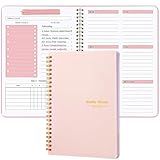
- Undated Weekly Planner: A5 size (5.6" x 8.1") spiral-bound planner with durable cover and clean layout for easy organization of daily, weekly and monthly schedules.
- 52 Weeks Undated Planner: Spacious weekly spread with dedicated sections for daily tasks, goals, and notes to help maintain focus and track important activities.
- HABIT TRACKER PLANNER: Built-in habit tracking system allows you to monitor and develop positive routines with checkboxes for daily progress monitoring.
- GOAL SETTING PLANNER: Dedicated weekly focus and goals section helps break down larger objectives into manageable daily tasks for better productivity.
- VERSATILE FEATURES: Includes to-do lists, weekly focus areas, and weekend planning spaces, making it perfect for both personal and professional use
Use this connection selectively. A date is useful when it helps you plan or remember an action; assigning a date to every captured email can make the calendar harder to read without clarifying when the work will happen.
Independent reader supportYour contribution helps us test, update, and keep practical guides available for everyone.Create a Calendar event when an email means a meeting
For an email that calls for a meeting, Gmail can start a Calendar event draft from the message. On desktop, open the email and select More > Create event. Calendar opens in a new tab with the email subject and message text copied into the event, and the message recipient added as an invitee.
Do these 3 things before closing this tab:
1Clear out junk files and repair common Windows errors2Scan for outdated or missing drivers - takes under a minute3Repair Windows errors before they cause bigger problemsBest Value

- DURABLE AND PREMIUM LEATHER-FEEL HARDCOVER FOR EVERYDAY USE – Elevate your writing experience with our A5 5.8x8.3” hardcover notebook with college ruled pages and inner back pocket! The sturdy, non-bending leather hardcover features the luxurious feel and subtle marbling texture you love! And the thread-bound spine keeps pages firmly in place for years. Its timeless, professional look makes it perfect for work meetings, personal journaling, and gifting.
- THICK, SMOOTH, CREAM PAPER – NO BLEED, NO GHOSTING – Featuring 300 pages of high-quality thick paper, our smooth, off-white sheets let your pen glide effortlessly, with zero bleed-through—even with gel or fountain pens. Our college ruled notebook is ideal for daily creative journaling, long note-taking sessions, and meeting reflections.
- DESIGNED WITH FUNCTIONAL FEATURES – Stay organized with built-in back pocket for storing receipts, business cards, and keepsakes. The elastic closure band keeps pages secure on the go and the ribbon bookmark makes it easy to find important sections. A pen loop so your writing tool is always handy. Plus, it also comes with free sticky tabs to mark pages, organize sections, and quickly find your most important notes!
- LAYS FLAT FOR EASY WRITING & CREATIVE PROJECTS – The 180° lay-flat notebook design lets you write comfortably across two pages, whether planning your day, brainstorming ideas, or crafting your next creative project.
- PERFECT A5 SIZE FOR ON-THE-GO WRITING – The 5.8" x 8.3" size fits effortlessly into handbags, work totes, and carry-ons, making it easy to capture ideas, meeting notes, prayer entries, or travel memories anywhere. Designed to combine premium style, functionality, and lasting quality to satisfy journal lovers, students, professionals, and gift seekers alike.
- Open the relevant message in Gmail on a computer.
- Choose More, then Create event.
- Review the event title, description, date, time, and invitees in Calendar.
- Make any needed corrections before saving or sending invitations.
Because Gmail carries over message content and a recipient, review the draft rather than assuming every copied detail belongs in the event. Google provides the desktop procedure in Create an event from a Gmail message. Its Gmail scheduling overview says event creation from a message is available to all Gmail users, while other meeting options can depend on account eligibility.
Review tasks and events without losing undated work
Gmail and Calendar both have a Tasks side panel, and the full Tasks view can be opened through Calendar. Use the panel when processing messages, then use Calendar to see dated tasks alongside events. Review the Tasks list separately for actions you have not scheduled.
This division avoids a common blind spot: Calendar shows dated tasks, not necessarily every task you have captured. Google’s Workspace guidance on managing and scheduling tasks in other apps describes using Tasks with Gmail and Calendar.
If Tasks is missing from Gmail or Calendar
For a work or school Google account, an administrator can control access to Tasks. If the Tasks panel or an add-to-task option is unavailable, account policy may be the reason; it is not necessarily a problem with the message or your steps. Google notes this administrator control in its Tasks overview.
Recommended Free Tools
Also check that you are using the relevant Gmail or Calendar interface: the documented email-to-event procedure is for desktop, while Gmail documents separate message actions on mobile.
Quick Recap
Product prices and availability are accurate as of the date/time indicated and are subject to change. Any price and availability information displayed on Amazon at the time of purchase will apply.

