
Recommended Free Tools
iTechGuides is reader-supported. When you buy through links on our site, we may earn an affiliate commission. As an Amazon Associate I earn from qualifying purchases. Learn more
You can use an iPad as a second monitor with a Windows PC, but Windows does not provide Apple’s native Mac-to-iPad Sidecar workflow. Install a third-party virtual-display app—spacedesk is the sensible starting point for a local-network setup, while Duet Display is the commercial alternative with broader advertised features. After the app connects, choose Windows + P > Extend and arrange the screens in Windows Display settings.
Yes—you can use an iPad as a second monitor for a Windows PC, but not with Apple’s built-in Sidecar feature. Sidecar is designed for compatible Mac-and-iPad combinations. With Windows, you need a third-party virtual-display app. The two practical options covered here are spacedesk and Duet Display.
For most people, start with spacedesk: the Windows PC runs the spacedesk Driver, the iPad runs the spacedesk Viewer, and the two devices communicate over a local TCP/IP connection. If you prefer a commercial app with features such as remote access, mirroring, or drawing-tablet support, compare Duet Display.
Which method should you use?
| Option | Best for | Connection and trade-offs |
|---|---|---|
| spacedesk | Trying a lower-cost or no-cost local-network solution | Requires the spacedesk Driver on Windows and Viewer on the iPad. Performance depends heavily on the network; wired or direct connections are generally more predictable than congested Wi-Fi. |
| Duet Display | Wanting a polished commercial alternative with broader capabilities | Supports Windows and iPad and is marketed for second-display use, along with features such as mirroring, remote access, and drawing-tablet workflows. Exact plans, pricing, and connection features can change by version and subscription. |
Neither app is identical to a physical monitor. Display frames are transmitted through software, so responsiveness and image quality vary with the PC, iPad, resolution, workload, and connection method. An iPad is usually excellent for email, chat, documents, reference material, and tool panels; it is less suitable as a latency-free gaming or color-critical production monitor.
Popular on Amazon
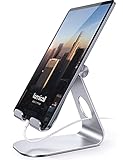
- 【 COMPATIBILITY 】 This tablet stand applies to 4 - 13 inch tablet and phone, such as iPhone Duo, new 2025 / 2024 / 2022 / 2021 iPad Pro 11 / 12.9 / 13 inch, iPad 10.9, iPad Air 5 / 6, iPad mini 6, iPad Pro 9.7 / 10.5, Kindle, Surface Pro, Galaxy Tab, iPhone Air 18 17 Pro Max, iPhone 16 , iPhone 15 Pro Max, iPhone 14 Pro Max, iPhone 13, iPhone 12. If you use a tablet larger than 12”and found it's not stable to use, you can set it horizontally, which helps maintain more stability.
- 【 Multi-Angle 】Adjustable tablet holder easily adjusts, supporting both vertical and horizontal viewing. The hook width of the stand is 18mm, please make sure the thickness of your tablet or tablet with case on is no more than 18mm (0.71 in).
- 【 STURDY CONSTRUCTION& RUBBER PADS】 Rubber pads and feet of tablet dock can protect your device from daily scratches and sliding. Great office desk accessories.
- 【 SMART LIFESTYLE】 Perfect for playing game, watching videos, viewing photos, reading, typing, video recording, and Lamicall provide you good service. Great ipad accessories.
- 【 Why Special 】Stand for Tablet was made of spaceflight Al-Ti alloy and super high strengthened alloy steel material, higher strength, lighter weight.
Method 1: Use spacedesk
What you need
- A Windows 10 or Windows 11 PC that will act as the primary computer.
- The spacedesk Driver installed on that PC. The driver functions as a virtual display adapter.
- The spacedesk Viewer app installed on the iPad.
- A working TCP/IP connection between the PC and iPad. They can use the same local network, or a supported wired arrangement such as USB tethering or USB-to-Ethernet.
A local spacedesk connection does not require internet access after the required software is available. What matters is that the PC and iPad can communicate with each other. A company, school, or guest Wi-Fi network may prevent that communication even when both devices appear to have internet access.
spacedesk setup steps
- On the Windows PC, download and install the spacedesk Driver from spacedesk’s official website.
- On the iPad, install the spacedesk Viewer from the Apple App Store.
- Connect the PC and iPad to the same local network, or prepare a supported wired connection.
- Open spacedesk Viewer on the iPad. Select the Windows PC when it appears in the list.
- On Windows, press Windows + P and choose Extend. Do not choose Duplicate if you want additional desktop space.
- Open Settings > System > Display. Select Identify if you are unsure which display is the iPad.
- Drag the numbered display rectangles until they match the physical arrangement of your PC monitor and iPad. Select Apply if Windows offers that button.
Once the displays are extended, move a window to the edge of the Windows monitor and continue dragging it toward the iPad. You can also right-click a taskbar application and move or arrange its window normally. The iPad is functioning as a software-created display, so Windows uses its normal multi-monitor controls.
Improve spacedesk performance
For the most predictable result, avoid sending the display through a congested wireless router. spacedesk documentation places direct Ethernet and other wired network paths above Wi-Fi through a router, with a direct-access-point or wired arrangement often performing better than busy shared Wi-Fi.
Do these 3 things before closing this tab:
1Repair Windows errors before they cause bigger problems2Scan for outdated or missing drivers - takes under a minute3Clear out junk files and repair common Windows errors- Use Ethernet for the Windows PC where possible.
- Put the iPad close to the wireless access point if Wi-Fi is necessary.
- Reduce the virtual display’s resolution or scale if the image is slow to update.
- Close bandwidth-heavy activity such as large downloads or high-bitrate streaming on the same network.
- For a desk setup, an appropriate data cable or a stable adjustable iPad stand can make the arrangement easier to use, but a stand does not improve network performance.
Method 2: Use Duet Display
Duet Display is the commercial alternative for using an iPad as a second display with Windows. Its official product information lists support for Windows and iPad and promotes extending a computer’s display to an iPad. Duet also markets capabilities including display extension, mirroring, remote access, and drawing-tablet use.
Also popular on Amazon

- Highly flexible - The 360° rotatable base and tablet bracket holder combined with a folding arm offer unparalleled adjustment for typing or showcasing without missing any viewing angles. Turn display in a second between cashier and shopper or switch landscape/portrait mode instantly.
- Business-oriented - Two size rubber padded bracket holders collectively fit 6" - 13" tablets or any gadgets with width or height measurement in the range of 6.6"-9.6" (Please noticed that both two clips fit cases less than 0.5" thickness), An ideal docking station stand for perfect match of large or small tablet pcs typically used at restaurant shop point of sale, office home desk, etc.
- Ergonomic design - Quick attach/detach of holder with simple push of the button creates no hassle for easy storage and carrying. A true universal ipad kiosk stand with easy pull handlebar and dedicated space for power cord charging.
- Broad application - Not only does it make your ipads/android/windows surface tablets a desktop display computer, it allows you to type, press, view, swivel with great stability. Confidently interact with customers at restaurant, check out at register, collaborate in group meeting at office, present products or services at showroom, and many more.
- Steady support - Light and smooth turning of bracket holder/arm provides high efficiency in busy settings. The weighted base plus hard folding arm offer sturdy structure to withstand weights of large tablets and heavy operation on the device, a professional grade tablet stand.
Because Duet’s plans, pricing, supported connection modes, and feature availability can vary by software version and plan, check the current product and in-app instructions before purchasing. Do not assume that a feature available in one plan or release is included in every installation.
Duet setup steps
- Install the Duet desktop software on the Windows PC.
- Install the Duet app on the iPad.
- Sign in or follow Duet’s connection flow on both devices.
- Complete any permission or trust prompts shown by the app.
- After the iPad connects, press Windows + P and select Extend.
- Go to Settings > System > Display, select Identify, and drag the displays into the correct physical arrangement.
Use Duet when the broader feature set justifies a commercial application, or when you prefer its workflow over configuring a local-network virtual display. It still uses software to transmit the display, so the result remains dependent on hardware, network or cable conditions, resolution, and the workload on the PC.
Wired versus wireless: what actually matters
Wireless is convenient, but a wired or more direct connection is preferable when the iPad must respond consistently. This is especially noticeable when dragging windows, scrolling quickly, playing video, or using a drawing workflow.
What’s actually slowing this PC down?
Pick the symptom - the matching free tool is one click away.
A cable by itself does not turn an iPad into a Windows monitor. The selected app must support the connection method, and the cable must carry data—not merely power.
Also popular on Amazon

- Multi-Angle Secure Support: This stand features dual adjustable hinges that allow you to easily modify both the height and tilt angle to find your perfect viewing position for reading, kitchen: Recipes & Timer, video calls, drawing or watching content. Please note this stand is not designed for laptops
- 360° Rotation: A full 360° rotating base allows you to share content with colleagues or clients seamlessly, without moving the tablet. This stand is ideal for meetings, team huddles, and presentations
- Sturdy and Protective Construction: Engineered for stability and comfort, this stand features a heavy-duty weighted metal base to prevent tipping and a frame with smooth chamfered edges to protect your hands, ensuring secure and pleasant daily use
- Anti-Slip Silicone Pad: Soft silicone pads on both the base and hooks securely hold your device while protecting your device and desktop from scratches. The entire stand folds flat to a slim profile for easy transport in your bag
- Wide Compatibility: This foldable tablet stand fits 4.7" to 16.9" devices, like 2025 / 2024 / 2022 iPad Pro 12.9" / 11" / 10.5" / 9.7" , iPad Air 6 / 5, iPad Mini 6/ 5/ 4/ 3, iPad 5th/ 6th/ 7th/ 8th/ 9th/ 10th generation, iPhone 17 16 Pro Max Plus Air, Surface, Kindle Fire HD, E-readers, portable monitors, etc. The widened hooks fit devices with cases up to 0.8" thick — no need to remove them.
USB-C iPad and USB-C Windows PC
If the iPad and PC both have USB-C ports, use a USB-C to USB-C cable for iPad that supports data and charging. Apple documents USB-C iPad-to-computer connections and recommends USB-C-to-USB-C when the computer has a USB-C port.
USB-C iPad and USB-A Windows PC
If the computer has USB-A ports but the iPad has USB-C, use a USB-A to USB-C cable for iPad that supports data. Apple identifies USB-A-to-USB-C as the appropriate cable type for this port combination. You may also need the app’s supported USB or tethering workflow; do not assume every display app treats a direct USB cable identically.
Older Lightning iPad
Not every iPad has USB-C. Older Lightning-equipped models require a compatible Lightning data cable for iPad and an appropriate PC port or adapter. Verify the iPad model and the app’s current connection requirements before buying a cable. A Lightning cable intended only for charging will not solve a recognition problem.
Configure the iPad as an extended display in Windows
After either app connects, Windows provides the display mode and layout controls:
- PC screen only: uses only the main PC display.
- Duplicate: shows the same desktop on both screens.
- Extend: creates one larger desktop so windows can move between displays.
- Second screen only: turns off the primary PC screen and uses the second display.
For a genuine second-monitor setup, select Extend with Windows + P. Then open Settings > System > Display and use the following controls:
- Select Identify to show the number on each physical display.
- Drag the display rectangles left, right, above, or below one another to match your desk.
- Select the iPad display and adjust its Display resolution, Scale, and, where offered, Refresh rate.
- If Windows knows a display is connected but does not show it correctly, open Multiple displays > Detect.
If the mouse appears to stop at the edge of the monitor, the app may not be at fault. Windows may have placed the iPad above the monitor, or the display rectangles may overlap incorrectly. Rearrange the rectangles to match the real position first.
Troubleshooting
The iPad does not appear in the app
- Confirm that the Windows Driver or desktop application and the iPad Viewer or app are both installed.
- For LAN or Wi-Fi, confirm that both devices are on the same local network. Guest and managed networks may isolate devices.
- For USB, use a cable that supports data and charging. Try another cable and another USB port.
- In Windows, open Settings > System > Display > Multiple displays > Detect.
- Restart the viewer and desktop software after checking that Windows and iPadOS are current.
Windows mirrors the screen instead of extending it
The connection can be successful while Windows remains in Duplicate mode. Press Windows + P and select Extend. The app establishes the virtual display; Windows still controls whether that display is duplicated or used as extra workspace.
The Tool Desk
Outbyte PC Repair FREERepair Windows errors before they cause bigger problemsFix Now →Outbyte Driver Updater FREEFix the driver behind crashes, sound loss and screen glitchesFind Drivers →Also popular on Amazon

- Al-Ti alloy Strength and Versatility 2026 Upgrade tablet stand: Say goodbye to flimsy stands! Designed with You in Mind: We've meticulously studied the competition. LISEN iPad stand holder for desk addresses and completely solves the instability and Limited adjustment plaguing first-generation iPad stands. Revolutionizes your desk, office, and home setup with its unparalleled sturdiness and durability. This product supports bulk purchasing, making it ideal for businesses and large orders.
- 360° of Smooth Rotation Tri-fold adjustable cute desk accessories: Adjust your view to perfection with this new 360° rotatable tablet holder stand for desk. Whether it's for work, streaming, or video calls desk organizers and accessories, achieve the perfect angle every time. Its innovative adjustment locking mechanism ensures your tablet always stays in place, securely and comfortably iPad holder stand
- Additional Gifts Bridge Screw Adjustment Truss Rod, Always Keep Extended Stable, Adjustable Height and angle: Other Normal low-quality foldable tablet holders after several months adjust joints maybe become loose. LISEN 2023 upgrade aluminum iPad holder Stand office desk accessories, the bottom of the free bridge screw adjustment truss rod, and The locking mechanism can be adjusted freely when you feel it is too loose or too tight
- All Metal Extremely Sturdy & Stable with Heavier & Wider Base, Safe & Secure with Anti-Slip Design. Bigger & Thicker Compatible 4.7in-12.9in Devices [Won't Slip Off] aluminum alloy desk accessories & workspace organizers. Quality tested Ultra-strong support without falling even vigorous shaking of the desktop. All aluminum alloy weighted base comes with soft silicone non-slip and protects your desktop, military-grade material LISEN brand quality certification, free hands enjoy life
- Easy to Store, Ready to Go With Foldable Design: This foldable tablet holder can be fully folded into a pocket size. Great Accessory for Working Remotely. The iPad stand for desktop takes little space when storage, easy to carry in your pocket or bag, a perfect addition in travel or business trip. Smart Phone is supported only in landscape mode, not portrait mode
The display lags or disconnects
- Move away from congested Wi-Fi.
- Use Ethernet for the PC or a more direct connection where the selected app supports it.
- Bring the iPad closer to the access point.
- Lower resolution or scale in Windows Display settings.
- Reduce demanding activity on the PC and network.
- Restart both the display app and its Windows component if the connection has degraded after sleep or network changes.
The image is too small, blurry, or incorrectly sized
Select the iPad in Settings > System > Display and adjust Scale and Display resolution. The best setting depends on the iPad model, virtual-display software, PC hardware, connection, and workload. There is no single resolution or refresh-rate setting that guarantees the same result on every setup.
Windows does not recognize the iPad over USB
First check the physical connection:
- Make sure the cable supports data as well as charging.
- Try a different cable and USB port.
- Unlock the iPad and respond to Trust This Computer if the prompt appears.
- Restart the PC and iPad, then update Windows and iPadOS.
- Try the iPad with another computer if available; this helps separate a cable or iPad problem from a PC driver or port problem.
Best practical setup
- Start with spacedesk if you are comfortable using a local network and want to try the lower-friction option before paying for software.
- Use a private, reliable network rather than congested public or guest Wi-Fi.
- Choose Extend, not Duplicate, in Windows.
- Arrange the display rectangles so they match the physical position of the iPad.
- Lower resolution or switch to a more direct connection if responsiveness is poor.
- Compare Duet Display if you want a commercial alternative with additional remote-access, mirroring, or drawing-oriented capabilities.
The key distinction is that this is a software display connection, not Apple’s Mac-to-iPad Sidecar workflow. With the right app, a working network or supported wired path, and Windows configured for Extend, an existing iPad can provide useful extra workspace without buying a separate monitor.
Quick wins for a faster PC:
Scan for outdated or missing drivers - takes under a minuteDriver Scan →Repair Windows errors before they cause bigger problemsFix Now →Fix the driver behind crashes, sound loss and screen glitchesFind Drivers →Frequently Asked Questions
Does Windows natively support using an iPad as a second monitor?
No. Apple’s Sidecar feature is intended for compatible Mac-and-iPad combinations. A Windows PC needs a third-party virtual-display app such as spacedesk or Duet Display.
Also popular on Amazon
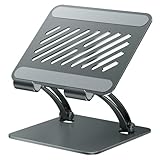
- 【Perfect Viewing Angle】: This tablet stand features an innovative locking mechanism that allows you to adjust the height and angle. Whether you need a low profile for typing or a higher position for video conferencing, this stand holds its position securely, providing a custom viewing experience for your needs.
- 【Extended Compatibility】: This versatile stand supports a wide range of devices from 4.7 inches up to 16.9 inches, including tablets, iPads, e-readers, and portable monitors. Please note: This stand is not designed for laptops. It’s perfect for multitasking, reading, drawing, or watching videos hands-free.
- 【Sturdy All-Metal Design】: Made with high-quality, durable materials, including a robust all-metal alloy base, this stand ensures stability and long-lasting use. The weighted base and strong support structure prevent your device from tipping or wobbling, even during vigorous use.
- 【Non-Slip Design for Added Security】: Equipped with anti-slip silicone pads on both the base and the device holder, this stand keeps your device securely in place, preventing accidental slips or falls. The soft silicone also protects your device and desktop from scratches.
- 【Portable & Space-saving】: Designed with portability in mind, this stand folds flat for easy storage. It's compact enough to fit into a bag, making it the perfect accessory for traveling professionals or students who need a reliable stand on the go.
Can I connect the iPad to the Windows PC with a USB cable?
Yes, if the selected app supports the connection method. spacedesk can use a TCP/IP network and documents LAN, USB-tethering, and USB-to-Ethernet possibilities. A direct cable must support data, not just charging.
How do I stop the iPad from mirroring the Windows screen?
Press Windows + P and select Extend. If the iPad is still missing, open Settings > System > Display > Multiple displays > Detect, then check the app connection and network or USB cable.
Is spacedesk or Duet Display better?
Start with spacedesk if you want to try a local-network solution at lower cost. Consider Duet Display if you want a commercial alternative with features such as remote access, mirroring, or drawing-tablet support. Check current plan and feature details before purchasing.
Windows Errors? Fix Them Before They Spread
Repair common Windows errors and clear accumulated junk for a smoother, more stable PC - no reinstall needed.Free scan · no reinstallOutdated Drivers Are Slowing You Down
One free scan finds every outdated or missing driver and matches the right update for your exact hardware.Free scan · exact hardware matchThe Bottom Line
Bottom line: Install the spacedesk Driver on Windows and the spacedesk Viewer on the iPad, connect the devices over a reliable local network or supported wired path, then choose Windows + P > Extend. Choose Duet Display instead if you prefer a commercial cross-platform solution with broader features. Neither option is latency-free in every workload, and a data-capable cable is essential for USB troubleshooting.

