
Quick wins for a faster PC:
Repair Windows errors before they cause bigger problemsFix Now →Scan for outdated or missing drivers - takes under a minuteDriver Scan →iTechGuides is reader-supported. When you buy through links on our site, we may earn an affiliate commission. As an Amazon Associate I earn from qualifying purchases. Learn more
Do you wish to turn off the mouse acceleration feature on your Windows 11 PC? Read this guide as it contains multiple methods to achieve that.
Option 1: Turn Off Mouse Acceleration via Run or Command Prompt
The Run command is the fastest way to disable the mouse acceleration feature on your Windows 11 computer. To achieve that, observe the procedures below.
- Right-click the Start menu button on your Windows 11 taskbar and select Run. You may also use the Windows key + R keyboard shortcut to open the Run command.

- Then, type “main.cpl” (without the quotes) in the Run input field and press Enter.


- After doing that, Mouse Properties should automatically open. Consequently, select the Pointer Options tab.

- Following that, deselect the Enhance pointer precision box. Lastly, click the OK button to save the change.

Option 2: Turn Off Mouse Acceleration From Settings
Another way to disable mouse acceleration on your Windows 11 computer is from Settings. Follow the steps below to accomplish that.
The Tool Desk
Outbyte Driver Updater FREEFix the driver behind crashes, sound loss and screen glitchesFind Drivers →Outbyte PC Repair FREEClear out junk files and repair common Windows errorsFree Scan →- On your Windows 11 taskbar, right-click the Start menu button and select Settings from the options that pop up. Alternatively, you can also use the Windows key + I keyboard shortcut to launch Settings.

- When Settings open, select Bluetooth & devices on the left pane.

- Following that, click Mouse on the right pane of the window.

- Then, select Additional mouse settings under the Related settings section.

- Afterward, switch to the Pointer Options tab on the Mouse Properties window.
- Next, in the Motion category, uncheck the Enhance pointer precision box. Then, click the OK button at the bottom of the Mouse Properties window to save the change.
Option 3: Turn Off Mouse Acceleration Through Control Panel
You can also disable mouse acceleration on your Windows 11 computer through the control panel. The subsequent procedures demonstrate how to accomplish that.
Popular on Amazon

- Ultra-fast LIGHTSPEED wireless technology in this wireless mouse gives you a lag-free gaming experience, delivering incredible responsiveness and reliability with 1 ms report rate for competition-level performance
- G305 wireless computer mouse boasts an incredible 250 hours of continuous gameplay on just 1 AA battery; switch to Endurance mode via Logitech G HUB software and extend battery life up to 9 months
- The durable, compact design with built-in nano receiver storage makes G305 not just a great portable desktop mouse, but also a great laptop travel companion and gaming wireless mouse. Use with a gaming laptop and play anywhere
- The next-generation optical HERO sensor in this gaming mouse delivers incredible performance and up to 10x the power efficiency over previous generations, with 400 IPS precision and up to 12,000 DPI sensitivity
- Wireless does not have to mean heavy. This gaming mouse provides high maneuverability, coming in at only 3.4 oz, thanks to an efficient, lightweight mechanical design and ultra-efficient battery usage
- On the taskbar in Windows 11, left-click the Search icon. Then, input “control panel” in the search box and select the Control Panel app from the search result.

- After that, click the View by: drop-down at the top right corner of the Control Panel window and select Small icons.

- Next, left-click Mouse.

- By doing that, the Mouse Properties window should open. Hence, switch to the Pointer Options tab.
- Following that, uncheck the Enhance pointer precision box. Finally, click OK at the bottom of the window to save the change.
Frequently Asked Questions
Mouse Acceleration is an innovative feature that makes your computer mouse more efficient to use. Furthermore, this feature is available in all of the recent versions of the Windows operating systems, including Windows 11.
Moreover, if you enable the feature on your computer, the mouse cursor will act differently. Specifically, the cursor will travel depending on two factors – how fast you move your mouse and the distance you move your mouse.
Therefore, the distance your mouse cursor moves on your computer screen increases proportionally to how fast you move your mouse. Also, the speed of your mouse cursor depends on how fast you move your mouse.
Yes, the mouse acceleration feature is enabled in Windows 11 by default.
Also popular on Amazon

- Ultra-fast LIGHTSPEED wireless technology in this wireless mouse gives you a lag-free gaming experience, delivering incredible responsiveness and reliability with 1 ms report rate for competition-level performance
- G305 wireless computer mouse boasts an incredible 250 hours of continuous gameplay on just 1 AA battery; switch to Endurance mode via Logitech G HUB software and extend battery life up to 9 months
- The durable, compact design with built-in nano receiver storage makes G305 not just a great portable desktop mouse, but also a great laptop travel companion and gaming wireless mouse. Use with a gaming laptop and play anywhere
- The next-generation optical HERO sensor in this gaming mouse delivers incredible performance and up to 10x the power efficiency over previous generations, with 400 IPS precision and up to 12,000 DPI sensitivity
- Wireless does not have to mean heavy. This gaming mouse provides high maneuverability, coming in at only 3.4 oz, thanks to an efficient, lightweight mechanical design and ultra-efficient battery usage
Sure, the mouse is an input device.
The command to open Mouse Properties in Windows 11 is “main.cpl” (without the quotes).
Free tools Windows power users keep installed
One-click scans. No signup required.
a) Use the Windows key + R keyboard shortcut to open the Run command.
b) Then, type “main.cpl” in the Run input field and press Enter.
c) After doing that, Mouse Properties should automatically open. Consequently, select the Pointer Options tab.
d) Following that, deselect the Enhance pointer precision box and click the OK button.
Also popular on Amazon

- ICONIC ERGONOMIC DESIGN WITH THUMB REST — PC gaming mouse favored by millions worldwide with a form factor that perfectly supports the hand while its buttons are optimally positioned for quick and easy access
- 11 PROGRAMMABLE BUTTONS — Assign macros and secondary functions across 11 programmable buttons to execute essential actions like push-to-talk, ping, and more
- HYPERSCROLL TILT WHEEL — Speed through content with a scroll wheel that free-spins until its stopped or switch to tactile mode for more precision and satisfying feedback that’s ideal for cycling through weapons or skills
- 11 RAZER CHROMA RGB LIGHTING ZONES — Customize each zone from over 16.8 million colors and countless lighting effects, all while it reacts dynamically with over 150 Chroma integrated games
- OPTICAL MOUSE SWITCHES GEN 2 — With zero unintended misclicks these switches provide crisp, responsive execution at a blistering 0.2ms actuation speed for up to 70 million clicks
Conclusion
Although the mouse acceleration feature aid cursor precision, some people might not like it for whatever reason. Well, this guide featured multiple methods to disable this feature on your Windows 11 computer.
Specifically, we learned how to disable the mouse acceleration feature using the Run command. This guide also taught us how to perform the task via Settings.
Also popular on Amazon
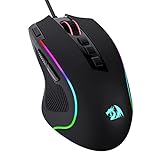
- Pentakill, 5 DPI Levels - Geared with 5 redefinable DPI levels (default as: 500/1000/2000/3000/4000), easy to switch between different game needs. Dedicated demand of DPI options between 500-8000 is also available to be processed by software.
- Any Button is Reassignable - 11 programmable buttons are all editable with customizable tactical keybinds in whatever game or work you are engaging. 1 rapid fire + 2 side macro buttons offer you a better gaming and working experience.
- Comfort Grip with Details - The skin-friendly frosted coating is the main comfort grip of the mouse surface, which offers you the most enjoyable fingerprint-free tactility. The left side equipped with rubber texture strengthened the friction and made the mouse easier to control.
- 5 Decent Backlit Modes - Turn the backlit on and make some kills in your gaming battlefield. The hyped dynamic RGB backlit vibe will never let you down when decorating your gaming space, it would be better with other Redragon accessories with lights on.
- Fatigue Killer with Ergonomic Design - Solid frame with a streamlined and general claw-grip design offers a satisfying and comfortable gaming experience with less fatigue even though after hours of use.
Not just that; steps to disable mouse acceleration through the control panel were also provided in this guide.
I hope the methods featured in this Windows 11 guide were easy to understand and helpful. If they were, click on “Yes” beside the “Was this page helpful” question below.
You may also express your thoughts and opinions by using the “Leave a Comment” form at the bottom of this page.
Finally, for more Windows 11 how-to guides, visit our Windows 11 How-To page.