
What’s actually slowing this PC down?
Pick the symptom - the matching free tool is one click away.
A mini PC can act as a network-attached storage (NAS) server: it stores files and makes selected folders available to other devices on your network. Choose the setup to match its operating system—TrueNAS for a dedicated NAS installation, or built-in File Sharing on a Mac mini—then configure user access and a separate backup destination. Before installing anything, check the mini PC’s available drive bays, ports, power, and supported drive sizes; compatibility depends on the exact model.
Choose the software route and check the hardware
First decide whether the mini PC will run a dedicated NAS operating system or keep its existing system. TrueNAS provides NAS-specific SMB sharing and backup features. On a Mac mini, macOS File Sharing can make folders available to other computers without installing TrueNAS; Apple describes this as one way to use a Mac mini as a NAS or household hub (Apple’s Mac mini server guide).
Before choosing drives or an enclosure, check the model’s documentation for the number of internal bays, supported SATA or NVMe interfaces, physical drive dimensions, USB support, and power requirements. A mini PC may not have room for multiple internal drives. The information here does not establish compatibility for any particular model, so verify the specifications rather than assuming a drive or enclosure will fit.
TrueNAS hardware figures are version-specific
TrueNAS’s archived SCALE 24.10 hardware guide, modified September 3, 2024, recommends a 2-core Intel 64-bit or AMD x86_64 processor, 8 GB of memory, a 16 GB SSD boot device, and two identically sized storage devices for a pool (TrueNAS SCALE 24.10 Hardware Guide). These are TrueNAS recommendations for that release, not universal requirements for every NAS setup. Check the documentation for the TrueNAS release you plan to install before relying on them.
#1 Best Overall

- Entry-level NAS Personal Storage:UGREEN NAS DH2300 is your first and best NAS made easy. It is designed for beginners who want a simple, private way to store videos, photos and personal files, which is intuitive for users moving from cloud storage or external drives and move away from scattered date across devices. This entry-level NAS 2-bay perfect for personal entertainment, photo storage, and easy data backup (doesn't support Docker or virtual machines).
- Set Your Devices Free, Expand Your Digital World: This unified storage hub supports massive capacity up to 64TB.*Storage drives not included. Stop Deleting, Start Storing. You can store 22 million 3MB images, or 2 million 30MB songs, or 43K 1.5GB movies or 67 million 1MB documents! UGREEN NAS is a better way to free up storage across all your devices such as phones, computers, tablets and also does automatic backups across devices regardless of the operating system—Window, iOS, Android or macOS.
- The Smarter Long-term Way to Store: Unlike cloud storage with recurring monthly fees, a UGREEN NAS enclosure requires only a one-time purchase for long-term use. For example, you only need to pay $459.98 for a NAS, while for cloud storage, you need to pay $719.88 per year, $2,159.64 for 3 years, $3,599.40 for 5 years. You will save $6,738.82 over 10 years with UGREEN NAS! *NAS cost based on DH2300 + 12TB HDD; cloud cost based on 12TB plan (e.g. $59.99/month).
- Blazing Speed, Minimal Power: Equipped with a high-performance processor, 1GbE port, and 4GB RAM on Board, this NAS handles multiple tasks with ease. File transfers reach up to 125MB/s—a 1GB file takes only 8 seconds. Don't let slow clouds hold you back; they often need over 100 seconds for the same task. The difference is clear.
- Let AI Better Organize Your Memories: UGREEN NAS uses AI to tag faces, locations, texts, and objects—so you can effortlessly find any photo by searching for who or what's in it in seconds. It also automatically finds and deletes similar or duplicate photo, backs up live photos and allows you to share them with your friends or family with just one tap. Everything stays effortlessly organized, powered by intelligent tagging and recognition.
Install TrueNAS or enable Mac file sharing
For a dedicated TrueNAS system
Install the TrueNAS release you intend to use on the mini PC, using a separate boot device if your hardware layout permits. Identify the intended storage devices carefully during setup: do not select a disk containing data you need to keep. Create a storage pool using the options available in your installed release, then create a dataset or folder for files you plan to share. The exact installer and interface can change between releases; follow the documentation for the version actually installed.
For a Mac mini
Use macOS’s built-in File Sharing rather than treating it as a TrueNAS installation. In macOS, open System Settings and go to General > Sharing, then turn on File Sharing and choose the folders and users to share. Interface labels and options can vary by macOS version; Apple’s Mac mini server guide covers its sharing feature.
Create an SMB share with deliberate access permissions
SMB (Server Message Block) is a common way to expose folders to computers on a local network. In TrueNAS, create an SMB share for the folder or dataset you intend to make available, then assign access to the appropriate users. The TrueNAS SMB Shares Screens documentation describes the share settings. Its interface may change, so use instructions matching your installed stable release.
Rank #2

- Beelink N150 Mini PC NAS - Beelink Me Mini is equipped with Intel Twin Lake N150 processor, 4 cores 4 threads, 3.6GHz max turbo frequency, Intel UHD Graphics 24EU, 25W TDP, an energy-saving mini pc which supports multiple operating systems(Windows, Linux), perfect for family media center systems, virtual machine, NAS and soft router
- Massive Expandable Storage - Me Mini desktop computer comes with 12GB LPDDR5 and 64GB eMMC storage, the 6*M.2 NVMe SSD slots supports 2230/2242/2280 and expandable up to 24TB in total for storing your family’s precious memories—roughly 11,000 movies, 2.23 million songs, or 4.46 million photos
- Superb Networking - Beelink Mini PC features Dual 2.5G LAN ports, WiFi 6 and Bluetooth 5.2 for high-speed sharing, link aggregation, soft routing, and ultra-smooth 4K streaming
- Quiet & Compact Design - 33-35dB whisper-quiet operation with a silent fan and vertical airflow cooling for peaceful evenings and delivers reliable 24/7 operation. 3.9*3.9*3.9 inch palm-sized form factor fits easily in living rooms, bedrooms or home offices
- All-in-one Power Solution - With a built-in 45W power supply unit, the ME mini needs only a single AC cable for clean and simple setup
- Use a named account for each person or device that needs access rather than enabling unrestricted guest access.
- Grant only the permissions needed: for example, read-only access for a media library and write access only for people who should change its contents.
- Test from another device on the same network by connecting to the server and opening a file with the intended account.
- Do not expose SMB directly to the public internet. For access away from home, use a secure method supported by your network and NAS setup rather than forwarding SMB ports.
On a Mac mini, configure the shared folders and users in macOS File Sharing. For either route, verify both that authorized users can reach the share and that users without permission cannot make changes.
The Tool Desk
Outbyte PC Repair FREERepair Windows errors before they cause bigger problemsFix Now →Outbyte Driver Updater FREEFix the driver behind crashes, sound loss and screen glitchesFind Drivers →Set up a Time Machine destination for Macs
Apple says Time Machine can back up to a third-party NAS when the NAS supports Time Machine over SMB (Apple’s list of Time Machine backup disks). A general SMB folder is not automatically a suitable Time Machine destination.
TrueNAS has a dedicated SMB share purpose for Time Machine. Its documentation says SMB2/3 support must be enabled for that use; consult the TrueNAS SMB share settings documentation for the options in your installed release. After configuring the NAS share, select it as the Time Machine backup disk on the Mac and confirm that a backup completes.
Rank #3
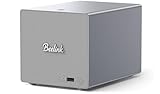
- 【Hybrid 2-Bay Storage: NAS & Mini PC in One】Beelink ME Pro features two 3.5"/2.5" SATA HDD slots and three M.2 PCIe3.0 SSD slots (pre-installed with a 1TB system drive) supporting a massive 72TB expansion. it’s the ultimate solution for building a massive private cloud, automated backups, or a centralized media library
- 【Next-Gen Intel N150 & 16GB LPDDR5】 Powered by the Intel N150 processor (up to 3.6GHz, max 25W TDP) and 16GB LPDDR5 4800MT/s RAM, this mini pc delivers efficient multitasking and smooth performance for home office, virtualization, and server tasks with lower power consumption
- 【5GbE + 2.5GbE High-Speed Dual Networking】 Equipped with 5G & 2.5G Ethernet ports, this Dual LAN Mini PC supports network aggregation and high-speed data transfer. Ideal for stable, lag-free access to your files, high-speed downloading, and advanced networking configurations like soft routing
- 【Swappable Modular Motherboard】The innovative DlY drawer-style design supports easy motherboard upgrades, compatible with Intel N-series, Intel 12th/13th/14th/15th Gen, AMD FP8 series, and ARM architectures
- 【Easy Dust Cleaning】Simply slide out the motherboard for quick maintenance
Make automated backups independent of the shared folder
A shared folder makes files available; it does not, by itself, create another copy. A backup plan should include a destination distinct from the files being protected, such as a compatible external drive or an off-site service. Check hardware compatibility before using an external drive, and review any cloud provider’s price, retention rules, and restore process before entrusting it with data.
TrueNAS describes replication and cloud sync among its backup options and recommends keeping a copy of the system configuration. Its Backing Up TrueNAS page was modified March 2, 2026, and labels its content experimental TrueNAS 27 development documentation. Its concepts may help with planning, but its changing interface steps should not be assumed to match a stable release. Cloud storage and data transfer may incur provider charges.
PC Slower Than It Used to Be?
A free scan shows the junk files, broken settings and background clutter dragging Windows down - then fixes them in one click.Free scan · Windows 10 & 11Crashes, No Sound, or Screen Glitches?
Random freezes, missing sound and display glitches usually trace back to one bad driver. Find and replace yours safely.Free scan · under a minute- Choose what to protect. Identify the datasets or folders that contain important files and decide how often they need another copy.
- Choose a separate destination. Use a supported external disk for another local copy, or an off-site service for a copy outside the home. A second folder on the same storage device is not an independent destination.
- Configure an automated job. Set up the replication or sync method supported by your NAS version and destination. Confirm which files, schedules, and retention settings it covers.
- Keep a configuration copy. Save the NAS system configuration somewhere you can still access if the mini PC fails.
- Test a restore. Recover a sample file from the backup destination and open it. A successful job notification alone does not show that a usable copy can be restored.
Know what each protection layer can—and cannot—do
- SMB sharing lets network users access selected files; it is not a separate backup.
- Snapshots can preserve earlier states according to the configured schedule and retention, but a snapshot on the same device does not by itself protect against loss of that device.
- Replication or cloud sync can copy data to another destination, but only if configured for the right data and destination. Check the service’s costs and how you would retrieve files.
- A tested restore verifies that at least the tested file can be recovered; repeat the check for important backup sets and after material configuration changes.
Windows backup instructions depend on the Windows version
The setup described here covers NAS-side sharing and backup concepts, not step-by-step Windows backup configuration. Windows backup options vary by version and use case, so consult current Microsoft instructions for the Windows edition on the devices you plan to protect. Whichever client method you use, confirm that the backup reaches a destination separate from the original files and that you can restore a file.
Quick Recap
Product prices and availability are accurate as of the date/time indicated and are subject to change. Any price and availability information displayed on Amazon at the time of purchase will apply.

