
Free tools Windows power users keep installed
One-click scans. No signup required.
To screenshot in Microsoft Edge, open the page, choose Settings and more > Screenshot (or right-click the page), then press Ctrl+Shift+S if the shortcut is available. Choose Capture area for a selection or Capture full page for the entire webpage, then use Edge’s copy or save control. Edge calls this feature Screenshot; older Edge documentation and interfaces may call it Web Capture.
Take a screenshot in Edge in four steps
- Open the webpage you want to capture in Microsoft Edge.
- Start the tool from Settings and more (the three-dot menu) > Screenshot, or right-click the page and choose Screenshot. You can also press Ctrl+Shift+S.
- Choose Capture area and drag over the part of the page you need, or choose Capture full page to include content below the current viewport.
- Use the controls Edge displays to copy the image or save it. Button names and their position can change between Edge releases, so follow the controls shown in your installation.
Full-page capture is the Edge-specific choice for a long webpage. Microsoft describes it as capturing the page in one operation rather than making you scroll and stitch separate screen grabs.
Choose the right Edge capture mode
Capture area
Capture area is appropriate when you need one article paragraph, image, chart, form, or other rectangular part of the page. After selecting it, drag from one corner to the opposite corner. The selection defines the output; browser tabs, toolbars, and unrelated windows are not part of the webpage selection.
Capture full page
Choose Capture full page when the page continues below the visible window and you need the complete webpage. Edge handles the page-length capture without requiring you to manually scroll. This is different from a normal operating-system screenshot, which generally records only what is currently visible.
Quick wins for a faster PC:
Clear out junk files and repair common Windows errorsFree Scan →Fix the driver behind crashes, sound loss and screen glitchesFind Drivers →Repair Windows errors before they cause bigger problemsFix Now →#1 Best Overall
- New High Quality Pinback Button
- Button measures 1.25" in diameter
- Copyright A & T Designs
- Proudly Made in the USA
Copy or save the result
When Edge finishes, use the copy or save action offered in the Screenshot interface. If you do not see exactly the same labels shown in an online guide, do not assume the feature is missing: Microsoft can change the presentation of these controls between releases.
Every way to open Screenshot
Settings and more menu
Select the three-dot Settings and more button in the upper-right corner, then select Screenshot. This is the most discoverable route when you do not remember the keyboard shortcut.
Page context menu
Right-click inside the webpage and select Screenshot. The context-menu entry is useful when the toolbar menu is crowded or when you are already working in the page.
Keyboard shortcut
Press Ctrl+Shift+S. Microsoft Edge policy documentation identifies this as the Screenshot/Web Capture shortcut. The general Edge shortcut list does not always show it, and shortcut handling can differ by platform or installation. If it does nothing, use either menu path instead.
When Screenshot is missing or disabled
On a personal installation, first try both menu routes and make sure you are right-clicking inside the webpage rather than on browser chrome. On a work or school computer, an administrator can control the feature with Edge’s WebCaptureEnabled policy.
Microsoft states that when this policy is enabled or not configured, the Screenshot option appears in the context menu, the Settings and more menu, and through Ctrl+Shift+S. A policy that disables or restricts it can therefore explain why all three entry points are absent. Ask your organization’s administrator to check the policy rather than attempting to bypass a managed setting.
Rank #2
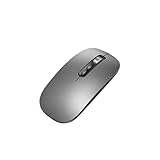
- Wide Compatibility:Multi-system compatibility. Support: Win7 / Win8 / Win10 / Win11 / MacOs system
- Voice Typing: Supports short-press and long-press voice input modes, enabling easy speech-to-text conversion for improved typing efficiency.
- Voice Translation: Real-time multi-language translation with a simple press of the translation button.
- Voice Search: Long-press the voice search button to perform quick voice searches, with customizable search engine options.
- Screenshot Translation: Use shortcut keys to capture and translate selected content on the screen, supporting multiple languages.
The name may also differ in older documentation: Web Capture is the previous name for the current Screenshot feature. Interface wording is not guaranteed to be identical across Edge versions, operating systems, or managed configurations.
Windows alternatives when you need a screen, window, or region
Windows 10 and Windows 11 include Snipping Tool. Press Windows key+Shift+S to open it, then choose the capture mode you need:
- Rectangular snip: drag a rectangle around a visible region.
- Freeform snip: draw an irregular outline.
- Window snip: capture a selected application window.
- Full-screen snip: capture the entire display.
Snipping Tool captures screen content, so it is the better fallback for a browser window, a menu, or several applications at once. It is not the Edge-specific full-page webpage operation; for content extending below the viewport, return to Edge and use Capture full page.
macOS alternatives for the whole screen or a region
On a Mac, use the built-in screenshot shortcuts when you need operating-system-level capture:
- Shift+Command+3: capture the whole screen.
- Shift+Command+4: select a screen region.
- Shift+Command+4, then Space: capture a window or menu.
These shortcuts are separate from Edge’s in-browser Screenshot feature. Microsoft’s documented Edge shortcut is Ctrl+Shift+S, but the available shortcut behavior is not established as identical on every Mac version. If it is unavailable, use Edge’s menu or one of the macOS shortcuts above.
Which screenshot method should you use?
| Method | What it captures | Best use | Availability |
|---|---|---|---|
| Edge Screenshot > Capture area | A selected portion of the webpage | An article section, image, chart, or form | Edge feature, subject to browser policy |
| Edge Screenshot > Capture full page | The entire webpage, including content below the viewport | Long pages without manual scrolling | Edge feature, subject to browser policy |
| Windows Snipping Tool | A region, window, or full display | Visible screen content or other applications | Windows 10 and Windows 11 |
| macOS screenshot shortcuts | The whole screen, a region, or a window/menu | Visible Mac screen content | macOS |
The deciding questions are scope (selection, visible screen, window, or complete webpage), platform (Edge, Windows, or macOS), and availability (whether an organization policy permits Edge Screenshot).
The Tool Desk
Outbyte Driver Updater FREEScan for outdated or missing drivers - takes under a minuteDriver Scan →Outbyte PC Repair FREEClear out junk files and repair common Windows errorsFree Scan →Rank #3
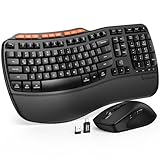
- ERGONOMIC WAVE DESIGN - Wave-shaped keys follow the natural curve of your fingers, helping reduce awkward hand movement and support more comfortable typing throughout the day.
- PREMIUM LEATHERETTE WRIST REST - A silky-soft, sweat-resistant wrist rest provides cushioned support for your palms. Easy to clean and more durable than traditional fabric rests.
- ADJUSTABLE TYPING ANGLES - Front and rear tilt legs let you customize your typing position for sitting or standing desks, helping you find a more comfortable fit throughout the workday.
- WORK FASTER WITH 9 SHORTCUT KEYS - Instantly access Emoji, Screenshots, Calculator, Media Controls, and more. Reduce clicks and streamline emails, spreadsheets, reports, and daily productivity tasks. (Calculator and Emoji shortcuts are unavailable on macOS.)
- Wireless Performance Tips: For optimal performance, connect the USB receiver directly to your computer, keep it away from metal objects and wireless interference sources, try another USB port if needed, close unnecessary background applications, restart the computer when system response slows, and replace batteries when power is
Or skip the browser setup
If you need repeatable screenshots in a script, build pipeline, or AI workflow, ScreenshotNeo is a website screenshot API and MCP server. One GET request returns a PNG, JPEG, WebP, or PDF. It accepts consent banners like a visitor and removes more than 60 known consent platforms, newsletter popups, and chat widgets before capture. Bot checks, CAPTCHAs, blank pages, timeouts, failed loads, and cache hits are not billed, and each response identifies the result with X-Page-Verdict and X-Billed headers.
See the ScreenshotNeo documentation for the complete parameter reference. A basic cURL request is:
curl -G "https://api.screenshotneo.com/v1/shot" -d access_key=YOUR_API_KEY --data-urlencode url=https://stripe.com -o shot.webpPython:
import requests
r = requests.get("https://api.screenshotneo.com/v1/shot", params={"access_key": "YOUR_API_KEY", "url": "https://stripe.com"}, timeout=90)
open("shot.webp", "wb").write(r.content)
Node.js:
const q = new URLSearchParams({ access_key: 'YOUR_API_KEY', url: 'https://stripe.com' });
const res = await fetch(`https://api.screenshotneo.com/v1/shot?${q}`);
Replace the example URL with the page you want to capture and keep your access key private. ScreenshotNeo also provides an MCP server for Claude, Cursor, and other MCP clients, with take_screenshot, get_page_info, and capture_pdf tools.
Options for production captures
ScreenshotNeo exposes 63 options, so you can control more than a browser shortcut allows:
Do these 3 things before closing this tab:
1Scan for outdated or missing drivers - takes under a minute2Repair Windows errors before they cause bigger problems3Fix the driver behind crashes, sound loss and screen glitches- Page scope: full-page capture with lazy images loaded, or one element selected by CSS selector.
- Viewport and appearance: dark mode, 12 device presets, arbitrary viewport sizes, and retina scale.
- Documents and markup: PDF paper size, margins, landscape mode, and page ranges; HTML/CSS to image.
- Page actions: custom CSS and JavaScript, click an element before capture, and hide selectors.
- Timing: wait for a selector, a fixed delay, or network idle.
- Request control: block ads, trackers, requests, or resource types; set custom headers, cookies, a user agent, and an
Authorizationheader. - Location and output: timezone, geolocation, transparent background, and image resizing.
- Delivery and operations: a chosen cache TTL, signed links for public
<img>tags, asynchronous jobs with signed webhooks, bulk capture of up to 100 URLs per call, a usage API, and an OpenAPI specification.
Parameter names used by other screenshot APIs also work, which can reduce changes when you migrate an existing integration.
Plans and cost
The Free plan includes 1,000 screenshots per month with no card. Paid plans start at $5 for 3,000 screenshots, and every feature is included on every plan.
| Plan | Included screenshots | Price |
|---|---|---|
| Free | 1,000 per month | $0; no card |
| Starter | 3,000 | $5 |
| Growth | 15,000 | $15 |
| Pro | 60,000 | $39 |
| Scale | 250,000 | $99 |
| Business | 1,000,000 | $249 |
Yearly billing provides two months free. Start with the free ScreenshotNeo account: you get 1,000 screenshots a month, need no card, and can move to a $5 plan for 3,000 when you need more.
Rank #4
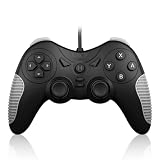
- 【Multi-Platform Compatibility】Works seamlessly with PS3, Switch 1, Switch 2 and PC (Windows 10/11). The controller automatically detects your device for true plug and play convenience, making cross-platform gameplay effortless.
- 【Smart AUTO Key】One button, two intelligent functions. When connected to Switch 2, it instantly activates the voice assistant. On PC, it transforms into a fully automatic rapid-fire button. This adaptive key intuitively matches your platform’s needs for smarter control.
- 【Dual Rapid-Fire System】Boost your efficiency and performance with both AUTO (full-auto) and TURBO (semi-auto) rapid-fire modes. Easily adjust firing speed using the D-pad to dominate in any game scenario.
- 【C Button for GameChat】The included C Button offers quick access to key GameChat features, enhancing in-game communication without disrupting gameplay.
- 【Hall Effect Joystick with Calibration】Experience precision control with premium Hall sensor joysticks—smooth, stable, and drift-free. The built-in calibration feature ensures pinpoint accuracy, especially for shooting games, helping you stay competitive and perform at your peak.
Troubleshooting Edge screenshots
“Screenshot” is not in either menu
On a managed work or school device, check whether the WebCaptureEnabled policy is disabling it. Contact the administrator. If the device is personal, confirm that you are using the current Edge interface and try the context menu after loading a normal webpage.
Recommended Free Tools
Ctrl+Shift+S does nothing
Use Settings and more > Screenshot or the page context menu. The shortcut is documented for Edge Screenshot, but a platform-specific shortcut conflict or an installation with different behavior can prevent it from responding.
You captured only what was visible
You selected an operating-system tool or Capture area. For content below the viewport, reopen Edge Screenshot and choose Capture full page.
The result is the wrong part of the page
For a precise fragment, start Capture area and drag the selection again. For the complete document, use Capture full page instead of selecting the visible region.
You need a browser window or another application
Edge Screenshot is intended for webpage content. Switch to Windows Snipping Tool or the macOS window/whole-screen shortcuts when the target includes browser chrome, another application, or the desktop.
What’s actually slowing this PC down?
Pick the symptom - the matching free tool is one click away.
Quick Recap
Practical reliability notes
- Use full-page mode for long documents: it is designed to capture below-the-fold content without manual scrolling.
- Use a screen utility for mixed content: operating-system tools are the dependable choice when the capture spans windows or the desktop.
- Expect interface changes: names and save/copy controls can move as Edge releases change, while the documented entry points remain the menu, context menu, and shortcut when policy allows.
- Check policy before troubleshooting the shortcut: an organization-controlled browser can remove the feature entirely, making keyboard testing irrelevant.
Product prices and availability are accurate as of the date/time indicated and are subject to change. Any price and availability information displayed on Amazon at the time of purchase will apply.

